
Portrait retouching often means bouncing the same frame between Lightroom and Photoshop, spending 15 to 20 minutes on a single image. Photographer Mark Wallace shows a faster path: build one foundational preset, shoot tethered into Evoto, and let every frame develop in seconds. This Evoto preset handles about 95% of the work, leaving only the final 5% to be fine-tuned per subject. While the specific look built in this demo is the punchy, almost cartoon-like style Mark uses for his playful triptych work, the underlying workflow transfers to any style. You can follow these exact same steps, simply adjusting the sliders to match your own portrait needs.
To follow along: a camera, a way to tether (wired or wireless), Evoto, and a simple setup like a white wall or a small home studio.
💡 Bonus: Want to test this workflow yourself? Use Mark’s code “Mark20” to save up to 20% on Evoto before you start.
Step 1: Set Up Your Lights and Tether
Get the capture side stable first, so every frame lands in Evoto ready to edit.
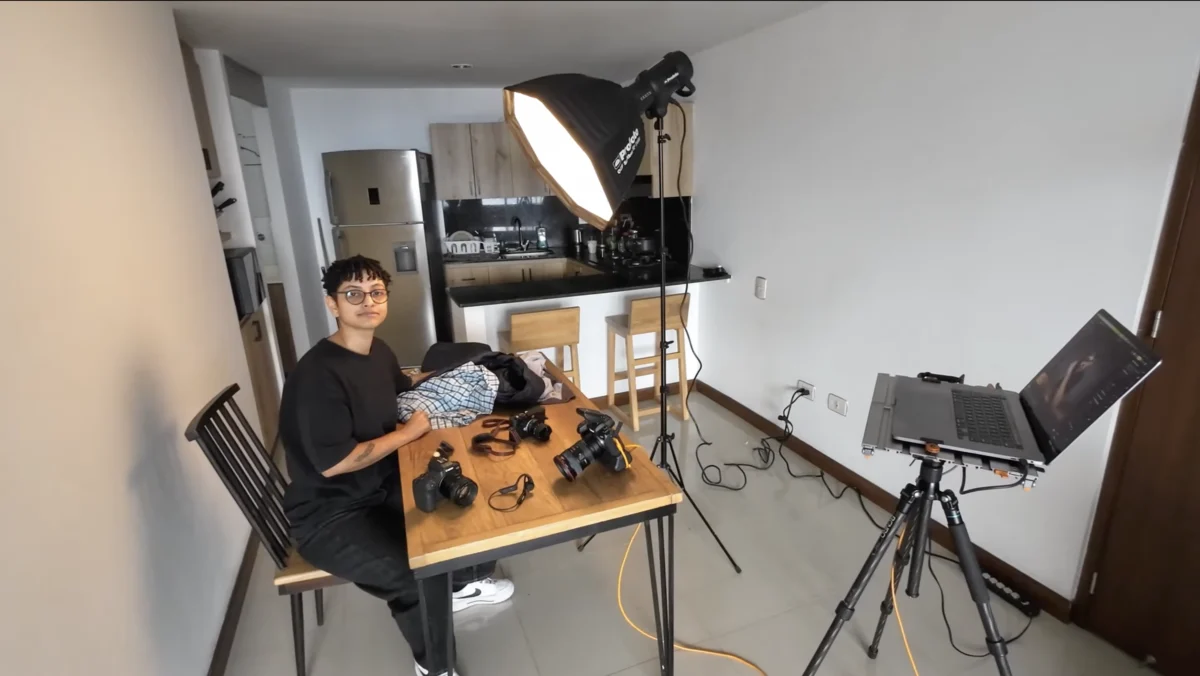
- Place your soft box close to the subject and shoot from underneath it so the light stand stays out of frame.
- Meter for f/16 so you keep depth of field across the whole image.
- Connect your camera to Evoto for tethered shooting, either wired or wirelessly.
In this demo, a plain white wall stands in as the background, and the preset rebuilds it later. That keeps the setup simple when you are working in a small space, though you can still use whatever backdrop your shoot actually calls for.
Step 2: Build the Global Look
Set the overall tone, color, and detail that will define the style before touching anything local.
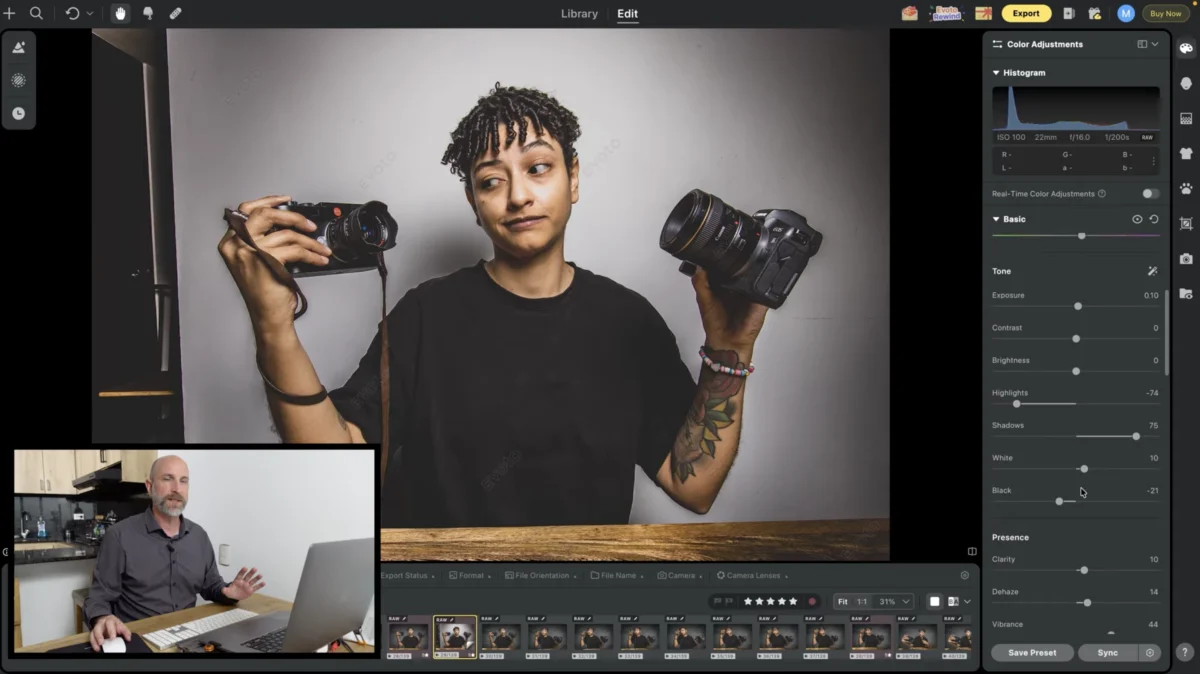
- Adjust Tone: lower the highlights, open the shadows, raise the whites, and bring the blacks down a touch.
- Increase Clarity and Dehaze, raise Vibrance, and pull Saturation down.
- Add an RGB Curve to shape the contrast.
- In HSL, raise saturation on the oranges and yellows, and push the blues toward purple and magenta.
- Add Sharpening, and keep Auto Lens Correction on.
Together, these adjustments create the punchy, almost cartoon-like contrast that defines this specific style.
Remember that these settings are entirely customizable. If you prefer cleaner, true-to-color portraits, simply dial back the contrast, clarity, and saturation to fit your own aesthetic.
Step 3: Let AI Masking Do the Local Work
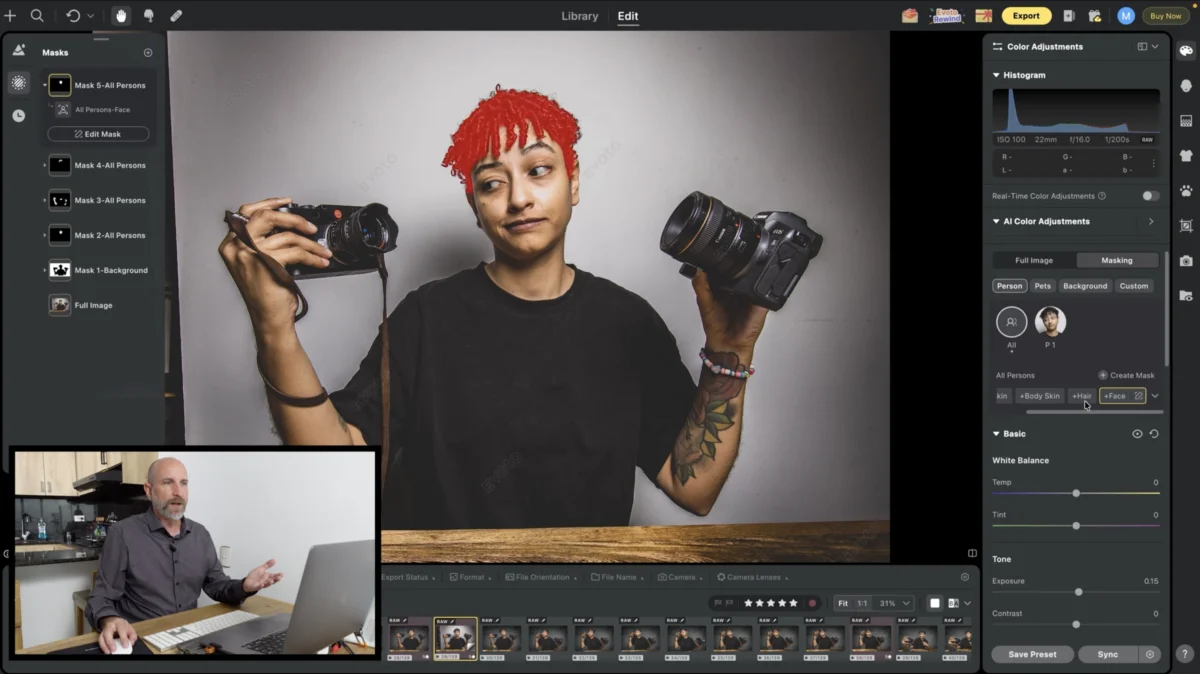
Instead of painting radial masks by hand, tell Evoto where to lift the light and let it find the subject:
“We don’t have to do that in Evoto. We can just tell Evoto, hey, make the face brighter… and it’ll just apply that. No manual adjustments necessary.”
- Open Masking and choose Create Mask.
- Select All People rather than a specific person, so the preset works for anyone you photograph later.
- Create separate masks and raise exposure on each: facial skin about +0.5 stop, body skin about +0.2 stop, hair about +0.25 stop, and the overall face about +0.1 stop to lift the lips and eyes.
You can change these amounts to suit your own portrait needs.
Step 4: Dial In Portrait Retouching
Set baseline retouching values that flatter most people, so the preset arrives close to finished.
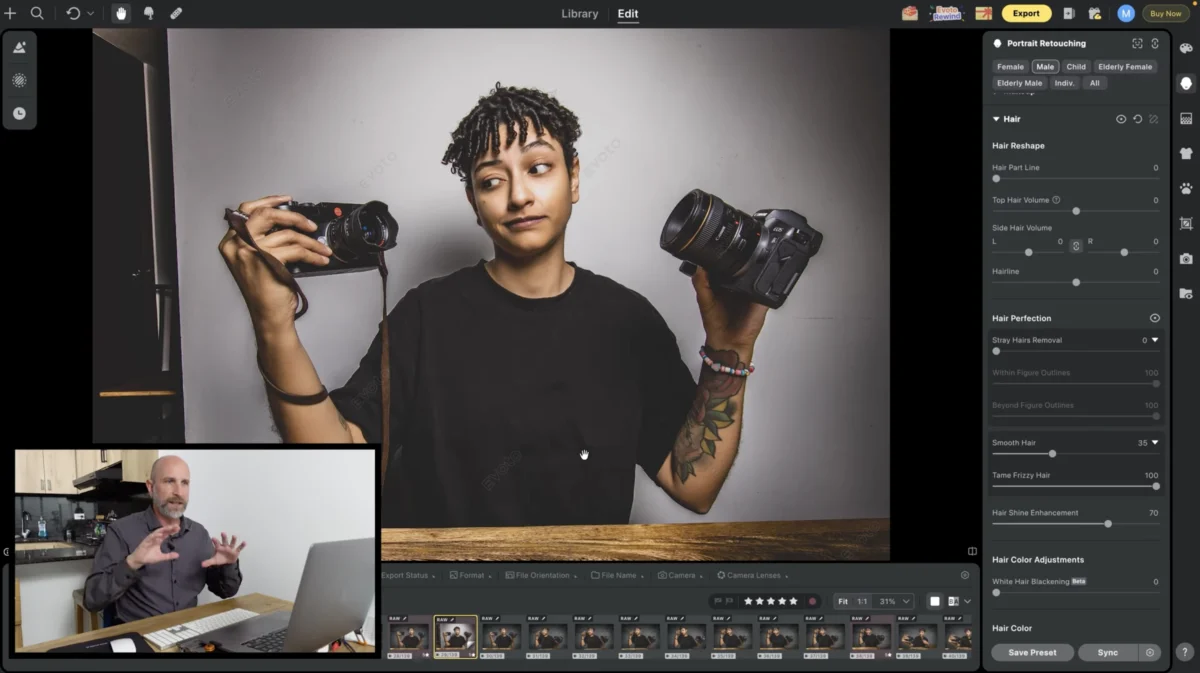
- Blemish Removal & Skin Retouching: remove freckles, acne, and dark circles; use Dodge & Burn to even out and sculpt both the face and body skin.
- Eyes: gently increase brightness, apply eye white enhancement to make them pop, and automatically remove any glasses glare.
- Hair: apply smooth hair and raise the hair shine enhancement.
Because this is a foundational preset, keep these values generic enough to suit most subjects, then refine them per person later:
“We’re just making this generic to work for most people in the future.”
Mark’s Baseline Settings
If you want to match Mark’s exact starting point, use these approximate values as your baseline:
| Group | Feature | Value |
|---|---|---|
| Blemish Removal | Freckles & Acne | ~80 |
| Dark Circles | ~80 | |
| Body Blemishes | ~80 | |
| Skin Retouching | Even (Dodge & Burn) | ~85 |
| Sculpt (Dodge & Burn) | ~85 | |
| Body Skin | Even (Dodge & Burn) | ~85 |
| Eyes | Brightness | ~61 |
| Eye White Enhance | ~50 | |
| Remove Glasses Glare | 100 | |
| Hair | Smooth Hair | ~35 |
| Hair Shine Enhancement | ~70 |
Treat these numbers as a starting point. You can easily dial the intensity up or down depending on your specific aesthetic, whether you’re shooting for e-commerce or editorial.
Step 5: Clean the Background and Straighten the Frame
Rebuild the background and level the frame so the white-wall capture looks finished.
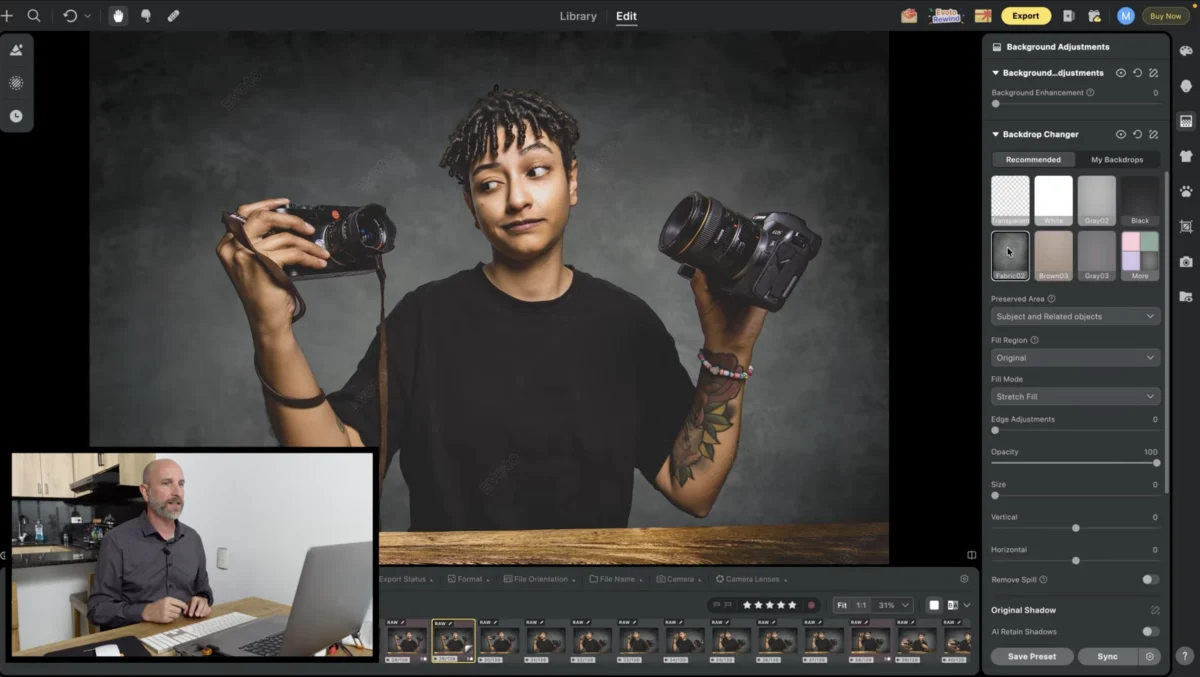
- Open Background Adjustments and turn on Distraction Removal to clear the edges of the frame.
- Click away any remaining blemishes on the wall for a perfectly clean slate.
- Use Backdrop Changer to drop in a texture that suits the portrait, or swap in any scene you like, such as a beach, to take the same portrait somewhere new.
- Open the Crop tool and use Al Horizontal Correction to straighten the frame.
Step 6: Save Your Evoto Preset
Rather than locking in a fixed result, save your work as a foundational starting point.
- Save your current edits as an Evoto preset with a clear name.
- During your next shoot, apply this preset to your first few frames.
- Tweak the tones, colors, and textures to perfectly match your new setup, then save that refined look as a new preset for the rest of the session.
As Mark explains, this two-step approach is the secret to moving fast:g point rather than a fixed result. In his words:
“this is a foundational preset to get us to about 95% of the way there… then you would tweak it specific to what you’re shooting.”
Step 7: Apply the Preset Live While You Shoot
Now, connect your new preset to your tethered workflow so every frame is edited the moment it hits your screen.
- Start tethered shooting and wait for Evoto to recognize your camera.
- Under the tethered capture settings, select the Evoto preset you just saved.
- Start shooting. Every new image will now automatically process in seconds, completely skipping the usual post-shoot editing phase.
With the repetitive technical work out of the way, you can put your time back where it actually matters: directing and connecting with the person in front of your lens.
Quick Checklist
- Set up your lighting and tether your camera into Evoto.
- Build the global look (tone, color, and detail).
- Use AI Masking on ‘All People’ to apply local lighting adjustments.
- Dial in baseline portrait retouching values.
- Clean up background distractions, replace the background texture if needed, and auto-level the frame.
- Save your adjustments as a foundational Evoto preset.
- Connect the preset to your tethered capture and start shooting.
- Refine the final 5% for your specific subject, then save that as a new preset for the rest of the session.
Final Thoughts
The point of this workflow is not to automate your taste away. It is to fold the repetitive technical work—the masking, the retouching passes, the background cleanup—into one foundational preset you build once and reuse. Evoto handles the parts that used to mean tedious round trips between apps, allowing you to spend that recovered time on light, expression, and the shots themselves.
Want to see every step performed in real time and grab Mark’s Evoto preset to start from? Watch the original video on Mark Wallace’s channel.
📷 Author Bio
Build Your Own Workflow with Evoto
Retouch photos with Evoto and make your photos best!


