
Want to learn how to edit RAW photos without choosing between a tool built for pros and one built for a tight budget? Photographer Mark Wallace reckons he has found a way around that trade-off, and he is happy to let you in on it.
Here is the deal: on an active Evoto plan, the core color, masking, and retouching tools are credit-free. The cheapest way onto a plan is a pay-as-you-go pack—at mid-2026 pricing, US$49 for 200 credits that stay valid for two full years, or roughly $2 a month, and even less with Mark’s code. For professional-grade RAW editing, that price is tough to beat.
Every shot in this RAW photo editing workflow goes from raw to finished on those credit-free tools alone, so each export costs zero credits. Mark covers a couple of quick studio frames, two landscapes, and a portrait, each one showing a different corner of the toolset before any per-image taste comes in.
To follow along: an active Evoto account, Evoto Desktop 6.1.0 or above, and a few of your own RAW files (ideally one landscape and one portrait so you can practice both color and skin-tone work).
💡Bonus: Use Mark Wallace’s discount code “Mark20” to save up to 20% on an Evoto before you start.
The Credit-Free Core Toolset
With an active paid plan (subscription or pay-as-you-go) on Evoto Desktop 6.1.0 or above, the tools across four modules are credit-free to use. Here is the breakdown from Evoto’s support page:
| Feature Module | Specific Feature | Counts Toward Export Quota | |
|---|---|---|---|
| Color Adjustments | AI Color Adjustments (excluding AI Color Looks, AI Color Match, and Multi-Image Color Consistency) | Auto Color Corrections | Free |
| Color Adjustments | Profile | ||
| Filters | |||
| Basic | |||
| Curves | |||
| HSL | |||
| Color Grading | |||
| Detail | |||
| Grain | |||
| Lens Correction | |||
| Transform Correction | |||
| Color Calibration | |||
| Masking | Masking | Masking | Free |
| Basic | |||
| Curves | |||
| HSL | |||
| Color Grading | |||
| Detail | |||
| Manual Tools | Liquify | Free | |
| Healing Tool | Spot Healing Brush Tool | ||
| Patch Tool | |||
| Clone Stamp Tool | |||
| Crop & Rotate | Crop | Crop | Free |
| AI Crop | |||
| Rotate | Rotate | ||
| AI Horizontal Correction | |||
Quick One-Click Fixes
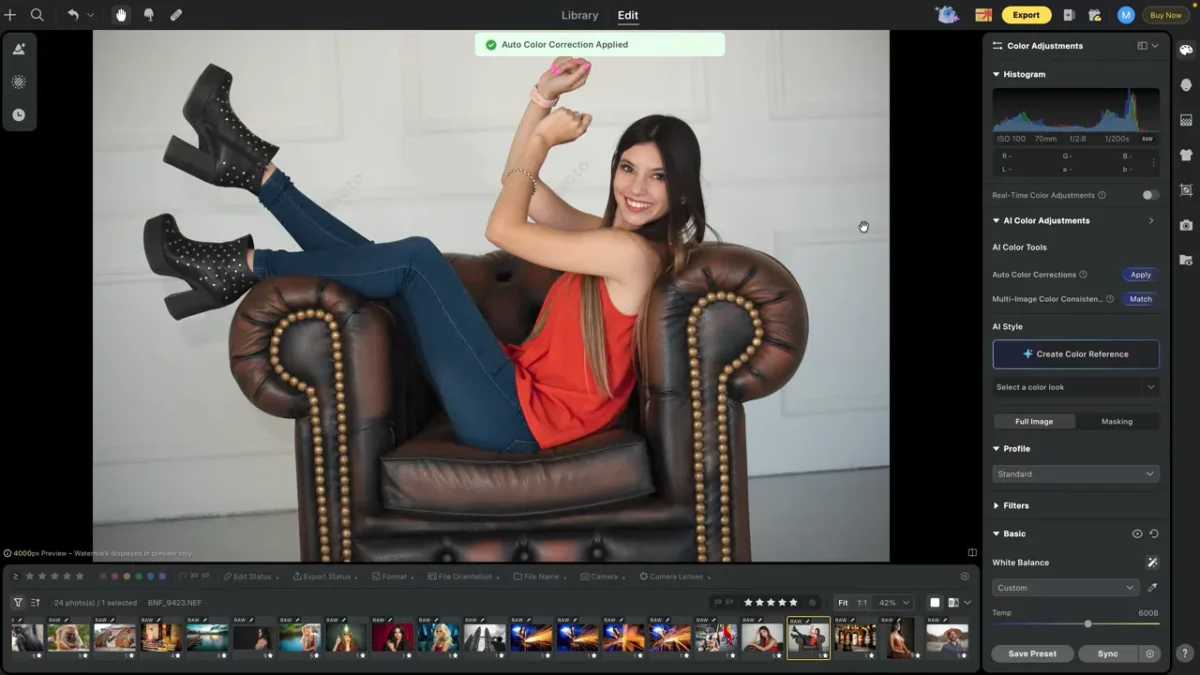
Some shots need little work. In the video, three underexposed studio frames go from flat to usable in seconds, on nothing but Evoto’s one-click AI tools for color and framing. Those tools sit in the credit-free table above, so the quick fix costs no credits.
Run through it on one frame:
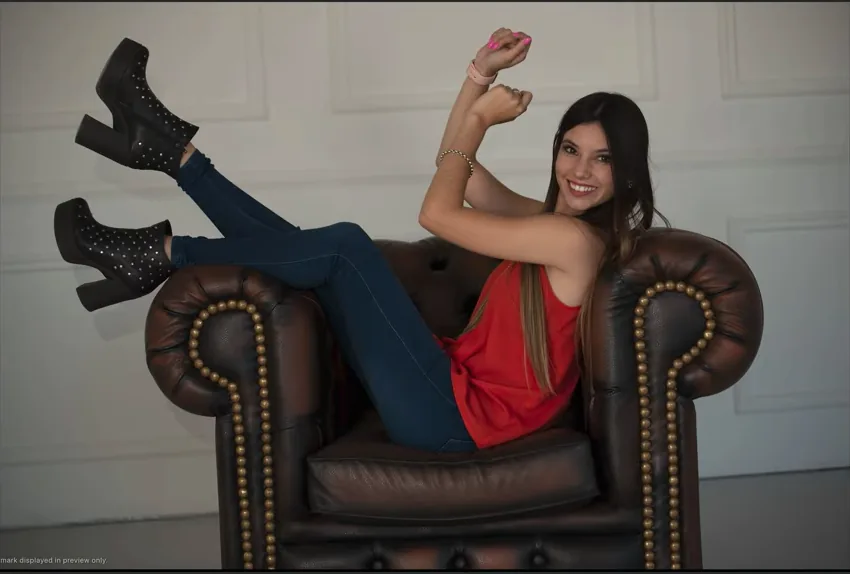
- 1. Open the image in Edit and apply Auto Color Correction to fix exposure, tonality, and color temperature at once.
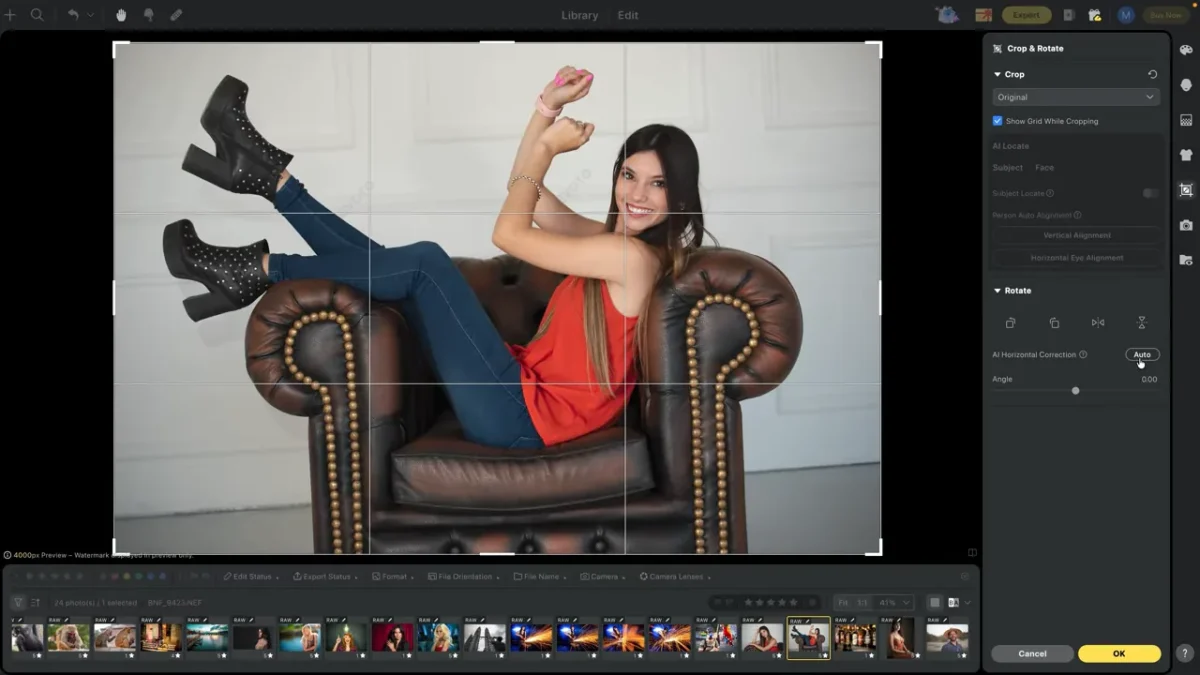
- 2. The frame sits at a crooked angle, so apply AI Horizontal Correction to straighten it.
- 3. Tap the space bar to check before and after.
That is the whole edit for an easy shot. The dramatic before-and-afters come from images that need real tonal work and local masking, so the next examples go further.
Tip: To try a few looks on the same shot, right-click it and choose Create Virtual Copy. Each copy is a separate, editable version that takes no extra space on your local drive, so you can keep as many variations as you want.
Landscape, Case One: Big Tonal Moves and a Gradient Sky
The Nepal shot shows the core rhythm: get the global tone right, then rescue the sky with a local mask.
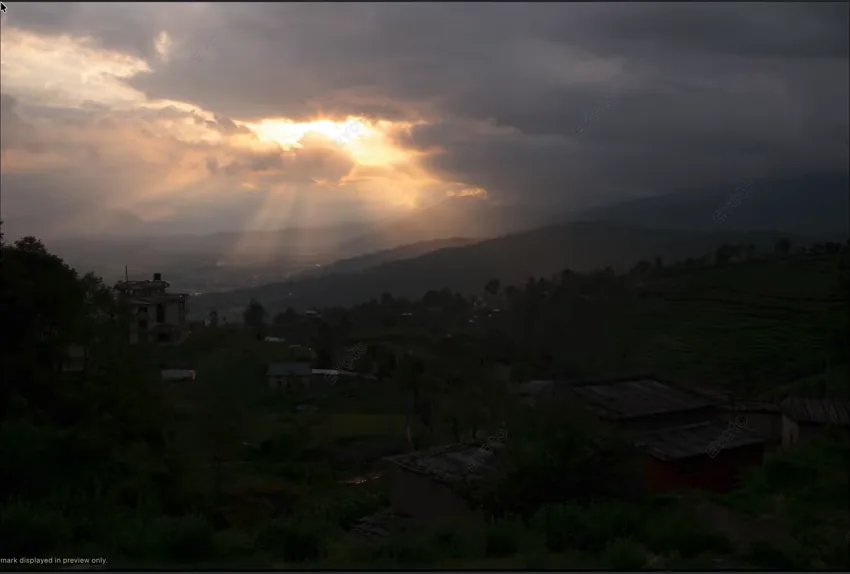
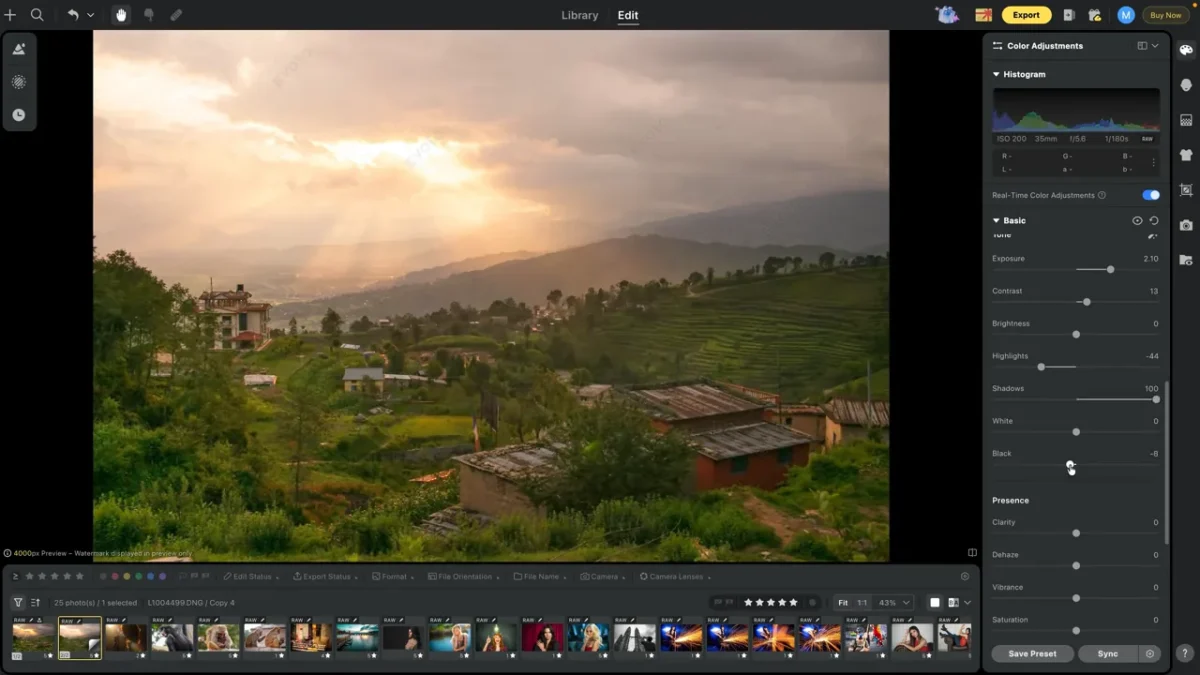
- 1. Open your RAW file and turn on real-time color adjustments so each change previews live.
- 2. Warm the scene by pushing Color Temperature to about 5700–6000 for a golden sky and fine-tune Tint, then raise Exposure roughly +2 stops to open the foreground. Shape the range with Contrast, take Shadows up to about +100 to lift foreground detail, pull Highlights down to recover the clouds, and set Whites and Blacks to taste.
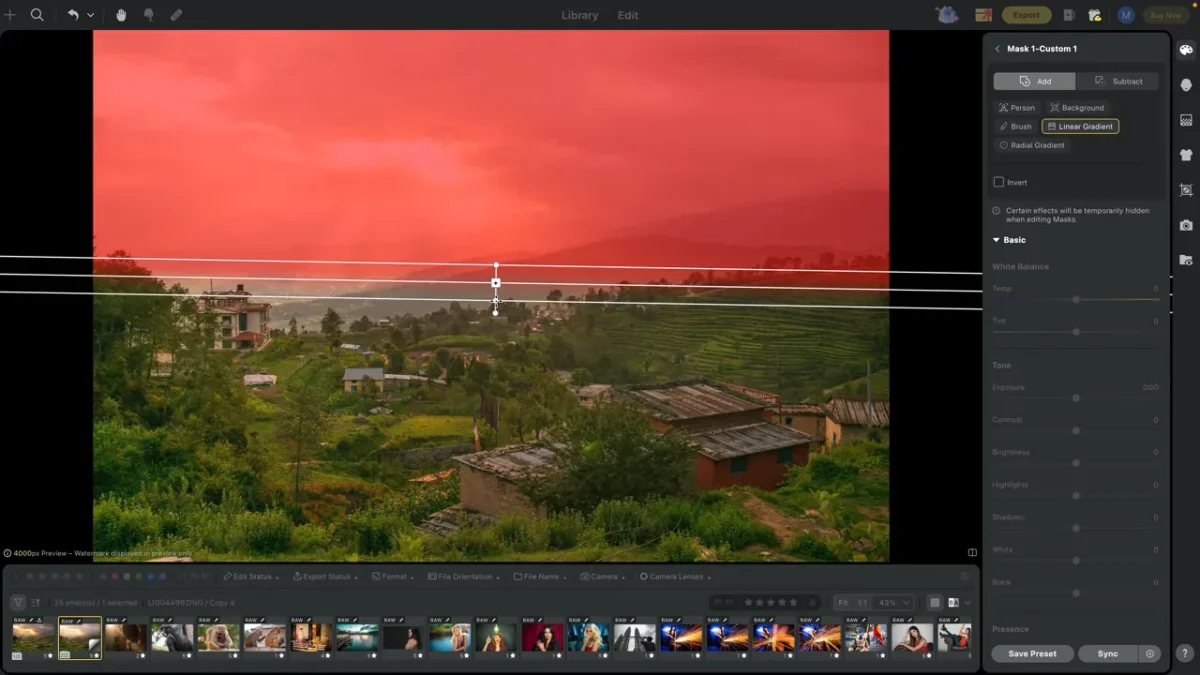
- 3. Masking, add a Linear Gradient, and drag from the top down so the strongest effect sits in the sky. Switch to Subtract and brush any trees or rooftops back out.
- 4. On the masked sky, lower Exposure about half a stop to darken the sky only, pull Highlights down to bring back texture, lift Whites to keep the clouds bright, and cool the Color Temperature to recover cloud detail.
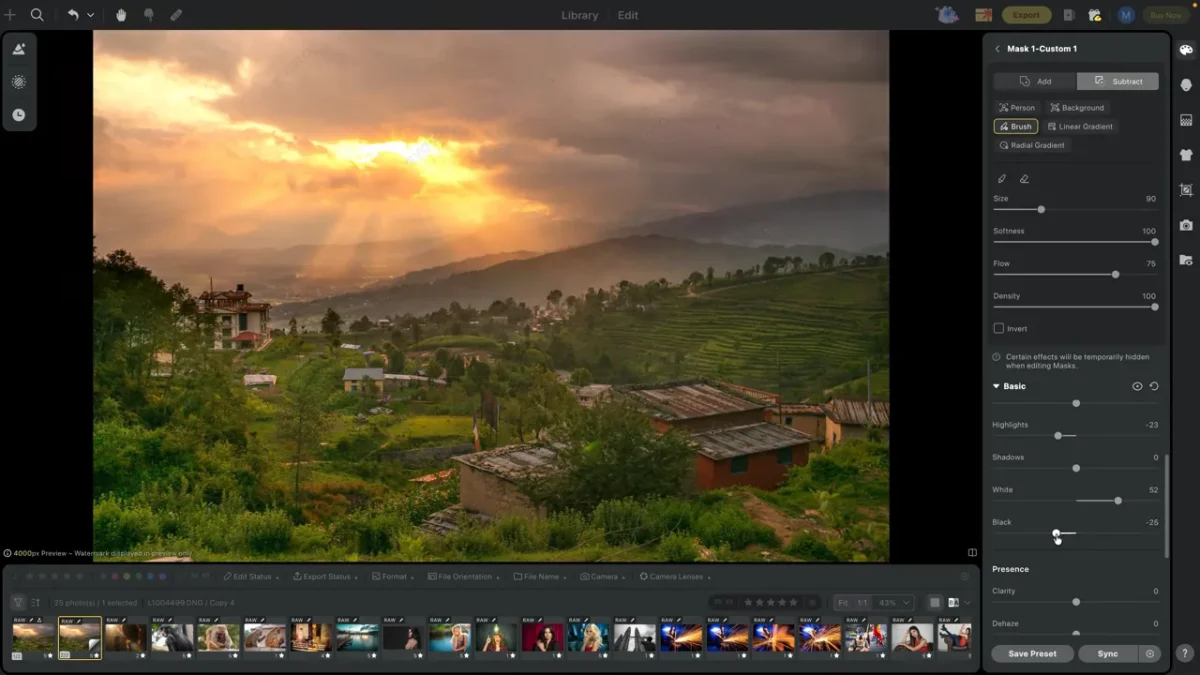
- 5. Back on the full image, add a little Clarity (around 20) and Vibrance, then try the Auto White Balance wand to let Evoto re-judge the temperature.
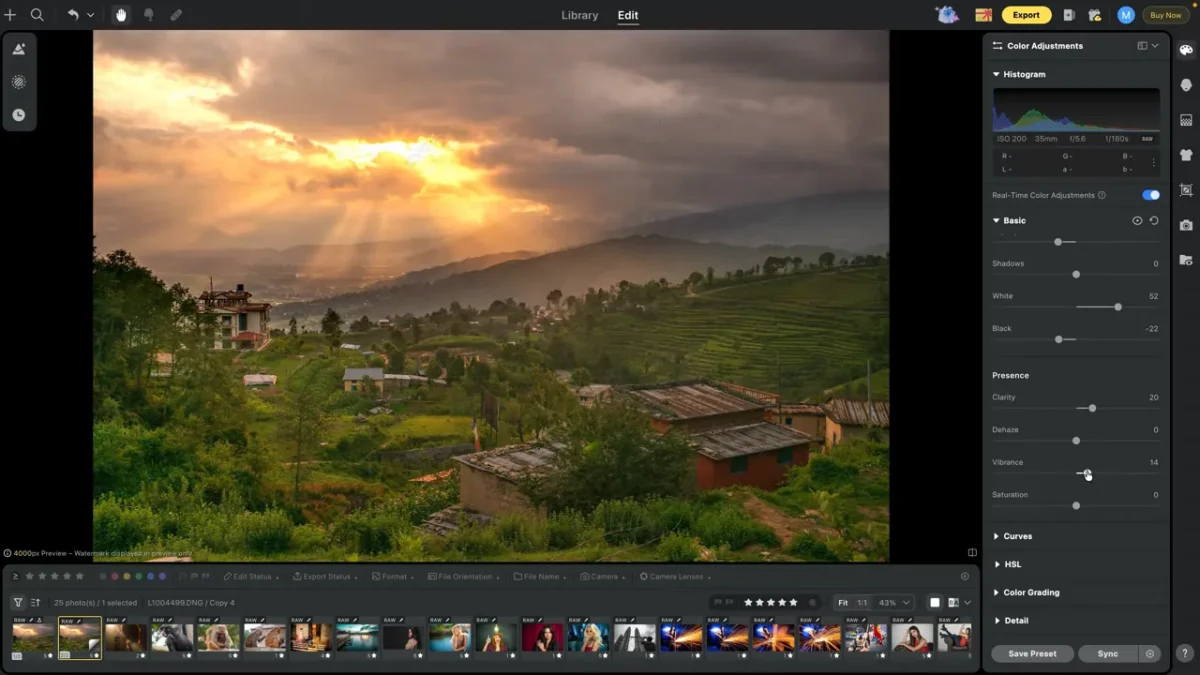
- 6. Turn off real-time adjustments and use the Spot Healing Brush to clean any sensor dust.
A big move that fixes one area often breaks another, so plan to loop back with a mask.
Landscape, Case Two: Color Grading With HSL
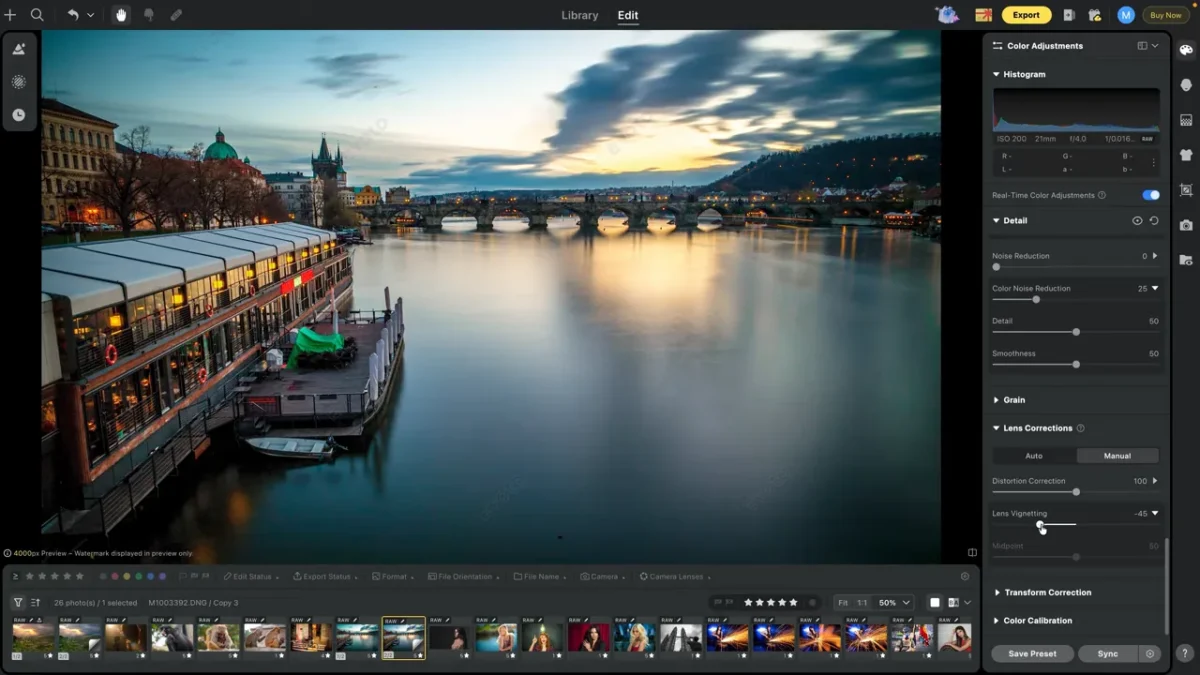
The Prague shot leans on HSL to pull saturated color out of a flat scene.
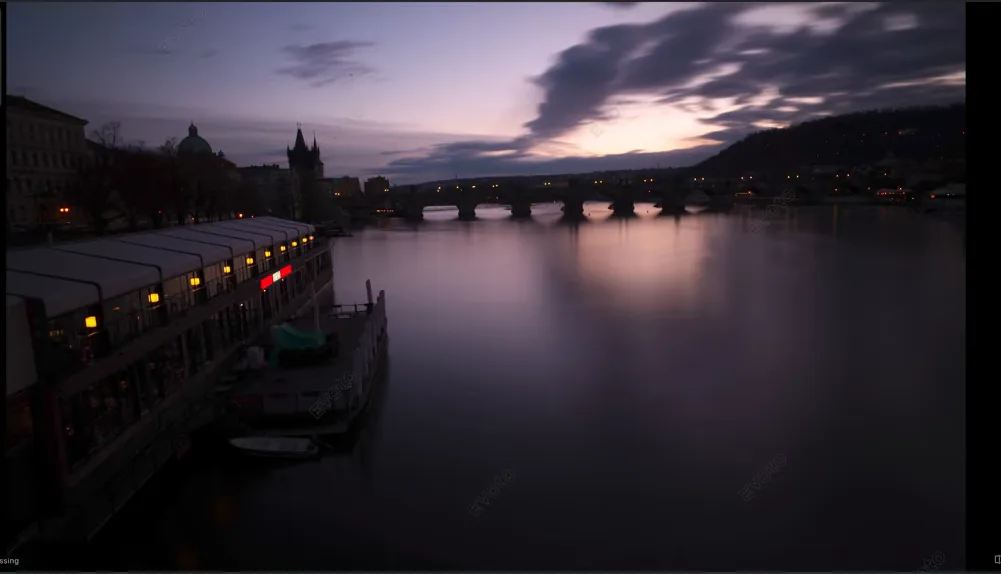
- 1. Make the big tonal moves: start with Auto Exposure, then push exposure to about two stops and set Highlights, Shadows, Whites, and Blacks.
- 2. Cool the Color Temperature toward ~5000 and shift Tint toward aqua for the look you want, then Rotate to level the horizon so the bridge sits straight.
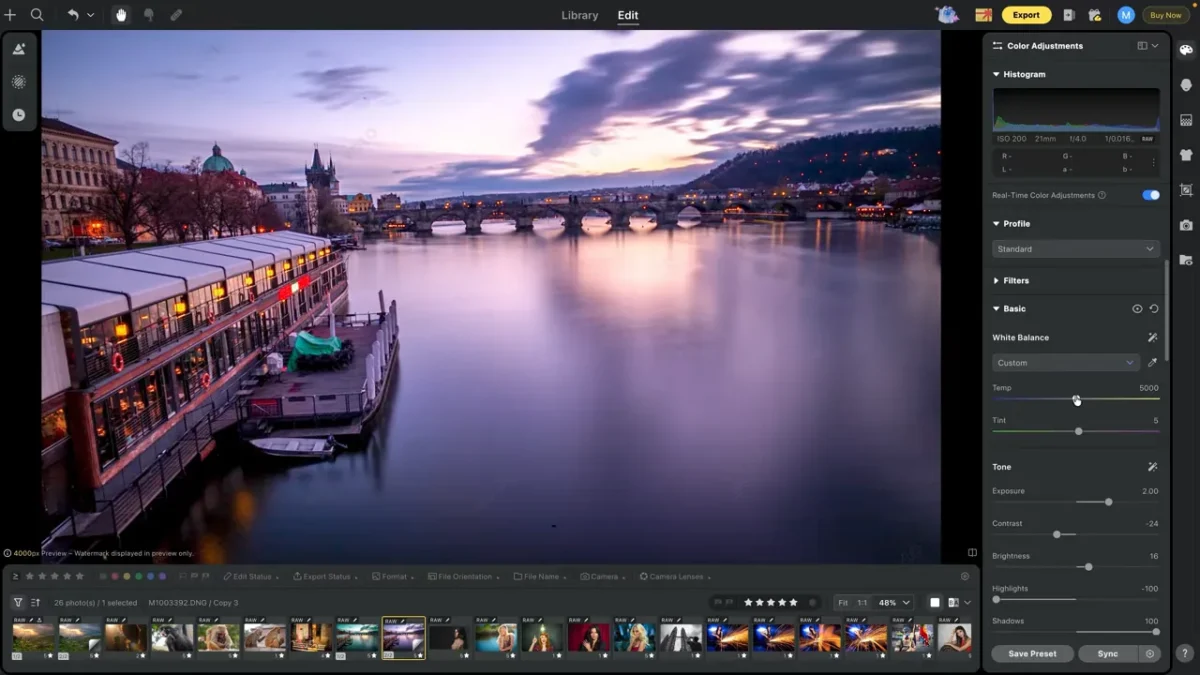
- 3. Open HSL and remember the three jobs: Hue changes the color, Saturation changes intensity, Luminance changes brightness.
- 4. Raise Saturation on Orange (about 20–25) and Yellow (around 30) so the sun’s reflection on the buildings and water punches, then push Aqua and Blue to roughly 30 for a cooler sea and sky.
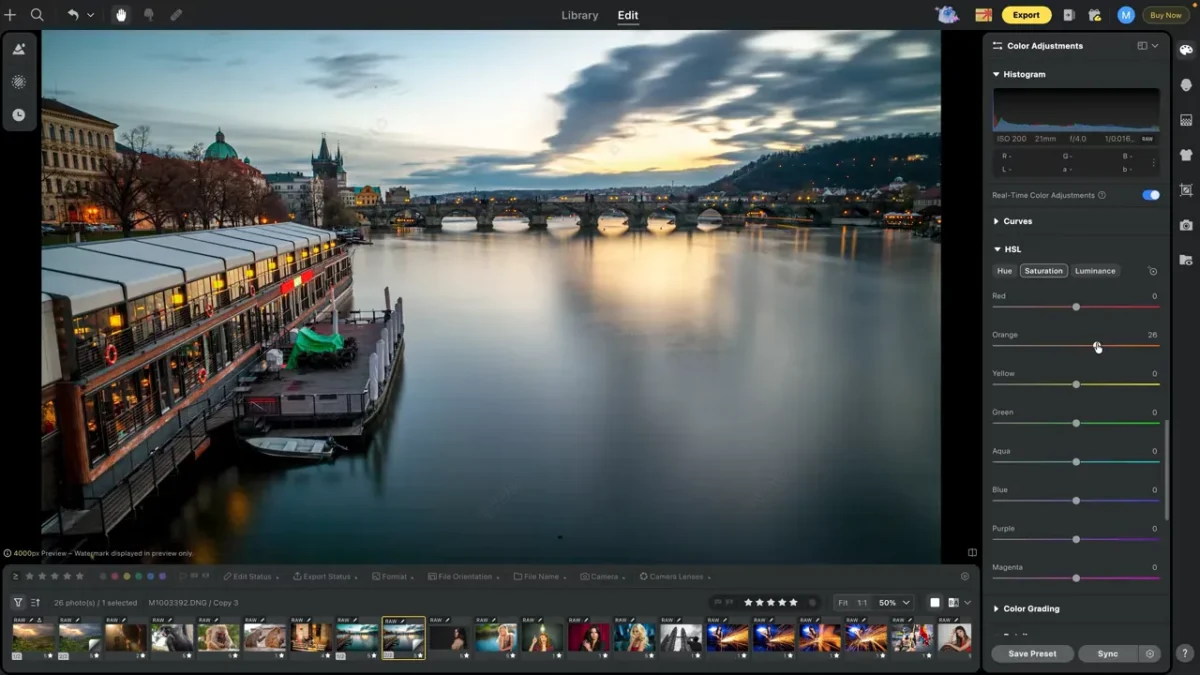
- 5. Add light Sharpening and a small Vignette to finish.
If you only remember one color habit, reach for Vibrance before Saturation: vibrance lifts the least-saturated colors first, so you get punch without the plastic look.
Portrait: Mask the Background and Subject Separately
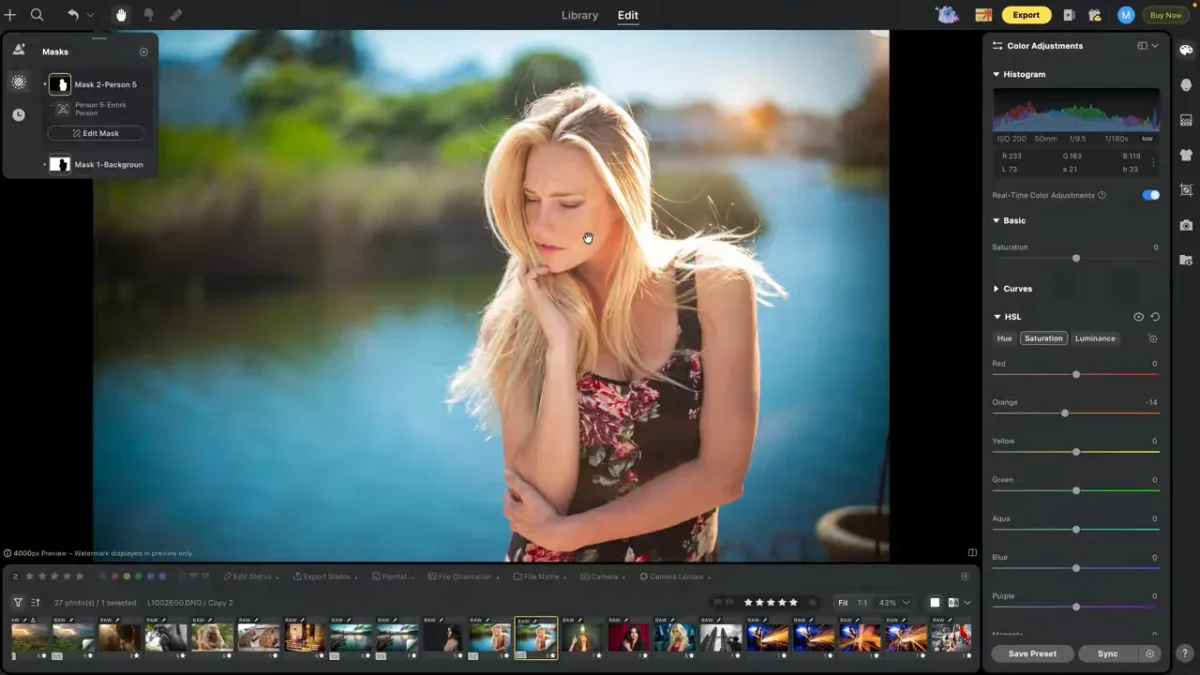
The golden-hour portrait pulls the masks and color tools together, and shows how to restyle a scene without wrecking skin tone.
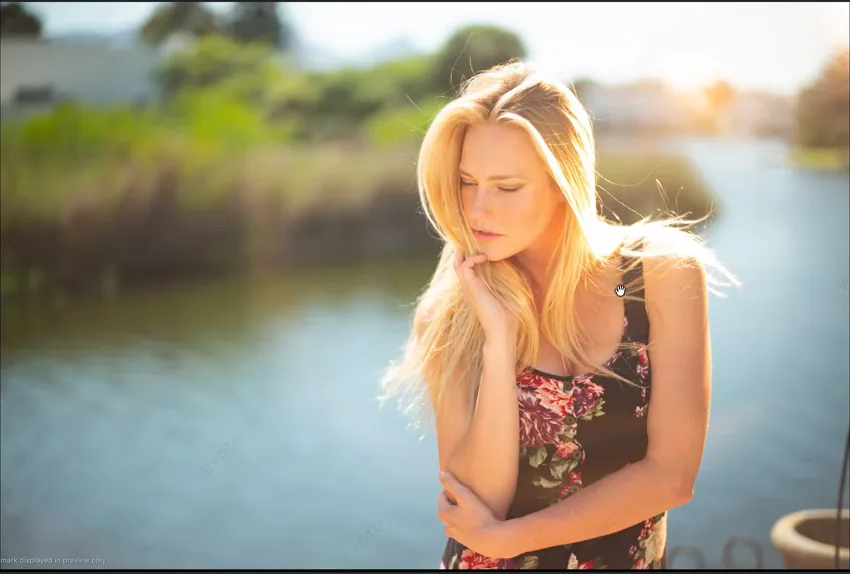
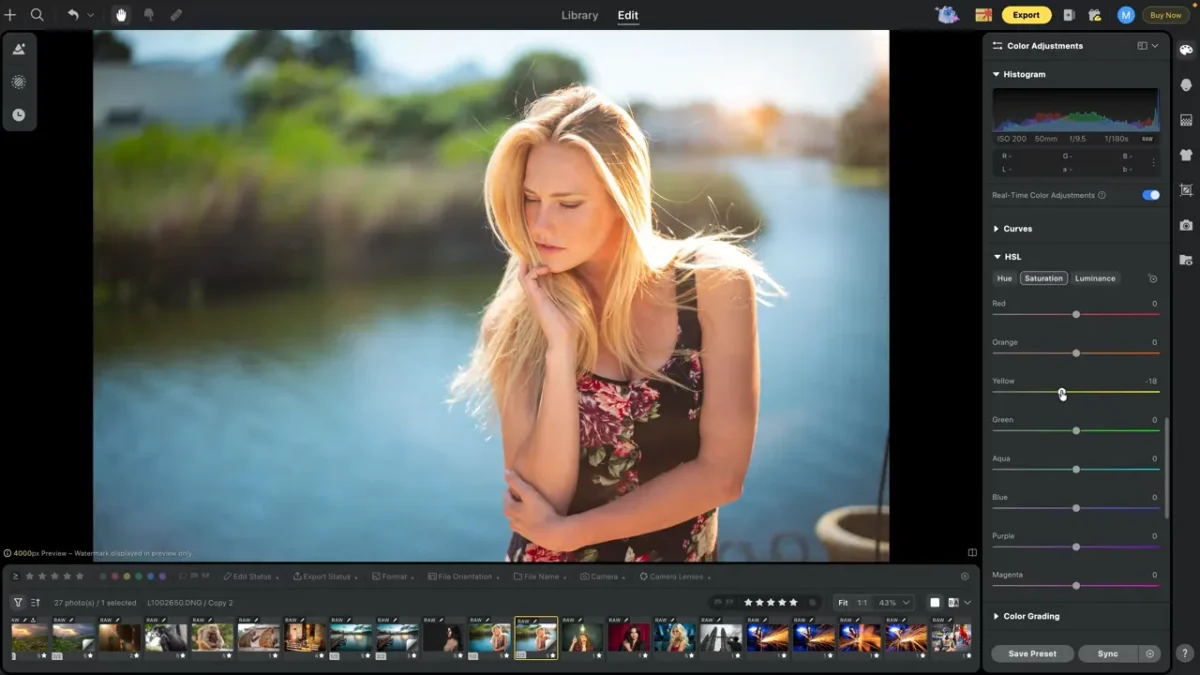
- 1. Make the global tonal moves, then raise Vibrance and pull Saturation down a touch. Open HSL and lower Yellow saturation so her hair looks less golden, then add a Vignette to draw the eye in.
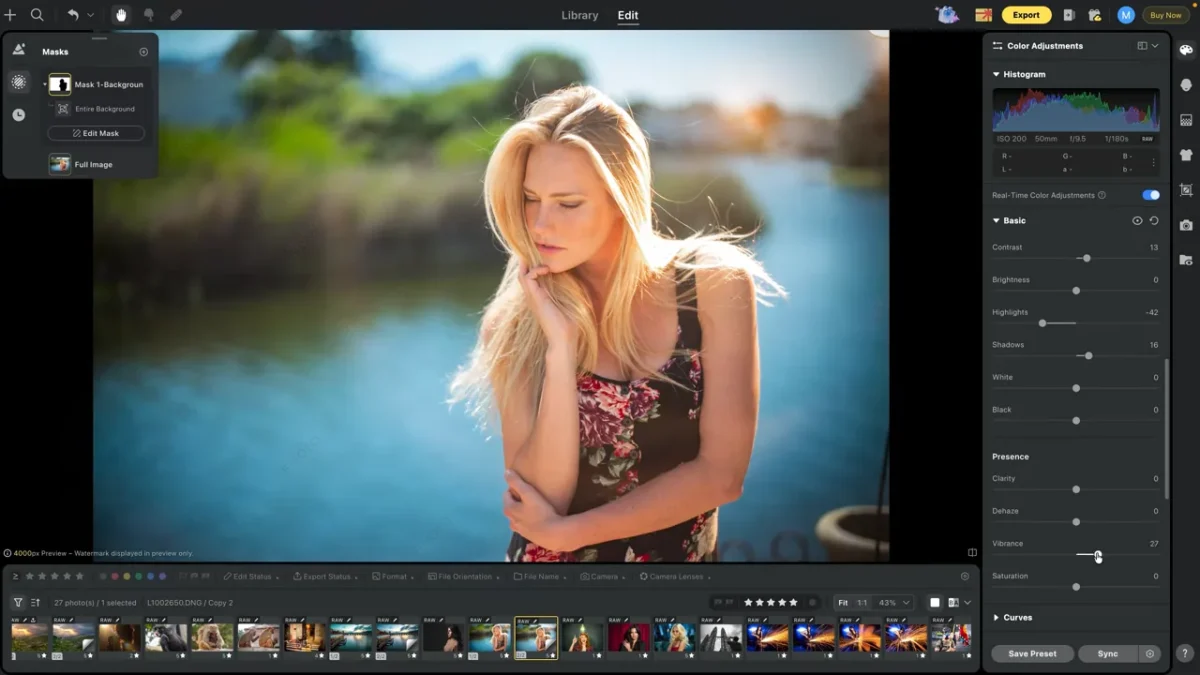
- 2. Add a Background mask and let Evoto select it: raise Contrast, pull Highlights down, open Shadows a little, and lift Vibrance so the backdrop glows. Hold a panel’s eye icon to compare that region before and after.
- 3. Add a separate Person mask (entire person), open HSL, and lower Orange by about 14 so the skin stops looking too warm.
- 4. Back on the full image, Crop with enough room around hands and hair.
Turn off real-time color adjustments, then use the Patch tool and Spot Healing Brush to remove props, cables, or other distractions.
Quick Checklist
- Confirm an active paid plan and Evoto Desktop 6.1.0+ so core edits export credit-free.
- Start one-click with Auto Color Correction and AI Horizontal Correction.
- For each image, make the big tonal moves first, then go local with masks.
- Hold a sky with a Linear Gradient mask and subtract overlapping objects.
- Grade color with HSL, favoring Vibrance over Saturation.
- On portraits, mask background and subject separately to protect skin tone.
- Crop, then heal out distractions with the Patch and Healing tools.
Final Thoughts
Editing this way is less a fixed pipeline than a loop: nail the big tonal moves first, then circle back with local masks and color to repair whatever a big move threw off. Because Evoto’s core color, masking, and retouching tools are credit-free on an active plan, you can run that loop on every keeper without watching a credit counter. Add pay-as-you-go pricing on top, and Evoto is about the most affordable professional-grade RAW editor you can find.
Want to see every step performed in real time? Watch the original video on Mark Wallace’s channel.
📷 Author Bio
Mark Wallace is a photographer, educator, and world traveler who has been teaching photography both in person and online since 2003. Millions have watched his classes on AdoramaTV, CreativeLive, Fstoppers, ISO 1200, and at live workshops around the world. He is also the founder of SnapFactory, a creative hub designed to provide photographers with inspiration, collaboration, and education.
Build Your Own Workflow with Evoto
Retouch photos with Evoto and make your photos best!


