

This digital studio backdrop supplies various color fabric texture for clean portraits, headshots, and catalog frames. It is a photography backdrop asset inside Evoto, not a bolt of muslin to ship.
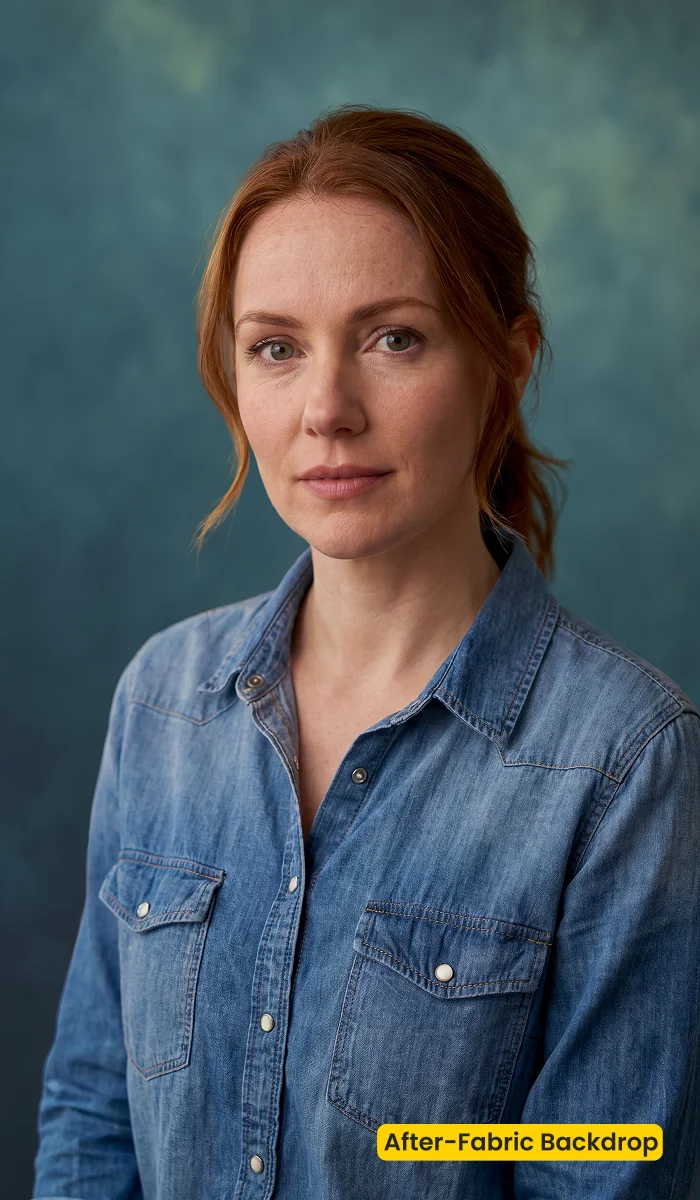
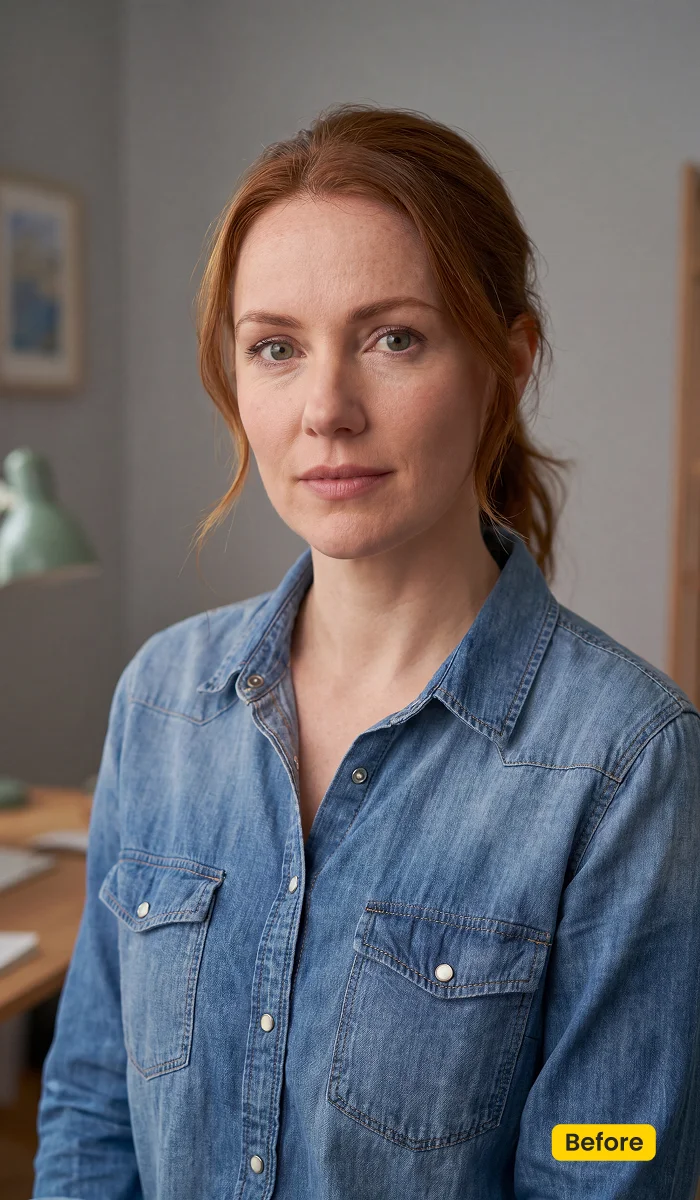
| Style | Studio / White Fabric |
|---|---|
| Best for | Headshots, Catalog portraits, School volume, Minimal studio |
| Format | Evoto Asset Hub studio backdrop |
| Price | Free |
See the Look in Action
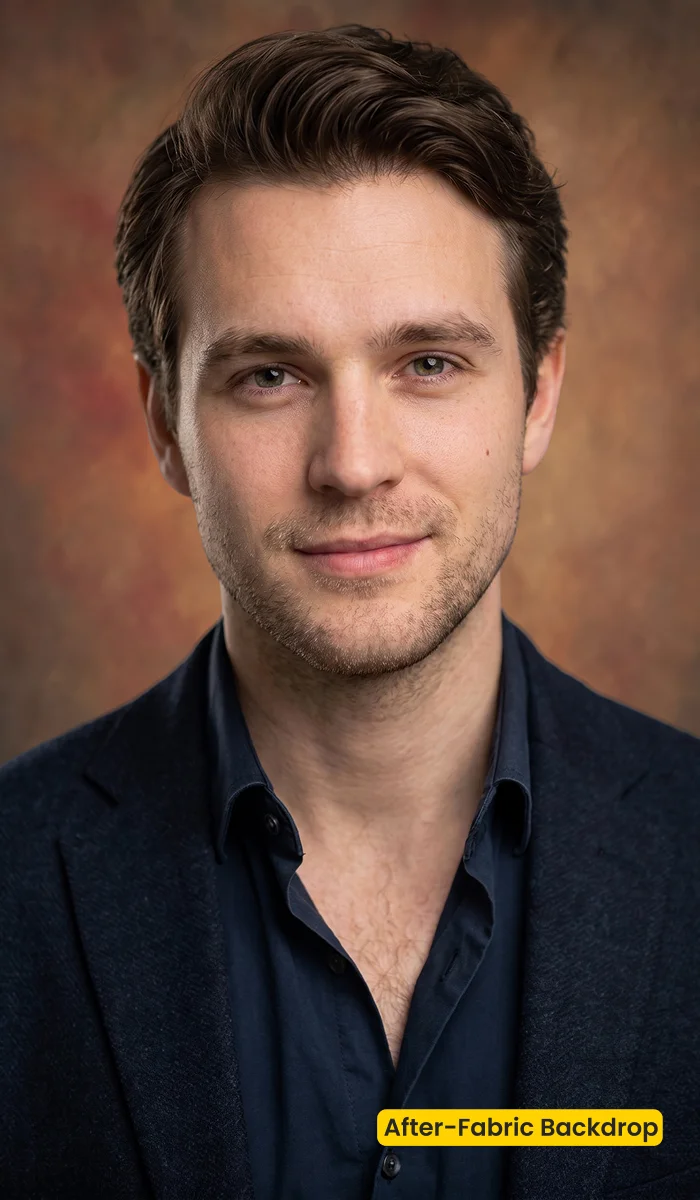

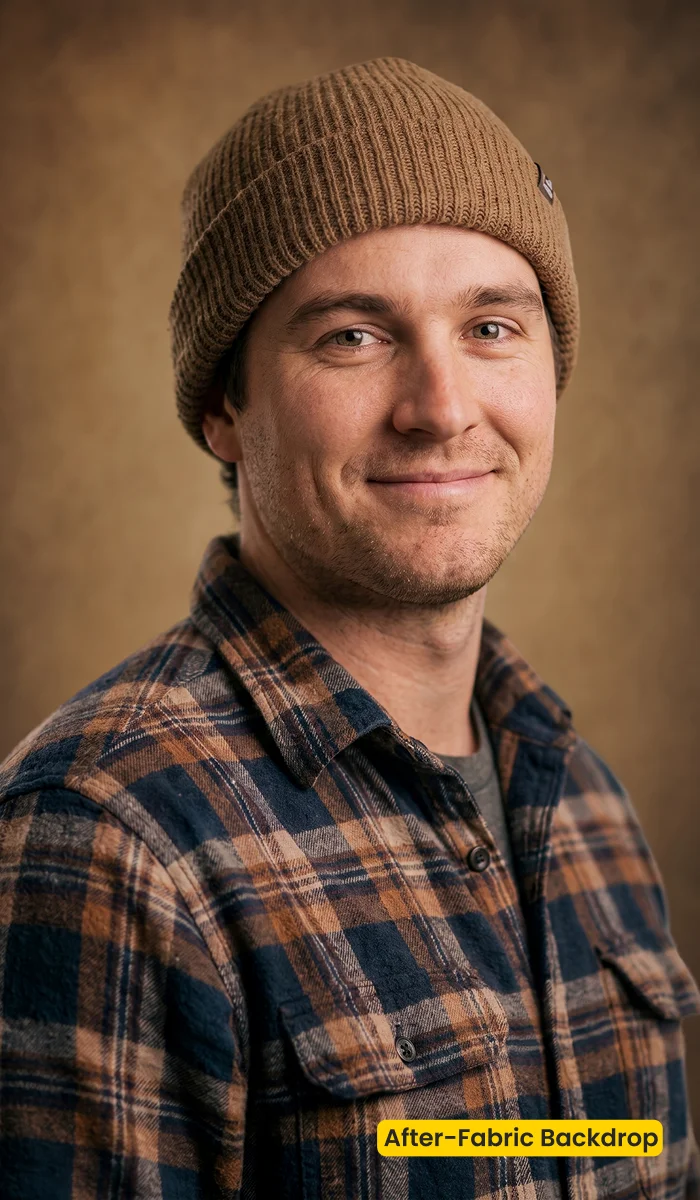
Soft folds read as a real studio cloth, not a paper sweep.
What This Asset Does
Fabric is a free fabric backdrop for photography inside Evoto. It supplies white fabric texture for clean portraits, headshots, and catalog frames. It is a digital studio backdrop, not a muslin bolt, stand, or shipping carton. Apply it with Backdrop Changer.
Weave detail holds under side light so faces stay dimensional. Soft folds read as a real studio cloth. High-key frames stay minimal for school volume and branding headshots. Pair it with the Portrait Headshot kit when the brief is clean and professional. Do not use Fabric when the job is an AI background fusion scene (Infant Seashell, Maternity Field, Wedding Garden).


Get Fabric for free. Download Evoto to run replacement on the set.
Best For / Not For
Best for
- Headshots that need a white fabric studio read
- School volume and catalog portraits
- Minimal branding frames without a physical muslin wall
- Infant or product-adjacent portraits that need clean cloth
Not for
- Shoppers buying physical muslin or canvas
- Outdoor garden or field stories (use Fusion scenes)
- Black fabric or colored seamless briefs
- Wallpaper searches
Digital Fabric Backdrop vs Physical Muslin
The same English words rank fabric stores and photo editors. This page is the editing asset. If the cart is a bolt of muslin, stop here.
| Fabric in Evoto | Physical muslin order | |
|---|---|---|
| What you get | Digital backdrop asset | Cloth, stand, steam time |
| SERP trap | This page is for photo editing | Fabric stores rank for the same words |
| Best for | Clean studio composites | On-set styling |
| Apply in | Backdrop Changer | The studio |
How This Studio Backdrop Reads
After the swap, the cloth has to sit like a real wall. Texture, shadow, and edge matter more than calling it white.
- Texture: White fabric weave and soft folds, so the backdrop feels tactile.
- Key: High-key, minimal, studio. Side light should still shape the face.
- Blend: Use opacity, edge, and shadow so feet sit on the cloth.
- Preserve: Keep chairs or props if they belong in the frame.
- Overall finish: Clean digital studio, not a paper sweep.
Tips for Clean Studio Delivery
A white fabric backdrop for photography still requires studio-style lighting on the subject. Three habits keep school-volume and branding sets clean.
- Light the subject as studio: A window-lit outdoor capture will fight white fabric.
- Add a catch shadow: Backdrop Changer shadow options keep feet grounded.
- Grade after the swap: Portrait Headshot presets finish skin on the new cloth.
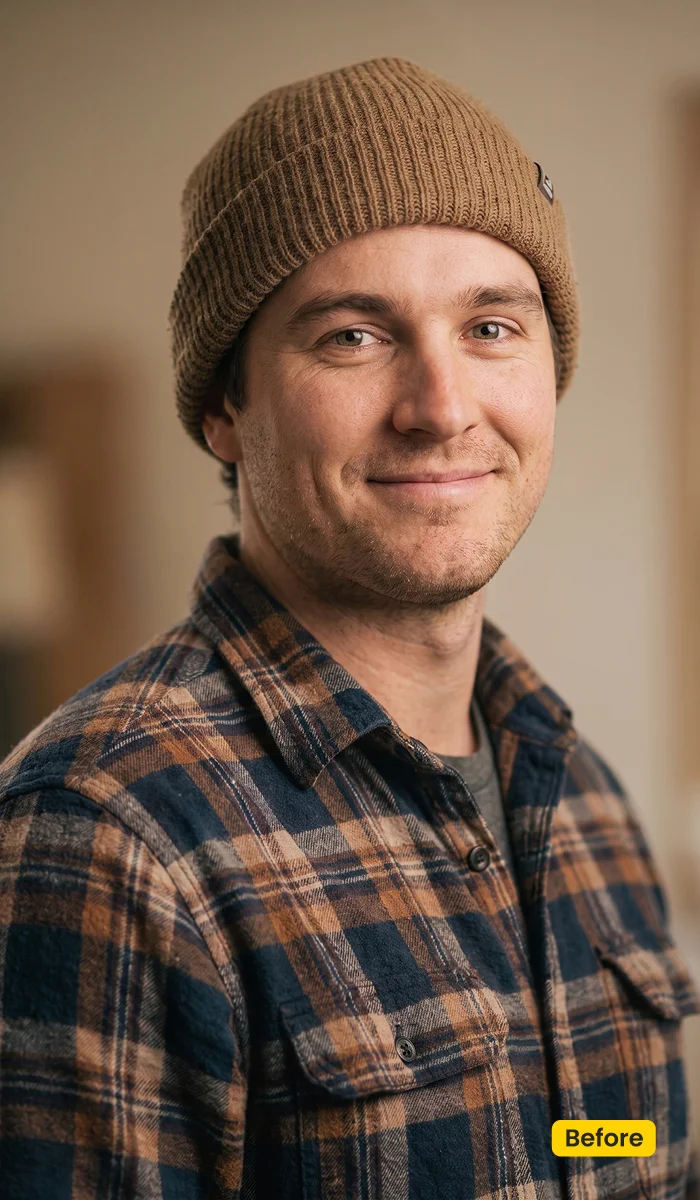
How to Get and Apply Fabric
Step 1. Get Fabric
Click Get Backdrop for Free on this page. Sign in. Get/sync Fabric. This is a digital studio backdrop, not a physical fabric order.
Step 2. Replace Photo Background
Open Evoto Desktop and load the portrait. Go to Background Adjustment > Backdrop Changer. Select Fabric from the library after Asset Hub sync (or find it under My Background).
Step 3. Fine-tune the Photo
Use the sliders for edge, opacity, size, and angle so the cloth sits cleanly behind the subject.
Step 4. Export the Photo
When the swap looks right, export from Evoto Desktop.
FAQ
Is this physical fabric?
No. Fabric is a digital fabric backdrop for photography in Evoto. It is not a muslin product to ship.
Is it a Lightroom overlay?
No. Get it from Asset Hub. Apply it with Backdrop Changer.
Can I use it for products?
Yes, for catalog portraits. Confirm edges on bottles or boxes.
Does it replace Portrait Headshot?
No. Fabric is the background. Portrait Headshot is a color kit.
Where do I get it?
Get it from Asset Hub. In Evoto Desktop: Background Adjustment → Backdrop Changer → Fabric → fine-tune sliders → Export.
Try Evoto AI Photo Editor
Retouch photos with Evoto AI and make your photos best! Available on Windows, MacOS and iPadOS.