

Learning how to fix grainy photos is an essential skill for both amateur and professional photographers, as it helps restore clarity, detail, and natural tones.
Digital photo noise, often referred to as grain, is a common issue that makes photos look unpolished. Grain shows up as random speckles, rough textures, or color distortions, especially in shadows or low-light areas. It can make portraits look dull, landscapes appear soft, and even the best compositions lose their impact.
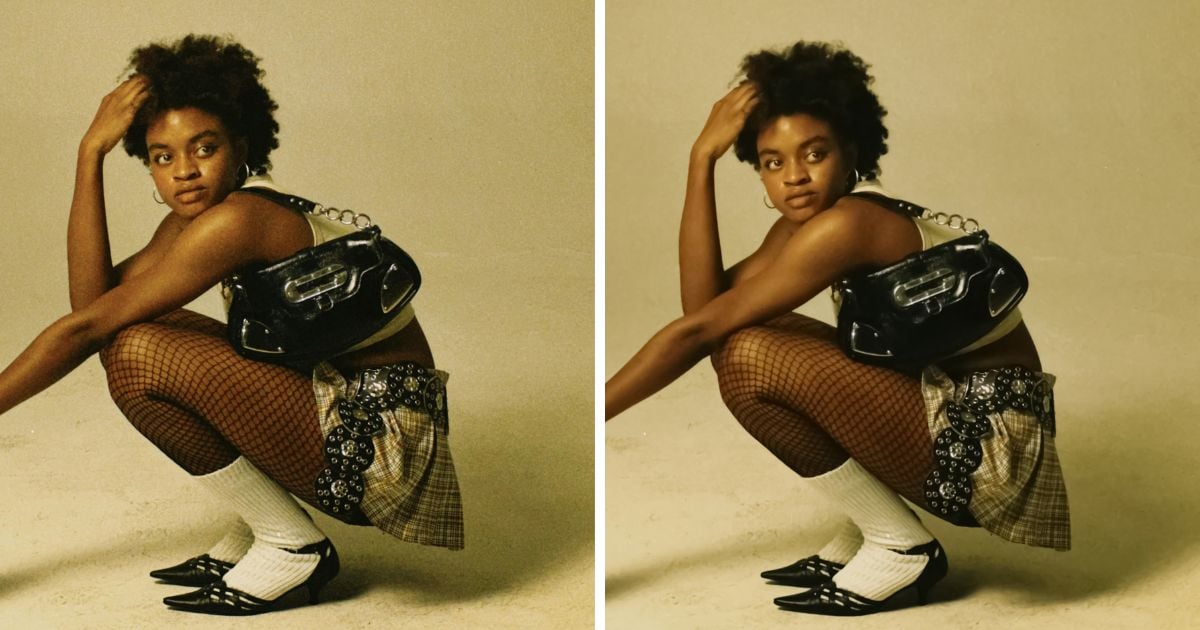
To be effective, noise reduction should meet three key requirements: it must reduce noise without blurring too much detail, preserve natural skin tones, and maintain overall image sharpness.
Why Are Photos Grainy?
Before diving into solutions, it’s important to understand why grain appears in the first place. If you’ve ever asked yourself, “Why are my pictures grainy?” here are the most common reasons:
- Low light photography: Shooting in dim environments forces the camera to raise ISO, which amplifies sensor noise and creates visible grain.
- Night photography: Shadows and dark skies often reveal colorful speckles that make a noisy photo less appealing.
- Indoor or underexposed shots: Limited lighting creates uneven textures across the frame.
- Smartphone cameras: Small sensors in phones make them more prone to grain, especially in evening or indoor shots.
- Old or scanned photos: Digital scans of film or printed pictures often introduce texture artefacts.
- High-speed photography: Sports or wildlife shots require fast shutter speeds, forcing higher ISO and creating more grain.
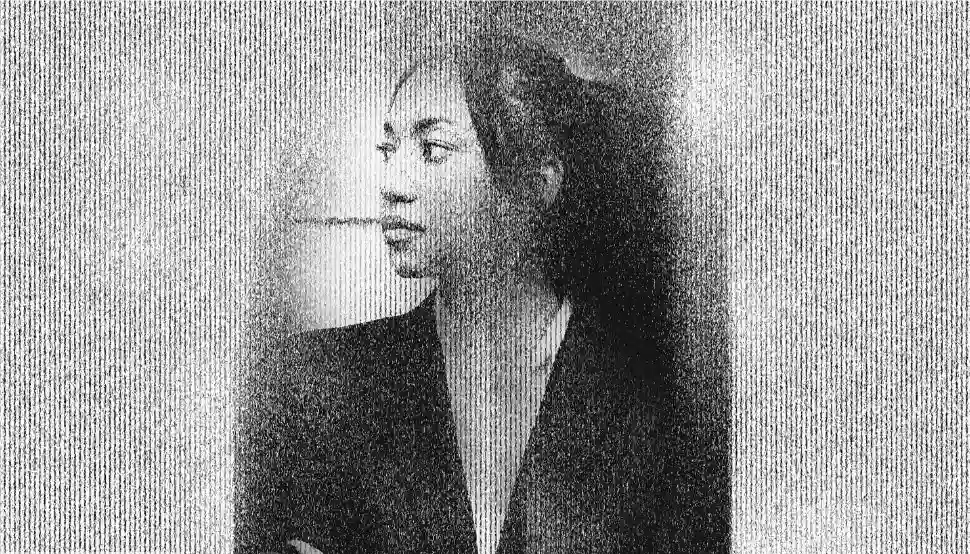
Because of these conditions, photos that often require fixing include night cityscapes, portraits taken in dim light, smartphone snapshots, event images, and scanned old prints. Knowing the cause helps you choose the right method for how to fix grainy photos later.
How to Fix Grainy Photos: Methods & Tools
Although noise is unavoidable in certain shooting conditions, modern photo editing tools provide effective solutions. You can now remove grain from photo files quickly, making them look smooth, sharp, and professional again. Let’s explore how to fix grainy photos with three of the most reliable approaches: Photoshop, Evoto AI, and Lightroom.
1. Fixing Grainy Photos in Photoshop
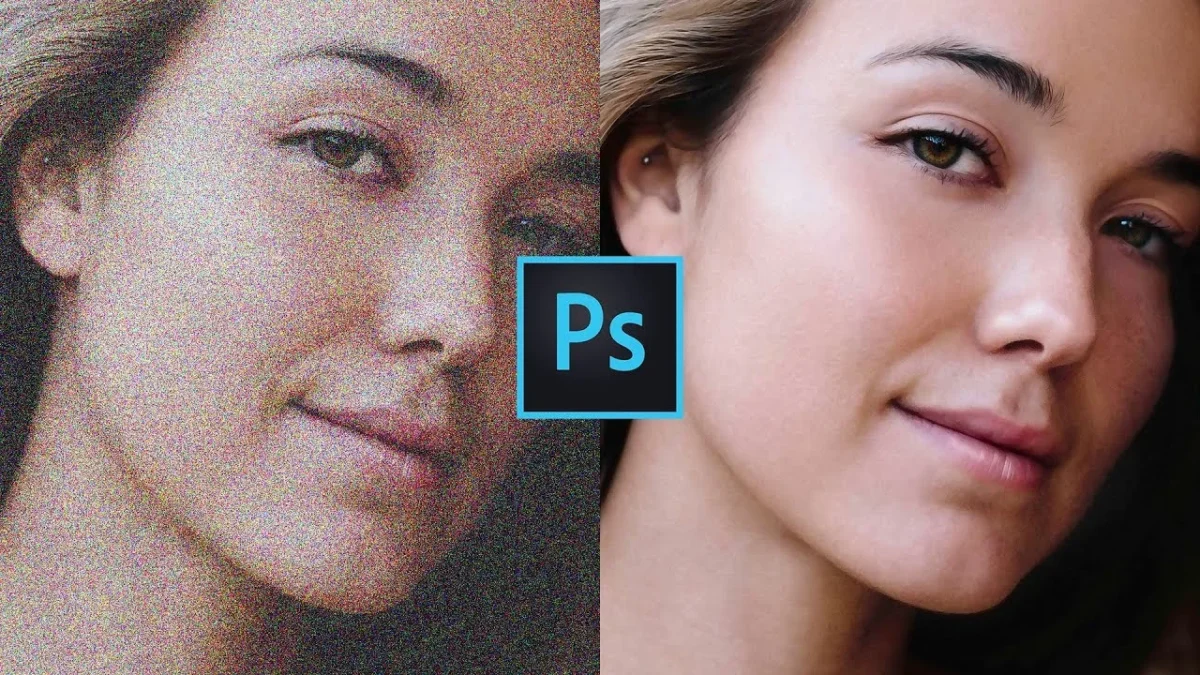
Photoshop has long been the industry standard for photographers and designers. It offers detailed controls that allow users to decide exactly how much grain should be reduced. If you’re wondering how to fix grainy photos in Photoshop, here’s a step-by-step guide:
How to Fix Grainy Photos in Photoshop:
- Open your photo and duplicate the background layer (so the original remains untouched).
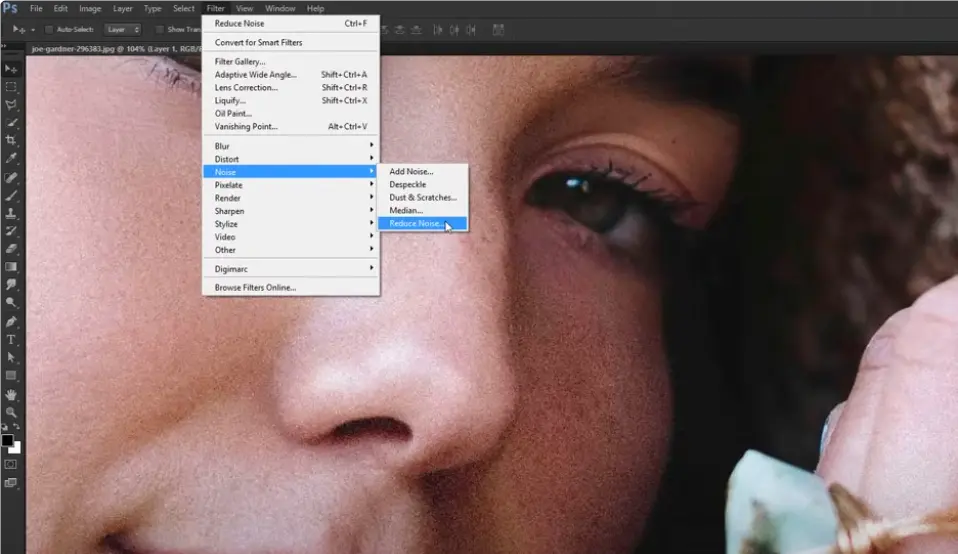
- Go to Filter > Noise > Reduce Noise.
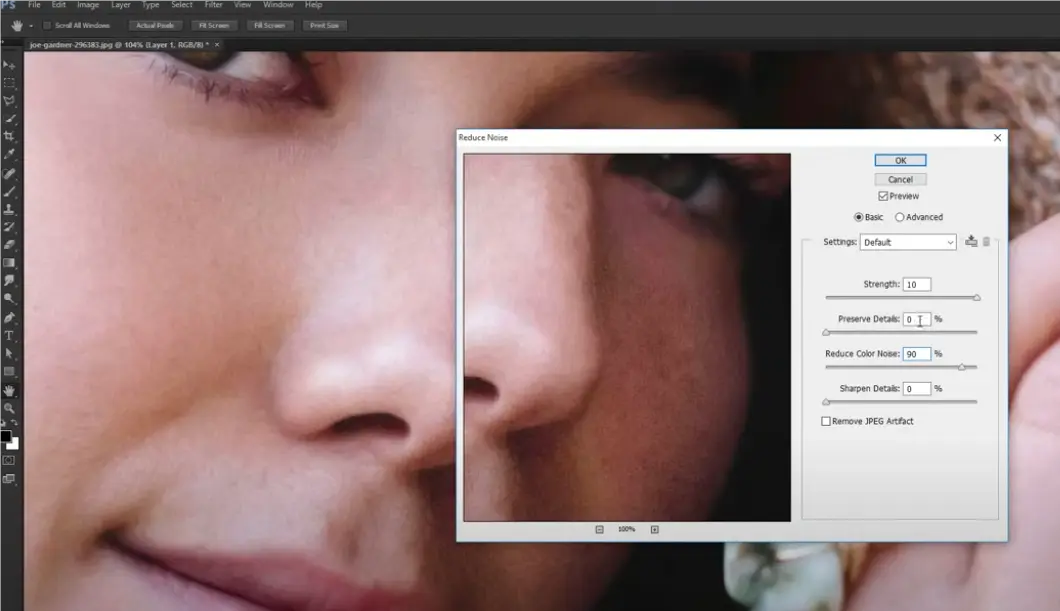
- Adjust sliders for Strength, Preserve Details, and Reduce Color Noise. A balance between reducing noise and keeping details sharp is key.
- For advanced adjustments, open the Camera Raw Filter. Use the Luminance slider to smooth textures and the Color Noise slider to target chromatic speckles.
Pros:
- High level of manual control.
- Ability to selectively target luminance or color noise.
- Professional results if used correctly.
Cons:
- Time-consuming.
- Requires technical knowledge.
Photoshop is perfect for users who want to remove grain from photos with precision, though it may not be ideal for batch work or casual editors.
2. Using Evoto AI Denoising Tool
For those who want automation without sacrificing quality, Evoto AI is one of the most effective solutions. It uses advanced machine learning to intelligently detect noise patterns and remove them while keeping fine details intact.
How to Fix Grainy Photos with Evoto AI
- Download and install Evoto AI denoiser to your device. Upload your photos to the Evoto App.


Powerful AI Photo Editor
- Select “Color Adjustment”. Scroll down and find “Detail” > “Noise Reduction”. Use the slider to reduce noise.
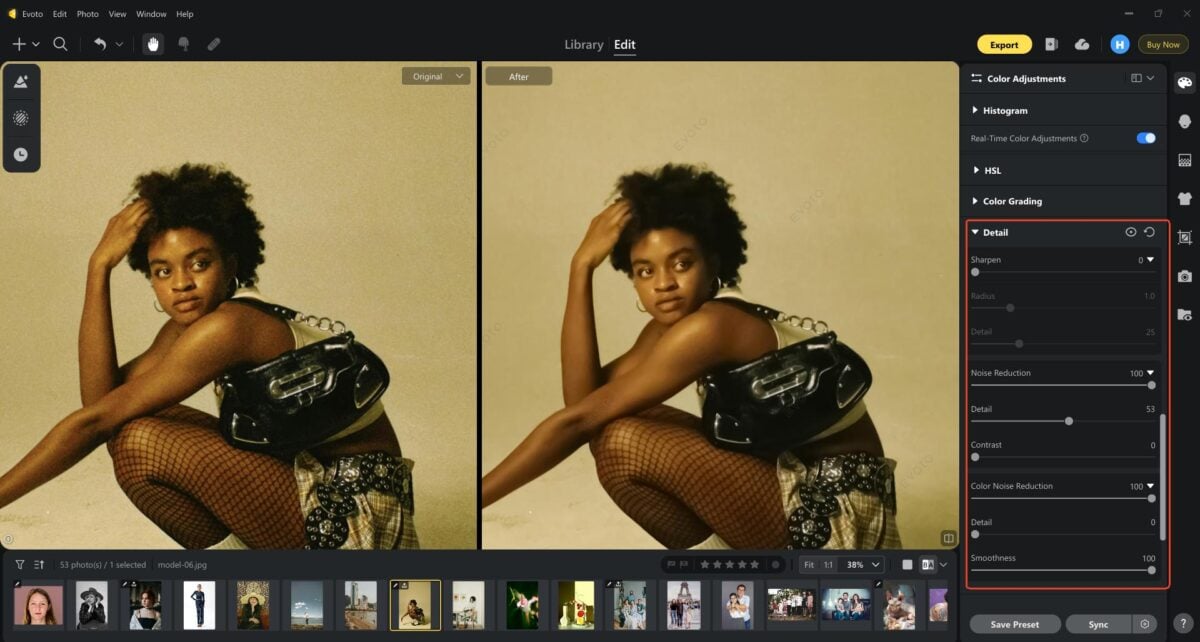
- Adjust the detail to make the image look smoother and sharper without over-blurring.
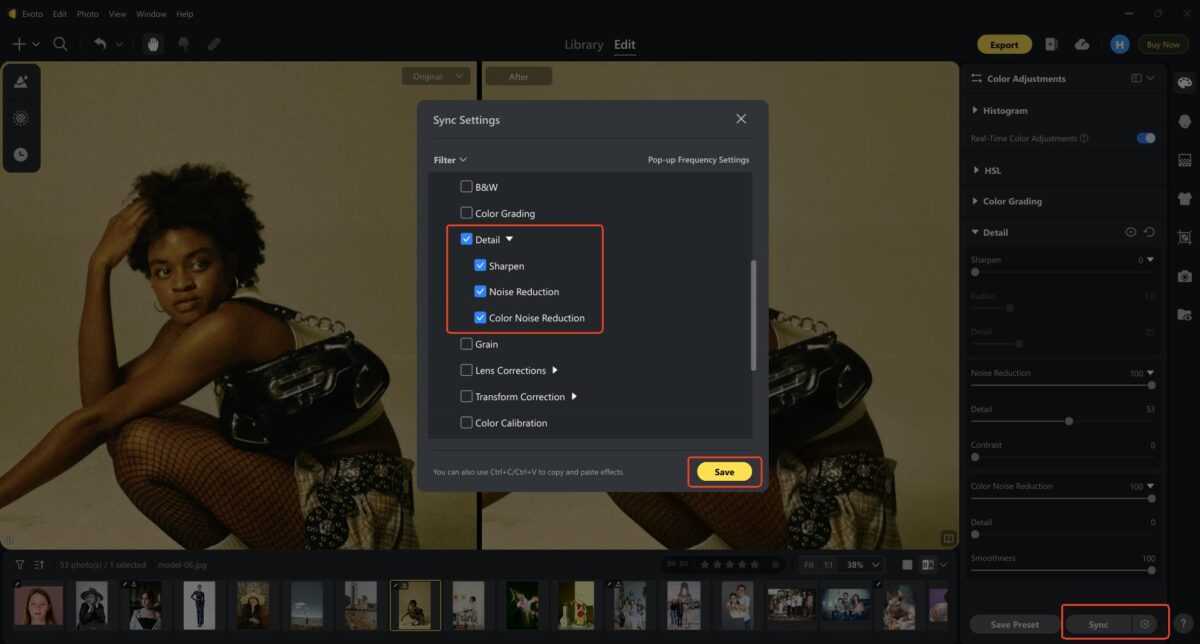
- Take advantage of batch denoising. Select multiple photos and click “Sync”. This allows you to process hundreds of photos at once—perfect for wedding or event photographers.
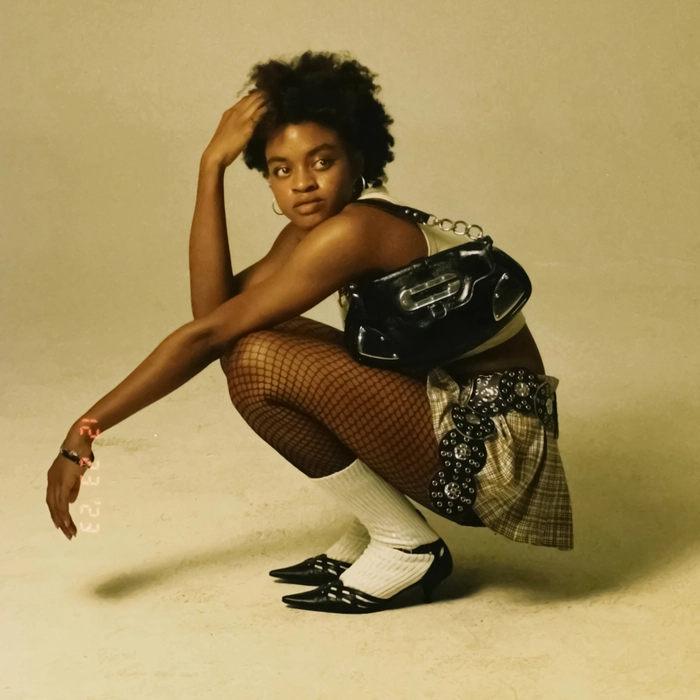
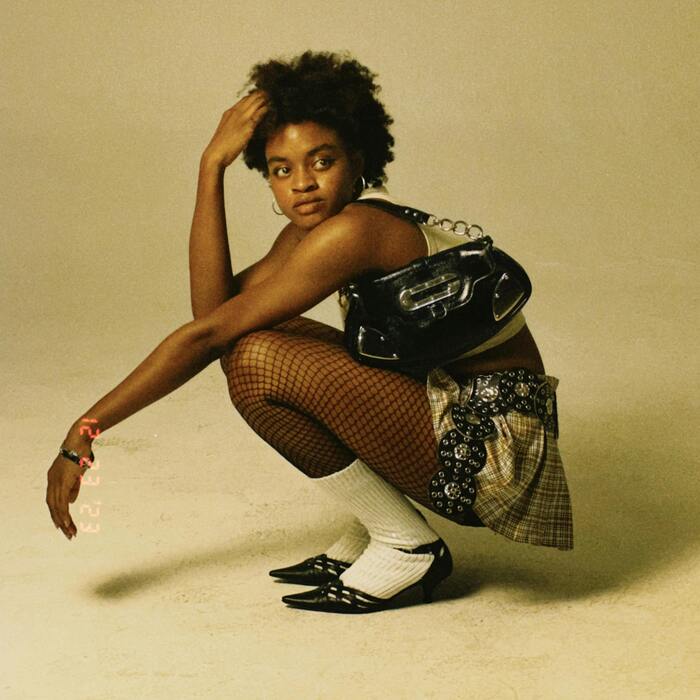
Let’s check the before-and-after image of the photo grain removal:
Unique Advantages:
- Evoto does more than just denoising. It also corrects exposure, fixes colors, and enhances sharpness simultaneously.
- Its AI-driven approach means less trial and error compared to manual tools.
- Works as a grain cleaner that ensures the final image looks professional and polished.
Pros:
- Fast and automated.
- Available for desktop and online denosing.
- Preserves details while reducing noise.
- Ideal for handling large volumes of images.
Cons:
- Less manual fine-tuning compared to Photoshop.
If your priority is efficiency and quality, Evoto is the easiest way to make a photo less grainy without spending hours adjusting sliders.
3. Using Lightroom to Denoise
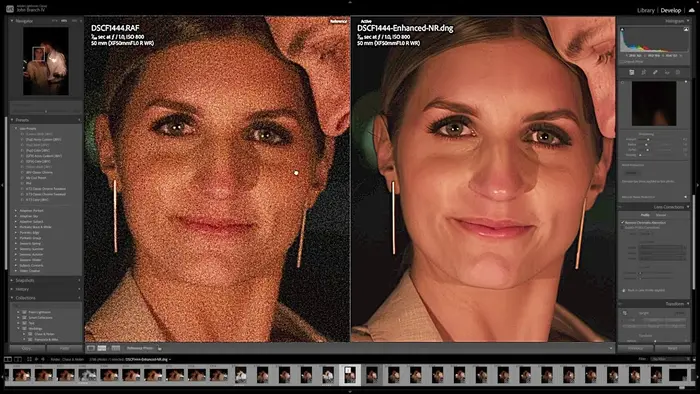
Lightroom is another widely used tool, especially among photographers who manage large libraries of photos. It provides built-in noise reduction features that make it easier to fix grain while keeping the workflow smooth.
How to Fix Grainy Photos in Lightroom:
- Import your image into Lightroom.
- Go to Develop > Detail Panel.
- Adjust the Denoise slider to reduce overall graininess.
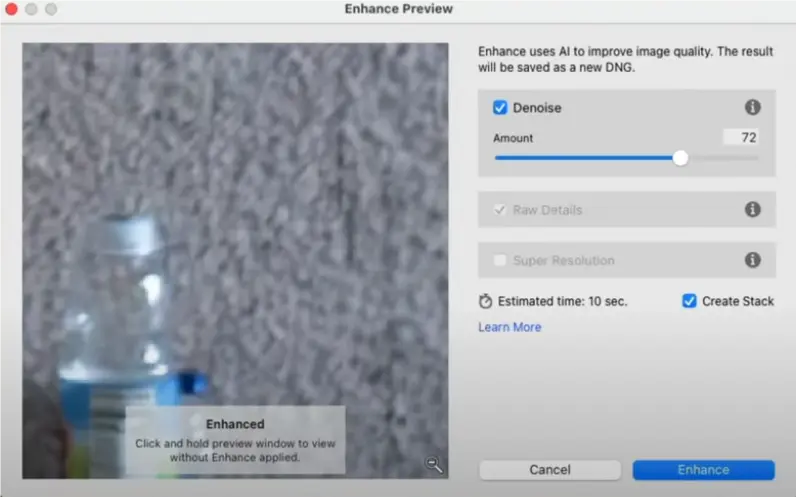
- Use Color Noise Reduction to remove chromatic speckles.
- Balance with Detail and Contrast sliders to keep edges sharp while still making the photo look less grainy.
Pros:
- Streamlined workflow for photographers.
- Easy to use for both beginners and professionals.
- Allows quick adjustments across multiple images.
Cons:
- Not as precise as Photoshop.
- Requires manual balancing to avoid over-smoothing.
Lightroom is the perfect tool if you want a balance between convenience and control when learning how to make grainy photos clear.
Photoshop vs Evoto vs Lightroom: Comparison
While each program has its strengths, all three tools share a common goal: they are designed to fix grainy photos and improve image quality without destroying details. Photoshop, Evoto AI, and Lightroom each provide noise reduction options that help make an image look smoother and sharper, whether you prefer manual control, AI automation, or a balanced workflow. Here is a detailed comparison of the three tools to let you make a wise decision easily.
| Tool | Ease of Use | Precision | Batch Editing | Best For |
|---|---|---|---|---|
| Photoshop | Advanced, manual | Very high | No | Professionals needing fine detail |
| Evoto AI | Very easy, automated | High with AI | Yes | Event photographers, fast workflows |
| Lightroom | Moderate | Balanced | Limited | Photographers managing large libraries |
Conclusion from Comparison:
- Photoshop is best for detailed image denoise and professional edits.
- Evoto AI is unmatched in speed, automation, and batch processing.
- Lightroom offers a comfortable middle ground with workflow-friendly tools.
Tips to Reduce or Avoid Graininess in Photos
While it’s helpful to know how to fix grainy photos, preventing noise in the first place will save time and effort. Here are some practical tips:
- Shoot in good lighting: This allows you to use lower ISO settings.
- Use a tripod: Longer exposures at lower ISO produce cleaner images.
- Choose cameras with larger sensors: Bigger sensors capture more light, reducing noise.
- Shoot in RAW format: RAW files contain more data for effective photo noise reduction during editing.
- Avoid over-editing: Excessive brightening of dark areas will amplify noise.
And if you still end up with grain, tools like Evoto serve as an advanced AI noise remover, ensuring your noisy photo looks smooth while keeping essential details intact.
Summary
Grainy photos can make even the best shots look unprofessional. Thankfully, tools like Photoshop, Evoto AI, and Lightroom make it easier than ever to fix grainy photos. Photoshop excels at precision, Lightroom offers workflow efficiency, and Evoto stands out with AI-powered automation and batch processing.
Whether you want to remove grain from photo files, learn how to fix grainy photos in Photoshop, or simply use AI to make a photo less grainy, the key is to balance noise reduction with detail preservation. Combine these tools with smart shooting techniques, and your photos will always look sharp, clear, and professional.


