

Have you ever taken a photo that looked great at first, but later noticed small problems? It might be a blemish on the skin, uneven lighting, or an unwanted object in the background. For beginners, fixing these imperfections can feel confusing, especially if you’re not familiar with editing tools.
Adobe Photoshop offers an easy way to improve your photos without making them look unnatural. With just a few simple steps, you can remove blemishes, smooth skin, adjust colors, and enhance details. This article will guide you step by step through how to retouch a photo in Photoshop using simple language and beginner-friendly tips.

Photo Retouching vs. Photo Editing: What’s the Difference?
Many beginners get confused between photo retouching and photo editing, but they are not the same. While both improve the quality of an image, the purpose and techniques are different.
Photo Retouching
Retouching focuses on small, detailed improvements to make a photo look more polished while keeping it natural. It usually involves:
- Removing blemishes, spots, and wrinkles
- Smoothing skin without losing texture
- Whitening teeth and brightening eyes
- Adjusting tones and shadows for better balance
Retouching is all about subtle enhancements rather than changing the overall look of the photo.
Photo Editing
Editing, on the other hand, refers to broader adjustments that change the entire photo. It includes:
- Cropping or resizing the image
- Adjusting brightness, contrast, and saturation
- Changing colors and tones
- Adding filters or effects
- Replacing or removing backgrounds
In short, editing improves the entire image, while retouching focuses on fine details. Most professional photos use both techniques to achieve the best results.
Setting Up Photoshop Before You Start
If you’re new to Photoshop, setting up your workspace correctly will make the editing process smoother. Here’s what you should do:
Step 1: Open the Image
Go to File → Open and choose the photo you want to edit. Always work with high-resolution images if possible because low-quality photos lose detail when retouched.
Step 2: Duplicate the Background Layer
Before making any changes, duplicate your original layer by pressing Ctrl + J (Windows) or Cmd + J (Mac). This keeps the original image safe so you can always go back if needed.
Step 3: Work Non-Destructively
Use separate adjustment layers instead of editing directly on the image. This allows you to revert or fine-tune your edits anytime without damaging the original photo.
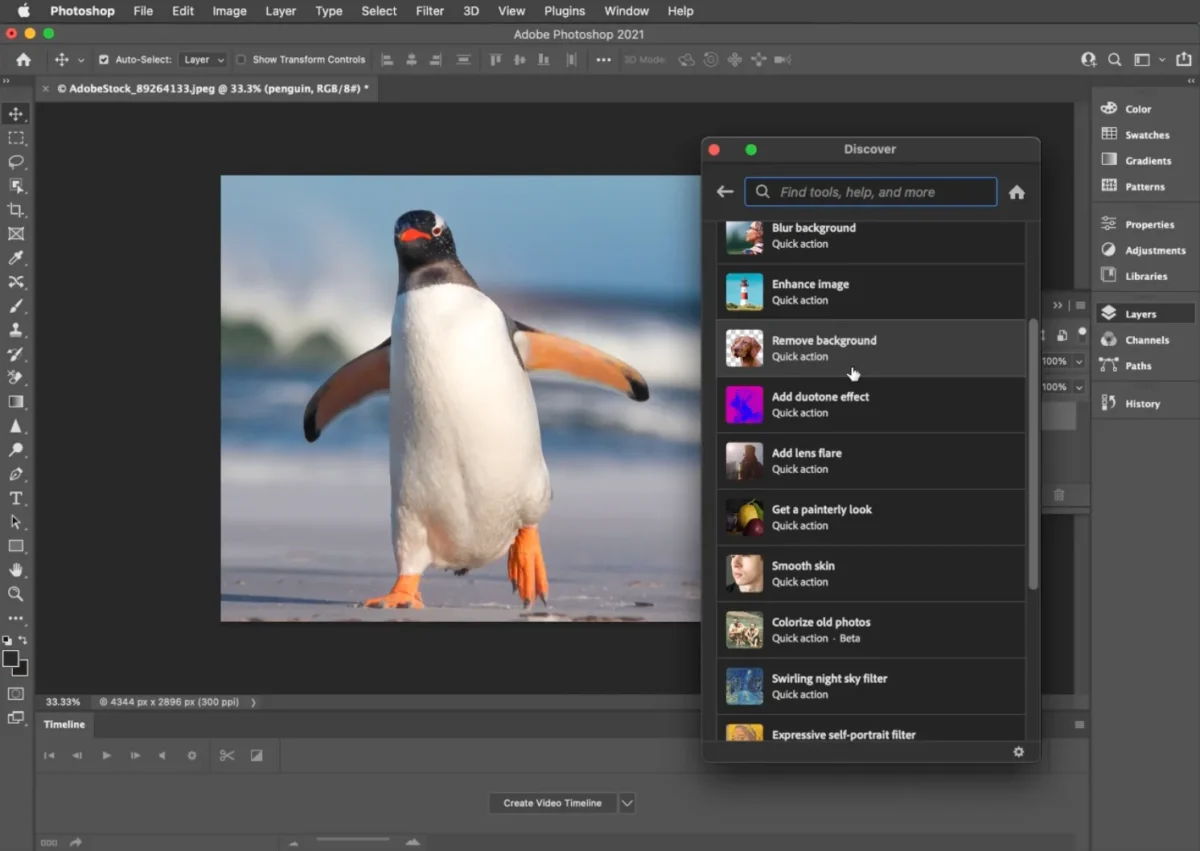
Essential Photoshop Tools for Retouching
Photoshop has multiple tools designed to help beginners touch up photos easily. Let’s break down the most useful ones and when to use them.
1. Spot Healing Brush Tool
- Best for: Small blemishes, pimples, dust, or marks.
- Use: Choose the Spot Healing Brush Tool from the toolbar, set the brush size to match the area, and simply click on the spot you want to fix. Photoshop automatically blends it with the surrounding area.
2. Healing Brush Tool
- Best for: Stubborn blemishes or uneven tones.
- Use: Press Alt on Windows or Option on Mac to pick a clean area of the image, then brush over the imperfection you want to correct.
3. Clone Stamp Tool
- Best for: Fixing large areas or removing objects.
- How to use: Sample a clean part of the image and paint over the area you want to cover. Reduce brush opacity for smoother blending.
4. Patch Tool
- Best for: Wrinkles, scratches, or bigger imperfections.
- How to use: Select the problem area, drag the selection to a clean spot, and Photoshop replaces it seamlessly.
5. Dodge and Burn Tools
- Best for: Brightening or darkening specific areas.
- How to use: Use the Dodge Tool to lighten shadows and the Burn Tool to deepen highlights, perfect for adding depth to portraits.


How to Retouch Skin in Photoshop Naturally
One of the most common uses of retouching is improving skin appearance. However, beginners often over-edit, creating a “plastic” effect. To avoid that, follow these steps carefully:
Step 1: Clean Up Blemishes
Start with the Spot Healing Brush to remove small imperfections like acne or spots. For more stubborn blemishes, switch to the Healing Brush Tool for better control.
Step 2: Use Frequency Separation (Beginner-Friendly Method)
Frequency Separation separates skin texture from color, allowing you to smooth tones without losing natural pores:
- Duplicate your image twice.
- Name one layer “Texture” and the other “Color.”
- Use Gaussian Blur on the Color layer to soften rough or uneven skin tones for a smoother look.
- Use Apply Image to separate fine skin details into the Texture layer.
- Edit tones on the Color layer while preserving natural texture.
This method creates smooth, professional-looking skin while avoiding unnatural effects.
Step 3: Brighten Eyes and Teeth
- Use the Dodge Tool at 5–10% exposure for a gentle brightening effect.
- Avoid over-whitening, as natural tones look more realistic.
How to Retouch Backgrounds and Remove Objects
A perfect portrait can be ruined by a messy background. Photoshop has built-in tools to fix these issues quickly:
1. Content-Aware Fill
- Select the unwanted object using the Lasso Tool.
- Go to Edit → Fill → Content-Aware Fill.
- Photoshop replaces the selected area using surrounding pixels automatically.
2. Blur Distracting Backgrounds
- Convert your photo into a Smart Object.
- Go to Filter → Blur Gallery → Field Blur.
- Adjust the blur amount to focus on the subject naturally.
3. Adjust Lighting and Shadows
Use Curves or Levels Adjustment Layers to brighten dark areas or create balanced highlights for a polished look.
Retouching Colors and Tones in Photoshop
Perfecting colors can completely transform your photo. Beginners can start with these tools:
- Hue/Saturation: Adjust colors without affecting the overall tone.
- Color Balance: Fix shadows, midtones, and highlights individually.
- Vibrance: Boost dull colors while keeping skin tones natural.
- Camera Raw Filter: Use sliders for white balance, exposure, and contrast adjustments.
Once colors are corrected, apply Unsharp Mask under Filter → Sharpen to enhance details subtly.
How to Retouch a Photo Without Photoshop Instantly
Not everyone wants to spend hours learning Photoshop or figuring out complicated editing tools. If you just want a quick and simple way to retouch your photos and make them look polished, Evoto is one of the easiest options available. It’s designed for beginners and works with just a few clicks.
Features of Evoto for Retouching Photos
- AI Skin Retouching: Smooths skin while keeping texture natural.
- Blemish Removal: Removes acne, spots, and marks instantly.
- Lighting Enhancements: Adjusts exposure, highlights, and shadows automatically.
- Body and Face Adjustments: Makes small corrections while preserving a natural look.
- Batch Editing: Retouch hundreds of photos at once, perfect for photographers.
- Preset Filters: Apply ready-made styles for consistent results.
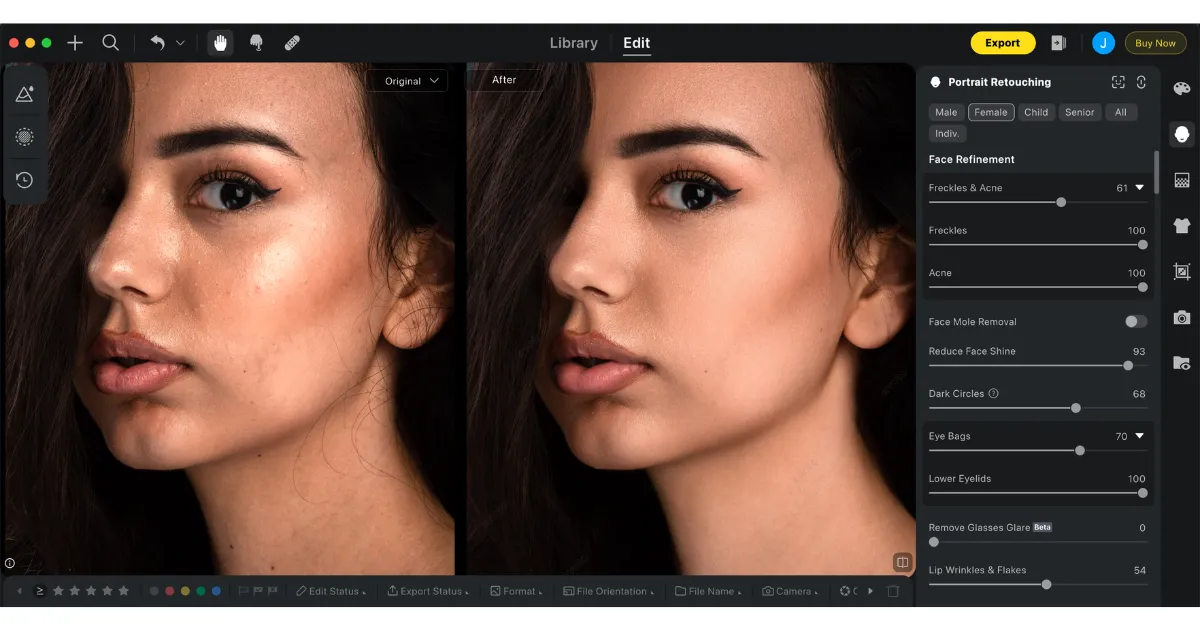
How to Use Evoto for Photo Retouching
Download and Install Evoto
- Go to the official Evoto website and download the software.
- Set it up on your computer using the standard installation process, the same way you would with any regular software.
- Once installed, open the program — you’ll see a clean, simple interface.
Evoto AI Photo Editor – Faster Edits, Finer Control
Upload Your Photo
- Click “Import” or drag and drop your photo into Evoto.
- You can work on one picture at a time or upload several images if you want to retouch multiple photos in one go.
Select Retouching Options
This is where Evoto makes things simple. You don’t need to learn complicated settings; just choose what you want to fix. For example:
- Smooth skin naturally → Remove uneven texture without making faces look fake.
- Remove blemishes → Get rid of pimples, spots, or marks in one click.
- Adjust lighting → Brighten dark areas and balance shadows automatically.
- Enhance details → Make facial features and colors look sharper and cleaner.
Evoto handles the adjustments using AI, so you don’t need to make manual edits.
Preview the Changes
- Once Evoto processes your image, you can use the before-and-after preview option to compare results.
- If something looks too strong or too soft, adjust the retouching level with a simple slider until you’re happy.
Save Your Retouched Photo
- Click “Export” to save the finished image.
- You can choose the file format and quality before downloading.
That’s it, your photo is retouched and ready to use!
Tips for Beginners to Retouch Photos Better
- Always zoom in when editing details.
- Use small, soft brushes for better blending.
- Work with adjustment layers to stay non-destructive.
- Regularly compare before-and-after versions to stay natural.
- Less is more — subtle edits almost always look better.
Final Thoughts
Retouching a photo may seem difficult at first, especially if you’re new to editing. The key is to take small steps, focus on one problem at a time, and keep your edits natural. Start by fixing the most noticeable issues, like blemishes or uneven lighting, and then move on to details such as skin tones and background adjustments.
If Photoshop feels overwhelming, using simpler tools can help you achieve cleaner results without spending hours learning complex techniques. Over time, as you practice, your editing skills will improve, and retouching will become easier and more natural.



