

Unwanted distractions, whether they’re cluttered objects, random people, or text overlays, can ruin an otherwise perfect photo. That’s why learning how to remove object in Photoshop techniques or using modern AI tools is essential for producing clean, professional-looking images. Both manual editing and AI-powered tools provide reliable ways to restore focus to your photos. Dive into how they work.
Items That Need Removal in Photos
Almost every photographer, from beginners to professionals, encounters situations where an object needs to be removed. Here are the most common scenarios where a photo editor to remove objects comes in handy.
- People: Strangers in the background of travel shots, photobombers in portraits, or random attendees in event photography can instantly ruin a photo’s composition. And people removal in photos often involves reconstructing complex backgrounds like busy streets or natural scenery, which makes the edit time-consuming and requires careful blending.
- Text/Sticker: Many users want to know how to remove text from an image in Photoshop or get rid of stickers, billboards, and signs that distract from the main subject. The difficulty lies in matching fonts, textures, or gradients behind the text once it’s removed.
- Objects: Trash bins, wires, street poles, or misplaced items can clutter an otherwise aesthetic shot. These may seem minor, but they can be tricky to erase cleanly, especially when they overlap with important parts of the image, and the shadows and reflections further complicate removal.
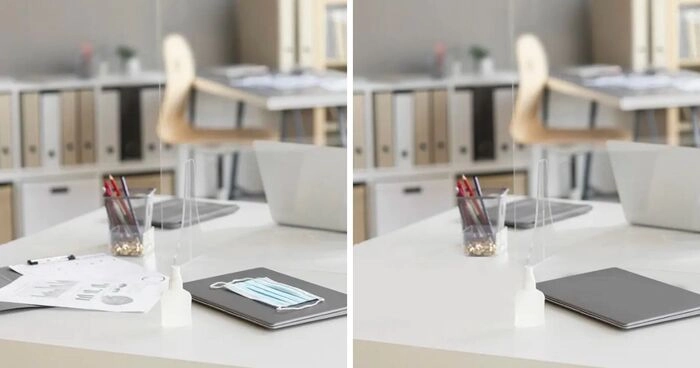
That’s why tools like Photoshop’s object remover and modern AI object remover online platforms are invaluable for creating polished images.
Tools of Photoshop to Remove Clutter
Photoshop is one of the most powerful photo editors to remove objects. It works by giving you full manual control over object removal through the tools below.
- Content-Aware Fill: Automatically fills selected areas with textures from surrounding pixels.
- Clone Stamp Tool: Duplicates selected parts of an image to cover unwanted objects.
- Patch Tool: Blends and repairs larger sections by replacing them with pixels from nearby areas.
These tools analyze surrounding pixels and allow precise retouching, making Photoshop one of the most reliable ways to remove objects from a photo. Though Photoshop offers precision, it has a learning curve and can be time-consuming compared to an AI remove object app or object remover online.
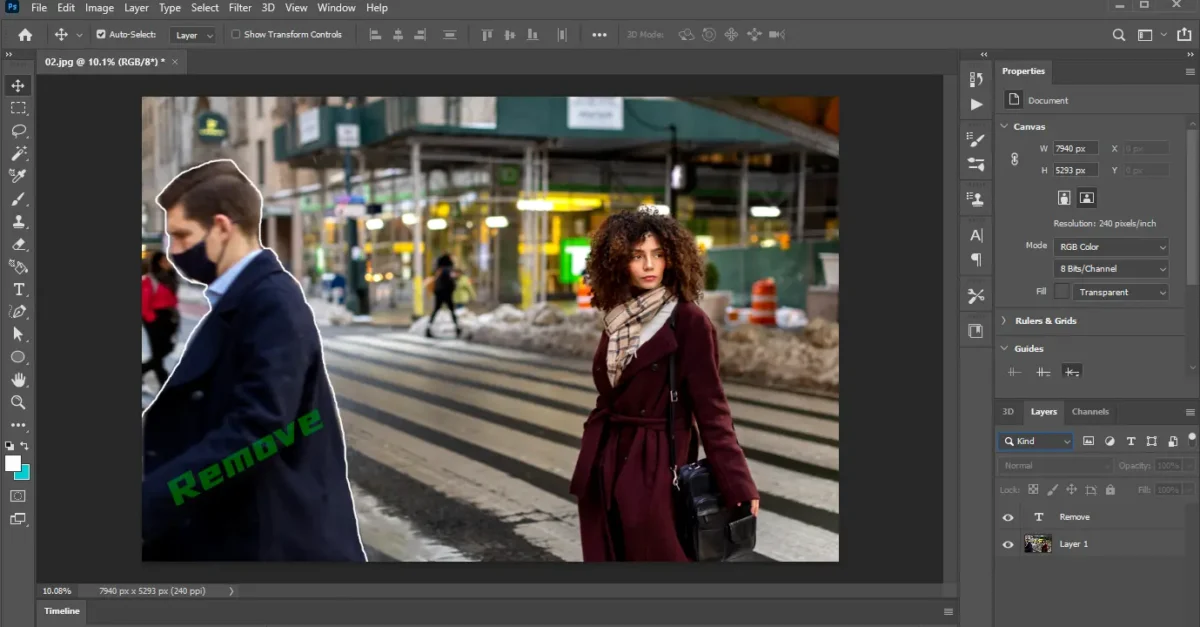
Let’s go straight to the steps on how to remove object in Photoshop below.
How to Remove Object in Photoshop Step-by-Step Guide
Let’s step into the tutorial on how to remove object in Photoshop, along with three explicit examples.
#1 How to Remove Text or a Sticker from an Image in Photoshop
When you want to learn how to remove a sticker from a photo or get rid of text, Photoshop gives you two precise tools: the Clone Stamp Tool and the Healing Brush Tool.
Steps:
- Open your image in Photoshop. Go to “File” > Open and select the photo you want to edit.
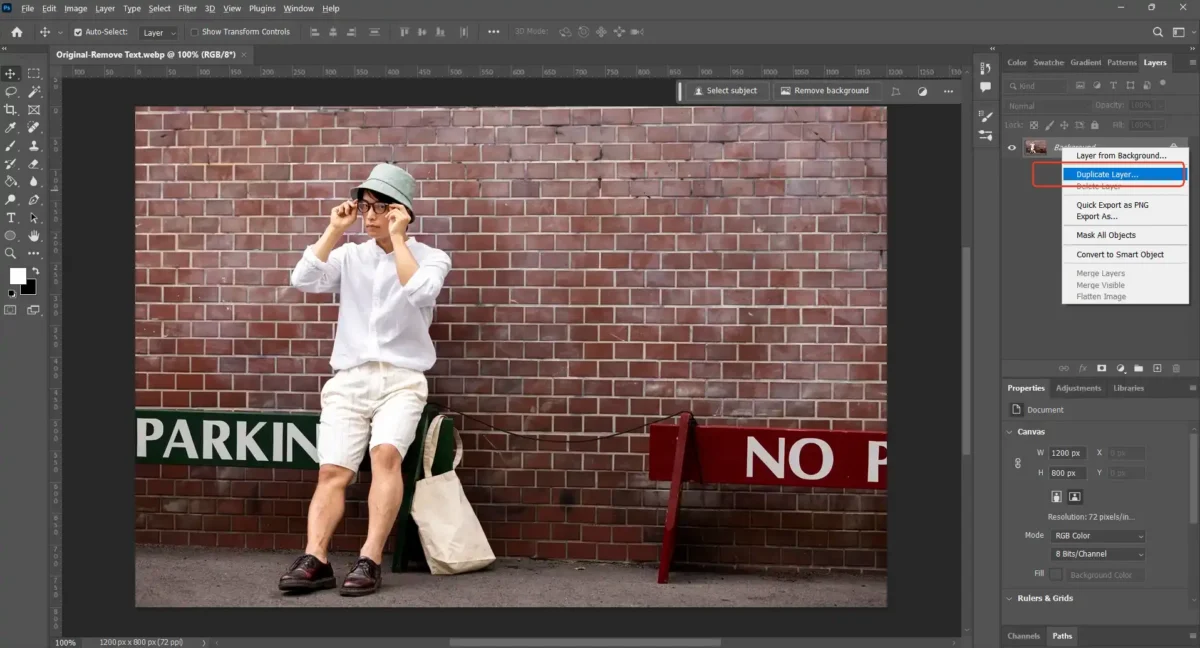
- Duplicate your background layer. Right-click the Background layer in the “Layers” panel and select “Duplicate Layer”. This ensures your original photo remains untouched.
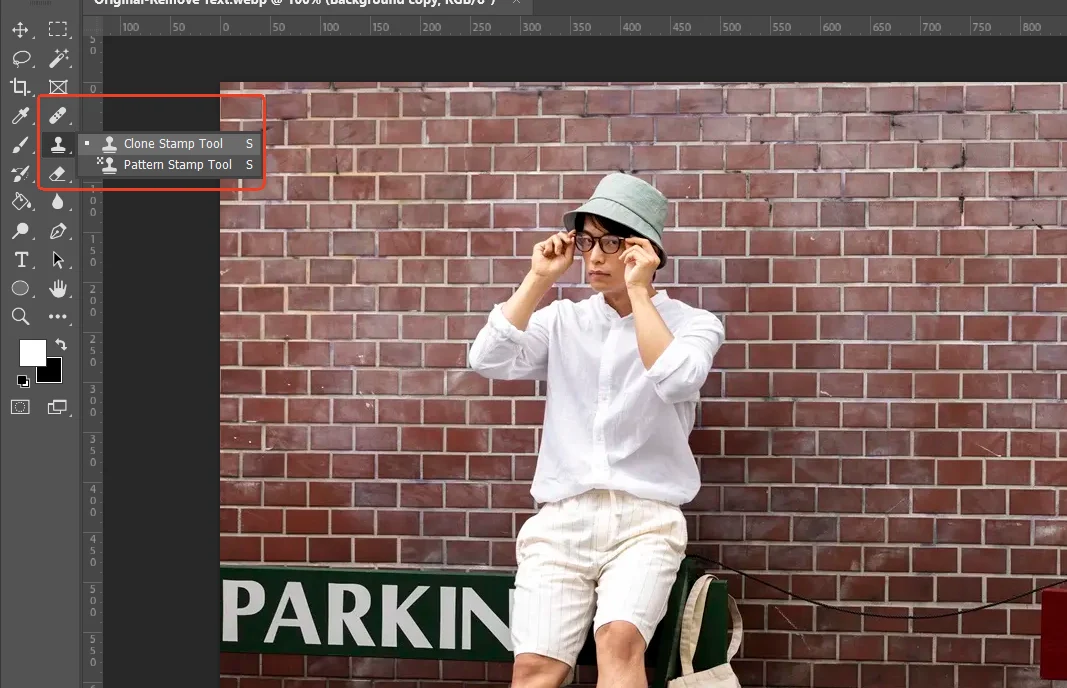
- Select the “Clone Stamp Tool” or “Healing Brush Tool”. Find them in the left toolbar. Both allow you to “paint” over unwanted areas using sampled pixels from another part of the image.
- Set your sample point. Hold Alt (Windows) or Option (Mac) and click on a clean area of the background that matches the area around the sticker/text.
- Brush over the unwanted text or sticker. Gently paint over it in short strokes. Use a soft brush for smoother blending. (You can adjust the brush size by pressing the keys “[” or “]” on your keyboard.)
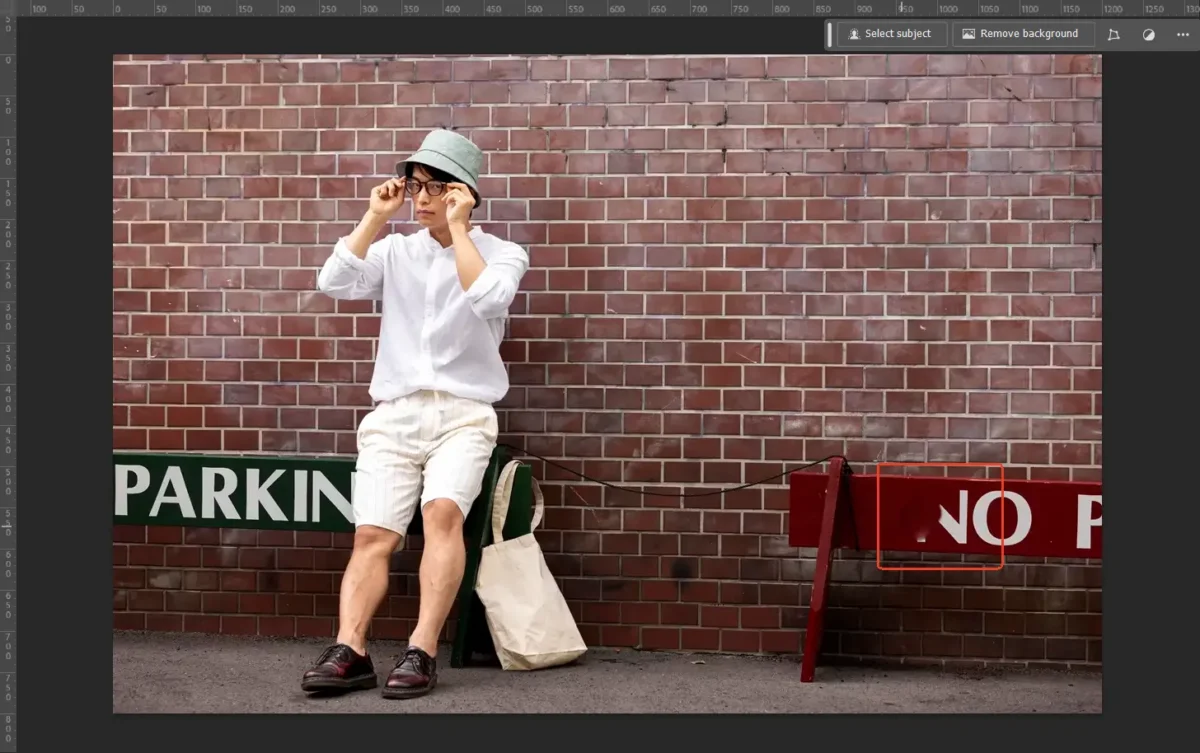
- Switch to “Healing Brush” if needed. The “Healing Brush” automatically blends texture and color, making edges look more natural.
- Zoom in for precision. Press Ctrl + Plus (Windows) or Command + Plus (Mac) to zoom. Refine edges until the removed area looks seamless.
- Final touch-ups. If the removal looks patchy, resample the nearby areas or reduce the brush hardness for smoother transitions.
Pro Tip: Use multiple sample points (Alt/Option-click different areas) to avoid repeating patterns.
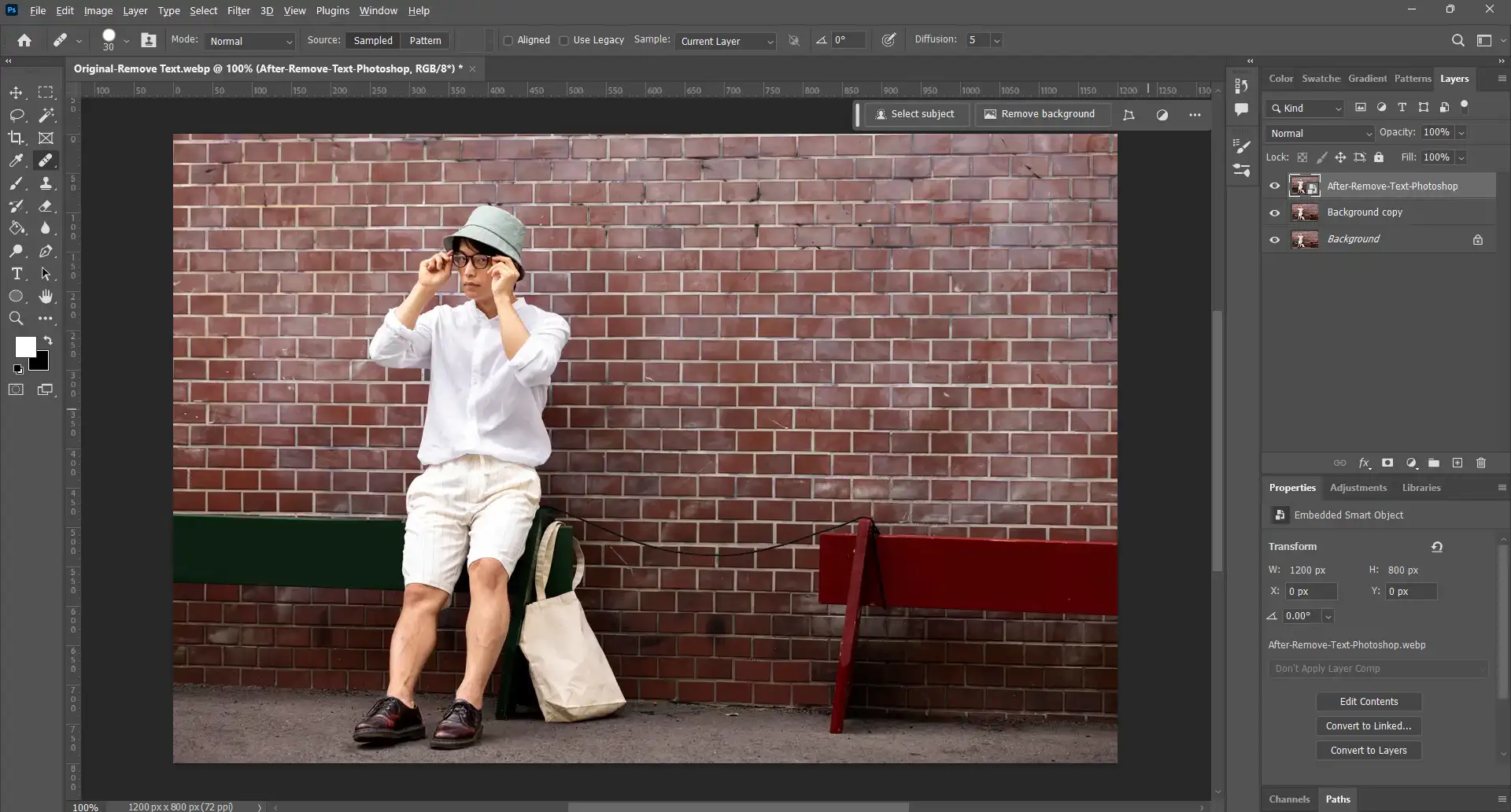
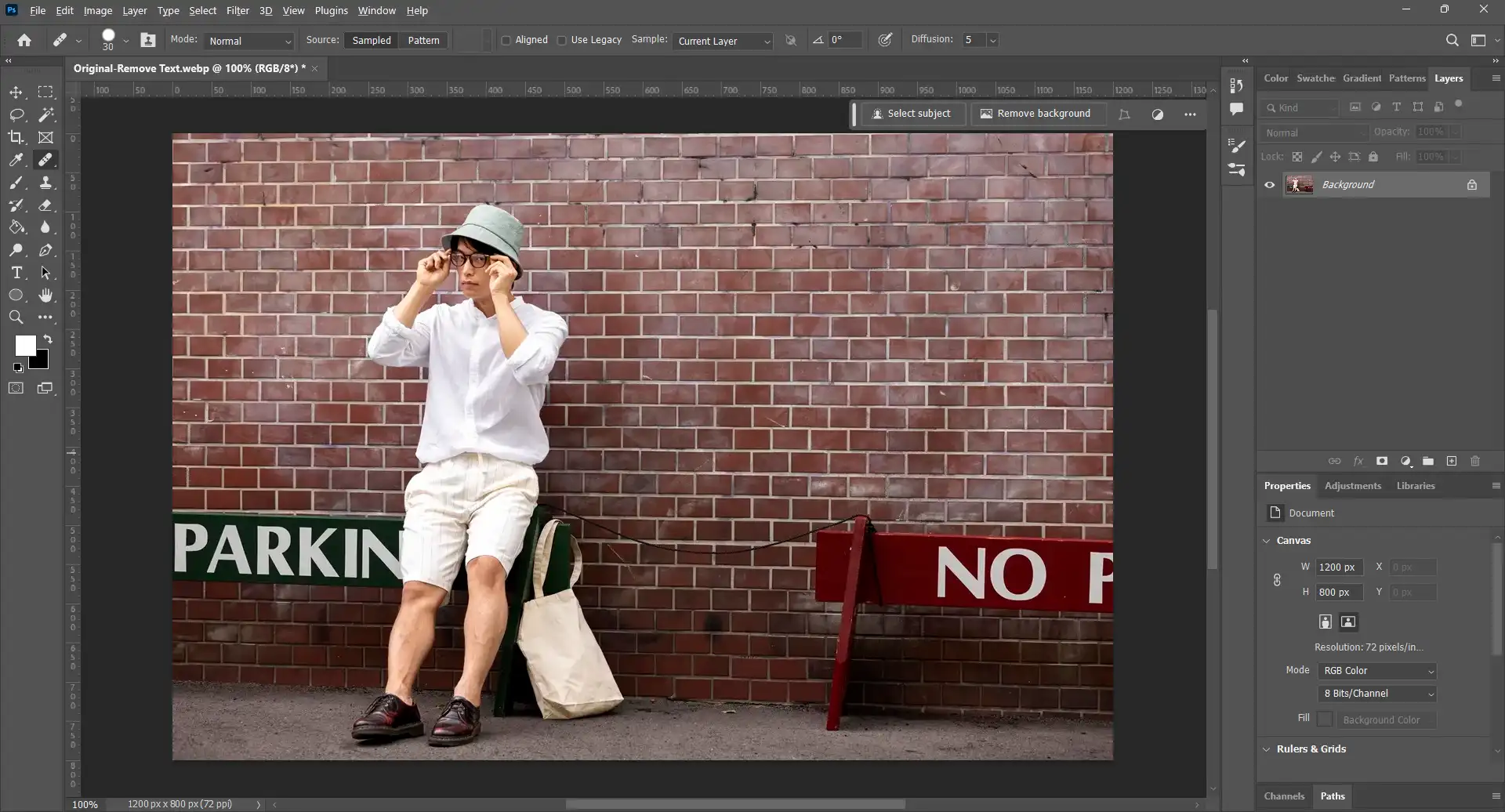
This is how to remove object in Photoshop in text form. Next, let’s see another method to delete objects from a photo in Photoshop:
#2 How to Remove an Object from an Image in Photoshop
If you’re wondering how to remove something in Photoshop (like a trash bin or a pole), the Content-Aware Fill feature is the quickest way.
Steps:
- Open and duplicate the photo. Just like before, duplicate the “Background” layer for non-destructive editing.
- Select the unwanted object. Use the “Lasso Tool” (freehand selection) or the “Object Selection Tool” (automatic) to draw around the item. Keep your selection slightly larger than the object for better blending.
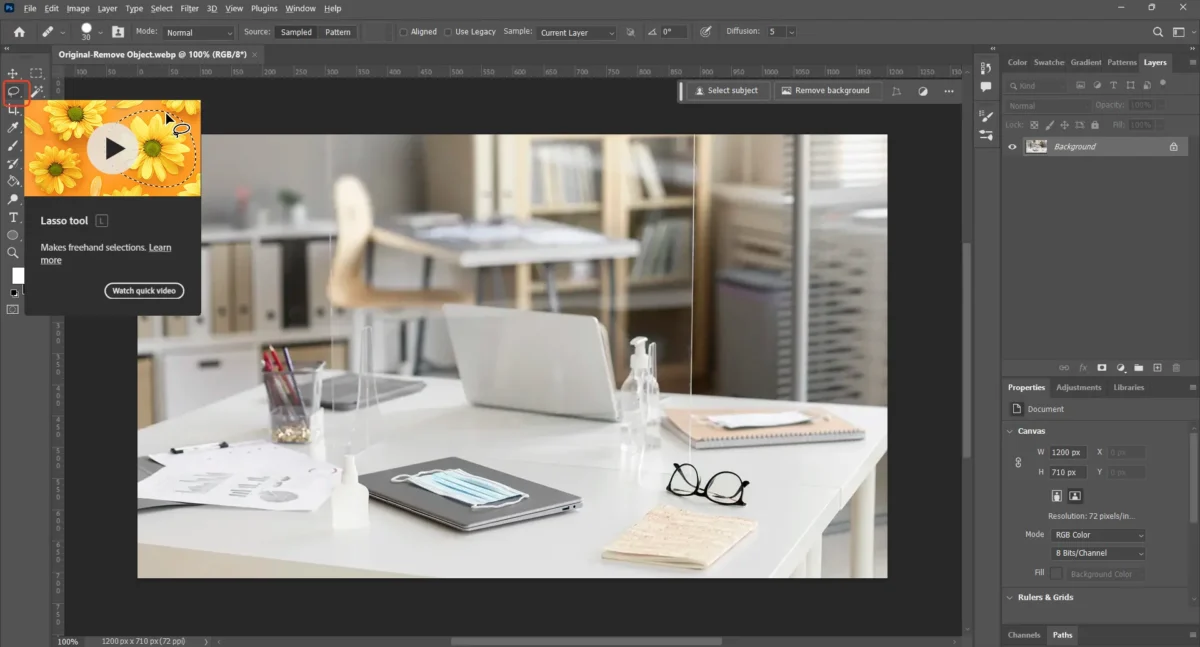
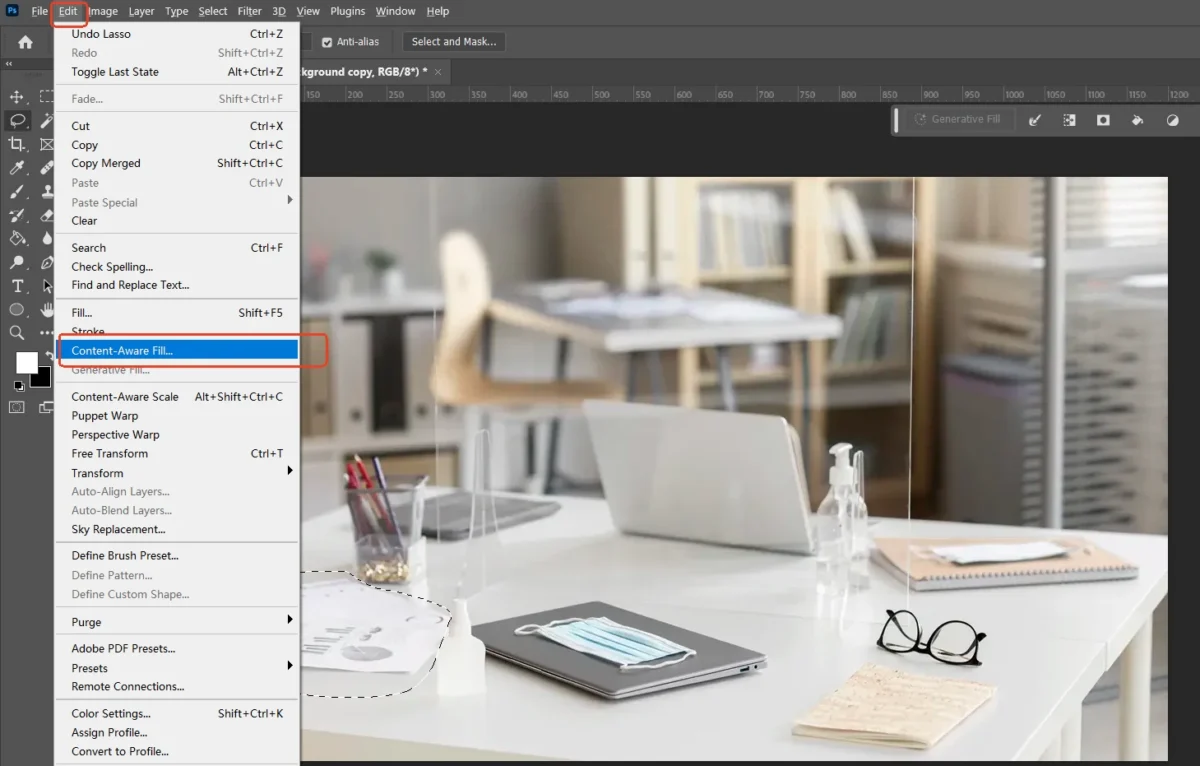
- Activate Content-Aware Fill. Go to “Edit” > “Content-Aware Fill”, or use the shortcut “Shift + F5”. A new window will open showing a preview.
- Adjust the sampling area. By default, Photoshop samples from surrounding areas. Use the green brush to add or remove areas from the sampling region until the preview looks natural.
- Apply the fill. Click “OK” when satisfied. Photoshop will replace the selected object with background pixels.
- Deselect and refine. Press Ctrl + D (Windows) or Command + D (Mac) to deselect. Use the “Healing Brush” or “Clone Stamp Tool” for small imperfections.
- Check blending. Zoom in to make sure textures and colors look realistic, especially on patterned or textured backgrounds.
Pro Tip: If the background is complex, break the removal into smaller selections for cleaner results.
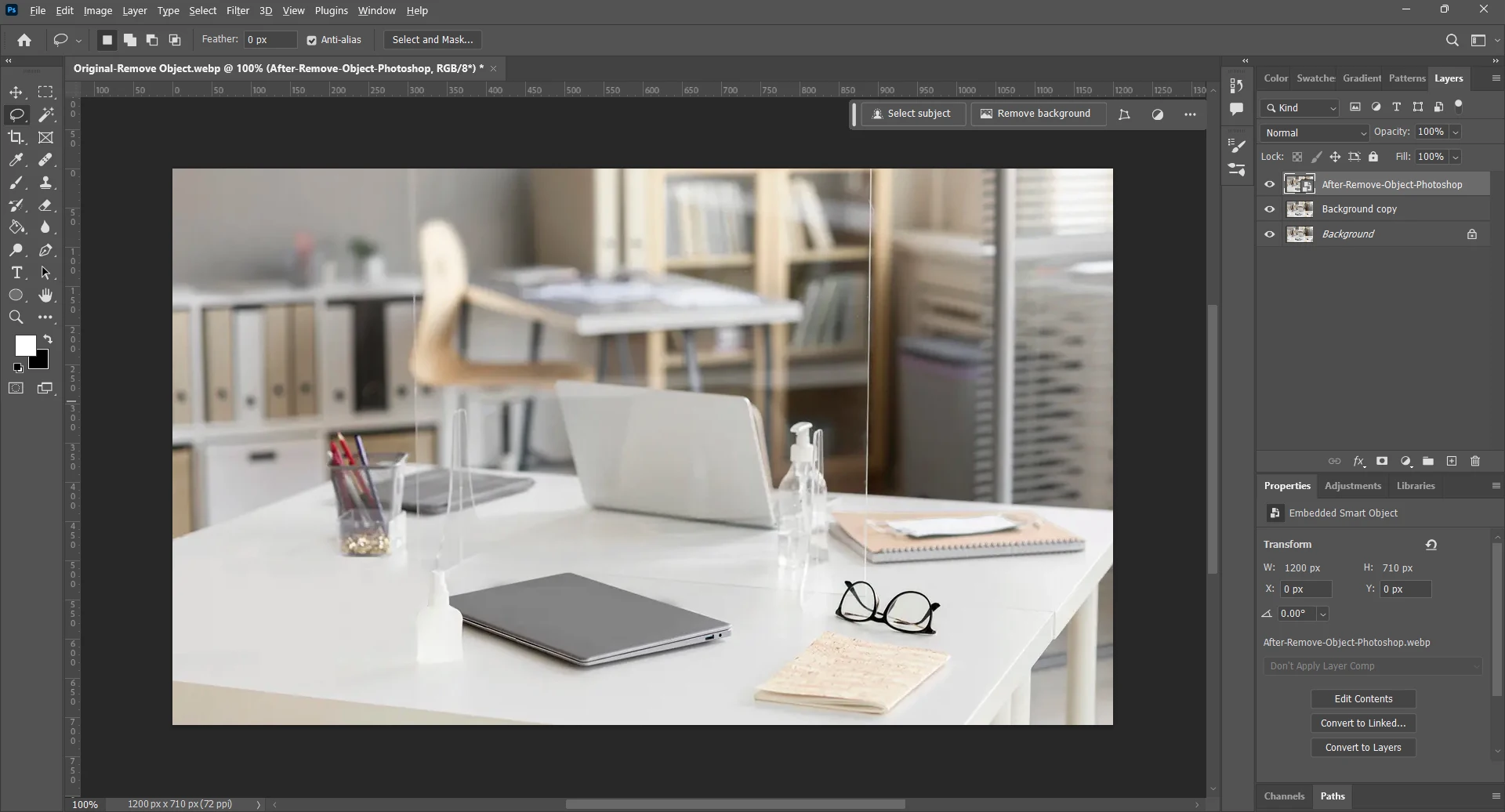
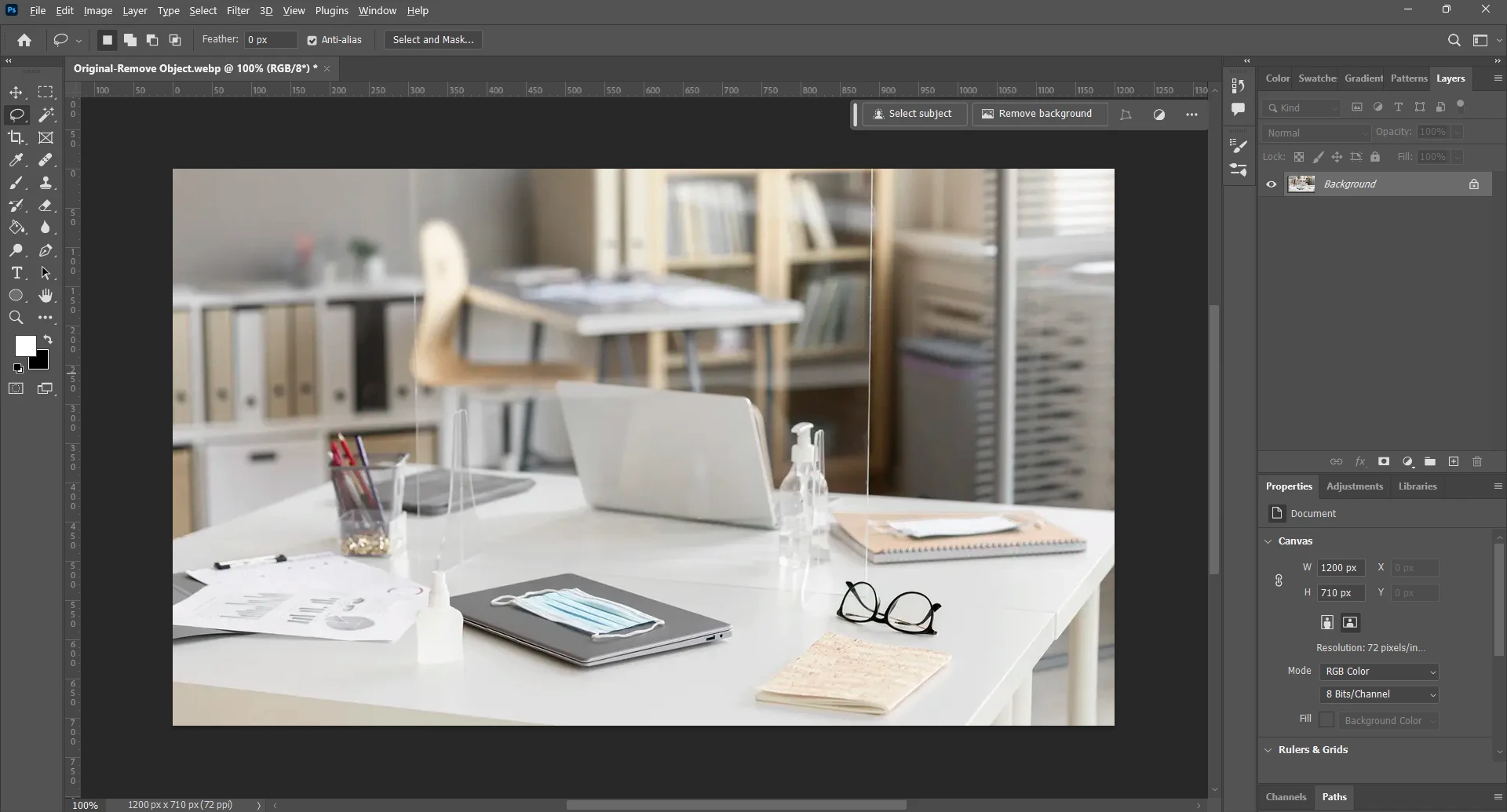
The above are the Content-Aware Fill method in how to remove object in Photoshop. But you may want to see how it works in erasing people in an image. Go to the following:
#3 How to Cut out a Person from a Photo in Photoshop
When you need to cut out a person from a photo, for example, removing strangers from your travel shots, Photoshop combines selection tools with Content-Aware Fill.
Steps:
- Duplicate the background layer. Always edit on a duplicate layer.
- Select the unwanted person. Use the “Object Selection Tool” (AI-assisted) or the “Lasso Tool” (manual) to outline the person. Try to stay close to the edges without cutting into the background.
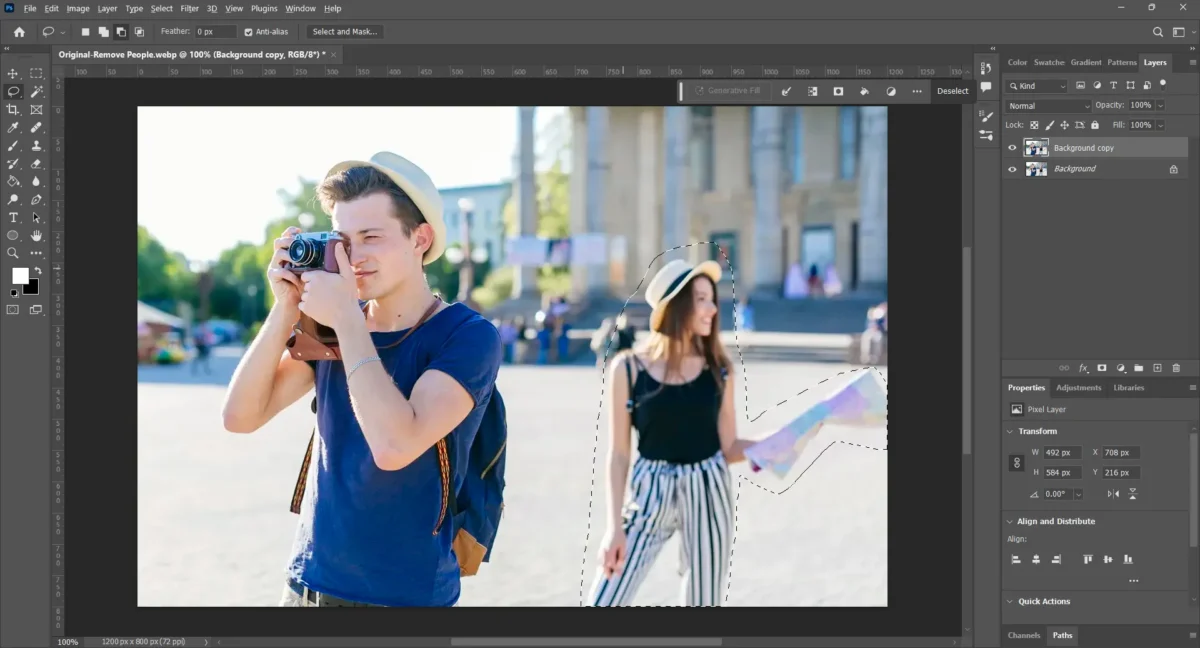
- Apply Content-Aware Fill. Go to “Edit” > “Fill” and choose “Content-Aware” in the drop-down menu. Photoshop will attempt to replace the selected person with surrounding details.
- Evaluate the result. If Photoshop’s replacement looks imperfect, undo (Ctrl/Command + Z) and refine the selection, or try removing the person in sections instead of all at once.
- Use the “Patch Tool” for corrections. Select the rough area left behind, drag it to a clean background section, and Photoshop blends the two.
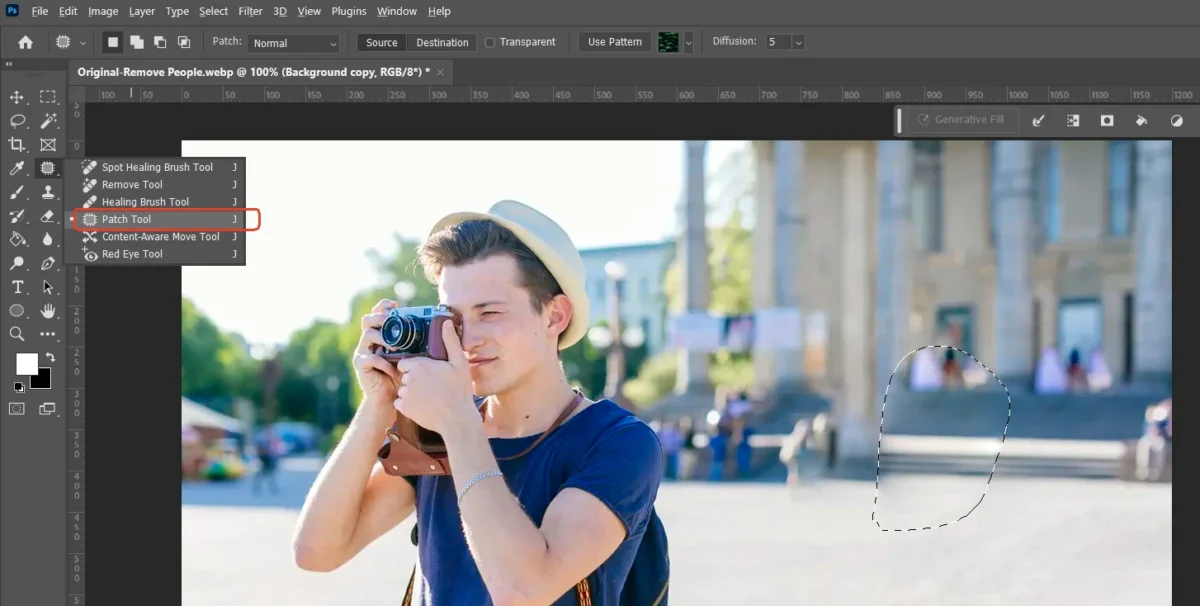
- Zoom in and refine edges. Use the “Healing Brush Tool” to fix small inconsistencies such as broken patterns, shadows, or mismatched textures.
- Final polish. Add a subtle blur or blend layer if the background looks too sharp compared to the rest of the photo.
Pro Tip: For complex backgrounds (like textured walls or busy streets), combine “Content-Aware Fill” with “Clone Stamp” for the cleanest finish.
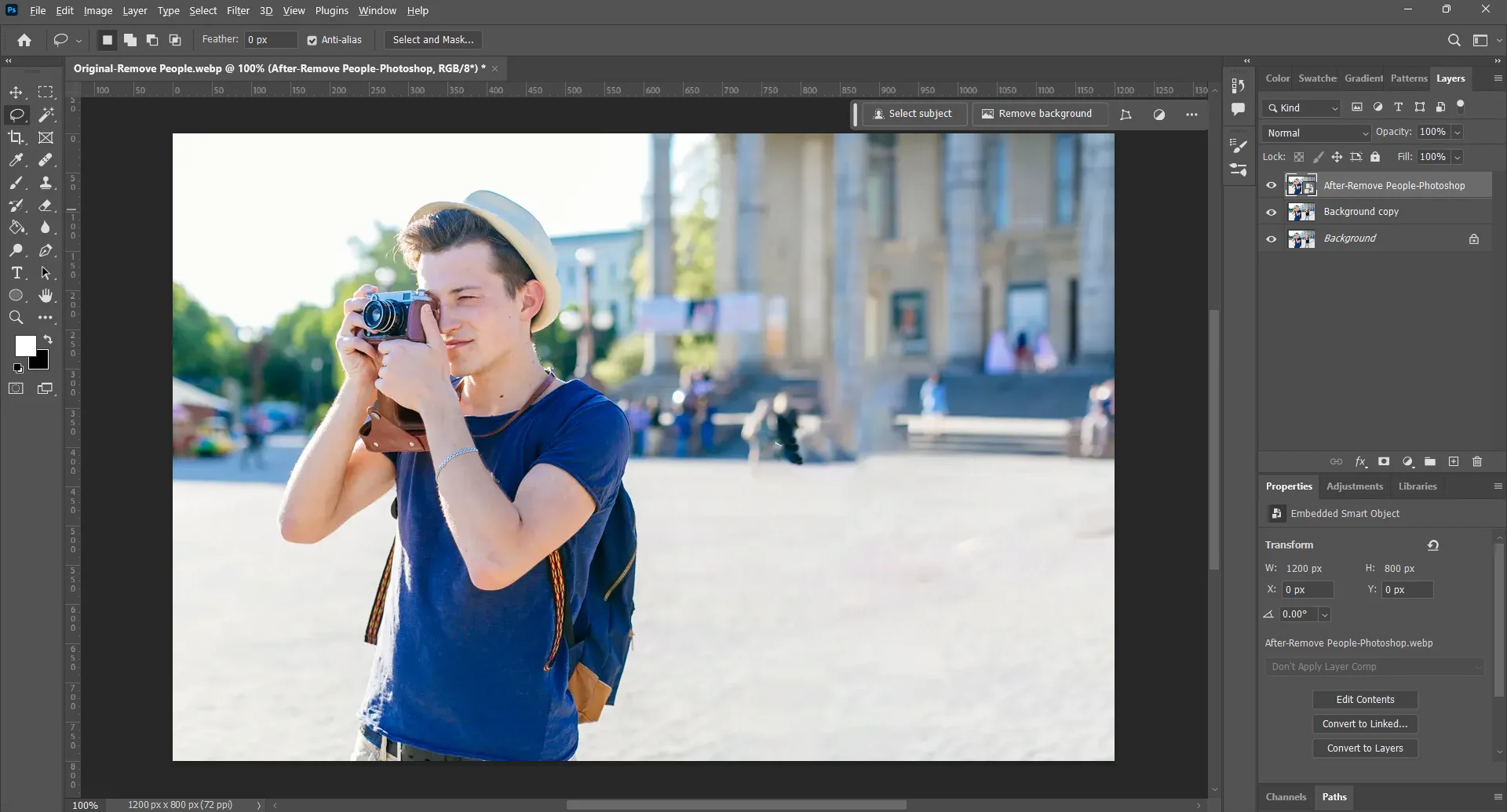
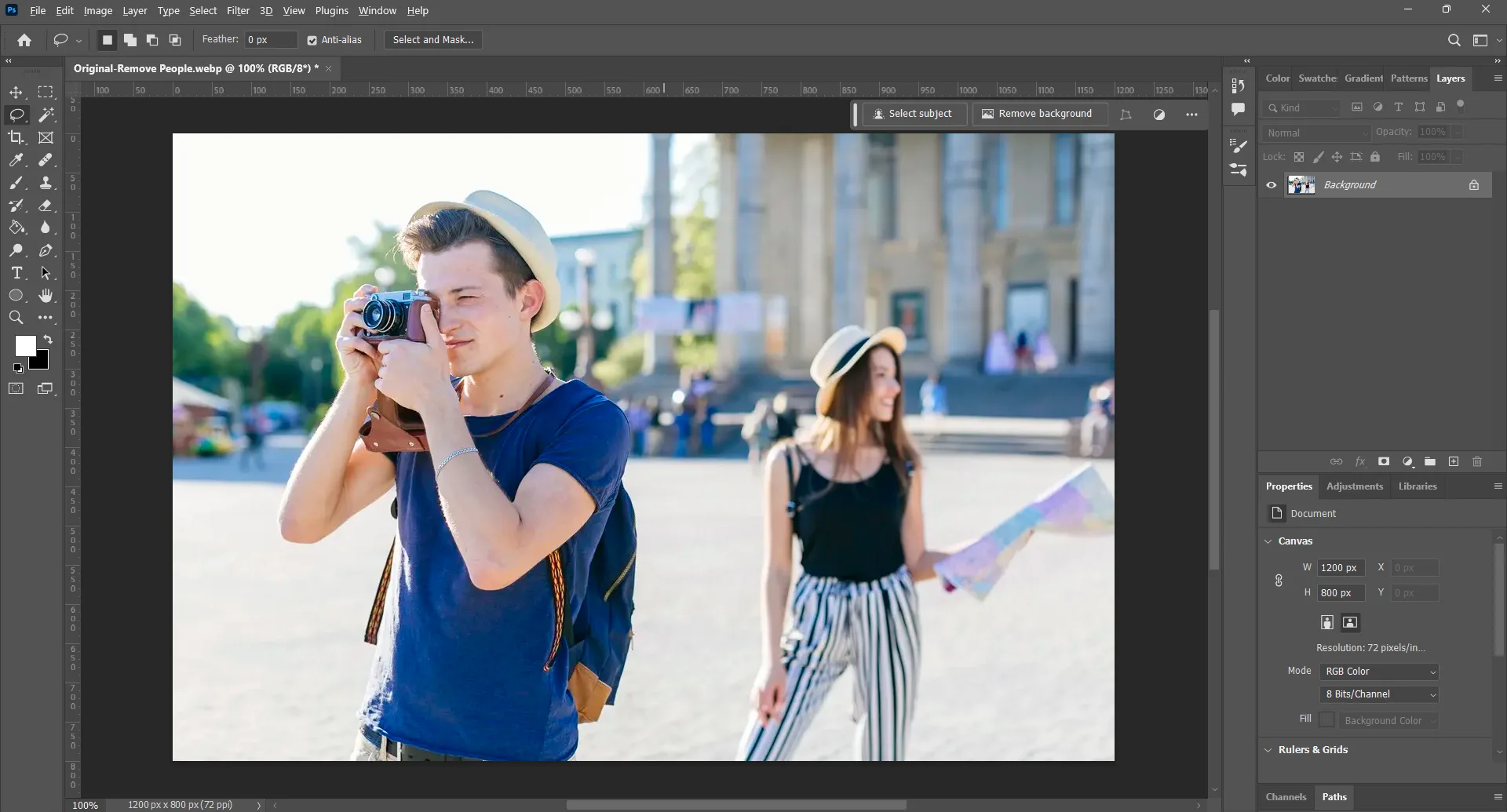
That’s all about how to remove object in Photoshop in easy steps for all levels of users. But if you need a quick edit without app installation and complicated manual edits, Evoto AI Online Object Remover is your best choice. Let’s see how it works.
Remove Object in Photo Online with Evoto AI Object Remover
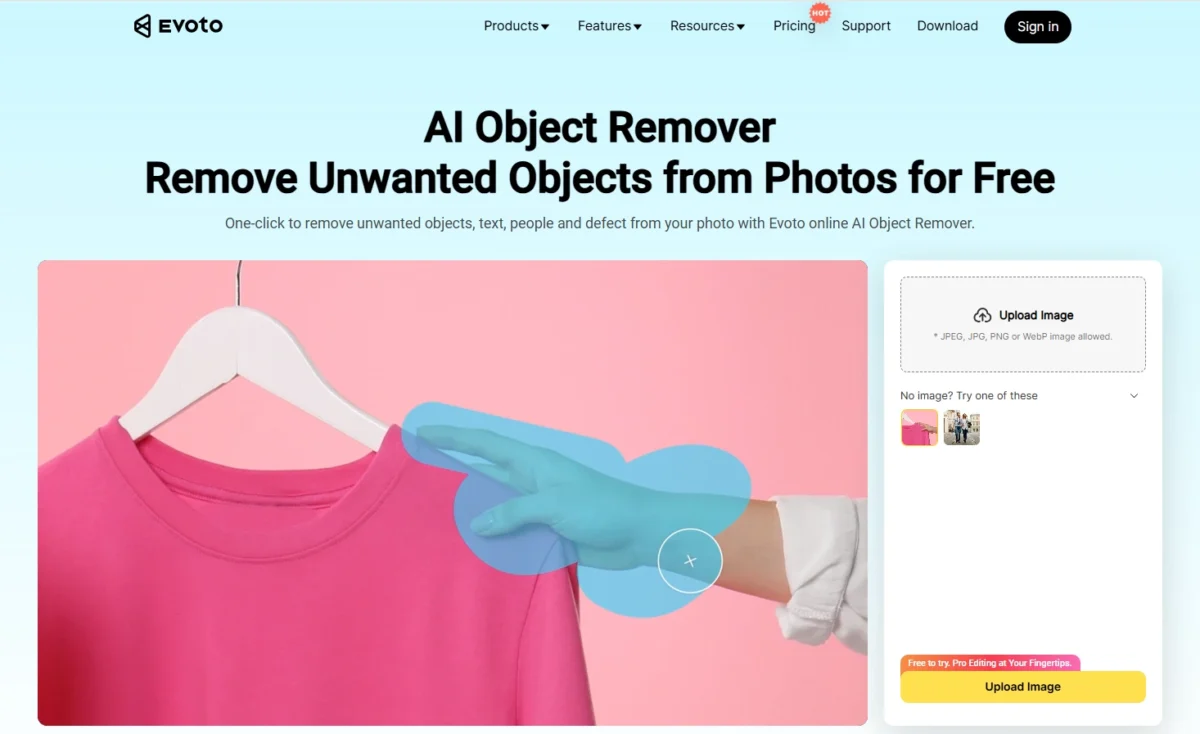
While it’s helpful to figure out how to remove object in Photoshop, the tutorial can be overwhelming for casual users. This is where Evoto AI Object Remover comes in. It’s a free online photo object remover that uses AI to detect and erase distractions in the photo, including objects, text, or unwanted elements intelligently, saving time and effort.
How to Remove Something from a Photo Online with Evoto
Step 1. Upload an Image
Drop down the ”Features” tab and go to ”All Features” to find the free AI Object Remover. Import a photo with unwanted text, stickers, objects, or people to the online AI Object Remover. The available image formats can be PNG, JPEG, JPG, and WEBP.
Go to the online object remover:


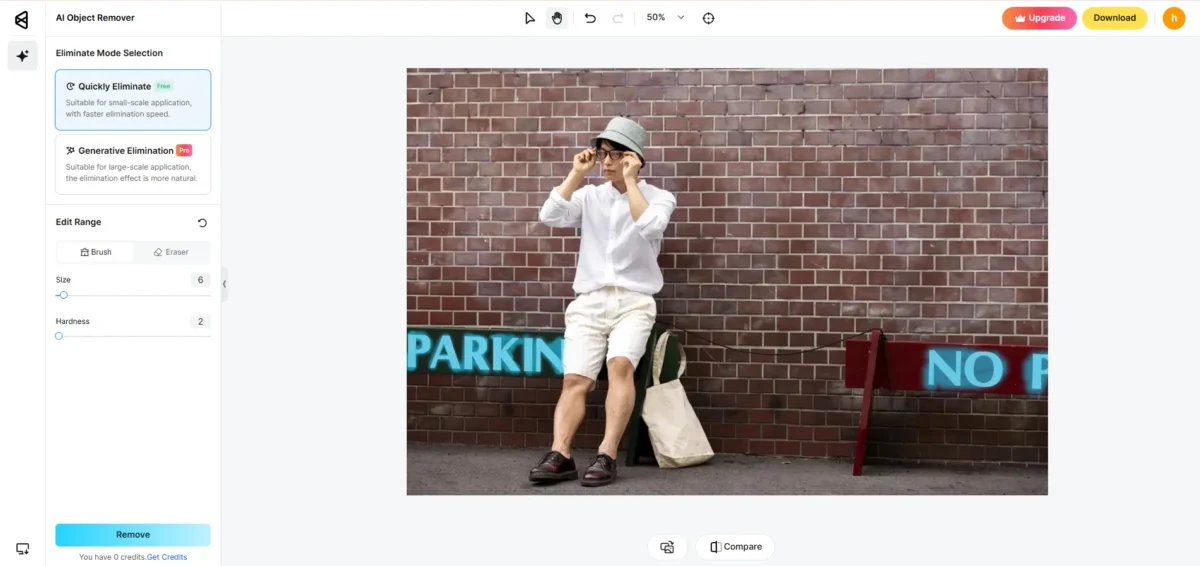
Step 2. Select Unwanted Text
Use the brush tool to smear the unwanted text or sticker area from the photo. Then click “Remove”, and Evoto will recognize your selected area, remove the text or sticker from your photo, and content-aware fill the background automatically.
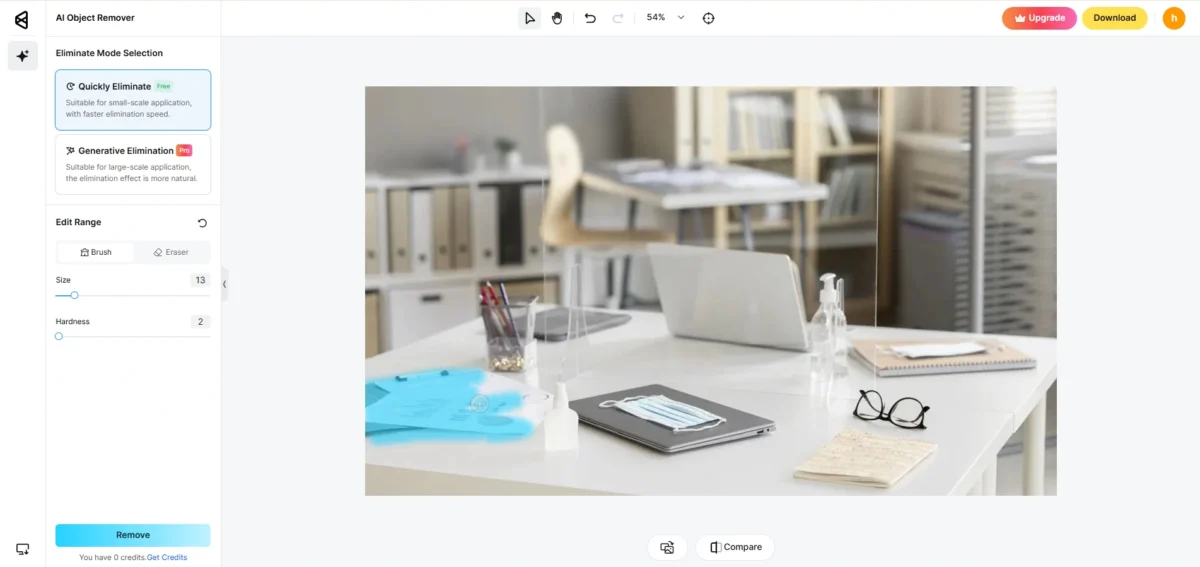
Step 3. Remove Objects from Photo
Also, you can highlight the unwanted objects using the selection brush. Then, let AI process the removal and background rebuilding instantly.
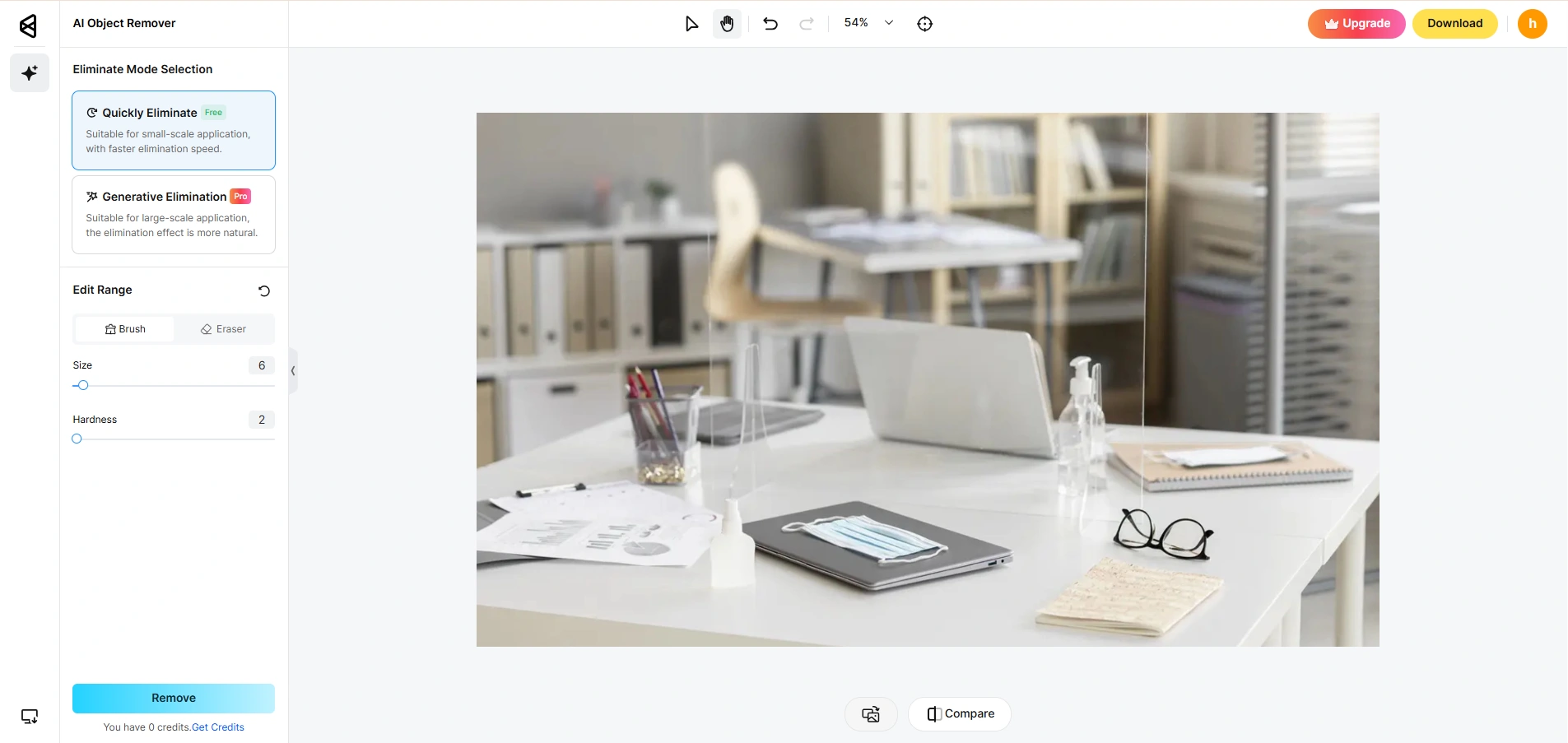
Step 4. Download the Image
Check the before-and-after images after the removal. Click “Download” to save the object removal photo to your device.

Pro Tip: If you want to remove unwanted people from a photo, the Evoto AI People Remover online tool utilizes AI to detect and remove them while seamlessly blending the background.
Additionally, for portraits or wedding photos, Evoto’s background remover online tool ensures a flawless backdrop as needed.
With Evoto AI, you don’t need to master complex tools to erase distractions in travel photos, product shoots, lifestyle pictures, event images, and more. It’s quick, intuitive, and delivers professional-looking results without a reshoot in seconds.
Surely, if you need more precise retouching on portraits, product photos, or other photographs, you can download the desktop version of the AI Photo Editor to get a perfect outcome.


Powerful AI Photo Editor
Object Removal Precautions: Photoshop vs. Evoto AI
While both Photoshop and Evoto AI can remove objects from photos, the best choice depends on your skill level, project type, and time. Photoshop excels when you need maximum precision and control, while Evoto AI shines for quick, automatic edits without technical know-how. Here’s a side-by-side comparison:
| Feature/Aspect | Photoshop Object Remover | Evoto AI Object Remover (Online) |
|---|---|---|
| Ease of Use | It requires practice and knowledge of tools like Clone Stamp, Healing Brush, and Content-Aware Fill. | Beginner-friendly; no prior editing skills needed. Just upload, highlight, and let AI process. |
| Editing Speed | It can be time-consuming, especially with complex objects or backgrounds. | Very fast; AI removes objects in seconds. |
| Precision & Control | It offers full manual control with pixel-level adjustments. | Automatic detection works well but may need light touch-ups for tricky edits. |
| Learning Curve | Steep learning curve; takes time to master. | No learning curve; anyone can use it instantly. |
| Best For | Professional editors, photographers, and designers need high accuracy. | Casual users, social media edits, and quick object removal tasks. |
Conclusion
Whether you prefer mastering how to remove object in Photoshop tools for full control or using an AI object remover online for speed, both methods can transform cluttered photos into polished masterpieces. For the easiest workflow, fastest results, and budget-friendly editing, try Evoto AI—your all-in-one online tool to remove objects from photos with just a click.


