

Ghost mannequin photography is a product photography method that removes the mannequin from the final image so the garment keeps its shape while looking unworn. Ecommerce teams use it when they want cleaner product images than a flat lay without losing the structure of the clothing.
This workflow only stays fast when the source files are shot correctly. If the garment shape shifts, the collar collapses, or the interior fabric is missing, the edit stops being a simple composite and turns into repair work. That slowdown multiplies across a full apparel batch, where one missing view or one angle change can lead to repeated masking, weaker neck joints, and inconsistent product images before delivery.
Why Ghost Mannequin Images Go Wrong
Most ghost mannequin images go wrong before Photoshop starts. If the collar collapses, the inside fabric was never photographed, or the angle changes between frames, the retoucher has to rebuild missing structure instead of finishing a clean product image.
That problem gets bigger across a batch. One weak setup choice can turn into repeated handwork across similar SKUs, which hurts batch consistency for product photos and slows the full product photo editing workflow.
How to Shoot Ghost Mannequin Photos Step by Step
Step 1. Lock the camera before the batch starts
Use a tripod and keep the camera height, framing, and lens fixed. If the angle shifts between garments, or between the outside and inside views, the neck joint in Photoshop becomes harder to align.
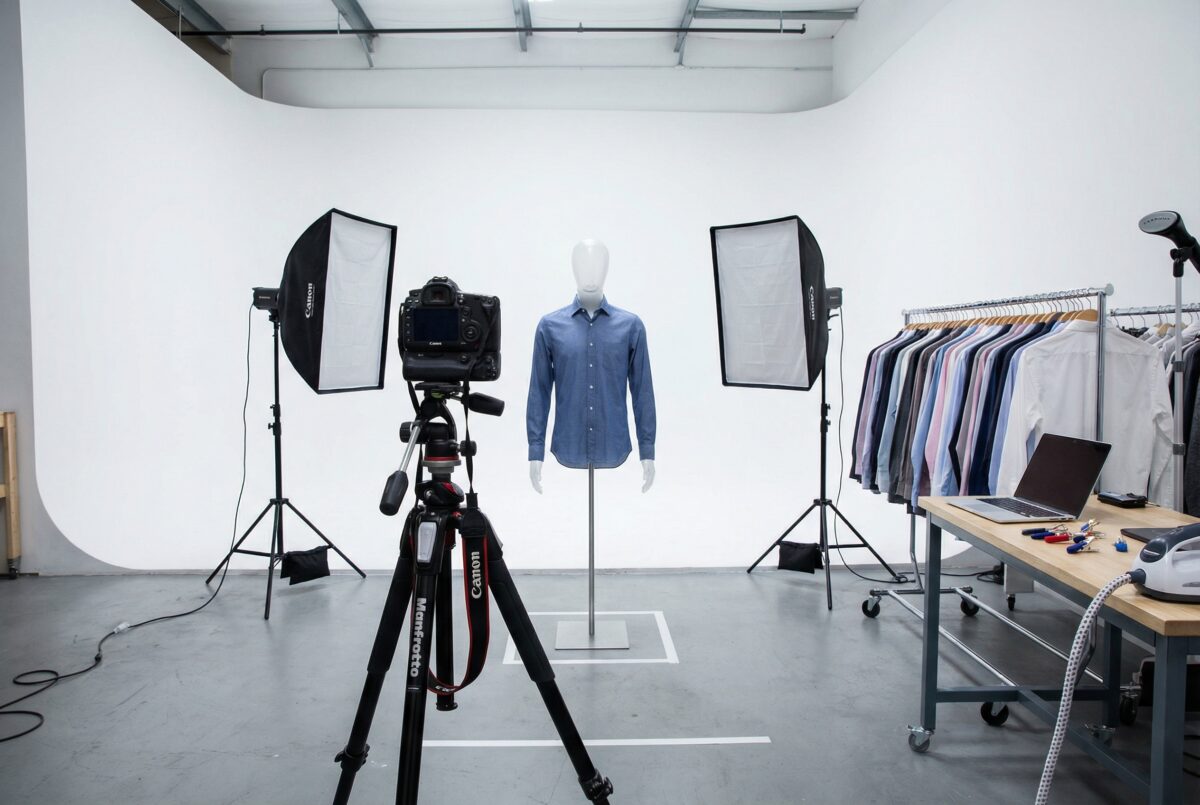
Step 2. Shape the garment before you shoot it
Steam, pin, clip, and smooth the garment so the collar, shoulders, placket, and hem hold shape. If the garment looks unstable on the mannequin, the final ghost mannequin effect will look less natural.
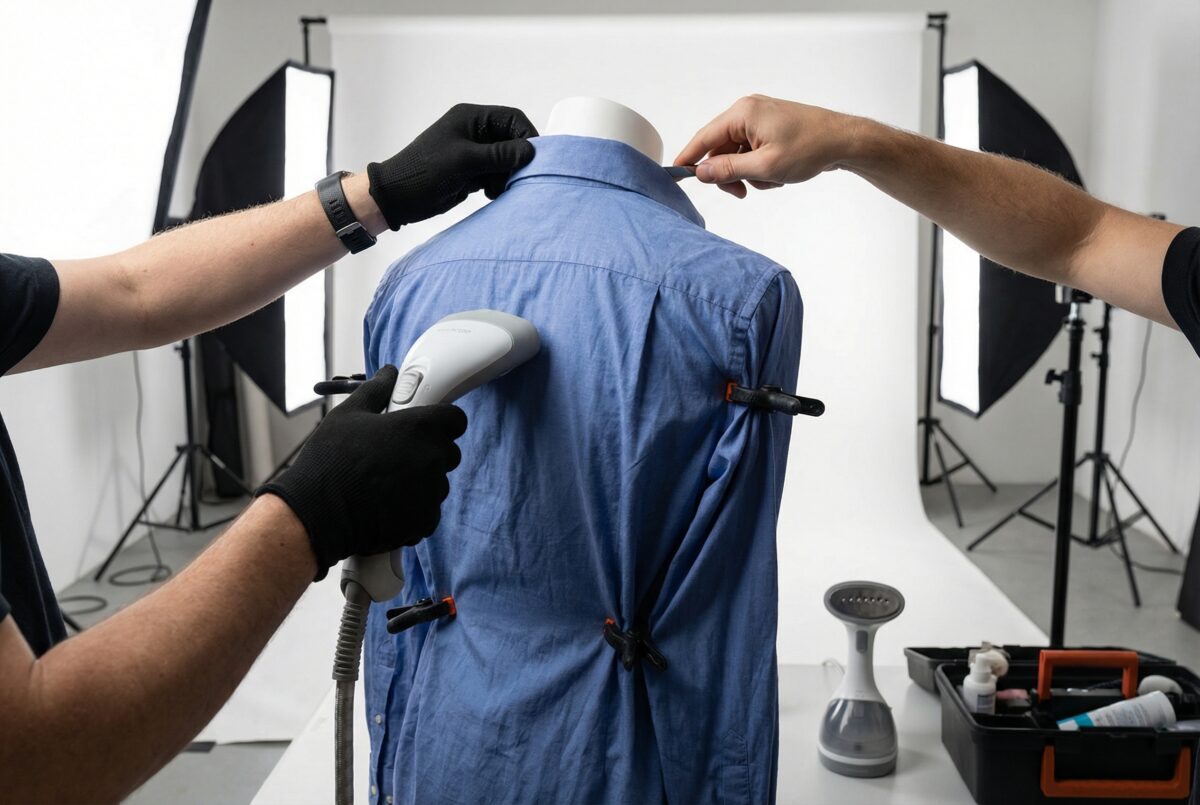
Step 3. Shoot the main outer view
Capture the outside product view first. This is the frame that carries the silhouette, garment shape, and overall product presentation.
Step 4. Capture the inside fabric for the center opening
Photograph the inside fabric that will rebuild the neckline, collar, or waistband. If this frame is missing, the editor has to fake the hidden center later.
Step 5. Add the back view if the product page needs it
If the listing needs front and back coverage, capture the back in the same locked setup so the batch stays visually consistent.
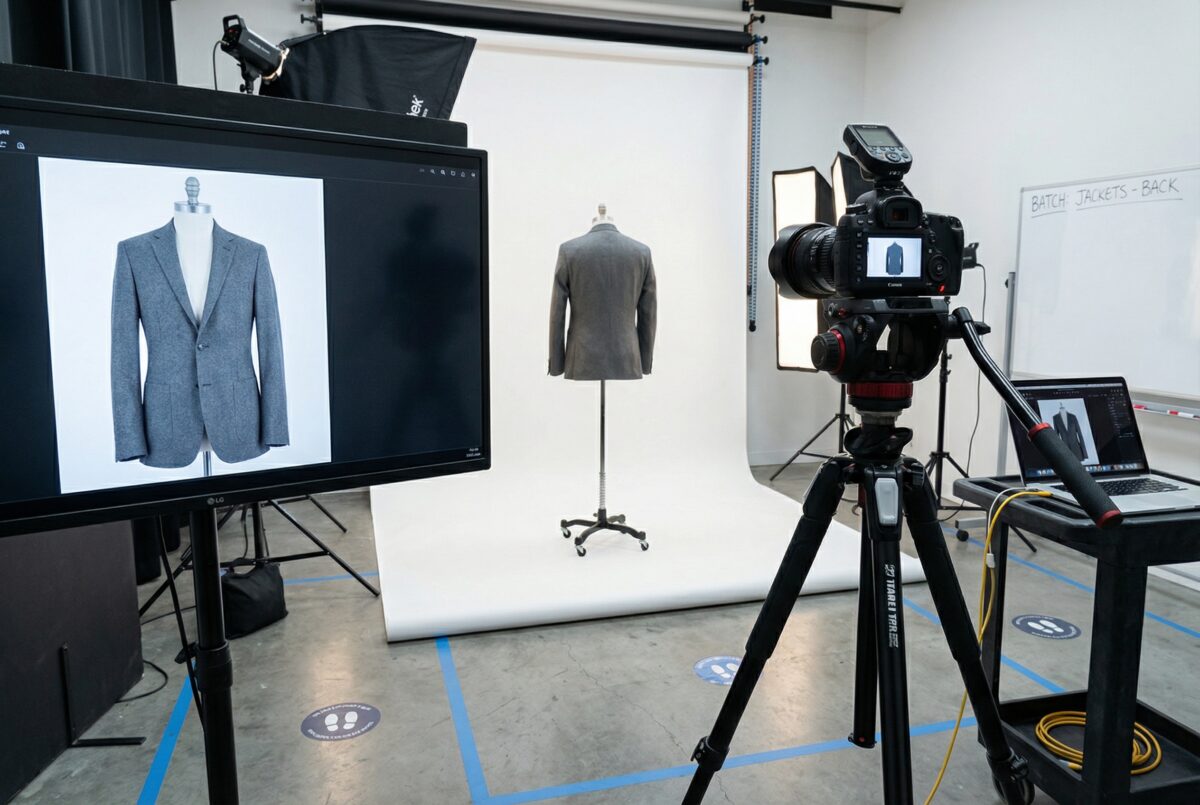
Step 6. Check the frame before moving to the next garment
Look at the collar, shoulder line, lining, sleeve openings, and overall shape before moving on. A few extra seconds on set can remove much more repair work in post.
How to Create the Ghost Mannequin Effect in Photoshop
Step 1. Open and align the outer and interior images
Open the main garment image and the interior fabric image in Photoshop, then align them in the same document.
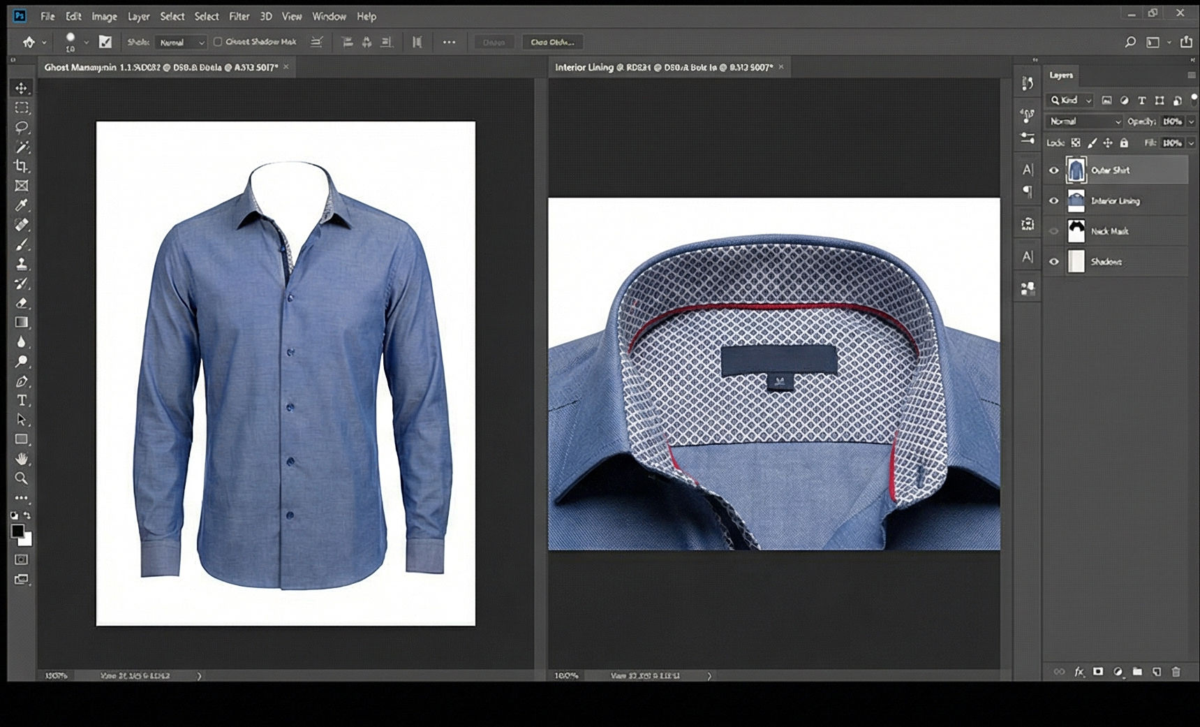
Step 2. Remove the mannequin and keep the garment outline clean
Mask out the mannequin from the outer shot and preserve the natural garment edges.
Step 3. Bring the interior fabric into the neck or waist opening
Move the inside-fabric layer into place so the hidden center area looks like part of the real garment.
Step 4. Blend the neck joint so it looks natural
Refine the transition until the collar, neckline, or waistband looks believable rather than pasted in.
Step 5. Clean the background and check the final shape
Finish the edges, white background, and tonal balance before export so the product still feels real at ecommerce viewing size.
Quickly Create Ghost Mannequin Images with Evoto
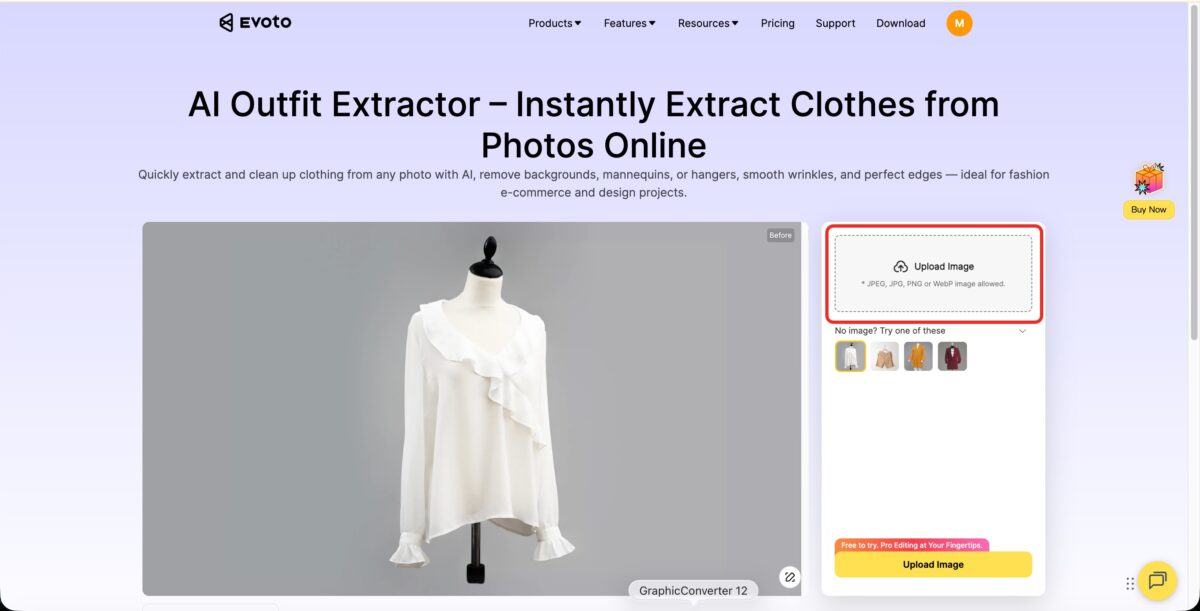
You can click here to start to Create your ghost mannequin images.
Step 1. Upload Images
Upload your images, and Evoto will analyze these images.
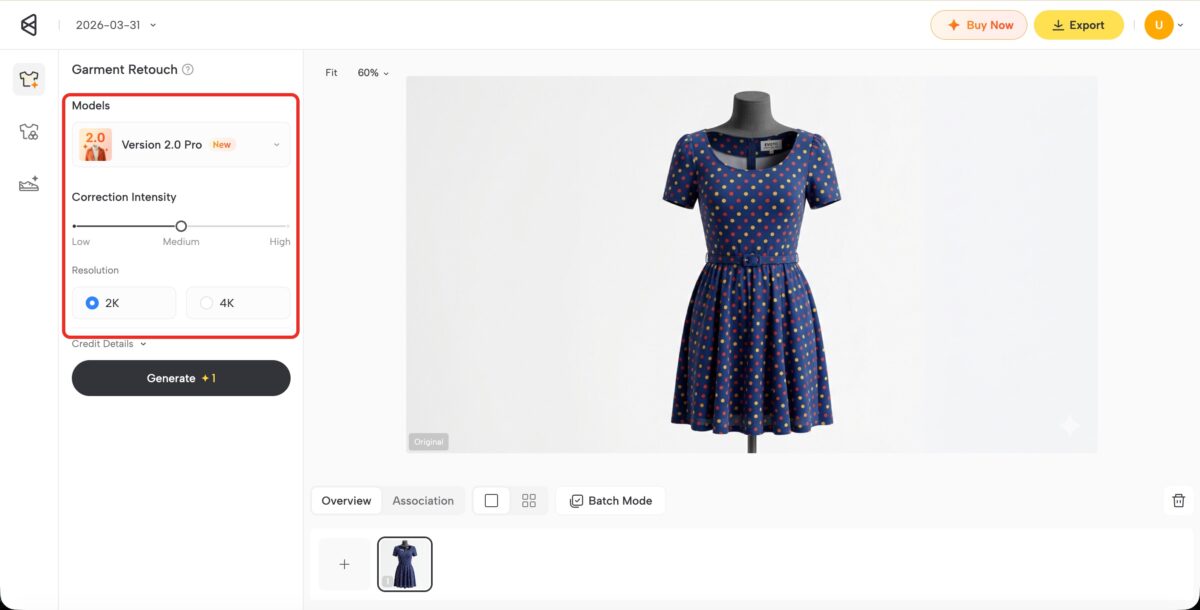
Step 2. Choose Processing Level and Resolution
Select the degree of mannequin removal (Low, Medium, or Hight) and the output resolution (2K or 4K). This ensures all garments in the batch maintain consistent white backgrounds, crop, and tone.
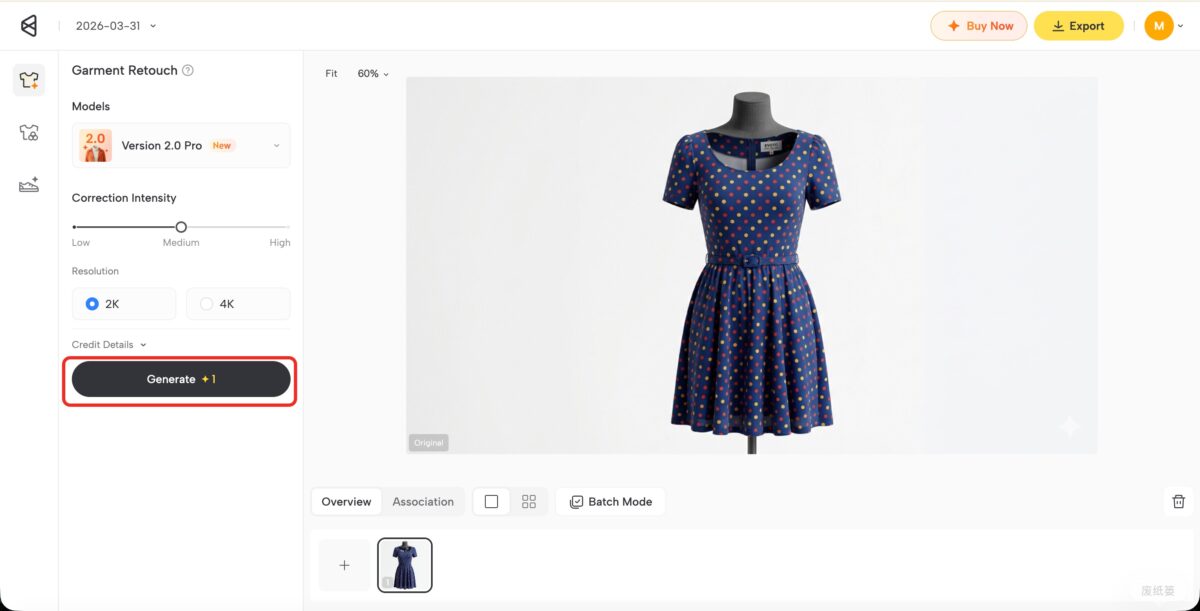
Step 3. Generate
Click generate. Evoto will automatically remove the mannequin and produce white-background images, processing all uploaded garments at once—no need to edit each file individually.
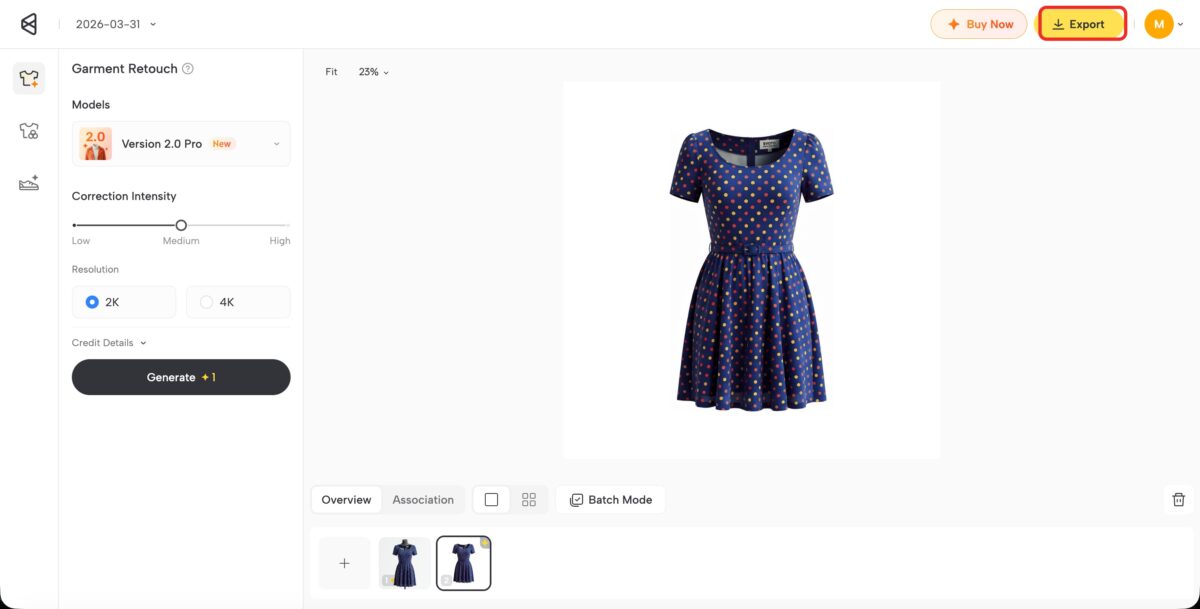
Step 4. Preview and Export
Preview the image. Once satisfied, export the high-quality images for e-commerce, saving significant time compared to manual finishing.
Why This Workflow Works Better for Ecommerce Batches
Ensures Batch Consistency
A well-structured ghost mannequin workflow helps similar garments leave post-production with cleaner white backgrounds, consistent crop ratios, and a more uniform overall appearance across the batch.
Speeds Up Delivery
The real benefit goes beyond cleaner edits—it accelerates moving finished ghost mannequin images into e-commerce delivery, maintaining consistent quality across the entire set.
Conclusion
The real time-saver in ghost mannequin photography is not simply removing the mannequin. It is shooting the source files correctly and finishing the workflow in the right order.
When the source files are stable and the Photoshop composite is clean, the later batch-finishing stage has room to move faster. That is where a stronger workflow starts paying off.That is where a stronger workflow starts creating real ecommerce efficiency gains.
Used at the right stage, Evoto helps move a completed ghost mannequin batch toward ecommerce delivery faster and with more consistency. It does not replace the manual composite—it helps the finished set leave post cleaner, faster, and more consistently.
Try Evoto AI Photo Editor
Retouch photos with Evoto AI and make your photos best! Available on Windows, MacOS and iPadOS.



