
TL;DR
- How to get rid of tan lines in pictures starts with a type call—strap, bikini, watch, blotchy spray tan, or sunburn red—not a one-slider fix for every frame.
- How to fix tan lines on strap and bikini heroes: Remove Tan Lines on Evoto Desktop with auto mode + manual fine-tuning—illustrative 2–6 min/hero · June 2026 · not industry average.
- How to remove tan lines on large blotchy spray tan still calls for manual frequency separation; TryRetouchLab cites 20–45 min per frame for Photoshop FS—tutorial estimate, not your studio SLA.
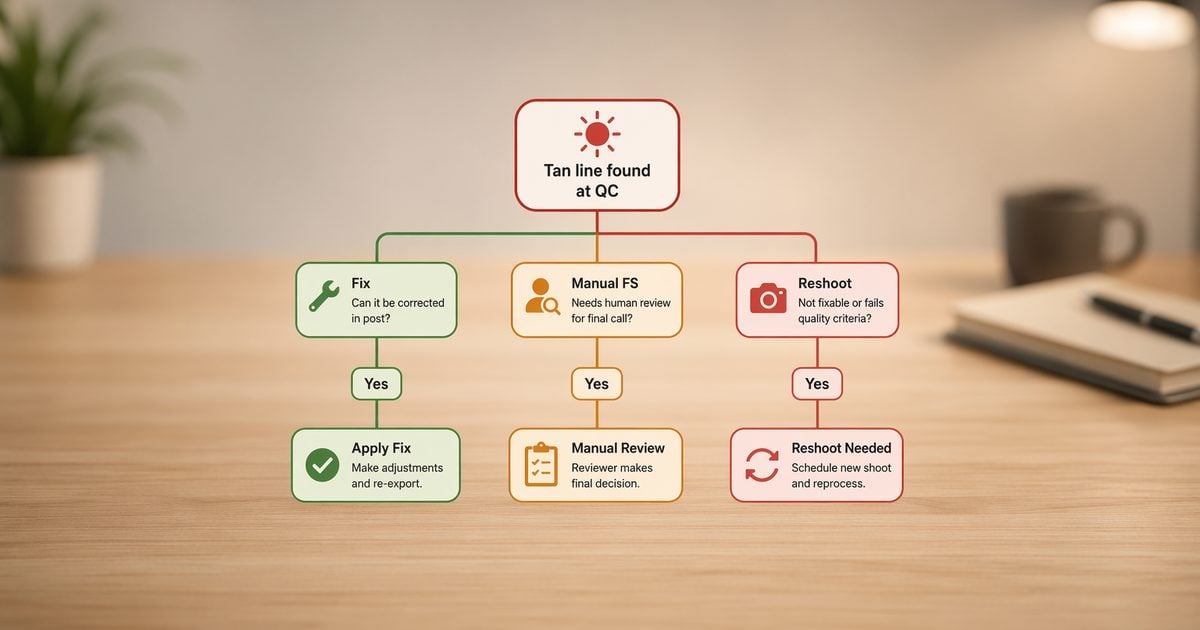
- Sunburn redness is reshoot territory, not a tan-line tool promise. Run the fix-vs-reshoot tree before you click Approve.
“The client approved the gallery. Then I zoomed to 100% and saw the strap line.”
If you retouch weddings, boudoir, or summer portraits, you know that moment. The couple loved the set. The export folder was queued. And one shoulder still carries the ghost of a bra strap from the beach day before the fitting.
We run delivery QC on Evoto when the gallery is folder-scale—not because another app replaces your loupe, but because Remove Tan Lines, blemish cleanup, and portrait sync belong in one production project before export night.
How to fix tan lines is not a consumer selfie tutorial—it is a delivery-hour decision made 24 hours before the gallery goes live. You are not asking whether tan lines exist; you are asking whether this hero earns a retouch pass, a manual frequency-separation block, or a polite reshoot conversation.
In 2026, how to get rid of tan lines in pictures gained a dedicated path: Remove Tan Lines in Evoto Desktop Portrait Retouching. But how to remove tan lines still begins with classification—the tool softens bikini and strap contrast; it does not cure sunburn or replace a full manual pass on blotchy spray tan.
Delivery gate: We fix the strap line for the same reason we fix a crooked tie—delivery polish, not a sales event.
How to Fix Tan Lines Before You Export — A Retoucher’s Type Guide
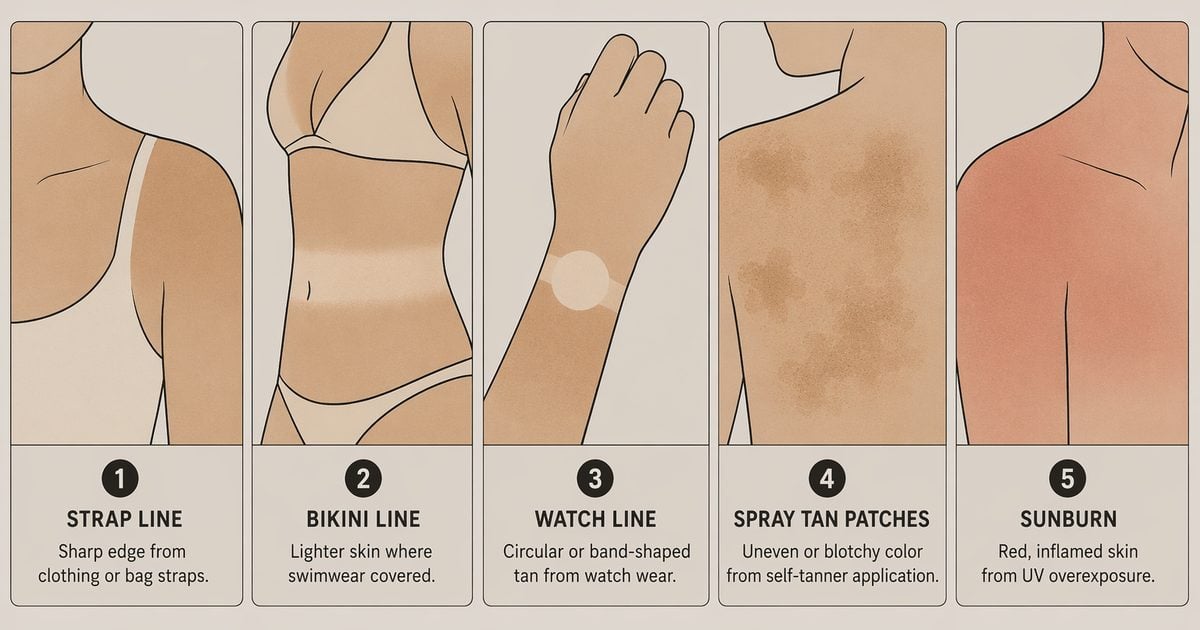
Before you touch a slider, name the tan line. How to fix tan lines and how to remove tan lines diverge at the type row—not at the export button.
Scope note: Minutes below are illustrative · single hero · Evoto Desktop · June 2026. They are not interchangeable with the 20–45 min manual frequency-separation range cited by TryRetouchLab for full Photoshop FS workflows.
| Type | Visual signature | First path | Minutes (illustrative) |
|---|---|---|---|
| Strap/bra line | Hard shoulder edge · common on wedding heroes | Remove Tan Lines + manual edge pass | 2–6 min |
| Bikini / swim | Chest or torso contrast band | Remove Tan Lines auto mode | 2–5 min |
| Watch / sock line | Small circumferential band | Blemish spot pass, then tan pass | 3–8 min |
| Spray tan blotchy | Large uneven patches | Manual FS or reshoot | 15–40+ min |
| Sunburn red | Inflamed redness · texture break | Reshoot or out of scope | — |
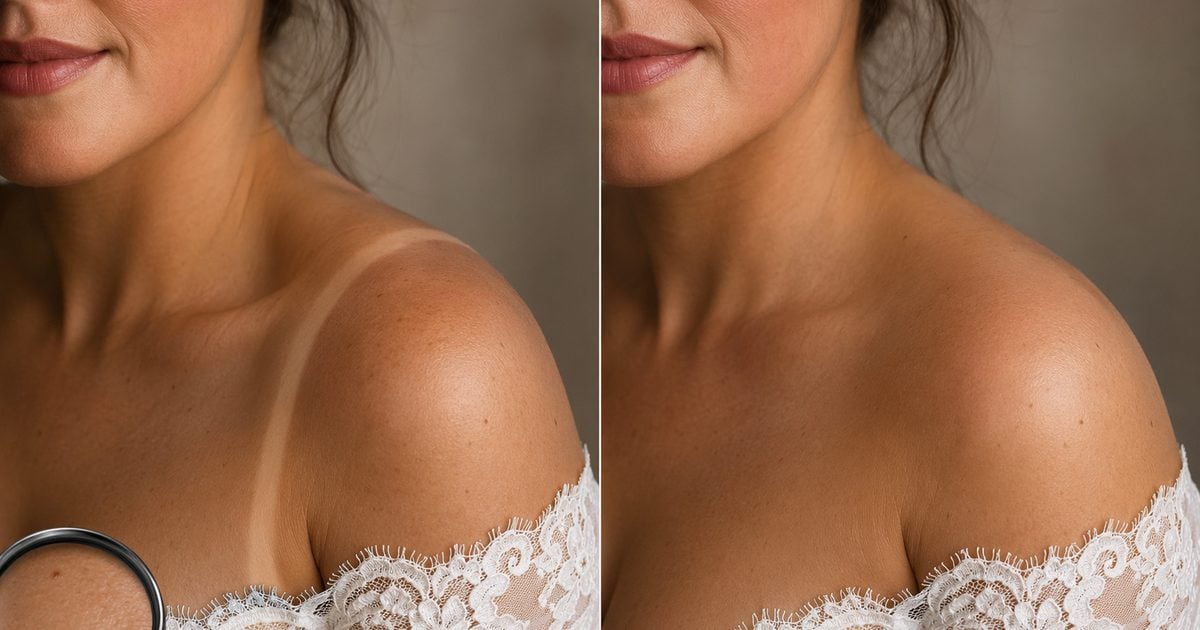
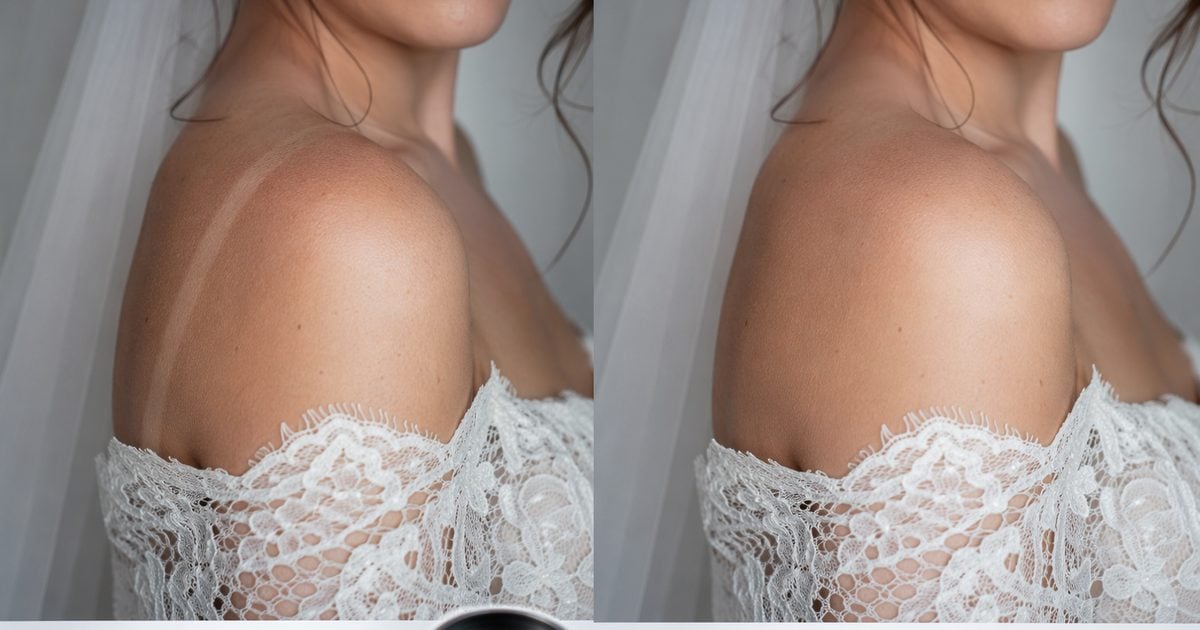
Strap/bra line: Off-shoulder wedding frames and boudoir sets love this row. The line is narrow, the surrounding skin is sampleable, and Remove Tan Lines is built for exactly this—auto mode first, then manual fine-tuning on the edge.
Bikini / swim: Travel and beach sessions deposit high-contrast bands. Auto mode often lands close; you still owe a 100% zoom texture check before batch sync.
Watch / sock line: Too small for a heavy global pass. Clean spots with the blemish stack first, then a light tan-line pass so you do not smear watch hardware or fabric crease.
Spray tan blotchy: This is not a strap problem. Nina Mace’s frequency-separation introduction shows how manual FS can handle fake tan lines while preserving pore texture—but budget real minutes, not the 2–6 band. On Desktop, the same outlier row usually escalates to AI Frequency Separation (see workflow comparison below), not another Remove Tan Lines pass.
Sunburn red: Remove Tan Lines targets bikini and strap contrast only. Inflamed skin belongs in the reshoot column, not in a tan-line slider promise.
Formal Portrait Scenarios — Tan Lines Wedding Dress and Strap Lines
Tan lines wedding dress searches usually mean one frame: the off-shoulder hero where trial-fitting tan does not match shoot-day sun.
The story is familiar. She tried on a strapless gown three weeks ago. The wedding shoot was outdoors at noon. The line sits exactly where the gallery cover crop wants clean skin.
Client communication splits in two ways.
- Pre-delivery discovery—fix inside scope, note “skin retouch applied.”
- Post-signing surprise—quote an add-on or offer a mini reshoot if the line reads wider than a finger at print size.
The 177 Project’s wedding skin retouching guide reinforces what working retouchers already enforce: even skin, yes—plastic skin, no. Frequency separation and healing brushes still matter on outliers; Remove Tan Lines is the fast pass on narrow strap heroes, not a license to glass-skin the entire gallery.
For gallery-hour pressure on the full wedding folder—not strap QC alone—keep your turnaround checklist separate from this tan-line hub. One contract tier does not answer how to fix tan lines on a single hero at 11 p.m.
Fix vs Reshoot Decision Table
Uneven skin after sun exposure is a business decision dressed as a retouch question. Use the table before you promise same-day export.
| Condition | Recommendation |
|---|---|
| Line width < finger width · sampleable surrounding tone | Fix · Remove Tan Lines |
| Line width > palm width · broken tone ramp | Fix manual (FS) or price add-on |
| Red inflamed sunburn | Reshoot if contract allows |
| Client expects zero-retouch magazine skin | Raise scope · not a one-click promise |
| Delivery < 12 hours | Fix path + spot-check 3 heroes |
Reshoot cost (illustrative studio range): A focused mini session often runs 2–4 hours of photographer + coordinator time—not a market survey, just planning math when the line crosses the palm-width row.
Client script when reshoot is cleaner (adapt):
“The tan line on this hero is wider than our standard retouch scope covers cleanly. We can deliver a manual pass at [add-on rate], or schedule a 20-minute reshoot in even light—whichever you prefer. The rest of the gallery ships on time.”
When summer galleries mix beach sessions and formal portraits, post-tan delivery context matters—see our how to edit beach photos notes on skin-evening before you grade sand and sky. Tan pass first; scene second.
Workflow Comparison — Remove Tan Lines vs Manual Frequency Separation
How to remove tan lines photoshop and remove tan lines lightroom threads often land in the same forum tab. For isolated tan lines, global HSL in Lightroom tends to shift skin and dress together—targeted evening in Portrait Retouching is often the more precise path.
| Path | Best for | Time (reference) | Texture risk |
|---|---|---|---|
| Remove Tan Lines | Strap/bikini lines | 2–6 min illustrative · Desktop | Low–medium · needs manual edge check |
| AI Frequency Separation | Blotchy spray tan · palm-wide bands | Illustrative 10–20 min · outlier heroes | Low–medium · watch for over-smooth |
| AI Dodge and Burn | Residual tone ramp after RTL · chest-to-shoulder evenness | Illustrative 5–12 min · flagged frames only | Medium · subtle sliders only |
| Photoshop frequency separation | Large patches · full manual control | TryRetouchLab 20–45 min · tutorial estimate | Low when skilled |
| Lightroom global adjust | Whole-frame tone only | Varies | Limited for isolated lines |
Outlier path (when Remove Tan Lines is not enough): Palm-wide bands and blotchy spray tan belong on AI Frequency Separation in Portrait Retouching → Skin Retouching—the tone-vs-texture split Nina Mace describes for manual FS, with sliders instead of layer setup. If a narrow strap pass leaves a tone cliff on the chest or shoulder, AI Dodge and Burn can even the ramp with the Even (Dodge & Burn) body-skin control before you escalate to FS or quote a manual add-on. Neither replaces the fix-vs-reshoot tree for sunburn rows.
Evoto stack order (strap-line hero)
- Import the hero RAW on Evoto Desktop—batch bridal sets live here, not in a browser trial tab.
- Blemish pass first: Run spot cleanup via Blemish & Acne Removal on freckles, sensor dust, and small distractions—before you even skin tone. Spots and tan lines compete for the same eye at 100%.
- Remove Tan Lines · auto: In Portrait Retouching, run automatic mode for a first pass on strap or bikini contrast.
- Manual fine-tuning: Edge the shoulder where lace meets skin. Auto gets you close; your loupe finishes the seam.
- Before/after checkpoint: Toggle at 100%. Pores should survive; the strap band should whisper, not vanish into plastic.
- Color grade order: Tan pass before gallery-wide grade. If you grade first, you fight two problems—the line and your LUT.
- Portrait sync—exceptions only: When the same person appears in three heroes, Portrait retouching group/individual sync can align skin finishing after the tan-line pass on flagged frames—not a full-gallery reskin.
- Export with optional delivery note: “skin retouch applied.”
Before you batch the full wedding folder, run a three-hero slice test on Desktop: one bride strap line, one groom collar edge, one wedding-party off-shoulder frame. Log minutes on your tan-line sheet—if all three pass the fix-vs-reshoot tree, the folder is ready for grade and export.


Powerful AI Photo Editor
If you are sizing peak-season retouch volume across hundreds of heroes, compare Desktop batch tiers on Evoto pricing—math first, subscription second.
Step-by-Step — Remove Tan Lines on a Strap-Line Hero (Walkthrough)
How to remove tan lines on a single-shoulder hero—five steps for QC logs. Illustrative total: 3–5 min on a narrow strap case · June 2026.
Step 1 — Prep the hero
Import the keeper RAW into your delivery project. Check the crop at the intended print ratio—the line should sit inside the retouch zone, not under a future album bleed. Run a quick blemish spot pass on dust, moles, and sensor spots so spots and tan lines are not competing for attention at 100% zoom.
Step 2 — Automatic tan-line pass
Open Remove Tan Lines in Portrait Retouching and let automatic mode land a first pass on the strap contrast. On bikini-band heroes, the same auto pass often gets close; on off-shoulder lace, treat this as a starting point, not the final export.
Step 3 — Manual edge and tone tuning
Brush along the lace shoulder seam where the hard edge reads strongest. If pores flatten, pull strength down. Compare skin from chest to shoulder—when a tone ramp remains, widen the manual sample area instead of pushing the auto slider alone.
Step 4 — QC at 100% and sync decision
Toggle before/after at 100% on pores and lace filigree. Halt if lace halos or plastic skin appears. If this person appears in other gallery heroes, flag matching frames for portrait finishing—exception queue only, not a full-gallery reskin.
Step 5 — Reference still, export, log
Save a pre-grade reference still if this hero anchors the gallery LUT. Export full-res, note “skin retouch applied” if your contract calls for it, and log minutes on your tan-line sheet.
That walkthrough is the how to get rid of tan lines in pictures path for the 80% case—narrow strap, sampleable skin, delivery tonight.
Failure Modes — When Fixed Skin Looks Fake
Even correct tools fail open when rushed.
| Symptom | Likely cause | Recovery |
|---|---|---|
| Plastic skin | Auto strength too high | Lower strength · re-audit pores at 100% |
| Tone cliff | Line fixed, surround untouched | Expand sample region · feather manual pass |
| Lace edge mush | Mask overspill on dress | Edge brush · smaller radius on tulle |
Before/after standard: A successful strap pass reduces the band so a client does not clock it at album size—while pores and fine arm hair remain visible. If you would not sign a 16×20 print, do not export.
After the Tan Pass — Golden Beach Haze (Composite Optional)
Skin even first—scene second. Golden Beach Haze is the composite look some studios apply after tan lines and spot cleanup: warm haze, soft specular, beach-gallery cohesion. It is not a tan-line substitute.
When your queue includes true beach sessions, tan pass → grade → optional Golden Beach composite is the order. Dedicated beach-portrait workflow and pre-delivery spot-check guides ship in the same summer series; this hub stops at the skin gate.
How to get rid of tan lines in pictures pays off in the five minutes before Approve—type call, tree row, one walkthrough—not in a 2 a.m. re-export after the client emails a crop circle on the shoulder.
Remove Tan Lines ships in the current Evoto Desktop release notes—run the decision tree above before you click Approve. Summer scene work starts after skin is even; strap heroes are where how to fix tan lines earns its keep.
(Peak-season note: Build For Your Peak Season scene packs publish Jul 9—tan pass first, Golden Beach composite second. See Evoto pricing when you are sizing July gallery volume.)
Powerful AI Photo Editor
Build Your Tan Line Fix/Reshoot Sheet (Five Minutes)
Copy these headers into Google Sheets or Notion—most studios keep a live log beside the export queue during delivery week.
Image ID | Tan type | Decision | Tool path | Minutes spent | QC pass (Y/N) | Client notified (Y/N)Tan type dropdown: strap · bikini · watch · blotchy · sunburn
Decision dropdown: fix · manual · reshoot
Tool path dropdown: RTL · FS · other
Handy formula: Fix_rate = COUNTIF(Decision,"fix")/ROWS() — track your own studio baseline across a season; not industry data.
Print it beside the color calendar if paper beats browser tabs during delivery week.
FAQ
How to fix tan lines on a strap line vs bikini line?
Both use Remove Tan Lines, but strap heroes usually need auto + manual edge work on lace or off-shoulder seams; bikini bands often start with auto mode and a chest-to-torso tone check. Same tool, different strength and sampling—name the type row first.
Fix or reshoot for tan lines on the wedding dress heroes?
Fix when the line is narrower than a finger and the surrounding skin is sampleable. Manual FS or add-on when wider than a palm or tone ramps break. Reshoot on inflamed sunburn or when the client expects zero-visible-retouch magazine skin—raise scope instead of guessing.
Remove Tan Lines vs Photoshop frequency separation—when is manual still required?
Blotchy spray tan, palm-wide bands, and sunburn redness outgrow the bikini/strap scope. TryRetouchLab estimates 20–45 min per frame for Photoshop FS—a useful planning reference for manual outliers. On Evoto Desktop, start with AI Frequency Separation on blotchy rows; use AI Dodge and Burn when a strap pass leaves a tone ramp. Remove Tan Lines stays on narrow heroes in the 2–6 min illustrative band.
Which Evoto version includes Remove Tan Lines?
Evoto Desktop 7.2.0+ (Portrait Retouching panel 2.2). Confirm your build in the current Evoto release notes. Online trial can preview a single hero; the production batch stays on the desktop.
Should you fix tan lines before or after color grading?
Before. Tan-line evening samples natural skin; a gallery LUT applied first forces you to fight both the line and your grade. Lock a pre-grade hero still, run Remove Tan Lines, then match the wider gallery.
Does Evoto use client skin photos for AI training—and is AI tan-line removal ethical?
Evoto’s Privacy Policy states that your content is not used to train generative AI models without explicit opt-in. Tan-line removal is corrective evening on strap/bikini contrast—not body reshaping or ethnicity alteration. You keep texture QC at 100%; disclose retouch scope your contract requires.
Can online trial batch a wedding gallery?
No. Folder batch, sync, and export are Desktop work. Preview one hero in browser; do not promise a 400-image wedding SLA there. Strap-line fixes on three heroes still belong in the production project file.
Methodology & Author
Author: Evoto Editorial Team — portrait QC workflow editors
Experience basis: Remove Tan Lines feature walkthrough · illustrative 2–6 min/strap case · June 2026 Desktop QC log
Market context: Nina Mace frequency separation · The 177 Project wedding skin methods · TryRetouchLab FS timing (tutorial estimate)
Limitations: Remove Tan Lines targets bikini/strap lines only—not sunburn cure; production batch requires Evoto Desktop; minute ranges are studio illustrations, not industry medians
Last reviewed: 2026-07-01
Powerful AI Photo Editor