Taking photos of pets is always fun, they’re full of energy, expression, and personality. But when it comes to editing those photos, things can quickly go wrong. A bright filter here or a little too much sharpening there can easily make your pet look unnatural or dull instead of lively. Many photographers spend time perfecting their shots, only to lose that natural charm during the editing stage.
Editing pet photos is more than adjusting colors or contrast — it’s about keeping the real spirit of your furry friend alive in the image. From fixing lighting to keeping fur texture soft, every step matters.
This article will show you the most common pet photography editing mistakes people make and teach you exactly how to fix them. Whether you’re working with cats, dogs, or any animal in between, you’ll learn how to edit confidently and make every photo feel warm, balanced, and true to life.
Why Pet Editing Is Uniquely Tricky
Editing animals isn’t the same as editing humans or landscapes. Pets have unpredictable fur patterns, reflective eyes, and subtle tones that react differently to filters and sliders. Their movement often causes motion blur or uneven focus.
The main challenge is balancing correction with natural appearance. Too much smoothing or brightening can erase texture, while too little can make the photo look unfinished.
Understanding these differences is key to correcting pet photos properly. Each species, and sometimes each breed, requires unique attention to detail. For example, a black Labrador’s coat demands careful exposure to keep detail visible, while a fluffy cat needs contrast adjustments that retain softness.
The 10 Deadly Editing Mistakes and How to Fix Them
Even the best photo can lose its charm if edited carelessly. Many photographers focus only on filters and exposure, forgetting that pet photos need extra care. Pets have unique textures, soft fur, and natural expressions that require gentle adjustments. These ten common pet photo editing mistakes often happen during pet photography post-processing. Here’s how to fix them step by step using the right pet photography techniques and a balanced editing approach.
1. Ignoring the Eyes — The Soul of Pet Portraits
Eyes bring life and emotion to any pet photo. When ignored, the picture feels dull and lifeless, no matter how sharp the fur or background looks. Many editors brighten the entire face but forget to enhance the eyes carefully. Others over-whiten or blur them, removing the sparkle that connects the viewer with the pet. If the eyes lack light, your photo loses its emotional focus.
How to Fix It:
Start your editing session by adjusting the eyes first. Slightly increase the clarity and brightness around the iris, but avoid making the whites too strong. Use a small brush to sharpen the eyelashes or nearby fur so the eyes stay the main point of attention. In Evoto, use the selective adjustment tool to brighten and sharpen the eyes naturally. Always zoom out afterward to confirm they look real, not glassy. This is one of those professional pet photography tips that instantly improves any shot — the eyes should feel alive, not over-polished.
2. Over-Sharpening Fur (The “Plastic Wrap” Effect)
Some photographers believe heavy sharpening improves fur texture. In reality, too much sharpness removes softness and creates a rough, plastic look. This mistake often happens when global sharpening is applied to the entire image instead of small sections. Pets’ fur should look smooth and touchable, not hard and shiny like metal threads.
How to Fix It:
Sharpen only the key features — face, nose, and eyes — and keep the rest gentle. Use local adjustments rather than global filters. In Evoto, adjust the sharpening radius and intensity carefully. After editing, step back and check the overall texture; the fur should look smooth and natural. This kind of attention separates regular editors from those learning advanced pet photography control.
3. Wrong White Balance (Orange Cats Turn Radioactive)
Lighting plays a major role in color balance. When indoor light mixes with outdoor light, automatic settings often misread the temperature, turning white pets yellow or orange. This mistake makes the whole image feel fake and inconsistent, especially when editing multiple photos from one session. Wrong white balance also affects skin tones and background colors.
How to Fix It:
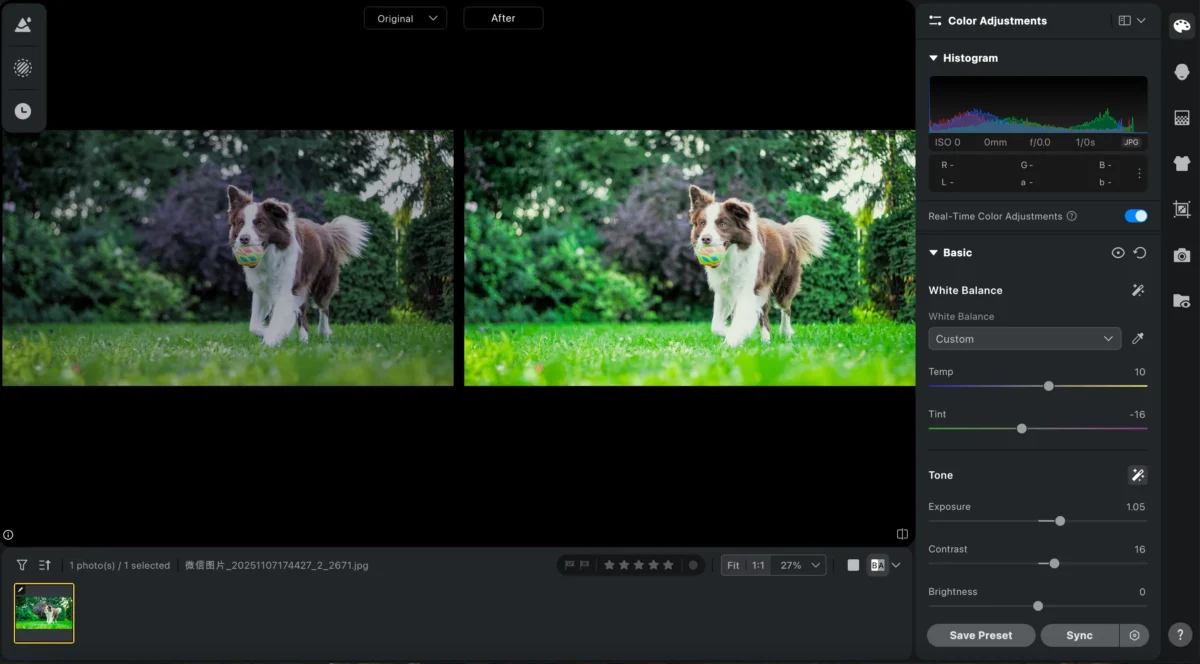
Always adjust white balance manually. Use a neutral gray object in your photo — like a toy, wall, or blanket — as a color guide. Slowly move the temperature slider until the fur and background appear natural. Keep the same setting for all photos taken in similar light. If you’re using Evoto, applying batch correction helps keep tones even across all photos — a key part of correcting pet photos professionally.
4. Cropping Mistakes That Cut Out Character
Cropping can improve framing, but many editors overdo it. Cutting too close removes key features like tails, ears, or paws that show the pet’s charm. Some even center the pet too tightly, leaving no breathing space in the photo. This mistake limits emotional connection and reduces the storytelling effect of your image.
How to Fix It:
Always think about your pet’s pose before cropping. Keep enough space around the subject so the composition feels comfortable. Use the rule of thirds and place your pet’s eyes near the top line for better balance. Leave room in the direction your pet is looking or moving. This gives a natural sense of motion and helps the viewer connect instantly with the pet’s personality.
5. Neglecting Background Cleanup
A messy background distracts the viewer, no matter how perfect the pet looks. Many photographers forget to check for objects like toys, furniture, or light reflections that take focus away from the subject. This mistake makes the photo look rushed and less professional, even if the pet’s expression is great.
How to Fix It:
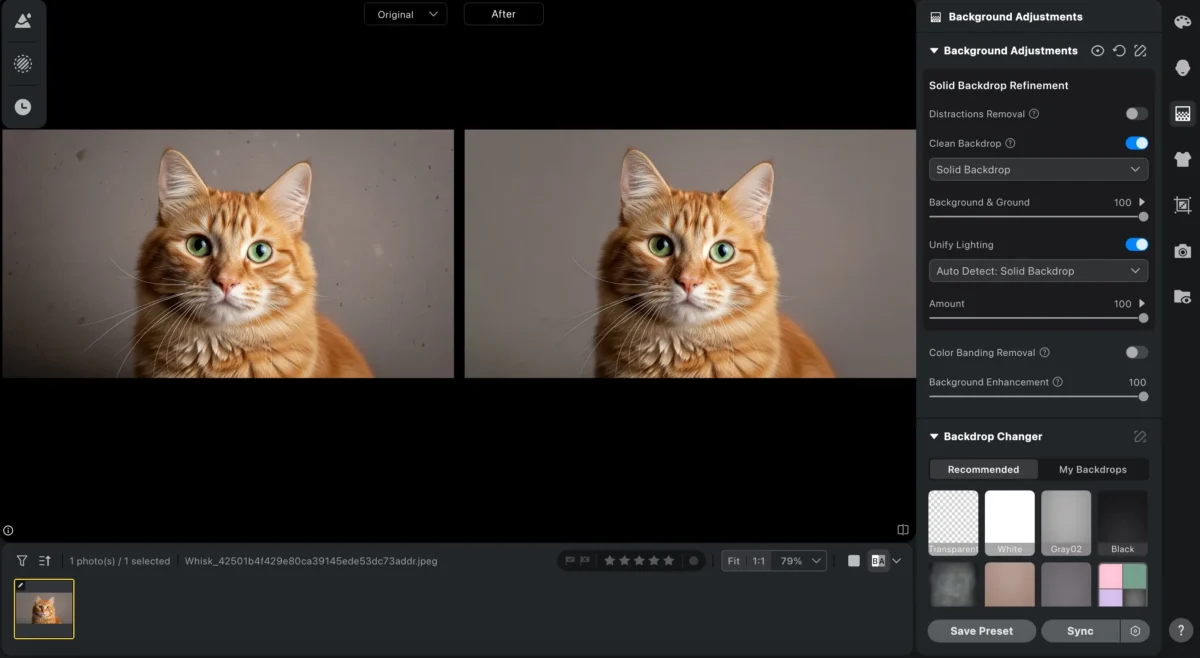
Before exporting your photo, scan the entire frame carefully. Use a healing or clone tool to remove unnecessary items that draw attention. If the background feels too busy, apply a gentle blur instead of deleting everything. Evoto background replacer can quickly remove distractions while keeping the photo realistic. A clean background lets your pet shine as the main subject.


Powerful AI Photo Editor
6. Misusing Presets and Filters
Presets can save time, but relying on them completely can ruin natural colors and details. One filter might look perfect for a golden retriever in sunlight, but terrible for a black cat indoors. Using the same preset across all photos causes uneven tones, flat textures, and loss of fur detail. This disciplined approach separates hobbyists from those mastering advanced pet photography techniques.
How to Fix It:
Apply presets as a starting point, not the final result. After applying one, adjust the exposure, shadows, highlights, and color warmth manually. Create separate custom presets for indoor, outdoor, or studio lighting. In Evoto, you can easily copy and tweak settings for each session. This small step ensures consistent color and tone without losing individuality in each image.
7. Forgetting to Calibrate Monitors
If your screen isn’t color-calibrated, what you see during editing isn’t what others see. The fur might look perfect on your monitor, but appear too dark or pale when printed. This mistake happens often because beginners edit using factory settings that are usually too bright or cool-toned.
How to Fix It:
Calibrate your monitor regularly to keep colors accurate. You can use built-in calibration software or affordable external devices. Once done, your screen will show true colors that match real-world tones. This step helps when editing pets with dark or light fur since you’ll know exactly how shades will appear on all devices or prints.
8. Dodging and Burning Without Feathering (Patchy Patches)
Dodging (lightening) and burning (darkening) add depth, but many editors use hard brushes or too much strength. This causes uneven spots that look unnatural, especially on soft fur. Overdoing these adjustments can make pets look patchy or even dirty in certain areas.
How to Fix It:
Use a feathered brush with low opacity (around 10–15%) and apply strokes gradually. Build brightness and shadows layer by layer, checking your photo from different zoom levels. Soft transitions maintain the roundness of the pet’s body. If you use AI tools, try their smooth dodging and burning sliders for cleaner results without patchiness.
9. Over-Saturating Tongues and Noses
Pets’ noses and tongues naturally have strong color, but increasing saturation too much makes them appear neon or unnatural. This draws attention away from the eyes and disrupts color harmony across the image.
How to Fix It:
Reduce overall saturation slightly, then use a selective brush to lower the color only on the tongue and nose areas. Check the result under both bright and dim light. These parts should look lively but not glowing. Balanced tones help the viewer focus on your pet’s expression instead of one overly colorful feature.
10. Clipping Blacks in Dark-Coated Pets
Dark-coated animals often lose fur detail when editors push contrast too high or crush the black levels. This makes the fur appear flat and heavy, removing texture and light reflection. It’s one of the hardest parts of editing pet photos correctly.
How to Fix It:
Use your histogram as a guide to avoid clipping shadows. Keep the black tones slightly lifted instead of pushing them all the way left. Increase shadow details gently until you see the fur texture return. If the pet’s coat looks too flat, add a small amount of clarity or texture for balance. The goal is to keep dark tones rich but detailed.
Pro Editing Workflow for Consistent Pet Portraits
A solid workflow keeps your edits organized and repeatable. Here’s a reliable routine many professionals use:
- Import and Sort: Review your raw files and select the best shots. Discard blurry or poorly lit ones early.
- Basic Adjustments: Start with exposure, contrast, and white balance.
- Detail Work: Enhance eyes and fur selectively.
- Retouch Backgrounds: Remove distractions and even out tones.
- Batch Finish: For multiple images, apply consistent adjustments using software like Evoto, which speeds up pet photography editing across sessions.
- Final Review: Check the photo on multiple screens before exporting.
Evoto AI Photo Editor – Faster Edits, Finer Control
Following these steps avoids confusion, saves time, and keeps your editing style cohesive. It’s part of what separates consistent work from random results.
Quick Checklist: Editing Without Losing Natural Charm
- Keep lighting even and avoid strong contrast jumps.
- Maintain realistic fur texture—soft, not smoothed out.
- Calibrate monitors for color accuracy.
- Avoid over-saturation of tones.
- Review before exporting or printing.
If you follow these reminders regularly, your work will gradually look more polished and natural.
Conclusion
Editing pet portraits isn’t about chasing perfection; it’s about keeping emotion alive. With careful pet photography editing and tools like Evoto, you can refine your shots while preserving the natural warmth and character of each pet.
Remember, the best photos don’t rely on filters—they rely on patience, balance, and understanding how to correct gently. Once you avoid these mistakes, your photos will reflect both your skill and the genuine personality of the animals you love to photograph.
Powerful AI Photo Editor