

The best AI photo editing app for iPhone in 2026 depends on your needs. Evoto AI is ideal for portrait retouching, Snapseed is the strongest completely free all-round editor, and Adobe Lightroom remains the top choice for professional RAW workflows.
Quick Comparison: Best AI Photo Editing Apps for iPhone
App | Best For | Key AI Features | Price | App Store Rating |
|---|---|---|---|---|
Evoto AI | Portrait Retouching | AI skin retouching, hair editing on mobile, face slimming features, batch processing, wireless tethering | Free trial / Credit-based (from 1 credit per photo) | ⭐ 4.9 (549+ reviews) |
Adobe Lightroom | Pro Workflow | AI masking, Denoise, adaptive presets | Free / $11.99/month | ⭐ 4.7 |
Snapseed | Free Editing | Portrait, Healing, HDR, Selective | 100% Free | ⭐ 4.8 |
VSCO | Aesthetic Filters | Film presets, creative filters | Free / $7.99/month | ⭐ 4.6 |
Photomator | RAW Editing | ML Enhance, Super Resolution | $4.99/month | ⭐ 4.8 |
YouCam Perfect | Selfie Beauty | Beauty AI, AR makeup | Free / $5.99/month | ⭐ 4.8 |
TouchRetouch | Object Removal | AI object removal | $4.99 one-time | ⭐ 4.8 |
Picsart | Creative Effects | AI generator, stickers, filters | Free / $13/month | ⭐ 4.7 |
Google Photos | Organisation + Editing | Magic Eraser, Unblur | Free / Google One | ⭐ 4.8 |
Apple Photos | Native iOS Editing | Clean Up, Visual Look Up | Free (built-in) | Built-in |
What to Look for in an AI Photo Editing App for iPhone
Choosing the right iOS editing app depends on what you photograph and how seriously you edit.
Essential Features for iPhone Photo Editing
Feature | Why It Matters |
|---|---|
Native iOS Optimisation | Faster performance and smoother battery use |
AI-Powered Tools | Automated improvements without manual adjustments |
RAW Support | Maximum quality from iPhone Pro cameras |
iCloud Integration | Seamless syncing across Apple devices |
Portrait Mode Enhancement | Improve iPhone’s depth-based portraits |
Batch Processing | Edit multiple photos efficiently |
If you shoot portraits, advanced AI skin retouching and AI background removal are essential. If you shoot landscapes, strong colour and exposure tools matter more.
iPhone-Specific Considerations
When choosing an AI photo editing app for iPhone, it is important to consider features that are specific to Apple’s ecosystem. Not all apps fully support advanced iPhone capabilities, and this can significantly impact performance and editing flexibility.
- ProRAW Support: For iPhone Pro users shooting in Apple ProRAW format, compatibility is essential. ProRAW files contain significantly more image data than standard JPEGs, allowing for greater control over exposure, highlights, shadows, and colour grading. Without proper RAW support, much of that editing flexibility is lost. Apps like Lightroom and Evoto AI fully support RAW processing, making them better suited for serious photographers.
- Live Photos Editing: Live Photos capture both a still image and short video data. However, not all third-party apps preserve this functionality after editing. If maintaining motion effects is important, ensure the app supports Live Photo adjustments rather than converting the file into a static image during export.
- Apple Silicon Optimisation: With Apple’s A-series and M-series chips, performance varies depending on how well an app is optimised for Apple hardware. Apps designed specifically for iOS and Apple Silicon tend to offer faster rendering, smoother previews and better battery efficiency. This is particularly important when editing large files or performing AI-heavy adjustments.
- Privacy and Data Processing: Some AI photo editing apps process images directly on the device, while others rely on cloud-based AI servers. On-device processing typically offers better privacy and faster results without requiring an internet connection. Cloud-based processing may provide more advanced AI features but can involve uploading images to external servers. Understanding this distinction is important for users concerned about data security.
Free vs Paid Apps: What’s Worth Paying For?
Category | Best Free Option | Best Paid Option |
|---|---|---|
General Editing | Snapseed | Adobe Lightroom |
Portrait Retouching | Apple Photos | Evoto AI |
Object Removal | Google Photos | TouchRetouch |
Filters & Presets | VSCO (limited) | VSCO Pro |
Professional Work | Snapseed | Evoto AI / Lightroom |
Detailed Reviews: Top 10 AI Photo Editing Apps for iPhone
1. Evoto AI – Best for Portrait Retouching on iPhone
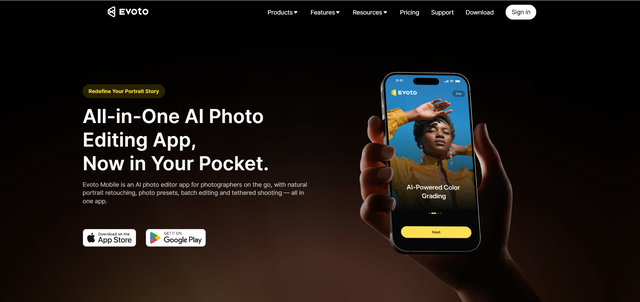
If you edit portraits, headshots, wedding photos, or professional people photography on iPhone, Evoto AI is currently the most advanced solution available.
Unlike most mobile apps, Evoto AI delivers professional photo editing software capabilities directly on iOS, including tools previously only available on desktop.
Why Evoto AI Stands Out
- Full-featured iOS app (also available on PC & Mac)
- 4.9-star App Store rating
- Wireless tethering to iPhone
- Works directly with your Camera Roll
- Professional-grade AI portrait tools
Key AI Features
Feature | What It Does | Unique to Evoto |
|---|---|---|
Automatic blemish removal, texture-preserving skin refinement, and intelligent dodge & burn adjustments for natural results | Professional-grade precision | |
Removes stray hairs, refines hair volume, adjusts colour and part lines with one-click control | One-click hair refinement | |
Facial Reshape | Subtle facial adjustments, including smile enhancement and feature balancing with pixel-level control | Pixel-level accuracy |
Full Body Reshape | Advanced 3D bone-mapping body adjustment for proportion refinement (also available on PC) | Professional mobile implementation |
Clothing Enhancement | De-wrinkles garments, reduces fabric fuzz and sharpens clothing edges | Dedicated clothing refinement tool |
Intelligent subject isolation with clean edge detection and natural blending | Standard | |
RAW Processing | Non-destructive editing for maximum image quality retention | Standard |
Batch Processing | Apply consistent edits across multiple photos efficiently | Available across desktop and mobile ecosystem |
Evoto AI eliminates the need for complex skin smoothing techniques. It also helps correct exposure issues and enhance lighting without over-editing.
App Store Reviews:
“I have been using Evoto for iPad for under a year but the app has rendered some AMAZING results!” — App Store User
“This software is truly amazing, it helps me edit way faster than any other AI app.” — Trustpilot Review
Pricing
- Free trial (5 free credits, no credit card required)
- From 1 credit per photo
- Professional plans starting as low as US$0.0476 per credit (bulk plans)
- Credits valid for 1 year
- Sign in on 2 devices simultaneously
Full details available under Evoto pricing.
Best for: Portrait photographers, wedding photographers, headshot specialists, and anyone editing people on iPhone.
Verdict: ⭐⭐⭐⭐⭐ The most powerful AI portrait editing app available for iPhone.


Powerful AI Photo Editor
2. Adobe Lightroom – Best for Professional Photographers
Lightroom remains the go-to app for RAW workflow on iPhone.
Key AI Features
- AI masking
- Content-aware removal
- Denoise AI
- Adaptive presets
Best for: Photographers who already use Lightroom on desktop.
Pricing: $11.99/month
Verdict: ⭐⭐⭐⭐½ Strong professional tool with steeper learning curve.
3. Snapseed – Best Free AI Photo Editor for iPhone
Snapseed remains the strongest completely free editing app, offering professional-grade tools without subscriptions, ads, or watermarks.
Key Features
- Portrait mode with face detection and adjustable skin smoothing
- Healing brush for removing small objects and blemishes
- HDR effects for enhanced dynamic range
- Selective adjustments for targeted exposure and contrast edits
- DNG RAW editing support
- Non-destructive editing with Stacks
Best for: Users who want powerful manual editing tools at no cost, including hobbyist photographers and budget-conscious beginners.
Pricing: 100% Free
Verdict: ⭐⭐⭐⭐⭐ Best free all-round option for iPhone users.
4. VSCO – Best for Aesthetic Filters
VSCO pioneered the film-style preset trend and remains a popular choice for users who prioritise cohesive, stylised edits over heavy technical adjustments.
Key Features
- 200+ professional presets and film emulation filters
- Advanced colour grading controls (exposure, contrast, temperature, grain)
- Video editing support
- Integrated creator community
Pricing: Free version with limited presets, VSCO Pro: $7.99/month
Best for: Content creators, social media users and photographers who prefer curated, film-inspired aesthetics
Verdict: ⭐⭐⭐⭐ Best filter-focused app, though AI automation is more limited than dedicated AI editors.
5. Photomator – Best for RAW Editing on iPhone
Formerly Pixelmator Photo, Photomator is designed specifically for Apple devices and takes full advantage of iOS performance and optimisation. It is particularly strong for photographers who shoot in RAW or ProRAW and want precise control over exposure, colour, and detail.
Key AI Features:
- ML Enhance (intelligent one-tap improvements)
- Super Resolution upscaling
- Colour Match
- Advanced RAW processing with non-destructive editing
Unique iPhone Features:
- Optimised for Apple Silicon
- iCloud Photos integration
- Works with ProRAW
- Apple Watch companion
Pricing: $4.99/month or $29.99/year
Best for: Apple ecosystem users and RAW enthusiasts
Verdict: ⭐⭐⭐⭐½ Best Apple-native RAW editor
6. YouCam Perfect – Best for Selfie Enhancement
With over 800 million downloads, YouCam Perfect specialises in AI-powered beauty enhancements designed specifically for selfies and portrait-style content.
Key AI Features:
- Real-time beauty camera with live skin smoothing
- AR make-up try-on
- Background blur and replacement
- Face reshape tools and subtle facial refinement
- Object removal for minor distractions
Pricing: Free with ads, Premium: $5.99/month
Best for: Selfie enthusiasts, beauty content creators and social media users focused on facial enhancements
Verdict: ⭐⭐⭐⭐ Best selfie-focused app, though less suited for general or professional photography.
7. TouchRetouch – Best for Object Removal
When you need to remove unwanted objects from a photo, TouchRetouch delivers clean, precise results with minimal effort. It focuses on doing one thing exceptionally well: object removal.
Key Features:
- One-tap object removal
- Line removal for power lines, cables and fences
- Blemish and small distraction removal
- Clone stamp tool for manual refinements
- High-resolution export support
Pricing: $4.99 one-time purchase
Best for: Removing unwanted objects, people or minor imperfections from otherwise strong photos
Verdict: ⭐⭐⭐⭐⭐ Best dedicated object removal app for iPhone.
8. Picsart – Best for Creative Effects
Picsart combines traditional photo editing with creative AI tools and a built-in social platform, making it especially appealing for content creators who want bold, stylised visuals.
Key AI Features:
- AI image generator for creative compositions
- Background removal tools
- AI Enhance for automatic improvements
- Extensive library of stickers, filters and effects
- Layer-based editing for more advanced designs
Pricing: Free with limited features, Gold: $13/month
Best for: Social media creators, digital artists and users who prioritise creative expression over technical precision
Verdict: ⭐⭐⭐⭐ Strong creative toolkit, though the interface can feel busy compared to simpler editors.
9. Google Photos – Best Free AI Features
Google Photos includes a range of intelligent AI editing tools built directly into its platform, offering convenient enhancements without requiring additional downloads.
Key AI Features:
- Magic Eraser for object removal
- Unblur to sharpen older or slightly out-of-focus images
- Portrait Light to adjust lighting direction after capture
- Colour Pop for selective colour emphasis
- Automatic suggestions for quick improvements
Pricing: Free (some advanced AI features require Google One subscription)
Best for: Casual users who want simple, automated improvements without learning manual editing tools
Verdict: ⭐⭐⭐⭐ Strong free AI enhancements integrated into a cloud-based photo library.
10. Apple Photos – Best Built-In Option
The built-in Photos app has evolved significantly and now includes AI-powered features through Apple Intelligence, making it more capable than many users realise.
Key AI Features (iOS 18.1+):
- Clean Up for removing unwanted objects
- Visual Look Up for identifying subjects within images
- Memory Movies with automatic highlight creation
- Advanced search powered by on-device intelligence
- Smart adjustment suggestions for quick edits
Requirements: iPhone 15 Pro or later for Apple Intelligence features
Pricing: Free (built into iOS)
Best for: Quick edits, basic retouching and users who prefer not to install additional apps
Verdict: ⭐⭐⭐⭐ A surprisingly capable built-in editor for everyday photography.
Powerful AI Photo Editor
How to Choose the Best AI Photo Editing App for Your iPhone
Choose Based on What You Photograph
What You Shoot | Best App | Why |
|---|---|---|
Portraits & People | Evoto AI | Advanced AI skin retouching, facial refinement, hair editing and natural-looking portrait enhancements |
Landscapes & Travel | Lightroom / Snapseed | Strong exposure control, colour grading tools and HDR adjustments for scenery |
Selfies | YouCam Perfect | Real-time beauty tools and face reshape features designed specifically for front-camera shots |
Product Photos | Evoto AI | Precise background removal tools, clean edge detection and consistent batch processing |
Social Media Content | VSCO / Picsart | Stylised presets, creative filters and template-driven editing |
Everything (General Use) | Snapseed | Well-rounded manual tools, RAW support and completely free full-resolution editing |
Budget Recommendations
Budget | Best Choice |
|---|---|
$0 (Completely Free) | Snapseed |
Under $5/month | Photomator |
Under $15/month | Adobe Lightroom |
Credit-based pricing | Evoto AI |
One-time purchase | TouchRetouch |
iPhone Model Consideration
Your iPhone | Recommended Apps |
|---|---|
iPhone 15 Pro / 16 Pro | Evoto AI, Lightroom (ProRAW support), Apple Photos (Apple Intelligence features) |
iPhone 13 / 14 / 15 (standard models) | Evoto AI, Snapseed, VSCO |
Older iPhones | Snapseed, VSCO, Google Photos |
Tips for Better AI Photo Editing on iPhone
Get Better Results from AI editing
AI tools are powerful, but the quality of your final image still depends on the quality of your original photo. A few small adjustments during capture and export can significantly improve your results.
- Shoot in good lighting: AI performs best when the subject is well lit. Natural light or soft diffused lighting helps the software detect facial features, skin texture, and edges more accurately. Poor lighting can result in over-smoothing or artificial-looking adjustments.
- Use ProRAW if available: If you have an iPhone Pro model, shooting in ProRAW preserves more image data. This allows AI tools to make cleaner exposure adjustments, recover highlights, and refine colour without degrading quality.
- Avoid over-editing: Even the best AI retouching can look unnatural if pushed too far. Keep skin smoothing, face slimming, and colour adjustments subtle to maintain realism. A natural result almost always looks more professional.
- Check details at 100% zoom: Before exporting, zoom in to inspect edges, hairlines, and fine textures. This helps you spot over-processing or missed blemishes.
- Export at full resolution: Always export at the highest available resolution, especially if you plan to print or upload to platforms that compress images. This preserves detail and prevents unnecessary quality loss.
Workflow Tips for iPhone Photographers
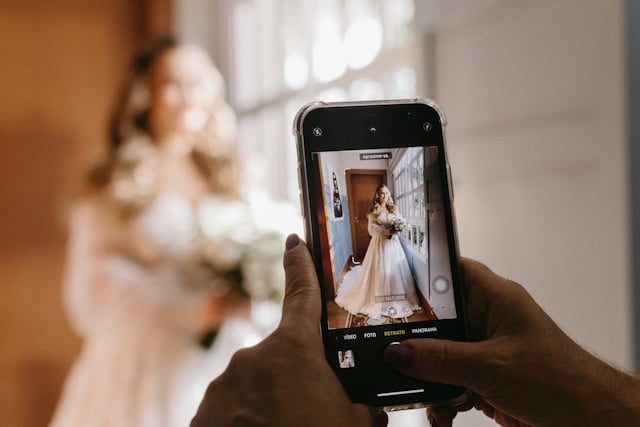
A structured workflow helps you save time, maintain consistency and achieve more professional results. Here are three efficient approaches depending on how you shoot:
1. Everyday Portrait Workflow
Shoot in iPhone Camera → Quick adjustments in Apple Photos → Advanced retouch in Evoto AI
Start by capturing your image in the native iPhone Camera app. Make quick exposure or cropping adjustments in Apple Photos if needed, then move the image into Evoto AI for detailed portrait retouching such as AI skin refinement, hair clean-up and background adjustments.
2. Professional RAW Workflow
Import RAW → Lightroom for colour and exposure → Evoto AI for portrait retouching
If you shoot in ProRAW, begin in Lightroom to adjust exposure, white balance, and overall colour grading. Once the base edit is complete, export to Evoto AI for advanced portrait enhancements. This keeps tonal control and retouching separate for cleaner results.
3. High-Volume Editing Workflow
Select similar images → Apply base adjustments → Batch process in Evoto AI or Lightroom
For events, weddings, or school photography, group similar images together. Apply a consistent base edit first, then use batch processing to synchronise adjustments across the set. This dramatically reduces editing time while maintaining a uniform look.
Conclusion
The App Store offers a wide range of AI photo editing apps for iPhone, each designed to meet different creative and professional needs. Whether you are refining portraits, enhancing landscapes or simply improving everyday snapshots, there is now an AI-powered solution that fits your workflow.
For professional portrait retouching and advanced AI tools, Evoto AI stands out as the most comprehensive option. If you prefer a completely free, all-round editor with strong manual controls, Snapseed remains an excellent choice. For photographers working with RAW files and seeking a professional workflow, Adobe Lightroom continues to lead. Those focused on selfies may prefer YouCam Perfect, while TouchRetouch excels at precise object removal. If stylised, film-inspired edits are your priority, VSCO offers curated aesthetic presets.
Ultimately, the best app depends on what you photograph and how you prefer to edit. Many of these apps offer free tiers or trials, so it is worth testing a few to see which interface and tools suit your style.
Download Evoto AI on the App Store to experience professional portrait retouching directly on your iPhone.
Powerful AI Photo Editor
Frequently Asked Questions
What is the best AI photo editing app for iPhone?
For portrait and people photography, Evoto AI is the strongest choice thanks to its comprehensive AI retouching tools and high App Store rating. For completely free general editing, Snapseed remains the best option. For professional RAW workflow, Adobe Lightroom continues to lead the market.
What is the best free photo editing app for iPhone?
Snapseed by Google is the best free photo editing app for iPhone. It offers professional-grade tools, including portrait mode, healing brush, HDR effects, and selective adjustments, all without subscriptions or in-app purchases.
Does iPhone have built-in AI photo editing?
Yes. iPhones running iOS 18.1 or later, particularly iPhone 15 Pro and newer, include Apple Intelligence features such as Clean Up for object removal and Visual Look Up for subject identification. The built-in Photos app also provides standard editing tools on all supported models.
Which photo editing app do professional photographers use on iPhone?
Professional photographers typically use Adobe Lightroom for RAW processing and colour grading, combined with Evoto AI for portrait retouching. Lightroom manages exposure and workflow, while Evoto AI provides specialised AI tools for skin, hair, and body refinement.
Is Evoto AI available for iPhone?
Yes. Evoto AI is available for both iPhone and iPad on the App Store. It requires iOS 15.0 or later and includes advanced portrait retouching features such as skin smoothing, hair editing on mobile, body reshaping, and wireless tethered shooting.
What is the best photo editing app for selfies on iPhone?
For selfie-specific enhancements, YouCam Perfect offers dedicated beauty AI tools. However, for more natural and professional-looking portrait results, Evoto AI provides advanced retouching while maintaining realistic skin texture.
Can I edit RAW photos on iPhone?
Yes. Several apps support RAW editing on iPhone, including Adobe Lightroom, Photomator, Evoto AI, and Snapseed (DNG format). iPhone Pro models also support ProRAW for greater editing flexibility.
What’s the difference between Snapseed and Lightroom on iPhone?
Snapseed is completely free, works offline, and offers intuitive manual controls. Lightroom provides more advanced professional tools, cloud synchronization, and desktop integration, but requires a subscription for full functionality.



