Wedding photos capture one of the most memorable moments in a couple’s life. However, raw photos often need editing to truly reflect the joy, emotion, and beauty of the day. Whether you’re a professional photographer or an enthusiast, editing wedding photos is crucial to bring out the best in your images. In this guide, we’ll explore how to edit wedding photos in Photoshop and how you can streamline your workflow with Evoto, an AI-powered editing tool that simplifies the process.
Why Editing Wedding Photos Is Essential
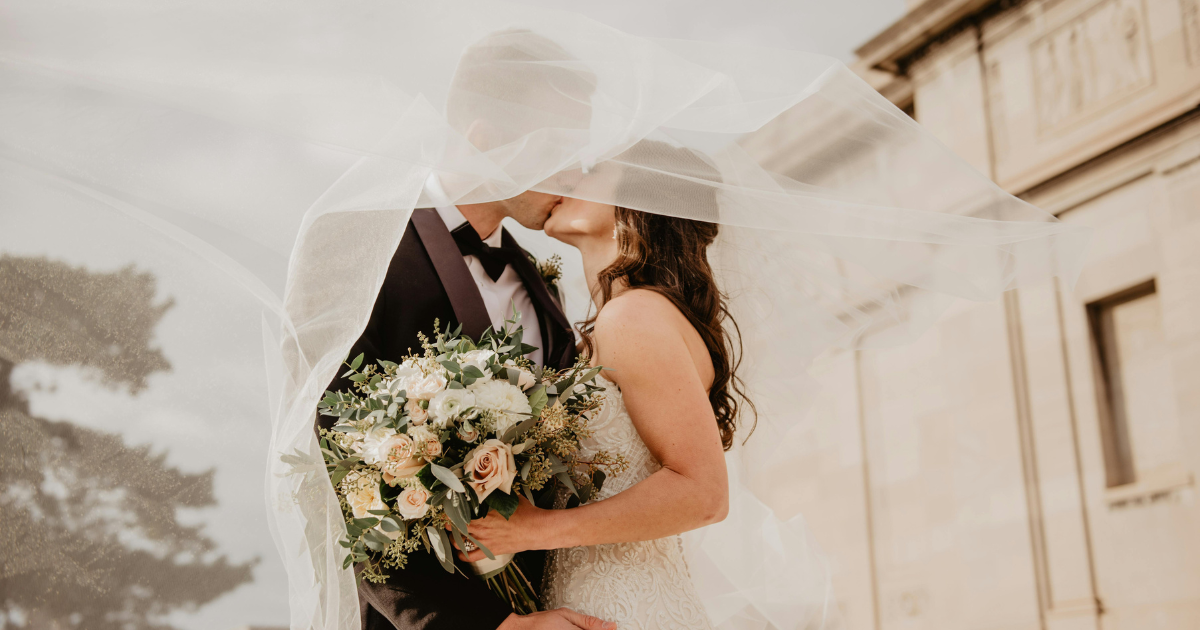
Wedding photography editing plays a critical role in delivering polished, professional photos that tell the couple’s story. By enhancing colors, correcting exposure, and removing imperfections, you can ensure each image reflects the atmosphere of the day.
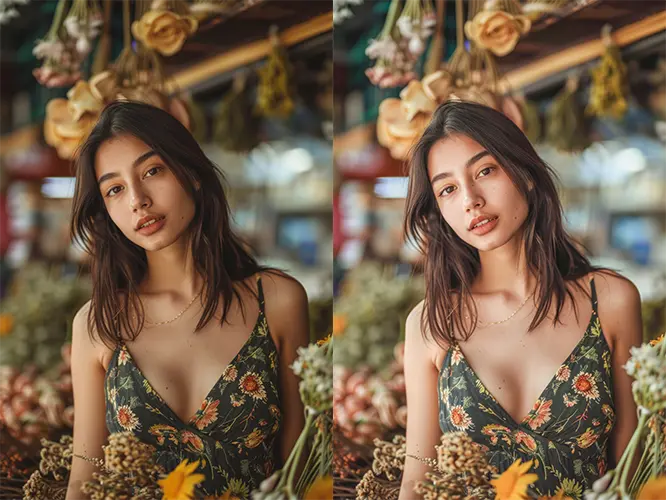
- Wedding Photo Retouching: Editing helps perfect portraits, smoothing skin tones and enhancing the details, ensuring that every detail—from the bride’s gown to the sparkling jewelry—shines.
- Wedding Photography Editing: In addition to retouching, the editing process includes adjustments to the lighting, composition, and overall aesthetic, making sure that each photo has the perfect balance.
- Wedding Photo Enhancement: With the right adjustments, you can enhance the image’s emotional tone, create a cohesive look, and make each photo a true work of art.
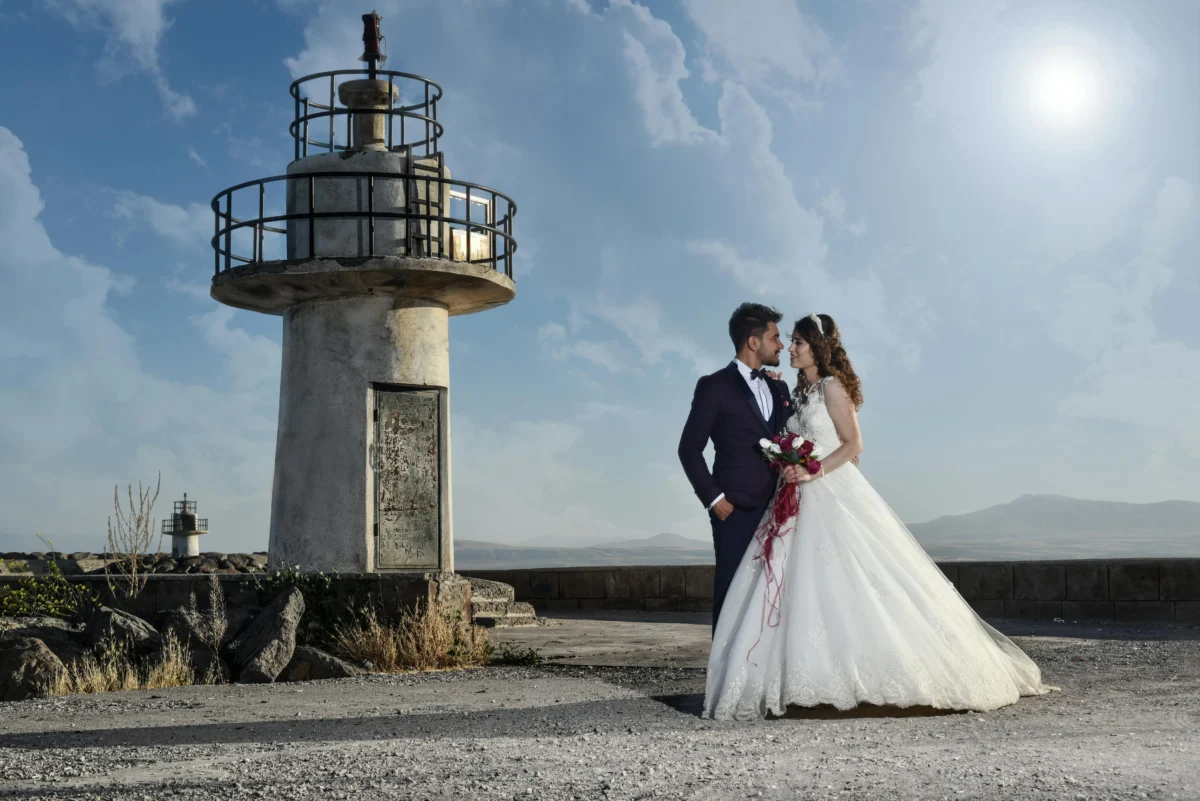
Now let’s look at two powerful ways to edit wedding photos: through Photoshop for detailed edits and Evoto for quicker, AI-powered editing.
How to Edit Wedding Photos in Photoshop: A Step-by-Step Guide for Stunning Results
Photoshop is the industry standard for photo editing, offering a wide array of tools that give photographers full control over their images. Here’s a step-by-step guide on how to edit wedding photos in Photoshop:
Step 1: Import Your Photos
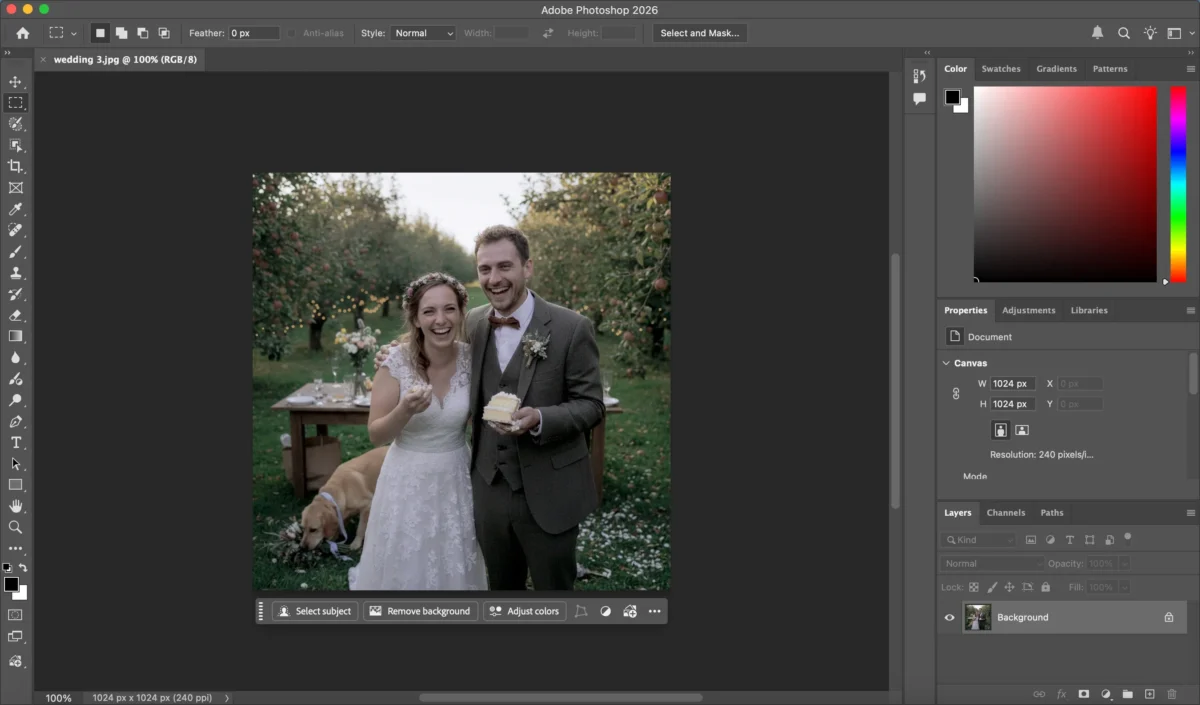
Start by importing all your wedding photos into Photoshop. Create a new folder to keep them organized and make it easier to work with multiple images.
Step 2: Basic Exposure and Color Adjustment
The first step in editing wedding photos is to adjust exposure, contrast, and white balance. You can use Photoshop’s Camera Raw Filter to quickly correct these elements and set a strong foundation for further edits. Adjust the highlights and shadows to make sure you capture the right amount of detail in both bright and dark areas of the image.
Step 3: Portrait Retouching
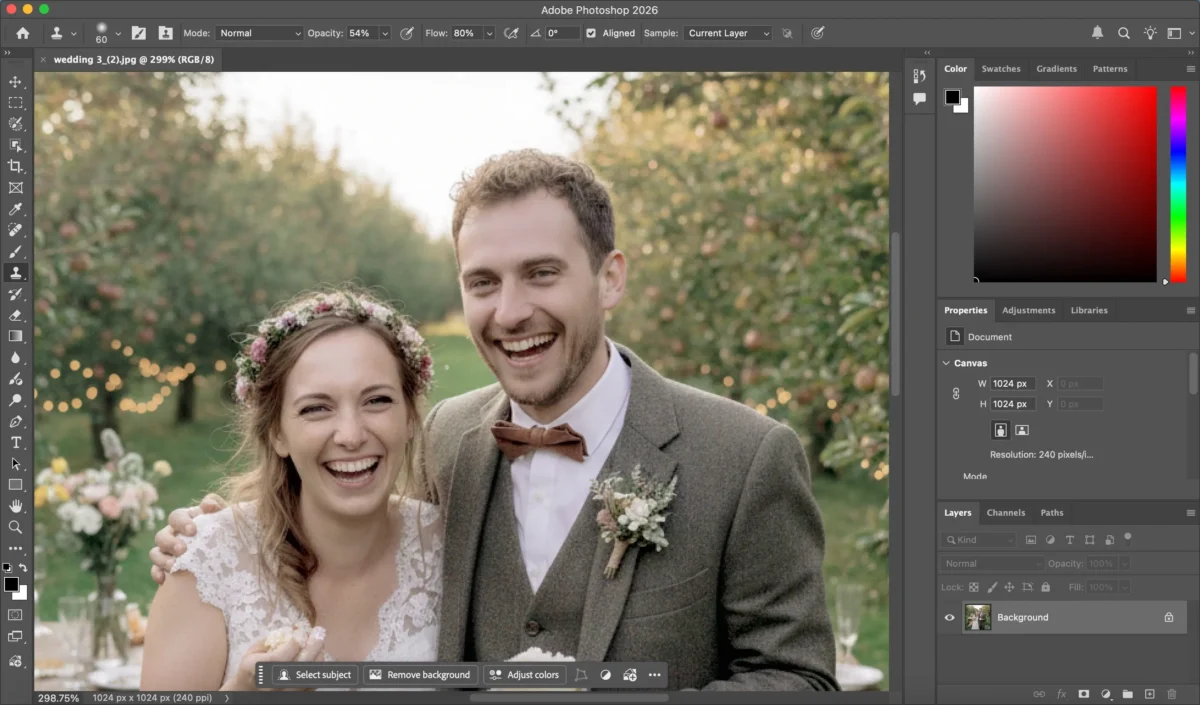
Using tools like the Spot Healing Brush or Clone Stamp, retouch the skin, remove blemishes, and smooth out wrinkles. Photoshop allows you to work layer by layer, so you can focus on delicate areas, such as the bride’s face, ensuring the skin looks natural and flawless, also setting the stage for later facial retouching.
Step 4: Color Grading
Next, adjust the overall color tones in the image. You can use the Curves or Color Balance tool to enhance specific areas, such as bringing out warm, romantic hues for the perfect wedding feel. This step often involves a subtle balance of adjusting skin tones, dresses, and the environment.
Step 5: Final Touches and Export
Once you’ve made all the adjustments, check for any final tweaks. Look for stray elements in the background and remove them. After that, export the image in the desired format and resolution, making sure it’s ready for print or digital use.
While Photoshop gives you complete control, it can be time-consuming and requires advanced skills to achieve professional results. But if you enjoy the challenge and want to take your edits to the highest level, Photoshop is a powerful tool for wedding photo retouching.
However, with the development of AI technology, intelligent retouching software like Evoto has emerged, significantly saving time, simplifying the editing process, and bringing you an efficient and professional retouching experience.
How to Edit Wedding Photos Using AI: Quick & Professional Editing with Evoto
If you’re looking for a faster, more efficient way to edit wedding photos, Evoto offers an AI-powered solution that can save you time without compromising on quality. Here’s how you can edit wedding photos using Evoto:


Powerful AI Photo Editor
Step 1: Import Your Photos
Simply upload your wedding images into Evoto. The AI-driven platform automatically organizes them for easy access, so you can begin editing right away.
Step 2: Basic Exposure and Color Adjustment (One-Click with Evoto)
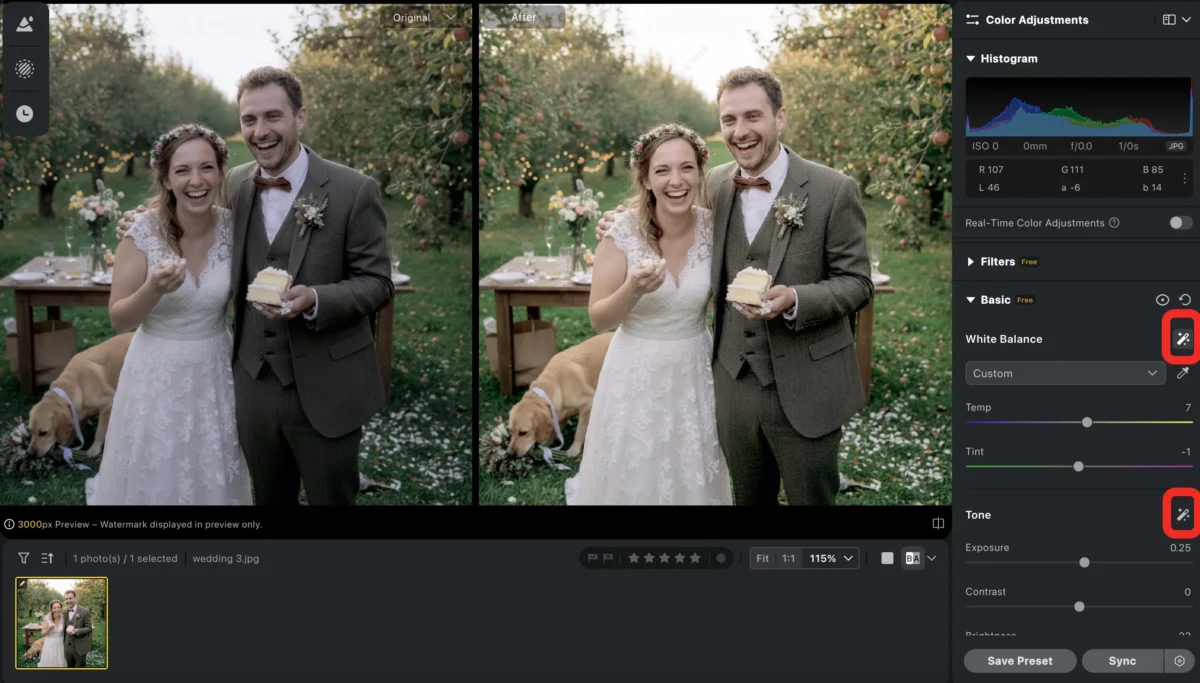
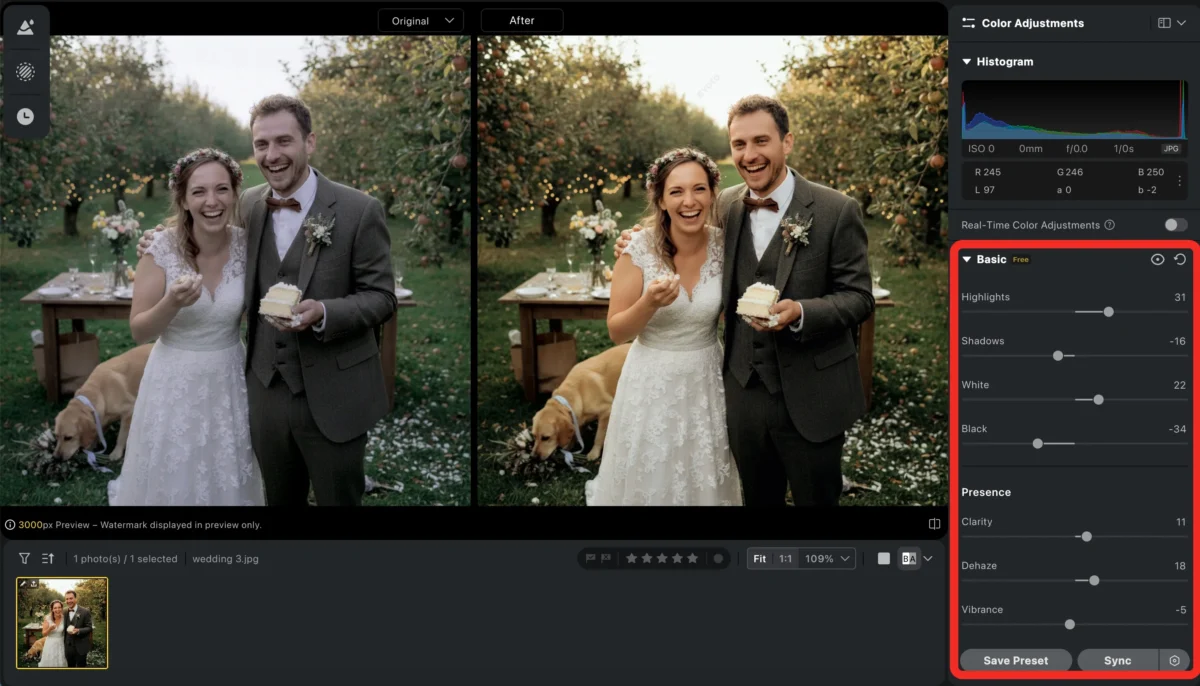
Evoto automatically adjusts exposure, white balance, and contrast with just a click. The AI detects the optimal settings for each image, ensuring the lighting and color balance are perfect, saving you the time it would take in Photoshop to make manual adjustments.
Step 3: Portrait Retouching (AI-Powered Enhancement)
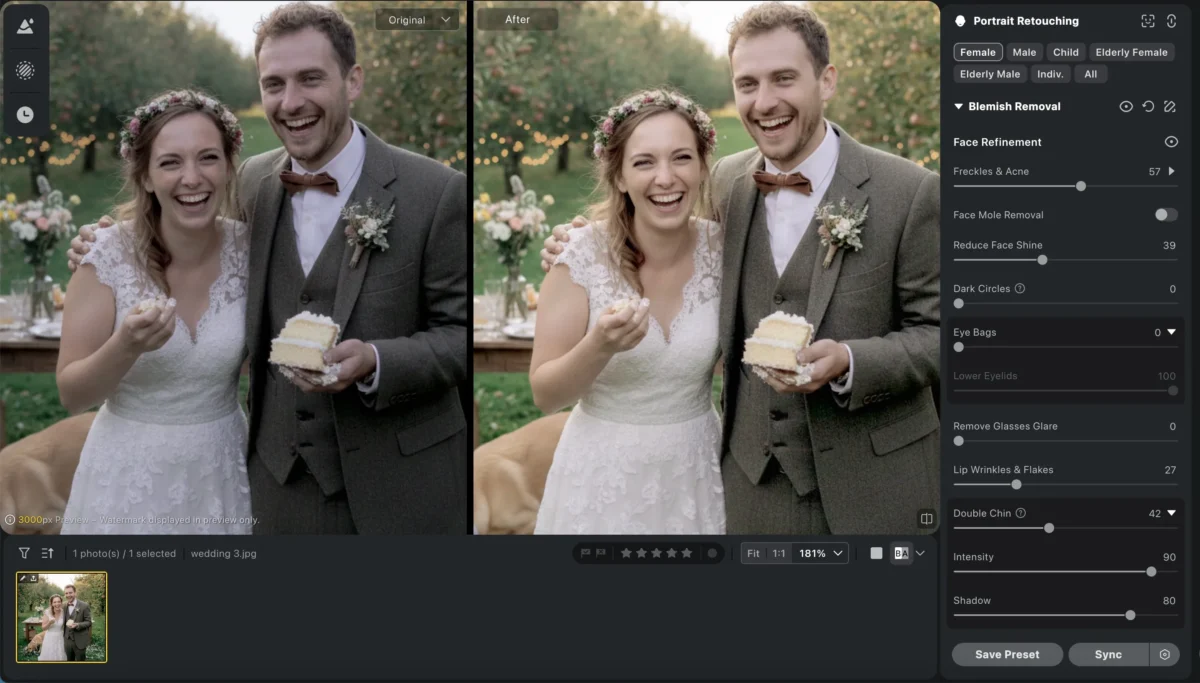
Evoto’s AI can automatically retouch skin, brighten eyes, and remove blemishes with professional-level precision. This means you don’t have to spend hours manually retouching each face; Evoto does it for you with a few clicks, preserving natural details and textures, and you can even adjust the intensity of face retouching.In addition to skin retouching, Evoto can also fix teeth, adjust smiles, and edit your body to further enhance the overall effect of photos.
Step 4: Color Grading (Wedding Templates)
Evoto includes exclusive wedding templates for color grading, specifically designed to give wedding photos that soft, romantic feel. Whether you want warm, golden tones or soft, pastel hues, Evoto’s AI handles it, creating beautiful, consistent results for all your images.
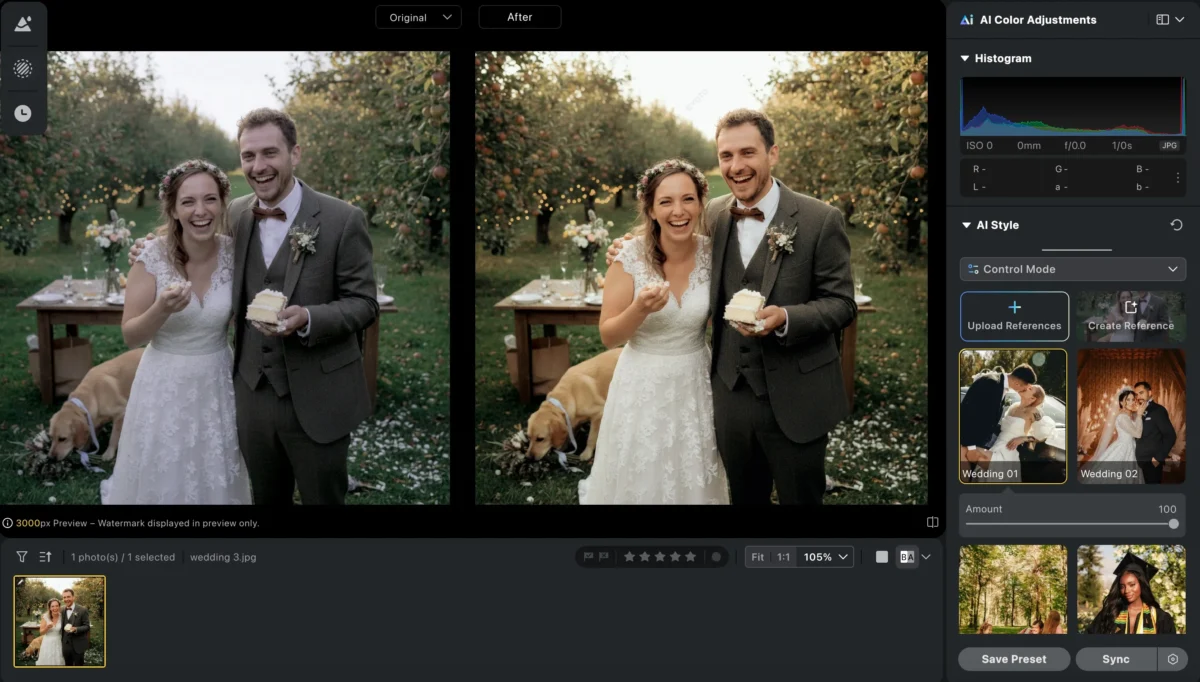
Evoto has two templates specifically designed for weddings. It uses AI for color analysis and adjustments, and unlike traditional filters, the AI Color Match feature displays the final adjustments on the interface, allowing for easier fine-tuning. You can also upload your own images for analysis; the AI will analyze your uploaded images and apply the style of your imported images to other photos.
Wedding 01:Suitable for outdoor settings, creating a bright and airy feel.
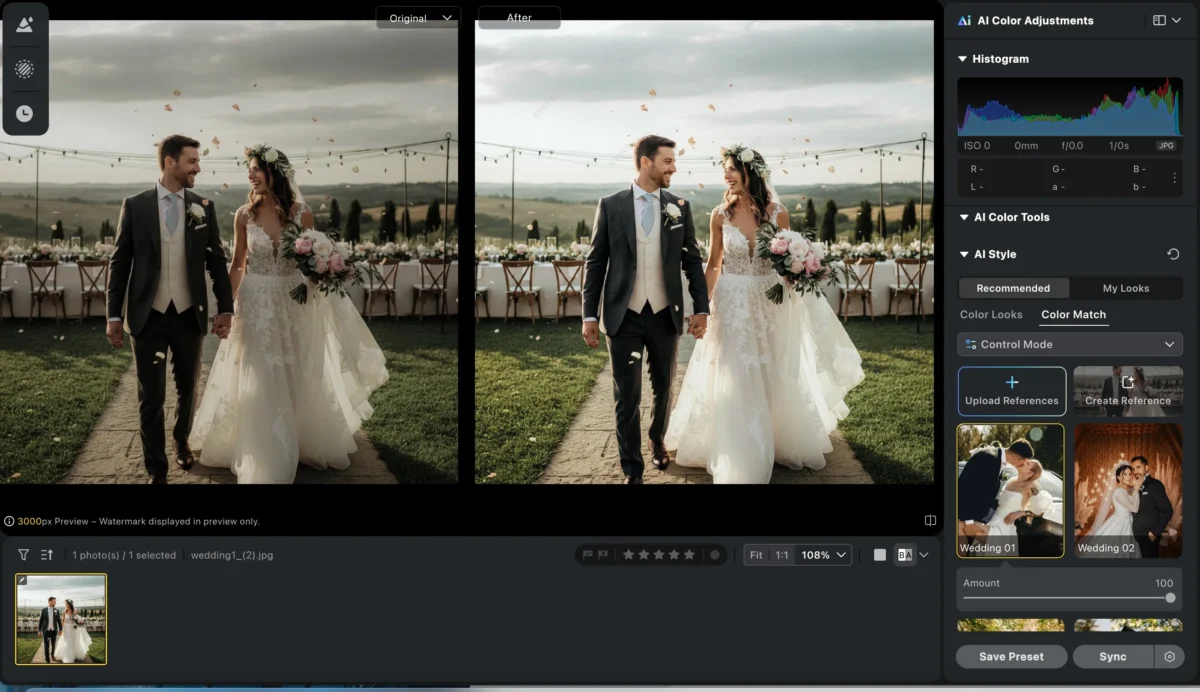
Wedding 02:Suitable for indoor settings, creating a warm and dignified atmosphere.
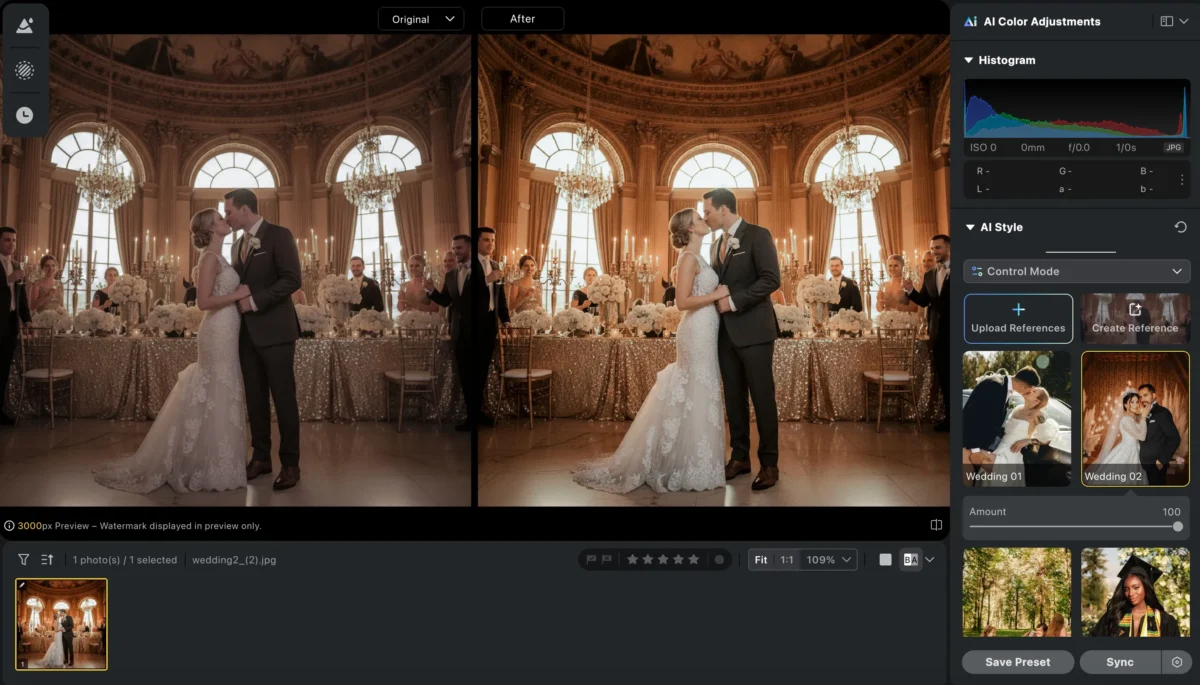
At the same time, Evoto also supports background replacer and background remover.Whether you want to remove unwanted backgrounds or replace them with more fitting settings, Evoto’s AI makes the process seamless and quick. With just a few clicks, you can transform the entire look of your wedding photos, adding the perfect backdrop for every moment.
Step 5: Final Touches and Export
Once the main edits are done, you can make minor adjustments and preview the results. Evoto allows you to export your edited photos in various formats and resolutions, ready for printing or sharing online, all in a matter of minutes.
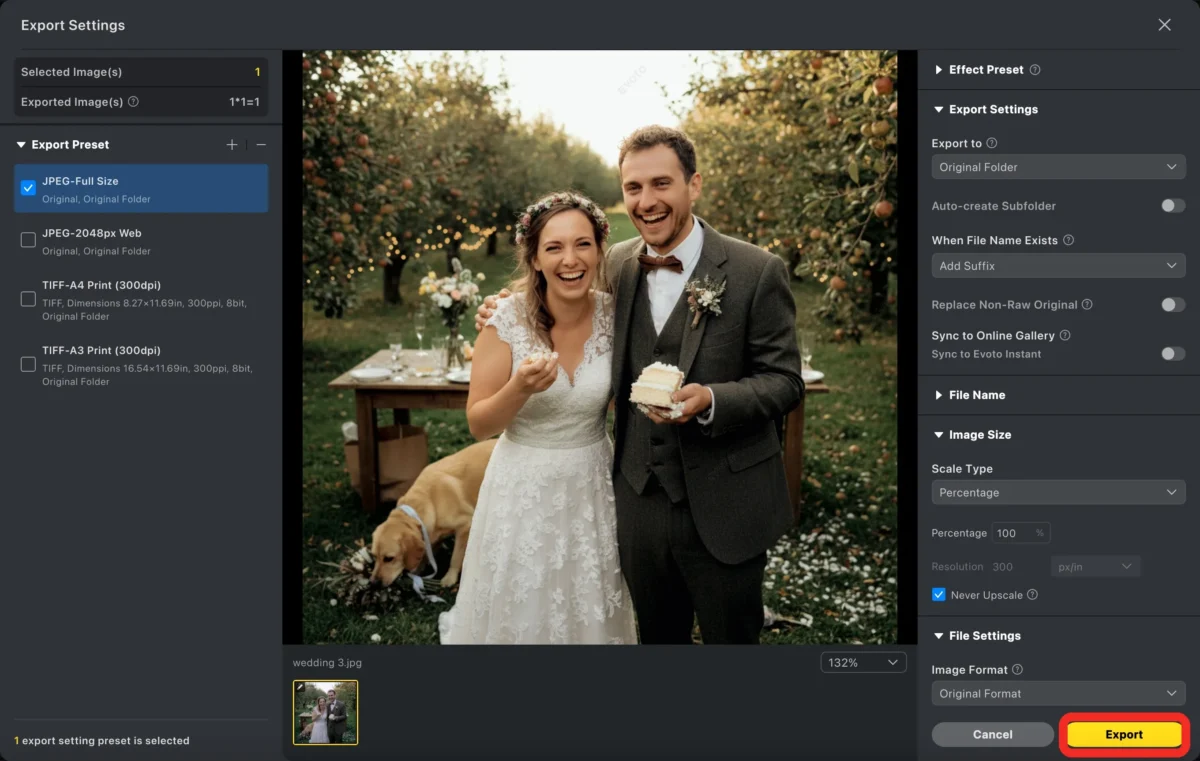
Evoto is perfect for photographers who want high-quality results quickly and easily, without compromising their creative vision. Its powerful AI can handle time-consuming tasks, leaving you more time to focus on other aspects of your work.
Step 6: Batch Processing for Efficiency(Optical)
With Evoto’s batch processing feature, you can apply the same edits to multiple wedding photos at once. Whether you need to adjust exposure, color grading, or face retouching, Evoto’s AI will automatically apply your desired settings across all selected images, drastically reducing the time spent on individual adjustments.
Powerful AI Photo Editor
Photoshop vs Evoto: How AI Can Simplify Your Workflow
Both Photoshop and Evoto are fantastic tools for wedding photo editing, but each has its own strengths and weaknesses. Here’s how they compare:
| Criteria | Photoshop | Evoto |
|---|---|---|
| Control & Flexibility | Offers unmatched control and flexibility for intricate adjustments | More automated with AI, simplifying the editing process |
| Time & Efficiency | Time-consuming, especially for batch editing or large weddings | AI-powered automation dramatically speeds up the process |
| Skill Level Required | Requires advanced skills and expertise for professional results | User-friendly, no advanced skills needed |
| Ideal For | Photographers who need detailed, manual adjustments | Photographers needing to edit multiple images quickly while maintaining professional quality |
| Editing Speed | Slow, especially with large batches | Fast, thanks to AI automation |
| Customization | Highly customizable for in-depth, intricate edits | Limited customization but quick and efficient results |
| Ease of Use | Complex interface, steep learning curve | Intuitive interface, easy to use |
| Best For | Detailed, high-level editing | High-efficiency, quick editing for large volumes of photos |
In short, Photoshop is the best choice for those who want total control and detailed editing, while Evoto is perfect for those looking to save time and increase efficiency with high-quality results.
Conclusion
Editing wedding photos is an essential part of the photography process, ensuring that every image tells a beautiful and cohesive story. Whether you prefer the detailed, hands-on approach of Photoshop or the efficiency and ease of Evoto, both tools have their place in your workflow. For those who want quick, professional results with minimal effort, Evoto is the best choice for wedding photo enhancement.
Try Evoto today and experience how AI can revolutionize your wedding photo editing workflow. Say goodbye to long editing hours and hello to beautifully edited wedding photos in just minutes.
Try Evoto AI Photo Editor
Retouch photos with Evoto AI and make your photos best! Available on Windows, MacOS and iPadOS.