

TL;DR
- Photopea and GIMP remain the strongest picks for people who want fully free manual control.
- Evoto AI is the best fit when quality, edge cleanup, and batch workflow matter more than fully unlimited export.
- Browser-first users can start with Remove.bg or Canva, but export limits and refinement controls stay tighter.
- If you want a desktop AI Photo Editor plus a feature-level transparent background maker, compare that workflow with Photopea before you decide to download Evoto.
Looking for free background removal tools that balance speed, quality, and export flexibility? This guide compares browser and desktop options, shows where AI background removal really helps, and explains which workflow makes sense for portraits, product photos, and high-volume editing.
Free Background Removal Tools Comparison
| Rank | Tool | Type | Truly Free? | Batch | Best For | Edge Quality |
|---|---|---|---|---|---|---|
| 1 | Evoto AI | Desktop | ✅ Free tier | ✅ (Desktop) | Portraits / Products | ⭐⭐⭐⭐⭐ |
| 2 | Remove.bg | Web | ⚠️ 1/day | ❌ | Quick single images | ⭐⭐⭐⭐ |
| 3 | Canva | Web | ⚠️ Pro only | ❌ | Design integration | ⭐⭐⭐⭐ |
| 4 | Photopea | Web | ✅ 100% | ❌ | Photoshop users | ⭐⭐⭐⭐⭐ |
| 5 | GIMP | Desktop | ✅ 100% | ❌ | Advanced editing | ⭐⭐⭐⭐ |
| 6 | Pixlr | Web | ⚠️ Limited | ❌ | Browser editing | ⭐⭐⭐ |
| 7 | Erase.bg | Web | ⚠️ Limited | ✅ | Bulk removal | ⭐⭐⭐⭐ |
| 8 | Adobe Express | Web | ✅ Free tier | ❌ | Social graphics | ⭐⭐⭐⭐ |
| 9 | Fotor | Web | ⚠️ Limited | ❌ | Beginners | ⭐⭐⭐ |
| 10 | Photoroom | Mobile | ⚠️ Watermark | ✅ | E-commerce | ⭐⭐⭐⭐ |
Note: Evoto’s web version has limited free access. On desktop, background removal is free to apply during editing, while export credits are limited for new users. Batch editing is available only in the Evoto desktop app.
In-Depth Reviews: Best Free Background Removal Tools
1. Evoto AI — Best for Portrait & Product Photos
⭐ Editor’s Choice for Professional Free Background Removal
Evoto AI combines professional-grade AI background removal with intelligent edge refinement, making it ideal for both portrait photographers and e-commerce sellers.

Unlike many simple web tools, Evoto goes beyond basic cutouts by preserving fine hair strands, natural shadows, and subtle lighting gradients. It also functions as a powerful transparent background maker, enabling users to create transparent background PNG files suitable for professional workflows.


Powerful AI Photo Editor
Key Features
- One-click AI background removal
- Shadow preservation
- Advanced edge blending
- Integrated background replacer
- Batch editing (desktop)
- High-quality PNG export
- AI inpainting for background distraction removal
- Colour backdrop replacement (including white background changer options)
How to Access the Free Version
Download Evoto AI and start with free credits. No credit card is required to begin.
Evoto uses a credit-based export system. Credits can be purchased individually or via annual packages. See the official Evoto pricing and plans page for the latest pricing and credit bundles.
Step-by-Step: How to Make Image Transparent
- Download Evoto AI (desktop recommended for full features).
- Import your photo.
- Navigate to Background Adjustment > Backdrop Changer.
- Select “Transparent” to remove background colour.
- Enable shadow preservation if needed.
- Refine edges using feather and blend sliders.
- Export as high-quality PNG to create a transparent background.
This process takes seconds and produces studio-level results suitable for professional portrait editing and product photography.
“Evoto AI’s background remover preserves natural shadows and handles complex edges like hair with remarkable precision—features typically found in premium software.”
Best For: Portrait photographers, headshot specialists, online sellers, and studio workflows requiring batch editing.
If you want to explore the technology further, you can learn more about AI background removal, see how the transparent background maker works in detail, or follow a complete guide to creating transparent backgrounds for different professional use cases.
2. Remove.bg — Best One-Click Web Solution
One of the earliest tools to popularise AI-powered background removal. It focuses on speed and simplicity, allowing users to upload an image and receive a cut-out within seconds, directly in the browser.
The platform is particularly useful for quick, one-off background removals when you do not need advanced editing controls or additional refinement tools.
Key Features
- Instant AI background removal
- Fully web-based (no download required)
- API access for developers
- Simple drag-and-drop interface
Free Access
Remove.bg offers one free download per day at reduced resolution. Higher-resolution exports require payment.
Pricing
HD downloads start at approximately $1.99 per image, with subscription options available for higher volumes.
Best For: Quick single-image removals and users who want a fast browser-based solution.
Limitations: Daily free limits, reduced resolution on free downloads, and limited refinement controls compared to full editing software.
3. Canva — Best for Design Integration
Canva is an all-in-one design platform that includes a built-in AI background remover as part of its broader creative toolkit. Rather than focusing purely on cut-outs, Canva integrates background removal into a template-based design environment, making it convenient for creating social media graphics, marketing visuals, and presentations.
Key Features
- AI-powered background remover (Pro feature)
- Drag-and-drop design interface
- Thousands of ready-made templates
- Integrated text, graphics and branding tools
Free Access
The background remover is available under Canva Pro. New users can access it through a 30-day free trial. Educational and team accounts may also provide temporary access.
Pricing
Available via Canva Pro subscription (monthly or annual plans).
Best For: Social media managers, marketers, and users who want background removal integrated into a design workflow.
Limitations: Background removal is not included in the permanent free tier, and advanced image refinement controls are limited compared to dedicated editing software.
4. Photopea — Best Truly Free Photoshop Alternative
Photopea is a browser-based image editor that closely mirrors Adobe Photoshop’s interface and functionality. It is particularly appealing to users who are already familiar with layer-based editing and want full control over selections and masking without installing desktop software.
Unlike one-click AI tools, Photopea relies more on manual techniques, giving users precision at the expense of automation.
Key Features
- Full PSD file support
- Layer-based editing and masks
- Advanced selection tools (lasso, magic wand, refine edge)
- Works entirely in-browser
Free Access
Photopea is 100% free to use with ads. No subscription is required for core functionality.
Pricing
Free (ad-supported). Optional premium plan available to remove ads.
Best For: Users comfortable with Photoshop-style workflows who want a truly free background removal solution.
Limitations: Manual process requires more time and skill, and performance depends on browser and internet stability.
5. GIMP — Best Open-Source Desktop Tool
GIMP (GNU Image Manipulation Program) is a powerful open-source image editor available for desktop users who want full control over their editing workflow. It offers professional-grade tools comparable to paid software, making it a strong option for users comfortable with manual selections and layer-based editing.
Unlike one-click AI tools, GIMP relies on precision tools such as masks and selection brushes, which provide flexibility but require more hands-on effort.
Key Features
- Advanced layer-based editing
- Selection tools and layer masks
- Extensive plugin ecosystem
- Support for multiple file formats
Free Access
GIMP is 100% free and open-source with no subscriptions, watermarks or export limits.
Pricing
Completely free.
Best For: Desktop users who want maximum control and are comfortable with manual editing techniques.
Limitations: Steeper learning curve and less automation compared to AI-driven tools.
Tip: Install the BIMP (Batch Image Manipulation Plugin) to enable batch processing for higher-volume workflows.
6. Pixlr — Best Browser-Based Editor
Pixlr is a long-standing online photo editor that combines simple AI tools with a lightweight, browser-based interface. It offers both quick one-click edits and more advanced layered editing options, making it suitable for users who prefer working directly in a web browser without installing software.
Pixlr strikes a balance between automation and manual control, though it is not as robust as full desktop editors.
Key Features
- AI background remover
- Layer-based editing tools
- Templates and creative overlays
- Browser-based access (no installation required)
Free Access
Pixlr offers a limited free tier supported by ads.
Pricing
Free tier available; premium subscription required for watermark-free exports and full access.
Best For: Users who want quick browser-based editing with light AI features.
Limitations: Watermarks on some free exports and restricted access to certain tools without a subscription.
7. Erase.bg — Best for Bulk Processing
Erase.bg is an AI-powered background removal tool designed with bulk image processing in mind. It allows users to upload multiple images at once, making it suitable for e-commerce sellers and businesses handling product catalogues.
The platform focuses on automation and speed rather than advanced refinement controls.
Key Features
- AI background removal
- Batch upload support
- API integration for automated workflows
- Web-based access
Free Access
Erase.bg provides a limited number of free background removals per day.
Pricing
Free tier available; higher-resolution downloads and larger batch volumes require paid credits or subscription plans.
Best For: E-commerce sellers and users needing bulk background removal.
Limitations: Resolution limits on the free tier and fewer edge-refinement controls compared to full desktop editing software.
8. Adobe Express — Best for Social Graphics
Adobe Express is Adobe’s streamlined design platform that includes a built-in background remover within its broader content creation toolkit. It is designed for speed and simplicity, making it suitable for creating social media posts, marketing graphics and quick visual content.
Rather than functioning as a dedicated background removal tool, it integrates cut-outs directly into templated designs.
Key Features
- AI background remover
- Ready-made social media templates
- Integration with Adobe ecosystem
- Simple drag-and-drop editing
Free Access
Adobe Express offers a free tier that includes background removal, although some advanced features are restricted.
Pricing
Free plan available; Premium subscription unlocks additional tools and templates.
Best For: Social media creators and marketers who want quick background removal within a design workflow.
Limitations: Advanced design features and certain assets require a Premium subscription.
9. Fotor — Best for Beginners
Fotor is a user-friendly online photo editor that offers simple AI-powered background removal within an accessible interface. It is designed for casual users who want quick results without navigating complex tools or advanced settings.
The platform prioritises ease of use over precision control.
Key Features
- AI background removal
- Simple drag-and-drop interface
- Quick enhancement tools
- Browser-based editing
Free Access
Fotor offers limited free background removals with restricted export quality.
Pricing
Free tier available; Pro subscription required for higher-resolution exports and full feature access.
Best For: Beginners and casual users who want fast, straightforward background removal.
Limitations: Lower export quality on the free tier and several advanced tools locked behind the Pro plan.
10. Photoroom — Best for Mobile E-commerce
Photoroom is a mobile-first background removal app designed specifically for product photography and online selling. It focuses on quick cut-outs and ready-made studio-style templates, making it popular among marketplace sellers and small business owners.
The app emphasises speed and convenience rather than advanced manual refinement.
Key Features
- AI-powered background removal
- Studio-style product templates
- Mobile app workflow
- Quick export for e-commerce platforms
Free Access
Photoroom offers free background removal with watermarked exports.
Pricing
Free tier available; paid subscription removes watermarks and unlocks additional templates and tools.
Best For: Mobile e-commerce sellers and users creating product listings on the go.
Limitations: Watermarks on free exports and fewer advanced editing controls compared to desktop software.
When Free Background Removal Tools Are Enough (And When They’re Not)
Free Tools Work Best For:
- Personal projects: If you are editing photos for hobbies, presentations, or personal use, free tools usually provide more than enough quality and functionality.
- Social media content: For Instagram posts, profile pictures, or online graphics, web-resolution exports from free tools are typically sufficient.
- Low-volume, occasional use: If you only remove backgrounds a few times per month, daily limits or lower-resolution downloads may not be a major issue.
- Simple, solid backgrounds: AI tools perform best when there is clear contrast between subject and background, such as plain walls or studio backdrops.
- Web-resolution images only: If your images are only being used online and not printed, lower export resolutions may still look perfectly sharp.
- Learning and experimentation: Free tools are excellent for practising how to make an image transparent, testing AI inpainting features, or experimenting without financial commitment.
Consider Paid Tools When:
- Processing high volumes regularly: Free tiers often limit daily downloads. If you edit dozens or hundreds of images per month, those limits quickly become restrictive.
- Needing print-quality exports: Professional work typically requires full-resolution files suitable for print, which many free tools restrict.
- Handling complex edges (hair, fur, fine details): Advanced edge refinement and shadow preservation are often stronger in paid software, especially for detailed subjects.
- Requiring consistent batch editing: Applying uniform background removal or adjustments across large sets of images usually requires batch editing functionality.
- Delivering client work: When working professionally, reliability, export quality, and workflow efficiency matter more than simply being free.
Cost-Benefit Analysis
| Scenario | Free Tool | Paid Tool | Recommendation |
|---|---|---|---|
| 1–5 images/month | ✅ | Overkill | Basic web tool |
| 10–50 images/month | Frustrating | ✅ | Evoto Starter |
| 100+ images/month | Impractical | ✅ | Evoto Standard |
| Professional studio | ❌ | Essential | Evoto + Lightroom workflow |
Professionals often integrate background removal into broader workflows using the top photo editing software for professionals, ensuring consistency and quality across projects.
How to Choose the Right Free Background Removal Tool
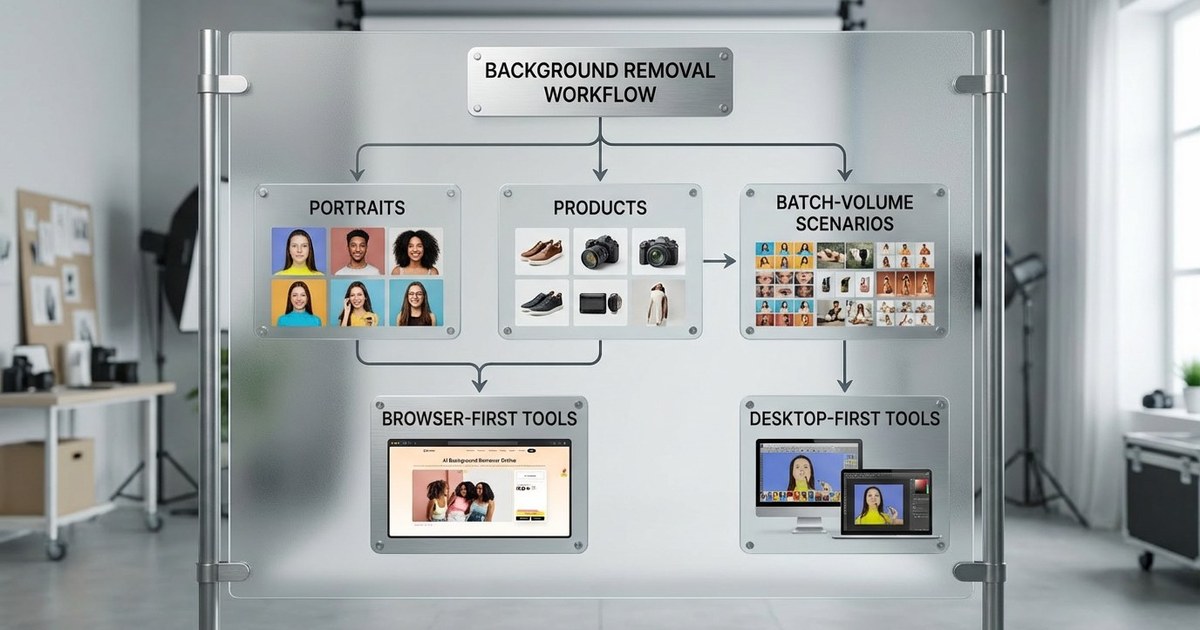
Decision Framework
Before selecting a free background removal tool, take a moment to evaluate your actual needs. The “best” option depends less on brand name and more on how you work.
- Volume: How many images per month? If you only remove backgrounds occasionally, most free tools will be sufficient. However, if you process images weekly or in batches, daily limits and export restrictions can quickly become frustrating.
- Quality needed: Web-only or print? For social media or website use, web-resolution exports are usually acceptable. If you require print-ready files or high-resolution e-commerce listings, ensure the tool does not downgrade image quality.
- Complexity: Simple or intricate edges? Photos with plain backgrounds are easier for AI to process. Images containing fine hair strands, fur, glass, or transparent objects require more advanced edge refinement capabilities.
- Platform: Desktop, web, or mobile? Browser-based tools are convenient for quick edits. Desktop applications often provide better performance and batch editing. Mobile apps are ideal for editing on the go.
- Integration: Standalone tool or part of a workflow? Consider whether you need a simple background remover or a tool that integrates into a broader editing process, such as colour grading, resizing, or exporting in multiple formats.
Quick Recommendations
| If You Need… | Choose… |
|---|---|
| Best overall quality | Evoto AI |
| Quick single images | Remove.bg |
| Photoshop-like control | Photopea |
| 100% free desktop | GIMP |
| Design integration | Canva |
| Mobile e-commerce | Photoroom |
If you also work on mobile devices, consider exploring the best AI photo editing apps for Android for integrated editing workflows.
Tips for Better Background Removal Results
Before Uploading
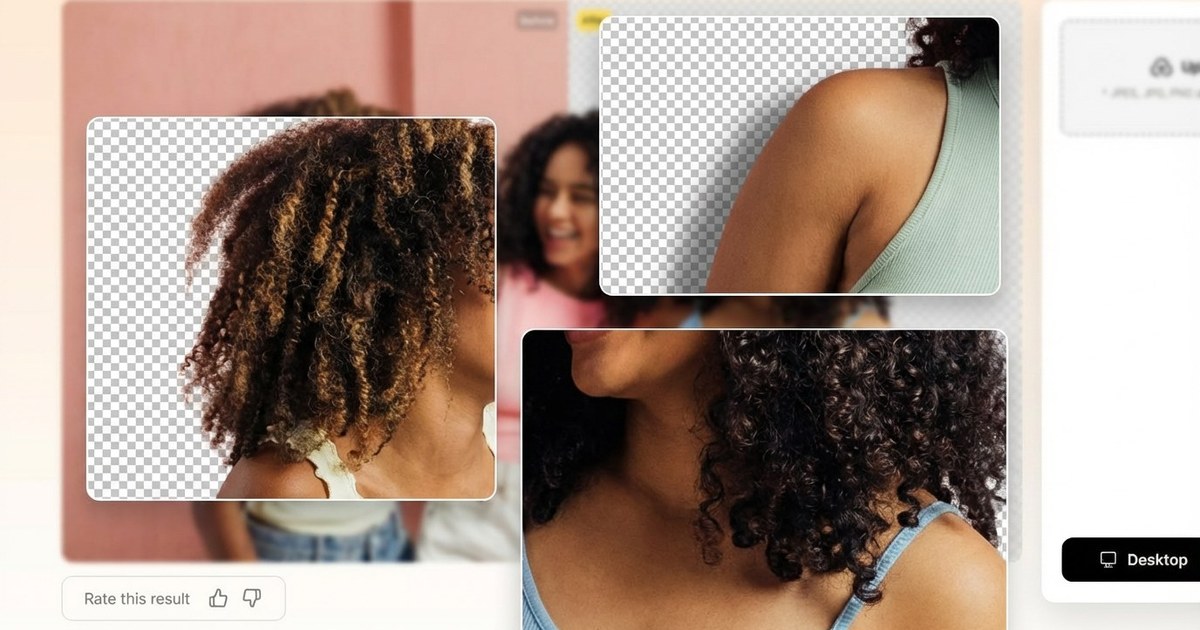
- Use high-resolution images: Higher-resolution photos give AI tools more detail to work with, resulting in cleaner edges and smoother cut-outs. Low-quality or compressed images often lead to jagged outlines.
- Ensure strong contrast between subject and background: Clear separation between the subject and background helps the tool detect edges accurately. For example, light subjects against dark backgrounds (or vice versa) improve precision.
- Avoid busy patterns: Complex textures, overlapping objects, or cluttered scenes can confuse AI detection. Simple, uncluttered backgrounds produce more consistent and professional results.
After Removal
- Check edges at 100% zoom: Always inspect the image at full size to catch rough cut-outs, leftover background fragments, or halo effects that may not be visible when zoomed out.
- Use refinement tools for hair/fur: Fine details such as hair strands or animal fur often need slight edge smoothing or feathering to maintain a natural appearance.
- Add subtle shadow for natural look: A soft shadow beneath the subject helps restore depth and prevents the image from looking artificially pasted onto a new background.
- Export at appropriate resolution: Choose export settings based on your final use: web resolution for social media and full resolution for print or professional delivery.
Batch Processing Workflow
- Organise images by complexity: Group photos according to background difficulty or subject type. Processing simpler images first improves efficiency, while more intricate shots can be refined separately.
- Start with AI tools, manually refine as needed: Apply automatic background removal initially to save time, then review the results and make small manual adjustments where necessary to maintain quality.
- Use consistent export settings: Keep file format, resolution, and naming conventions consistent across all images to ensure a professional and uniform final output.
- Consider Evoto AI for batch portrait needs: For high-volume portrait workflows, dedicated batch editing tools can apply consistent adjustments across multiple images, significantly reducing editing time.
Final Verdict: Best Free Background Removal Tools
Free background removal tools have improved dramatically in recent years, offering surprisingly strong results for casual users and even semi-professional workflows. The right choice depends largely on how frequently you edit, the quality level required, and whether you need advanced refinement tools.
For users seeking the best balance between free access and professional-quality results, Evoto AI stands out. Its AI background removal preserves fine details such as hair strands and natural shadows while offering a free tier to get started.
If you require completely unlimited free access with no export restrictions, Photopea and GIMP remain strong alternatives. Both provide full manual control and layer-based editing, although they require more hands-on effort compared to AI-driven solutions.
Ultimately, the best approach is to test more than one tool. Free tiers and browser-based options make it easy to experiment and determine which workflow suits your needs.
If you want a soft next step, review how AI background removal behaves on your own portrait and product files, then compare browser exports with a desktop workflow. When you are ready to test a stronger portrait-oriented option, download Evoto and compare its edge cleanup and batch consistency against your current tool.
Powerful AI Photo Editor
Frequently Asked Questions About Free Background Removal
What is the best completely free background removal tool?
For truly unlimited free use, Photopea and GIMP are the strongest options. Photopea runs directly in your browser and offers Photoshop-style tools, while GIMP is a powerful open-source desktop editor. If you prefer AI-powered one-click background removal with a free tier, Evoto AI offers professional-level results.
Can I remove backgrounds for free without losing quality?
Yes, some tools maintain original image resolution on export. Evoto AI and Photopea, for example, preserve quality depending on usage limits. However, certain free web tools restrict export resolution unless you upgrade.
What’s the best free background remover for product photos?
For product photography, Evoto AI provides one-click background removal with shadow preservation, making it suitable for e-commerce use. Mobile-focused tools can also work well, although free exports may include watermarks.
How do I remove a background from photos with hair?
Images with fine hair strands require advanced edge detection. AI-powered tools trained to recognise detailed textures typically perform best. For manual refinement, layer masks and edge refinement tools can improve accuracy.
Can I batch remove backgrounds for free?
Batch processing is limited in most free web tools. Some desktop editors allow batch workflows with plugins or credit-based systems, though free usage may be capped.
Is there a free alternative to one-click background removal tools?
Yes. Several AI-based tools offer free tiers for one-click removal, while open-source software provides full manual control without subscription costs. The right choice depends on whether you prioritise automation or flexibility.



