
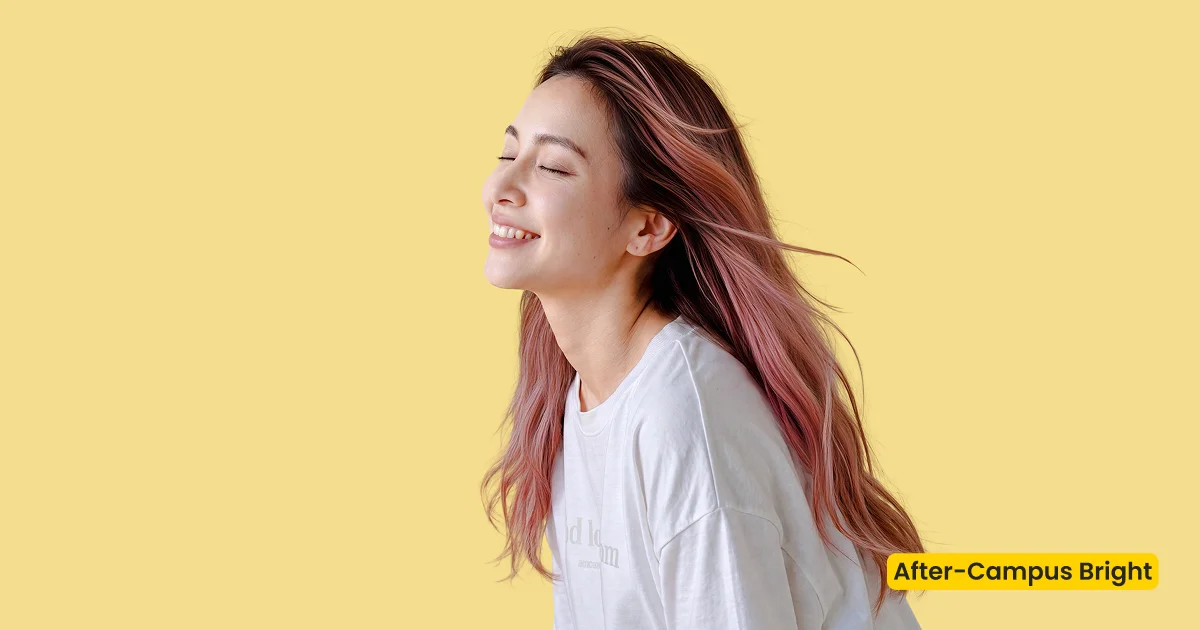
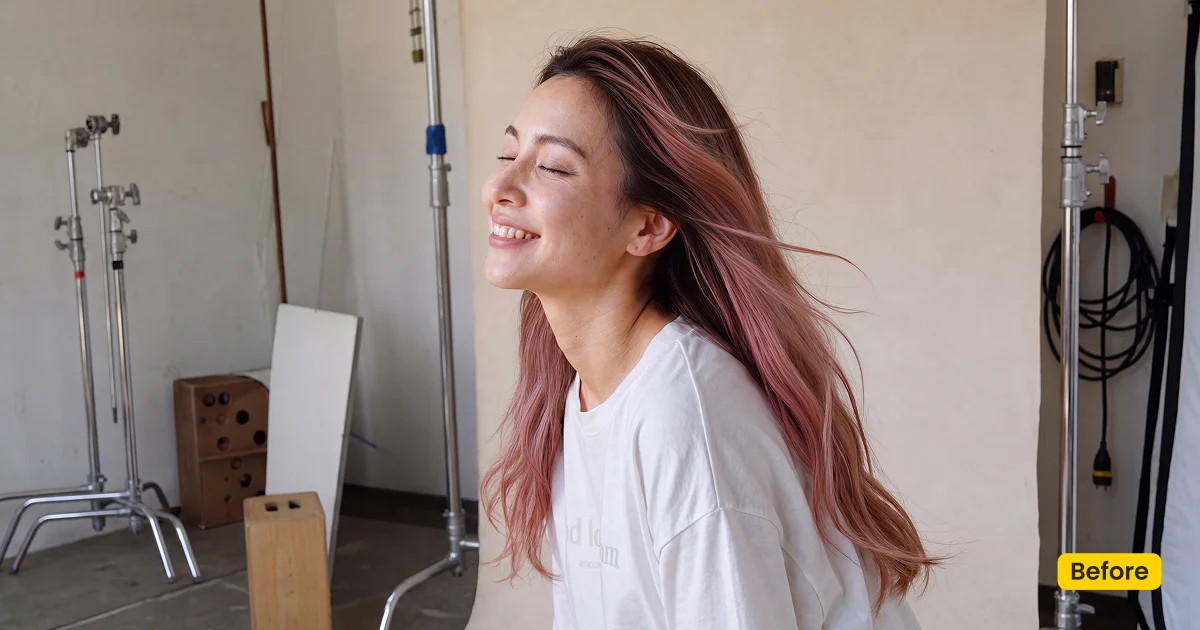
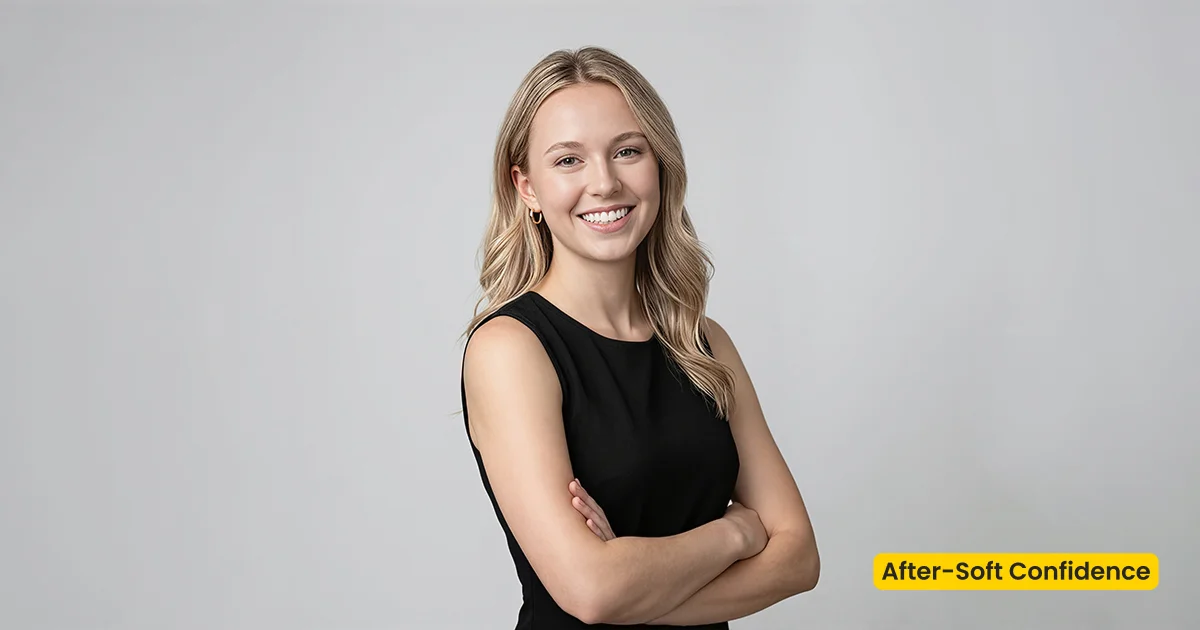
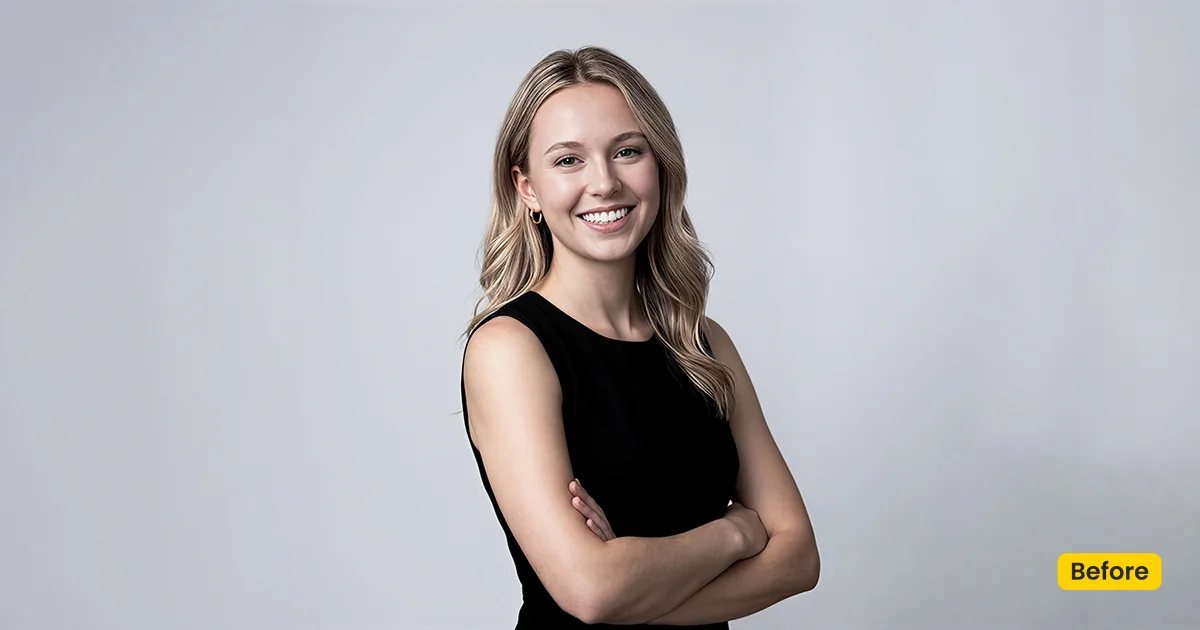
Portrait Headshot is a style kit of three official looks. Campus Bright is youthful and clean for student and graduation sessions. Chic Texture keeps honest skin detail. Soft Confidence brightens professional branding frames.
| Style | School / Campus + Business Style Kit |
|---|---|
| Best for | Student portraits, Graduation, Yearbook, Personal branding, Business heashots, Professional heashots |
| Format | Evoto Asset Hub preset kit |
| Price | Free |
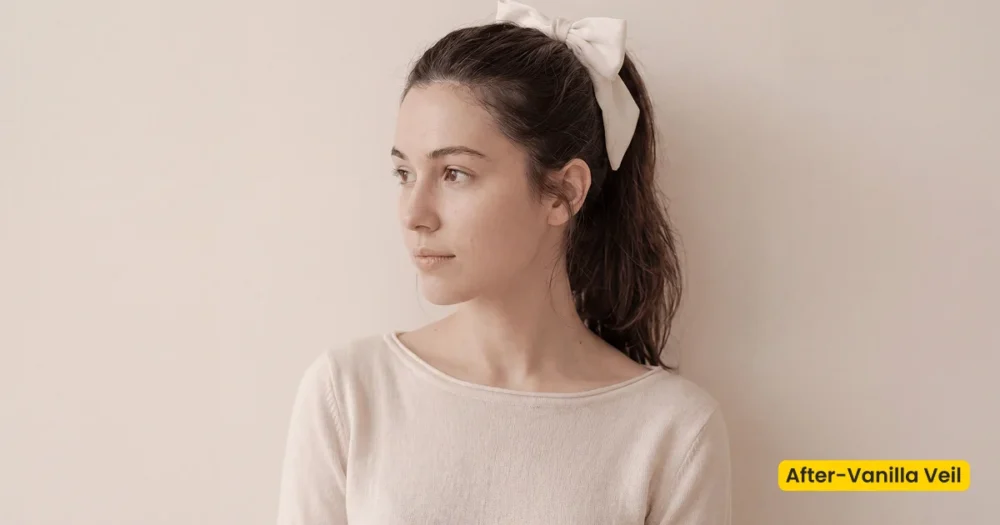
See the Look in Action
What This Kit Does
Portrait Headshot is a kit of school portrait presets in Evoto: three official looks, not one file.
- Campus Bright is youthful and clean for student, graduation, and campus sessions.
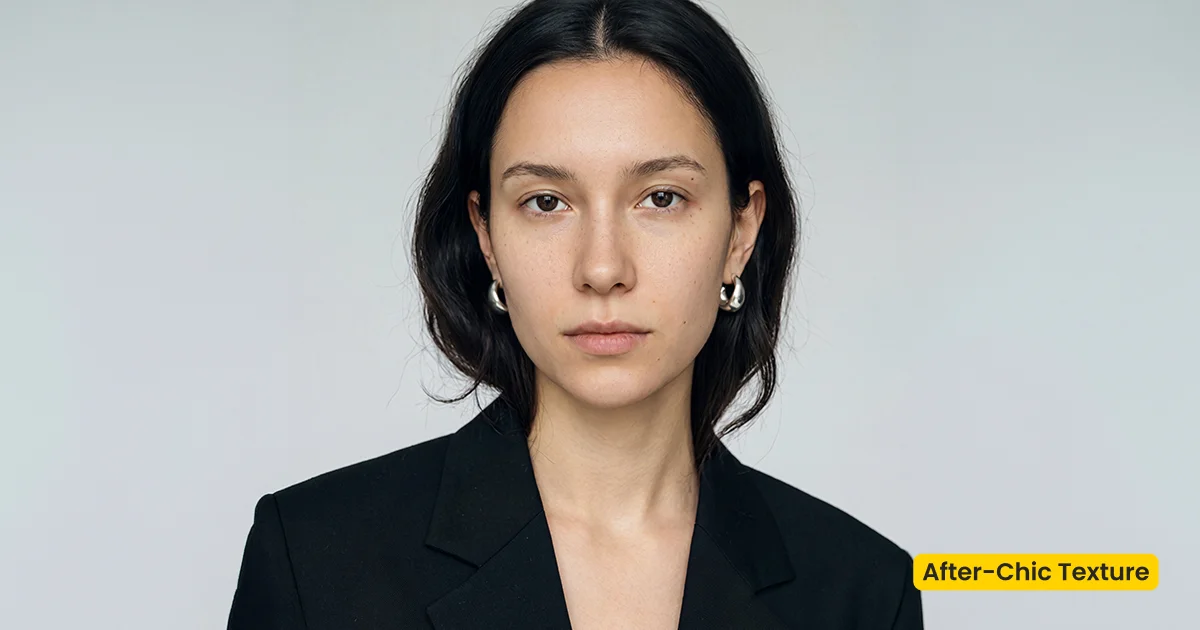
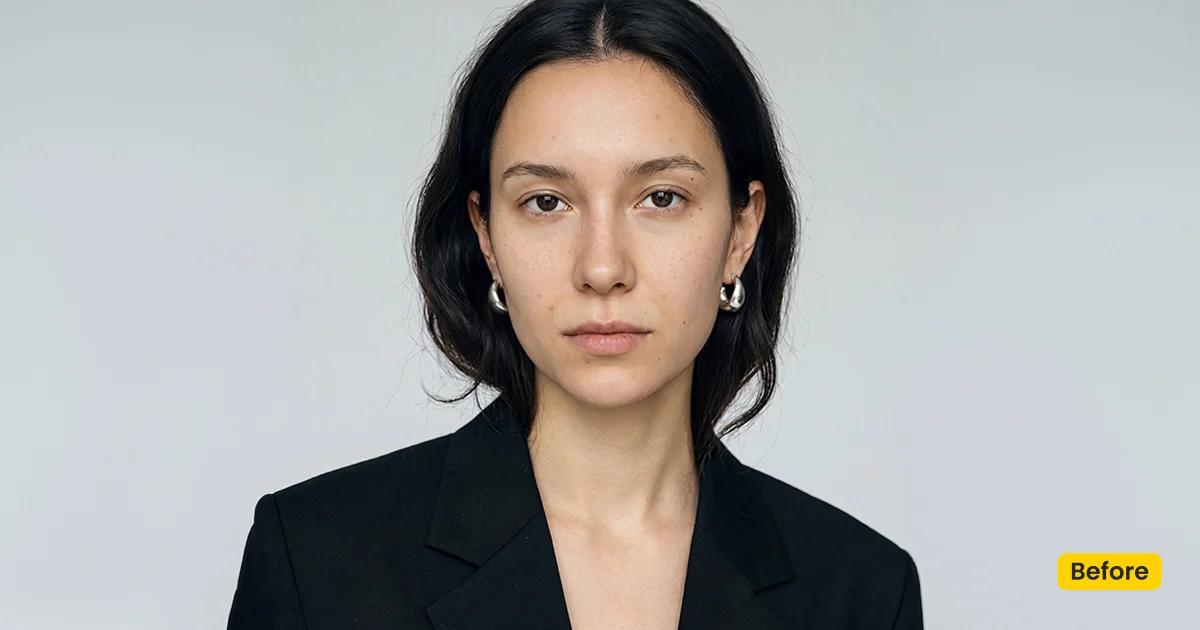
- Chic Texture keeps authentic skin with a raw editorial feel.
- Soft Confidence softens business portraits with approachable skin, gentle clarity, and a brighter background.
Use the kit across back-to-school volume, then switch looks without leaving Evoto.
Campus Bright is the default CTA because it matches picture-day energy: fresh color, natural skin, modern without looking over-retouched. Chic Texture is the close-up when you must not polish pores into plastic. Soft Confidence is the branding lane, actor headshots and LinkedIn-adjacent portraits that still need to feel human. Apply one look per frame; do not stack all three on the same file.
The kit CTA opens Campus Bright on the Evoto official site. Also sync Chic Texture and Soft Confidence if your plan allows. Apply each look from your synced presets in Evoto Desktop. Download Evoto to keep the three looks in one library.
Best For / Not For
Best for
- Back-to-school and campus sessions (Campus Bright)
- Graduation and yearbook volume that needs a fresh, clean base
- Close-up portraits that must keep honest skin (Chic Texture)
- Personal branding and professional headshots (Soft Confidence)
Not for
- Moody wedding documentary color (use Storybook Editorial)
- Creamy window-light family sittings as the only brief (use Vanilla Veil)
- Location swaps (use Fabric or a fusion scene)
- Treating the kit as a single preset name on every frame
Three Looks in One School Portrait Kit
Pick a look from the shot list, not after you have applied all three. The table is the briefing card for a volume day: campus, tactile, or branding.
| Look | Color and skin | Best for |
|---|---|---|
| Campus Bright | Fresh, youthful, clean energy | Students, graduation, campus |
| Chic Texture | Tactile, honest, editorial detail | Close-ups that must not over-polish |
| Soft Confidence | Approachable, brighter ground | Branding and professional portraits |
How School Portrait Presets Shape a Headshot
Each look is a lane inside these school portrait presets. Read this as a kit map: you are choosing a finishing language, not mixing three grades on one face.
- Campus Bright: Lifts color just enough for picture day. Skin stays natural; the frame should feel modern, not over-retouched.
- Chic Texture: Holds pore and fabric detail. Use it when the crop is tight and a beauty-smooth grade would look fake.
- Soft Confidence: Brightens the ground and keeps the subject prominent. Built for branding frames that should still feel approachable.
- Shared habit: Apply, then adjust brightness and color on the odd frame. Sync the chosen look across matching crops.
- Overall finish: A back-to-school kit: campus, tactile, or professional, never all three at once.
Tips for Back-to-School Volume Days
A three-look kit only saves time if the shot list names the look. Otherwise every frame becomes a debate at the desk.
- Name the look on the shot list: Campus, editorial, or branding. Do not write “the kit.”
- Keep crop consistent: Headshot crops make look differences easier to judge in a proof gallery.
- Check Soft Confidence access: Asset Hub lists it as Free for Subscribers. Campus Bright and Chic Texture are listed Free.
How to Get and Apply Portrait Headshot
Step 1. Get Campus Bright, Chic Texture, and Soft Confidence
Click the link below for Campus Bright, then get the other two on the Evoto official site if your plan allows. Sign in and sync so all three are in your Evoto library.
Each look has its own asset page (names match the reference filenames):
Step 2. Assign one look from the shot list
Open Evoto Desktop. In Preset Management, click Apply on Campus Bright for picture-day crops, Chic Texture for tight editorial frames, or Soft Confidence for branding files. These school portrait presets are one look per frame. Do not stack all three.
Step 3. Proof a strip of matching crops
In Preset Management, pull five frames with the same crop and check skin. If Campus Bright feels too peppy on a senior close-up, Apply Chic Texture on that strip instead. Save a tweaked version only after the strip matches. Use Share Preset(s) only if another editor needs the same look.
FAQ
Is this one Lightroom preset?
No. These school portrait presets are an Evoto kit with three official looks from Asset Hub.
Can I use Fabric with these looks?
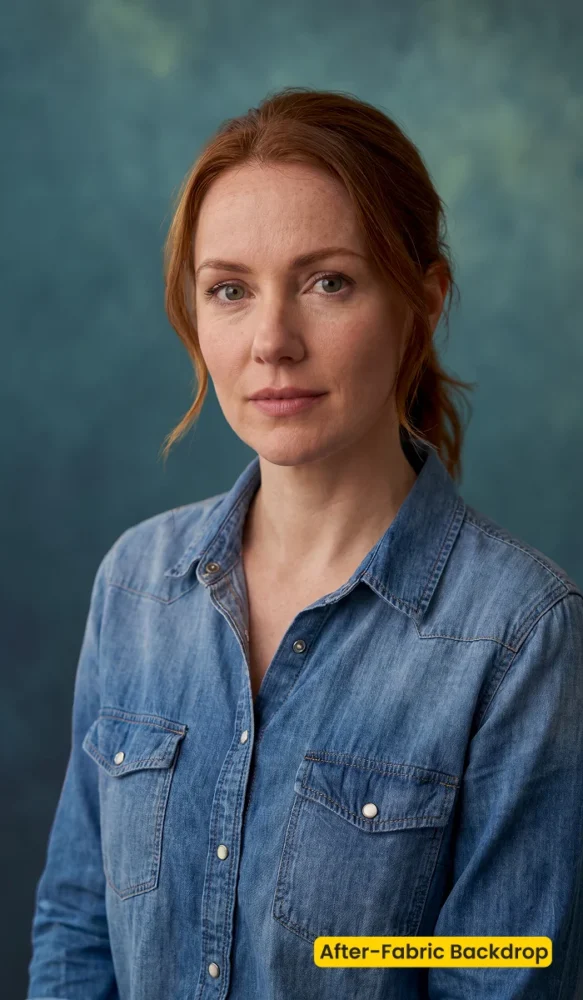
Yes. Fabric is the digital cloth. These presets grade the portrait.
Are they free?
Campus Bright and Chic Texture are listed Free. Soft Confidence is listed Free for Subscribers.
Where do I apply them?
Get the school portrait presets from Asset Hub. In Evoto Desktop → Preset Management, Apply one look from the shot list, then proof a strip of matching crops.
Related Assets
Try Evoto AI Photo Editor
Retouch photos with Evoto AI and make your photos best! Available on Windows, MacOS and iPadOS.