Color grading is one of the most powerful ways to elevate your photography. Whether you’re crafting cinematic tones, soft pastel moods, or vibrant travel aesthetics, mastering color grading helps you shape the emotional impact of your images. In this guide, you’ll learn how to color grading in Lightroom step-by-step and discover how tools like Evoto AI can speed up your workflow while delivering professional-grade results.
What is Color Grading in Photography?
Color grading is a post-production process used to manipulate the colors of an image, enhancing its visual appeal and setting the mood of a scene. With photo editing software, you can adjust the hue, saturation, and luminance of different elements in a photo, including shadows, highlights, and midtones, giving you full control over the overall look.
Color grading is widely used in both photography and film to create striking, memorable visuals. For example, movies like Blade Runner use a distinct color palette to evoke the feeling of a neon-lit cyberpunk city, while The Twilight Saga employs cool tones to convey a dark and mysterious atmosphere. By examining stills from these films, it becomes clear that color grading plays a crucial role in shaping how we perceive a composition and experience the story.
How to Color Grading in Lightroom
Follow these practical steps to create beautiful color grades inside Adobe Lightroom.
Step 1: Import Photo
Open Lightroom and import your selected image. Make sure your photo is properly organized in your catalog for easy editing.
Step 2: Prepare Photo for Color Grading
When you switch to the Develop panel, you’ll find several tabs containing color adjustment tools. You can fine-tune your image using contrast, exposure, white balance, tint sliders, and the tone curve, among other settings.
Editing your photo before diving into color grading ensures that your images have balanced colors and proper exposure, creating a solid foundation for adding a more dramatic or cinematic look.
Is this step necessary? That depends on your photo—if it already has good color and exposure, you may be ready to jump straight into color grading. Otherwise, performing these basic corrections first will make your final result more polished and visually appealing.

Step 3: The Color Grading Tool
To access the Color Grading tool, go to the Develop panel and scroll down until you find the Color Grading tab, then click it to reveal its settings.
The Color Grading tool provides different workflows. The default and most commonly used setup is the three-way color wheel, similar to those found in many other photo editing programs.
You can adjust shadows, midtones, and highlights independently, allowing for a detailed and nuanced color grading process. Additionally, there’s a Global wheel that applies color adjustments to the entire image for cohesive tonal control.
Step 4: Color Wheels
Let’s start with the default view: the three-way color wheels. This layout allows you to adjust midtones (top wheel), shadows (left wheel), and highlights (right wheel) independently.
Each wheel has a small circle in the center that acts as a handle. Dragging this handle changes the hue (color shade), while moving it from the center toward the edge increases saturation. Below each wheel, a luminance slider lets you adjust the brightness of that tonal range. These controls work across all three wheels.
In landscape photography, it’s common to add warm tones like orange or yellow to the highlights for a sunset glow, while applying blue tones to the shadows to deepen the night sky. This combination creates a visually striking contrast and enhances the overall mood of the image.

Step 5: Blending and Balance Sliders
At the bottom of the color grading panel, you’ll find the Blending and Balance sliders, which are fairly straightforward to use.
The Blending slider determines how much the colors from the three wheels overlap. Increasing the blending creates a smoother transition between tones, though it may mix the colors more. By default, it’s set in the middle, but you can adjust it to achieve the desired effect.
The Balance slider controls the emphasis between shadows and highlights. Move it to the left to favor shadows, or to the right to emphasize highlights, allowing you to fine-tune the overall tonal balance of your image。
Step 6: Export Photo
Once you’re happy with your color grading, export your photo with the appropriate resolution, color space, and sharpening settings—and your masterpiece is ready to share.

Speed Up Your Color Grading with Evoto AI Filters
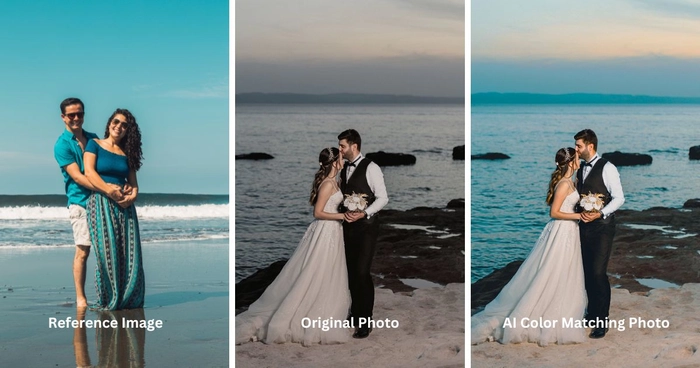
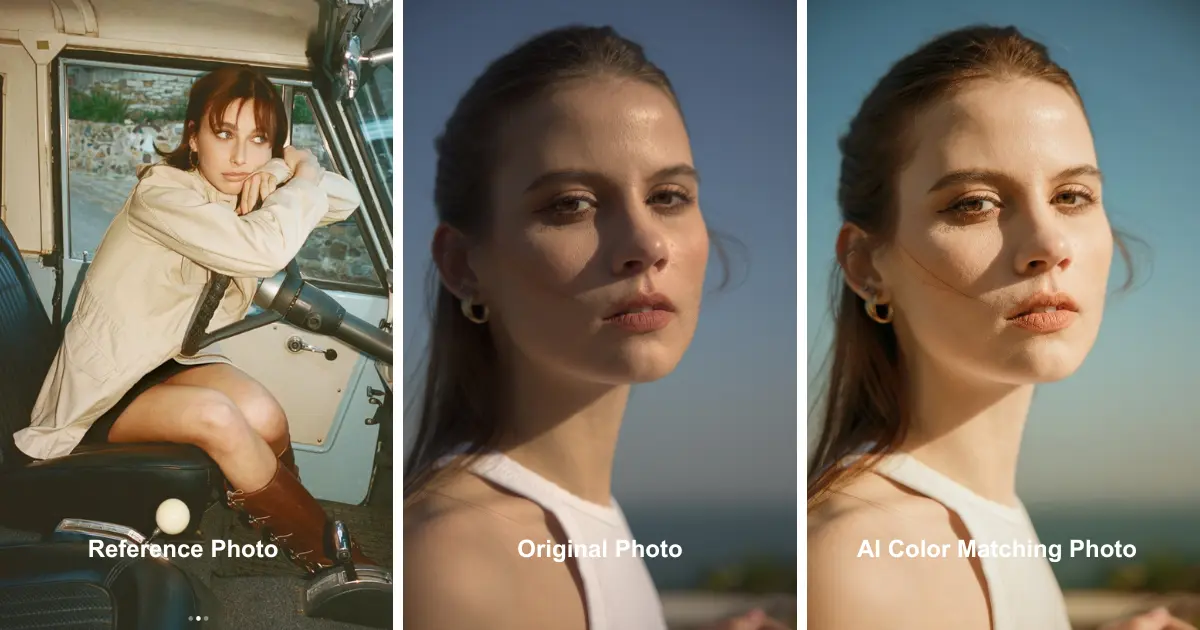
While Lightroom offers powerful manual control, Evoto provides AI-driven filters that instantly apply polished, professional color looks. This is perfect for photographers looking to save time without sacrificing quality.
Evoto’s AI reads the image content—skin, sky, fabric, shadows—and automatically applies intelligent color styling.


Powerful AI Photo Editor
Types of Filters Available in Evoto for Different Styles
Evoto includes a variety of filters designed for different photographic moods:
1.Cinematic Style
Evoto offers many different cinematic filters for photos to help create a cinematic feel; here, the 35mm filter from the Color Style library is selected.

2.Retro Style
Evoto offers a variety of retro filters to instantly add a nostalgic touch to your photos. Here, we choose the Vibe-V01 filter, which features faded blacks, warm tones, and classic textures, effortlessly creating a retro atmosphere and giving your photos a timeless and unique charm.

3.Travel and Landscape Style
Evoto offers a variety of travel and landscape filters to instantly enhance your outdoor photos. Here, we’ve chosen the Vibe-V02 filter, which effortlessly brings your landscape photos to life, giving your outdoor pictures a fresh, vibrant, and captivating visual effect.

4.Portrait Style
Evoto offers a variety of portrait filters to instantly enhance your photos. Here, we’ve chosen the Wedding 01 from the color style section. It features natural skin tones, soft highlights, and a clean color balance, easily creating refined, harmonious, and professional-looking portrait photos.

How to Use Evoto AI Filters for Quick and Stunning Color Grading – Step-by-Step Guide
1.Import Photo
Drag your images into Evoto or open them directly from your folder
2.Choose the Filter
Select the styles you want. The AI instantly analyzes your image.

3.Make Fine Adjustments
Refine intensity, exposure, color balance, and skin tones for a custom look. You can also use some powerful features like skin retouching, smooth hair and image denoiser to make your photo more perfect.

4.Export Photo
Save your final results in high resolution for web, print, or social media.

Evoto gives you a consistent, polished style in seconds.
Powerful AI Photo Editor
Lightroom Color Grading vs. Evoto AI Filters
| Feature | Lightroom | Evoto AI Filters |
|---|---|---|
| Control Level | Full manual adjustment | Automated with manual fine-tuning |
| Learning Curve | Moderate to steep | Very beginner-friendly |
| Speed | Slower, more detailed | Extremely fast |
| Consistency | Depends on user skill | AI ensures consistent results |
| Best For | Professionals who want full control | Editors needing fast, stylish outcomes |
Both tools are powerful—Lightroom gives you precision, while Evoto helps you move quickly without sacrificing quality.
Conclusion
Color grading is one of the most creative aspects of photo editing. Lightroom offers a deep, manual approach that lets you refine every detail of your tones and hues. On the other hand, Evoto’s AI Filters provide a fast, effective solution for photographers who want professional results in seconds.
Combining both tools in your workflow ensures you get the best of both worlds: artistic control and time-saving efficiency.
Try Evoto AI Photo Editor
Retouch photos with Evoto AI and make your photos best! Available on Windows, MacOS and iPadOS.