Beach photography can capture some of the most beautiful vacation moments — but editing is key to turning bright captures into truly impressive shots. In this guide, we’ll walk through how to edit beach photos from common issues to detailed workflows using Lightroom and AI tools like Evoto.

Common Challenges When Editing Beach Photos
Editing beach photos comes with a few unique challenges:
- Overexposed Highlights: Bright sand and sunlight can blow out details.
- Color Casts: Strong blues from the sky and water can affect natural tones.
- Distractions: People, umbrellas, or debris can take attention away from the main subject.
- Dynamic Range Issues: Balancing bright skies and shadowed areas can be tricky.
Understanding these challenges helps you prepare the right edits for natural and vibrant results.
How to Edit Beach Photos in Lightroom (Basic Workflow)
Here’s a practical Lightroom workflow for how to edit beach photos:
1. Import Your Photo
Open Lightroom and import the beach photo you want to edit — either in the Library or Develop module.

2.Adjust White Balance and Exposure
Correct white balance using the eyedropper tool on a neutral area (like white sand). Adjust exposure to balance highlights and shadows.

3. Enhance Color
Increase vibrance and saturation moderately. Use Contrast and Dehaze sliders to add depth and make sky and water more vibrant.

4. Adjust the Sky
Use the Masking Tool → Sky to selectively reduce overexposed areas and enhance sky colors.

5. Export Photo
After all adjustments, export the final photo in your preferred format for sharing or printing.

Limitations of Editing Beach Photos in Lightroom
While Lightroom is powerful, it does have limitations:
- Sky or background replacement is not as easy as in AI-powered editors.
- Batch editing still requires careful manual adjustments for multiple photos.
- Performing detailed portrait retouching in Lightroom can be time-consuming and may require multiple steps.
These challenges are where AI editing tools like Evoto can save time.
How to Edit Beach Photos Faster with Evoto
AI-powered editors like Evoto simplify the process of how to edit beach photos:


Powerful AI Photo Editor
Evoto Editing Workflow:
1.Import Your Photo
Upload your beach photo to Evoto.
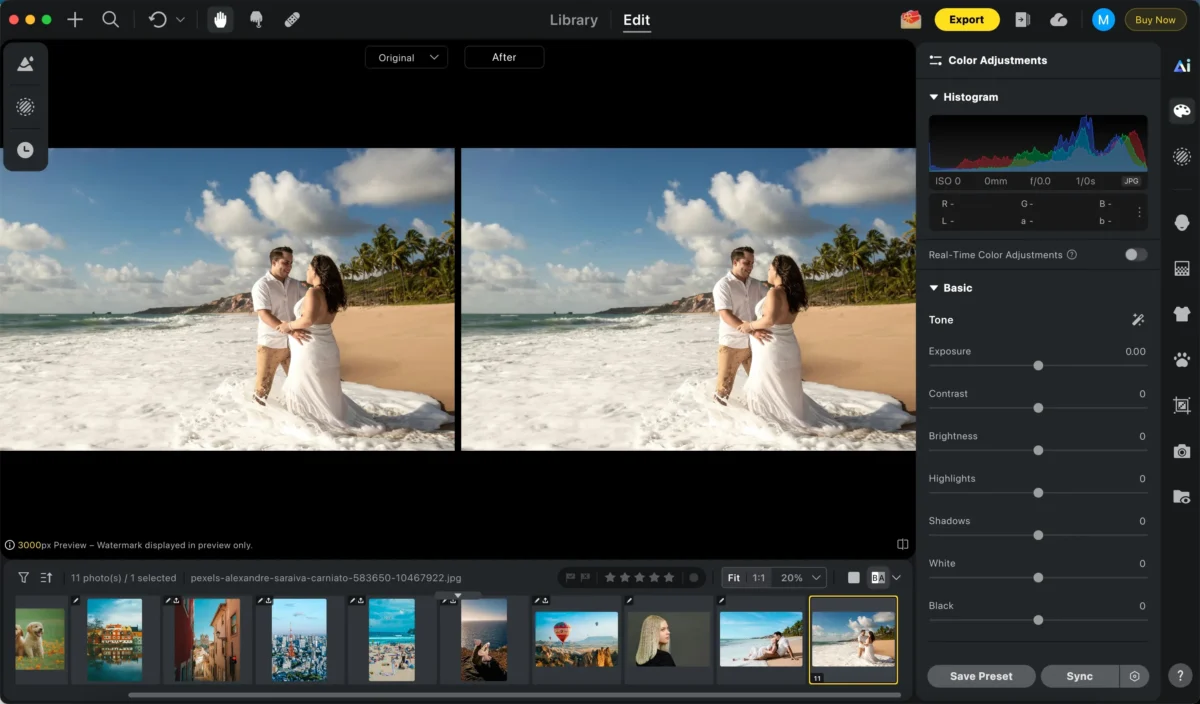
2.Use Color Filters
Quickly adjust color tones and lighting to achieve your desired look. Evoto comes with a wide range of built-in filters that allow you to instantly apply different moods and styles to your beach photos, from vibrant and sunny to soft and dreamy. In addition, you can use any image you like as a reference, and Evoto’s AI will analyze its color palette and lighting. The AI then applies the same tones and style to your target photo, giving you a customized, professional-looking result in just a few clicks.

3.Retouch Skin and Body
Smooth skin, adjust tone, and enhance subjects naturally. Evoto automatically detects and analyzes the subject’s skin and body, identifying areas that can be enhanced without affecting the background or other elements. Using simple sliders, you can easily adjust skin smoothness, tone, brightness, and minor body enhancements to achieve a natural, professional look. This allows you to quickly retouch portraits in your beach photos without spending hours on manual editing, keeping the results realistic and consistent.

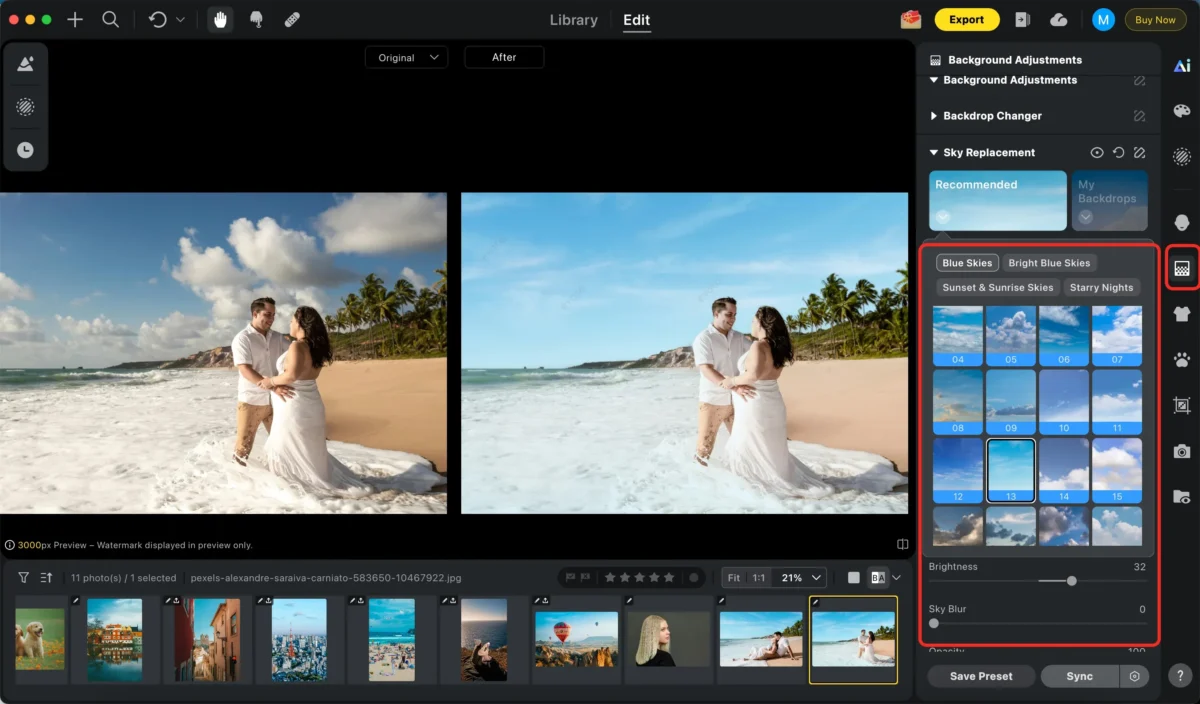
4.Replace the Sky
Swap or enhance skies to make the scene more dynamic. Evoto automatically detects and analyzes the sky in your photo, allowing you to seamlessly replace it without affecting the rest of the image. You can choose from a variety of built-in sky options, from golden sunsets to bright blue skies or dramatic clouds. The AI intelligently blends the new sky with your existing lighting, reflections, and colors, ensuring that the replacement looks natural and perfectly integrated into the scene. This makes it easy to create stunning beach photos with vibrant, dynamic skies in just a few clicks.
5.Batch Editing (Optional)
Apply consistent edits across multiple photos instantly. Evoto allows you to select a group of beach photos and apply the same adjustments simultaneously, including color filters, skin and body retouching, and sky replacements. The AI ensures that each image is edited consistently while maintaining natural tones and realistic lighting. This feature is perfect for photographers who need to quickly process large sets of vacation or professional beach photos, saving hours of manual work while keeping a uniform, polished look across all images.

6.Export
Save the final image for social media, printing, or sharing.

Evoto automatically detects skies, water, and subjects, reducing manual work while maintaining natural results.
Powerful AI Photo Editor
Lightroom vs. Evoto for Beach Photo Editing
Lightroom:
✔ Full manual control over sliders and adjustments.
✔ Precise color and exposure correction.
✖ Time-consuming for advanced edits like object removal or sky replacement.
Evoto:
✔ One-click color filters and retouching.
✔ Automatic sky and subject detection.
✔ Batch processing for consistent results.
Tips for Creating Stunning Beach Photos
- Shoot During Golden Hour – Soft, warm light reduces harsh highlights.
- Use a Polarizing Filter – Enhance the colors of the sky and water.
- Slightly Underexpose in Camera – Protect highlights and adjust shadows in post.
- Keep Composition Clean – Fewer distractions make editing easier.
- Edit Consistently – Use presets or batch processing for a cohesive look across a photo series.
Good shooting habits make post-processing faster and more effective.
Conclusion
Learning how to edit beach photos involves balancing exposure, enhancing colors, and removing distractions while preserving natural beauty. Lightroom offers precise manual control, while Evoto accelerates complex edits and batch processing. Together, they help you create bright, natural, and professional beach photos efficiently.
Try Evoto AI Photo Editor
Retouch photos with Evoto AI and make your photos best! Available on Windows, MacOS and iPadOS.