
Want to share more than one photo without turning your post into a long carousel? An Instagram photo collage lets you combine several images into one polished visual for Stories, Feed posts, or Reels.
For a quick Story, Instagram’s built-in Layout tool is enough. For a collage you want to post to your Feed—or one with more template options and precise photo positioning—you can create it in Evoto first, then upload the finished image to Instagram.
Quick Answer: The Best Way to Make an Instagram Photo Collage
There are two simple ways to make a photo collage on Instagram:
- Use Instagram Layout when you need a fast grid for a Story.
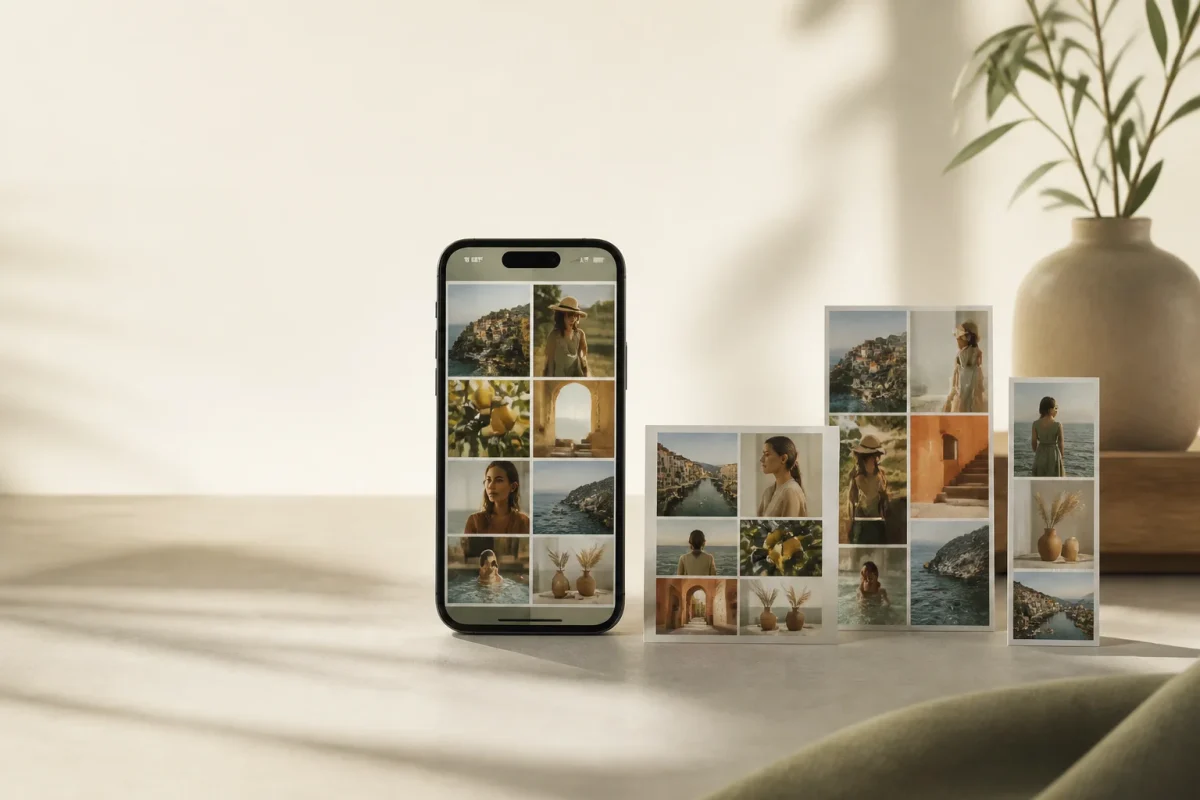
- Use Evoto Collage Maker when you want to create one finished image for an Instagram post, Story, or Reel.
Evoto offers a range of collage templates for different photo collections and styles. You can adjust each image inside its frame, choose an Instagram-ready ratio, and export the final collage as a JPEG.
Method 1: Make a Photo Collage in an Instagram Story
Instagram’s built-in Layout tool is the fastest option for casual Stories. It works well for a quick event recap, a before-and-after, or a few photos from the same day.
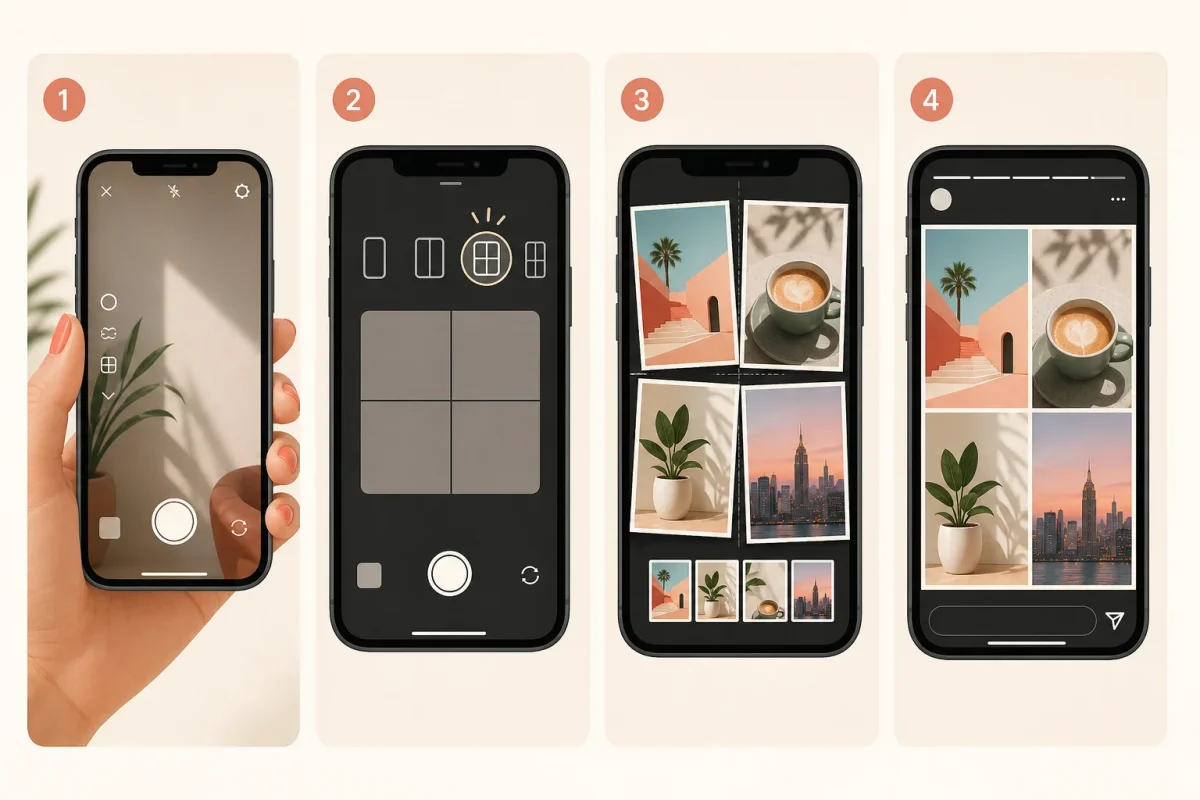
Step 1: Open Instagram Stories
Open Instagram and swipe right from your feed, or tap your profile picture to open the Story camera.
Step 2: Choose Layout
Find Layout in the Story camera tools, then choose the grid that fits your photos.
Step 3: Add Your Photos
Tap each section of the grid to take a photo or add one from your camera roll. When every section is filled, tap the check mark to continue.
Step 4: Finish and Share
Add text, stickers, music, or GIFs if needed. Then share your collage to your Story.
Instagram Layout is useful when speed matters. But it is designed for Stories, not for creating a polished single-image collage for your Feed.
Method 2: Create an Instagram Photo Collage With Evoto
If you want more control over the final composition, create the collage before you upload it to Instagram.
With Evoto Collage Maker, you can choose a template, upload multiple photos, adjust how each photo appears in its frame, and export one Instagram-ready image.
Step 1: Choose a Collage Template
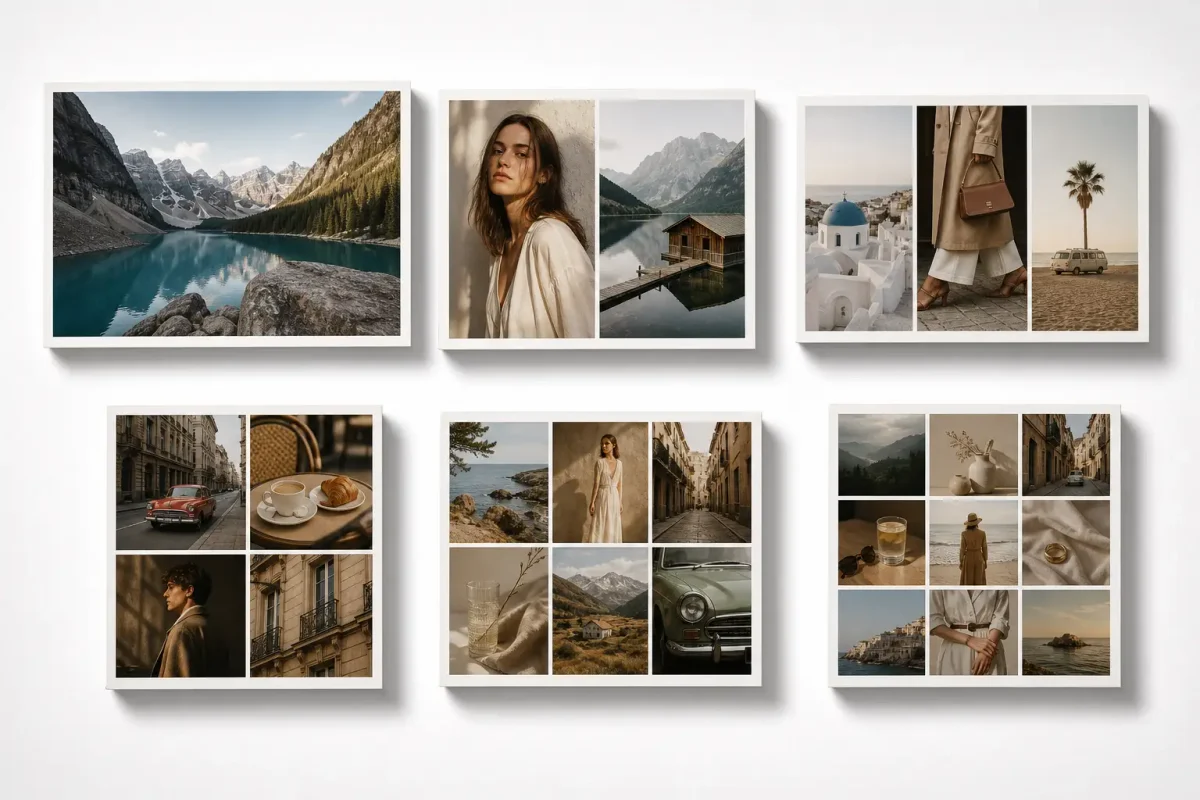
Start by choosing a template that fits your photos. Evoto offers Collage templates across categories including Trending, Lifestyle, Travel, and Film.
You can also filter templates by photo count, from one photo up to nine photos.
Step 2: Upload Your Photos
Upload the photos you want to include. Evoto places them into the template in upload order.
If a template has empty slots, you can add more photos later. If you upload more images than the template supports, use a different template or select the images you want to keep first.
Step 3: Adjust Each Photo
A good collage depends on more than putting photos into boxes. Make sure every important face, product, or detail stays visible.
In Evoto, you can:
- Move a photo within its slot
- Zoom in or out
- Replace an image
- Rotate an image
- Flip it horizontally or vertically
- Drag photos to switch their positions


Powerful AI Photo Editor
Step 4: Choose the Right Instagram Ratio
Choose your output ratio before exporting so Instagram does not crop your collage unexpectedly.
| Where you plan to post | Recommended ratio | Evoto preset |
|---|---|---|
| Square Feed post | 1:1 | Instagram Square |
| Portrait Feed post | 4:5 | Instagram Portrait |
| Story or Reel | 9:16 | Instagram Reels |
Use Collage or Layout when you need to change the ratio. Stitch creates a seamless horizontal or vertical photo combination and does not support ratio changes.
Step 5: Export and Post to Instagram
When your collage looks right, export it as a JPEG. Then upload it to Instagram like any other image.
For Feed posts, a 4:5 portrait collage usually takes up more space on screen than a square post. For Stories and Reels, use a 9:16 canvas.
Collage vs. Layout vs. Stitch: Which Should You Use?
Evoto offers three ways to combine photos:
| Mode | Best for |
|---|---|
| Collage | Styled photo templates for travel, lifestyle, film, and creative posts |
| Layout | Clean multi-photo grids |
| Stitch | Seamless horizontal or vertical photo combinations |
Choose Collage when the template itself is part of the visual style. Choose Layout for a simple, structured grid. Choose Stitch when you want several photos to connect without visible gaps.
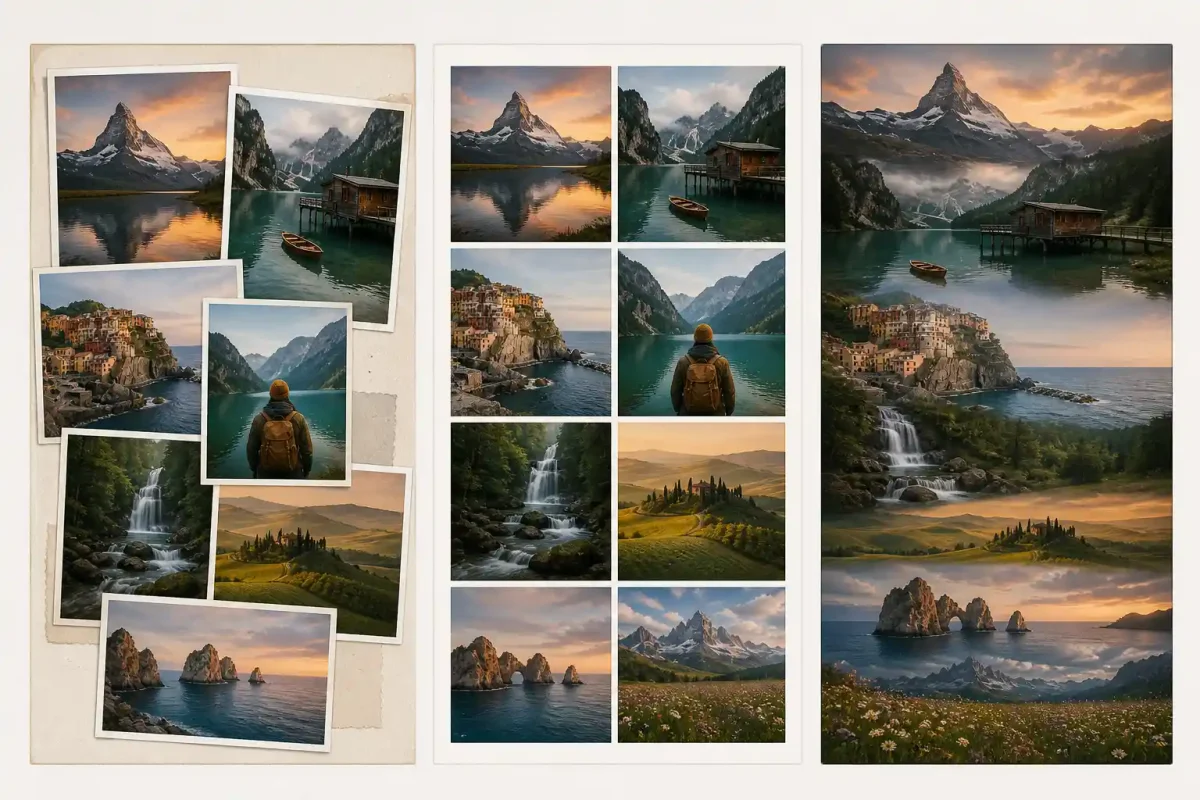
Tips for a Better Instagram Photo Collage
Start With One Clear Theme
A collage looks more intentional when every photo supports one idea. Try a travel recap, a wedding highlight, a product collection, a behind-the-scenes post, or a before-and-after.
Mix Wide Shots and Details
Use one or two larger images as the focus, then add supporting photos with details, close-ups, or different angles. For product-focused collages, a clean cutout can help the main item stand out from busy surroundings. Use Background Remover to prepare a product or portrait image before adding it to your collage.
Keep the Colors Consistent
Photos with similar lighting and color tones feel more cohesive in one collage. Before arranging your images, use Evoto’s AI color match to create a consistent look across the set—especially for travel recaps, lifestyle posts, or a series shot in different lighting.
Do Not Use Too Many Tiny Photos
Two to six photos are often enough for a clean Instagram collage. Use nine photos only when each image still has a clear purpose.
Check the Collage on a Phone
Instagram is a mobile-first platform. Before exporting, make sure faces, products, and important details are easy to see on a small screen.
Create Your Next Instagram Collage With Evoto
Instagram Layout is great for quick Stories. But when you want a polished collage that is ready for your Feed, Story, or Reel, start with a template and build the final image before posting. Create your next multi-photo post with Evoto Collage Maker.
Powerful AI Photo Editor