
Choosing the right photo collage layout is not only about how many photos you have. It is about what you want viewers to see first and how the images relate to one another.
A styled collage can make a travel set feel like a story. A grid can make product angles or before-and-after images easy to compare. A stitch can turn related frames into one long, continuous image.
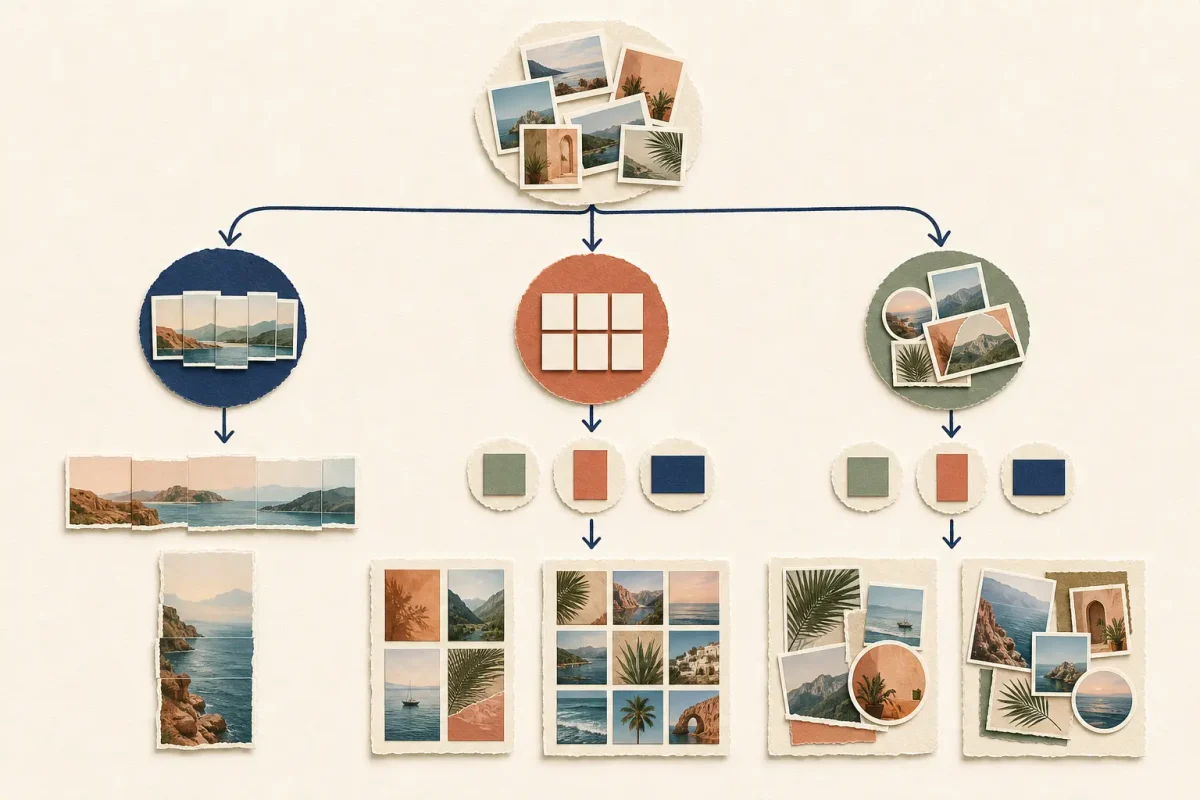
These three photo collage layout are called Collage, Layout, and Stitch:
- Choose Collage for a designed, themed look.
- Choose Layout for a clean and structured photo grid.
- Choose Stitch when your photos should connect horizontally or vertically.
This guide explains the difference between Collage, Grid, and Stitch, so you can choose the right format before you start arranging and cropping your photos.
What Is a Photo Collage?
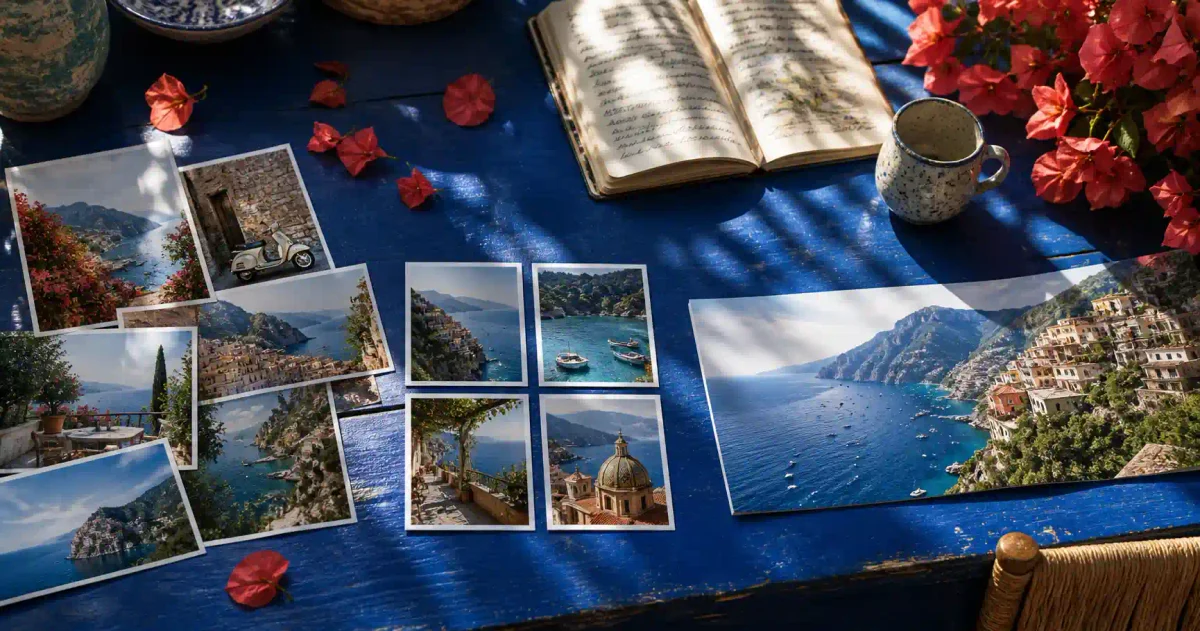
A photo collage combines multiple photos in a styled composition. Rather than giving every image the same size and position, a collage can use visual hierarchy to make one photo stand out while supporting images add context.
A collage works best when the arrangement should feel intentional and expressive, not purely functional.
When to Use a Collage
Choose Collage when you are creating:
- A travel recap with one standout destination photo
- A portrait or lifestyle image set
- A mood board
- A themed social post
- A visual story with a clear focal image
- An editorial-style photo collection
For example, a travel collage can use one large landscape image as the main frame, with smaller detail shots of food, people, or scenery around it. The layout gives the viewer a place to start, then guides them through the rest of the images.
What to Check Before You Export
A stylized layout can crop images more tightly than a regular grid. Before exporting, check that:
- Faces and key subjects are fully visible
- Important product details are not cropped out
- The photo order supports the story
- Decorative elements do not distract from the images
- The selected canvas ratio fits where the image will be used
If your images need cleaner subjects or fewer background distractions before you arrange them, use Evoto’s AI Background Remover first.

What Is a Photo Grid or Layout?
A photo grid uses regular rows, columns, and fixed image slots. In Evoto, the grid mode is called Layout.
Unlike a collage, Layout focuses on structure. Images are arranged evenly, making it easier to scan, compare, and understand the set at a glance.
A Layout is often the better option when every photo should receive similar attention.
When to Use a Grid or Layout
Choose Layout for:
- Product images from several angles
- Before-and-after comparisons
- Tutorial screenshots
- Portfolio previews
- Contact-sheet-style image sets
- Step-by-step visual instructions
For example, a skincare brand could use a 2×3 Layout to show six product details. A photographer could use a 3×3 Layout to present a set of consistent portraits. In both cases, the regular structure keeps attention on the photos rather than the decoration around them.
What Is Photo Stitching?
Photo stitching joins images edge to edge so they read as one continuous canvas. It is not a styled template and it is not a regular grid.
Use Stitch when the relationship between the photos is continuous. The goal is not to show separate image tiles. The goal is to preserve a sequence, a wide scene, or a long reading path.
When to Use Horizontal Stitch
A horizontal photo stitch is useful for:
- Wide landscapes
- Panoramic scenes
- Group photos that continue across several frames
- Side-by-side comparisons with a natural left-to-right reading order
- Multi-panel product details
Horizontal Stitch works especially well when viewers should move across the image from left to right.
When to Use Vertical Stitch
A vertical photo stitch is useful for:
- Long screenshots
- Chat or message sequences
- Tutorial steps
- Document captures
- Before-and-after progressions
- Images that need to be read from top to bottom
A vertical stitch can turn multiple screenshots into one long image without forcing the viewer to open separate files.


Powerful AI Photo Editor
Collage vs. Grid vs. Stitch: Which One Should You Choose?
Use this quick guide when deciding how to combine photos into one image.
| Your goal | Recommended mode | Why |
| Add templates, themes, and visual personality | Collage | Designed compositions create hierarchy and mood |
| Arrange photos neatly for comparison | Layout/Grid | Fixed image slots keep alignment clear |
| Create a continuous wide or long image | Stitch | Photos connect horizontally or vertically |
| Change the output canvas ratio | Collage or Layout | Both modes support Ratio |
| Preserve a continuous sequence without changing ratio | Stitch | Stitch focuses on image continuity |
A simple rule:
Style → Collage. Structure → Layout. Continuity → Stitch.
How to Test a Photo Collage Layout with the Same Photos
The best way to choose a mode is to test the same photos in all three options.
Start with four to six images that include different orientations, subjects, and levels of importance. Then compare the Collage, Layout, and Stitch versions using the following questions.
Does the Layout Crop the Important Subject?
Check whether faces, products, text, or key background details stay visible. A strong layout should help the subject stand out, not force it into an awkward crop.
Does the Spacing Match Your Goal?
Visible gaps can make images feel separate and organized. No gaps can make images feel continuous.
- Use styled spacing for Collage.
- Use consistent spacing for Layout.
- Use connected edges for Stitch.
Does the Reading Order Make Sense?
If viewers need to compare images, place them in a Layout. If they need to follow a story or sequence, use Stitch. If you want them to start with one hero image and explore supporting images afterward, choose Collage.
Does the Canvas Shape Fit the Final Use?
For social posts, presentations, or other fixed placements, canvas shape matters. Collage and Layout give you Ratio controls for adapting the composition. Stitch does not support Ratio, so select the direction and image order before you export.
You can refine the result by fitting, moving, scaling, rotating, flipping, replacing, or reordering individual photos. Small adjustments can make the difference between a crowded layout and a balanced one.
If the photos come from different lighting conditions or shoots, apply a consistent color treatment with Evoto Photo Filters before arranging them.
Powerful AI Photo Editor
Final Takeaway
Collage, Layout, and Stitch are not interchangeable names for the same tool. They solve three different visual problems.
Choose Collage when you want a styled composition with personality.
Choose Layout when you want a clear, balanced photo grid.
Choose Stitch when your images should connect into one continuous horizontal or vertical canvas.
Start by asking what relationship your photos have with one another. Once you know whether your goal is style, structure, or continuity, choosing the right photo collage layout becomes much easier.