

TL;DR
- Evoto AI is the best fit for portrait retouching, consistency, and mobile-to-desktop workflow continuity.
- Snapseed remains the strongest all-round free option for Android users who want manual control without subscriptions.
- Lightroom Mobile is still the safest choice for RAW editing, while Luminar Mobile leads for creative AI looks.
- If you want an Android-ready AI Photo Editor with batch editing capabilities, compare it against your current mobile stack before you download Evoto.
Choosing between AI photo editing apps for Android is easier when you separate portrait retouching, RAW work, and creative effects into different use cases. This guide keeps the ranking practical so mobile photographers can compare quality, pricing, and workflow tradeoffs without relying on generic app-store descriptions.
Android AI Photo Editing Apps at a Glance
| Rank | App | Best For | AI Features | Free Tier | Price (USD) | Rating |
|---|---|---|---|---|---|---|
| 1 | Evoto AI | Portrait retouching | Skin, body reshaping, batch editing capabilities | ✅ Free credits | Credit-based (from $0.13/credit) | ⭐ 4.5 |
| 2 | Luminar Mobile | Creative effects | Sky replacement, AI enhancement, object removal | ✅ | $9.99/month | ⭐ 4.4 |
| 3 | Lightroom Mobile | RAW editing | AI denoise, adaptive presets, masking | ✅ | $11.99/month | ⭐ 4.6 |
| 4 | Snapseed | All-in-one | Healing, HDR, selective tools | ✅ Full | 100% Free | ⭐ 4.5 |
| 5 | Picsart | Creative AI | AI filters, effects, generation | ✅ | $11.99/month | ⭐ 4.2 |
| 6 | Google Photos | Quick fixes | Magic Eraser, Unblur | ✅ | Free / Google One from $1.99/month | ⭐ 4.5 |
| 7 | PhotoDirector | Object removal | AI remove, sky replacement | ✅ | $5.99/month | ⭐ 4.4 |
| 8 | YouCam Perfect | Selfies | Beauty AI, makeup tools | ✅ | $5.99/month | ⭐ 4.3 |
| 9 | Pixlr | Web-based | AI cutout, auto-fix | ✅ | $4.90/month | ⭐ 4.1 |
| 10 | Remini | Enhancement | Upscale, restoration | ✅ | $9.99/month | ⭐ 4.4 |
In-Depth Reviews: Best AI Photo Editing Apps for Android
Evoto AI — Best for Professional Portrait Retouching
⭐ Editor’s Choice for Professional Android Editing
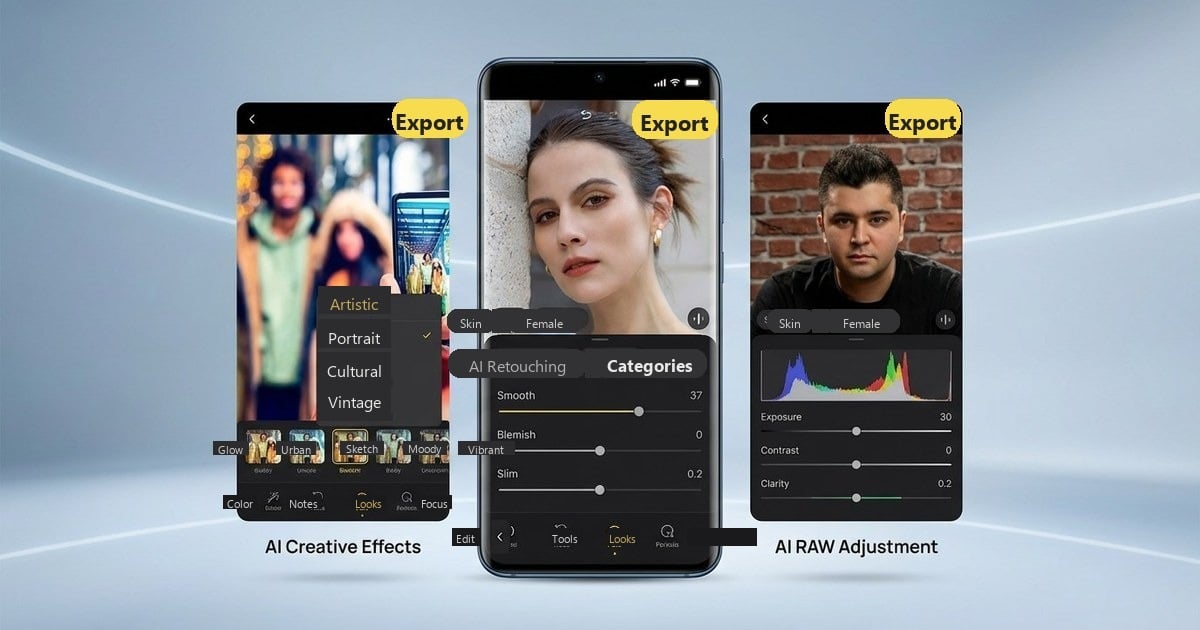
Evoto, the leading AI Photo Editor, brings professional-grade portrait retouching to Android, delivering advanced AI photo editing tools that were previously limited to desktop software. Designed for photographers who need speed, precision, and consistency, it automates complex retouching tasks while maintaining natural texture and realistic detail.


Powerful AI Photo Editor
Overview
Unlike basic beauty apps, Evoto AI is built for serious portrait workflows. It streamlines time-consuming edits such as skin refinement, hair cleanup, and body reshaping, allowing photographers to focus on creative direction rather than manual correction.
Key AI Features
- AI Skin Retouching: Intelligent blemish removal, texture-preserving skin refinement and subtle dodge & burn adjustments
- Hair Editing Features: Remove stray hairs, refine volume and adjust colour with precision
- 3D Bone Mapping for Body Reshaping: Natural-looking structural adjustments for proportion refinement
- Clothing Enhancement: De-wrinkle garments, reduce fabric fuzz, and sharpen clothing edges
- AI Background Removal Tools: Clean subject isolation with realistic edge blending
- Batch Editing Capabilities: Apply consistent adjustments across multiple images efficiently
Why Professionals Choose Evoto
Evoto significantly reduces portrait retouching time while preserving realism. For high-volume photographers, such as wedding, event, or school specialists, its batch editing capabilities provide measurable workflow efficiency.
It also works seamlessly across platforms, including Android, Windows, Mac, and iPad, allowing photographers to maintain a consistent editing pipeline.
Pricing
Evoto uses a credit-based export system. Credits can be purchased individually or through annual bundles, with pricing starting from approximately $0.13 per credit. Larger bundles reduce the per-credit cost.
For the latest details, refer to the official Evoto pricing and plans page.
Pros
- Professional-quality portrait retouching
- Advanced hair editing and face slimming features
- High-volume batch processing
- Cross-platform workflow compatibility
Cons
- Credit-based system may not suit very low-volume users
- Advanced tools may require brief familiarisation
“Evoto AI brings desktop-level portrait retouching to Android with features like 3D bone mapping and AI skin perfection that were previously only available in professional software.”
2. Luminar Mobile — Best for Creative AI Enhancements
Luminar Mobile brings Skylum’s well-known AI engine to Android, focusing primarily on creative enhancements rather than detailed portrait retouching. It is particularly appealing to users who enjoy stylised edits and dramatic visual transformations.
Overview
Unlike workflow-driven editing apps, Luminar Mobile centres on visual impact. Its AI tools are designed to enhance skies, lighting, and atmosphere with minimal manual input, making it well suited to landscape and travel photography.
Key AI Features
- AI Sky Replacement: Swap dull skies with more dramatic alternatives in seconds
- AI Enhance: Automatically improve exposure, contrast and detail with a single adjustment
- Portrait Bokeh: Add background blur to simulate shallow depth of field
- Creative Presets: Professionally designed styles for cinematic or artistic looks
Best For
Landscape photographers, travel shooters, and creative editors who prioritise mood and visual style.
Pricing
Subscription model from approximately $9.99/month, with a free trial available.
Pros
- Powerful creative AI tools
- Visually striking presets
- Simple interface for quick enhancements
Cons
- Subscription required for full functionality
- Less specialised for advanced portrait retouching
- Limited batch processing compared to workflow-focused editors
3. Adobe Lightroom Mobile — Best for RAW Editing
Adobe Lightroom Mobile brings industry-standard editing tools to Android, making it one of the most capable apps for photographers who shoot in RAW. It is designed for structured workflows rather than quick social edits and integrates seamlessly with the wider Adobe ecosystem.
Overview
Lightroom focuses on precision and control. While it includes AI-powered tools, its strength lies in exposure management, colour grading and non-destructive RAW processing. For photographers who already use Adobe on desktop, the mobile app extends that workflow efficiently.
Key AI Features
- AI Denoise: Reduces image noise while preserving detail
- Adaptive Presets: Automatically adjust edits based on the content of each photo
- AI Masking: Selectively edit subjects, skies or backgrounds
- Non-destructive RAW Editing: Full control over highlights, shadows and white balance
Best For
Professional photographers, advanced hobbyists, and RAW shooters who prioritise tonal control and workflow consistency.
Pricing
- Free tier with limited features
- Premium plan from $11.99/month (Creative Cloud subscription)
Pros
- Professional-grade RAW support
- Seamless desktop and cloud synchronisation
- Precise colour grading and exposure tools
Cons
- Subscription required for full functionality
- Steeper learning curve than AI-first apps
4. Snapseed — Best Free AI Photo Editor
Snapseed is Google’s completely free photo editing app, offering a surprisingly professional toolkit without subscriptions, ads, or watermarks. While it is less automation-focused than AI-first apps, it provides strong manual controls for users who want precision without paying.
Overview
Snapseed is designed for flexibility. It supports RAW editing, selective adjustments and non-destructive workflows, making it suitable for both beginners and hobbyist photographers.
Key AI Features
- Healing Brush: Remove small objects and blemishes
- HDR Scape: Enhance dynamic range in landscapes and city scenes
- Face Pose & Portrait Tools: Subtle facial adjustments and lighting refinement
- Selective Adjustments: Target specific areas without affecting the entire image
- RAW (DNG) Support: Greater exposure and colour control
Best For
Budget-conscious users, beginners, and hobbyists who want powerful editing tools without subscription costs.
Pricing
100% Free
Pros
- No ads or watermarks
- Full-resolution exports
- RAW editing support
Cons
- Less AI automation compared to dedicated AI portrait apps
- Manual workflow may take longer for high-volume editing
5. Picsart — Best for Creative AI Filters
Picsart functions as an AI-powered creative studio rather than a traditional photo editor. With a large global user base, it focuses on stylised effects, templates, and content creation tools designed for social media.
Overview
Unlike workflow-oriented editing apps, Picsart prioritises creativity and visual experimentation. It blends AI-driven tools with graphic design elements, making it suitable for users who want eye-catching results rather than precise tonal control.
Key AI Features
- AI Style Transfer: Apply artistic effects inspired by different visual styles
- Background Removal Tools: One-tap subject isolation for quick edits
- AI Effects & Filters: Automated enhancements and creative overlays
- Template Library: Pre-designed layouts for posts and stories
Best For
Social media creators, casual editors, and users who prioritise visual creativity over technical editing precision.
Pricing
- Free tier available
- Gold subscription from $11.99/month
Pros
- Extensive template and sticker library
- Strong creative AI tools
- Easy to produce stylised content quickly
Cons
- Advertisements in the free version
- Full feature access requires subscription
- Interface can feel busy compared to simpler editors
6. Google Photos — Best Built-in AI Tools
Google Photos is pre-installed on many Android devices and offers a surprisingly capable set of AI-powered editing tools. For users who want quick enhancements without downloading additional apps, it provides convenient, intelligent adjustments within a familiar interface.
Overview
Rather than functioning as a full professional editor, Google Photos focuses on simplicity and automation. Its AI tools are designed to improve everyday photos with minimal effort, making it ideal for casual users.
Key AI Features
- Magic Eraser: Remove unwanted objects or distractions
- Photo Unblur: Sharpen slightly blurred images
- Cinematic Mode: Add subtle motion effects to still photos
- Automatic Enhancements: One-tap suggestions for brightness and colour correction
Best For
Casual users who want fast, automated improvements without learning manual editing tools.
Pricing
Free (some advanced features require Google One subscription)
Pros
- Pre-installed on many devices
- Seamless cloud integration
- Simple, user-friendly interface
Cons
- Limited manual control compared to professional editors
- Some advanced features prioritised for certain devices
7. PhotoDirector — Best for AI Object Removal
PhotoDirector is CyberLink’s AI-powered mobile editor, offering a range of creative tools alongside strong object removal capabilities. It sits between casual editing apps and more workflow-focused editors, making it suitable for users who want flexibility without excessive complexity.
Overview
While not strictly a professional workflow app, PhotoDirector provides intelligent automation for common editing tasks. Its object removal and sky replacement features are particularly popular among content creators.
Key AI Features
- AI Object Removal: Remove unwanted elements and distractions
- Sky Replacement: Swap skies with preset or custom options
- AI Animation Tools: Add subtle motion effects to still images
- Portrait Enhancements: Basic skin and lighting adjustments
Best For
Content creators and social media users who want accessible AI tools with creative flexibility.
Pricing
- Free tier available
- Premium from $5.99/month
Pros
- Strong AI removal tools
- Creative effects and animation features
- Reasonably priced premium tier
Cons
- Full functionality requires subscription
- Less specialised for advanced portrait retouching
8. YouCam Perfect — Best for Selfie Retouching
With over 800 million downloads worldwide, YouCam Perfect is designed primarily for beauty-focused selfie editing. It prioritises instant facial enhancements and real-time adjustments rather than full professional workflows.
Overview
YouCam Perfect specialises in quick, AI-driven beautification. It is particularly popular among users who edit directly from the front camera and want immediate improvements without manual adjustment.
Key AI Features
- AI Beautify: Automatic facial enhancement
- Skin Smoothing: Adjustable refinement for a polished look
- Face Reshape Tools: Subtle contour and slimming adjustments
- Real-Time Preview: See enhancements before capturing the image
Best For
Selfie enthusiasts, influencers and beauty content creators.
Pricing
- Free tier available
- VIP subscription from $5.99/month
Pros
- Strong selfie-specific tools
- Easy to use with live preview
- Affordable premium tier
Cons
- Primarily focused on portrait and beauty edits
- Limited advanced workflow features
9. Pixlr — Best Web-Based Alternative
Pixlr is a browser-based photo editor that combines accessibility with lightweight AI tools. It is designed for users who prefer editing directly online without installing desktop software.
Overview
Pixlr offers a streamlined editing experience that works across devices through a web browser. It provides both simplified one-click adjustments and more advanced layer-based editing in its E (advanced) and X (simplified) versions. While it does not replace professional desktop software, it serves as a convenient and flexible alternative.
Key AI Features
- AI Cutout: Automatic background removal with quick subject detection.
- Auto Fix: One-click enhancement for exposure, colour and contrast correction.
- Remove Background Tool: Fast subject isolation for simple compositions.
- Layer Support: Basic non-destructive editing with blending modes and masks.
Best For
Users who want browser-based editing, quick adjustments, or flexibility between web and mobile platforms.
Pricing
- Free tier available
- Plus plan from $4.90/month
Pros
- Works directly in browser — no download required
- Simple interface suitable for beginners
- Affordable premium option
- Accessible on multiple devices
Cons
- Free version includes ads and limitations
- Less powerful than dedicated desktop editors
- Advanced features require subscription
10. Remini — Best for AI Enhancement
Remini specialises in AI-driven image enhancement and restoration rather than full editing workflows. It focuses on improving image clarity, sharpening detail, and restoring older or low-resolution photos.
Overview
Unlike multi-tool editors, Remini concentrates on enhancement. Its AI models are trained to reconstruct facial details and refine image sharpness, making it particularly useful for reviving archived or compressed images.
Key AI Features
- Photo Upscaling: Increase resolution while preserving detail
- Old Photo Restoration: Improve clarity and reduce damage in older images
- AI Enhance: Automatically sharpen faces and fine details
- Portrait Improvement: Subtle facial refinement during enhancement
Best For:
Restoring old photographs, improving low-quality images, and enhancing social media photos captured in poor lighting.
Pricing
- Free tier available
- Pro subscription from $9.99/month
Pros
- Strong AI enhancement technology
- Very simple, one-tap interface
- Effective for restoring detail
Cons
- Limited manual editing tools
- Not designed for full creative workflows
Powerful AI Photo Editor
How to Choose the Best AI Photo Editing App for Your Android
Consider Your Primary Use Case
The best AI photo editing app depends on what you photograph and how you prefer to edit. Different apps excel in different areas:
- Portrait editing → Evoto AI: Ideal for photographers who need advanced AI skin retouching, hair editing features, and batch editing capabilities. It is particularly suited to high-volume portrait or event workflows.
- Creative effects → Luminar Mobile: Best for users who prioritise dramatic skies, artistic presets, and visually striking enhancements over detailed retouching.
- Professional RAW editing → Lightroom Mobile: Designed for photographers who shoot in RAW and require precise exposure, colour grading, and non-destructive adjustments.
- Free complete solution → Snapseed: A strong all-round editor that offers professional manual tools without subscriptions, making it suitable for beginners and budget-conscious users.
- Quick AI fixes → Google Photos: Convenient for everyday edits, offering one-tap enhancements and object removal without installing additional software.
Key Factors to Evaluate
Before choosing an AI photo editing app for Android, consider the following factors to ensure it fits your workflow and expectations:
- AI capabilities: Not all AI tools are equal. Some apps focus on portrait retouching, while others specialise in enhancement, object removal, or creative effects. Identify which AI features you will actually use.
- Pricing and plans: Review whether the app uses a subscription model, one-time purchase, or credit-based system. Consider how often you edit and whether the cost aligns with your volume.
- Learning curve: Some apps are designed for beginners with one-tap automation, while others require familiarity with exposure, colour grading, and masking tools. Choose an interface that matches your experience level.
- Export quality: Ensure the app supports full-resolution exports and, if needed, RAW processing. Some free tiers may limit image quality or add watermarks.
- Cross-platform compatibility: If you also edit on desktop or tablet, check whether the app syncs across devices. Cross-platform support can significantly improve workflow efficiency.
Decision Matrix
| If You Need… | Choose… |
|---|---|
| Professional portraits | Evoto AI |
| Creative AI effects | Luminar Mobile |
| RAW editing | Lightroom |
| Free solution | Snapseed |
| Social media content | Picsart |
How to Start with AI Photo Editing on Android
Step 1: Download Your Chosen App
Visit Google Play Store, search the app name, confirm the verified developer, and review ratings.
Step 2: Set Up Your Workspace
Grant photo access, create an account if required, and explore free tools first.
Step 3: Try AI Features (Example: Removing a Blemish in Evoto AI)
Let’s walk through a practical example:
- Open Evoto AI and import your portrait.
- Tap “Retouch” from the bottom toolbar.
- Select “Skin”.
- Enable AI Skin Retouching.
- Adjust the Blemish Removal slider to automatically detect and remove imperfections.
- If needed, fine-tune using the Detail Preserve control to maintain texture.
- Tap Compare to view before/after.
The process takes seconds and produces professional portrait editing results without manual masking.
Step 4: Develop Your Workflow
- Create presets
- Use batch editing capabilities for event shoots
- Sync projects across devices
Pro Tip: Start with Evoto AI’s free tier to experience professional portrait retouching, then decide if the credit system fits your editing volume.
Powerful AI Photo Editor
Final Verdict: Best AI Photo Editing Apps for Android
Android users now have access to a wide range of capable AI photo editing apps, each suited to different needs and experience levels. The right choice ultimately depends on what you photograph and how you prefer to edit.
For professional portrait retouching and high-volume workflows, Evoto AI stands out with its advanced AI skin retouching, hair editing features, and batch editing capabilities. It offers the most comprehensive portrait toolkit available on Android.
If you are looking for a completely free, well-rounded solution, Snapseed remains the strongest all-around option, offering RAW support and manual controls without subscriptions.
For creative AI enhancements and stylised edits, Luminar Mobile is a strong choice, while Lightroom Mobile remains ideal for photographers who prioritise RAW processing and structured workflow control.
The best approach is often to test more than one app. Many offer free tiers or trial versions, allowing you to explore their features before committing.
Start with a soft comparison between the free tools and the portrait-focused options on your own files. If you want to test a stronger portrait workflow after that, download Evoto and compare its output against your current Android editor.
Frequently Asked Questions About Android AI Photo Editing Apps
What is the best AI photo editing app for Android in 2026?
For professional portrait retouching, Evoto AI offers the most advanced AI-powered tools, including skin refinement, body reshaping, and batch editing. For completely free, all-round editing, Snapseed remains the strongest choice. If you prefer creative AI enhancements and stylised effects, Luminar Mobile is a leading option.
Are there any completely free AI photo editors for Android?
Yes. Snapseed is entirely free with no ads, subscriptions, or watermarks. Google Photos also provides free AI tools such as object removal and photo enhancement, although some advanced features may require a Google One plan.
Can I edit RAW photos on Android?
Yes. Adobe Lightroom Mobile and Snapseed both support RAW file editing. Evoto AI also supports RAW processing, making it suitable for photographers who require higher image quality and greater editing flexibility.
Which Android app offers the best portrait retouching?
Evoto AI is purpose-built for portrait retouching, offering AI skin retouching, hair editing features, and 3D body reshaping tools. For selfie-focused beauty adjustments, YouCam Perfect is a strong alternative.
Do AI photo editing apps require an internet connection?
Most Android AI photo editors can perform basic edits offline. However, certain AI features that rely on cloud processing may require an internet connection. Apps such as Snapseed function fully offline.
Which Android AI photo editor is best for batch editing?
Evoto AI stands out for its batch editing capabilities, allowing photographers to apply consistent AI adjustments across multiple images efficiently. This makes it particularly suitable for events, schools, and sports photographers handling high volumes.



