

Choosing photo editing software can feel a lot like choosing a camera body. Everyone has a favorite, every review claims to be the “best”. With so many photo editing tools out there, it’s easy to get stuck comparing features, pricing, or “top 10” lists that mix completely different types of software together.
But choosing the right editor isn’t really about finding the “best” tool. It’s about finding the one that fits how you actually work—what you edit, how often you edit it, and what kind of result you need to deliver.
If you start from that perspective, the decision becomes much clearer.
TL;DR
- Start with your file type, your workflow, and your actual editing goal, not with a vague search for the “best photo editing software.”
- Beginners need clarity and fast results; professionals need consistency and speed
- If your work is repetitive (portraits, events, e-commerce), workflow matters more than features
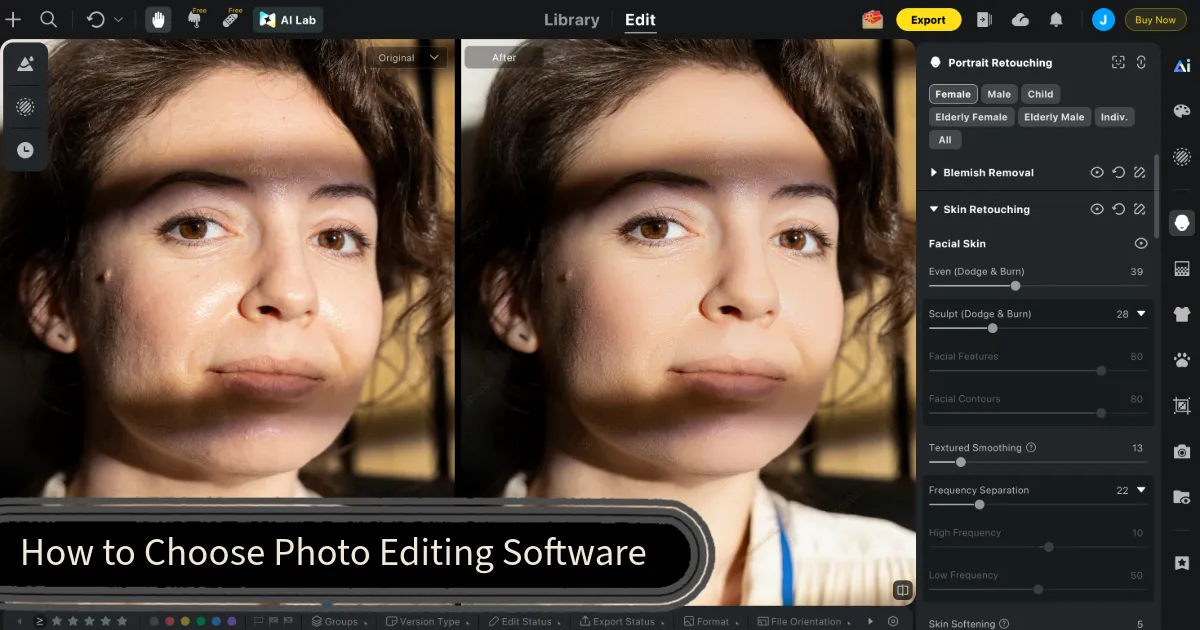
Start Here: Clarify Your Editing Goals
Before you compare any tools, get clear on why you’re editing in the first place. This single step eliminates half the confusion.
Ask yourself:
- What am I trying to achieve? Cleaner colors, polished portraits, consistent product images, social-ready content—each of these points toward a different category of tool.
- How often do I edit? Occasional weekend edits call for different software than a weekly client delivery workflow.
- What does a finished photo look like to me? If you’re happy with 80% good enough, a quick-edit tool works. If you’re delivering paid work, consistency and precision matter more.
There’s no wrong answer—but being honest here saves you from buying pro-level software you’ll rarely use, or a beginner tool you’ll outgrow in two months.
Understand the Different Types of Photo Editing Software
Photo editing software isn’t one category. There are four distinct types, and most confusion about “which is best” comes from comparing tools that aren’t meant to compete.
1. RAW Development Tools
These are built around processing RAW files directly from camera sensors—recovering highlights, correcting white balance, handling noise, and applying color grades before you ever export a JPG.
Examples: Adobe Lightroom, Capture One, DxO PhotoLab.
Who needs this: Anyone who shoots in RAW with a dedicated camera—especially if color accuracy and tonal range matter to the final result.
2. Pixel Editors (Compositing and Advanced Retouching)
These tools work on the pixel level. You can composite multiple images, do complex selections, remove objects, or build visual effects that aren’t possible in a RAW developer alone.
Examples: Adobe Photoshop, Affinity Photo, GIMP.
Who needs this: Photographers doing complex retouching, graphic designers, or anyone who needs to combine or manipulate images beyond exposure and color.
3. AI-Powered Editing Tools
This is the fastest-growing category. These tools use machine learning to automate the most time-consuming parts of editing—skin retouching, background changes, color consistency, batch adjustments—without requiring manual skill to get professional results.
Examples: Evoto AI, Luminar Neo, Imagen AI.
Who needs this: Photographers who work in volume (events, portraits, school, headshots, weddings) and need consistent, natural results delivered fast. Also useful for photographers who want to speed up repetitive retouching without compromising quality.
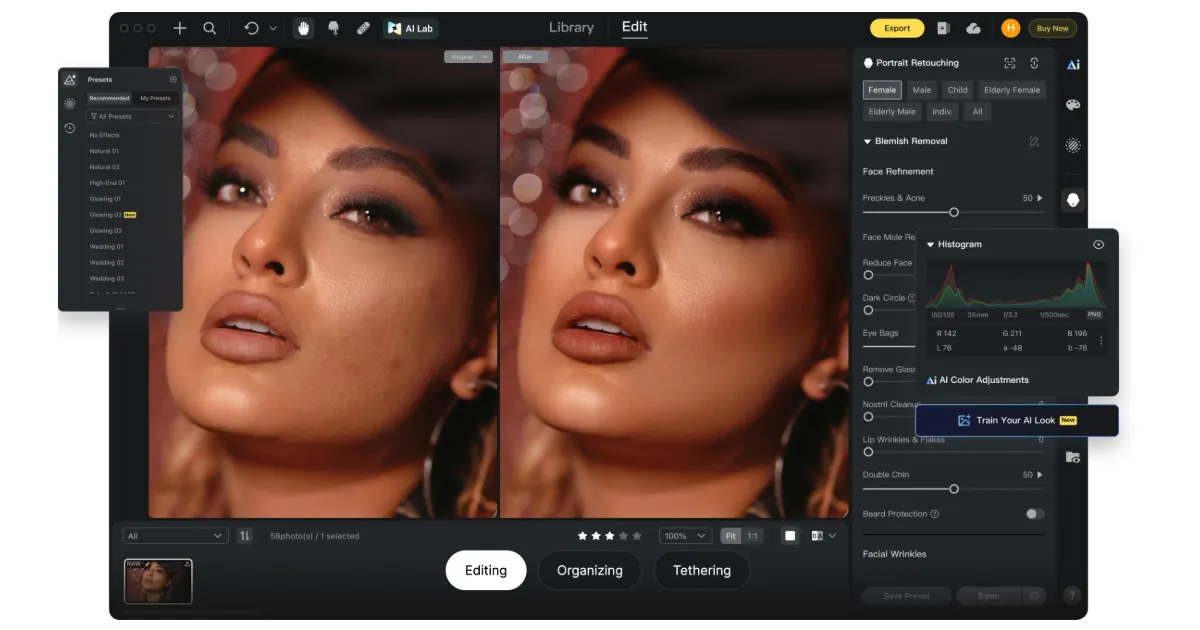
For portrait-heavy workflows, tools like Evoto AI are purpose-built around the steps photographers repeat most—skin, hair, background, batch consistency—giving you professional-level control without doing everything by hand.
4. Online and Quick-Edit Tools
Browser-based or app-based tools designed for speed and simplicity. Great for JPG enhancement, social posts, quick crops, filters, and light retouching.
Examples: Canva, Adobe Express, Pixlr, Fotor.
Who needs this: Casual users, social media creators, or anyone who edits occasionally and doesn’t need a full desktop workflow.
Key Features That Actually Matter
Once you know what type of software you need, you can turn to review platforms like G2 or Capterra to compare options and explore them in more depth. These sites group tools into photography software categories, making it easy to review features, compare options side by side, and validate your choices with real user feedback.
Every editing tool lists features. But keep these six criteria in mind, as they’ll help you quickly filter out what actually fits.
Non-Destructive Editing
This means your edits don’t permanently alter the original file—you can always undo, revisit, or completely change a look later. This is table stakes for any serious workflow. If a tool modifies originals by default, treat that as a red flag.
RAW Support and Color Accuracy
If you shoot RAW, test how the software renders your specific camera’s files. Look for:
- Highlight and shadow recovery range
- Skin tone accuracy without heavy manual correction
- Color grading tools that stay stable when you push them hard
Masking and Selective Adjustments
Good masking lets you edit a subject separately from the background—brighten a face, change sky exposure, retouch skin—without touching everything else. The easier and more accurate this is, the more control you have per photo.
Retouching Quality
This is where tools diverge the most. For portrait photographers especially: test blemish removal, stray hair cleanup, and skin smoothing on a real portrait at 100% zoom. The goal is results that look like great lighting—not obvious software filters.


Powerful AI Photo Editor
Batch Processing
If you regularly deliver 100+ images per shoot, single-image editing doesn’t scale. You need tools that can:
- Apply consistent looks across a full set
- Maintain skin tones and exposure across varied lighting
- Handle background cleanup or color grading in bulk without manual rework per image
This is one of the most underestimated factors for working photographers. If you routinely process large batches, look closely at what a tool can do with bulk background replacement or batch retouching before you buy.
Export and Workflow Integration
Check how the software handles export: file format options, color space, sharpening, metadata. Also whether it integrates with your existing tools—tethered shooting, hot folders, client delivery platforms.
Match the Software to Your Skill Level
Beginner
Focus: Building the habit of editing. Speed matters more than precision right now.
Look for: a clean interface, guided adjustments, smart auto-enhance, and simple selective edits. You want to open a photo and improve it in under five minutes without consulting a manual.
Start with the basics: exposure, contrast, white balance, crop. Master those before you explore anything else—they apply in every tool you’ll ever use.
Common mistake: Jumping into a pro tool because it looks powerful, then abandoning it because the learning curve is too steep.
Intermediate
Focus: Developing a consistent look and gaining real control over results.
Look for: strong non-destructive RAW editing, customizable presets, local adjustment tools (masks and brushes), and output you can rely on for client or portfolio work.
At this stage, the real bottleneck is repeatability—achieving a consistent result across different images without starting from scratch each time.
Pro / Working Photographer
Focus: Speed, consistency, and handling volume without quality loss.
Look for: batch processing that keeps results stable, precise retouching tools, tethered shooting support, and a workflow that keeps you moving through a job without unnecessary manual steps.
Many photographers at this level run two tools together: a RAW developer for color and exposure, and an AI-powered editor for retouching and batch consistency. That combination covers more ground than any single tool.
Simple Decision Tree: How to Make the Call Today
Run through this in order. The first condition that fits is usually your answer.
Do you mostly edit phone photos or JPGs without delivering to clients?
→ A quick-edit tool or simple AI enhancer is enough. No need for complex software yet.
Do you shoot RAW and care about color accuracy?
→ Start with a RAW development tool (Lightroom, Capture One, DxO). Learn the fundamentals there first.
Do you edit portraits, and quality + natural results matter?
→ Add a dedicated retouching layer—either a pixel editor for complex work, or an AI retouching tool for speed and consistency.
Do you shoot events, school, weddings, or headshots in volume?
→ Batch capability is non-negotiable. Look for tools purpose-built for high-volume portrait workflows. This is where an AI editor pays for itself in hours saved.
Do you need to make final-detail decisions—compositing, complex masks, precise object removal?
→ A pixel editor belongs in your stack.
Before You Buy: Three Tests Worth Running
Try these during any trial—using your own photos, not stock images:
1. Fix a real image in under two minutes. If the tool fights you on basics, it’ll frustrate you long-term.
2. Retouch one portrait at 100% zoom. Look for texture preservation on skin, not the airbrushed look.
3. Apply a consistent look to 20 images. If results vary shot to shot, the tool isn’t working for you—you’re working for it.
A tool that passes all three is worth committing to.
If batch consistency is where your workflow slows down, it’s worth testing specifically. Download Evoto and run test three on a real client set—that’s the only way to evaluate it honestly.
The right photo editing software isn’t the most popular one or the one with the most features. It’s the one that removes the friction between what you shoot and what you deliver.
Start with your goals. Match the tool type. Test on real photos. That’s the whole process.
Try Evoto AI Photo Editor
Retouch photos with Evoto AI and make your photos best! Available on Windows, MacOS and iPadOS.



