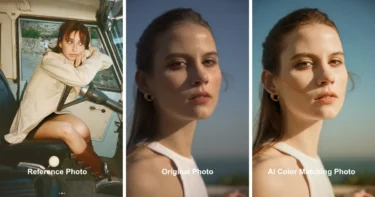
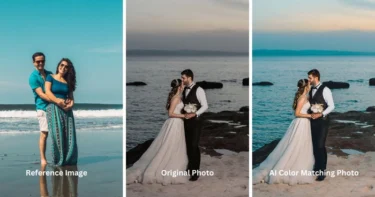
Have you ever tried matching the color tone from one photo to another, only to end up with results that look off, inconsistent, or simply unrealistic? Getting colors from one image to match another is a fundamental skill in photo editing—but doing it well requires precision, patience, and the right tools.
In this guide, we’ll break down exactly how to color match in Photoshop, walk you through each step of the process, and highlight common pitfalls to avoid. Then, we’ll show you how Evoto AI can simplify the entire workflow and deliver consistent results in a fraction of the time.
What is Color Match in Photoshop?
Color matching is a digital editing technique used to make the colors of one image, object, or layer align with those of another. Whether you’re blending multiple photos into a composite or keeping a gallery consistent, the goal is to ensure all visuals share the same tones, mood, and overall style.
In Photoshop, color matching helps you correct color differences, unify the look of a series of images, and even adjust object colors for branding or creative direction. It’s widely used across photography, interior design, fashion, and other visual industries where accurate and cohesive color is essential.
How to Color Match in Photoshop: Step-by-Step Guide
Step 1: Import Your Photos
Open both the source image (the one with the desired color tone) and the target image (the one you want to adjust).
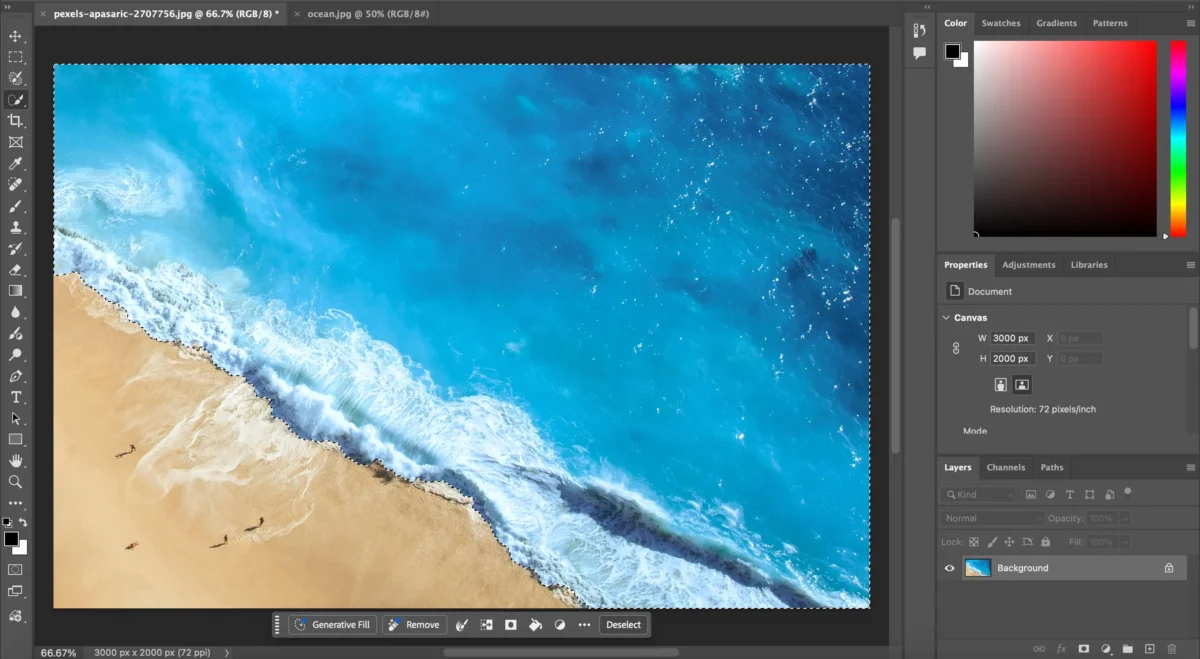
Step 2: Make an Object Selection
Use tools like Quick Selection, Object Selection, or Select Subject to isolate the area you want to color match.
Better selections lead to more accurate results.
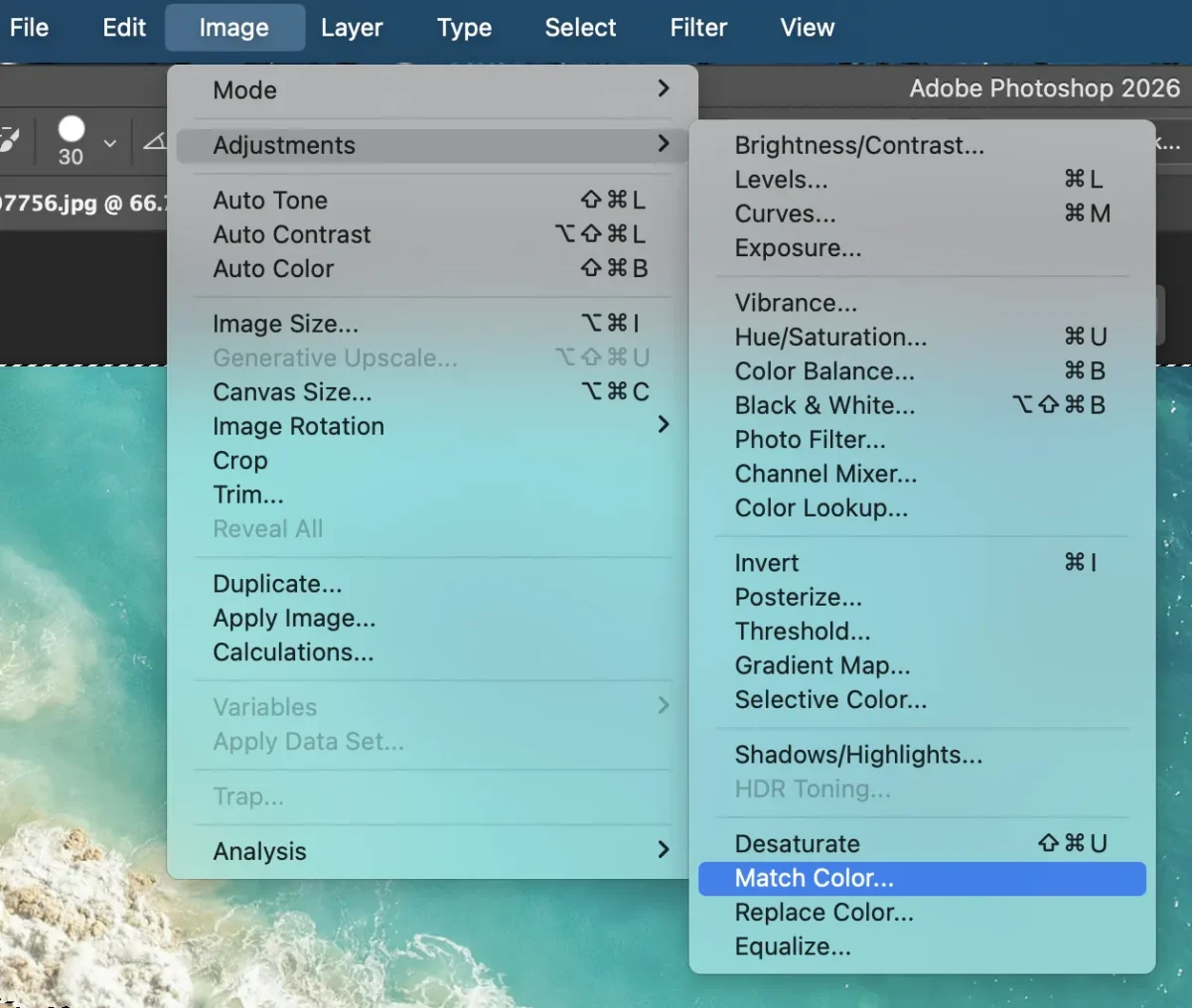
Step 3: Use the Match Color Feature
Go to:Image > Adjustments > Match Color
A new dialog box will appear with options to choose the source image.
Step 4: Set Image Statistics
Under Source, choose the image you want to match.
This tells Photoshop where to pull the color information from.
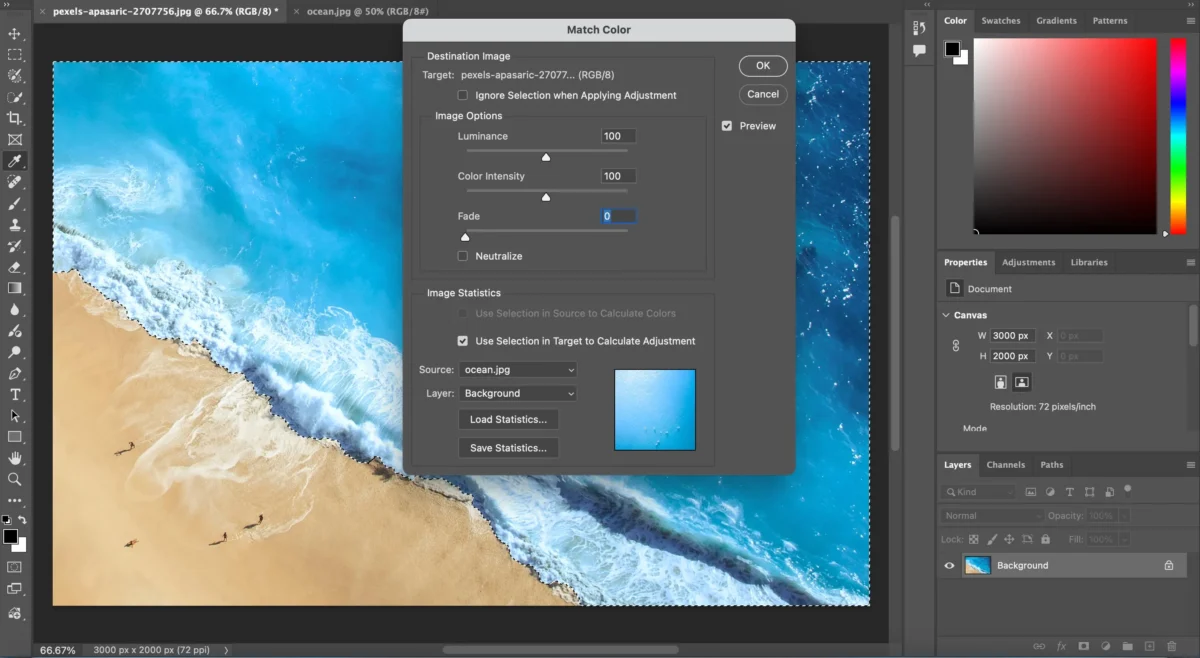
Step 5: Adjust Match Color Settings
Adjust the Luminance, Color Intensity, and Fade sliders in Image Options to fine-tune brightness, saturation, and the strength of the effect, and check Neutralize to remove color casts. Keep the Preview box enabled to see changes in real time. Click OK to apply, and use additional tools like adjustment layers, curves, or blend modes for further refinement.
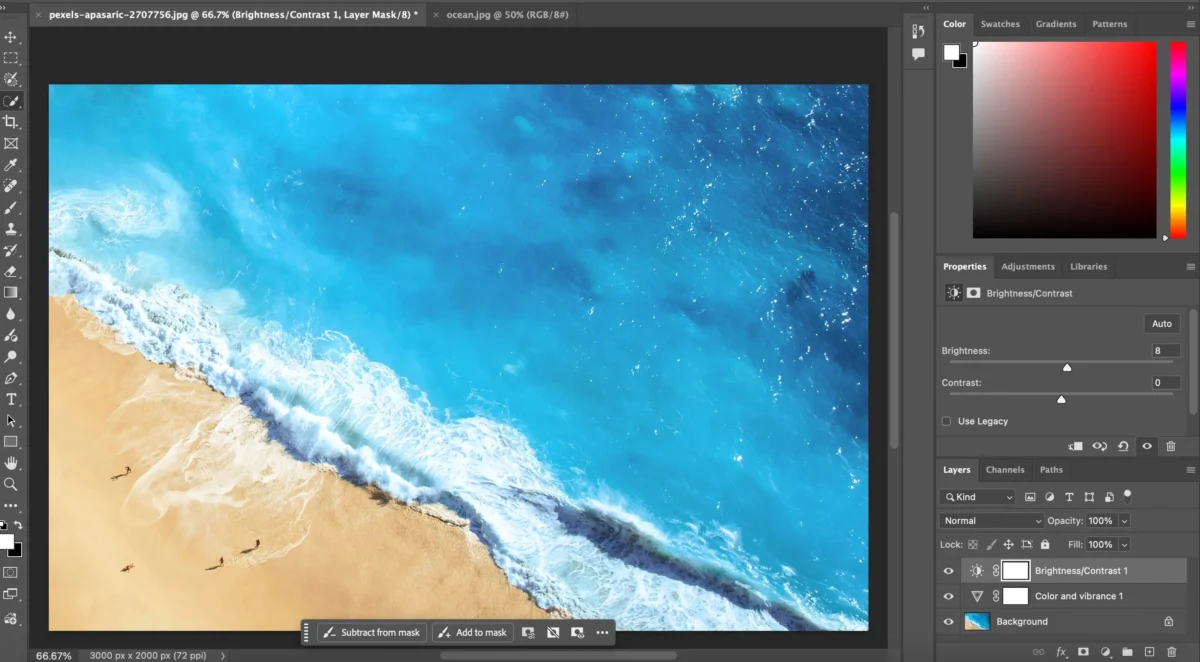
Step 6: Export the photo
After applying all adjustments, save or export your color-matched image in your desired format to preserve the edits.
Common Challenges When Color Matching Manually
Even though Photoshop is powerful, manual color matching often comes with several issues:
1. Inconsistent Results
Lighting, white balance, and shadows vary between photos. It can be difficult to match tones perfectly by hand.
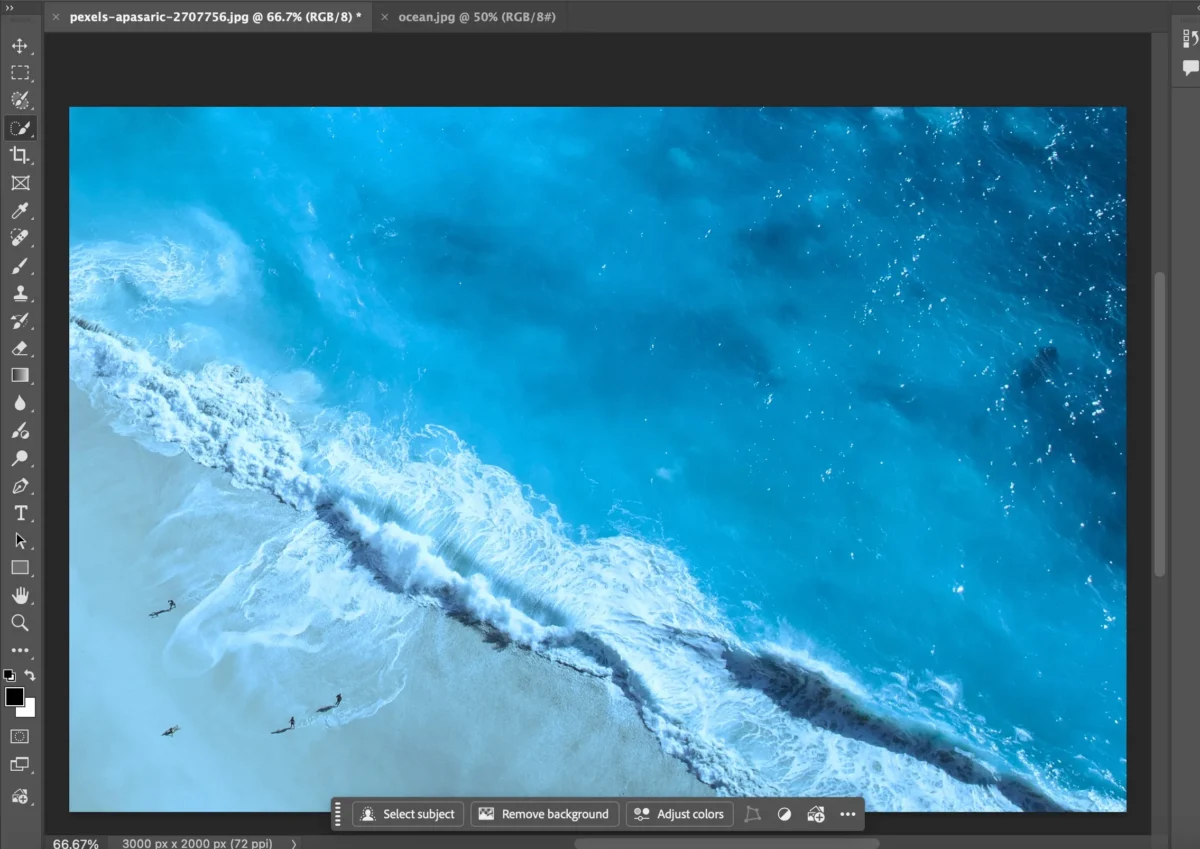
2. Time-Consuming Adjustments
You may need many small manual tweaks—curves, selective color, hue/saturation—to achieve a natural match.
3. Difficulty Matching Across Large Batches
Matching dozens or hundreds of photos one by one is extremely inefficient.
4. Requires Experience
Precise color matching demands a trained eye and practice. Beginners often get unnatural or “off” results.
This is why many creators and photographers are turning to AI-powered tools that automate the process.
How Evoto AI Simplifies Color Matching: Step-by-Step Guide
Evoto AI brings automation and precision to color matching, transforming what used to be a multi-step Photoshop process into a fast and intuitive workflow.


Powerful AI Photo Editor
Step 1: Import Your Photos
Upload your images into Evoto and load them into your workspace.
Step 2: Choose the Photo You Want to Match
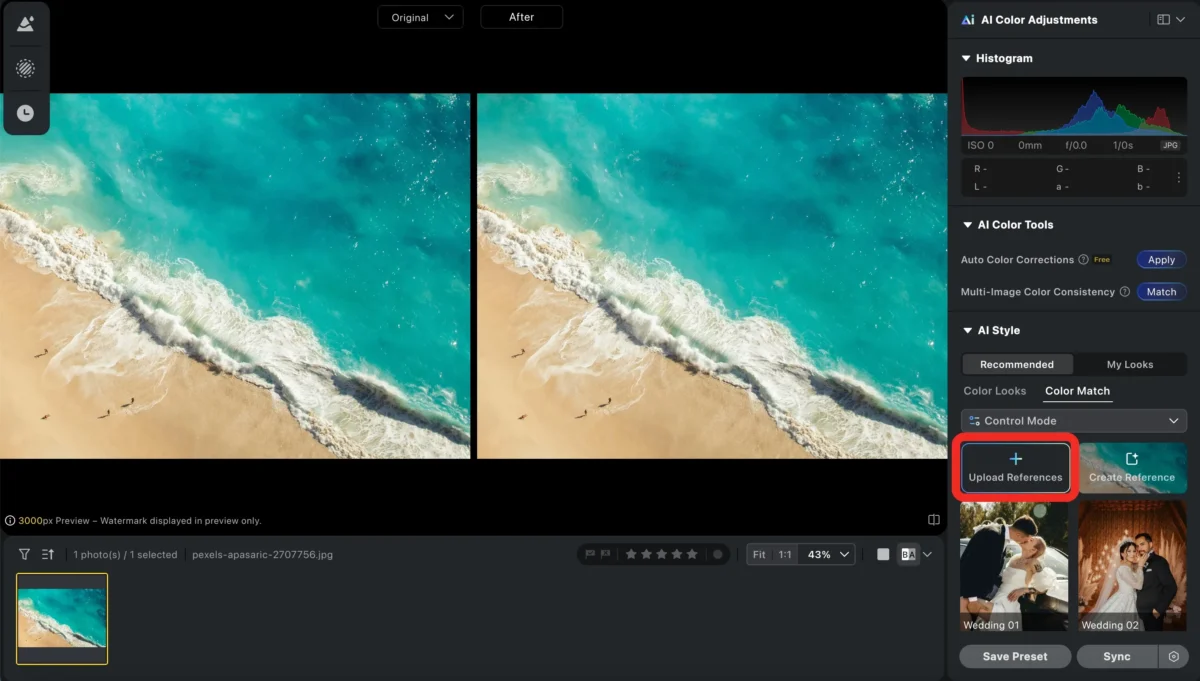
Go to: AI Color Adjustments > AI Style > Color Match> Upload References
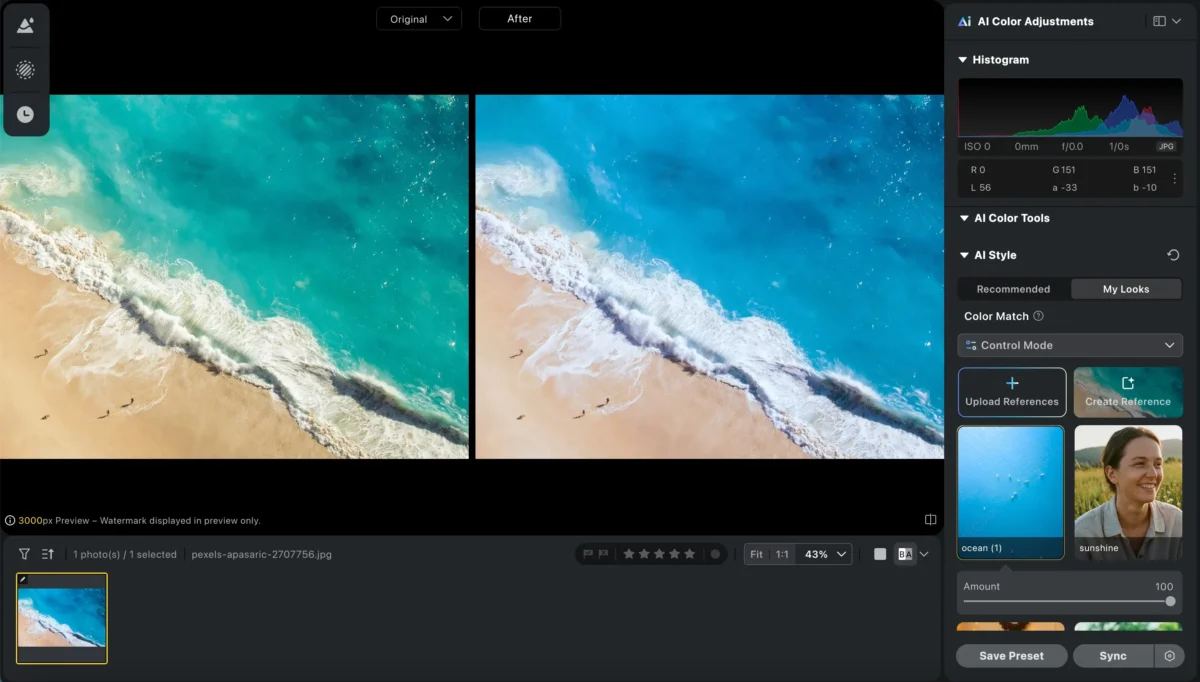
Select the photo that you want to adjust. Evoto AI automatically analyzes colors, lighting, and tones. And adjust the color you want to match.
You can choose the degree of color match you want.
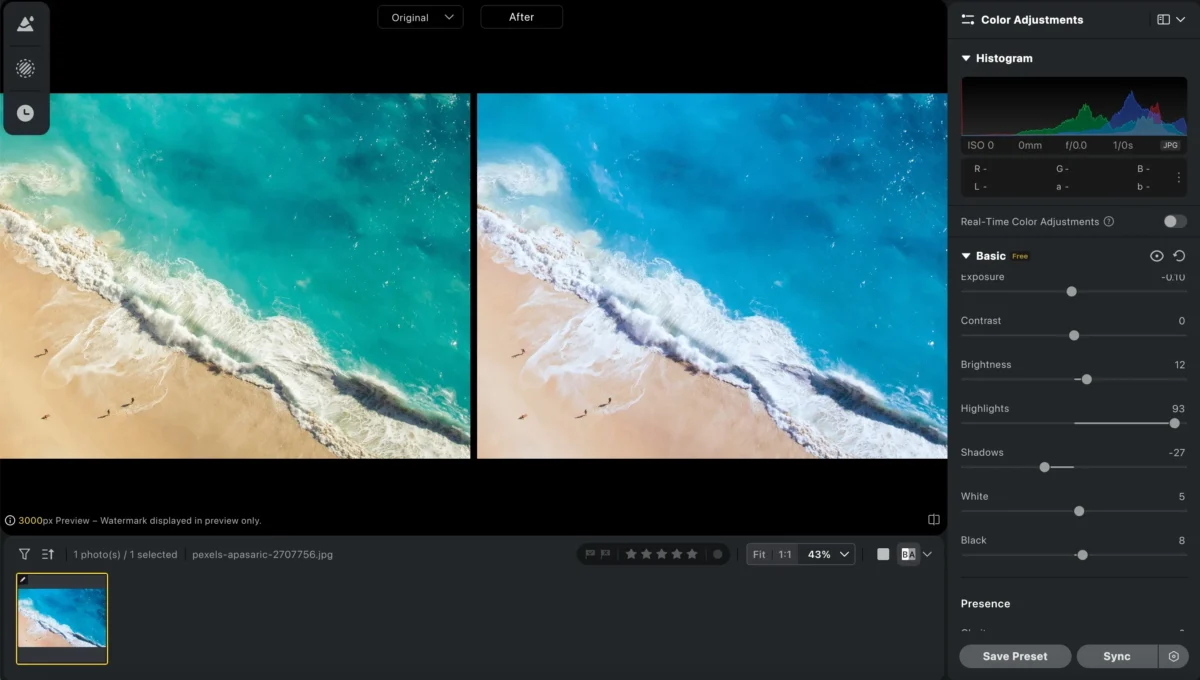
Step 3: Fine-Tune
Use simple sliders or local masks to tweak brightness, color intensity, or target specific areas (skin, sky, fabrics) for perfect results.
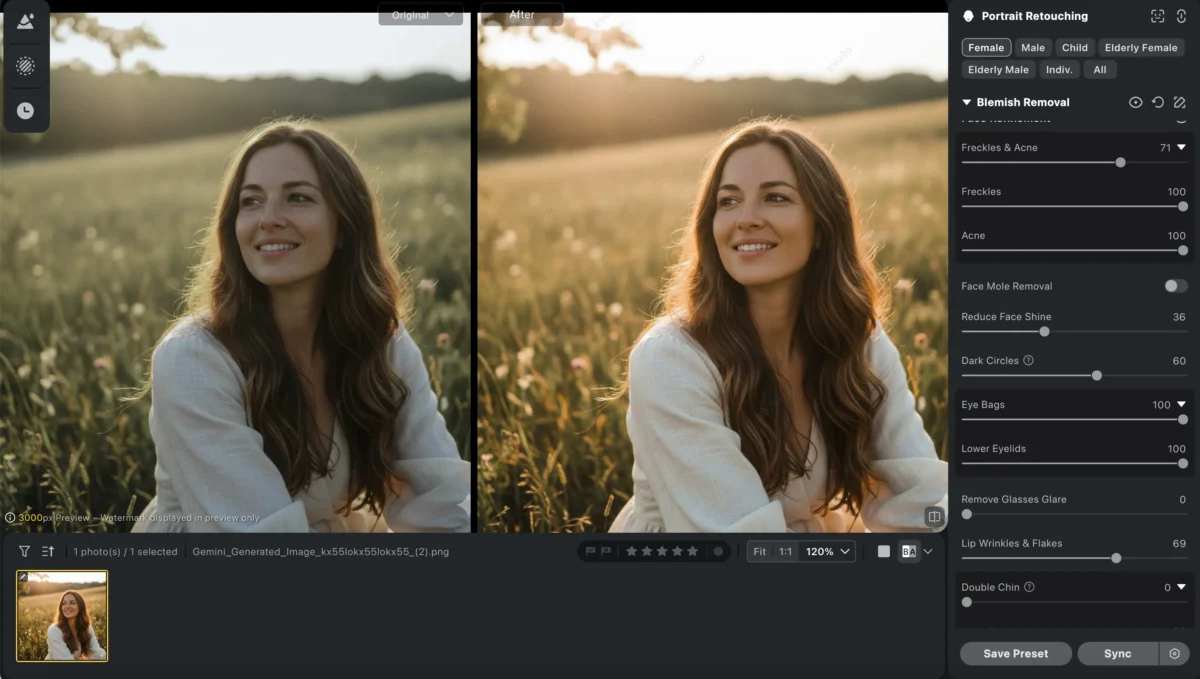
You can also use some features like Skin Retouching, Background Remover and AI Image Denoiser to make your photo more perfect.
Step 4: Export the Photo
Once you’re satisfied, export the finished photo with consistent colors across your entire series.
With Evoto, color matching is not only faster—it’s also more accurate and beginner-friendly.
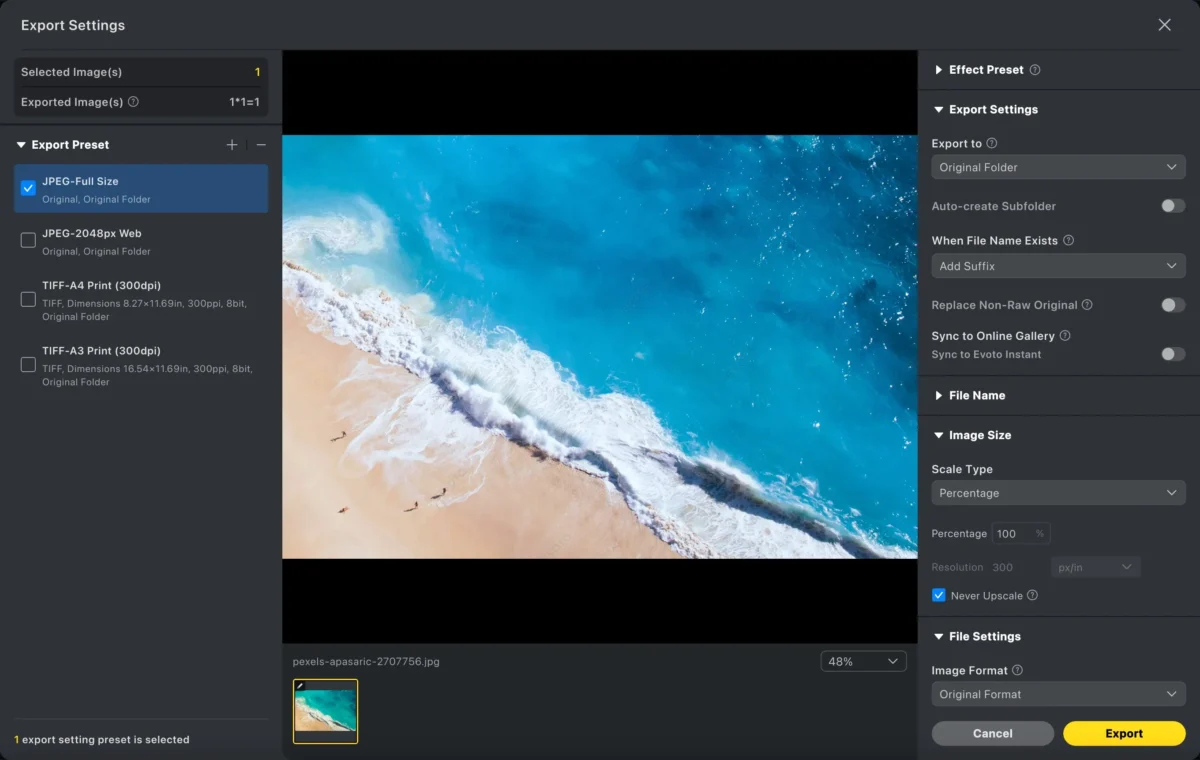
Step 5: Batch Edit(Optional)
Once you’re happy with the match, apply the same color-matching preset to other images in the set and export them all at once. Evoto’s batch edit supports multiple formats and quality settings, so you can deliver consistent, print-ready galleries or web-optimized files in seconds.
Powerful AI Photo Editor
Photoshop VS Evoto: How AI Can Simplify Color Matching
| Feature | Photoshop | Evoto AI |
|---|---|---|
| Ease of Use | Requires manual adjustments & experience | One-click automatic color matching |
| Speed | Slow, especially for beginners | Fast—even for batch editing |
| Precision | Depends on user skill | AI analyzes and matches tones intelligently |
| Batch Workflow | Manual per image | Automatic batch processing |
| Learning Curve | Steep | Very beginner-friendly |
Conclusion
Color matching in Photoshop gives you the flexibility to fine-tune hues and lighting manually, but the process can be time-consuming and challenging for many users. Evoto AI offers a smarter, faster alternative with one-click automatic color blending, making it easier than ever to maintain consistent tones across your photos.
If you want consistent, fast, and AI-powered color matching—Evoto is the easier choice.
Try Evoto AI Photo Editor
Retouch photos with Evoto AI and make your photos best! Available on Windows, MacOS and iPadOS.