

Blemishes happen — but they don’t have to stay in your videos. Whether you’re a content creator filming vlogs, a photographer expanding into video, or a brand producing commercial content, skin imperfections like pimples, eye bags, and wrinkles can distract from your message.
Unlike photos, removing blemishes from video has traditionally been a painful, frame-by-frame process. That changes with AI-powered video retouching. In this guide, we’ll show you how to use Evoto Video as a video blemish remover to automatically erase skin imperfections — no manual masking, no tedious key framing.
What Is a Video Blemish Remover?
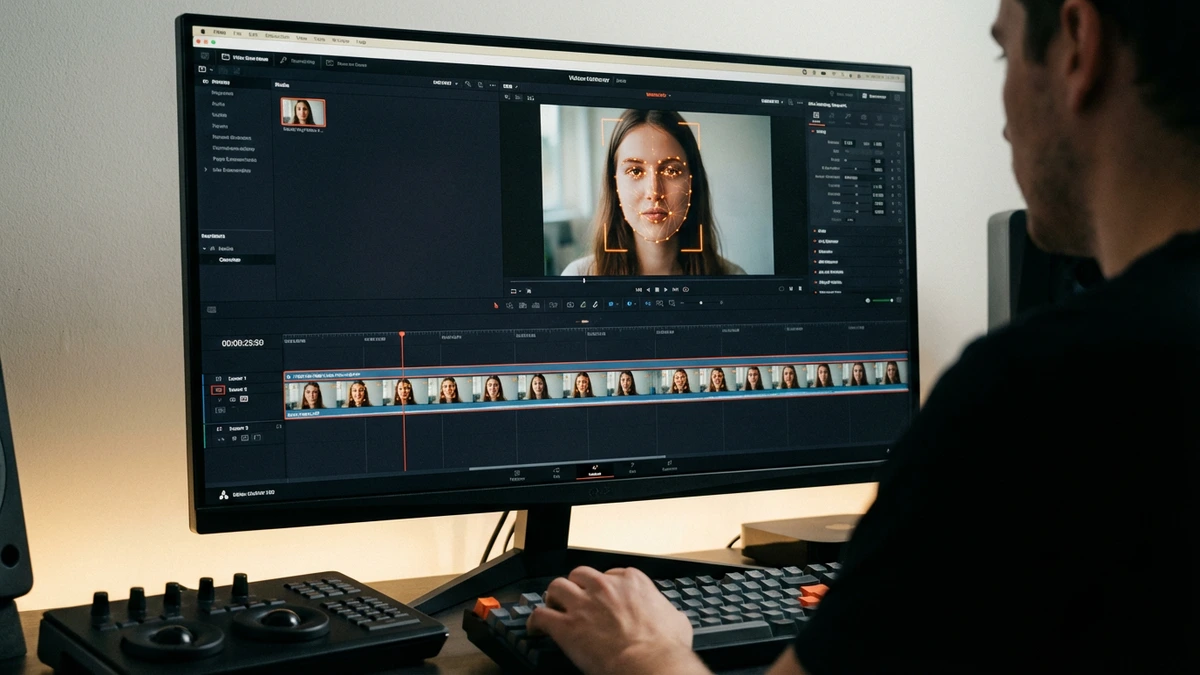
A video blemish remover is a tool that detects and eliminates skin imperfections across every frame of your video. While photo blemish removers have been around for years, video presents a unique challenge: the subject is moving, lighting shifts, and every frame needs consistent treatment.
Modern AI video blemish removers solve this by using facial recognition and tracking to identify skin areas, then applying intelligent corrections that follow the face throughout the clip. The result is natural-looking, flawless skin — without the uncanny “plastic” effect of over-smoothing.
Why You Need a Video Blemish Remover
Here’s why more creators are adding video blemish removal to their workflow:
- Confidence on camera. Not everyone has perfect skin on shoot day. A pimple remover video tool lets talent focus on performance rather than appearance.
- Professional results without a makeup artist. Achieve studio-grade skin retouching in post-production, saving time and budget on set.
- Consistency across footage. Skin conditions change between shoot days. AI retouching ensures a uniform look throughout your project.
- Massive time savings. Manual retouching in After Effects or DaVinci Resolve can take hours per clip. AI tools like Evoto Video process an entire video in minutes.
What Evoto Video Can Remove
Based on Evoto Video’s Portrait Retouching panel, here’s exactly what you can fix:
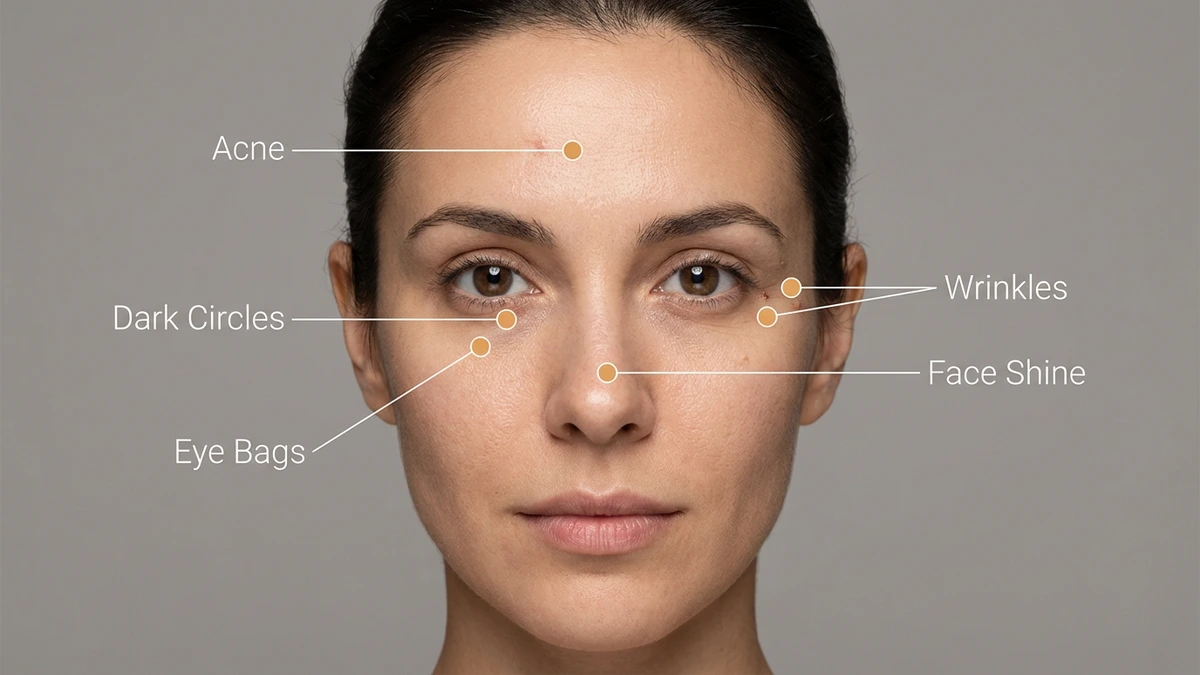
Blemish Removal
- Freckle & Acne — Automatically detects and removes pimples, acne spots, and freckles while preserving natural skin texture. This is the core AI blemish remover feature.
- Eye Bags — A built-in eye bag remover that reduces under-eye puffiness amplified by studio lighting.
- Reduce Face Shine — Tones down oily skin glare without flattening the face or removing natural highlights.
- Dark Circle — A dedicated dark circle remover that lightens under-eye areas for a well-rested, refreshed appearance.
Wrinkle Reduction
- Neck Wrinkle — Smooths neck lines that become visible in close-up and profile shots.
- Face Forehead Wrinkle — Softens forehead creases while keeping natural expression, acting as a wrinkle remover that respects facial character.
- Eye Wrinkle — Reduces crow’s feet without eliminating the character of the face.
- Smile Line — Independently adjustable for left and right sides, perfect for asymmetric corrections.
Body & Skin
- Body Blemishes — Extends blemish removal beyond the face to shoulders, arms, and visible skin areas.
Evoto Video also includes Skin Retouching for overall texture smoothing and a Facial Reshape panel, but for this guide we’ll focus on blemish removal specifically.
How to Remove Blemishes from Video with Evoto Video
Follow these steps to clean up skin imperfections in your video footage using Evoto Video.
Evoto Video – Be the First to Edit Smarter
Professional-grade AI color grading and retouching for video creators.
Step 1: Import Your Video
Open Evoto Video and import your video clip. Evoto supports common formats including MP4 and MOV. Your footage will appear on the timeline at the bottom of the interface, ready for video retouching.
Step 2: Open Portrait Retouching
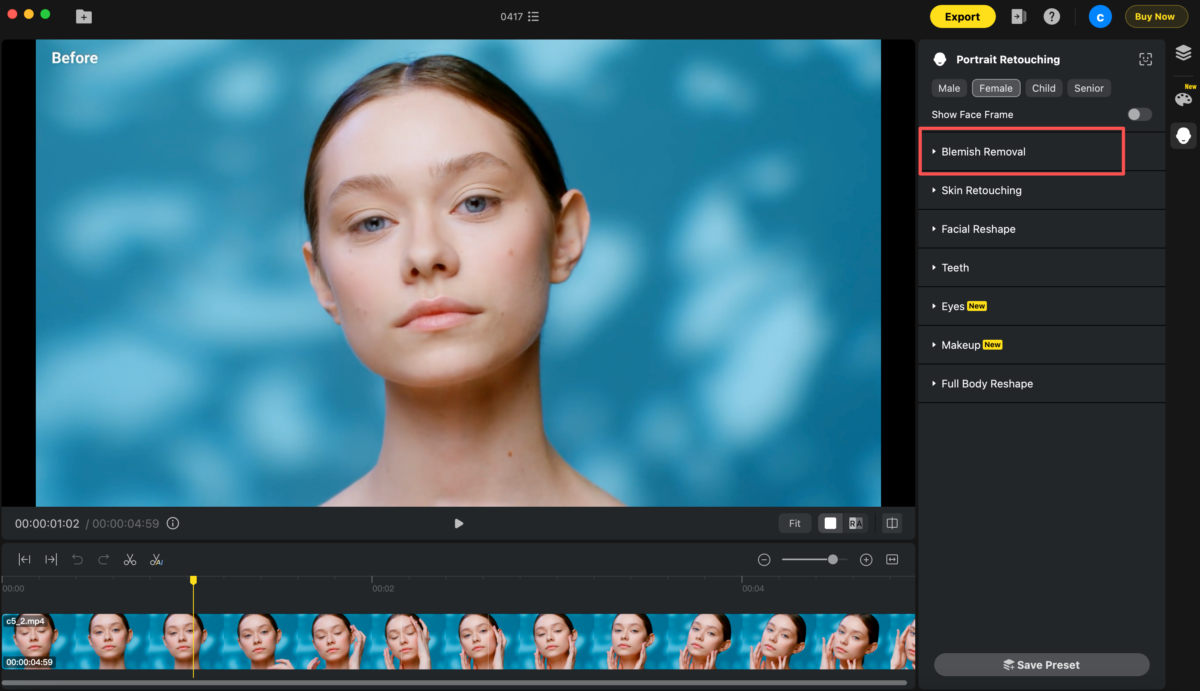
Click the Portrait Retouching panel on the right side. Select the appropriate gender preset — Male, Female, Child, or Senior — so the AI optimizes its detection algorithms for the subject’s facial structure. Toggle Show Face Frame if you want to verify the AI is tracking the face correctly.
You’ll see several retouching categories: Blemish Removal, Skin Retouching, Facial Reshape, Teeth, Eyes, Makeup, and Full Body Reshape. Click on Blemish Removal to expand it.
Step 3: Adjust Blemish Removal Sliders
Expand the Blemish Removal section. You’ll see individual sliders for each type of skin imperfection:
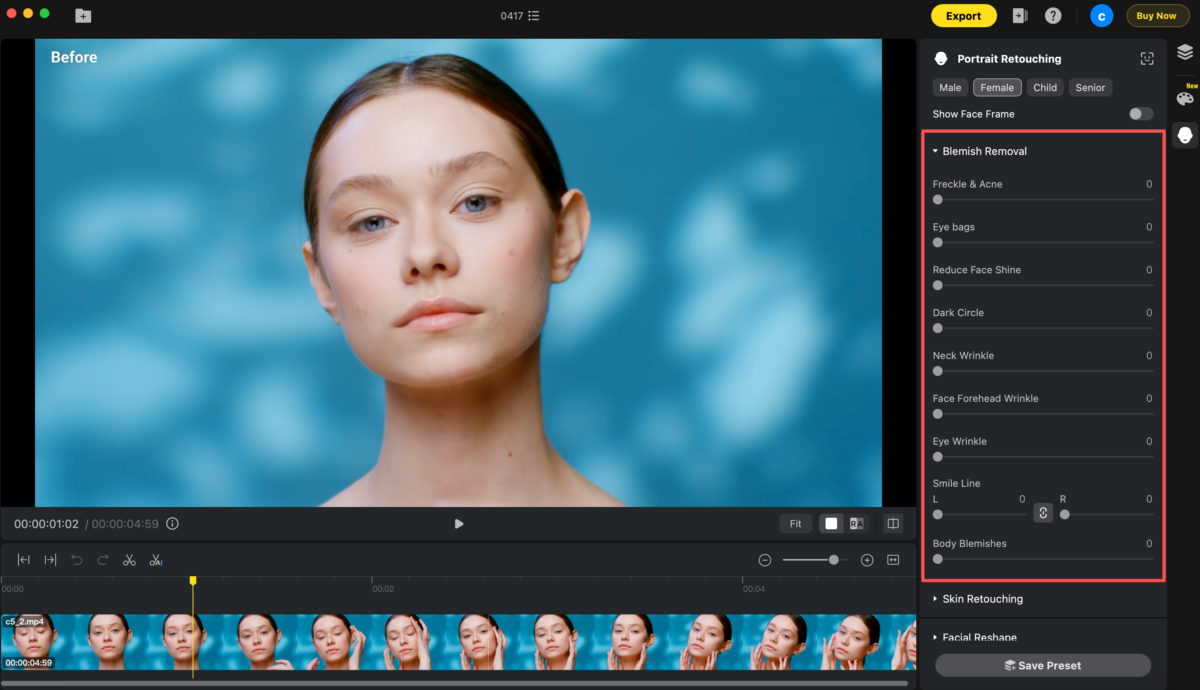
- Freckle & Acne — Detects and removes pimples, acne spots, and freckles while preserving natural skin texture.
- Eye Bags — Reduces under-eye puffiness that gets amplified under studio lighting.
- Reduce Face Shine — Tones down oily skin glare without flattening the face.
- Dark Circle — Lightens dark under-eye areas for a refreshed appearance.
Scroll down to the wrinkle controls:
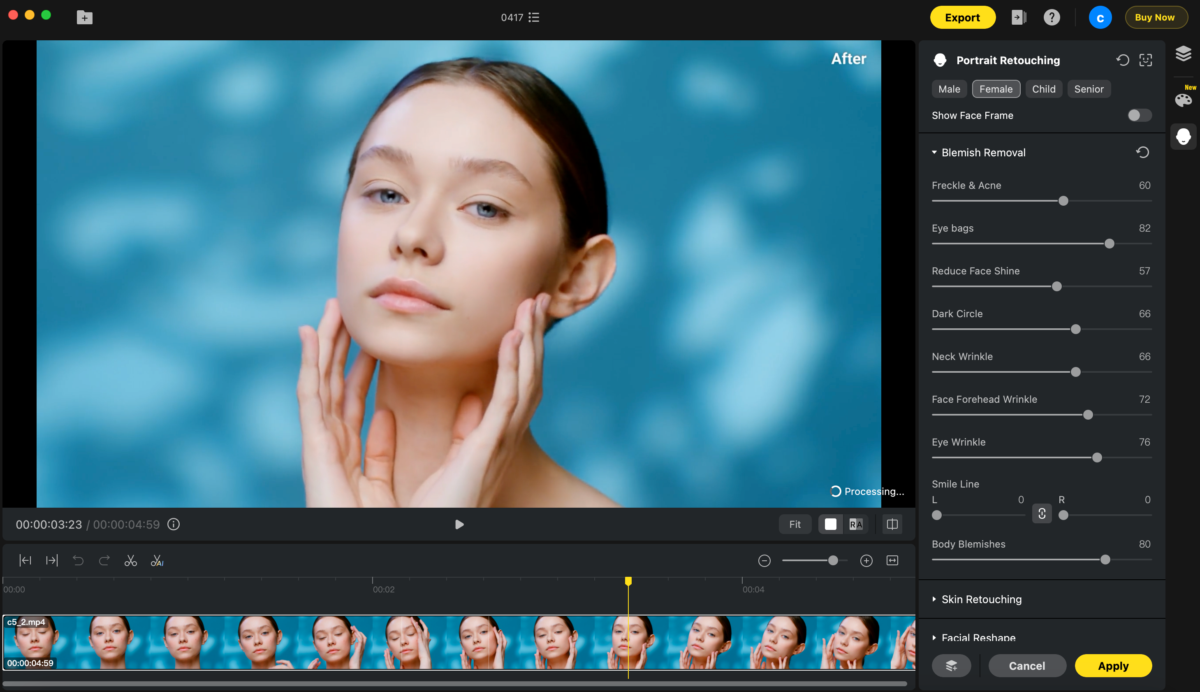
- Neck Wrinkle — Smooths neck lines visible in close-up and profile shots.
- Face Forehead Wrinkle — Softens forehead creases while keeping natural expression.
- Eye Wrinkle — Reduces crow’s feet without removing facial character.
- Smile Line — Adjustable independently for left and right sides, ideal for asymmetric corrections.
- Body Blemishes — Extends blemish removal to shoulders, arms, and other visible skin areas.
Pro tip: Start with moderate values and increase gradually. Over-retouching looks unnatural, especially in motion.
Step 4: Preview the Result
Use the timeline to scrub through your video and check the results at different points. Evoto shows an “After” preview so you can compare the retouched result with the original. Pay attention to moments where the subject turns their head or the lighting changes — this is where poor tools break down, but Evoto Video’s AI tracking maintains consistency across every frame.
Step 5: Apply and Export
Once you’re satisfied, click Apply to confirm the retouching settings. Then hit the Export button in the top-right corner to render your final video. Evoto maintains full resolution during export, so your 4K footage stays 4K.
Video Blemish Remover: Evoto Video vs. Manual Editing
| Evoto Video | Manual (After Effects / DaVinci) | |
|---|---|---|
| Speed | Minutes per clip | Hours per clip |
| Skill required | Beginner-friendly sliders | Advanced compositing knowledge |
| Consistency | AI tracks face automatically | Manual keyframing per frame |
| Natural results | AI preserves skin texture | Risk of over-smoothing |
| Wrinkle control | Per-area sliders (forehead, eye, neck) | Custom masks per area |
| Batch capability | Apply presets across clips | Start from scratch each time |
Tips for Natural-Looking Video Blemish Removal
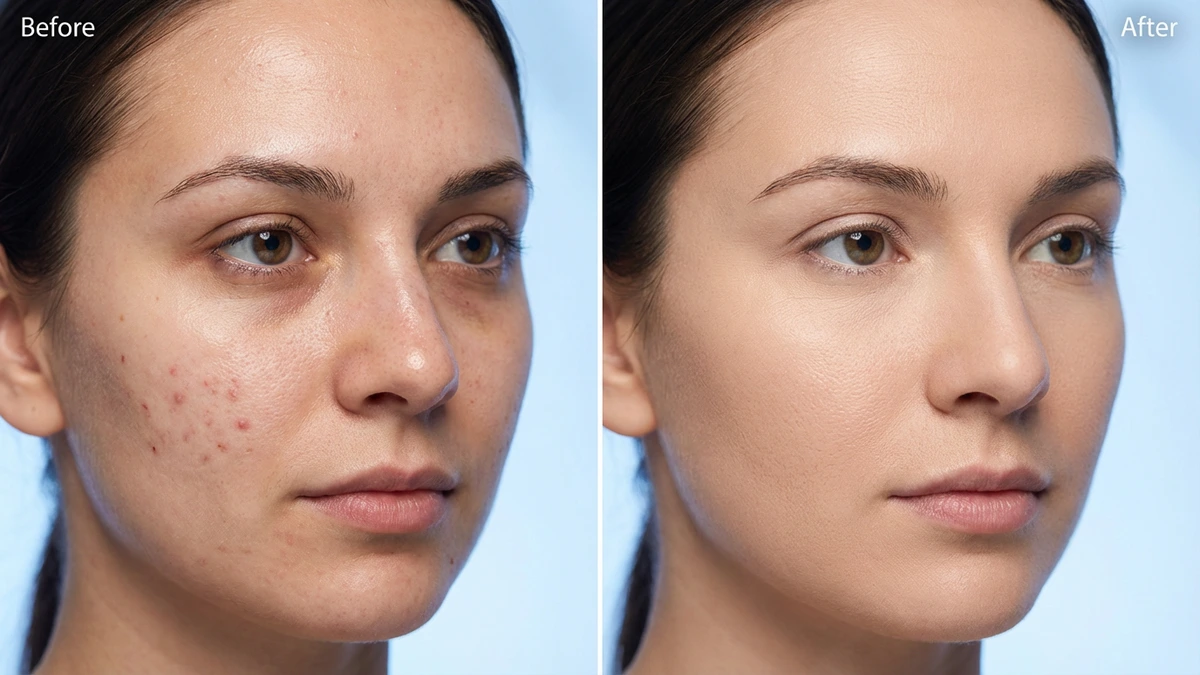
- Don’t max out every slider. Subtlety is key in video — viewers notice over-retouching more in motion than in stills.
- Match the gender preset to your subject. The AI models are optimized differently for male, female, child, and senior faces.
- Check multiple frames. Preview at least 3–4 different points in your timeline, especially during head turns and lighting transitions.
- Use Body Blemishes for non-face skin. If your subject’s shoulders or arms are visible, don’t forget to enable this slider.
- Combine with Skin Retouching. After blemish removal, use the Skin Retouching section for overall texture smoothing to achieve a polished, editorial finish.
Take Home
Removing blemishes from video no longer requires hours of manual masking or expensive post-production teams. With Evoto Video, you get dedicated sliders for every type of skin imperfection — from pimples and eye bags to wrinkles and face shine — all powered by AI that tracks faces automatically across every frame.
Whether you’re creating YouTube content, filming client work, or producing commercial video, Evoto Video gives you the blemish-free results of a professional retoucher in a fraction of the time.
Evoto Video – Be the First to Edit Smarter
Professional-grade AI color grading and retouching for video creators.
FAQs
Can I remove pimples from a video without editing frame by frame?
Yes. Evoto Video uses facial tracking to detect and follow your subject’s face throughout the entire clip. When you adjust the Freckle & Acne slider, the AI applies pimple removal consistently across every frame — no manual keyframing required.
Does the video blemish remover work on 4K footage?
Yes. Evoto Video processes and exports video at full resolution, including 4K. The blemish removal algorithms are optimized for high-resolution detail, so skin texture is preserved even after retouching.
Will the retouching look natural or overly smoothed?
Evoto Video is designed to preserve natural skin texture. Each blemish type has its own dedicated slider, so you can fine-tune exactly how much correction to apply. Starting with moderate values (50–60) delivers subtle, professional results that look natural in motion — avoiding the over-processed smooth skin video look.
Can I remove blemishes from multiple people in the same video?
Evoto Video’s face detection can identify multiple subjects. The Portrait Retouching panel allows you to select different gender presets and adjust settings for accurate detection across different face types.


