
Learning how to remove freckles from video is not about making every face completely spotless. A natural result should reduce only the freckles that distract from the subject while preserving pores, fine lines, and the small details that make the person recognizable. The right adjustment depends on the project, the lighting, and how prominently the freckles appear on camera.
Freckles Are Part of a Person’s Identity
Freckles are different from temporary breakouts. They can be a defining facial feature, and many people prefer to keep them visible. Before starting any freckle removal, decide whether the goal is to preserve the subject’s natural appearance, soften a few prominent freckles, or create a cleaner finish for commercial footage.
For a documentary, interview, or wedding film, the most natural choice may be to leave most freckles untouched. Beauty campaigns and branded videos may call for a more polished complexion. Even then, retaining some variation usually looks more believable than erasing every mark.
Why Many Video Retouching Tools Make Skin Look Over-Smoothed
Many beauty filters and consumer video editors rely on broad skin smoothing. Instead of distinguishing freckles from pores and normal texture, they soften the entire face. Increasing the effect can hide freckles, but it can also blur fine lines, facial contours, and the natural transitions between light and shadow.
This is especially noticeable in close-ups. Skin may look clean at first glance but flat or waxy at full resolution. Fixed presets also give the editor limited control: the result is either too weak to matter or strong enough to make the subject look filtered.
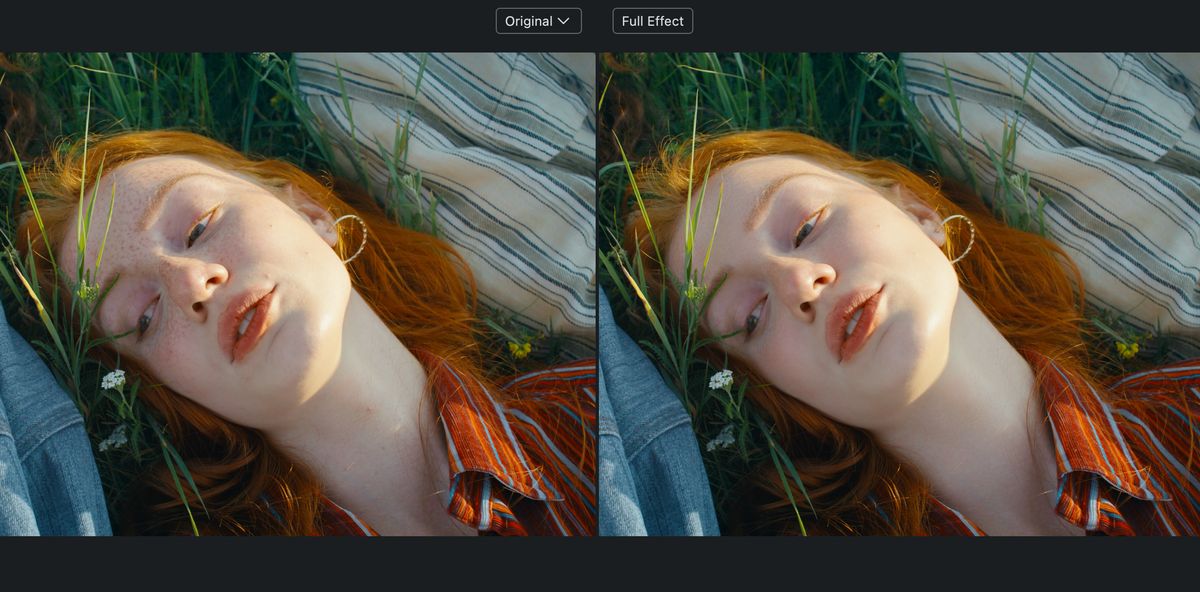
A better freckle remover should let the editor control the amount directly. Evoto Video uses a dedicated Blemish Removal control rather than requiring full-face smoothing, helping reduce visible freckles while keeping realistic skin detail.
Meet Evoto Video
Evoto Video is an AI-powered video retouching application for Windows and macOS. It combines Portrait Retouching, Facial Reshape, Skin Retouching, makeup, hair, body refinement, LUT-based color tools, and AI Color Match in one video workflow.
Inside Blemish Removal, the Freckles & Acne slider controls the strength of the cleanup. Drag the slider to increase the effect or move it back to preserve more natural detail. This is more flexible than accepting a fixed beauty preset because the final intensity remains under the editor’s control.
Freckles & Acne and Textured Smoothing are separate controls. You can therefore address visible freckles without automatically applying full-face smoothing. After the effect is applied, frame-by-frame AI tracking keeps the retouching stable as the subject speaks, changes expression, or turns their head.
How to Remove Freckles from Video
Step 1: Import the Original Footage
Open Evoto Video and import an MP4, MOV, or M4V file. Select the clip on the timeline, then move to a clear frame where the face is sharp and the freckles are easy to see. Source footage is preferable to a fully edited master because transitions and other effects can interfere with analysis.
Evoto Video – Be the First to Edit Smarter
Professional-grade AI color grading and retouching for video creators.
Step 2: Select the Correct Face
Confirm that Evoto Video has detected the intended subject. If several people appear in the clip, choose the face you want to retouch before changing the settings. Each person may need a different level of freckle reduction.
Step 3: Open Blemish Removal
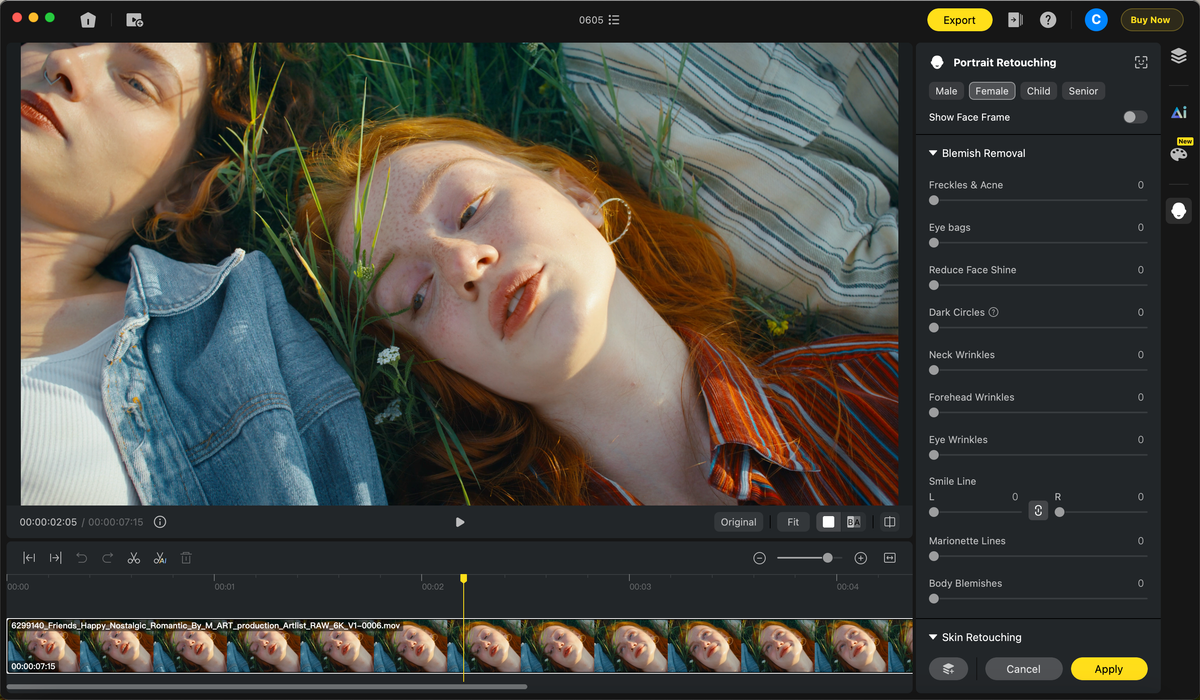
Open Portrait Retouching on the right side of the workspace and expand Blemish Removal. The panel includes Freckles & Acne, Eye bags, Reduce Face Shine, Dark Circles, wrinkle controls, and Body Blemishes.
Step 4: Adjust Freckles & Acne
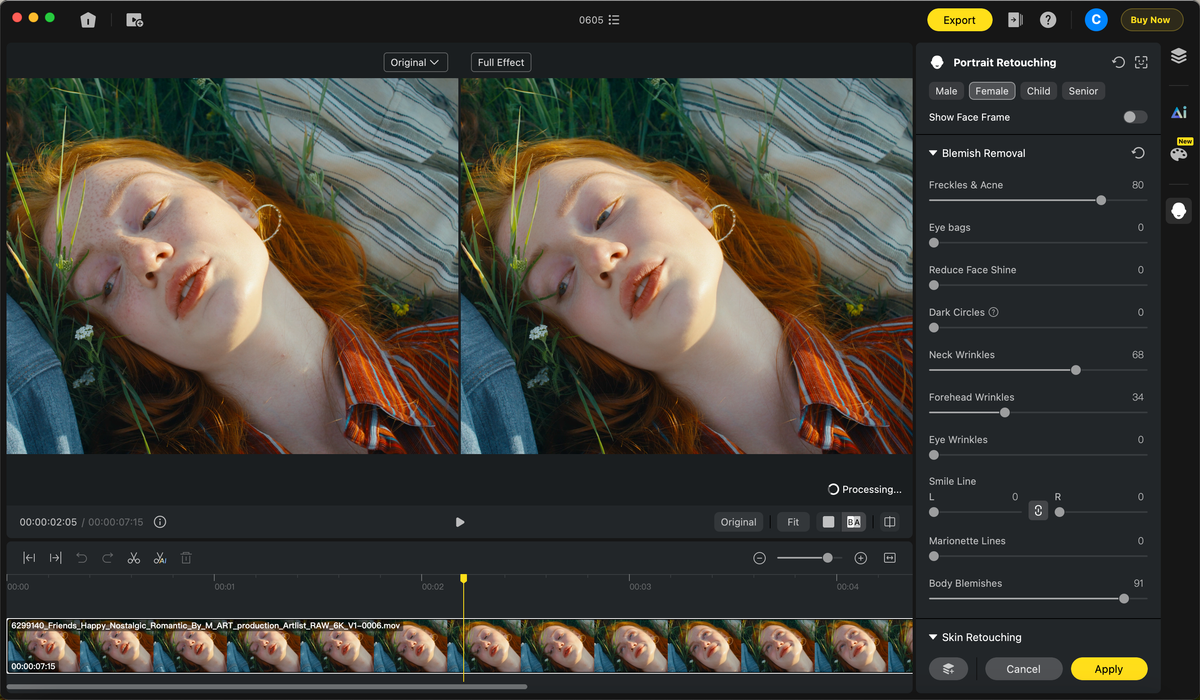
Move the Freckles & Acne slider gradually while watching the selected frame. A low setting can soften prominent freckles while retaining most of the original pattern. Increase the value only when the project requires a cleaner complexion.
Because freckles and acne currently share one slider, check both concerns before finalizing the setting. If the subject has acne as well as freckles, the same adjustment will affect both. The slider makes this easy to control: drag to increase the cleanup, drag back when too much identity or texture starts to disappear.
Step 5: Apply the Effect
Click Apply Effects to render the adjustment across the selected clip. Once processing is complete, play the result and confirm that the chosen freckle finish fits the project. You can revise the slider and apply the effect again if the result is too light or too polished.
How Much Freckle Removal Does Each Video Need?
There is no single correct strength for freckle face removal. Match the slider setting to the purpose and visual style of the footage.
Livestreams and Short-Form Content
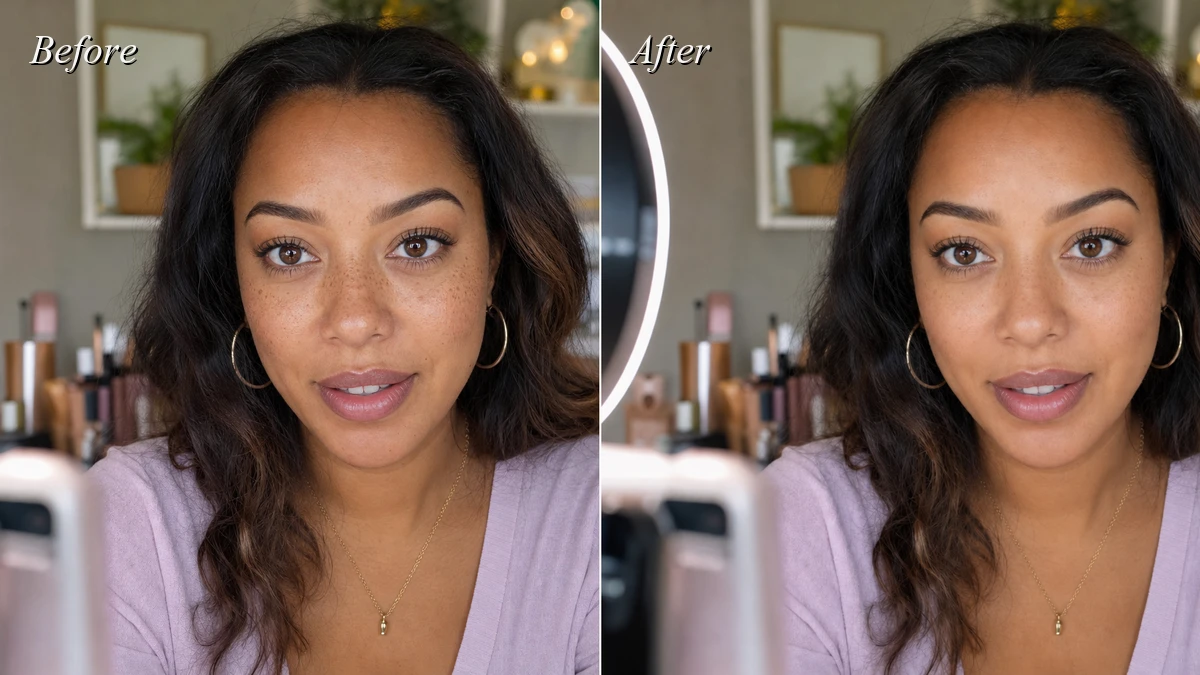
For livestreams, tutorials, and social videos, a light adjustment is usually enough. Ring lights and close-up phone cameras can make certain freckles more noticeable, but preserving part of the natural pattern helps the creator remain recognizable. Aim for a refreshed result rather than a filter-like finish.
Beauty, Fashion, and Commercial Videos
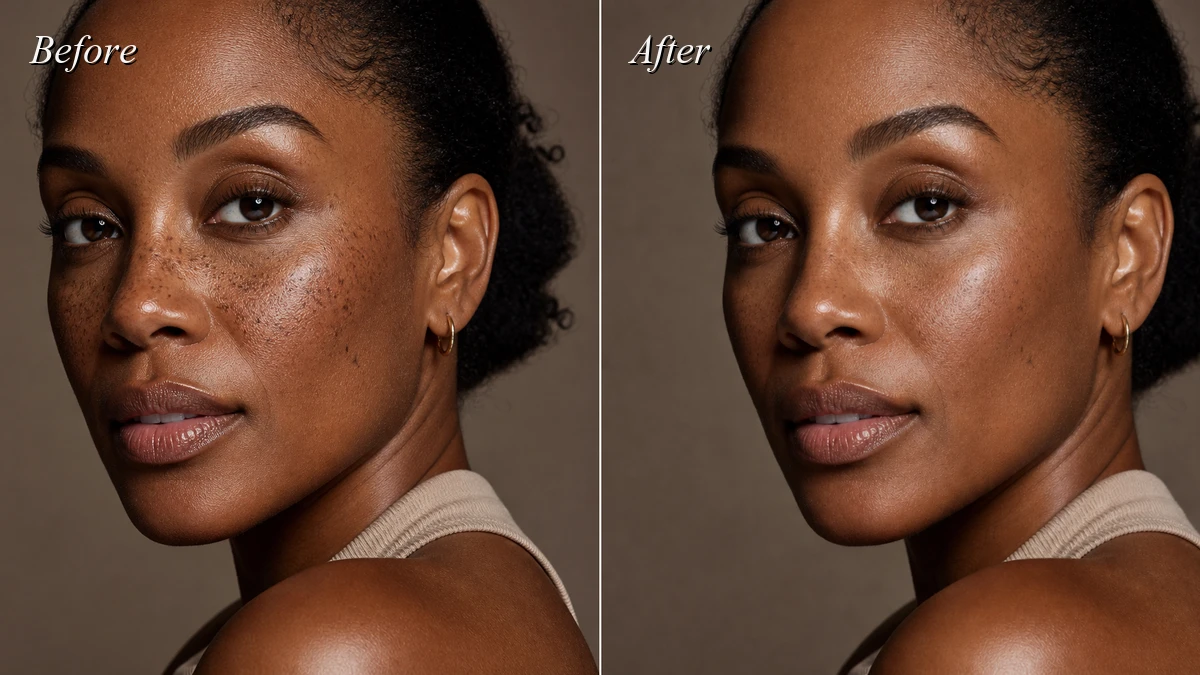
Beauty campaigns and branded content often require a cleaner complexion. A balanced slider setting can soften more freckles while still keeping pores, fine lines, and normal color variation visible. Inspect the result at the intended delivery resolution so the skin does not look airbrushed in close-ups.
Interviews, Weddings, and Documentary Footage
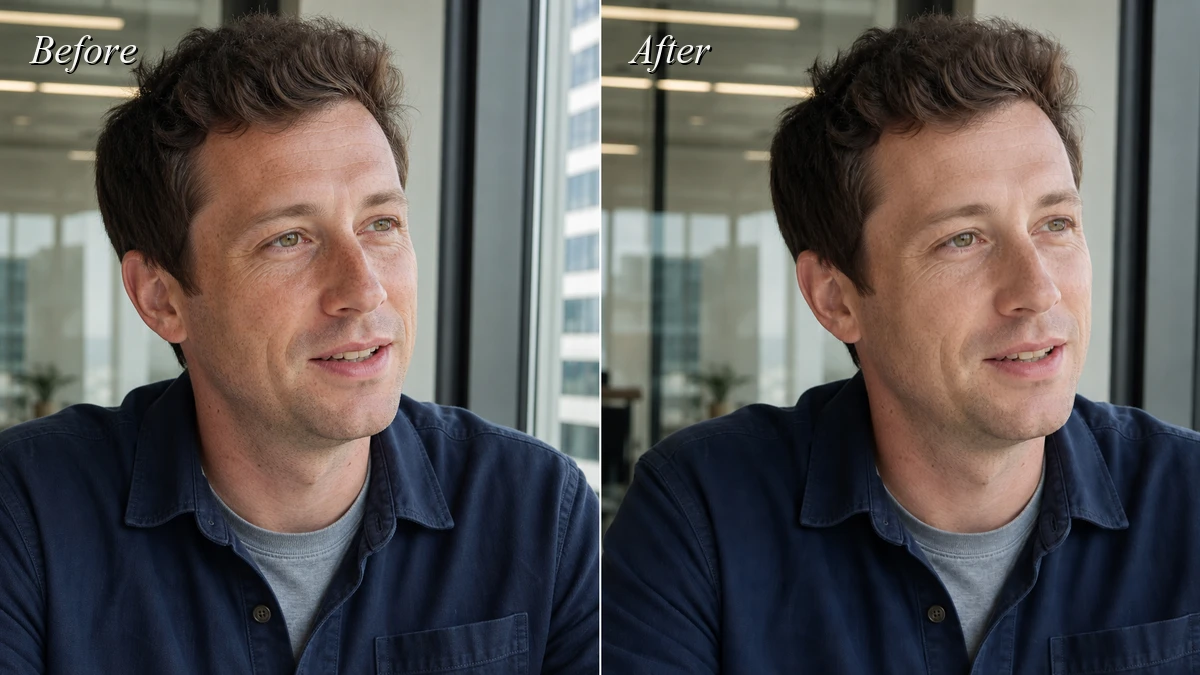
For interviews, wedding films, and documentary work, freckles often contribute to authenticity. Use a subtle adjustment, or retain them completely when they are part of the subject’s identity. Only reduce the marks that pull attention away from the expression or conflict with the agreed production brief.
Explore More Evoto Video Features
Portrait Retouching Beyond Freckles
Evoto Video provides separate slider-based controls for common portrait concerns. Blemish Removal includes Eye bags, Reduce Face Shine, Dark Circles, Neck Wrinkles, Forehead Wrinkles, Eye Wrinkles, Smile Line, Marionette Lines, and Body Blemishes. Skin Retouching adds Textured Smoothing, Skin Radiance, Dodge & Burn controls, and complexion balancing. Editors can also refine facial proportions, whiten teeth, enhance eyes, apply makeup, adjust hair, and reshape the body. Each supported control can be increased or reduced according to the subject instead of forcing one preset across the entire portrait.
Evoto Video – Be the First to Edit Smarter
Professional-grade AI color grading and retouching for video creators.
Color and Workflow Tools
The workflow extends beyond portrait cleanup. Color Adjustments includes Camera LUT, CST, and Creative LUT, while AI Color Match can transfer the look of a built-in or uploaded reference image. Multi-video projects, timeline tools, Copy and Paste Effects, Apply Effects, Full Export, and Segment Export help editors manage longer productions and repeated looks. These tools make Evoto Video useful for complete portrait finishing rather than only serving as a freckle remover.
Conclusion
Natural freckle removal starts with deciding how much of the subject’s identity should remain. Evoto Video gives editors a direct Freckles & Acne slider, separates blemish cleanup from full-face smoothing, and uses frame-by-frame AI tracking to maintain the effect across the clip. Start lightly, preserve real texture, and increase the adjustment only when the production calls for a cleaner finish.
If you want a faster and more controllable way to erase freckles from video, download Evoto Video and test the slider on your own livestream, beauty, interview, or wedding footage.