

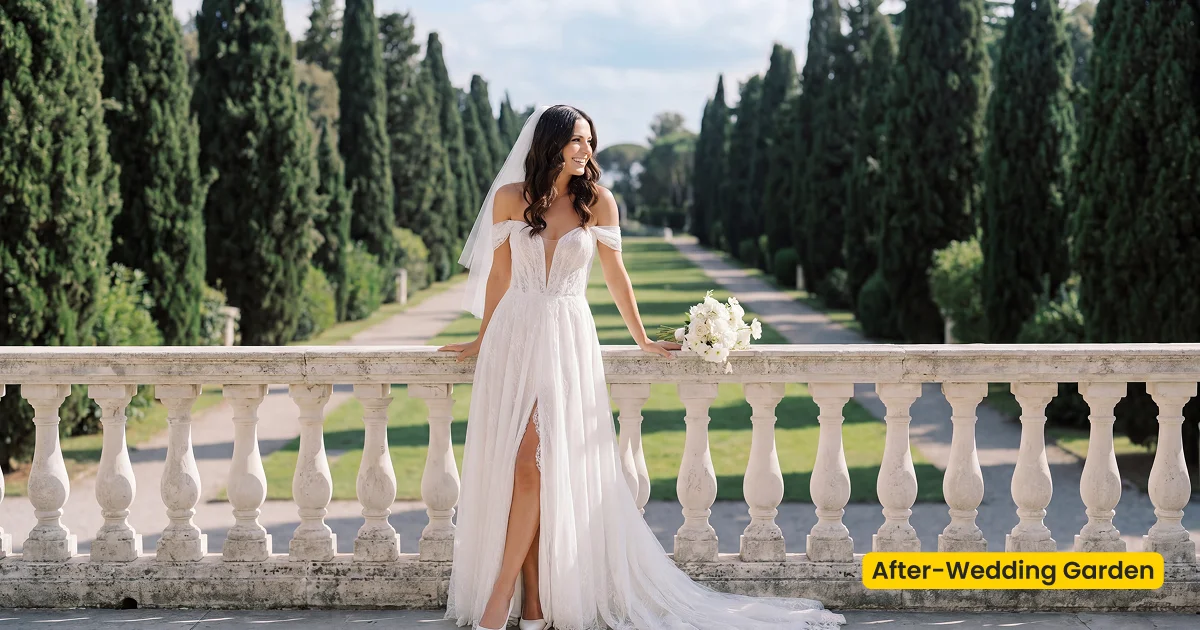
A garden wedding scene with villa architecture, cypress, terraces, and lush white florals for refined bridal composites with a European destination mood.
| Style | Wedding / Villa Garden Fusion |
|---|---|
| Best for | Bridal portraits, Terrace vows, Destination editorials |
| Format | Evoto Asset Hub AI Background Fusion |
| Price | Free |
See the Look in Action
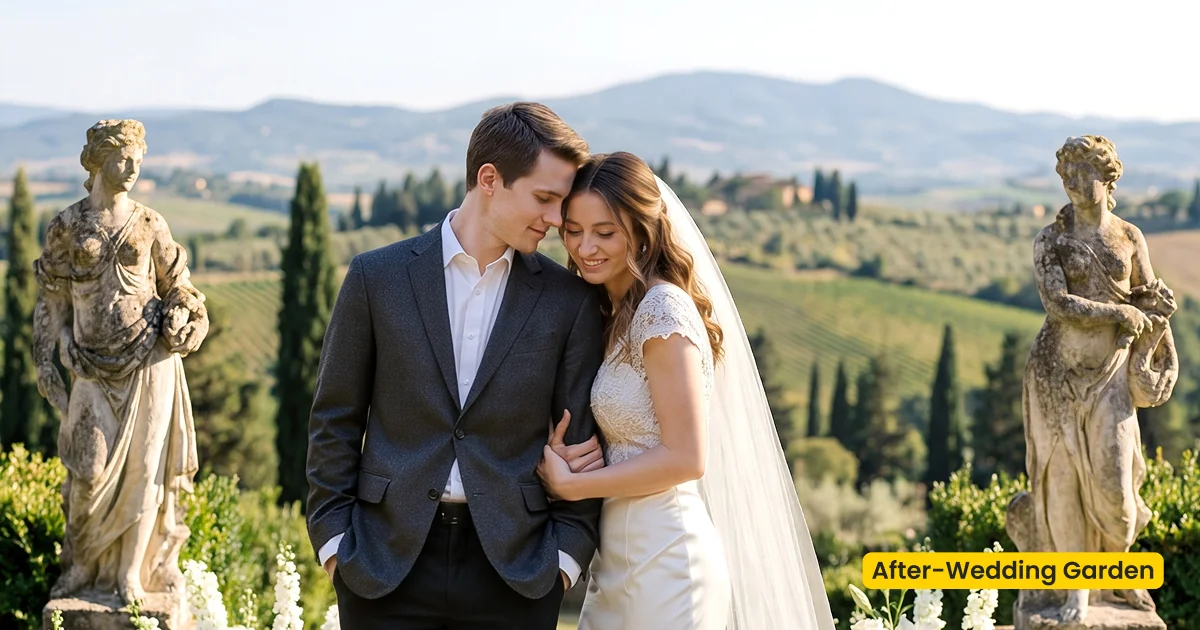
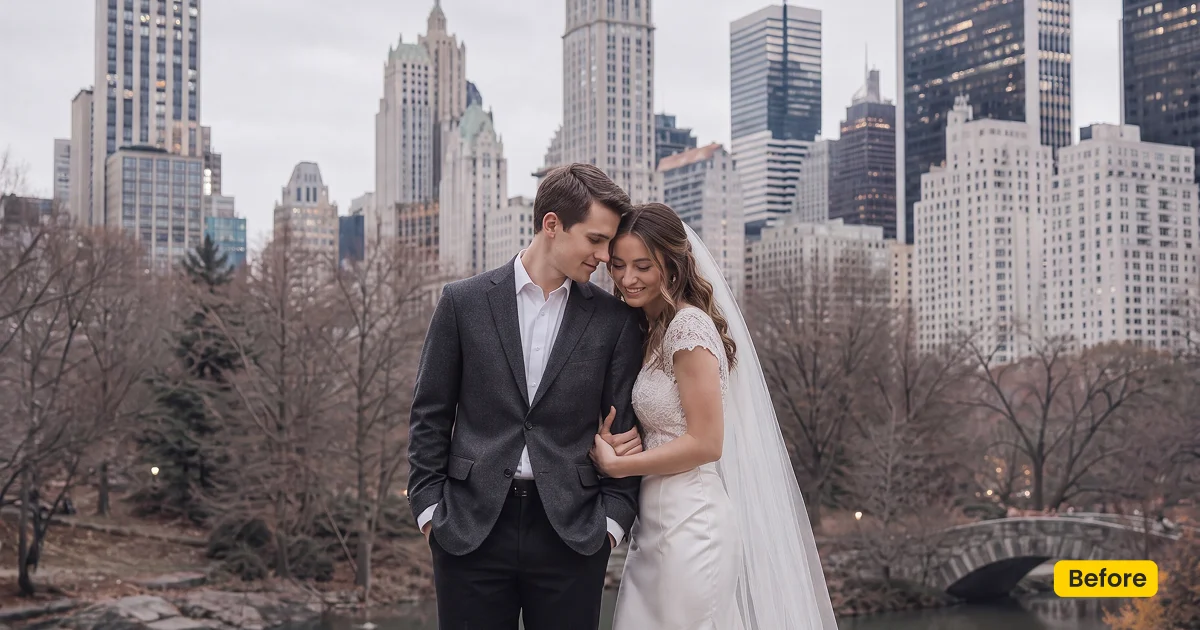
Lush whites stay around the gown so lace does not disappear into the hedge.
What This Scene Does
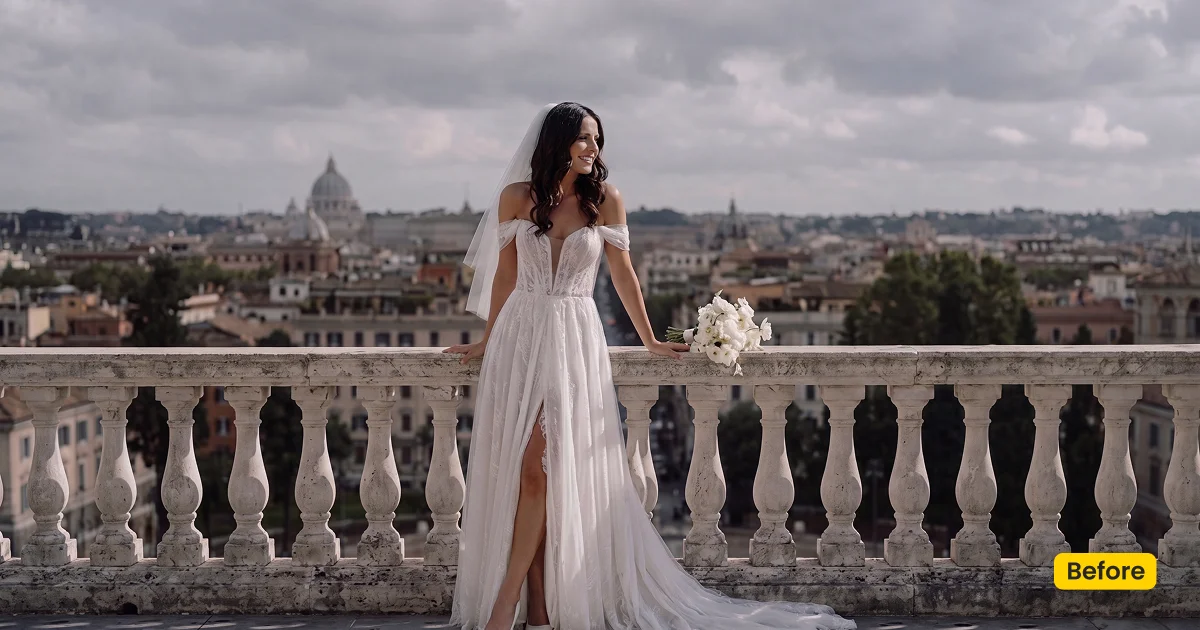
Wedding Garden is a free garden wedding scene for bridal composites in Evoto. It is an AI Background Fusion asset: villa architecture, lawn, cypress, terraces, and lush white florals, with a European destination-wedding mood, not a beach plate and not a fabric swap.
Cypress lines give vertical structure behind the gown. Stone terraces add destination weight without a travel day. White florals stay lush around bouquets so lace does not vanish into the hedge. Skin should remain bridal-warm while the garden reads refined. Storybook Editorial can grade color afterward; it does not replace this location.
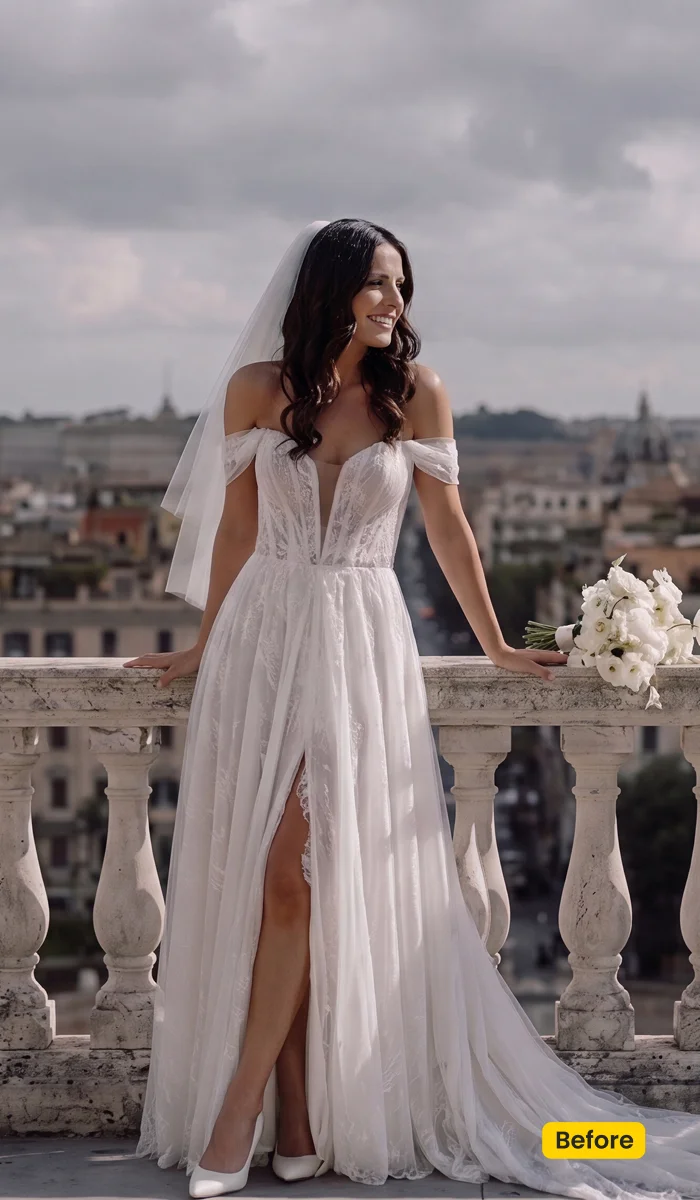
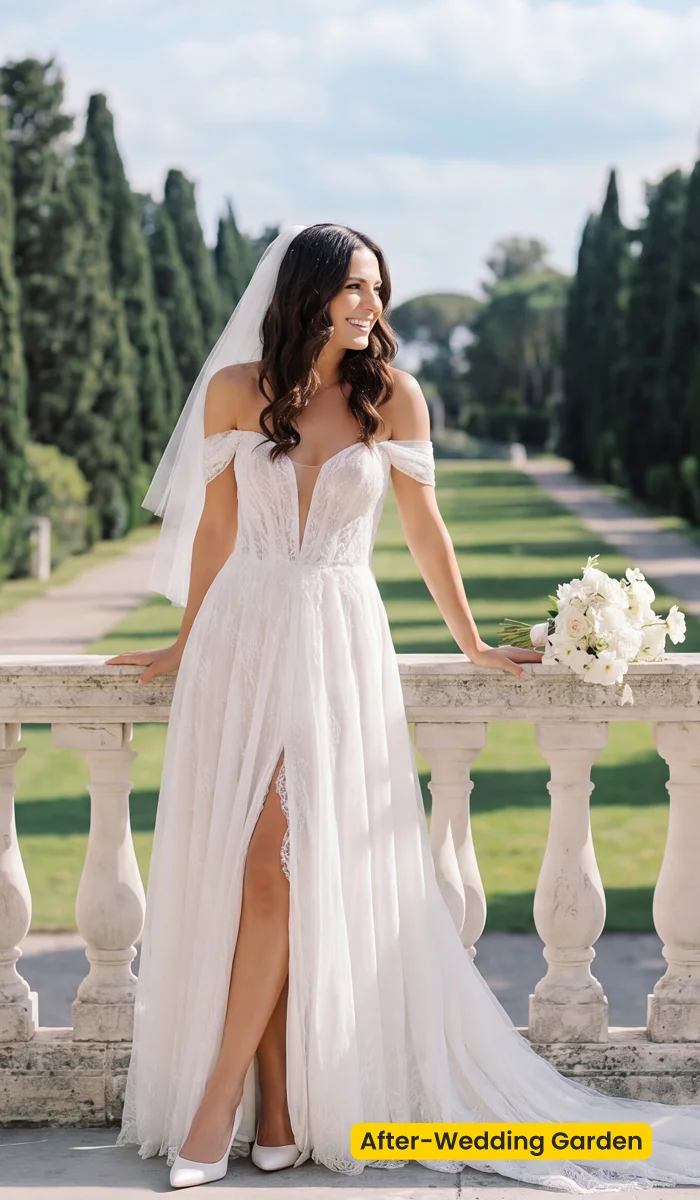
Get this garden wedding scene from Evoto. Apply Wedding Garden with AI Background Fusion. Download Evoto to run fusion on the bridal set.
Best For / Not For
Best for
- Bridal portraits that need a European villa garden without travel
- Terrace vow looks and destination editorials
- White-floral albums that should feel lush and refined
- Studio captures that still need outdoor garden context
Not for
- Beach destination briefs (different scene family)
- Color-only documentary grades (use Storybook Editorial)
- Physical floral installs or printed garden drops
- Studio Backdrop fabric jobs (use Fabric)
Garden Wedding Scene vs a Color Preset
Wedding Garden rebuilds the place. A wedding preset only grades the files you already shot. Use the table when a client asks whether they need a new location or just a vintage editorial finish.
| Wedding Garden (this scene) | Storybook Editorial (color preset) | |
|---|---|---|
| Job | Composite into villa garden + lawn + florals | Grade outdoor files you already shot |
| Category | AI Background Fusion → wedding-scene | Presets → wedding-preset |
| Best for | Studio-to-destination garden editorials | Forest and countryside documentary color |
| Apply in | AI Background Fusion | Synced presets in Evoto Desktop |
What This Garden Wedding Scene Contains
After Generate, walk the edges of architecture and gown before you save. These notes describe what should read in a finished Wedding Garden composite.
- Architecture: Villa walls, terraces, and steps. They should feel destination-solid, not like a pasted postcard.
- Trees: Cypress lines for a European read. Keep them behind the couple so they structure the frame.
- Florals: Lush whites around paths. They support the bouquet; they should not outshine the dress.
- Light: Refined daylight. Use Character Lighting so skin matches the terrace.
- Overall finish: Elegant, timeless, bridal. This garden wedding scene is not a beach or forest plate.
Tips for Villa Garden Composites
A garden wedding scene still has to match the couple you photographed. Light direction and a saved scene preset keep a bridal set coherent.
- Match the sun side: Keep key light on the same side as the terrace. A studio left-key against a right-lit garden is the first tell.
- Save the scene preset: Reuse Wedding Garden across the bridal set so cypress and florals do not jump between frames.
- Grade after fusion: Pair Storybook Editorial only if you still want vintage documentary color on the new location.
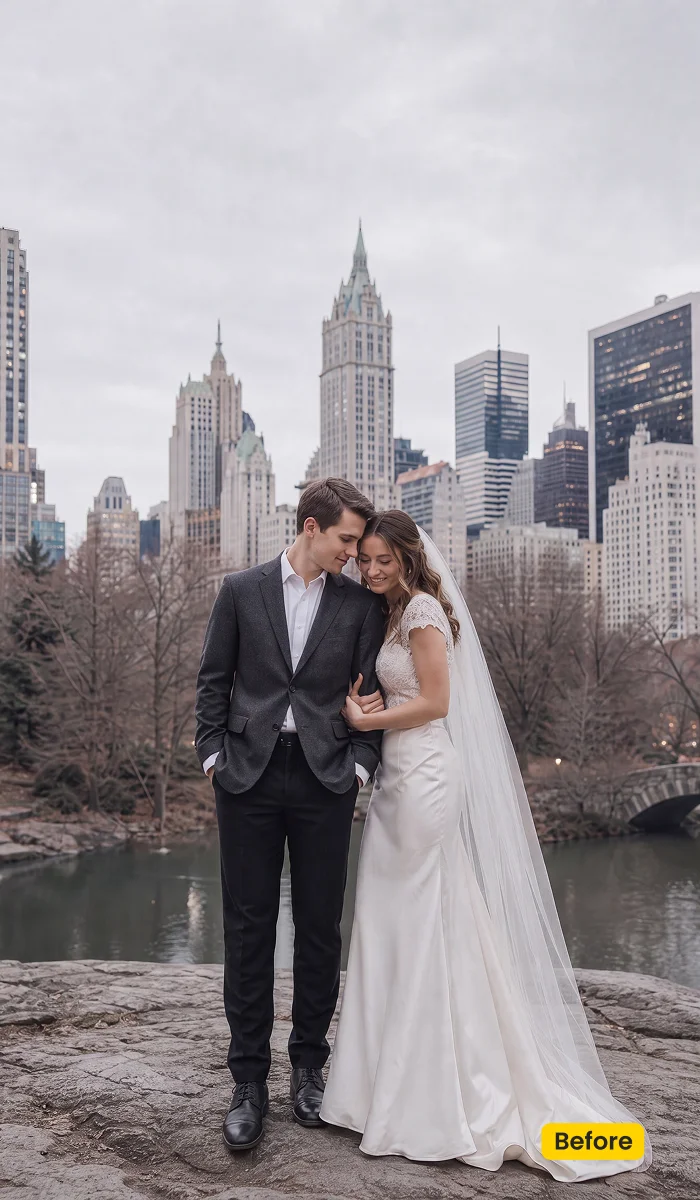
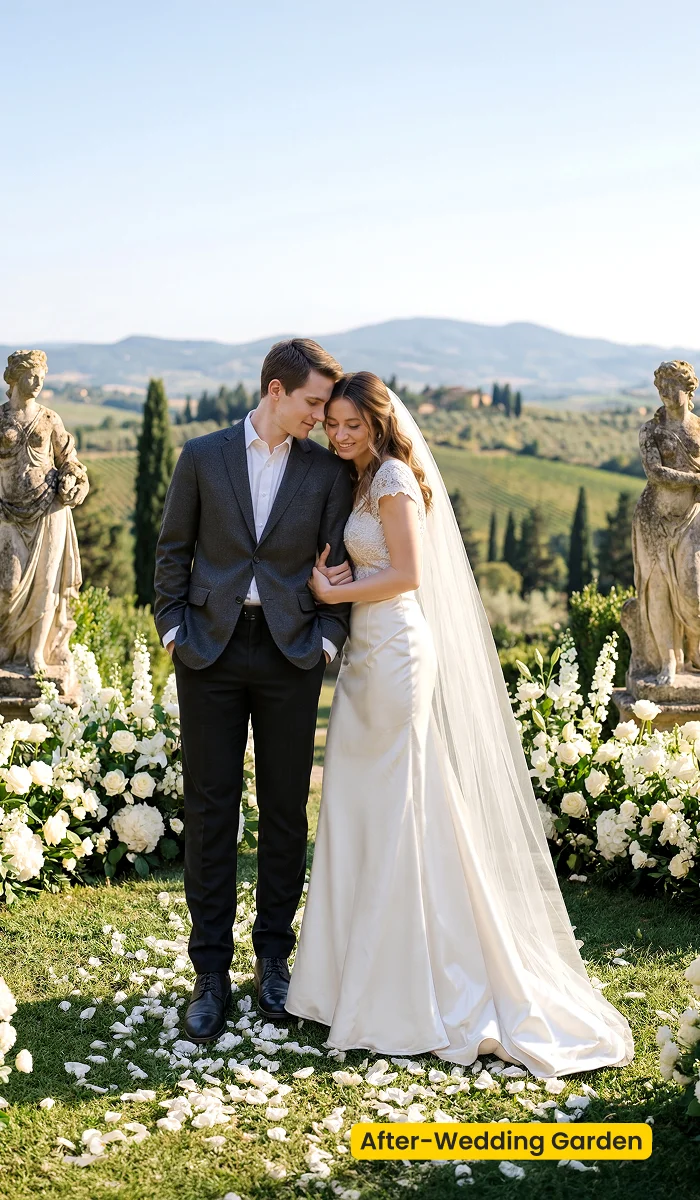
How to Get and Apply Wedding Garden
Wedding Garden is a villa garden wedding scene. Cypress height and terrace sun matter more than a generic “change background” click. Give the first bridal frame extra time; the rest of the set can reuse the saved scene.
Step 1. Collect the villa garden plate
Click Get Scene Asset for Free. Sign in on Asset Hub, then sync Wedding Garden. You are adding a garden wedding scene to AI Background Fusion, not a beach plate and not a color preset.
Step 2. Load a full-length bridal file into Fusion
Open Evoto Desktop. Click AI Lab, then AI Background Fusion. Start with a gown file that shows hem and shoes. A tight crop hides how tall the cypress should sit.
Step 3. Scale the couple to the terrace, then Generate
In the right panel, open Featured, then the “Wedding” category, and select Wedding Garden. Resize so the couple does not float above the path. Keep bouquets with Subject and Related objects when the flowers should travel. Use Custom only if you are uploading a different plate. Click Generate.
Step 4. Match terrace sun and lock the bridal set
Use Character Lighting so key light stays on the same side as the terrace. When one frame is honest, click Save and run this garden wedding scene across the remaining bridal portraits. Grade with Storybook Editorial only after fusion.
FAQ
Is this a Lightroom sky pack?
No. Wedding Garden is an Evoto AI Background Fusion scene.
Do I need to fly to a villa?
No. Photograph the couple, then apply the garden wedding scene in Evoto.
Is this the AI Background Fusion product page?
No. This SKU describes one scene. The feature page covers the tool.
Can I use it with Blue Sky?
Yes, if the fused plate still shows sky you want to replace. Fusion first, then Sky Replacement.
Where do I get it?
Get it from Asset Hub. In Evoto Desktop: AI Lab → AI Background Fusion → Featured → Wedding Garden → Generate → Character Lighting → Save.
Related Assets
Try Evoto AI Photo Editor
Retouch photos with Evoto AI and make your photos best! Available on Windows, MacOS and iPadOS.