

When people search background changer free, they usually want two things: faster turnaround and lower editing cost. That is reasonable. The problem is that children portraits have lower error tolerance than casual social posts.
Kids move, hair edges are finer, and skin tone shifts are easier to notice. A result that looks acceptable at thumbnail size can fail immediately in album delivery. That is why a generic background changer free online tool may feel useful at first, then fall apart under client review.
This guide gives a repeatable studio workflow, not a tool list. You will get practical checks, examples, and decision rules you can reuse in school sessions, mini sessions, and family portrait sets with children. Next, let’s define what “usable” really means in children portrait delivery.
TL;DR
- A background changer free workflow is useful only when you control edge quality, skin tone, and layer depth.
- For children portraits, one hero frame plus strict checks beats fast one-click output.
- Use AI tools as workflow accelerators, but keep final scene, lighting, and save decisions in photographer hands.
What Makes a Free Background Changer Actually Usable for Kids Portraits
A free tool is not automatically a bad tool. But in paid children delivery, a background changer free workflow is “usable” only when the output passes technical and emotional checks, not just when the file exports.
Use this short acceptance standard:
- Edge trust: no halo around hair curls, bows, or sleeve outlines.
- Expression priority: props never block eyes, smile line, or face contour.
- Skin realism: cheeks stay clean, not gray or over-orange.
- Detail retention: clothing texture remains believable after fusion.
These checks are not arbitrary. They map to standard photographic evaluation axes: tonal distribution (histogram), color temperature balance, and depth/perspective consistency. If your team needs neutral references for training junior editors, these are good baseline sources: Histogram (photography), Color temperature, and Perspective (graphical).
Example: a child in a white lace dress shot on gray background. If the new scene is warm sunset and the face remains cool while dress highlights blow out, parents often say “looks edited” even when they cannot name the issue. That gap between “looks pretty” and “feels real” is where many fast tools fail.
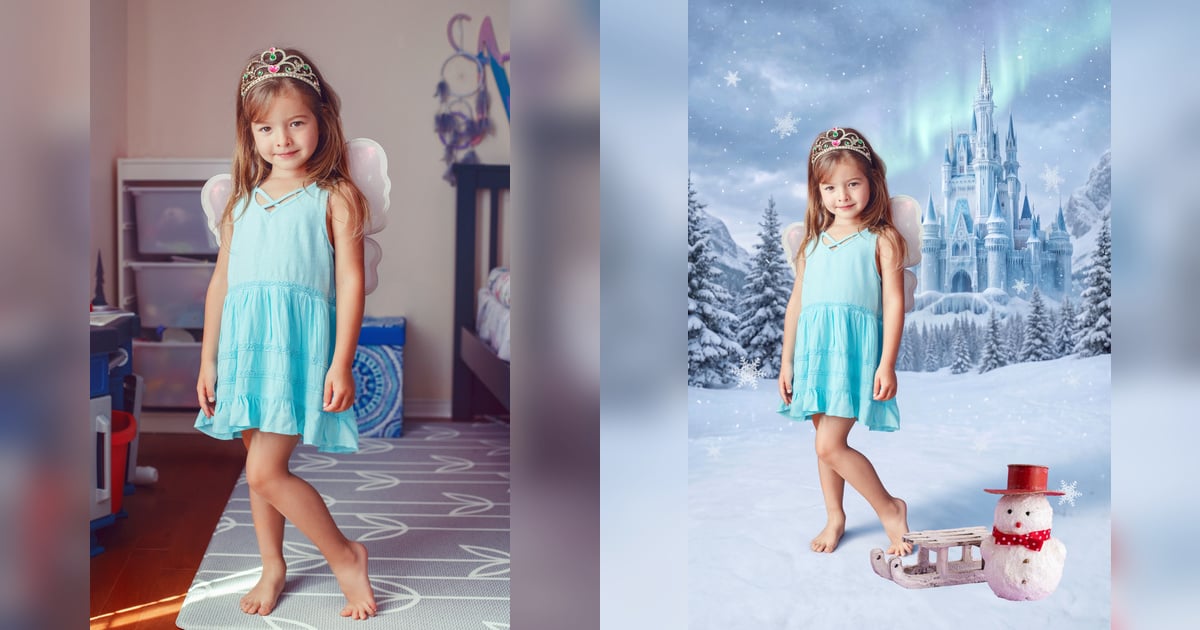
For the examples below, the source image is a clean children portrait with simple original lighting and readable hair/shoulder edges. The target result is an Ice Princess-style scene: cool blue environment, fantasy castle depth, bright snow/ice atmosphere, and soft foreground sparkle. That matters because this workflow is not just a background swap; it is a controlled transition from a neutral child portrait into a colder, storybook environment while keeping skin believable.
Now let’s build the workflow from hero frame to batch set.
Where Evoto Fits in This Workflow
In this guide, Evoto is used as an execution workspace for children portrait compositing, not as a black-box generator.
The practical modules used in this article are:
- “AI Lab” entry and “AI Background Fusion” workspace
- “Featured” Ice Princess scene selection and “Custom” foreground upload paths
- subject + foreground control for overlay images
- “Edit Mask” for edge cleanup around hair and accessories
- “Character Lighting” amount adjustment
- result review and “Save” flow before batch rollout
The principle stays simple: software can speed up repetitive operations, but the photographer still decides scene match, layer restraint, and final approval.
Use the web version when you only need a quick Ice Princess concept preview or want to test whether a fantasy background direction is worth showing to a parent.
Use the desktop app when you need the full background changer free delivery workflow: “Featured” scene selection, “Custom” foreground upload, “Edit Mask”, “Generate”, “Character Lighting”, “Save”, and batch consistency checks.


Powerful AI Photo Editor
After setting this context, continue with the children portrait step sequence.
Step-by-Step Children Portrait Workflow
Step 1 – Select a Hero Frame With Clean Subject Separation
Start by choosing one hero frame before testing multiple scenes. In a background changer free children session, this frame should have:
- Stable exposure on the face
- Readable edge separation around hair and shoulders
- Expression that can represent the full set
Why hero-first matters: if your base frame is weak, every generated variant inherits that weakness. In production terms, this is where you choose between controlled scale and endless repair.
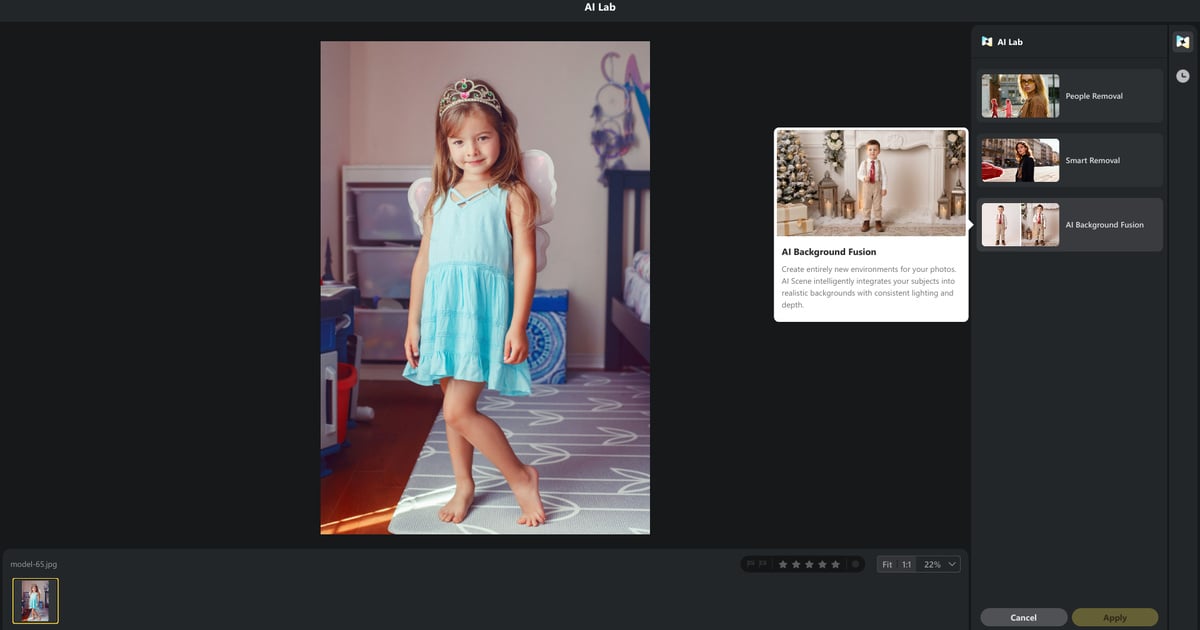
Step 2 – Choose the Ice Princess Background in “Featured”
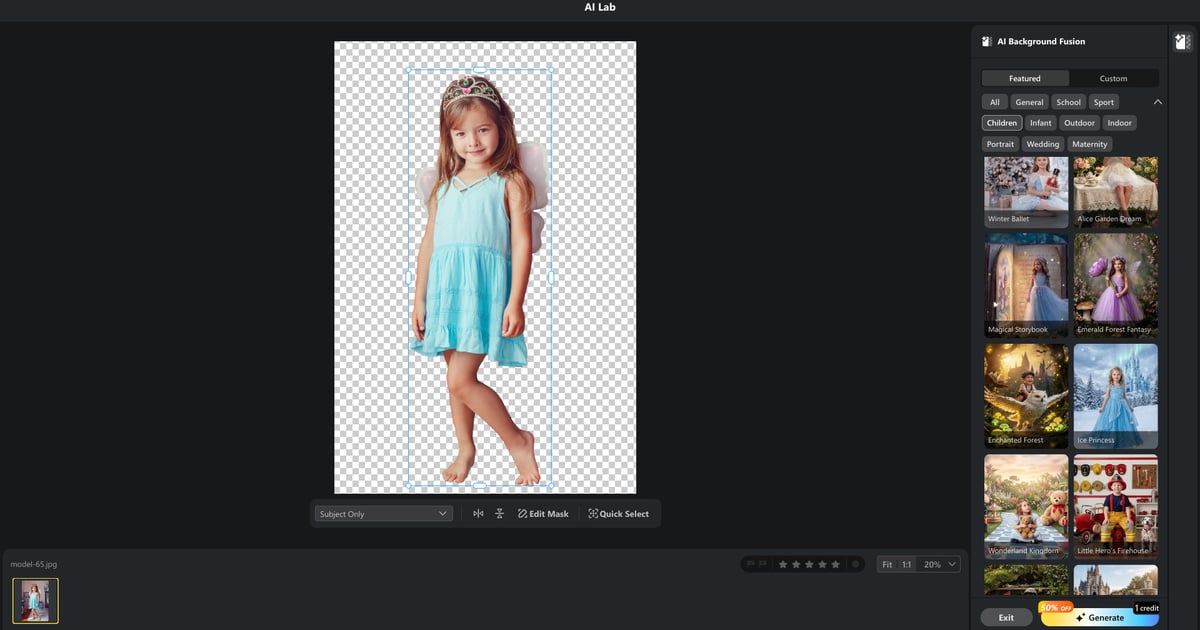
In the right panel, use the “Featured” workflow and select the Ice Princess-style background kit. For children’s portraits, a background changer free fantasy scene works only when the child still feels anchored in the frame, not pasted into a poster.
A practical order:
- Match camera height (eye-level child portrait should stay eye-level scene)
- Check the horizon and depth direction
- Confirm the blue/cool scene does not overpower the skin
- Only then tune the fantasy style strength
Example: if the source portrait is front-lit at chest height, an Ice Princess background with a similar eye-level stage and soft frontal brightness usually blends better than a steep castle angle. “More magical” is not automatically more believable.
Step 3 – Use Overlay Images Without Overcrowding
This is where most quality drops happen. Editors often add too many cute props because each one looks good alone.
Safe rules for children’s portraits:
- One primary depth prop (for space feeling)
- One subtle accent prop (for mood)
- No prop crossing eyes or smile line
Use layer photos logic, not decoration logic. If foreground density grows faster than subject readability, the image stops feeling like portrait and starts feeling like poster.
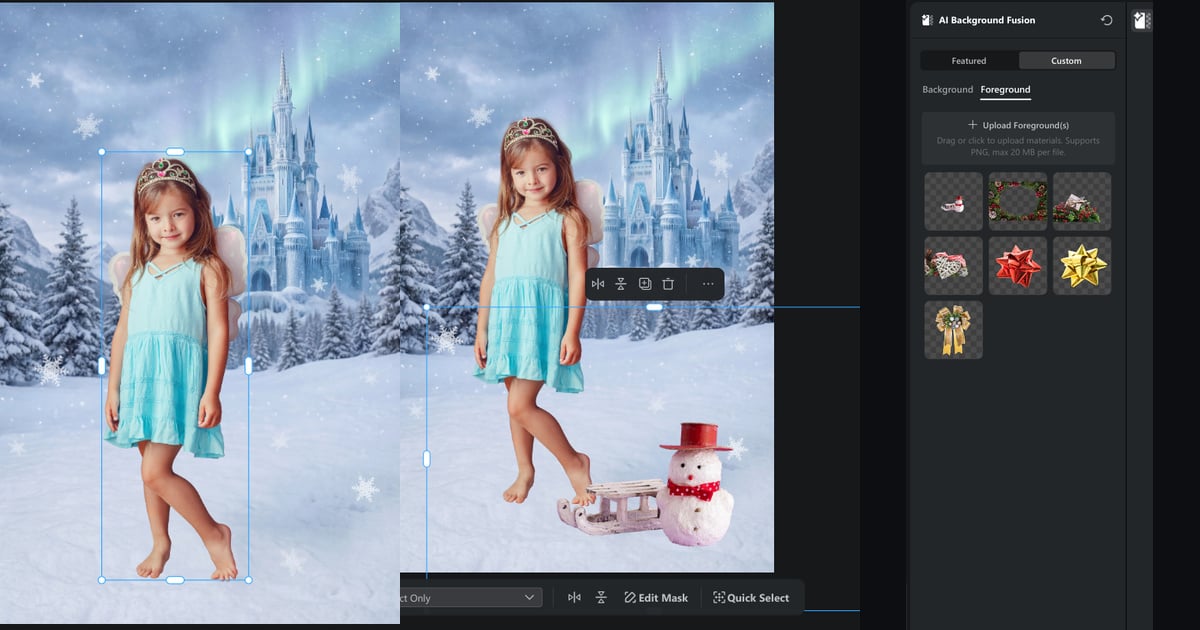
After selecting the Ice Princess background, use subject adjustment to scale and position the child. Then use the “Custom” foreground path to add controlled sparkle, snow, or ice foreground elements without crossing the face. If hair edges or accessory borders look rough, use “Edit Mask” before final generation. Then click “Generate” to lock layer structure before lighting work.
Step 4 – Fix Light and Skin Tone Consistency
After Step 3 is generated, open the result view and use “Character Lighting” for fusion balancing. In a background changer free Ice Princess edit, the common failure is either gray/cool skin from the environment or a subject that starts to look too evenly relit for the original pose.
Use this quick loop:
- Start with medium “Amount”
- Inspect forehead-cheek transition
- Compare teeth/eye white neutrality
- Verify the shadow direction on the jaw and neck
- Adjust in small increments only
In the prepared lighting comparison, the “Before” frame keeps the child a little separated from the icy blue background: the face and outfit read warmer than the fantasy scene, and the subject does not fully share the ambient tone. The “After” frame feels more integrated because the skin and clothing pick up cooler ambient color, and the background-to-subject contrast is less abrupt. The key is not to turn the child blue or flatten facial modeling; keep cheek warmth and eye brightness alive while letting the environment influence the edges and shadows.
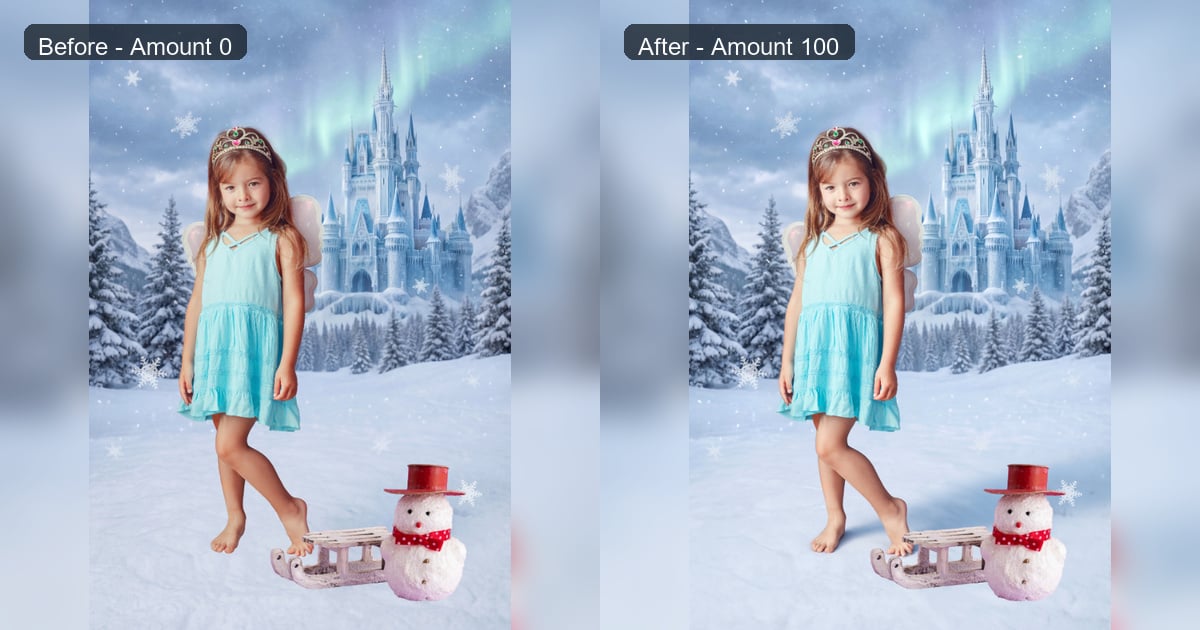
When the result looks natural, click “Save”. This preserves the approved subject and layer decisions, reducing unpredictable re-variation later.
For consistency across different displays, use the histogram and neutral skin checkpoints together instead of judging by “looks bright enough” on one monitor. This keeps reviews closer to reproducible photographic practice (Histogram (photography)).
| Problem | Why It Happens | Fix |
|---|---|---|
| Hair edge halo | aggressive cutout + bright background | soften edge and re-check at 100% |
| Skin tone shift | scene warmth mismatch | reduce lighting amount and re-balance tone |
| Busy foreground | too many props | keep one depth prop and one accent only |
After one approved frame, consistency becomes the real production challenge.
Batch Consistency for School and Mini Sessions
For batch photo background replacement for portrait studios, do not batch everything at once. Group first:
- same pose direction
- similar lighting direction
- similar wardrobe reflectance
Then run a short release checklist:
- edge noise check at 100%
- skin tone check across 3-5 samples
- background brightness consistency
- prop overlap safety on face area
If two or more samples in a group fail the same check, pause and repair the background changer free group preset instead of fixing one by one at the end.
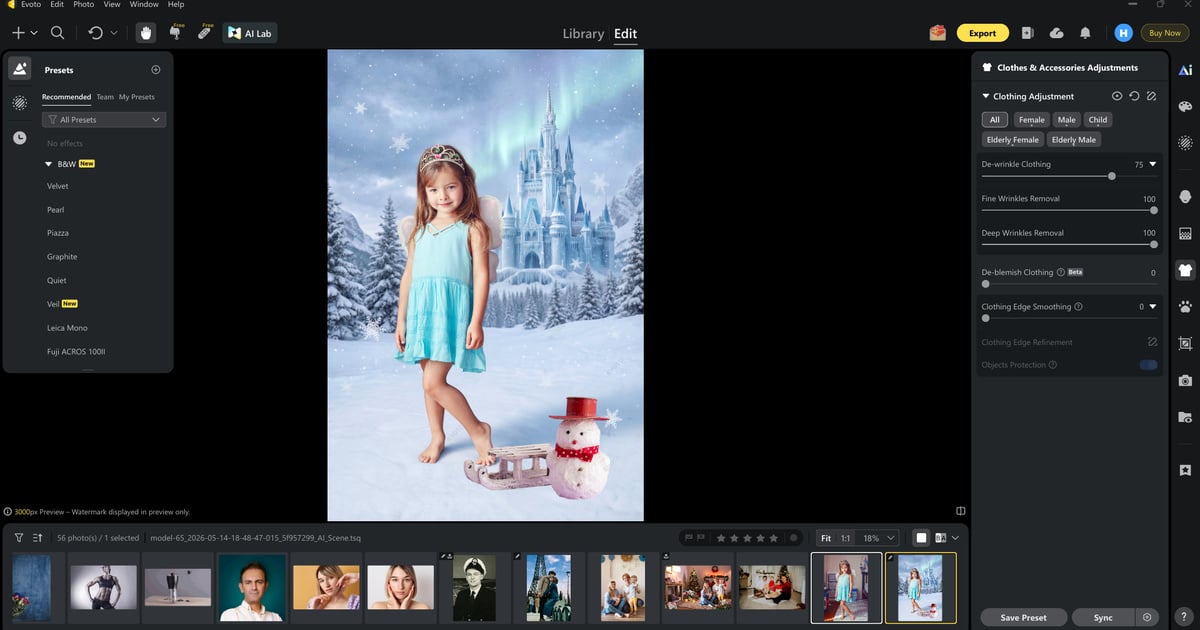
If you want a practical way to test this workflow on one real mini session, start from AI Background Fusion, then validate with a small delivery batch. If the same set also needs clothing cleanup after background work, the post-fusion editing view shows a natural next step: move into regular editing tools such as dewrinkle/clothing correction only after the background fusion is already approved.
Powerful AI Photo Editor
Now let’s review the biggest mistakes teams make under delivery pressure.
Common Mistakes Under Time Pressure
The most expensive errors are usually not dramatic failures. They are small shortcuts repeated across 30-80 images, especially when a background changer free workflow is treated like a one-click export instead of a portrait delivery system.
Mistake 1: Speed-First Edge Approval
Teams accept rough edges because the preview looks cute at small size. Then parents zoom in and notice a pale rim around flyaway hair, a clipped bow, or a crunchy sleeve edge against the icy background. The fix is simple but strict: define one non-negotiable edge pass at 100% before batch export. Check both bright and dark areas because a halo that disappears against snow can reappear near blue shadow.
Mistake 2: One Setting for All Poses
A “Character Lighting” amount that works for a front-facing child can fail on a profile pose where the cheek and neck already have deeper shadow. If the same value is applied to both, one frame may look soft and magical while the next looks gray and heavy. Split groups by light direction and pose family, then apply settings per group.
Mistake 3: Too Many Foreground Props
This happens easily with fantasy themes. Snowflakes, sparkles, ice branches, and magic glow all feel attractive in isolation, but together they can bury the child’s expression. Keep props subordinate to face readability. A foreground element can create depth near the lower frame, but anything crossing the eye line, smile line, or hand gesture should be removed or moved.
Mistake 4: Thumbnail-Only Review
Artifacts hide in small previews and appear in delivery files. Before releasing the full set, export a sample and inspect the face, hair edge, shoulder edge, and high-contrast background transitions at delivery size. This is the boring check that saves the exciting reveal from becoming a revision round.
Finally, we need to address controllability and creative ownership in AI editing.
Uncontrollable AI Results vs Photographer-Controlled Editing
Many tools can produce fast composites, but uncontrolled output drift is still common:
- subtle face shape changes
- inconsistent style across adjacent frames
- random pseudo-elements
- unstable layer logic between reruns
This is why workflow governance matters. In production-safe editing, photographers decide scene family, layer limits, lighting threshold, and final save. The tool supports execution, but the acceptance standard stays human-led. A background changer free result should still respect the original child: expression, face shape, skin brightness, and clothing texture should remain recognizable.
For related workflow reading, see camera metering modes and the best metering mode for portraits to align exposure capture with post-production consistency.
If you want to test broader portrait retouch capability beyond background fusion, AI Photo Editor is the logical next step. For children sets, background fusion usually comes first, then gentle retouching, clothing cleanup, and color consistency checks.
To run this exact pipeline in real sessions, use Download Evoto.
Powerful AI Photo Editor
Conclusion
A background changer free workflow can be useful for children portraits, but only when quality checks are built in from frame one. The real value is not fast generation; it is controlled, repeatable, client-safe output.
When teams combine hero-frame discipline, restrained overlays, and batch validation, they reduce revisions and protect delivery confidence.
FAQ
1. Is the background changer free and suitable for commercial children delivery?
Yes, if your workflow includes strict checks for edge quality, skin tone, and consistency across the full set. Evoto AI Background Fusion is useful here because the same workflow keeps scene selection, foreground layering, lighting, and save review in one controlled path.
2. What is the fastest fix for children’s hair edge problems?
Use edge cleanup with “Edit Mask”, then re-check at 100% against bright and dark background areas. This is especially important before applying an Ice Princess background because pale blue and white edges can reveal halos quickly.
3. How many overlay images are safe for children portraits?
Usually one depth prop plus one accent is safest. In AI Background Fusion, custom foregrounds should support the child’s expression rather than compete with the face.
4. How should teams combine free online tools and desktop workflows?
Use the web version for quick Ice Princess concept validation, then move to Evoto Desktop when you need “Featured” scene control, custom foreground upload, “Edit Mask”, “Character Lighting”, “Save”, and batch reliability.
5. How do you explain data privacy to parents in AI-assisted editing?
Use plain policy language, obtain client consent where required, and point parents to the platform’s privacy terms when needed.



