

TL;DR
- GIMP and Darktable are still the strongest options for Mac users who want fully free software with no trial clock.
- Evoto AI is the best choice when you want portrait automation, consistency tools, and a desktop AI Photo Editor workflow.
- Apple Photos is enough for quick adjustments, but it does not replace a dedicated retouching or RAW pipeline.
- If you want to test an AI-first Mac workflow with batch editing, compare it against GIMP or Darktable before you download Evoto.
Need free photo editing software for Mac that matches your actual workflow instead of a generic feature list? This guide separates portrait retouching, RAW processing, browser editing, and bundled free options so you can compare what each Mac editor does well before you commit time to it.
Free Mac Photo Editing Software at a Glance
| Rank | Software | Type | Truly Free? | AI Features | RAW Support | Best For |
|---|---|---|---|---|---|---|
| 1 | Evoto AI | Native | Free tier | ✅ Advanced | ✅ | Portrait / Batch |
| 2 | Apple Photos | Built-in | ✅ 100% | ✅ Basic | ✅ Limited | Quick edits |
| 3 | GIMP | Native | ✅ 100% | ❌ | ✅ Plugin | Photoshop alternative |
| 4 | Photopea | Browser | ✅ 100% | ✅ Basic | ✅ | PSD files |
| 5 | Darktable | Native | ✅ 100% | ❌ | ✅ Full | RAW workflow |
| 6 | RawTherapee | Native | ✅ 100% | ❌ | ✅ Full | Advanced RAW |
| 7 | Pixlr | Browser | ⚠️ Limited | ✅ Basic | ❌ | Quick edits |
| 8 | PhotoScape X | Native | ⚠️ Pro | ❌ | ✅ Basic | All-in-one |
| 9 | Canva | Browser | ⚠️ Pro | ✅ Basic | ❌ | Design + edit |
| 10 | Krita | Native | ✅ 100% | ❌ | ❌ | Digital art |
| 11 | Pixelmator Pro | Native | ❌ Trial | ✅ ML | ✅ | Pro alternative |
| 12 | Affinity Photo | Native | ❌ Trial | ❌ | ✅ | Photoshop alternative |
In-Depth Reviews: Best Free Photo Editing Software for Mac
1. Evoto AI — Best for AI-Powered Portrait Retouching
⭐ Editor’s Choice for Professional Mac Editing
Evoto AI is a next-generation Mac photo editor designed specifically for photographers who prioritise efficiency, consistency, and intelligent automation over time-consuming manual masking. Rather than relying on complex layer-based workflows, Evoto leverages advanced artificial intelligence to automate professional portrait retouching, color correction, and fine-detail refinement.
This makes it particularly well suited to studios, wedding photographers, and high-volume portrait workflows where speed and consistency are essential. Instead of spending hours manually correcting skin, hair, and lighting, photographers can achieve polished results in minutes while maintaining a natural appearance.
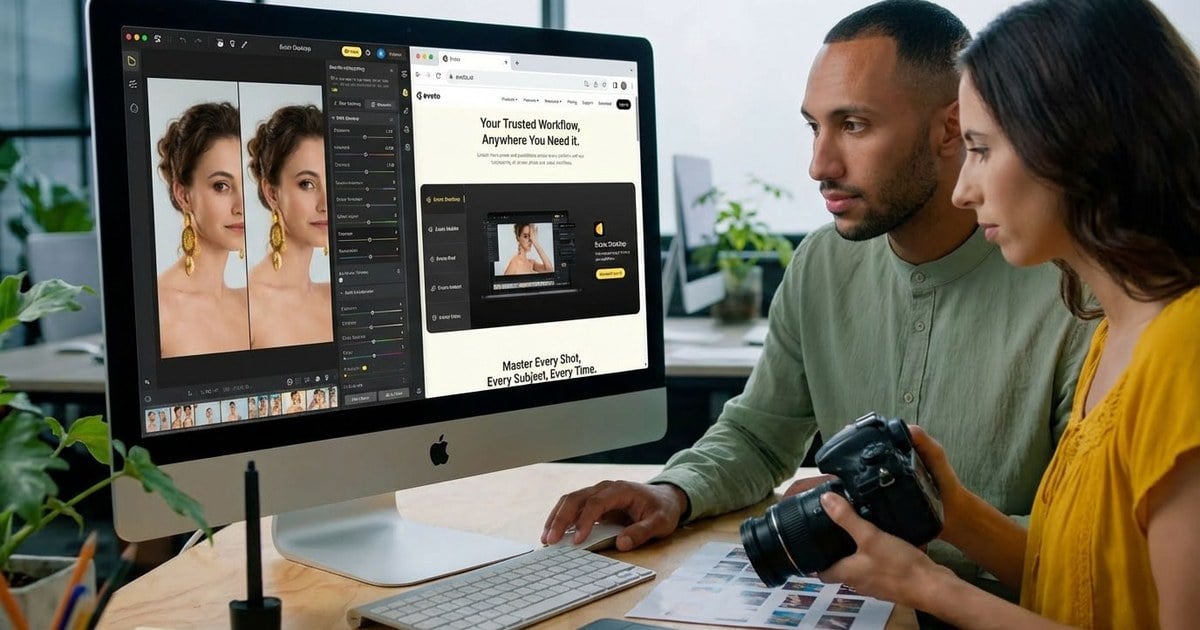
macOS Compatibility
Evoto AI supports macOS 10.13 and later, ensuring compatibility across a wide range of Mac devices.
- Fully optimised for Apple Silicon (M1, M2, M3)
- Universal binary support
- Smooth handling of high-resolution RAW files
- Native performance without Rosetta translation
Because the software runs natively on macOS, performance is faster and more stable than applications operating under translation layers. This is especially noticeable when editing large RAW files or processing multiple portraits.
How to Get the Free Version
To get started:
- Visit the official download page
- Click Download Evoto AI for Mac
- Open the .dmg file
- Drag Evoto into Applications
- Launch the software and sign up to receive free credits


Powerful AI Photo Editor
No credit card is required to begin.
Evoto uses a credit-based export system. The free tier includes credits so you can test all features, including AI skin retouching, portrait reshaping, and background removal, before purchasing additional credits.
Key Features Explained
Evoto integrates multiple professional-level functions into one streamlined workflow, reducing the need to switch between different free photo editor tools.
- AI Skin Retouching: Evoto automatically removes blemishes, balances uneven skin tone, and smooths texture while preserving natural pores. Intelligent dodge and burn adjustments subtly enhance facial dimension, avoiding the overly processed look common in manual edits.
- Portrait Liquify & Body Adjustments: Natural face slimming, proportion correction, and realistic reshaping are powered by advanced 3D mapping. Rather than distorting anatomy, the system analyses structure to maintain believable proportions.
- Hair Editing: Flyaway hairs and stray strands can be refined quickly. This feature is particularly valuable for studio portraits, graduation sessions, and professional headshots where detail matters.
- Background Removal: With one click, Evoto isolates the subject using precise edge detection. Fine details such as hair and semi-transparent fabrics are handled accurately. You can replace backgrounds, apply clean backdrops, or adjust lighting seamlessly within the same interface.
- Batch Editing: For high-volume portrait workflows, batch editing allows consistent adjustments across multiple images. This significantly reduces editing time for weddings, school photography, and corporate sessions.
- RAW Support: Evoto supports non-destructive RAW processing compatible with major camera formats, preserving maximum image data throughout editing.
- Color Grading Tools: Tone curves, colour wheels, cinematic presets, and AI-assisted balancing tools allow photographers to create cohesive styles while maintaining manual control when needed.
“Evoto AI brings professional-grade portrait retouching to Mac users with a free tier — features that would cost hundreds in other software.”
If you would like to explore the software further, you can Download Evoto AI for Mac, learn more about AI skin retouching, or see our complete Mac photo editor guide for a broader comparison of editing tools available in 2026.
Powerful AI Photo Editor
2. Apple Photos — Best Built-in Free Option
Apple Photos comes pre-installed on every Mac, making it the most accessible free photo editor available to macOS users. While it is not designed as a professional retouching platform, it has evolved into a surprisingly capable tool for everyday editing and photo organisation.
Because it is fully integrated into macOS, Apple Photos offers seamless syncing and system-level performance without requiring any downloads or setup.
Price: 100% free (included with macOS)
Key Features
- AI-powered organisation and search: Automatically categorises images by people, places, and objects. Smart search makes it easy to locate photos using keywords.
- Apple Intelligence features (Clean Up tool): On supported macOS versions, users can remove small unwanted objects using the Clean Up feature powered by Apple Intelligence.
- Basic adjustments: Includes exposure, contrast, colour balance, cropping, and straightening tools suitable for quick corrections.
- Live Text and subject detection: Detects text within images and allows users to copy or interact with it directly.
- iCloud sync across devices: Edits sync automatically across Mac, iPhone, and iPad via iCloud Photos.
Best For: Casual users, quick adjustments, photo organisation, and users already invested in the Apple ecosystem.
Limitations: Limited layer support, minimal advanced retouching tools, and no dedicated portrait automation features.
Unique Value: Deep macOS and iOS integration with no additional downloads required.
3. GIMP — Best Open-Source Photoshop Alternative
GIMP (GNU Image Manipulation Program) is one of the most established open-source image editors available today. Often described as a free alternative to Photoshop, it provides professional-level editing tools without subscription costs. While it does not rely heavily on AI automation, it offers extensive manual control for users who prefer precision and flexibility.
Because it is fully open-source, GIMP continues to evolve through community-driven development and plugin support.
Price: 100% free and open-source
Key Features
- Full layer support: Enables non-destructive editing, compositing, and advanced masking workflows.
- Advanced selection tools: Includes lasso, fuzzy select, foreground selection, and layer masks for detailed cut-outs and edits.
- Extensive brush library: Customisable brushes suitable for retouching, digital art, and texture work.
- Plugin ecosystem (G’MIC, Resynthesizer): Expands functionality with additional filters, effects, and content-aware fill tools.
- PSD file support: Allows users to open and edit Photoshop files with good compatibility.
Mac Compatibility
- Native macOS application
- Compatible with Apple Silicon
- Stable performance on modern Mac systems
Best For: Users comfortable with Photoshop-style workflows who want complete manual control without paying for software.
Limitations: Steeper learning curve, less intuitive interface compared to modern AI-based editors, and limited built-in automation.
Download: gimp.org
4. Photopea — Best Browser-Based Editor
Photopea is a browser-based image editor designed to closely replicate the Photoshop experience without requiring installation. It runs entirely online, making it a convenient option for Mac users who want layer-based editing without downloading desktop software.
Although it includes some AI-powered tools, Photopea primarily appeals to users who prefer manual control and a familiar Photoshop-style interface.
Price: 100% free (ad-supported)
Key Features
- Photoshop-identical interface: The layout, tools, and shortcuts closely mirror Adobe Photoshop, reducing the learning curve for experienced users.
- Opens PSD, XD, and Sketch files: Supports a wide range of professional file formats, making it useful for cross-platform compatibility.
- Layer support and masks: Allows non-destructive editing, compositing, and precise background removal.
- AI background removal: Includes automated subject selection tools for quicker cut-outs when needed.
- No download required: Runs entirely in your browser on any Mac with internet access.
Best For: Quick edits, working with PSD files, and users who want Photoshop-style control without installing software.
Limitations: Requires a stable internet connection, and the free version includes advertisements.
Access: photopea.com
5. Darktable — Best for RAW Processing
Darktable is a powerful open-source photo editing application often described as a free alternative to Adobe Lightroom. It is designed specifically for photographers who shoot in RAW format and require detailed control over exposure, colour and tonal adjustments.
Rather than focusing on pixel-level retouching, Darktable concentrates on image development, making it particularly suitable for structured RAW workflows.
Price: 100% free and open-source
Key Features
- Professional RAW processing: Supports a wide range of camera formats and provides advanced tools for exposure correction, highlight recovery, and tonal control.
- Non-destructive editing: All adjustments are applied without permanently altering the original file, preserving full image data.
- Extensive colour correction: Includes colour zones, colour balance modules, and filmic RGB processing for precise tonal grading.
- Tethered shooting support: Allows direct camera connection for studio workflows.
- Powerful masking tools: Enables selective adjustments using parametric and drawn masks.
Mac Compatibility
- Native macOS application
- Stable performance on modern Mac systems
Best For: Photographers with a dedicated RAW workflow who prioritise image development over pixel-based retouching.
Limitations: Steeper learning curve and no pixel-level editing tools for detailed compositing or advanced retouching.
Download: darktable.org
6. RawTherapee — Best for Advanced RAW Editing
RawTherapee is a powerful open-source RAW processor built for photographers who demand precise control over image development. Like Darktable, it focuses entirely on RAW workflow rather than pixel-level retouching, making it particularly appealing to technically inclined users.
Its strength lies in the depth of its processing algorithms and fine-grained adjustment tools.
Price: 100% free and open-source
Key Features
- Exceptional RAW processing algorithms: Provides advanced demosaicing, highlight recovery, and tonal rendering for high-detail image development.
- Detailed colour management: Includes advanced colour grading controls, white balance fine-tuning, and support for colour profiles.
- Noise reduction tools: Offers luminance and chrominance noise control for cleaner high-ISO images.
- Lens correction profiles: Corrects distortion, vignetting, and chromatic aberration based on lens data.
- Batch processing: Allows multiple RAW files to be processed using consistent settings.
Best For: Advanced photographers who prefer deep manual control over exposure, colour, and tonal precision.
Limitations: Complex interface, steep learning curve and no built-in pixel editing for compositing or retouching.
Download: rawtherapee.com
7. Pixlr — Best Quick Online Editor
Pixlr is a long-standing web-based photo editor designed for fast, accessible image adjustments. It offers a combination of simple AI-powered tools and template-driven design features, making it suitable for quick edits without installing desktop software.
While it does not provide the depth of professional RAW processors, it serves well for light editing and social media content creation.
Price: Free tier available (limited)
Key Features
- AI-powered tools: Includes automatic background removal, quick enhancement, and basic subject selection tools.
- Easy-to-use interface: Clean layout designed for beginners and casual users.
- Template library: Provides ready-made templates for social media posts, banners, and promotional graphics.
- Mobile apps available: Extends editing capabilities to iOS and Android devices.
Best For: Quick social media edits, lightweight browser-based adjustments, and users who prefer convenience over advanced control.
Limitations: Free tier includes restrictions and watermarks on certain exports, and advanced tools require a paid plan.
Access: pixlr.com
8. PhotoScape X — Best All-in-One Toolkit
PhotoScape X is a feature-packed photo editor available from the Mac App Store. Rather than focusing solely on retouching or RAW development, it combines multiple creative and utility tools into a single application, making it appealing to users who want versatility in one place.
It is designed to handle everyday editing tasks while also offering extras such as collage creation and GIF design.
Price: Free version available + Pro upgrade ($39.99 one-time purchase)
Key Features
- Photo editing and batch editing: Includes essential adjustment tools along with batch processing for applying edits across multiple images.
- Collage maker: Offers ready-made layouts for combining photos into creative compositions.
- GIF creation: Allows users to create animated GIFs directly within the software.
- Screen capture: Includes built-in tools for capturing and editing screenshots.
- RAW converter: Supports basic RAW file processing for photographers who need simple development tools.
Best For: Users who want multiple editing and creative tools within one application.
Limitations: Some advanced features and tools are restricted to the Pro version.
Download: Mac App Store
9. Canva — Best for Design + Photo Editing
Canva is primarily a design platform, but it also includes a range of built-in photo editing tools. Rather than functioning as a dedicated image editor, Canva combines background removal, filters, and adjustments within a template-driven design environment.
This makes it particularly convenient for users who create social media posts, marketing materials, and branded graphics alongside basic photo edits.
Price: Free tier available + Pro ($12.99/month)
Key Features
- Background remover (Pro): One-click background removal integrated directly into design templates.
- Photo effects and filters: Includes colour adjustments, presets, and basic enhancement tools.
- Design templates: Thousands of ready-made layouts for social media, presentations, and print materials.
- Collaboration features: Real-time team editing and cloud-based project sharing.
Best For: Social media managers, marketers, and designers who need photo editing within a design workflow.
Limitations: Photo editing tools are more limited compared to dedicated editing software, and the background remover requires a Pro subscription.
Access: canva.com
10. Krita — Best for Digital Art + Photos
Krita is a professional-grade digital painting application that also supports photo editing. Although it is primarily designed for illustrators and concept artists, its powerful layer system and brush engine make it capable of handling photographic adjustments as well.
Unlike traditional photo editors, Krita focuses more on creative painting and artistic workflows, which makes it especially useful for users who combine photography with digital art.
Price: 100% free and open-source
Key Features
- Powerful brush engine: Offers highly customisable brushes suitable for painting, retouching, and texture work.
- Layer support: Includes full layer management, blending modes, and masks for non-destructive editing.
- HDR painting: Supports high dynamic range workflows for advanced colour and lighting control.
- Animation tools: Built-in timeline and animation features for motion graphics and frame-by-frame projects.
Best For: Digital artists, illustrators and creative users who occasionally edit photos.
Limitations: Primarily built for painting rather than dedicated photographic editing workflows.
Download: krita.org
11. Pixelmator Pro — Best Premium Trial Option
Pixelmator Pro is a Mac-native professional photo editor built specifically for macOS. It combines a clean, modern interface with advanced editing capabilities, making it a strong alternative to subscription-based software.
Although it is not permanently free, it offers a 15-day full-featured trial, allowing users to test its professional tools before committing to a one-time purchase.
Price: 15-day free trial, then $49.99 one-time purchase
Key Features
- Machine Learning tools: Includes AI-powered features such as automatic image enhancement, object removal, and intelligent upscaling.
- Apple Silicon optimisation: Fully optimised for M1, M2, and M3 chips, ensuring fast rendering and smooth performance.
- Professional colour grading: Advanced colour adjustment tools, including curves, LUT support, and precise tonal controls.
- Non-destructive editing: Allows edits to be modified or reversed at any time without affecting the original image.
Best For: Mac users who want professional-level features without committing to a subscription model.
Note: Not permanently free, but offers excellent long-term value compared to ongoing monthly plans.
Download: Mac App Store
12. Affinity Photo — Best Photoshop Alternative (Trial)
Affinity Photo is a professional-grade image editor positioned as a strong alternative to Adobe Photoshop. Designed for photographers and designers who prefer a one-time purchase over subscription models, it offers advanced editing tools within a polished macOS interface.
While not permanently free, Affinity Photo provides a full-featured trial so users can evaluate its capabilities before committing.
Price: Free trial, then $69.99 one-time purchase
Key Features
- Professional layer-based editing: Full support for layers, masks, blend modes, and advanced compositing workflows.
- RAW processing: Built-in Develop Persona for detailed RAW adjustments and non-destructive corrections.
- HDR merge: Combines multiple exposures into high dynamic range images with tone mapping controls.
- Focus stacking: Automatically merges images taken at different focus distances for enhanced depth of field.
Best For: Professional photographers and designers seeking advanced tools without ongoing subscription costs.
Note: Not permanently free, but offers a powerful alternative to subscription-based editing software.
Download: affinity.serif.com
Understanding “Free” — What You Really Get
100% Free (No Limitations)
| Software | Licence Type | Catch? |
|---|---|---|
| Apple Photos | Included with macOS | None |
| GIMP | Open Source | None |
| Darktable | Open Source | None |
| RawTherapee | Open Source | None |
| Krita | Open Source | None |
| Photopea | Ad-supported | Displays ads |
Freemium (Free Tier with Limits)
| Software | Free Tier Includes | Paid Unlocks |
|---|---|---|
| Evoto AI | Free credits + access to all features | Additional credits, higher batch volume |
| Pixlr | Basic editing tools + watermarked exports | No watermarks, HD export, advanced tools |
| Canva | Basic editing and templates | Background remover, premium assets, more |
| PhotoScape X | Core editing features | Advanced tools and expanded functionality |
Free Trial Only
| Software | Trial Period | After Trial |
|---|---|---|
| Pixelmator Pro | 15 days | $49.99 one-time purchase |
| Affinity Photo | 30 days | $69.99 one-time purchase |
| Luminar Neo | 7 days | $79/year subscription |
How to Choose the Best Free Photo Editor for Your Mac
Decision Framework
| If You Need… | Choose… | Why |
|---|---|---|
| Portrait retouching | Evoto AI | Advanced AI skin and body retouching tools |
| Quick basic edits | Apple Photos | Already installed and easy to use |
| Photoshop-like editing | GIMP or Photopea | Full layer support and advanced editing controls |
| RAW processing | Darktable | Professional-grade RAW development tools |
| All-in-one toolkit | PhotoScape X | Multiple editing and creative tools in one app |
| Design + photos | Canva | Integrated templates with basic editing features |
| No download required | Photopea | Runs directly in your browser |
Workflow Recommendations
Casual Users
If you primarily take everyday photos and post to social media, a simple three-step workflow works best. Start by organising and making basic adjustments in Apple Photos, which is already built into macOS and handles cropping, exposure and quick colour corrections effortlessly.
Next, if you are creating graphics or social posts, move your images into Canva to add text, layouts or branded elements.
Finally, for portraits that need extra polish, use Evoto AI for quick portrait touch-ups such as skin refinement, background clean-up or subtle facial adjustments. This keeps your workflow simple while still delivering noticeably improved results.
Hobbyist Photographers
If you shoot in RAW and want greater control, begin your editing in Darktable for professional RAW development. This allows you to adjust exposure, white balance, and colour with precision while keeping edits non-destructive.
Once your base adjustments are complete, you can move into GIMP for more detailed compositing, layer work, or advanced corrections.
For portraits within your shoot, finish in Evoto AI to refine skin tones, tidy hair, and apply natural-looking portrait adjustments efficiently.
Professionals on a Budget
For photographers working with clients but wanting to avoid subscription-heavy software, a cost-effective combination is possible.
Use RawTherapee for advanced RAW processing and detailed image control. Then rely on GIMP for compositing, retouching, and layered adjustments.
For portrait-heavy work, integrate Evoto AI into your workflow to streamline portrait retouching and significantly reduce editing time, especially for high-volume sessions such as weddings or school photography.
Mac-Specific Features to Consider
Apple Silicon Optimisation
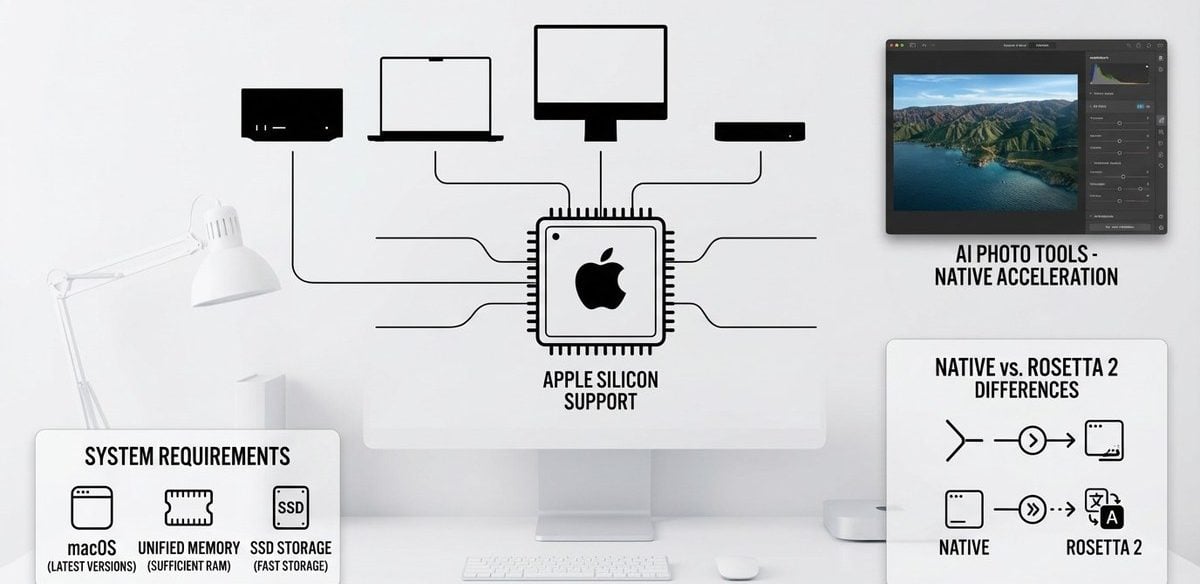
If you’re using a Mac with an M1, M2, or M3 chip, performance can vary significantly depending on whether the software is built natively for Apple Silicon.
Applications such as Evoto AI, GIMP, Darktable, and Pixelmator Pro offer native support. This means they are specifically optimised for Apple’s newer processors, resulting in faster rendering, smoother scrolling, and better handling of high-resolution RAW files.
Some older applications still run using Rosetta 2, Apple’s translation layer that allows Intel-based apps to work on Apple Silicon Macs. While this ensures compatibility, performance may not be as fast or energy-efficient compared to native apps.
In short, if speed and stability matter, especially for large files or batch editing, choosing software with native Apple Silicon support makes a noticeable difference.
macOS Integration
One advantage of editing on a Mac is seamless integration with the wider Apple ecosystem.
For example, Apple Photos integrates directly with iCloud Photos, meaning your images sync automatically across Mac, iPhone, and iPad. Pixelmator Pro also works smoothly within the Apple environment, supporting system-level features.
Features such as Continuity Camera allow you to take a photo on your iPhone and instantly import it to your Mac. Some apps also support macOS sharing features, though deeper integration is usually strongest with Apple’s own software.
If you value ecosystem connectivity, this integration can simplify your workflow considerably.
System Requirements
Before installing any editor, it’s worth checking your macOS version.
Most modern free photo editors require macOS 10.14 (Mojave) or later. However, some newer AI-driven features, particularly those under Apple Intelligence, require macOS 15 or newer and compatible hardware.
Evoto AI supports macOS 10.13 and later and is fully optimised for Apple Silicon, making it accessible to both slightly older Macs and the latest models.
Ensuring your system meets the requirements will help avoid performance issues and compatibility problems.
Powerful AI Photo Editor
Final Verdict: Best Free Photo Editing Software for Mac
There has never been a better time to find powerful free photo editing software for Mac. Whether you are a casual user organising holiday photos or a photographer working with RAW files, there are excellent options available without committing to a subscription.
If you want advanced AI-driven tools with a modern workflow, Evoto AI stands out for professional portrait retouching and intelligent automation. Its free tier allows you to explore high-end features such as AI skin refinement, background removal, and batch processing before deciding whether to scale up.
For users who prefer completely unrestricted software, GIMP and Darktable remain the strongest truly free solutions. GIMP offers full layer-based editing comparable to Photoshop-style workflows, while Darktable excels in professional RAW development.
Meanwhile, Apple Photos is more capable than many realise. For quick edits, organisation and seamless integration with the Apple ecosystem, it remains a practical everyday solution already built into macOS.
Ultimately, the best choice depends on your workflow. Many of these tools can work together, so do not hesitate to test multiple options and build a setup that suits your editing style.
If you want a softer next step, compare a fully free stack such as GIMP plus Darktable with your current workload before switching tools. If portrait automation and consistency matter more, download Evoto and test that workflow against your Mac RAW process with your own files.
Frequently Asked Questions About Free Mac Photo Editors
What is the best completely free photo editing software for Mac?
If you want 100% free software with no export restrictions, GIMP and Darktable are the strongest options. GIMP is best for layer-based editing similar to Photoshop, while Darktable excels at professional RAW processing. If you prefer AI-powered portrait editing with a free tier, Evoto AI offers advanced features without requiring an upfront subscription.
Is Apple Photos good enough for serious editing?
Apple Photos is suitable for everyday editing, organisation, and basic adjustments, especially with newer Apple Intelligence features. However, for professional retouching, advanced RAW development, or complex layer-based compositing, dedicated editors such as Evoto AI, GIMP, or Darktable provide far greater control.
What is the best free Photoshop alternative for Mac?
GIMP remains the most feature-complete free Photoshop alternative for Mac, offering layers, masks, blending modes, and an extensive plugin ecosystem. If you prefer a browser-based solution with a familiar Photoshop-style interface, Photopea is a convenient alternative that requires no installation.
Can I do professional photo editing for free on Mac?
Yes, it is possible. A practical professional workflow can combine Darktable or RawTherapee for RAW processing, GIMP for compositing and detailed edits, and Evoto AI for portrait retouching. Together, these tools cover most professional needs without requiring subscription-based software.
Which free Mac photo editor has the best AI features?
Evoto AI offers the most advanced AI-driven tools among free-tier options, including intelligent portrait retouching, body reshaping, and batch editing. Apple Photos includes basic AI enhancements through Apple Intelligence, while Photopea provides limited AI tools such as background removal.
Do free photo editors work well on M1, M2 or M3 Macs?
Most leading free editors now support Apple Silicon natively, including Evoto AI, GIMP, and Darktable. Native support ensures better speed and efficiency compared to apps running through Rosetta 2. Browser-based tools such as Photopea are also compatible across all Mac models. For best performance, always install the latest version available.



