

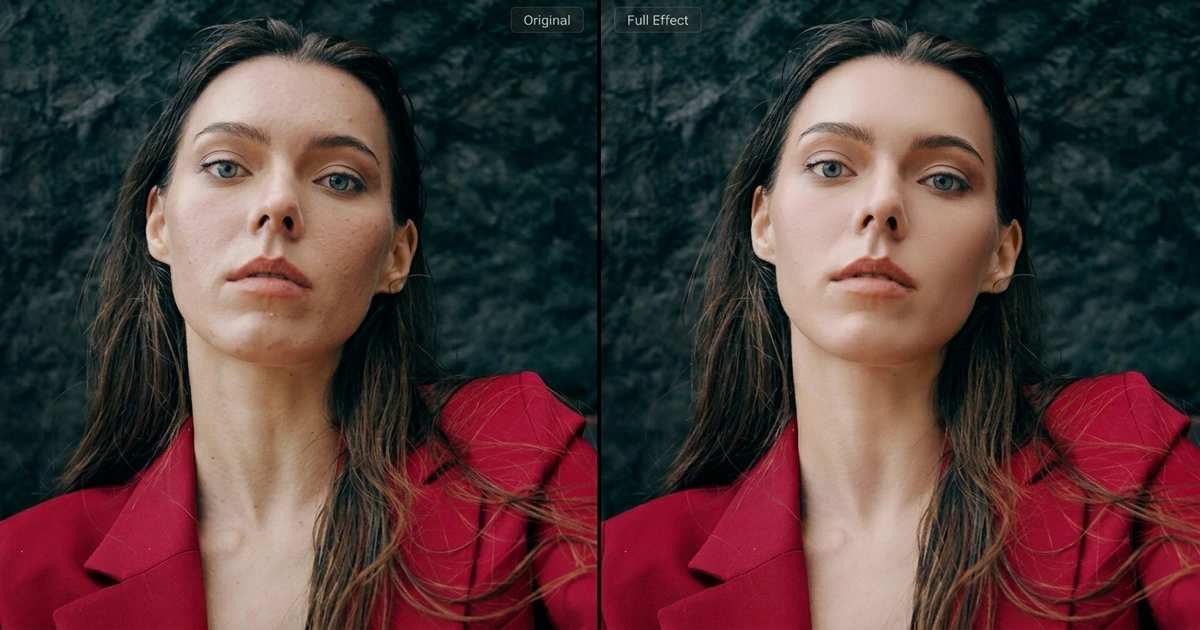
In 2026, video content dominates everything — from YouTube and TikTok to corporate training and e-commerce demos. With close-up shots becoming the norm, every skin imperfection, uneven tone, or tired-looking eye is magnified on screen.
That’s why a reliable video face editor has become essential for creators, filmmakers, and brands alike. Unlike photo retouching, face editing in video means dealing with motion, shifting light, and frame-by-frame consistency — challenges that only AI video retouching can handle efficiently.
In this guide, we’ll cover what makes a great video face editor for PC, compare the top options in 2026, and walk you through a complete step-by-step tutorial using Evoto Video — a purpose-built AI face editor that lets you retouch portraits in video with just a few clicks.
How a Video Face Editor Works (and Why It Matters)
A video face editor is software that detects, tracks, and modifies facial features across every frame of a video. While photo face editors have existed for years, video adds complexity: the subject moves, expressions change, and lighting shifts constantly. Modern AI-powered face editors solve this with real-time facial recognition and motion tracking — analyzing bone structure, skin texture, and facial landmarks, then applying consistent corrections throughout the clip.
Not all face editor video tools deliver the same results. When choosing one for PC, here’s what matters:
- AI face tracking — Automatic detection and tracking across every frame, even during head turns and expression changes.
- Per-feature controls — Individual sliders for specific areas (eyes, wrinkles, skin tone) rather than a single beauty filter that washes out detail.
- 4K resolution support — Process and export at full resolution without downgrading quality.
- Natural results — AI that preserves skin texture and pores instead of producing a plastic, over-smoothed look.
- Speed — Cloud or GPU-accelerated rendering so you’re not waiting hours per clip.
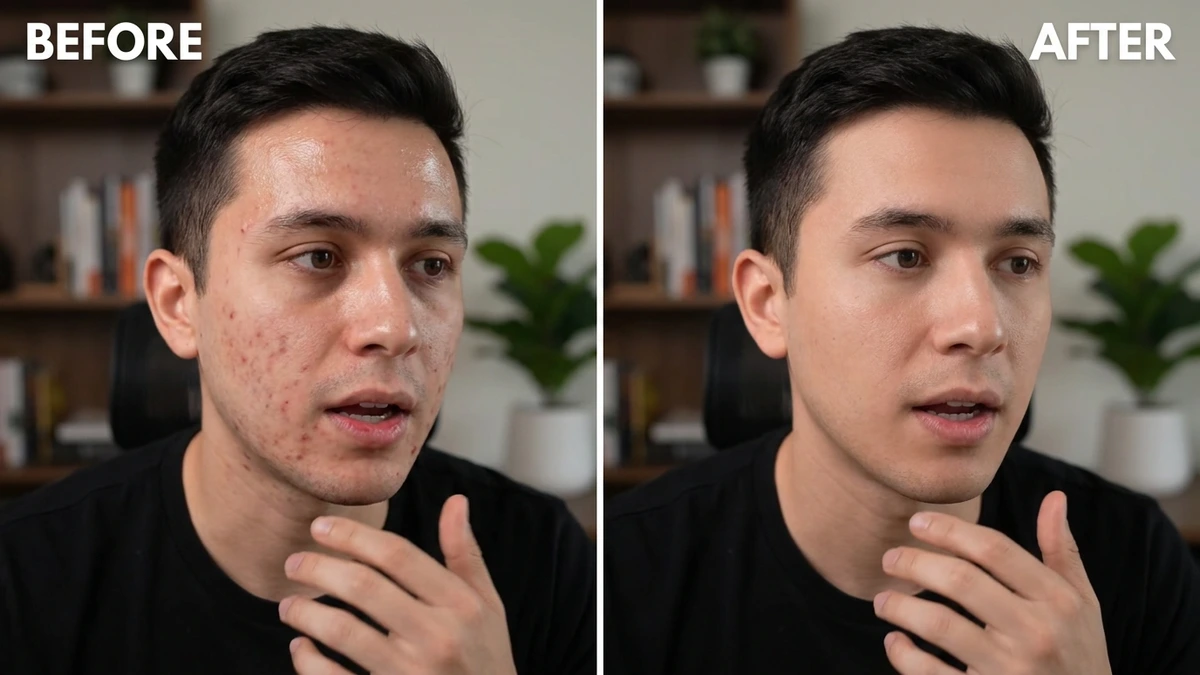
Best Video Face Editors for PC in 2026
1. Evoto Video — Best AI Video Face Editor Overall
Evoto Video is purpose-built for AI video retouching with the deepest set of face editing controls available in any PC software. Unlike general-purpose video editors that bolt on basic beauty filters, Evoto Video offers dedicated modules for blemish removal, skin retouching, facial reshaping, teeth whitening, eye enhancement, and full makeup — each with individual sliders and AI-powered face tracking. It’s designed to be beginner-friendly: you simply import a clip, choose a preset, adjust sliders, and click Apply. No compositing knowledge, no manual keyframing.
- 7 dedicated portrait retouching modules with 40+ individual sliders
- AI face tracking that maintains consistency across every frame
- Supports up to 4K resolution with zero quality loss on export
- Gender and age-specific AI presets (Male, Female, Child, Senior)
- Cloud-powered processing — no need for a top-tier GPU
- AI Color Match for one-click color grading
2. CapCut Desktop — Best for Quick Social Media Edits
CapCut offers a face retouch panel with skin smoothing, basic facial reshaping, and AI-driven auto styles. It integrates with TikTok directly and is very easy to pick up. However, face tune video controls are limited — you get a handful of sliders rather than per-area precision. CapCut works well for quick social media touch-ups, but falls short for professional-grade video retouching that demands granular control over individual blemish types, complexion, and facial structure.
3. DaVinci Resolve — Best Free Option for Advanced Users
DaVinci Resolve’s Face Refinement tool in the Fusion page provides skin smoothing and basic feature adjustments. As a free professional editor, it’s powerful — but the face editing workflow requires compositing knowledge, manual tracking, and significant setup time. There’s no dedicated blemish removal or per-area wrinkle control. It’s a strong choice if you’re already in the DaVinci ecosystem, but the learning curve is steep for face-specific edits.
4. Adobe After Effects — Most Powerful Manual Workflow
After Effects can achieve virtually any face edit through plugins like Beauty Box and manual masking. The trade-off: it requires advanced compositing skills, takes hours per clip, and demands an expensive Creative Cloud subscription ($22.99/mo). For dedicated video face editing, it’s overkill — but if you need total creative control and don’t mind the time investment, it remains an industry standard.
How to Edit Faces in Video with Evoto Video — Step by Step
Here’s a complete walkthrough of using Evoto Video as your video face editor on PC.
Evoto Video – Be the First to Edit Smarter
Professional-grade AI color grading and retouching for video creators.
Step 1: Import Your Video

Open Evoto Video and import your clip. The software supports MP4, MOV, and M4V formats at resolutions up to 4K. Your video appears on the timeline at the bottom — scrub to the frame you want to start editing from.
Step 2: Open Portrait Retouching
Click the Portrait Retouching panel on the right side. Select the correct gender preset — Male, Female, Child, or Senior — so the AI optimizes detection for the subject’s facial structure. Toggle Show Face Frame to verify the AI is tracking correctly.
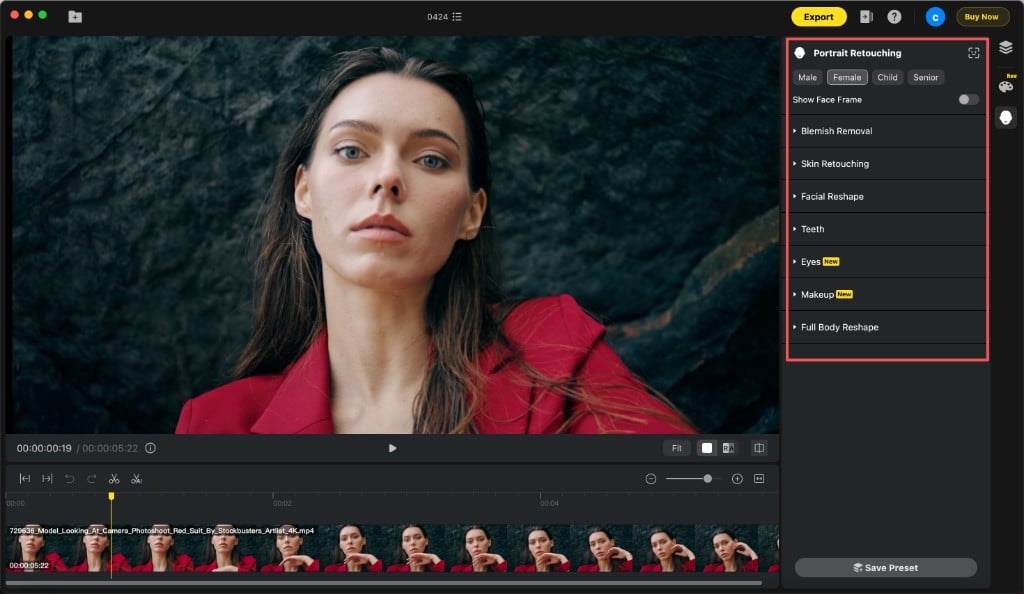
You’ll see all seven retouching modules: Blemish Removal, Skin Retouching, Facial Reshape, Teeth, Eyes, Makeup, and Full Body Reshape.
Step 3: Blemish Removal — Clean Up Skin Imperfections
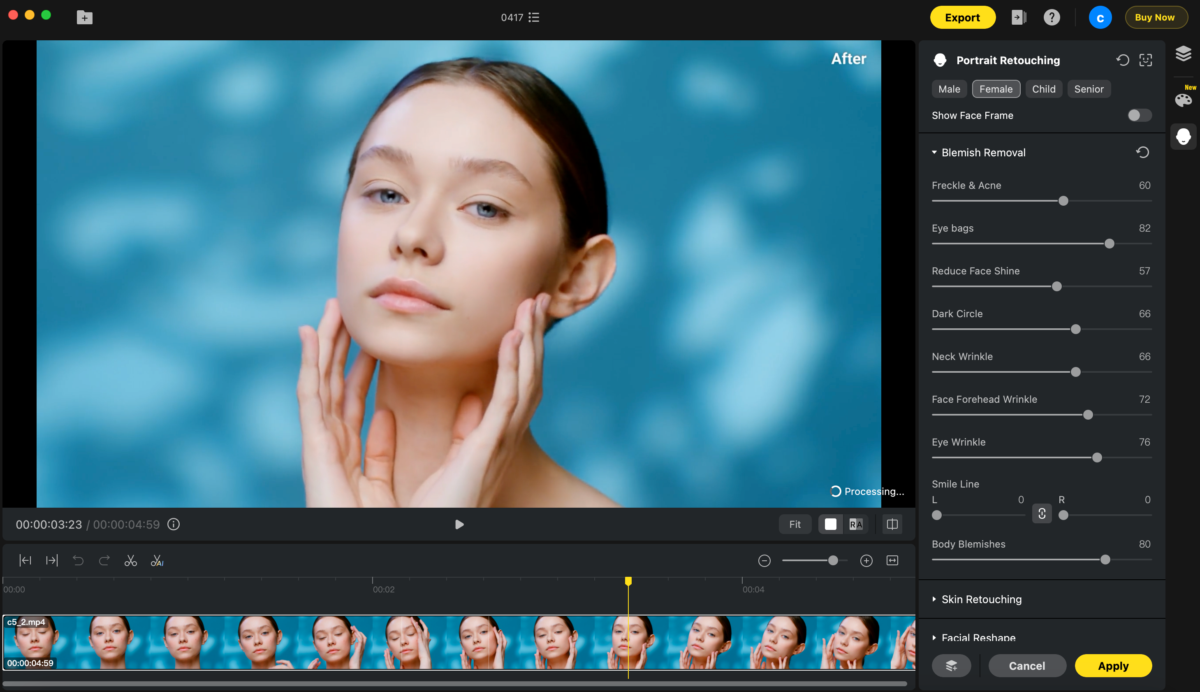
Expand Blemish Removal to access individual sliders for each type of imperfection. This module is what makes Evoto Video stand out as an AI face editor — instead of a single “smooth skin” button, you get precise control over every blemish category:
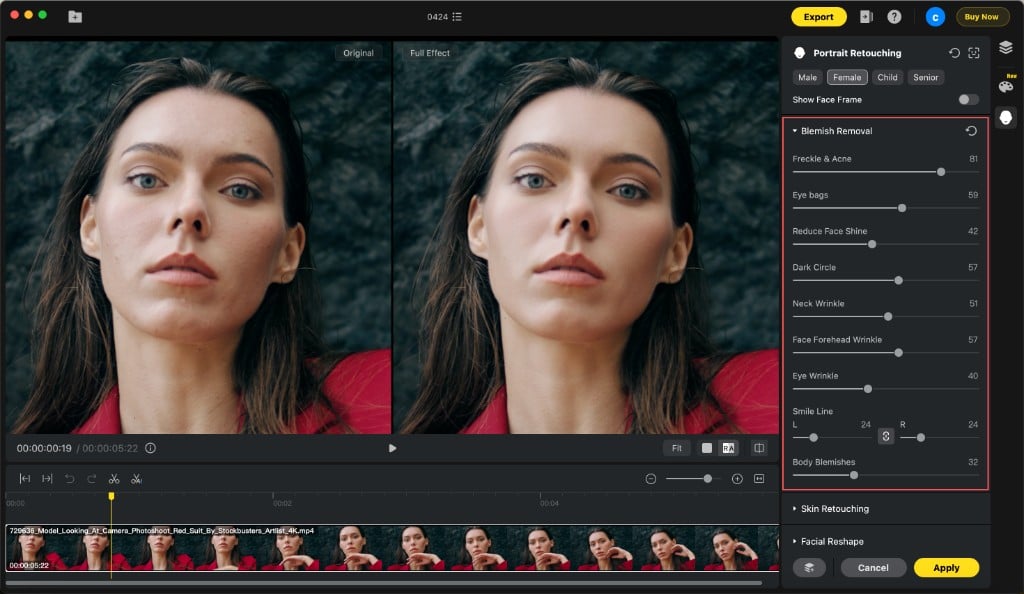
- Freckle & Acne — AI detects and removes pimples, acne spots, and freckles while keeping natural skin texture intact.
- Eye Bags — Reduces under-eye puffiness that cameras love to amplify.
- Reduce Face Shine — Eliminates oily T-zone glare without flattening the face.
- Dark Circle — Lightens under-eye darkness for a well-rested look.
- Neck Wrinkle — Softens neck lines visible in close-ups.
- Face Forehead Wrinkle — Smooths forehead creases while preserving expression.
- Eye Wrinkle — Reduces crow’s feet naturally.
- Smile Line — Left and right sides adjustable independently for asymmetric correction.
- Body Blemishes — Extends cleanup to visible shoulders, arms, and chest.
The before/after split view lets you compare results in real time as you adjust each slider.
Step 4: Skin Retouching — Refine Texture and Complexion
After removing blemishes, switch to the Skin Retouching module for overall complexion refinement. This is where video skin smoothing goes from basic to professional:
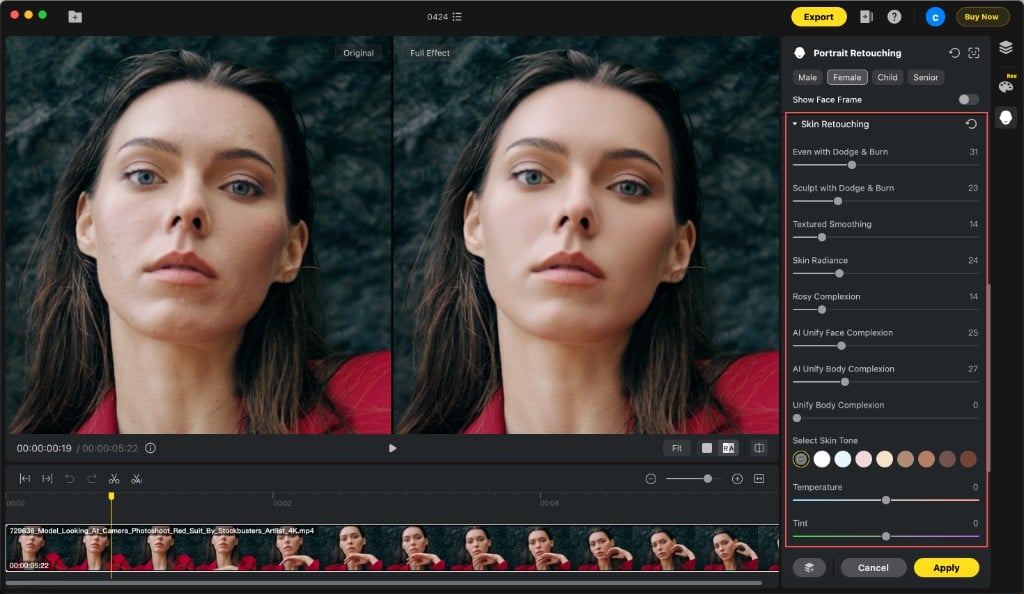
- Even with Dodge & Burn — Balances facial skin tone and light transitions using a dodge-and-burn technique.
- Sculpt with Dodge & Burn — Adds dimensionality by refining lighting and contour definition.
- Textured Smoothing — Smooths uneven skin while keeping natural pores visible — the key to avoiding that “plastic” look.
- Skin Radiance — Adds a healthy glow without altering natural color.
- Rosy Complexion — Controls redness for a healthier-looking result.
- AI Unify Face Complexion / AI Unify Body Complexion — Automatically corrects uneven tone caused by lighting, makeup, or patchy color.
- Select Skin Tone + Temperature + Tint — Fine-tune the exact skin tone you want with precision controls.
Step 5: Facial Reshape — Sculpt Features with Precision
The Facial Reshape module provides the most granular face editing controls available in any video software. It’s organized into five tabs:
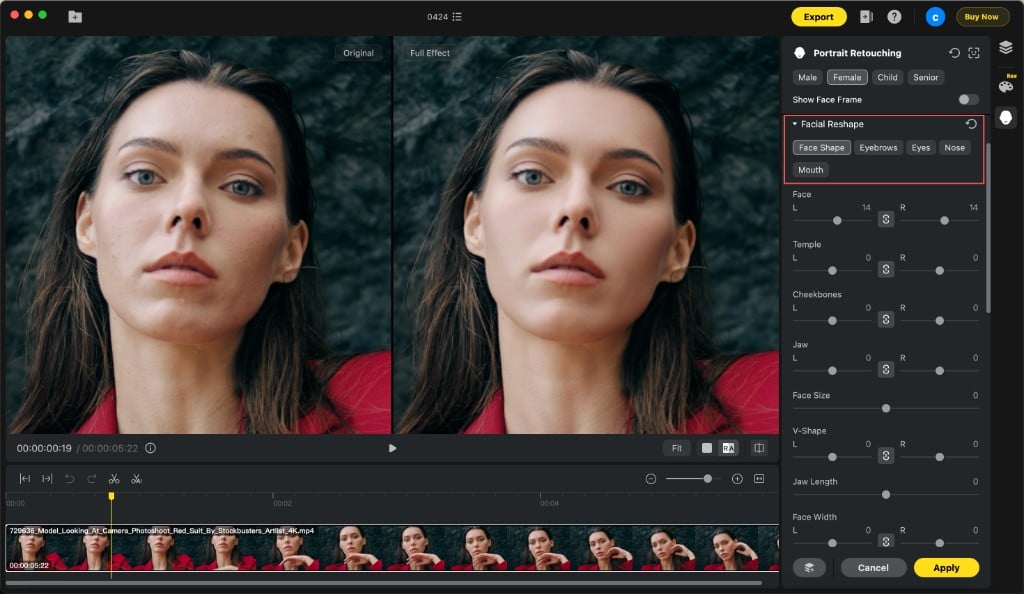
- Face Shape — 16 individual controls including Face, Temple, Cheekbones, Jaw, V-Shape, Face Width, Hairline, Forehead dimensions, Chin Taper, and more. Each can be adjusted independently for left and right sides.
- Eyebrows — Thickness, distance, tilt, arch height, and position.
- Eyes — Eye size, eyeball size, height, width, distance, corners, tilt, and position.
- Nose — Size, length, bridge width, overall width, and nose-tip refinement.
- Mouth — Size, width, position, tilt, M-shaped lips, upper and lower lip adjustments.
All reshape adjustments use AI tracking to follow the face through the entire video. Click the link icon to switch between symmetric editing and independent left/right control.
Step 6: Teeth, Eyes, Makeup & Full Body Reshape
Evoto Video also includes four additional modules for complete portrait control:
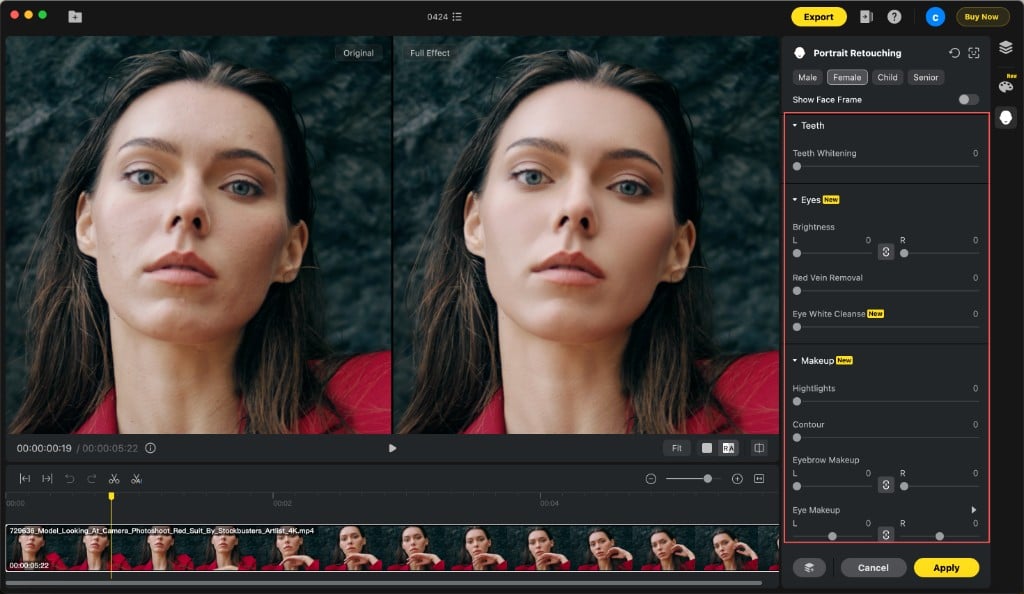
- Teeth — Whitening slider for a cleaner, brighter smile.
- Eyes — Brightness enhancement, red vein removal, and eye white cleanse. Left and right sides adjustable independently.
- Makeup — Highlights, contour, eyebrow/eye/lip makeup with individual component control. Includes a Makeup Suite with one-tap preset looks.
- Full Body Reshape — AI Reshape for natural body proportion adjustment, plus Head, Neck Width, and Leg Width sliders.
Step 7: Preview, Apply, and Export
Use the timeline to scrub through different moments and verify consistency. The before/after split view works across the entire video. Once satisfied, click Apply to render the effects, then Export to save your final video at full resolution. Evoto Video preserves the original quality — your 4K footage stays 4K.
Tips for Natural-Looking Face Edits in Video
- Less is more. Viewers notice over-retouching faster in motion than in stills. Keep adjustments subtle.
- Use the right gender preset. The AI models are trained differently for male, female, child, and senior faces — matching the preset matters.
- Preview at multiple frames. Check during head turns, expression changes, and lighting shifts to make sure the AI tracks consistently.
- Combine Blemish Removal + Skin Retouching. Use Blemish Removal for spot cleanup, then Skin Retouching for overall tone and texture. Layering produces the most polished result.
- Adjust left and right independently. Faces are naturally asymmetric. The independent L/R controls in Facial Reshape and Smile Line let you create more realistic results than symmetric editing.
FAQs
Does Evoto Video work on 4K footage?
Yes. Evoto Video processes and exports at full resolution, including 4K. The AI face editor algorithms preserve detail even after retouching, so skin texture remains natural at any resolution.
Can I edit multiple faces in the same video?
Yes. Evoto Video’s AI detects multiple faces and assigns individual attributes (gender, age) to each. You can apply different retouching settings per person, or link characters together for consistent group edits.
How does Evoto Video keep my footage looking sharp after retouching?
Evoto Video uses cloud-based AI algorithms that process each frame at its original resolution. Whether you’re working with 1080p or 4K, the retouching is applied at the pixel level without compression or downscaling. Your exported video retains the same resolution, frame rate, and detail as the original — so skin texture, hair strands, and fine details stay crisp even after heavy editing.
Evoto Video – Be the First to Edit Smarter
Professional-grade AI color grading and retouching for video creators.


