

If you have ever cut together footage from two cameras, or filmed the same scene across a morning and an afternoon, you already know the problem: every clip looks slightly different. One is cool and green, the next is warm and flat, and the cut between them is jarring. AI color match solves this by transferring the color “feel” of a single reference image onto all of your clips in one click – no LUT hunting, no node graphs, no manual masks. This guide explains how it works and how to use it inside Evoto Video.
What is AI color match?
Evoto Video’s AI color match is a reference-based approach to color. Instead of dialing in white balance, exposure, and saturation by hand on every shot, you point the software at one reference look – either a built-in sample or your own image – and let it map that tone onto your footage automatically. The result lands somewhere between color correction (fixing technical problems like a green cast) and color grading (applying a stylistic look): you get a clean, consistent, polished tone without touching a single wheel or curve.
This matters most when you are working with mixed sources. Multi-camera shoots, run-and-gun B-roll, and interviews filmed across different times of day all suffer from white-balance drift. Correcting each clip manually is slow and error-prone. Matching every clip to one reference keeps the entire edit visually coherent in a fraction of the time.
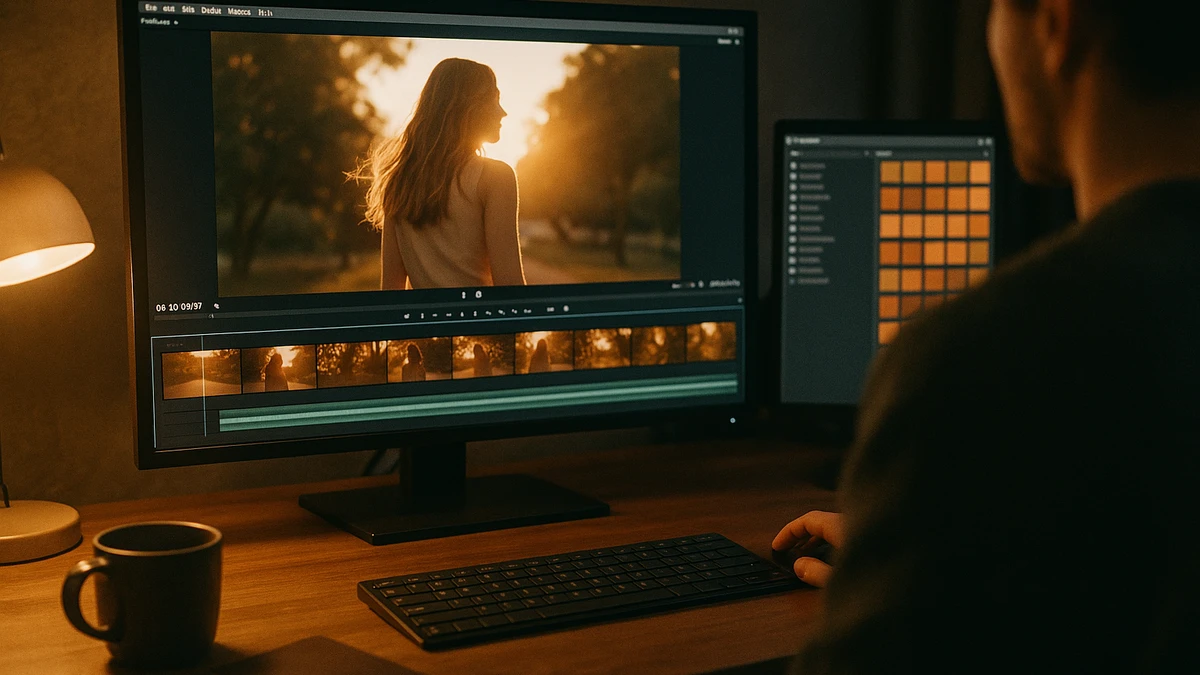
Why color drifts across clips
Color inconsistency is rarely the editor’s fault. It is baked into how footage is captured:
- Mixed cameras. A main camera and a second body, or a phone used for pickups, each render color differently even on the same settings.
- Changing light. Sun moving behind clouds, mixed tungsten and daylight, or a long shoot day all shift white balance shot to shot.
- LOG and flat profiles. Footage shot in a LOG profile looks desaturated and low-contrast straight off the card, and needs a look applied before it reads correctly.
Traditionally you would correct each of these manually, then build a grade on top. AI color match collapses that into one step: pick the look you want, and every clip is pulled toward the same target.
How to Get Consistent Color in Evoto Video with AI Color Match
Evoto Video builds its whole color toolset around AI color match. Rather than asking you to balance wheels and curves shot by shot, it analyzes your footage and transfers the color of a reference image onto it automatically, so a polished, consistent look is only a click away. You can match to a built-in sample look or to your own uploaded frame, dial the strength with a single slider, and save the result as a preset to push across the rest of your timeline. It works on LOG and Rec.709 footage alike, which makes it a practical way to unify multi-camera and multi-time-of-day projects without leaving the app.
Evoto Video – Be the First to Edit Smarter
Professional-grade AI color grading and retouching for video creators.
Built-in Recommended looks
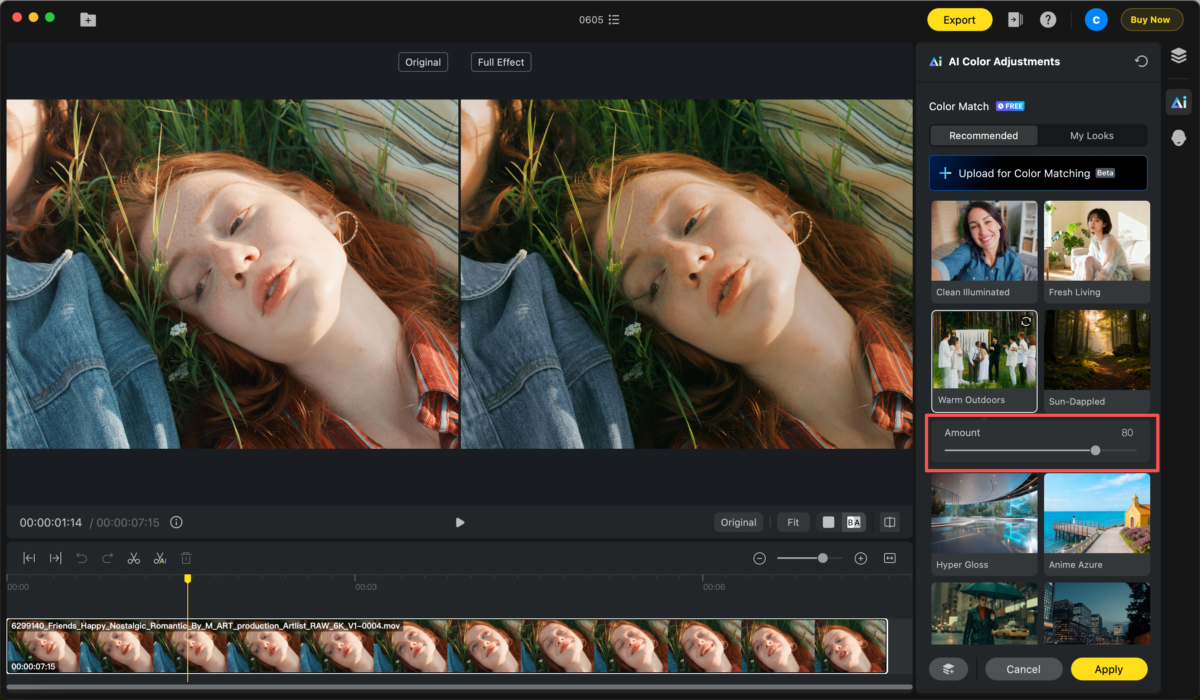
The Recommended tab ships with ready-made sample looks you can apply instantly – including Clean Illuminated, Fresh Living, Warm Outdoors, Sun-Dappled, Hyper Gloss, Anime Azure, Teal & Orange, and Cobalt Night. These are a fast way to land a cinematic or stylistic tone without sourcing your own reference. Click a thumbnail, then use the Amount slider to ease the look in until it feels right rather than overdone.
Upload your own reference (My Looks)
When you have a specific target in mind – a film still, a brand reference, or a frame from your hero clip – switch to the My Looks tab and click Upload for Color Matching to import a PNG or JPG. Evoto Video reads the color from your reference and maps it onto the footage, so you can match an entire project to one frame you already love. This is also how you keep a series of clips locked to the same signature look across an edit.
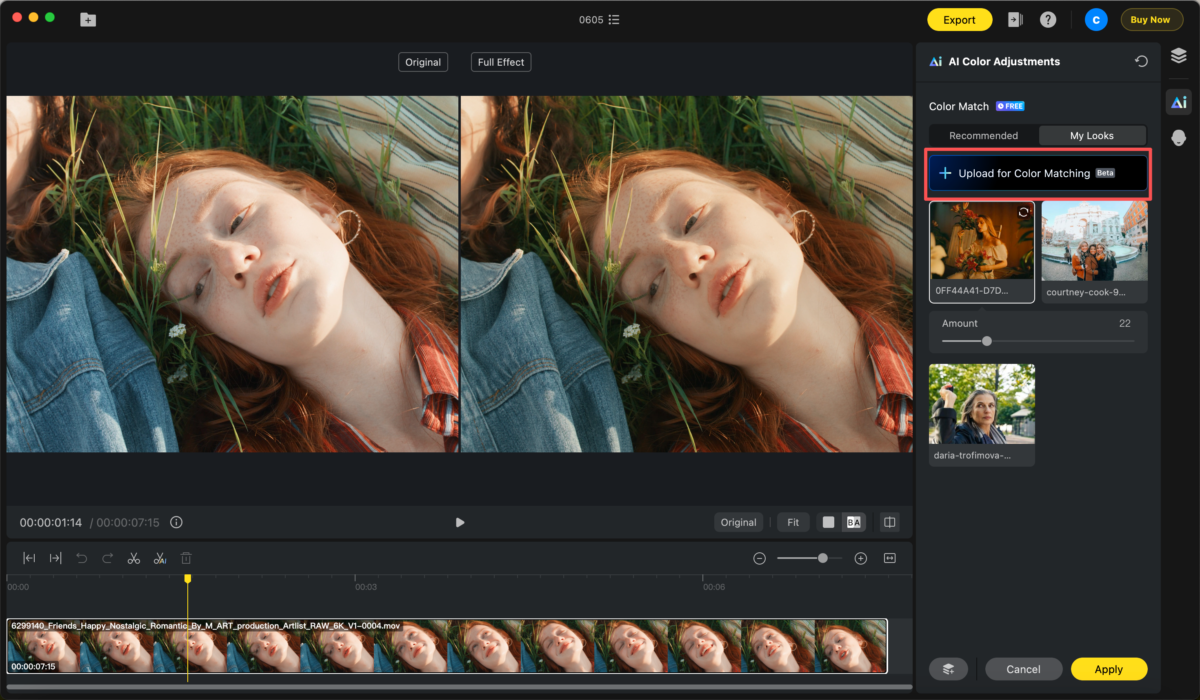
In Evoto Video, the entire color toolset lives in one place: the AI Color Adjustments panel, opened from the palette icon in the right toolbar. The section is labelled Color Match. The workflow is short:
- Open the AI Color Adjustments panel and find the Color Match section.
- Choose a reference source from the two tabs: Recommended (built-in looks) or My Looks (your own uploads).
- Select a look. Evoto Video runs an initial color analysis of the clip and an Amount slider appears.
- Drag the Amount slider to set how strong the matched color should be (0–100).
- Preview on a single frame, then click Apply to render the look across the whole clip.
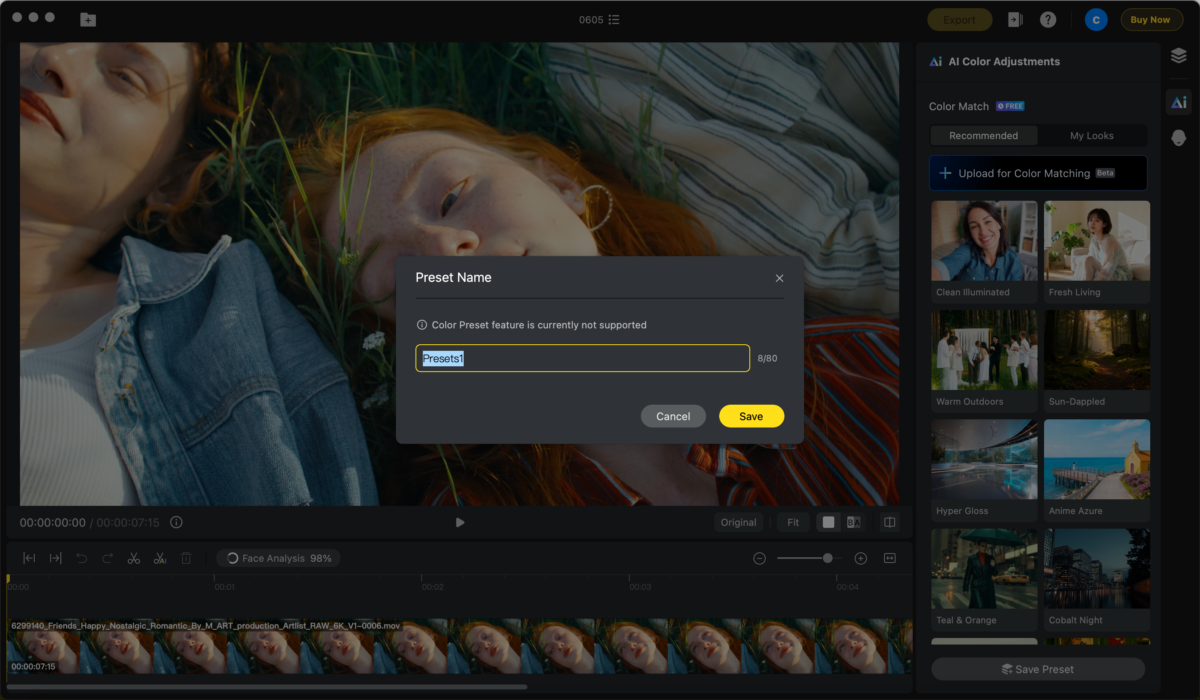
- Click Save Preset to reuse that exact look on your other clips and projects.
Evoto Video – Be the First to Edit Smarter
Professional-grade AI color grading and retouching for video creators.
AI color match vs LUTs and manual grading
If you have used DaVinci Resolve, Premiere Pro, or Final Cut Pro, you know the conventional path: build nodes, push lift/gamma/gain wheels, tune curves, or audition LUT after LUT until something fits. It works, but it is slow and demands a colorist’s eye.
AI color match takes a different route. Rather than picking a LUT and hoping it suits your footage, you hand the software a reference image and it derives the match for you. It works directly on LOG footage without converting through a separate LUT first, and on standard Rec.709 footage too. The only manual control is the Amount slider, so there is far less to learn and far less to break – you are steering intensity, not rebuilding a grade from scratch.
Tips for consistent color across every clip
- Match to one hero frame. Pick your best-lit shot, upload it under My Looks, and pull every other clip toward it for a unified edit.
- Save a preset early. Once a look feels right, Save Preset so you can drop the same tone onto new clips instead of redialing it each time.
- Ease back the Amount. A subtler value often reads more natural than a full-strength match, especially on skin tones.
- Start from LOG when you can. Flat LOG footage gives the match the most room to work, and Evoto Video applies the look without a conversion LUT.
Pair color with portrait retouching
Color is only half of a polished video. Evoto Video also handles AI portrait retouching – skin smoothing, blemish and wrinkle removal, teeth whitening, and facial reshape – all tracked automatically across every frame with no keyframing. Matching your color and refining your subjects in the same tool means your footage looks finished without bouncing between apps. Try AI Color Match in Evoto Video and see how quickly a mismatched timeline turns into one consistent, cinematic edit.
Conclusion
Color consistency used to mean correcting every clip by hand and then grading on top. AI color match reverses that workload: choose one reference, set the Amount, and apply the same look across your entire project. With built-in Recommended looks, your own My Looks uploads, LOG and Rec.709 support, and savable presets, Evoto Video makes professional color accessible to anyone who would rather tell a story than fight white-balance drift. Download Evoto Video to get started.
FAQs
Do I need LUTs to use AI color match?
No. Instead of choosing a LUT, you select a built-in Recommended look or upload your own reference image. Evoto Video derives the match from that reference and applies it directly, including on LOG footage, with no conversion LUT required.
Can AI color match keep multi-camera footage consistent?
Yes. Match every clip to the same reference – ideally one hero frame uploaded under My Looks – and save it as a preset. Applying that preset across clips from different cameras or different times of day pulls them toward one consistent tone.
How much control do I have over the result?
The primary control is the Amount slider, which sets how strongly the matched look is applied from 0 to 100. You preview on a single frame before committing, then Apply renders it across the whole clip, and Save Preset stores the look for reuse.
Does AI color match work with LOG footage?
Yes. Evoto Video applies the matched look directly to LOG footage without converting it through a separate LUT first, and it supports standard Rec.709 footage as well.



