

Skin smoothing has become a standard step in video production — whether you’re shooting beauty content, corporate interviews, or social media reels. Audiences expect polished visuals, but real skin has texture, blemishes, and uneven tone that cameras love to amplify.
The problem? Traditional video retouching means hours of frame-by-frame masking in After Effects. And basic beauty filters flatten everything into a plastic, lifeless look that viewers instantly recognize as fake.
There’s a better way. A dedicated skin smoothing video editor like Evoto Video lets you smooth skin in video by simply adjusting sliders — the AI handles face tracking, texture preservation, and frame-by-frame consistency automatically. What used to take hours now takes minutes, giving you professional results without the professional learning curve.
Why Smooth Skin in Video Matters — And Why Basic Filters Aren’t Enough
Not everyone has a makeup artist on set. Lighting amplifies every pore and blemish. Skin conditions change between shoot days, creating inconsistency across clips. These are real production problems that video skin smoothing solves.
But most tools get it wrong. A single-slider beauty filter or video face filter applies uniform blurring across the entire face — wiping out pores, flattening contours, and creating the dreaded “plastic face” effect. Viewers notice immediately, especially in motion.
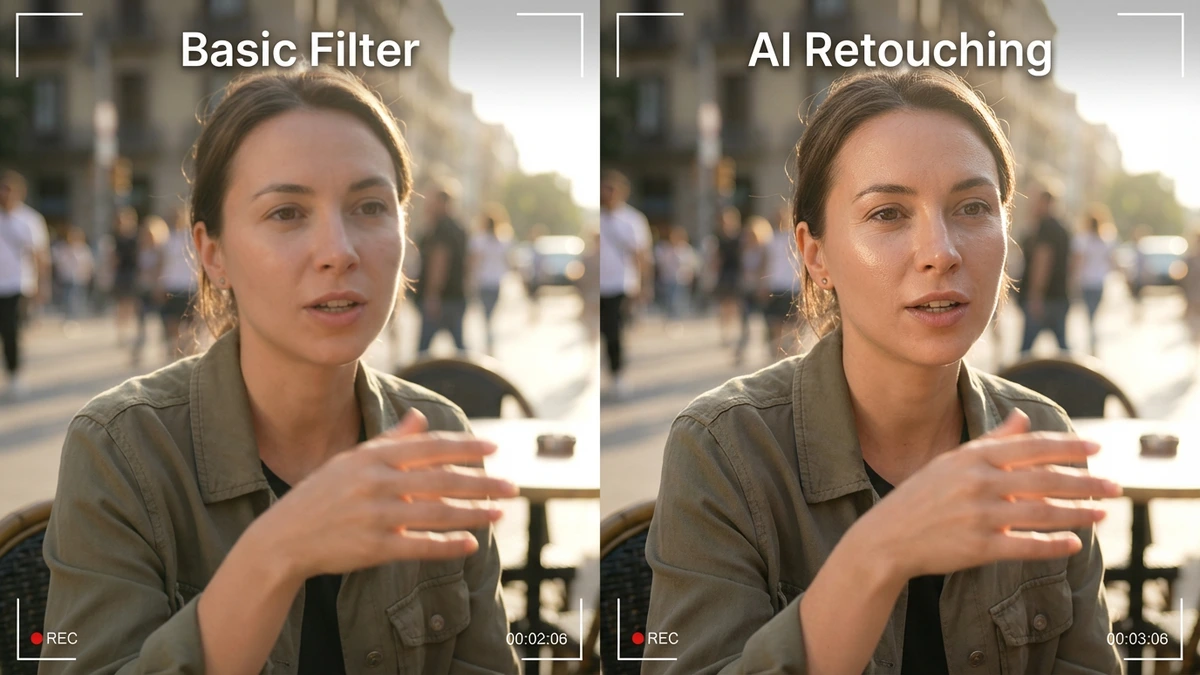
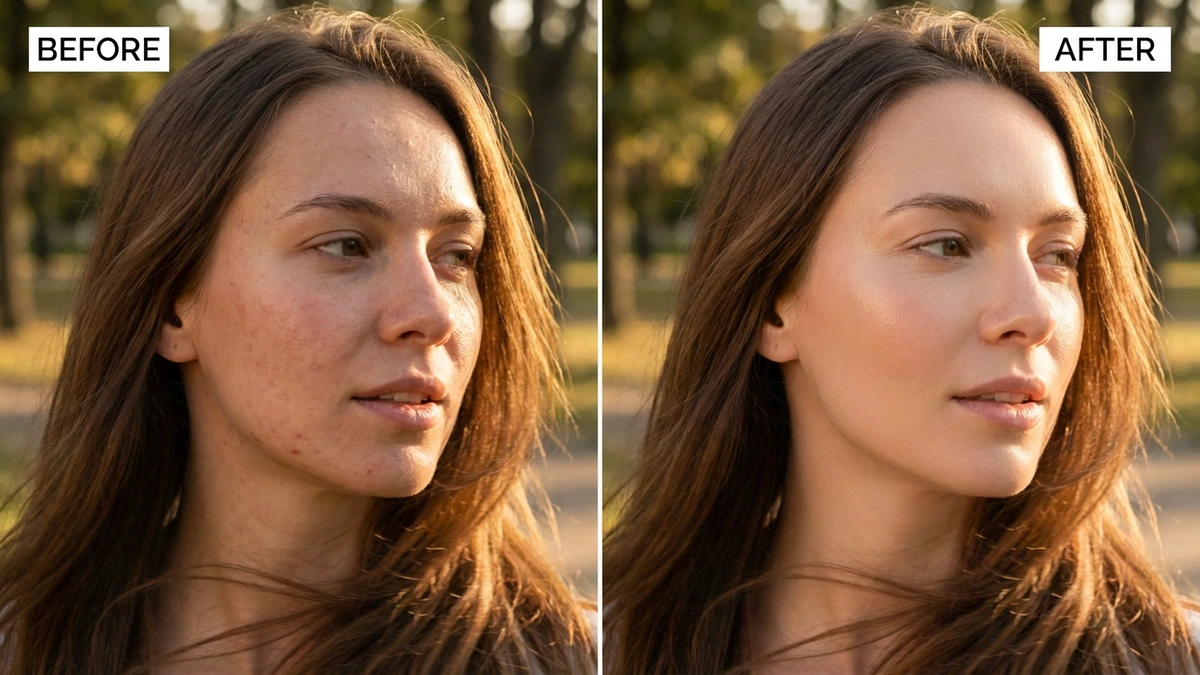
Professional skin smoothing requires a different approach: targeting specific imperfections individually (acne, dark circles, wrinkles, shine) while leaving natural skin texture intact. That’s exactly what a purpose-built skin smoothing video editor is designed to do — and why slider-based tools like Evoto Video deliver dramatically better results than one-size-fits-all filters.
Best Skin Smoothing Video Editors for PC in 2026
1. Evoto Video — Best One-Click Skin Smoothing for Video
Evoto Video is the most efficient skin smoothing video editor available on PC. Its two dedicated modules — Blemish Removal and Skin Retouching — give you 20+ individual sliders that target specific skin issues rather than applying blanket smoothing. AI face tracking ensures every adjustment follows the subject’s face automatically across every frame. Just import, adjust sliders, click Apply — and your video is done. No masking, no keyframing, no compositing knowledge required.
- Blemish Removal + Skin Retouching: 20+ sliders for precision control
- AI face tracking across every frame — fully automatic
- 4K resolution with zero quality loss on export
- Gender/age presets optimize AI detection (Male, Female, Child, Senior)
- Additional modules: Facial Reshape, Teeth, Eyes, Makeup, Full Body Reshape
Evoto Video – Be the First to Edit Smarter
Professional-grade AI color grading and retouching for video creators.
2. CapCut Desktop — Quick Beauty Edits for Social Media
CapCut provides a basic face smooth app with one-tap beauty enhancement and skin smoothing. It’s fast and integrates with TikTok, but offers limited control — you can’t target specific blemish types individually. Good for quick social media posts; not enough for professional-grade smooth skin video work.
3. Final Cut Pro + Beauty Retouch Plugin
Mac users can add skin smoothing to Final Cut Pro through third-party plugins. Results can be good, but setup takes time, plugins cost extra, and you’re adjusting parameters manually rather than using AI-driven presets. The workflow is significantly slower than a dedicated video beauty editor.
4. Premiere Pro + Beauty Box Plugin
Adobe Premiere Pro with the Beauty Box plugin is an industry standard for video skin retouching, but it requires manual skin masking, costs $22.99/mo plus plugin fees, and takes considerably more time per clip. It’s powerful for experts, but the efficiency gap compared to AI-based tools is substantial.
Smooth Skin in Video with Evoto Video — Step by Step
Here’s how to smooth skin in video using Evoto Video — the entire process takes just minutes.
Step 1: Import Your Video and Open Portrait Retouching
Open Evoto Video and import your clip (MP4, MOV, or M4V, up to 4K). Your footage appears on the timeline. Click the Portrait Retouching panel on the right, then select the correct gender preset — Male, Female, Child, or Senior — so the AI optimizes its skin detection for your subject.
Step 2: Blemish Removal — Remove Imperfections with Precision
Expand Blemish Removal to target specific imperfections — this is where Evoto Video separates itself from basic filters. Instead of one blur slider, you get individual controls for each blemish type:
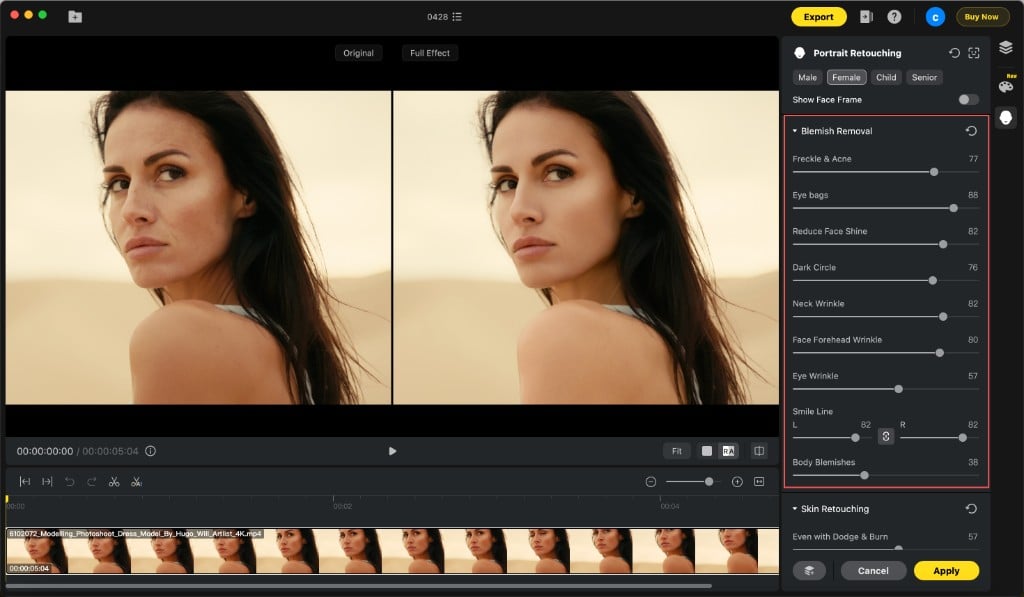
- Freckle & Acne — AI detects and removes pimples and acne spots while preserving surrounding skin texture.
- Eye Bags — Reduces under-eye puffiness that lighting amplifies.
- Reduce Face Shine — Eliminates oily T-zone glare without flattening the face.
- Dark Circle — Lightens under-eye darkness for a well-rested appearance.
- Neck Wrinkle / Face Forehead Wrinkle / Eye Wrinkle — Softens wrinkles per-area while keeping natural expression.
- Smile Line — Left and right sides adjustable independently.
- Body Blemishes — Extends cleanup to visible shoulders and arms.
Just drag each slider to your desired level. The AI applies these corrections consistently across every frame — no keyframing needed.
Step 3: Skin Retouching — Refine Texture and Complexion
After cleaning up blemishes, switch to Skin Retouching for overall complexion refinement — this is the core of video skin smoothing:
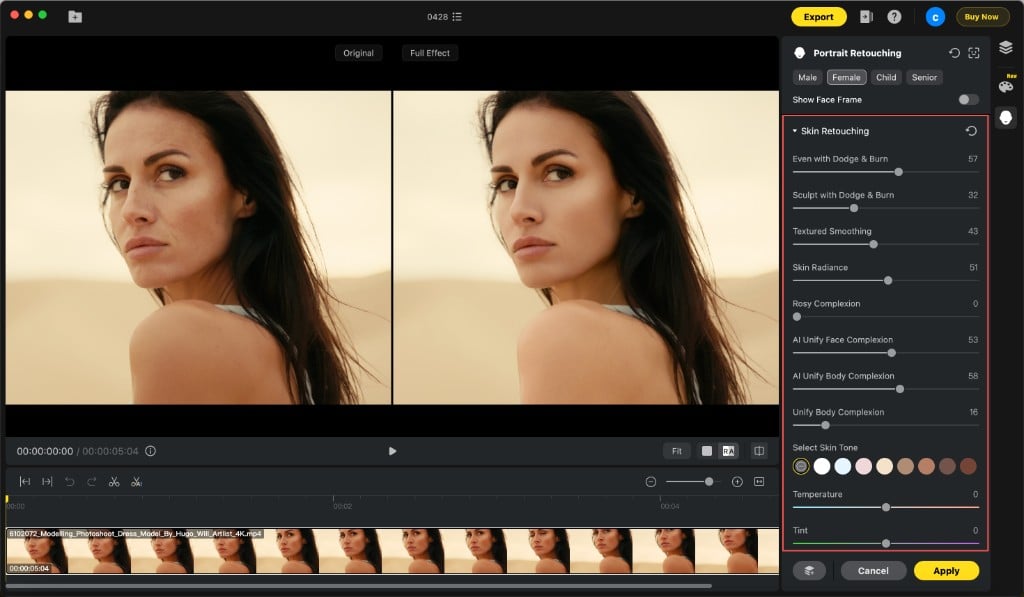
- Even with Dodge & Burn — Balances facial skin tone and light-shadow transitions.
- Sculpt with Dodge & Burn — Enhances facial dimensionality and contour definition.
- Textured Smoothing — The key slider: smooths uneven skin while keeping natural pores visible. This is what prevents the “plastic” look.
- Skin Radiance — Adds a healthy glow without altering natural color.
- Rosy Complexion — Controls skin redness for a healthier result.
- AI Unify Face / Body Complexion — Automatically corrects uneven tone caused by lighting or makeup.
- Select Skin Tone + Temperature + Tint — Fine-tune the exact skin tone you want.
Step 4: Additional Modules and Export
Beyond skin smoothing, Evoto Video also offers Facial Reshape for sculpting jawlines, eyes, and nose; Teeth Whitening; Eye Enhancement (brightness, red vein removal); Makeup with one-tap preset looks; and Full Body Reshape for proportion adjustments. All slider-based, all AI-tracked.
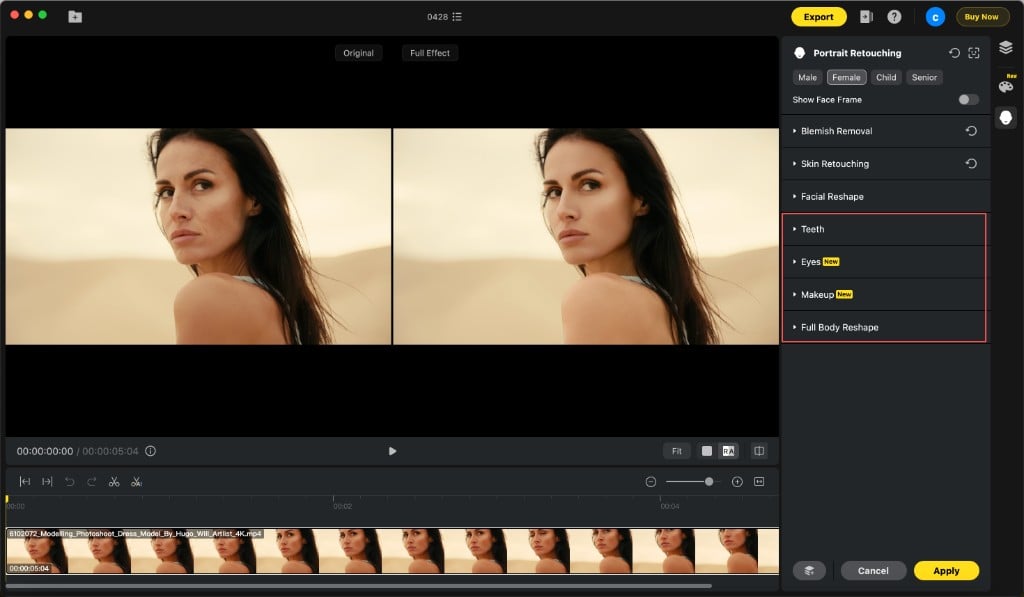
When you’re satisfied, click Apply to render the effects across the clip, then Export at full resolution. Your 4K footage stays 4K — Evoto Video never downgrades quality.
Tips for Natural Skin Smoothing in Video
- Start with Blemish Removal, then layer Skin Retouching. Removing specific imperfections first, then refining overall texture produces the most natural, efficient result.
- Textured Smoothing is your most important slider. It smooths skin while preserving pores — the single biggest factor in avoiding fake-looking results.
- Use AI Unify Complexion for multi-clip consistency. When shooting across different days or lighting setups, this slider automatically matches skin tone across your footage.
- Preview at multiple points in the timeline. Check during head turns, expression changes, and lighting shifts to ensure the AI tracking stays consistent.
- Less is more. Subtle adjustments look more natural in motion than in stills. Viewers spot over-retouching faster in video.
FAQs
What’s the difference between a beauty filter and professional skin smoothing?
A beauty filter applies uniform blurring to the entire face — fast but destructive, wiping out natural texture. Professional skin smoothing with a tool like Evoto Video targets specific imperfections individually (acne, wrinkles, shine, dark circles) while preserving pores and skin detail. The result looks natural rather than plastic.
Can I smooth skin in video without making it look fake?
Yes — that’s the entire point of Evoto Video’s approach. By using per-area sliders instead of a single beauty filter, and by leveraging Textured Smoothing that specifically preserves pores, you get smooth skin video results that look naturally flawless rather than artificially processed.
Does Evoto Video support 4K skin smoothing?
Yes. Evoto Video processes and exports at full resolution including 4K. The AI algorithms work at the native resolution of your footage, so detail is preserved even after intensive retouching.
Evoto Video – Be the First to Edit Smarter
Professional-grade AI color grading and retouching for video creators.
Conclusion
Smooth, natural-looking skin in video no longer requires hours of manual retouching or expensive post-production teams. With a dedicated skin smoothing video editor like Evoto Video, the entire process comes down to adjusting sliders and clicking Apply — the AI handles face tracking, texture preservation, and frame-by-frame consistency automatically.
By combining Blemish Removal for targeted imperfection cleanup with Skin Retouching for overall complexion refinement, Evoto Video gives you professional-grade results in a fraction of the time. Your footage stays at full 4K quality, your skin keeps its natural texture, and your editing workflow becomes dramatically more efficient.
Download Evoto Video and smooth skin in video with AI — free trial available.



