When shooting with a phone or camera, you often encounter tilted horizons, tall buildings that appear to be falling backward, or interior furniture and walls that look unnaturally skewed. These distortions create awkward images and reduce the professionalism of your photos. While such perspective issues once required advanced editing, tools like the Photoshop straighten tool and Evoto AI’s auto-straightener make it simple to correct them. Whether you want full manual control with Photoshop rotate and straighten options or prefer Evoto’s one-click automation, straightening photos has never been easier. Dive into how to straighten photos in Photoshop and Evoto.
Why Are Architectural Photos Often Distorted?
Before we get to know how to straighten photos in Photoshop, let’s figure out the reasons for distortion in architectural photography.
- Wide-angle framing: When capturing tall skyscrapers or interiors, you often shoot upward. This causes vertical lines to converge, making buildings appear as if they are leaning.
- Lens distortion: Wide-angle or cheap lenses often create barrel distortion, where straight lines bulge outward.
- Camera angle: If the camera isn’t perfectly parallel to the ground, horizontal and vertical lines appear slanted, requiring Photoshop perspective warp straighten or similar corrections.
How to Straighten Photos in Photoshop Manually?
If you want precision and professional control, you can straighten image Photoshop manually with different built-in tools. Here’s a step-by-step guide for common scenarios:
How to Straighten Photos in Photoshop: Skyscraper Photography
- Open your skyscraper image in Photoshop.
- Go to the top menu and choose Edit > Transform > Perspective.
- A bounding box with control points will appear around your photo.
- Click and drag the top corners outward until the vertical edges of the building align with the true vertical of the frame.
- For accuracy, enable rulers (Ctrl+R / Command+R) and pull down guides to act as reference lines.
- Continue adjusting until the building looks upright and natural.
- Press Enter to confirm the transformation.
- Crop the image to remove any empty areas created by the adjustment.
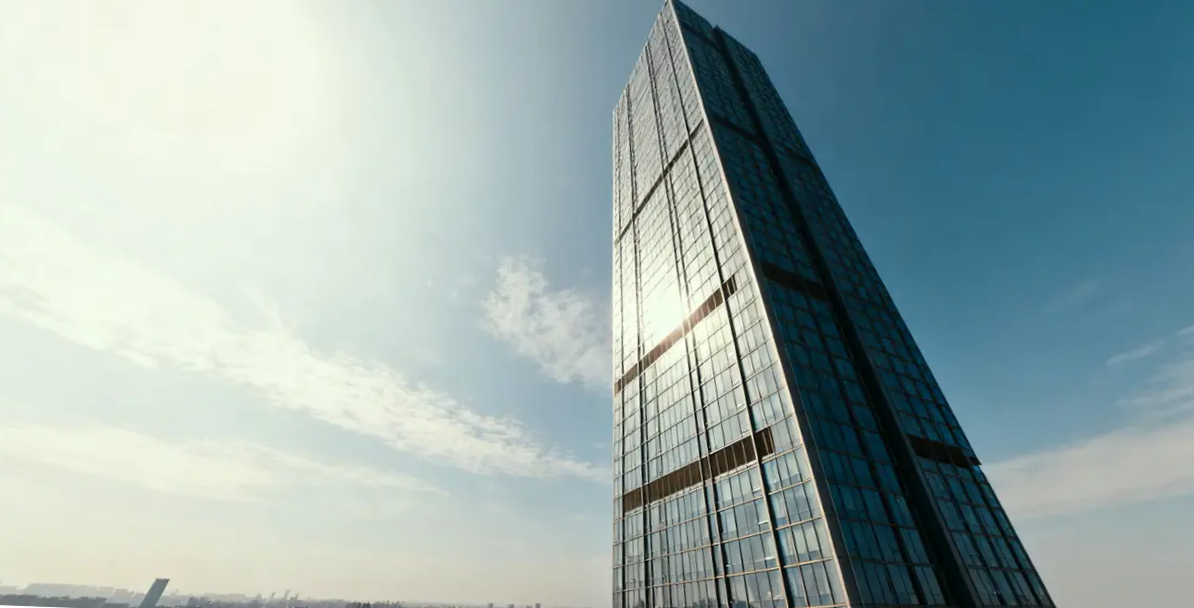
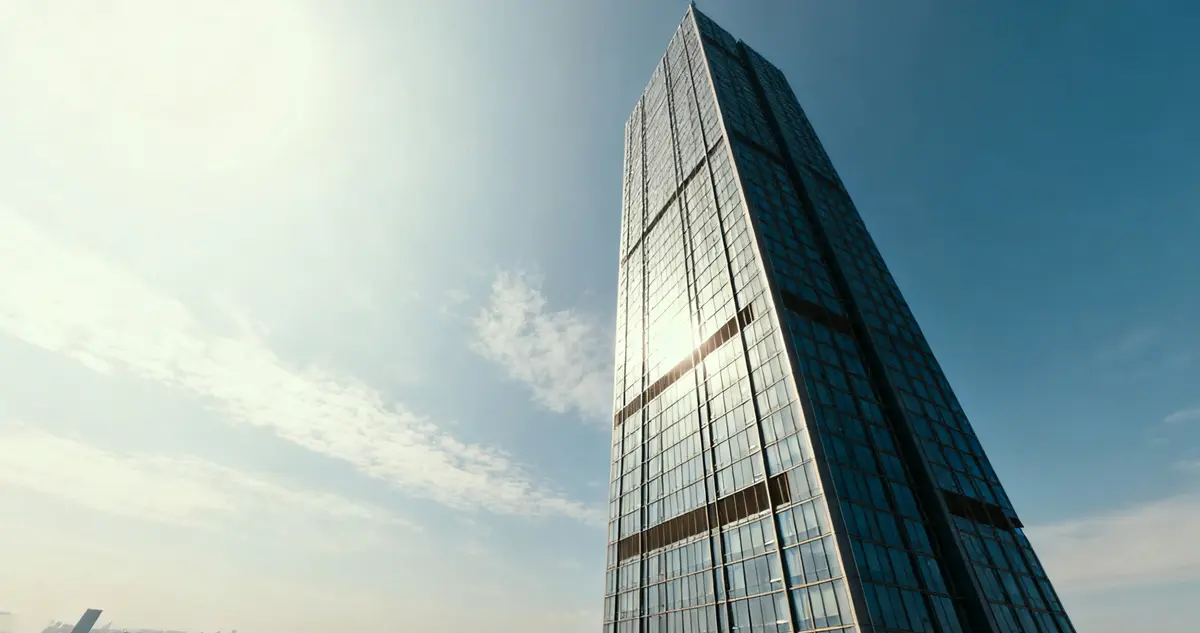
This workflow is the go-to method to straighten building photos that Photoshop users rely on.
How to Straighten Photos in Photoshop: Interior Architectural Photography
- Open your interior photo and select Filter > Lens Correction.
- In the dialog box, switch to the Custom tab.
- Use the Remove Distortion slider to correct barrel distortion (bulging walls).
- Adjust the Vertical Perspective slider if the walls appear to tilt backward or forward.
- Fine-tune with the Horizontal Perspective slider to align skewed furniture and walls.
- Preview the corrected image in real time before applying.
- Click OK once satisfied.
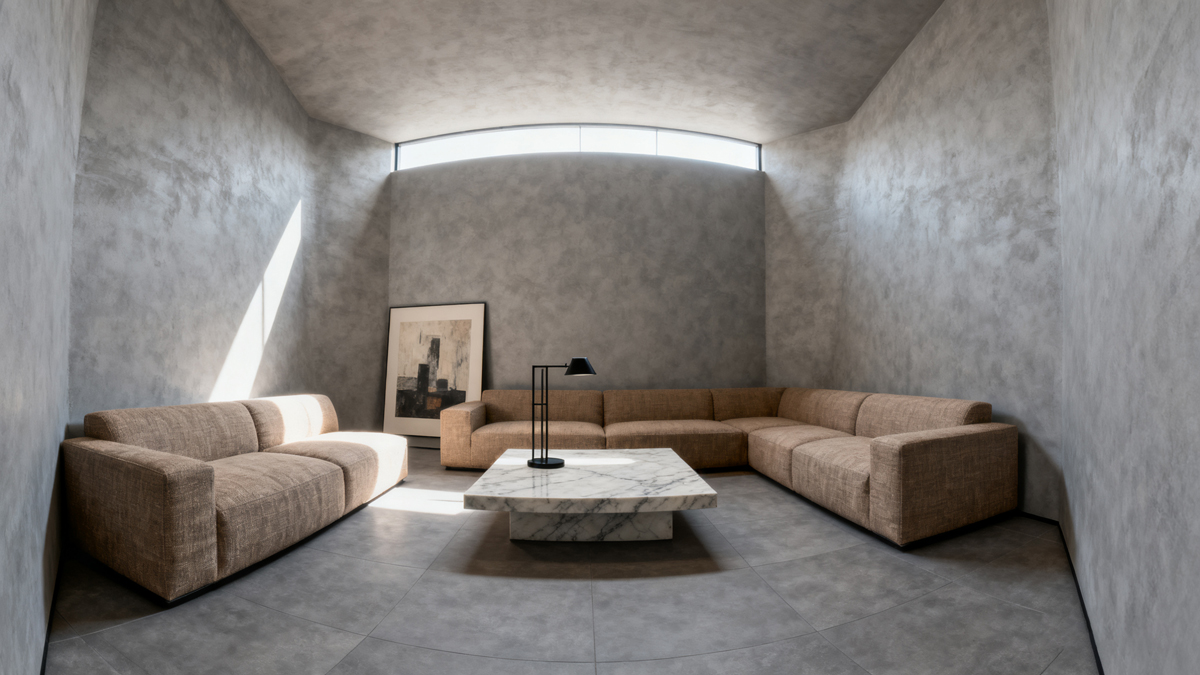
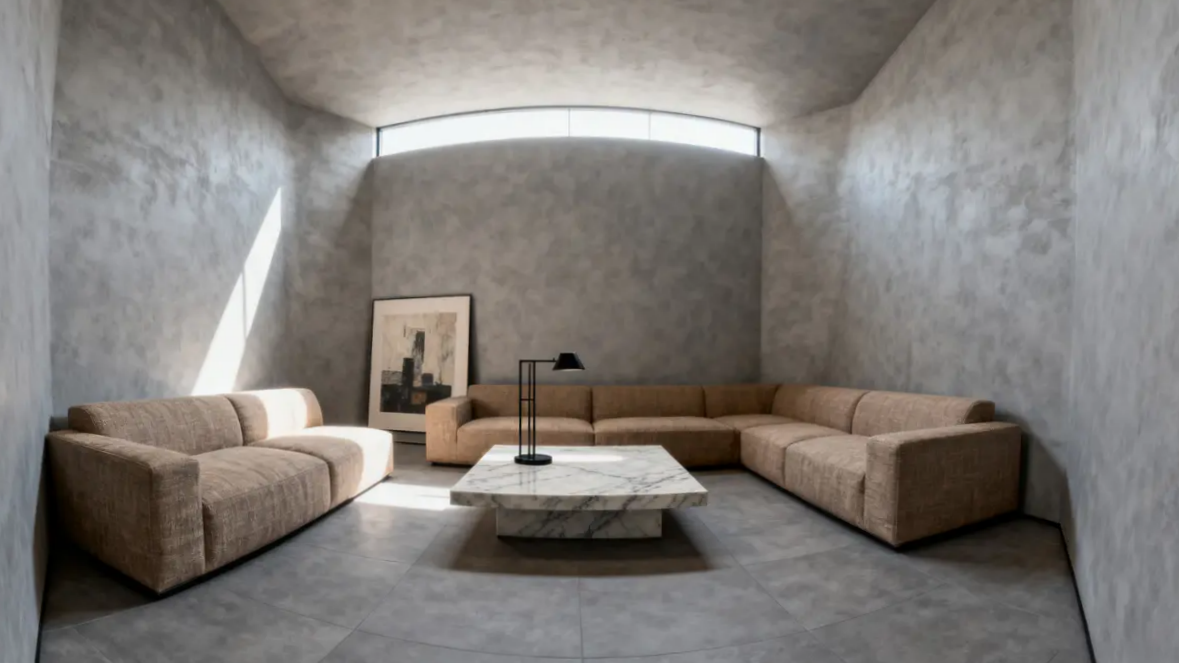
This method ensures precise Photoshop lens correction straighten results, perfect for real estate interiors.
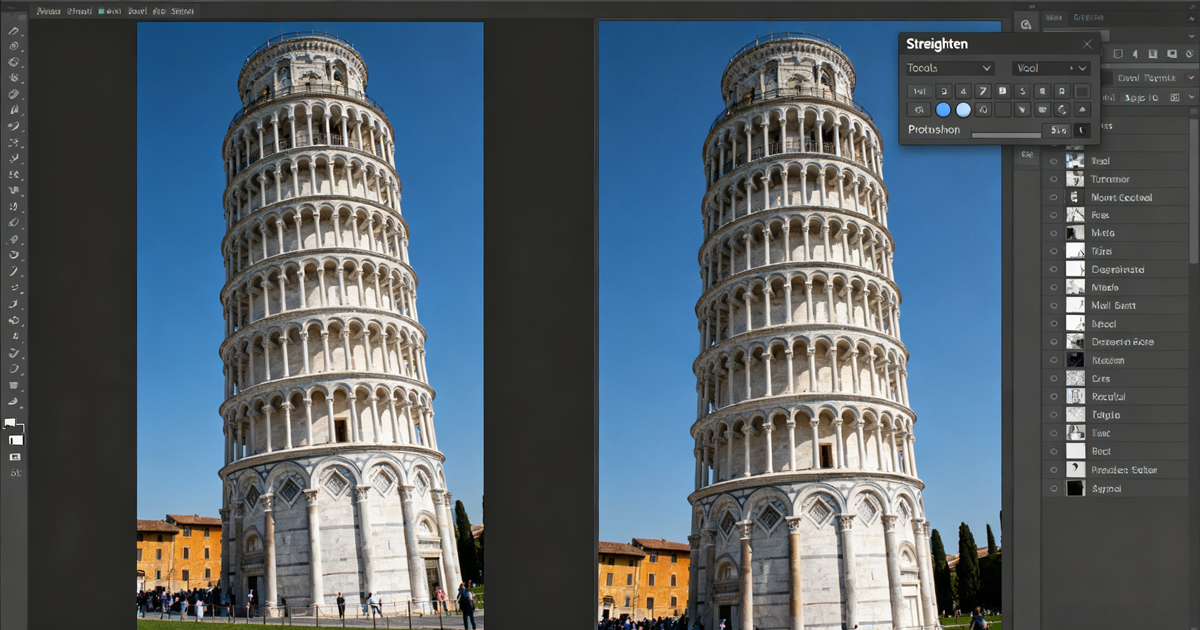
How to Straighten Photos in Photoshop: Travel Photos
- Select the Crop Tool from the left toolbar.
- In the top options bar, click the Straighten button.
- Click and drag a line across the horizon, building base, or another reference edge that should be level.
- Photoshop automatically rotates the canvas based on your line.
- The image is cropped to remove blank areas after rotation.
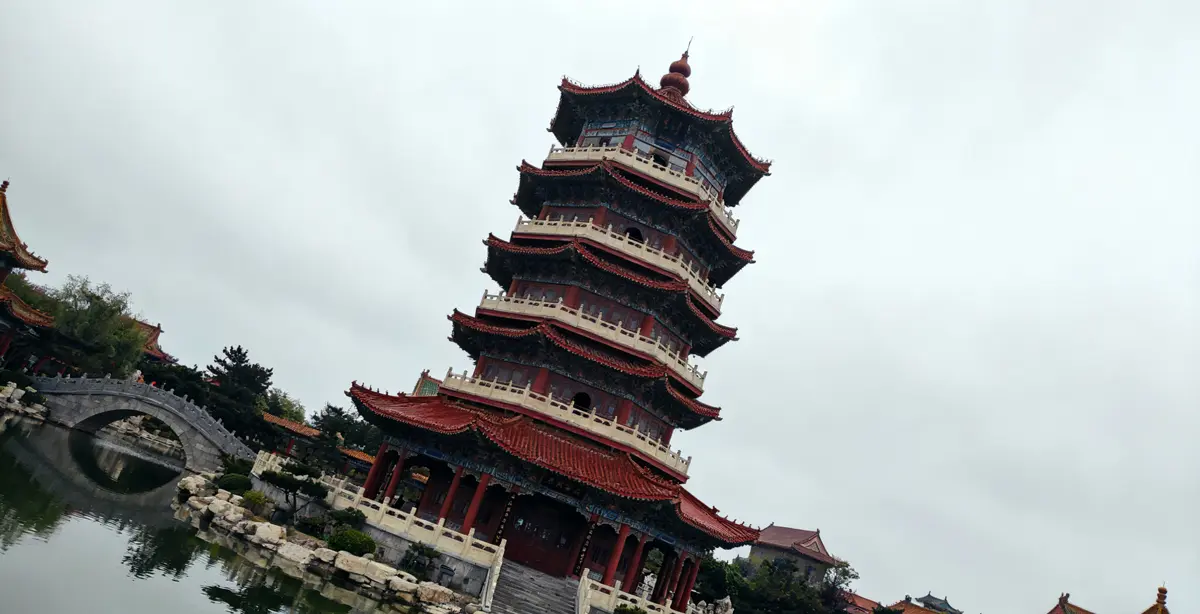
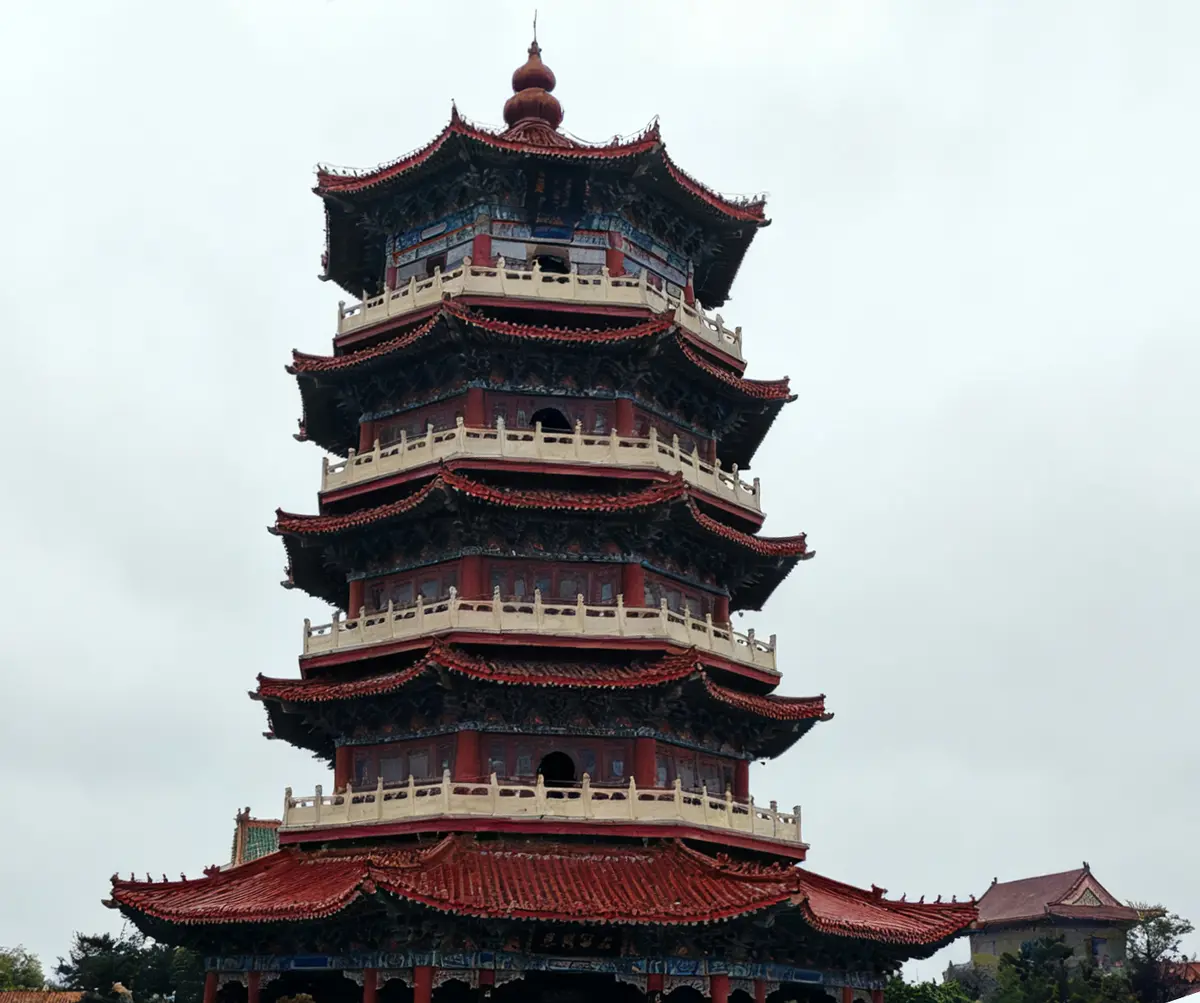
This provides quick Photoshop horizon correction, ideal for landscapes, towers, or panoramic shots.
How to straighten photos in Photoshop? These three methods above can also be used for straighten panorama Photoshop, straighten landscape photo Photoshop, and correct photo angle in Photoshop with precision.
How to Straighten a Photo with Evoto AI Straighten Tool—Quick Option
If you don’t want to spend time learning how to straighten perspective Photoshop manually, Evoto AI is the fast, beginner-friendly solution. It offers Photoshop auto straighten alternatives with one click.
Step-by-Step Guide:
- Download Evoto and successfully install it on the desktop.
- Upload the photos you took want to straighten in the vertical and horizontal directions into Evoto AI.
- Locate the workspace > Edit Panel > Head to the right-hand feature list. Under the Color Adjustment section, find the Transformation Correction tool.
- Enable the AI Transformation Corrections tab. With just one click, Evoto AI’s AI smart mode will detect skewed horizons and tilted buildings and automatically fix perspective distortion in both vertical and horizontal directions.
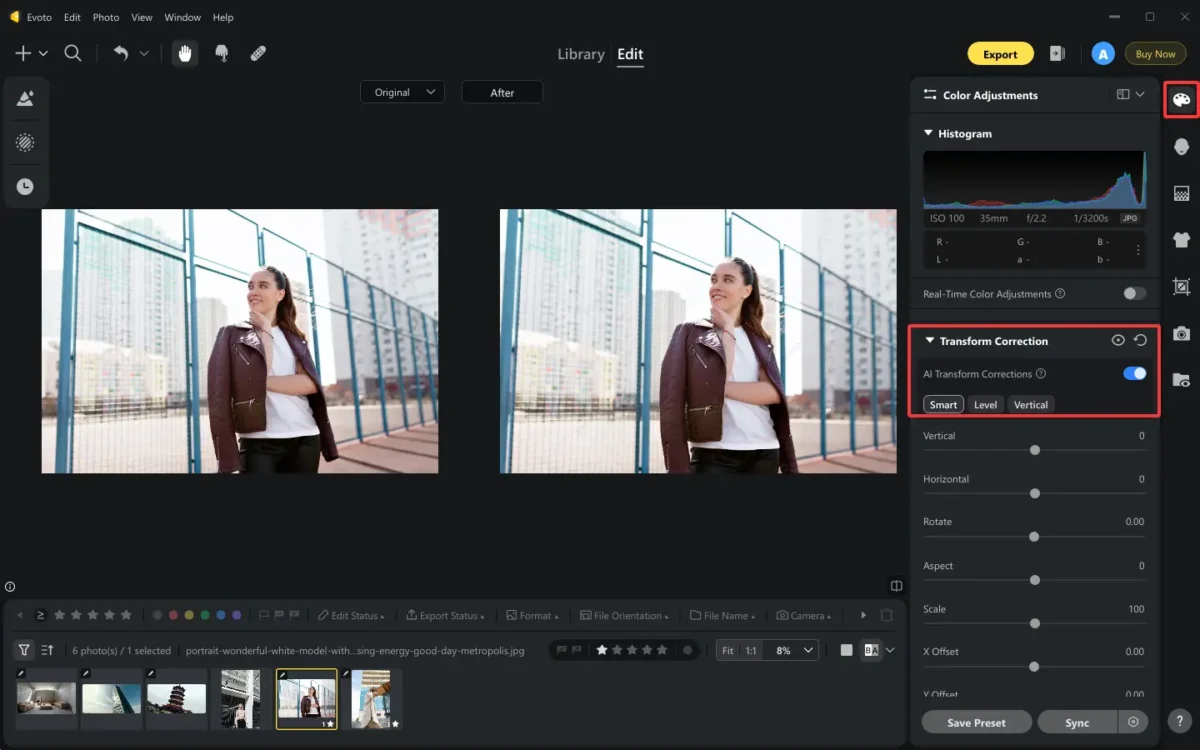
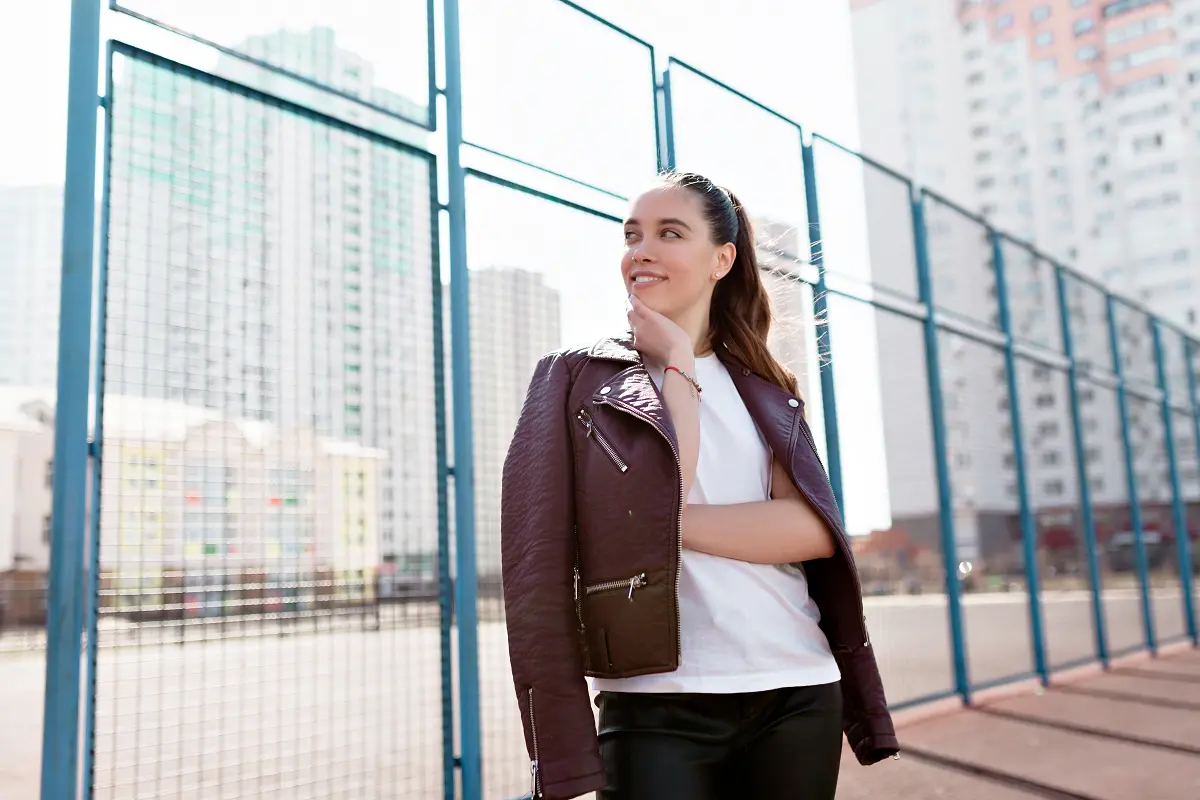
- Optional Tip: If you need to straighten the photo more precisely, you can make manual edits beyond applying the AI Transformation Corrections.
For different causes of tilting and deformation, you can adopt targeted manual adjustments.
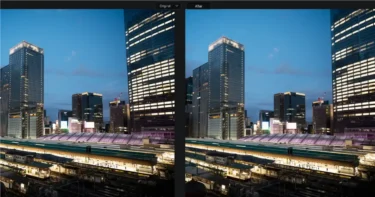
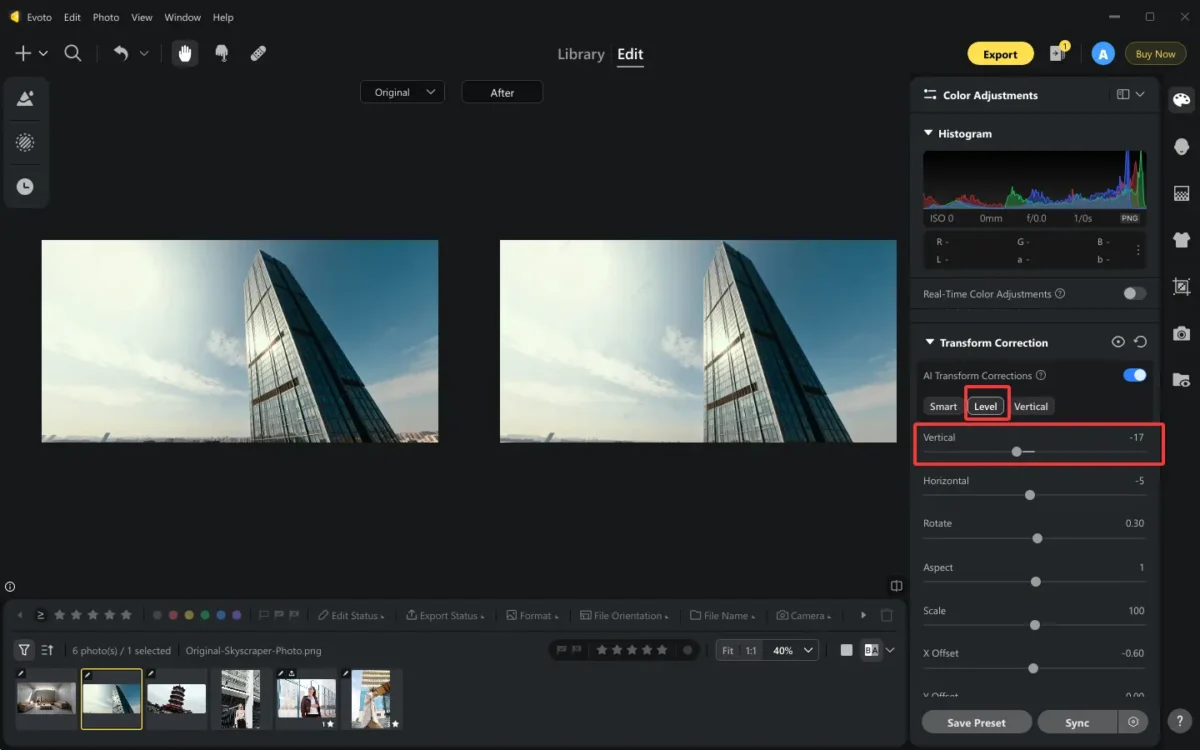
Example 1. Straighten Skyscraper Photo
In this example, you can select the Level mode and slightly decrease the value of Vertical to correct tilted skyscrapers.
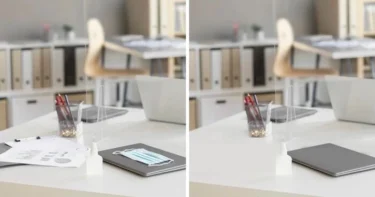
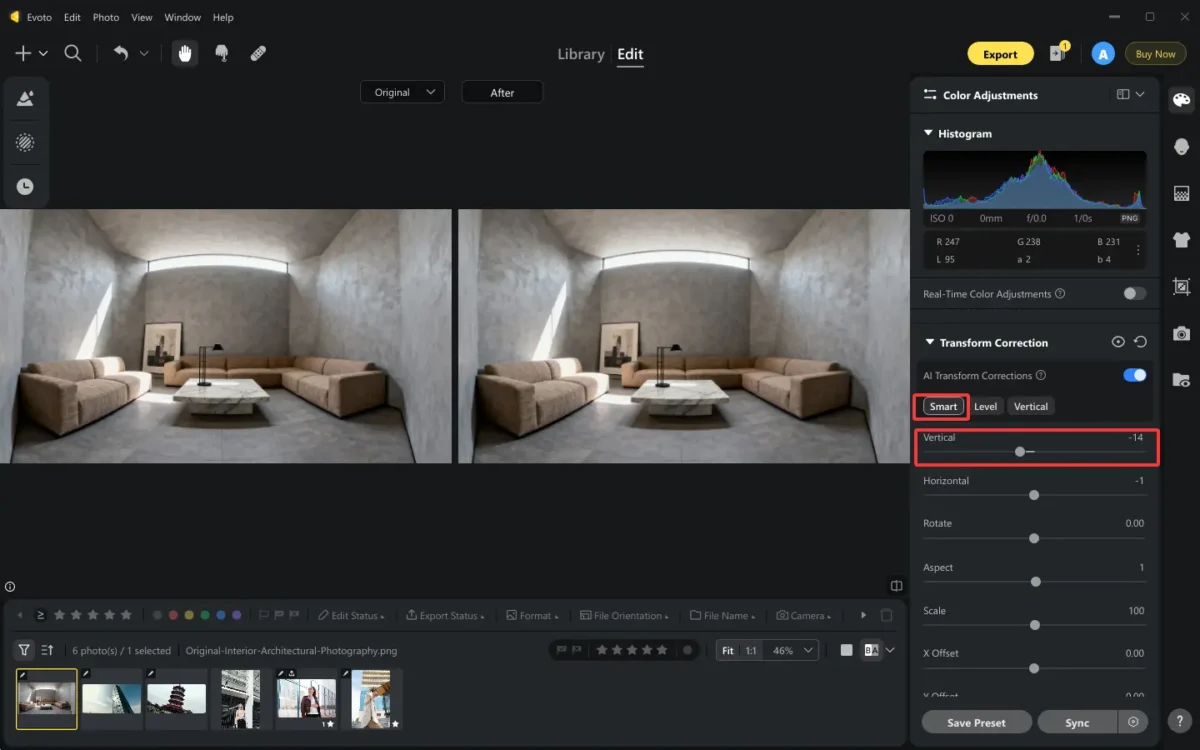
Example 2. Straighten Interior Architectural Photo
In this example, you can select the Smart mode and slightly decrease the value of Vertical to correct wide-angle interiors.
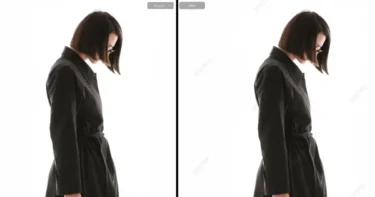
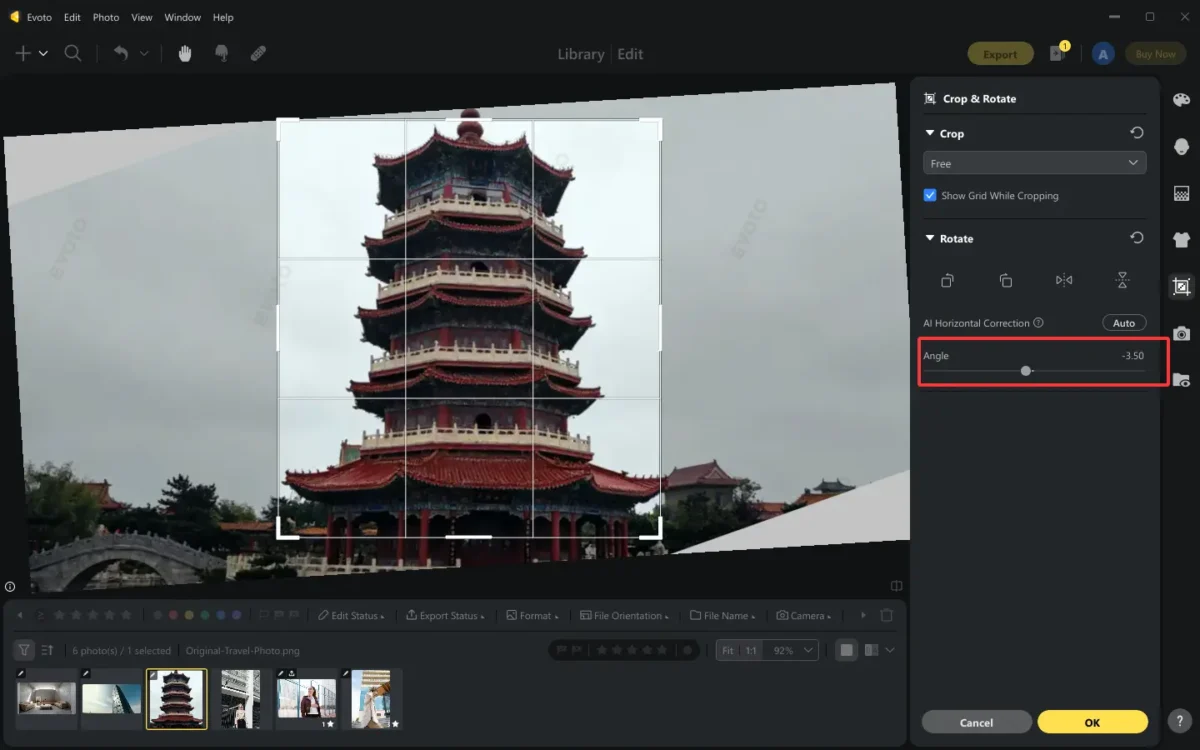
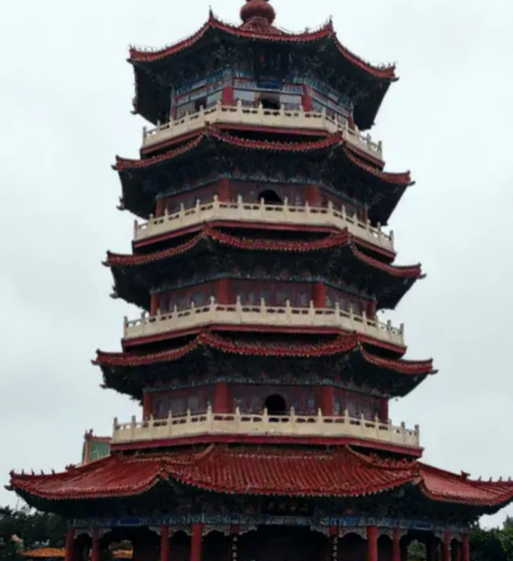
Example 3. Straighten Travel Photo
In this example, after the one-tap transformation correction, you cooperate with the Evoto AI’s Crop & Rotate tool. Slightly rotate the tower in the photo horizontally, and crop a straight look.
- Check the preview and export the straightened photos to your device.
Unlike Photoshop crop tool straighten or Photoshop free transform straighten, Evoto handles most of the work automatically.
The Practical Applications of Photo Straighten Tool
The ability to straighten lines in Photoshop or with Evoto has countless uses, as below.
Wedding Photography
At weddings, photographers often capture couples standing in front of grand churches or cathedrals. Because the camera is angled upward to fit the entire building, the vertical lines of the structure tilt inward, making the church appear to lean backward. This distortion can distract from the beauty of the moment.
With Evoto’s auto-straighten tool, you simply upload the photo and click “AI Transformation Correction.” In seconds, the software straightens the architecture, restores balance, and ensures the couple is framed against a majestic, upright building.
Real Estate Photography
Wide-angle lenses are commonly used in real estate to make interiors appear larger. However, this often causes walls to bow or tilt unnaturally. Distorted walls can make a room look unrealistic and less appealing to potential buyers.
Evoto automatically detects these distortions and corrects them with one click, producing clean, square lines. The result is a natural-looking, spacious room that’s more inviting and professional for property listings.
Street Photography
Street photographers frequently shoot upward at tall neon-lit buildings, especially during night photography. This perspective causes lines to converge, creating an unnatural leaning effect.
Evoto AI identifies the tilted perspective instantly and straightens the image in streamlined automation. The corrected photo shows realistic verticals, making cityscapes look sharp, balanced, and closer to how the human eye perceives them.
Better Tool to Straighten Photos: Photoshop Manual Edits vs. Evoto AI Work
Both Photoshop and Evoto AI offer powerful options, but they serve different needs.
Photoshop Manual Adjustment
Difficulty: It requires technical knowledge to straighten photos in Photoshop, like Transform, Perspective Warp, and Lens Correction. Beginners often face a learning curve, as each distortion type (leaning buildings, curved walls, tilted horizons) requires a different tool.
Speed: It takes time to straighten photos in Photoshop with manual edits because every photo must be corrected individually. For photographers working with large batches, such as real estate agents or wedding shooters, this process can feel slow and repetitive.
Precision: It’s important to control the strength of precision when you straighten photos in Photoshop. Users can align verticals and horizontals pixel by pixel, correct partial distortions, or maintain artistic perspectives while fixing only key areas
Evoto AI Automatic/Manual Adjustment
Difficulty: Evoto AI is beginner-friendly—upload a photo, click Correction, and the software does the work automatically.
Speed: Designed for efficiency, it can process hundreds of images in seconds, making it ideal for bulk edits.
Precision: Delivers around 90% accurate corrections automatically. Any remaining distortions can be adjusted manually with simple fine-tuning.
If you want control, use straighten architecture photo Photoshop techniques. If you need speed and efficiency, Evoto AI is the smarter choice that you never want to miss.
More Specific Use Scenarios for Photo Straightening
Straightening tools are essential for professionals and enthusiasts who want accurate, visually appealing images:
- Architects: They rely on straightened photos to present buildings with correct proportions, avoiding skewed perspectives that misrepresent designs.
- Wedding Photographers: Tilted horizons or leaning structures can distract from the couple; straightening ensures elegant, balanced compositions that enhance the overall aesthetic.
- Real Estate Agents: It helps to increase buyer appeal in listings by properly straightening the slight wall deformation in the photo, which makes rooms appear spacious and professional.
- Travel Photographers/Bloggers: Landscapes, cityscapes, and monuments maintain their natural appearance when vertical and horizontal lines are corrected, producing images that are visually striking and realistic.


Powerful AI Photo Editor
Conclusion
If a building or interior image is tilted or distorted after capture, the overall effect is often significantly diminished. The method to straighten photos in Photoshop may give you more precise control, while Evoto AI‘s automatic perspective correction function can quickly straighten skewed buildings or objects. This results in a smooth, natural-looking image. Try Evoto today to instantly fix perspective and create natural, professional-looking images.