You take a nice photo, but when you look at it, the bright parts are too strong, faces look pale, and the sky has lost its color. Overexposed photos can feel frustrating, and it’s tempting to delete them. But don’t worry, you can fix those images and bring them back their life.
This guide will help you learn how to fix over exposed pictures using 5 easy methods. Whether you use a phone app or editing software, the steps are explained in a simple way so anyone can do it.
Understanding Over Exposure in Photography
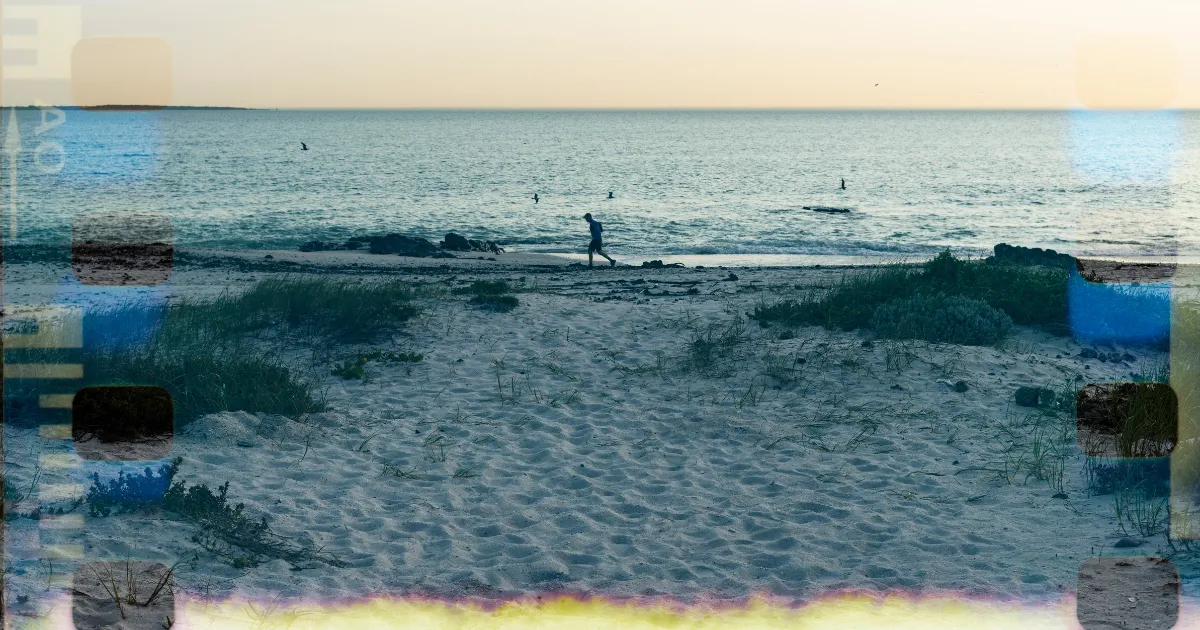
Overexposure occurs when the camera sensor receives more light than it should. Instead of showing balanced tones, the photo turns out with very bright areas that hide details. The result can be skin tones that look too pale, skies that turn pure white, or objects that lose their natural colors.
Here are the main causes of overexposed photos:
- Using a high ISO level makes the camera too sensitive to light.
- A wide aperture that allows extra light into the lens.
- A slow shutter speed that keeps the shutter open longer than needed.
- Auto settings on phones or cameras that misjudge brightness in strong light.
Beginners often face this when taking pictures outdoors in direct sunlight, during beach trips, or at events with harsh lighting. While the photo may look bad at first, most of the lost details can be recovered using photo exposure correction tools.
5 Easy Methods to Fix Over Exposed Pictures
When you edit overexposed images, you can restore balance and color. Below are five tested methods for photo exposure correction that work for both beginners and professionals.
Method 1: Adjust Exposure in Photo Editing Software
The simplest way to fix overexposed photos is to use editing software. Use software like Evoto, Photoshop, Lightroom, or Snapseed have an adjust exposure slider that lets you reduce brightness. Start by lowering exposure, then focus on reducing highlights.
You can also use the highlight and white slider to fix bright spots. If the photo looks too flat, increase shadows to bring contrast back. This process is great for quick photo exposure correction and works on almost any picture.

Method 2: Correct With Curves and Levels
Curves and levels are powerful overexposure editing tools. They give you control over brightness in specific parts of the photo.
In Levels, adjust the highlight slider to reduce brightness, then balance midtones and shadows. In Curves, drag the top curve down to lower highlights and lift the bottom slightly to brighten darker parts.
This method is helpful when editing photos with both bright and dark areas, like portraits taken near windows or landscapes with bright skies. By adjusting curves, you can recover details in bright areas without making the rest of the image too dark.
Method 3: Use HDR Editing for Better Balance
HDR stands for High Dynamic Range. It is designed to handle tricky lighting where there is a mix of very bright and dark areas. Many cameras and smartphones include Smart HDR features that take multiple shots and combine them into one.
If your photo is already taken, you can apply HDR filters in editing software. This can restore balance between highlights and shadows. Some apps even provide a one-tap enhance feature that uses HDR-like technology to fix exposure instantly.
This method works well for outdoor shots such as landscapes, cityscapes, or family photos taken in sunlight. HDR makes sure both the sky and the foreground look natural.
Method 4: Apply Filters and Presets for Quick Fixes
Filters and presets are another easy way to edit overexposed images. Instead of adjusting sliders manually, you can apply a ready-made look that reduces brightness. Many apps like VSCO, Lightroom Mobile, and Evoto include filters that adjust highlights and balance colors.
For example, a vintage filter may reduce highlights and add a softer tone. In Photoshop, you can duplicate the image layer and use the blend mode “Multiply” to darken the entire image. Then reduce the opacity until it looks natural.
This approach is great for beginners who want fast results without needing detailed editing skills.
Evoto AI Photo Editor – Faster Edits, Finer Control
Method 5: Recover Details with Selective Editing
Sometimes only a part of the photo is overexposed, such as the sky, a window, or a lamp. In this case, selective editing is the best option. Tools like brushes, gradient filters, or masking allow you to adjust brightness only in the problem area.
For example, you can darken the sky without changing the subject in a portrait. This keeps the face clear while recovering details in bright areas.
How to Fix Overexposed Photos Easily in Evoto?
Evoto is a good choice for beginners who want to fix overexposed photos fast without learning difficult editing tools. The software uses AI, so it can find parts of the photo that are too bright and fix them automatically. This makes it easy for anyone to correct photos that look too bright or faded.
Here’s how you can use Evoto to fix overexposed images step by step:
- Upload your photo to Evoto: Start by importing the overexposed image into the software. The interface is clean and beginner-friendly.
- Adjust the highlight and white sliders: If the automatic fix is not perfect, you can lower the highlight and white sliders to recover details in bright areas like skies, faces, or windows.
- Make small exposure adjustments: The exposure adjustment slider allows you to fine-tune brightness across the entire photo if needed.
- Apply filters or presets: Evoto comes with ready-made looks that not only enhance style but also help hide overbright spots and give the image a natural finish.
- Use batch editing for multiple photos: If you have many overexposed photos, you can edit them all at once. This saves time and ensures consistent results.
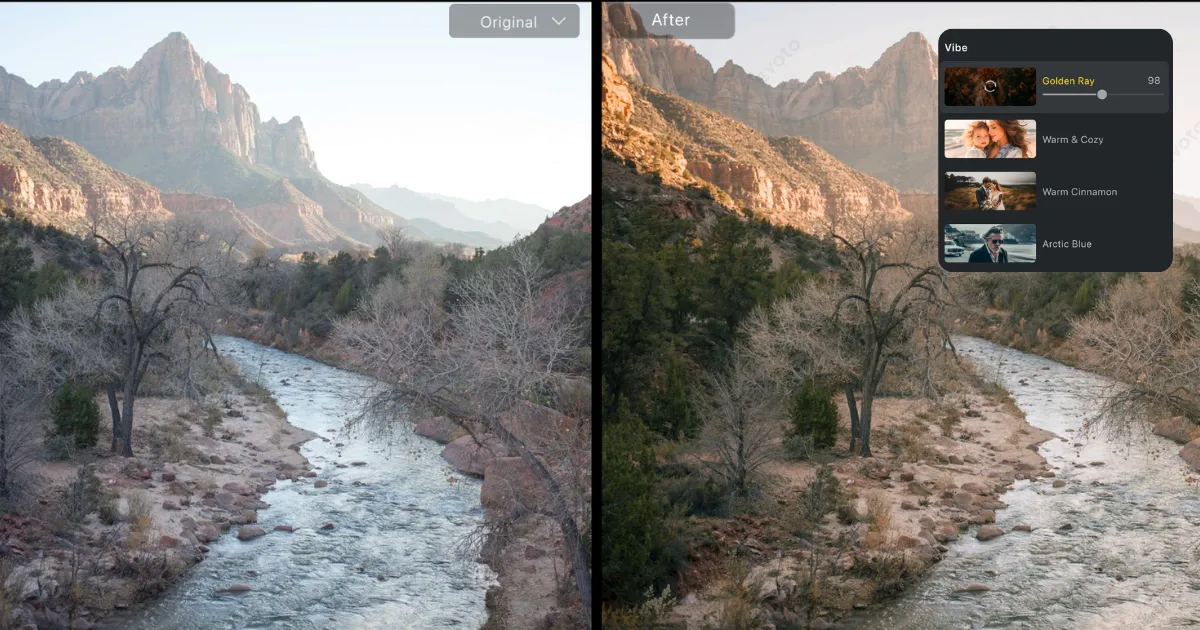
What makes Evoto different from other tools is how easy it is for beginners. You don’t have to spend endless time learning Photoshop tools or complicated settings. Evoto’s AI photo enhancer gives quick results, and you can still change details by hand if you want.
Tips to Avoid Overexposure in the Future
Preventing overexposure while shooting is always better than spending time fixing it later. With a few simple practices, you can avoid photos that look too bright and washed out. Here are some detailed tips that beginners can start using right away:
Control ISO Settings
ISO shows how much light your camera sensor can pick up. A higher ISO makes the sensor more sensitive, which is useful in dark places but harmful in bright environments. For outdoor daylight shots, keeping ISO low (around 100–200) helps you avoid an overbright image.
Beginners often leave ISO on auto, which can cause problems when the camera chooses a higher setting than needed. By setting ISO yourself, you gain better control over how bright or dark your photos look.
Adjust Shutter Speed
Shutter speed decides how long the camera’s sensor stays open to receive light. A slow shutter speed means the sensor is exposed for longer, which increases brightness. In sunny conditions, using a faster shutter speed reduces excess light and balances exposure.
For example, if you are shooting at the beach, using a shutter speed like 1/500s or faster will help prevent skies from turning pure white while keeping details clear.
Use the Right Aperture
Aperture controls how wide your lens opens. Using a wide aperture such as f/1.8 allows more light to enter, which works well indoors but can be too bright under strong sunlight. In outdoor situations, narrowing the aperture to f/8 or higher helps limit light and keeps the image sharp. It also improves depth of field, which means more of your photo will be in focus. For beginners, this small adjustment can dramatically reduce overexposure.
Enable Smart HDR on Phones
Most modern smartphones include HDR or Smart HDR. This feature automatically takes multiple photos at different exposures and blends them. As a result, you get details in both bright skies and darker areas. Many beginners ignore HDR, but turning it on outdoors helps balance bright skies and darker areas, reducing the chance of photos that are too bright.
Tap to Adjust Exposure on Smartphones
On iPhones and Android devices, you can tap on the screen to focus. Once you do, a small slider usually appears to adjust brightness manually. Sliding it down slightly before taking the shot reduces the chance of overexposure. This simple habit gives you more control than relying fully on auto mode.
Check the Histogram
The histogram is a graph that shows how bright or dark your image is. If the histogram leans heavily to the right side, it shows that the photo is too bright and overexposed. Beginners may ignore the histogram at first, but using it is one of the easiest ways to check exposure in real time. If the graph looks uneven, lower the exposure by adjusting camera settings or using exposure compensation.
Shoot in RAW Format
RAW files store much more data than JPEGs. Even if a RAW photo looks a little too bright, editing software can recover details in the highlights. With JPEGs, once the detail is gone, it cannot be restored. Shooting in RAW gives beginners a safety net and makes photo exposure correction much easier later. Many smartphones, including iPhones and higher-end Androids, now support RAW shooting, making this option accessible to everyone.
Final Thoughts
Overexposure is a problem many people face, but it does not mean your photo is lost. You now know simple ways to fix over-exposed pictures, from lowering exposure to using selective editing for the brightest parts.
If you want a quick solution, Evoto’s AI Color Adjustment can fix your photo in seconds, which is very helpful for beginners. When you also practice good habits like shooting in RAW and checking exposure before taking a photo, your pictures will look clear, natural, and well-balanced every time.