

Colorize black and white photos can make an image feel more immediate, but it also raises one practical problem fast: once color goes in, wrong guesses become very easy to notice. Skin tones, clothing, backgrounds, and tonal transitions can all start looking artificial if the image is not handled carefully.
This guide explains what it really means to colorize black-and-white photos, why people want to do it, the impact color can create, what to check before starting, and how to move through a simpler Evoto workflow without making the result look false.
What Does It Mean to Colorize Black-and-White Photos?
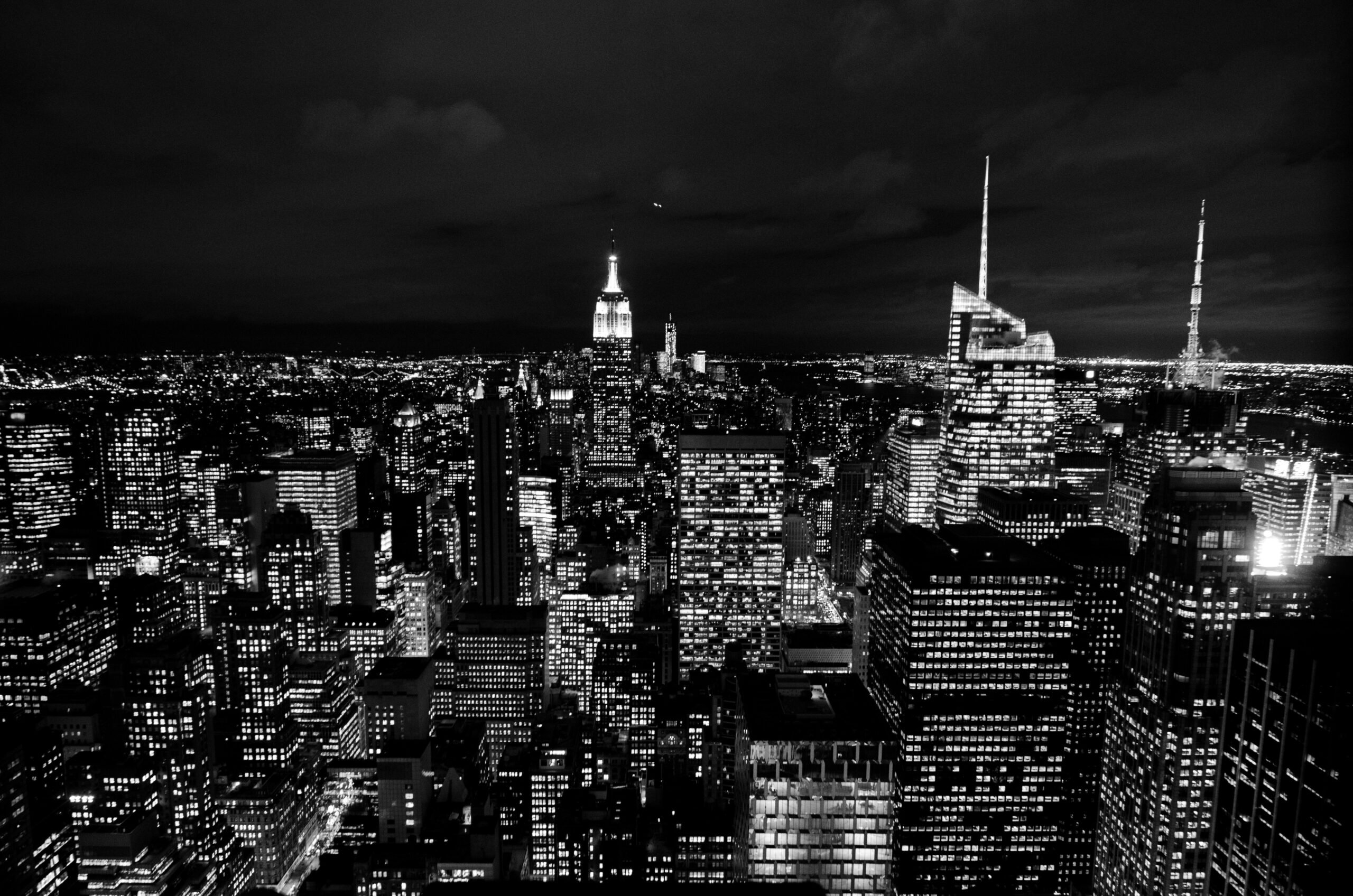
Colorizing black-and-white photos means adding believable color back into a still image that originally has no visible color information. In practice, it is not just about making a photo look newer. It is about deciding whether color can help the image read more naturally without damaging what already makes it interesting or meaningful.
That does not mean every black-and-white image has to be treated like a damaged archive print. Some are scanned family photos or film frames that need repair first. Others are already clean black-and-white portraits, lifestyle shots, or documentary images that only need careful tonal prep before colorization starts.
This guide stays focused on still photos only. The goal here is not video colorization or moving-image workflow. It is how to colorize black-and-white images in a way that still feels believable, whether the source is an older print, a monochrome portrait, or another still photo with readable structure.
Significance of Colorizing Black-and-White Photos
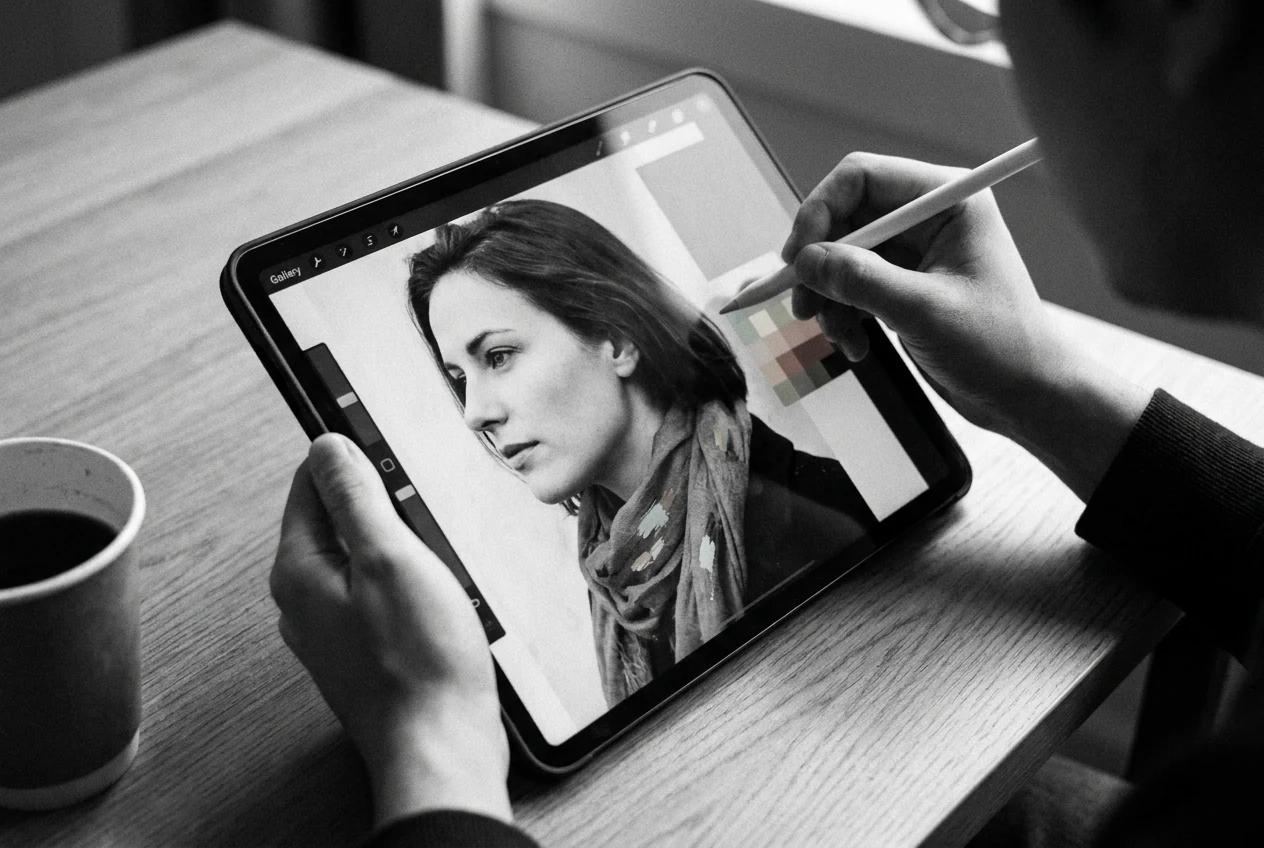
Colorizing black-and-white photos matters because it changes how an image is understood. A monochrome photo can already be beautiful, but color often makes faces, clothing, places, and small details easier to read at a glance.
For many people, the significance is personal. A family picture, portrait, or everyday scene can feel less distant once color is added well. The photo often becomes easier to connect with because it starts feeling closer to real life instead of something locked in the past.
There is also a practical reason. Color can make a black-and-white photo easier to share, easier to interpret, and more visually engaging for modern viewers. That matters whether the image is a scanned print, a portrait, or a monochrome photo you want to present in a more vivid way.
But color only helps when it supports the original image instead of overpowering it. If the result starts looking like a modern effect layered over the photo, it usually feels less convincing.
Impact of Colorizing Black-and-White Photos
The biggest impact of colorizing black-and-white photos is emotional. Once color is added well, people often feel a stronger connection to the subject because the image seems more present and immediate.
Color also improves visual readability. Skin, clothing, backgrounds, and objects become easier to separate, so the viewer can understand the scene faster. That can make portraits feel warmer, everyday moments feel more relatable, and archival images feel less abstract.
Another impact is storytelling. When an image moves from monochrome to believable color, it often carries more atmosphere. Expressions, clothing choices, and locations can feel clearer, which helps the photo communicate more than it did before.
That said, the impact depends on restraint. If color is pushed too hard, the photo can stop feeling authentic. The goal is not just to make the image brighter. It is to make it feel more alive while still respecting the original scene.
Before You Colorize a Black-and-White Photo
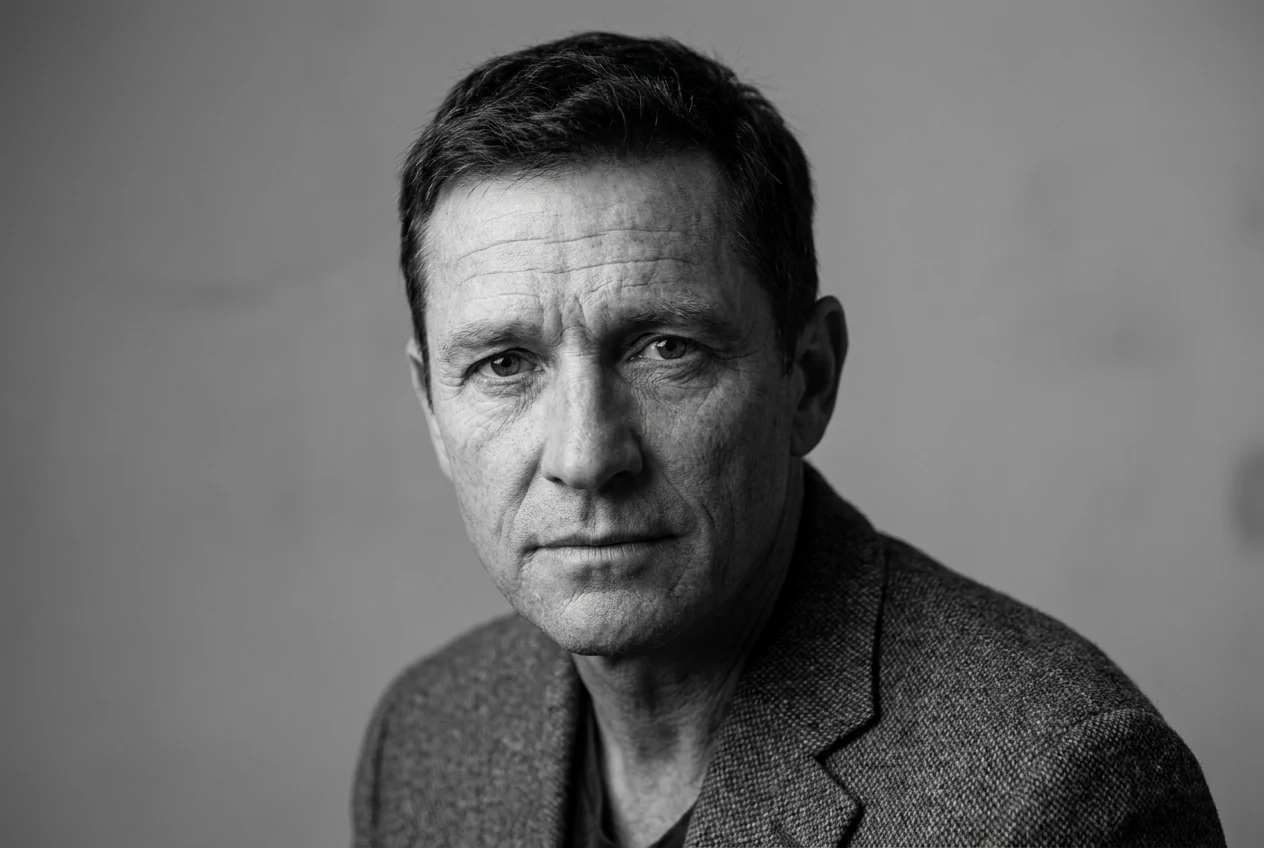
Before you colorize a black-and-white photo, first check whether the image is readable enough to support color. Faces, clothing edges, backgrounds, and major shapes should be clear enough that the added color has something solid to follow.
If the source is soft, damaged, cropped badly, or covered with small defects, clean that up first. You do not need to over-restore everything, but basic clarity helps the colorization look much more believable. If the source is already weak before color starts, How to Unblur Image is the closest related read.
It also helps to set realistic expectations before you begin. AI can produce strong first passes, but it is still making educated guesses about skin, clothing, and background color. The cleaner and clearer the image is, the more believable those guesses usually become.
The simplest rule is this: start with a photo that can already be read well in black and white, then let color improve it rather than rescue it.
Common Problems That Make a Colorized Photo Look Wrong
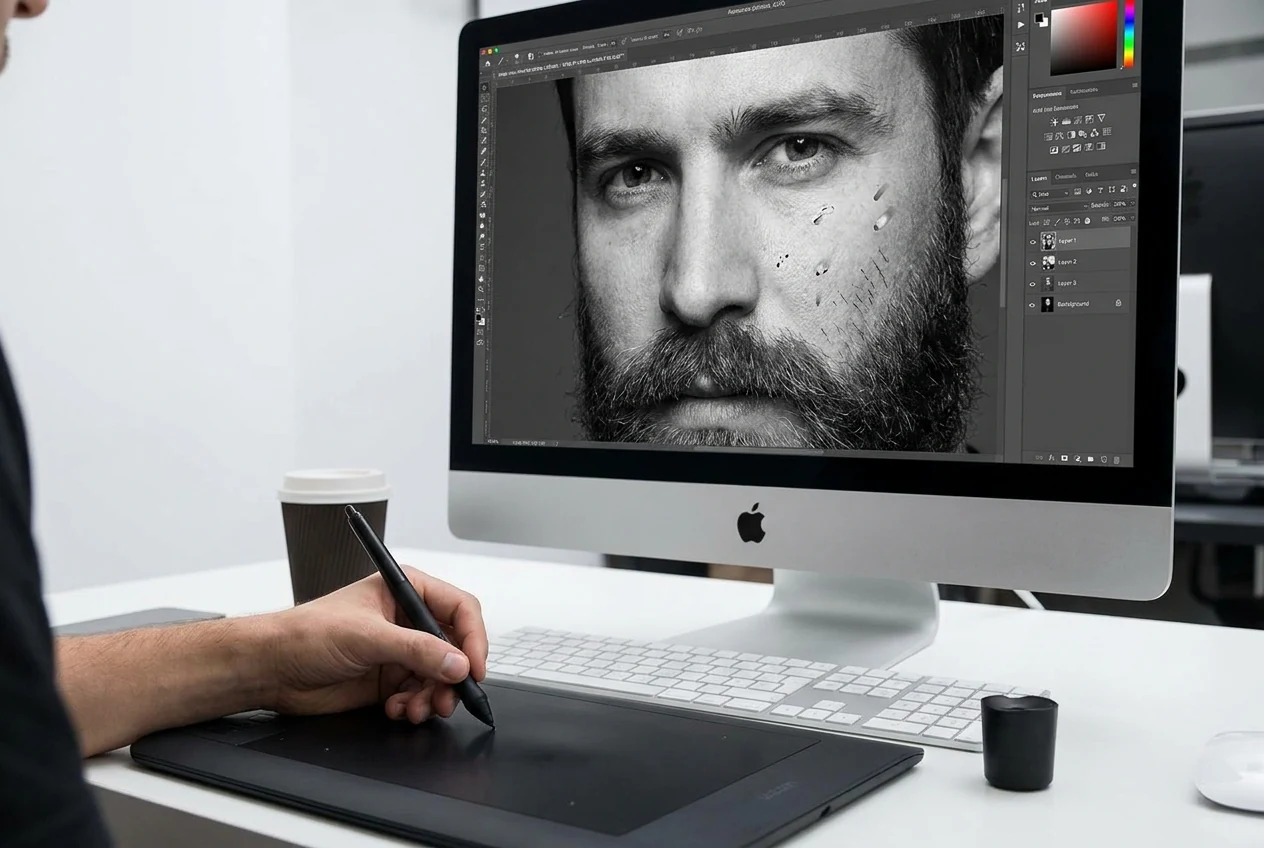
One common problem is unnatural skin tone. Skin is usually the first place where bad color guesses become obvious, especially in portraits.
Clothing and background color can also drift quickly. If those areas are guessed badly, the image may look false even when the face looks acceptable.
Another issue is muddy or oversaturated color. When the tones underneath are weak, or the edit is pushed too hard, the result can lose realism fast. If the tones are already unstable or stepping apart under editing, Color Bit Depth is the better follow-up than pushing the color harder.
Some photos also fail because small defects are still visible. Dust, scratches, rough patches, or edge problems become easier to notice once color is added.
The last problem is overprocessing. If the photo starts looking too polished, too modern, or disconnected from the original black-and-white image, the colorization is no longer helping.
How to Colorize Black and White Photos with Evoto (Simplified Workflow)
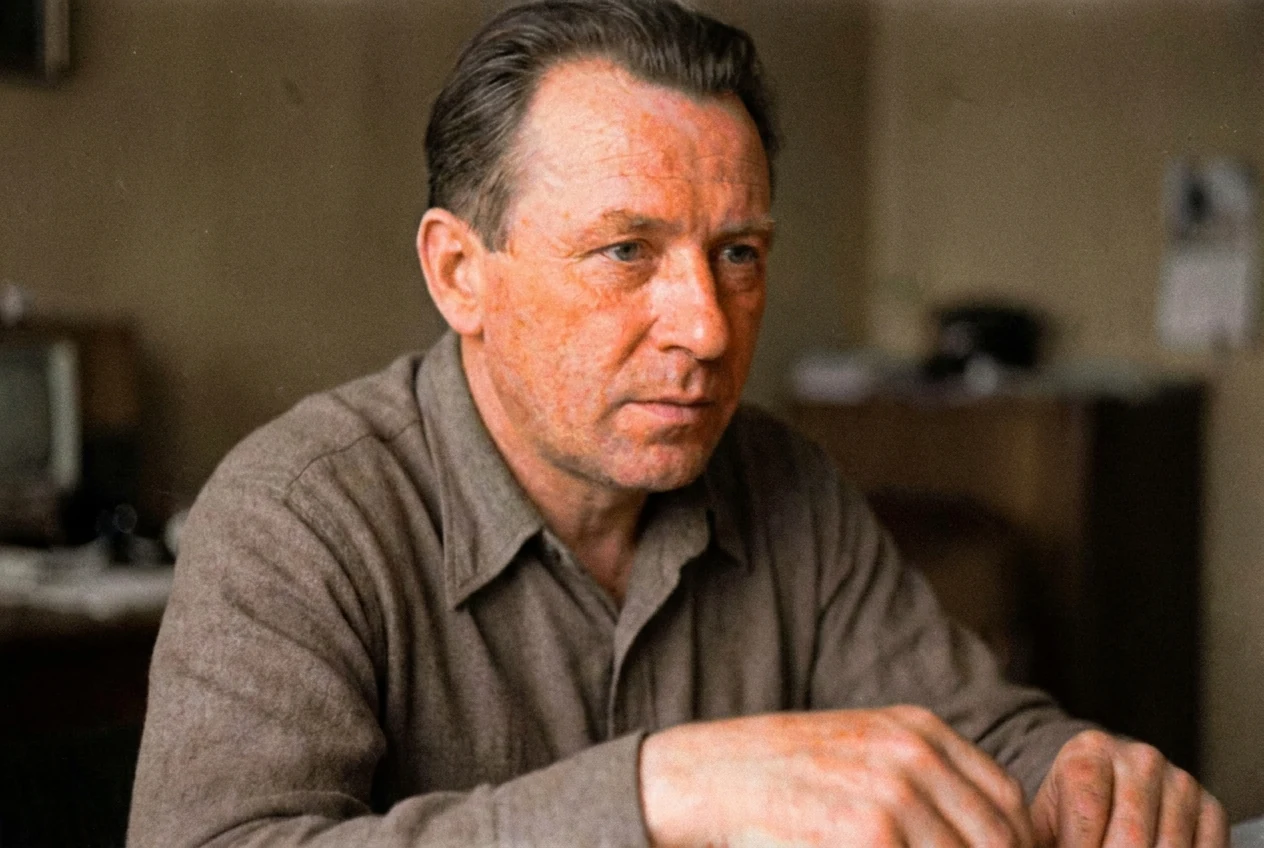
Once the image is readable enough to support color, Evoto can handle the actual colorization pass in a simpler upload-generate-export flow. The point here is not to replace the earlier judgment steps, but to show what the streamlined tool stage looks like after the source is ready.
If you want a fast web-based option for that stage, Evoto’s AI Photo Colorizer fits this simplified workflow.


Powerful AI Photo Editor
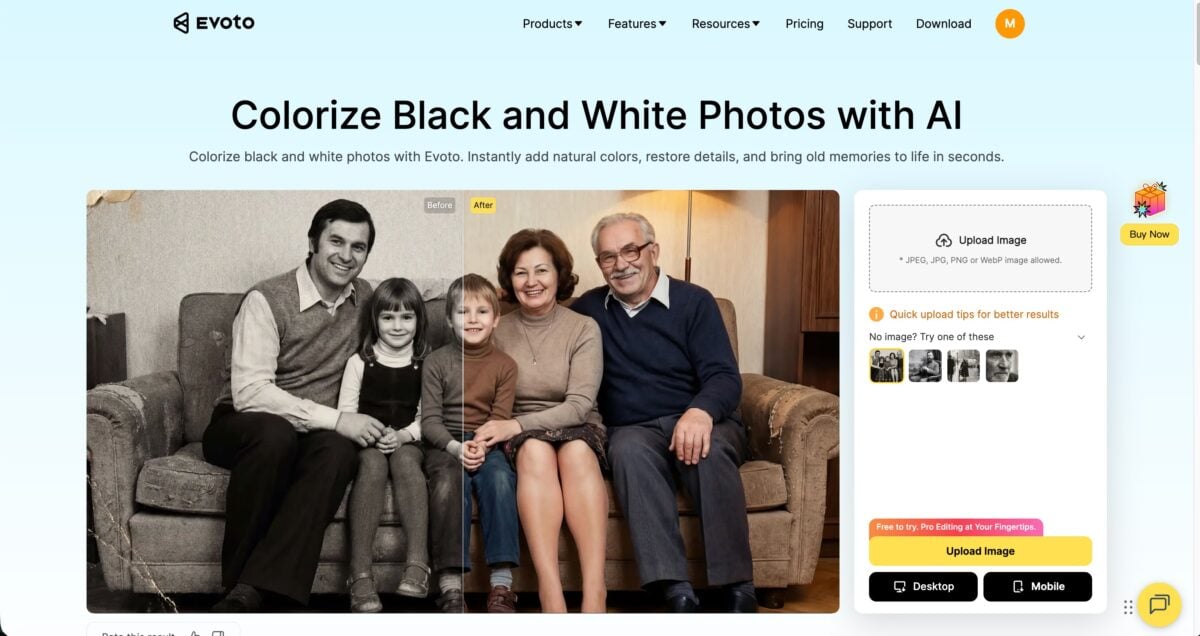
Step 1: Upload the Photo
Upload your black and white image directly.
The system automatically detects image details and prepares it for colorization.
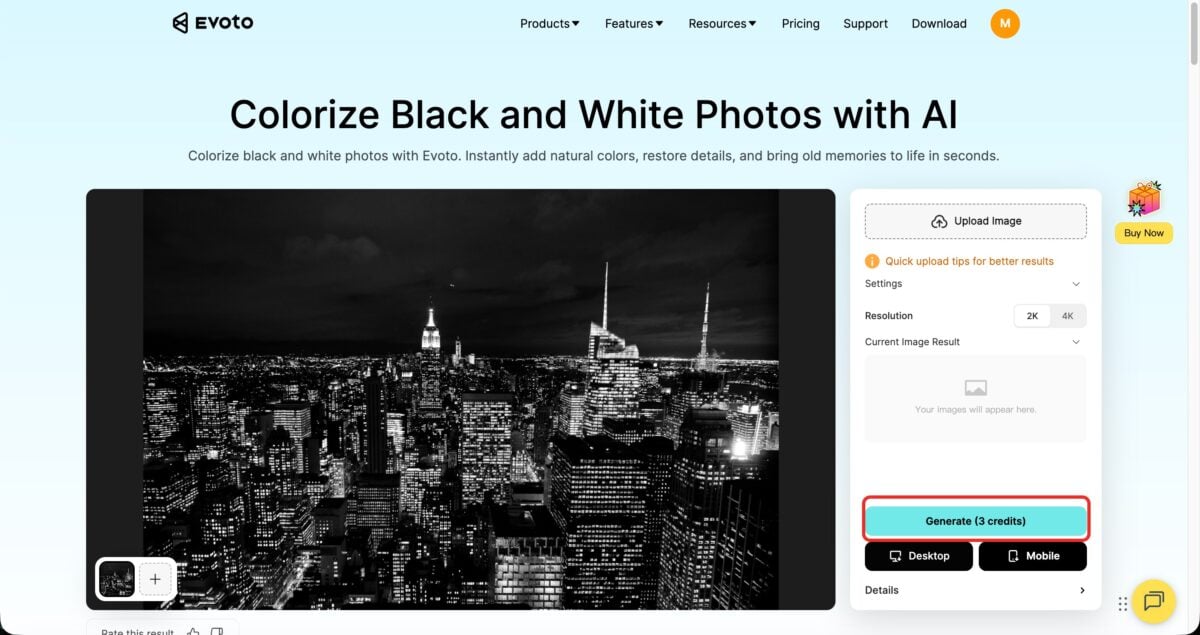
Step 2: Generate Color
Choose the resolution and click “Generate” to automatically add realistic colors to your photo.
Evoto’s AI analyzes tones, textures, and context to produce natural-looking results in seconds.
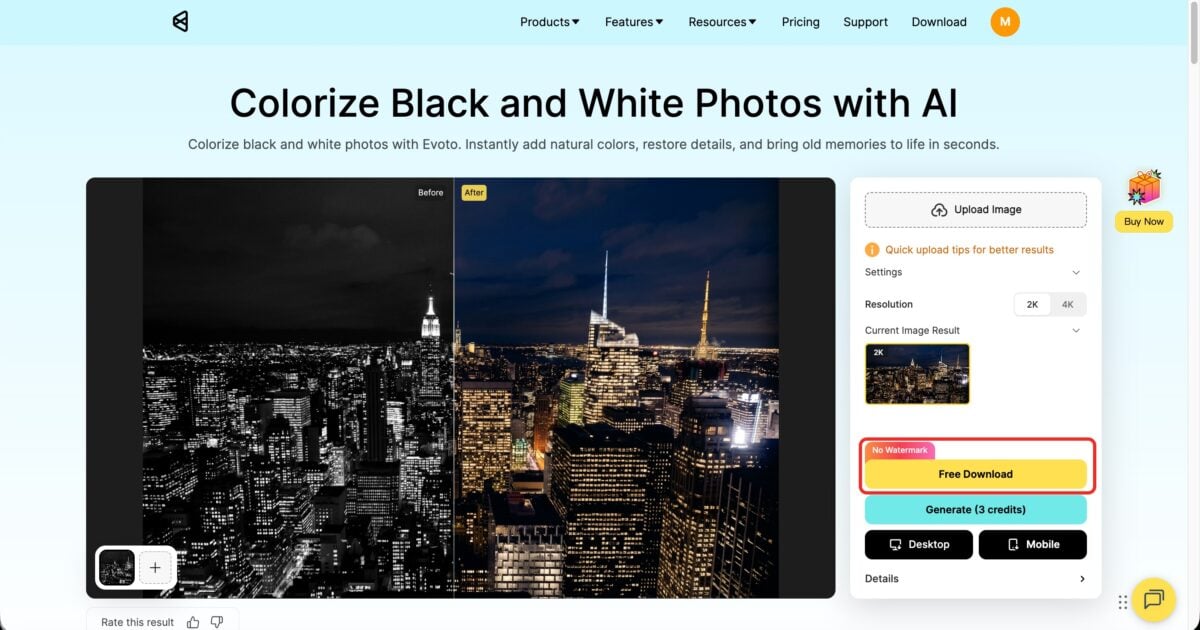
Step 3: Export
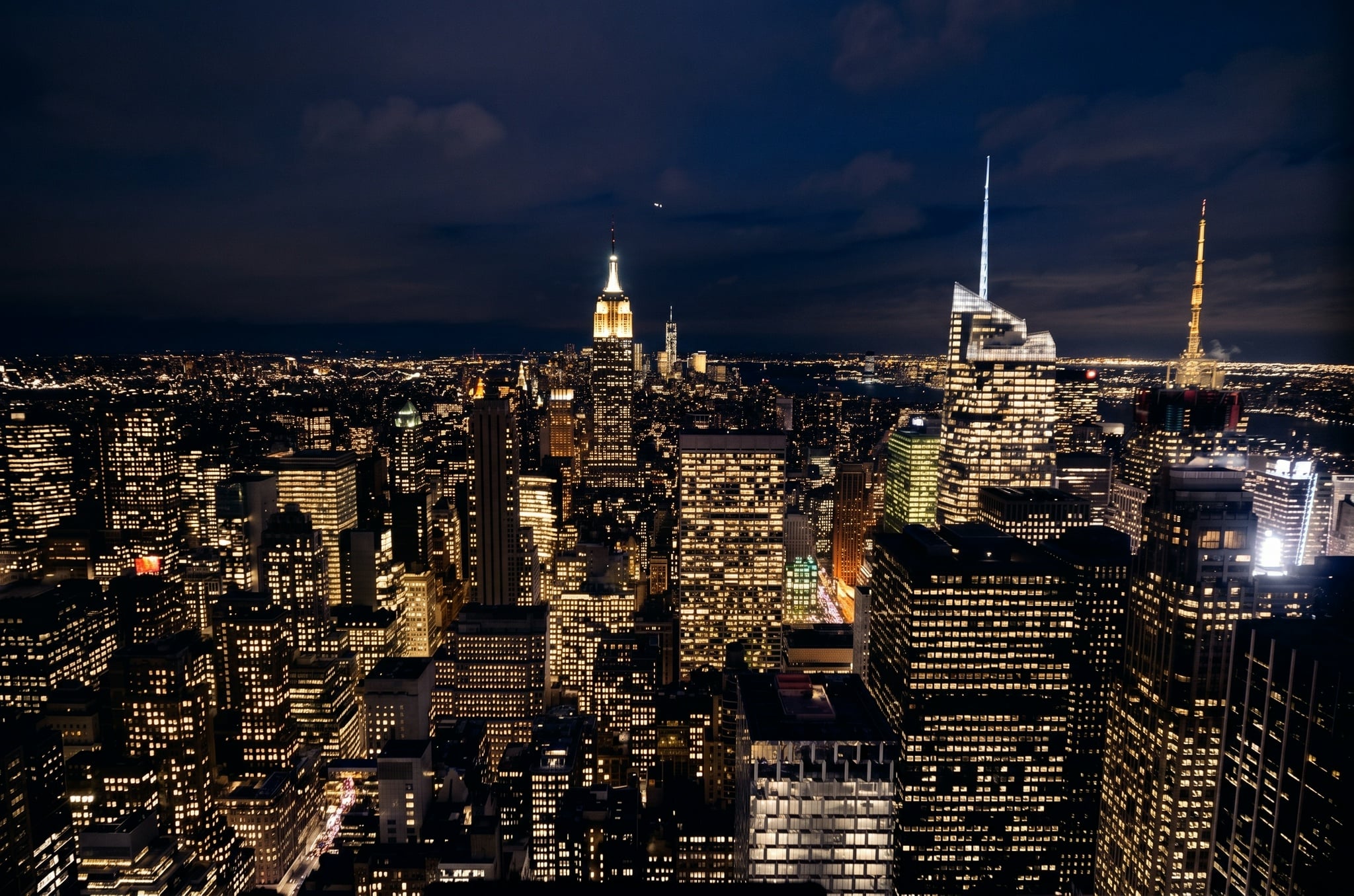
Download your colorized photo in high resolution, ready for sharing, printing, or archiving.
Final Thoughts
The best black-and-white photo colorization is not about adding color as quickly as possible. It comes from starting with a clean image and letting the color enhance the original instead of overpowering it.
When the structure is clear and the tones are balanced, AI colorization can produce results that feel natural, believable, and visually consistent. The goal is not perfect accuracy in every detail, but an overall look that respects the original photo while bringing it closer to life.
A clean workflow does not need to be complicated: upload the image, generate the color, make small refinements if needed, and finalize the result. With tools like Evoto, this process becomes faster and more accessible, while still giving you control over the final look.
Try Evoto AI Photo Editor
Retouch photos with Evoto AI and make your photos best! Available on Windows, MacOS and iPadOS.



