

A bokeh effect can make a photo feel softer, more cinematic, and more focused on the subject, but it is easy to overdo. In Photoshop, you can build that blurred background look manually with masks, blur controls, and subject separation, which gives you flexibility but also takes more time and judgment.
That is why believable bokeh in post-processing depends on more than just applying blur. The background has to support the effect, the subject edges have to stay clean, and the blur has to feel soft and optical instead of flat and fake. This guide first walks through a beginner-friendly Photoshop workflow, then shows a faster Evoto option, and finally compares when each one makes more sense.
TL;DRIf you want to create a bokeh effect in Photoshop, the core job is to separate the subject cleanly, blur only the background, and keep the edges and depth logic believable. The effect usually fails when the background blur is too even or the subject starts looking cut out. If you want a faster path, Evoto can create a softer background result with fewer manual masking steps, but Photoshop still gives you more control when the image is complex.
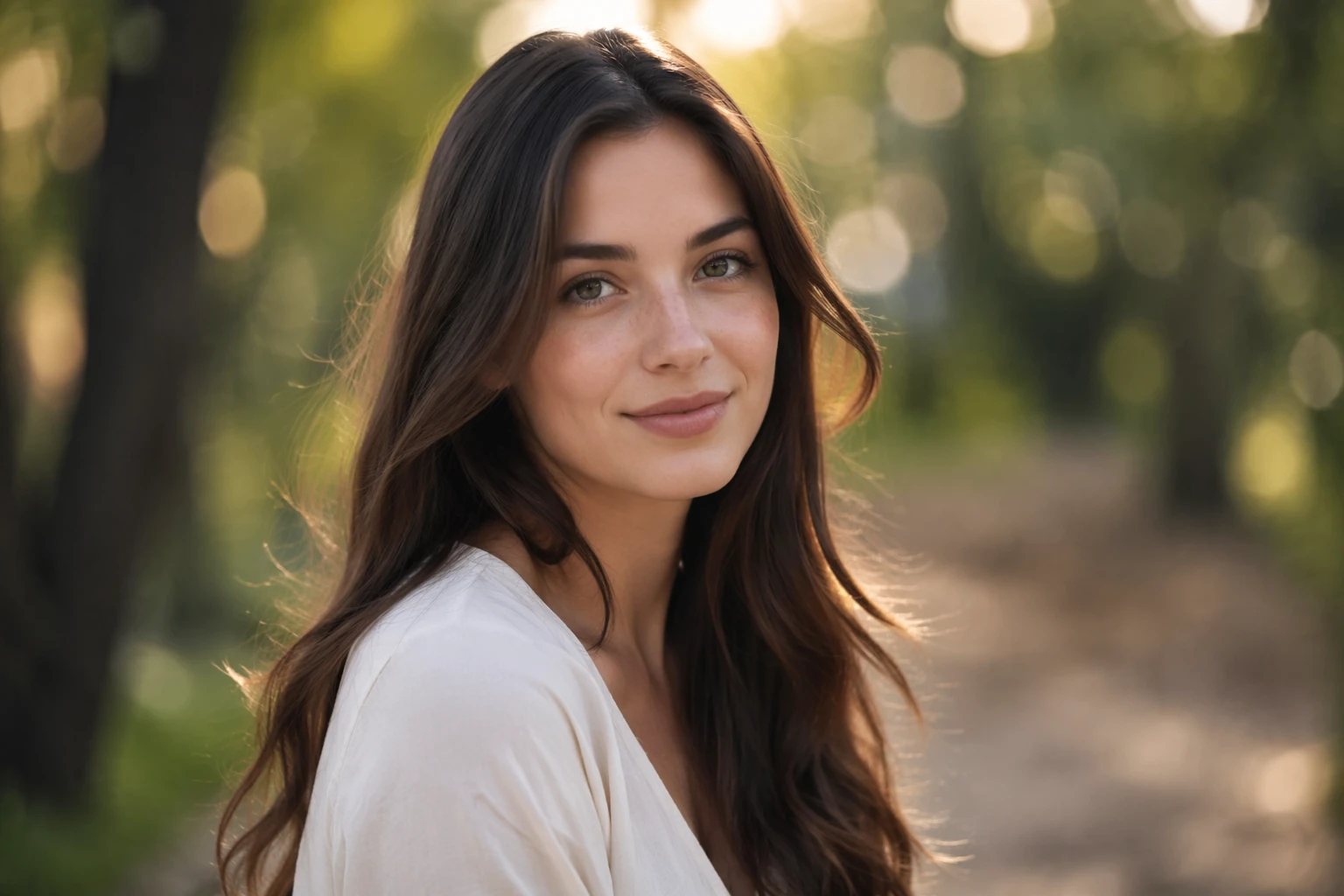
What Is the Bokeh Effect in Photography?
What bokeh actually looks like in a photo
Bokeh is the look of out-of-focus areas in a photo, especially in the background. In a naturally shot image, it often appears as soft blur, rounded light shapes, and smoother background detail that helps the subject stand out.
In editing, people often use the term more loosely to mean a blurred background that mimics that shallow-depth-of-field look.
Why people add bokeh in post-processing
Sometimes the original photo does not have enough background separation, or the subject would look stronger with a softer backdrop. In those cases, adding a bokeh-style blur in post can help the image feel more focused and visually cleaner.
The idea is not to hide the whole background. It is to reduce distraction and support the subject.
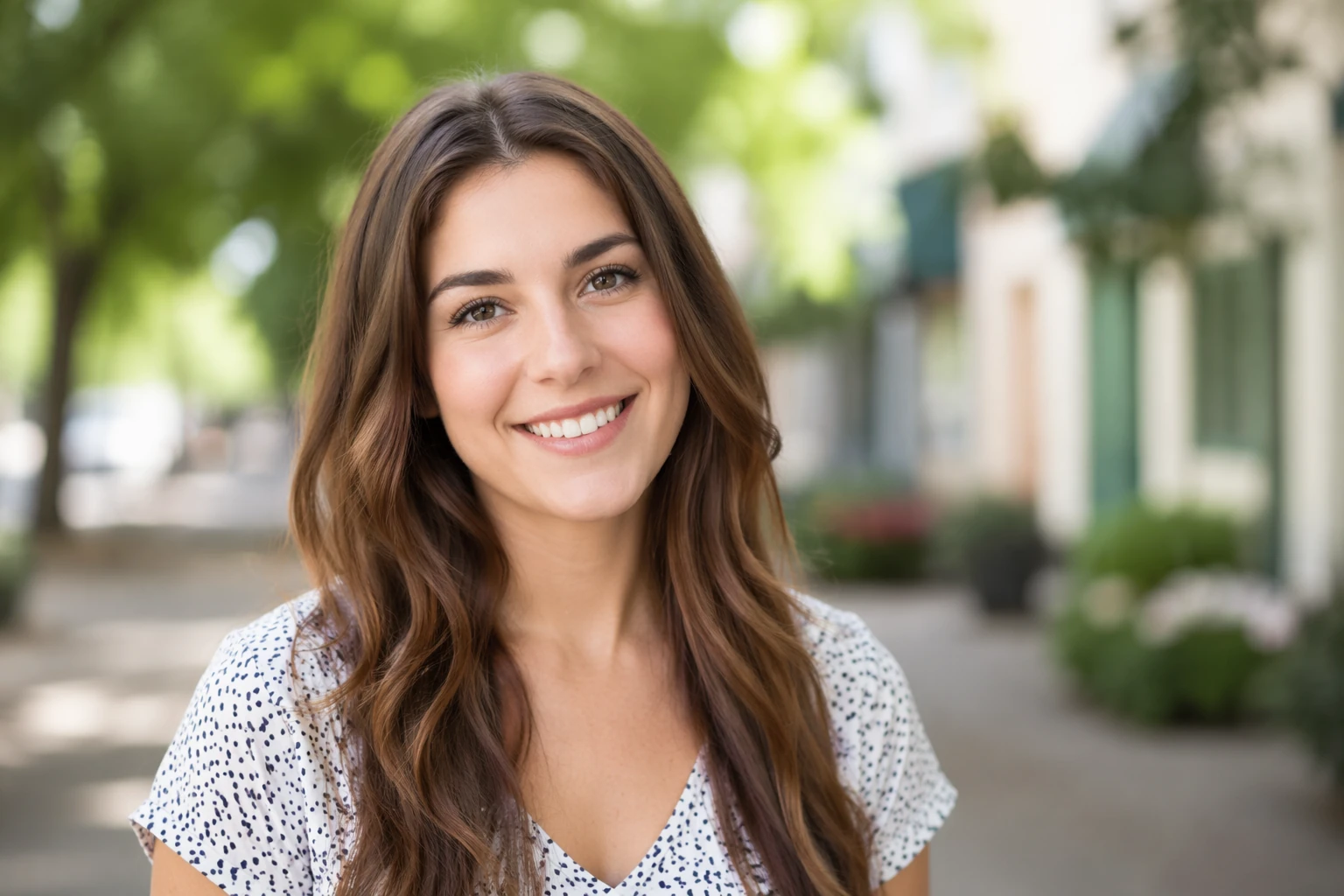
Why a fake bokeh effect can look obvious very quickly
Fake bokeh usually becomes obvious when the blur is too even, the subject edges look cut out, or the background softness does not match the scene depth. If everything behind the subject gets the same blur treatment, the result often feels graphic instead of photographic.
That is why realism matters here more than blur strength alone.
How to Create a Bokeh Effect in Photoshop (Step by Step)
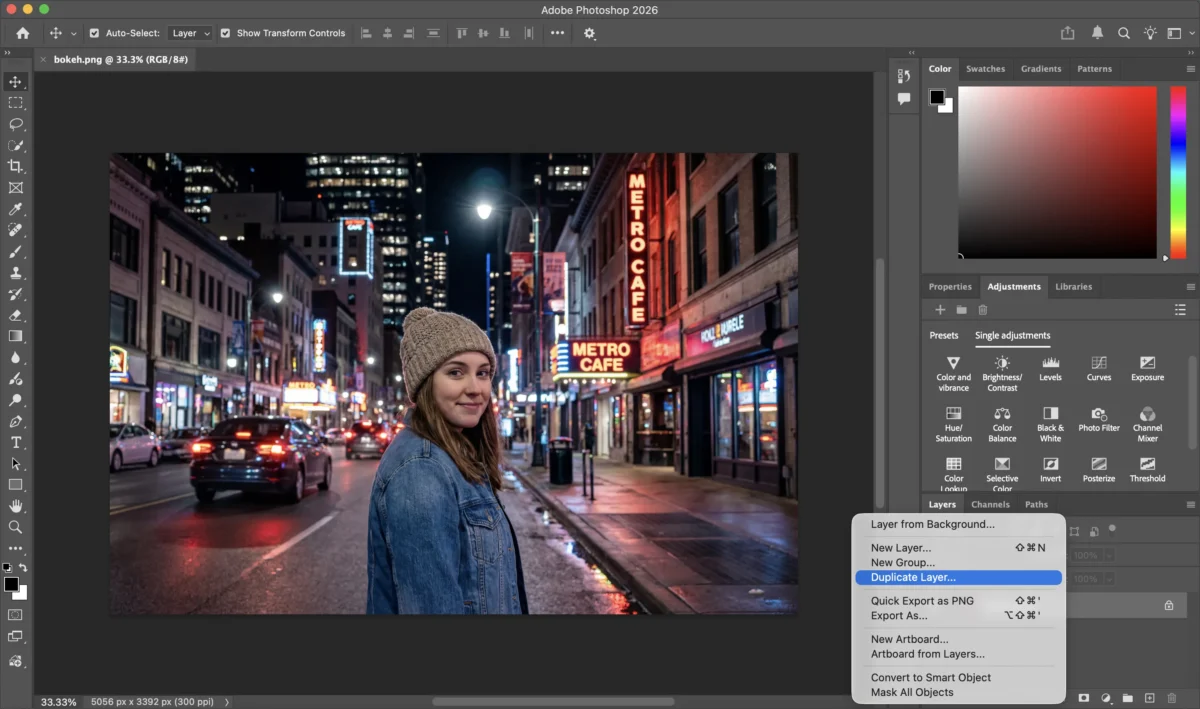
Step 1: Open the image and duplicate the background layer
Open the image in Photoshop, duplicate the background layer, and keep the original untouched underneath. This gives you a safe working layer for the blur effect.
If you want a cleaner workflow, convert the duplicate into a Smart Object first. That makes it easier to adjust the blur again later without starting over.
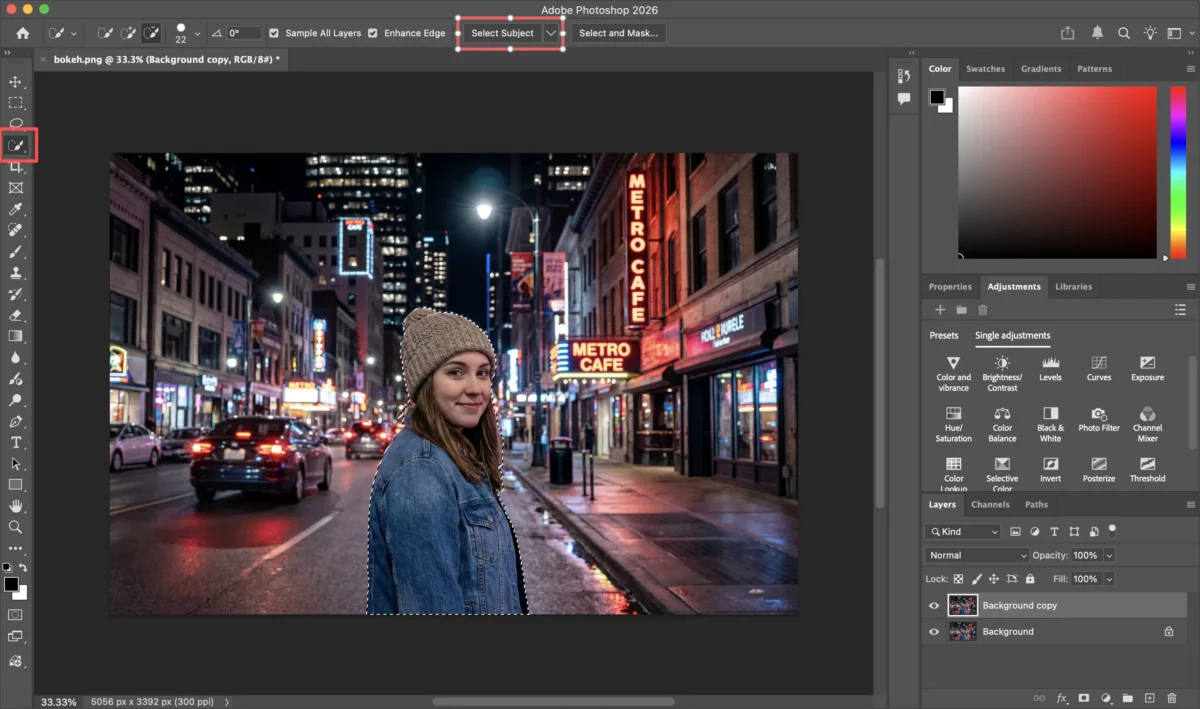
Step 2: Select the subject and refine the mask
Go to Select > Subject to create the first subject selection, then open Select and Mask to clean it up. Refine the hair, shoulders, clothing edges, and any small overlaps so the subject does not look cut out.
Output that selection as a layer mask. This is the part that decides whether the final result looks believable or obviously edited.
Step 3: Apply Lens Blur or Gaussian Blur to the background
With the subject protected by the mask, target the background layer and apply Lens Blur or Gaussian Blur. Lens Blur usually feels more natural for this kind of effect, but Gaussian Blur is fine if you want a simpler starting point.
Start with a moderate blur amount, not the strongest possible setting. You can always push it farther later, but it is harder to recover a background that already looks fake.
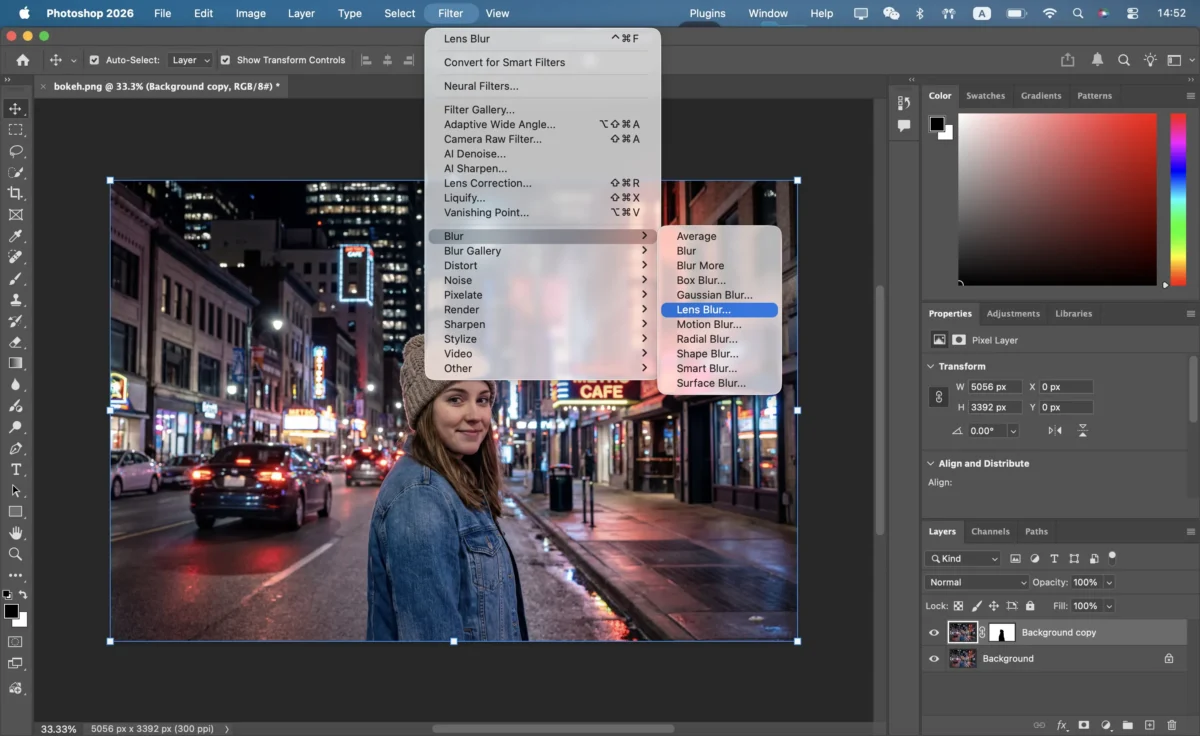
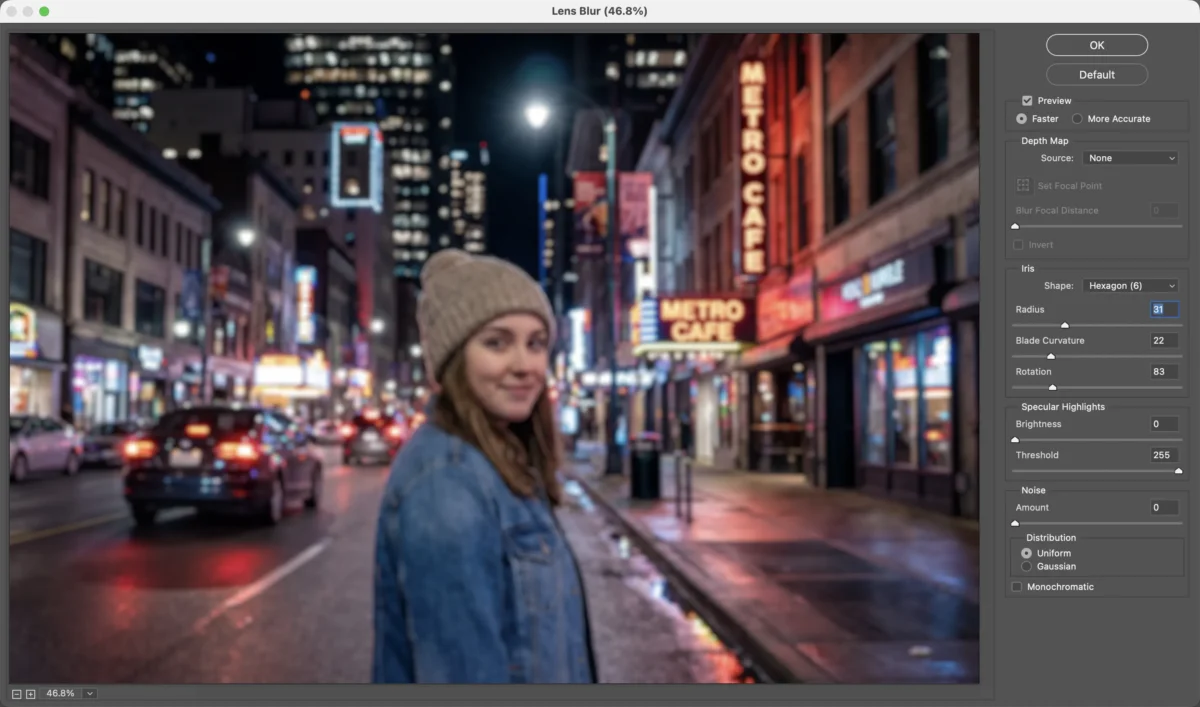
Step 4: Fine-tune the blur with the mask and blur amount
After the first blur pass, adjust the blur radius until the background feels soft but not flat. If the whole background looks equally blurred, use the mask to reduce the effect around areas that should stay a little more readable.
This is the stage where the edit starts looking real or fake. Pull the blur back until the subject still feels naturally connected to the scene.
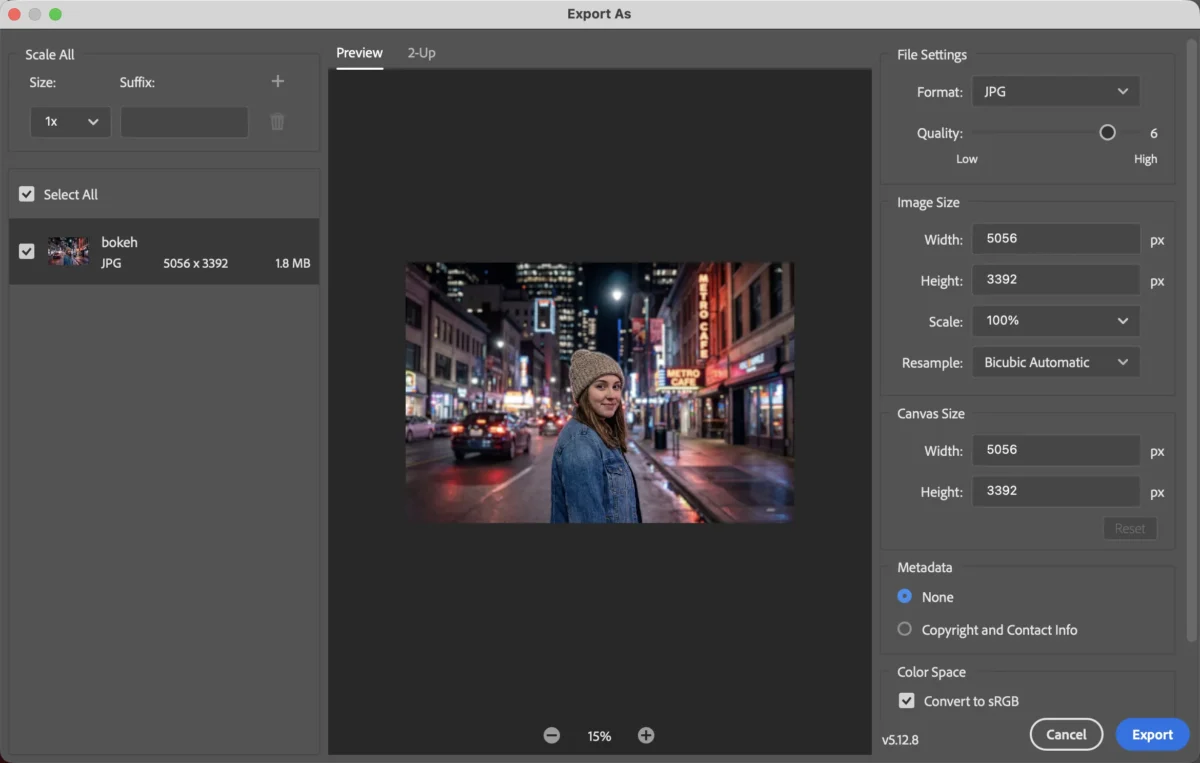
Step 5: Clean the edges and export the final image
Zoom in and check the mask around hair, shoulders, hands, and clothing edges. If you see halos or hard cutout lines, paint back into the mask or soften the transition before exporting.
Once the edges look clean and the blur feels natural, export the final image. If the subject still looks pasted onto the background, fix that before you save anything.
Common Problems When Adding a Bokeh Effect in Photoshop
The subject edges look cut out or haloed
This is one of the most common issues. If the selection is too hard, too rough, or not refined enough, the subject will look pasted onto the blurred background.
Even a strong blur can feel believable if the edges are clean. Even a subtle blur can fail if the edges are wrong.
The blur is too even and does not feel optical
Natural depth blur usually does not behave like a perfect blanket over everything in the background. If the entire background becomes equally soft, the image can feel flat and synthetic.
That is why blur strength often needs adjustment rather than just a single heavy application.
The background becomes soft, but the image still does not feel natural
Sometimes the technical blur works, but the photo still looks wrong. This usually happens when the original scene never had good depth separation, or when the subject and background still do not feel visually connected.
In those cases, more blur usually does not solve the problem.
Tips for a More Realistic Bokeh Effect
Match the blur strength to the original image depth
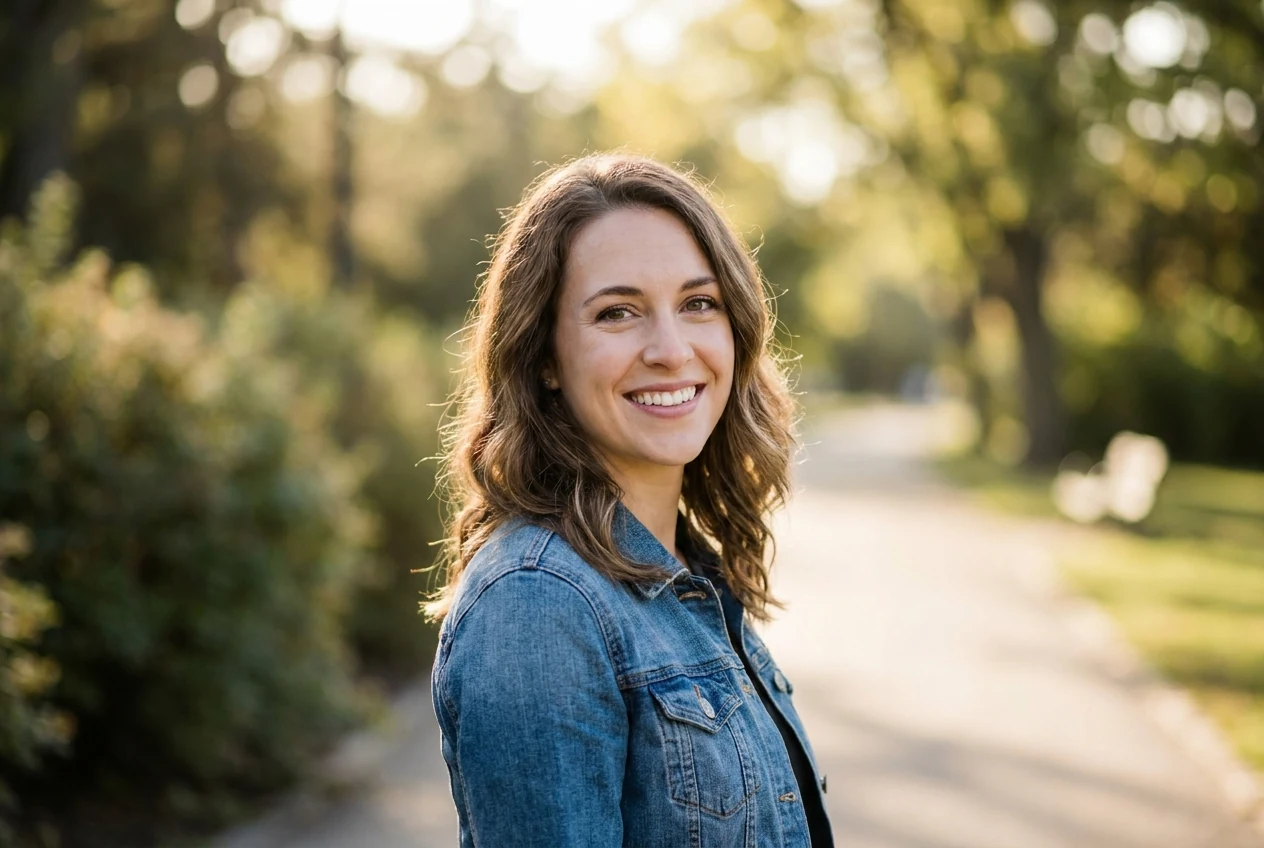
The effect should feel plausible for the photo you started with. A mild portrait background can carry a gentle blur. A busy scene may need restraint. If the blur looks stronger than the scene could reasonably support, it will feel artificial.
This is one reason subtlety usually works better than drama.
Keep the subject edges believable
The edges are what tell the viewer whether the blur belongs in the image. If the edge quality is bad, the illusion breaks immediately.
That is why masking and refinement matter so much more than just blur amount.
Do not use blur to fix a composition that is already weak
Bokeh can improve subject separation, but it does not rescue a weak composition. If the subject placement is awkward or the image lacks a strong point of interest, adding background blur may only make the problem more obvious.
The best bokeh edits still rely on a good photo underneath.
How to Add a Bokeh Effect in Evoto
Step 1: Open the image
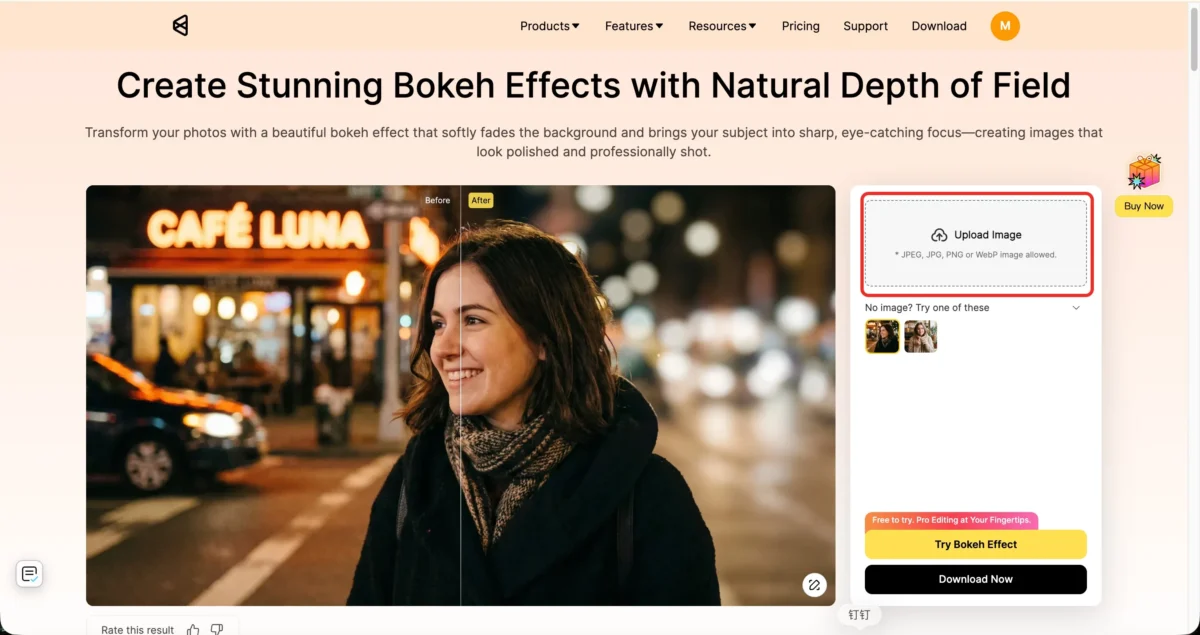
Go to the Evoto Bokeh Effect Editor and Open your photo. The AI automatically detects and separates the subject from the background, so you can start building the effect immediately without manual masking or cutout work.
Step 2: Adjust the bokeh degree, bokeh shape, and focus range
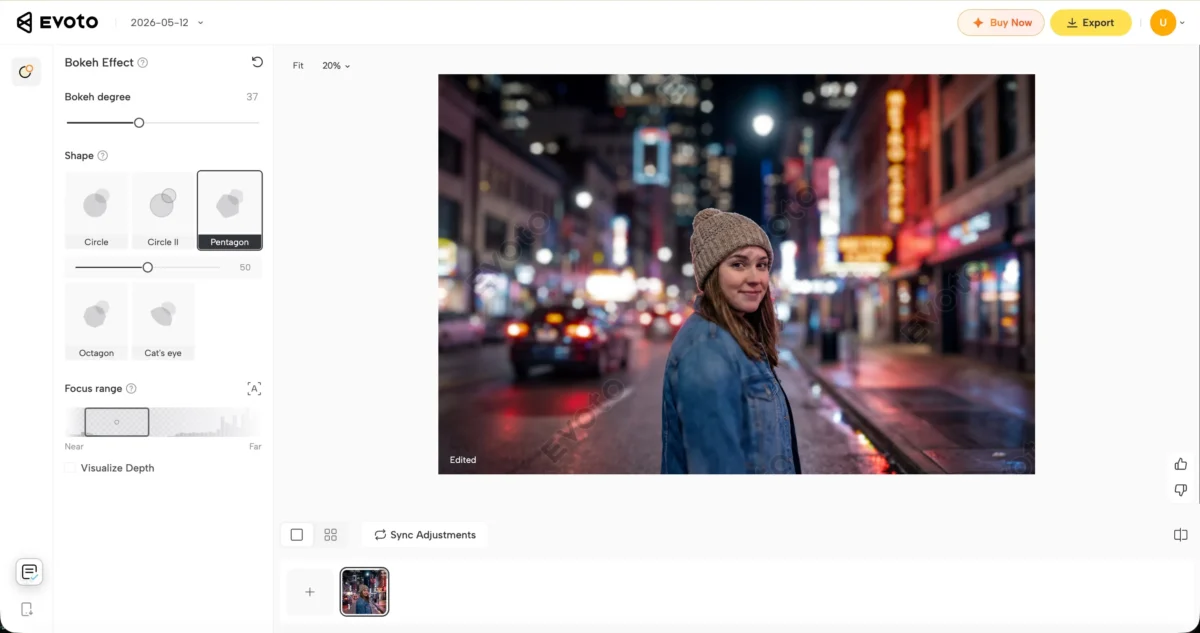
Control how soft the background looks by adjusting the blur intensity, choosing different bokeh shapes, and refining the depth-of-field range. This helps the effect feel more natural while keeping the subject clear and visually separated from the background.
Step 3: Export the final image
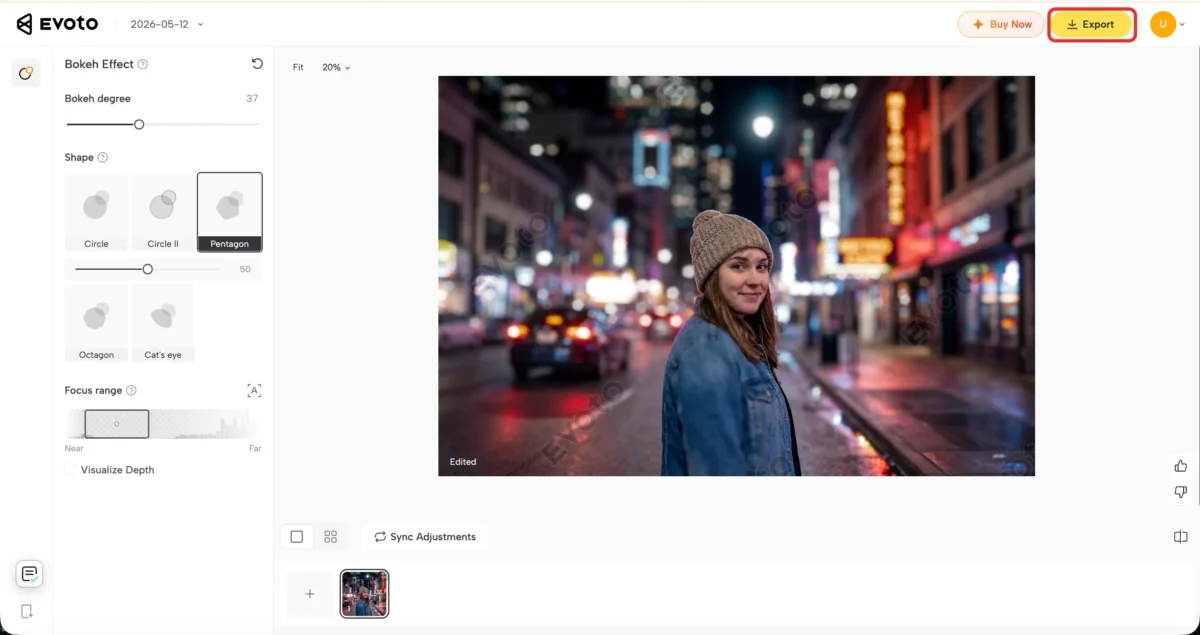
Once the blur feels balanced and the subject still looks clean and realistic, export the finished image in high quality.
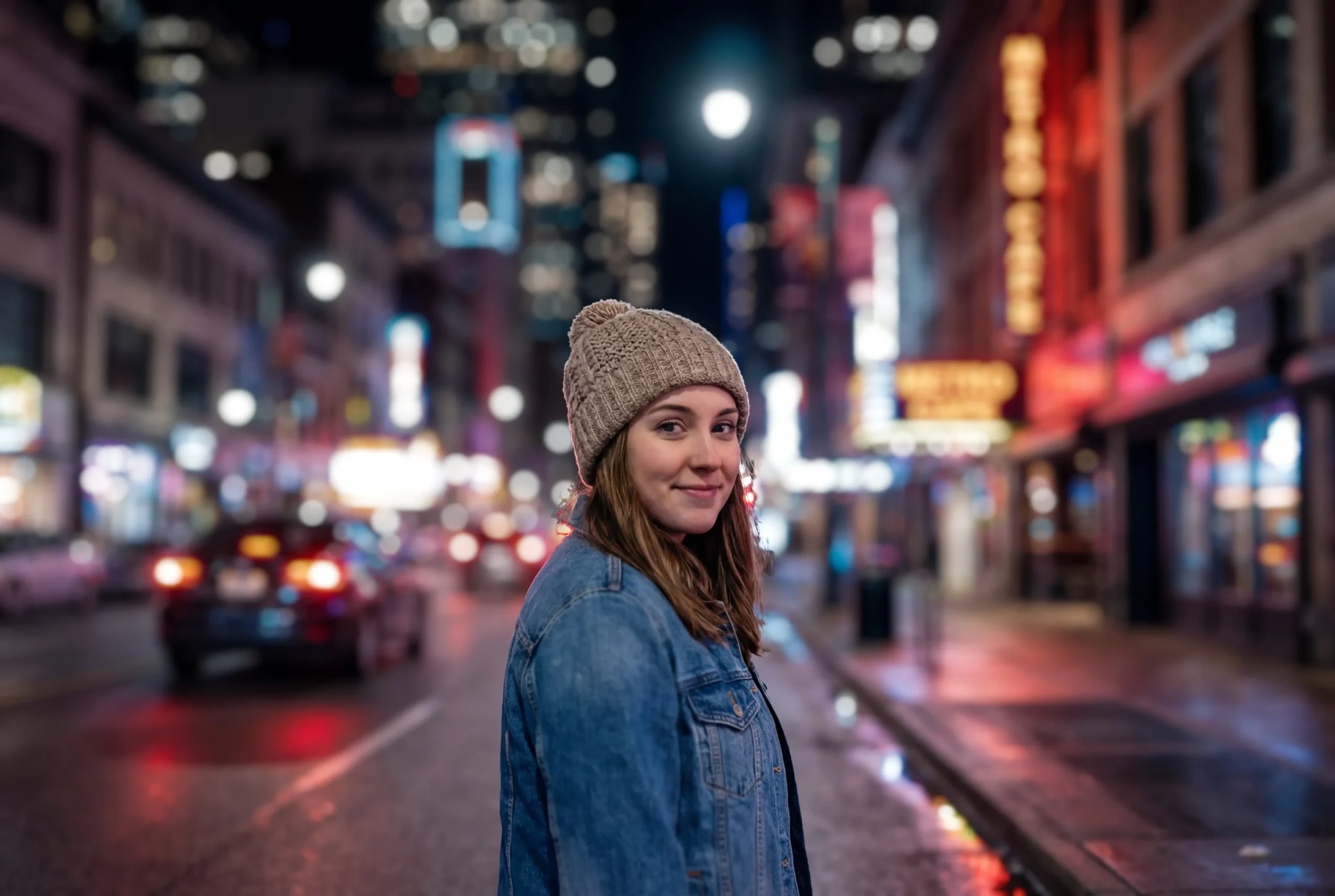
The goal is simple: a faster result that still looks believable.
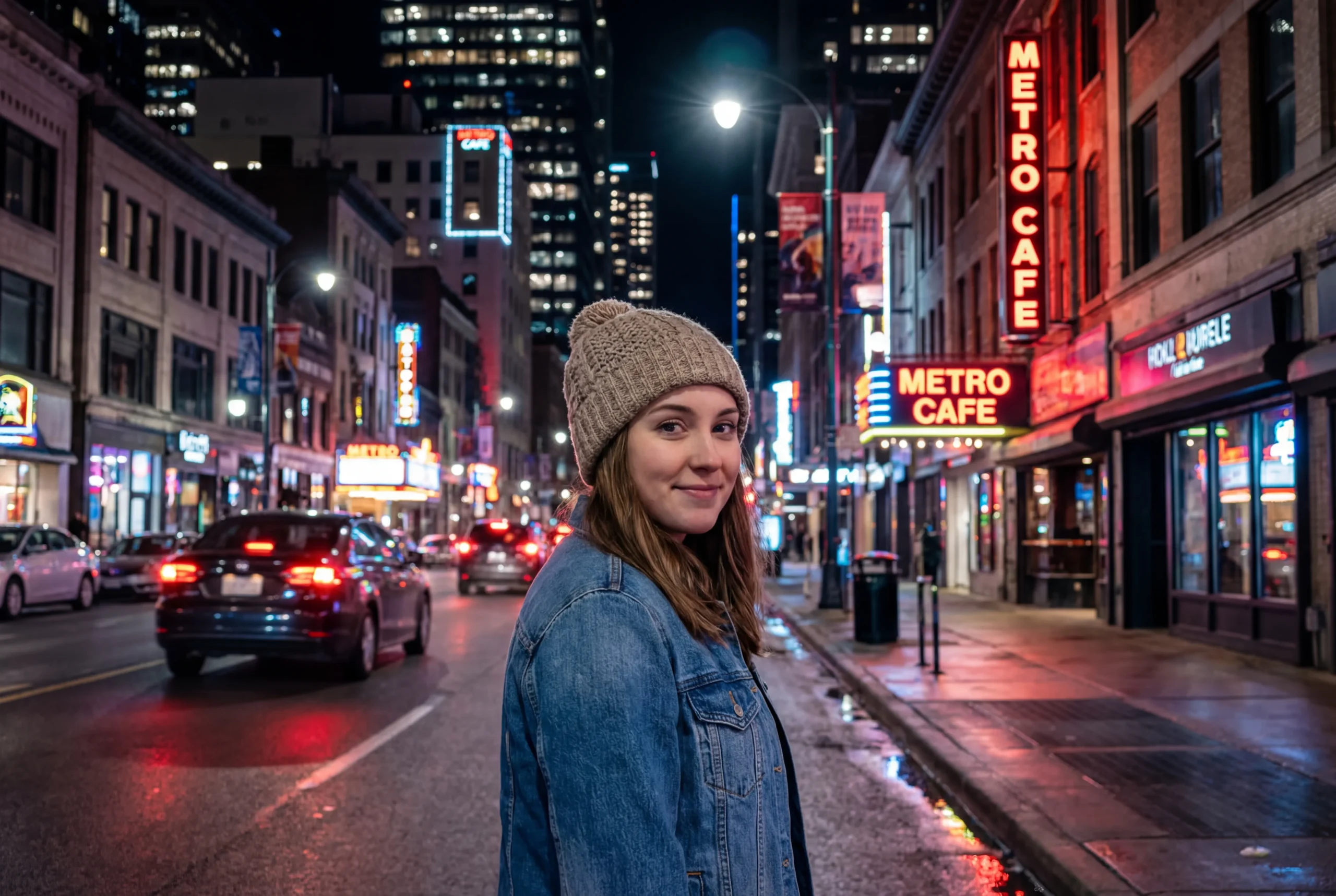
Photoshop vs Evoto: Which Is Better for a Bokeh Effect?
When Photoshop makes more sense
Photoshop makes more sense when you need full control. If the scene is complicated, the subject edges need careful masking, or the blur needs more hand-built adjustment, Photoshop is the stronger tool.
It is also better when realism depends on careful refinement rather than speed.
When Evoto is the faster and more practical option
Evoto is the better fit when the image is already a good candidate for the effect and the main goal is a quicker, cleaner workflow. If you do not need deep manual compositing and mainly want the subject to stand out more with less time spent building the blur, it is the more practical option.
That makes it especially useful for controlled portrait, beauty, or simple product-style scenes.
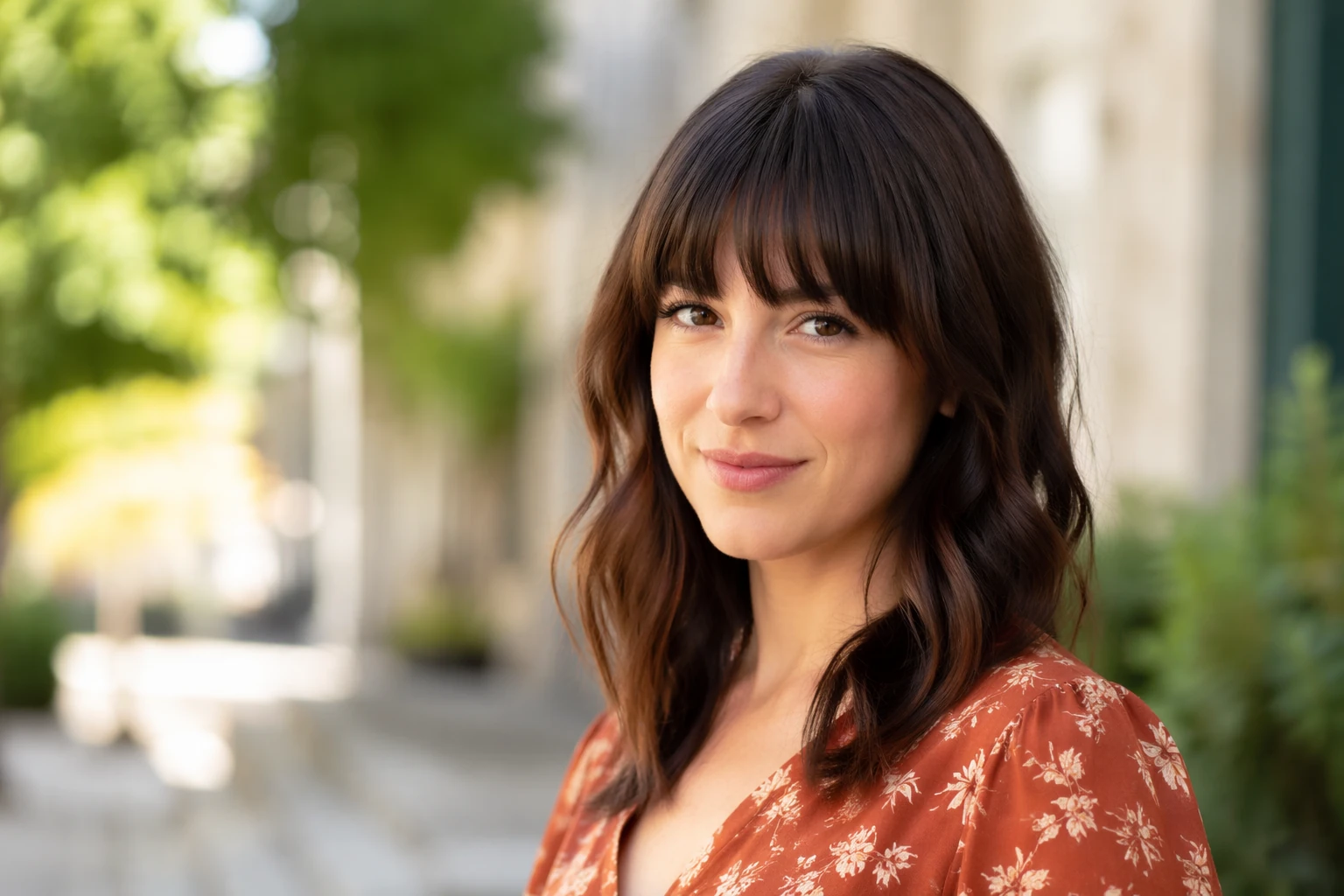
Why the best result still depends on subject separation and source image quality
No tool fixes a weak source image automatically. If the subject does not separate clearly, the background is too chaotic, or the original image has poor edge structure, both Photoshop and Evoto will run into limits.
The best bokeh effect still starts with an image that can support the illusion.
Final Thoughts
A good bokeh effect supports the subject instead of calling attention to itself
The best bokeh edits make the image feel more focused, not more obviously edited. The background should step back so the subject can come forward.
That is why a believable effect usually feels quieter than people expect.
The more believable the blur feels, the better the edit works
A successful bokeh effect is not about how much blur you add. It is about whether the softness feels natural for the scene, the subject edges stay clean, and the photo still feels like one image instead of two separate layers.
If the blur feels believable, the whole edit becomes stronger.
Try Evoto AI Photo Editor
Retouch photos with Evoto AI and make your photos best! Available on Windows, MacOS and iPadOS.



