Pimple removal video editing used to mean one of two things: spend hours masking each blemish frame by frame, or slap on a blur filter that erases every pore along with the pimples. Neither option works when you need professional results fast — and in video, inconsistent removal is even more obvious than in photos because motion and lighting shifts expose every flaw in the edit.
Most video editors dodge this problem entirely. The ones that don’t usually offer a single skin-smoothing slider that blurs the entire face — pimples gone, but so is every pore, freckle, and natural skin texture. You trade acne for a plastic mask.
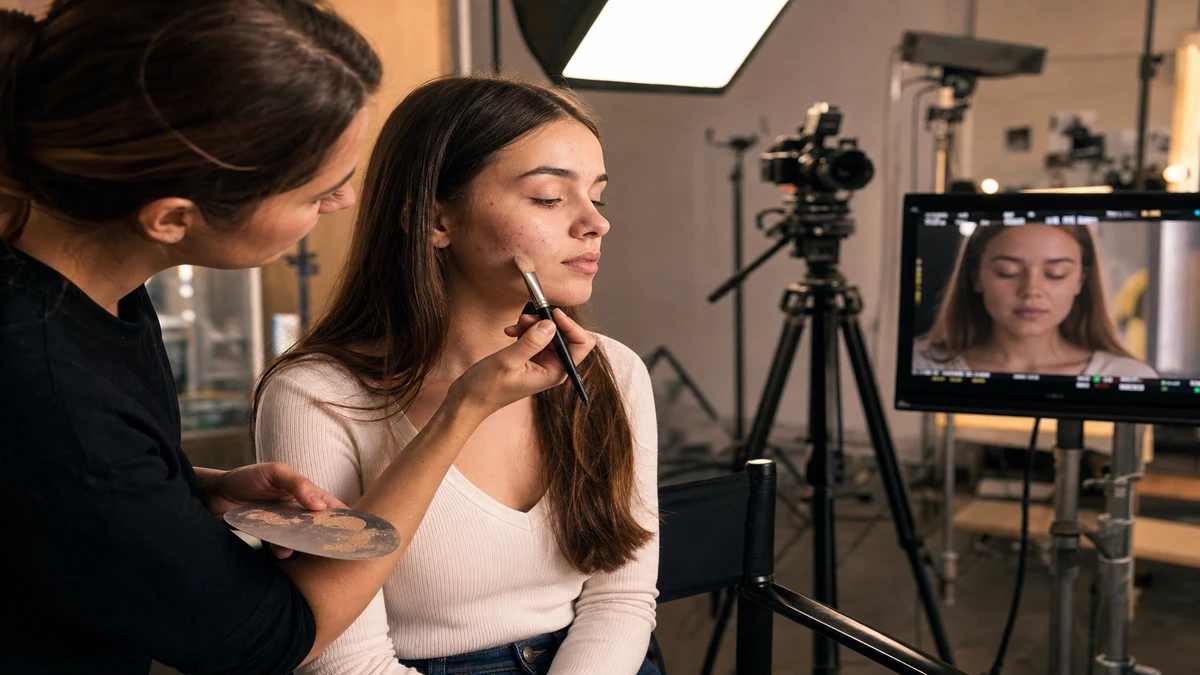
Evoto Video takes a different approach: its Blemish Removal module gives you individual sliders for different types of skin imperfections — freckles and acne, eye bags, dark circles, face shine, wrinkles — each adjustable independently. AI handles frame-by-frame tracking. The result is pimple removal video editing that clears blemishes while keeping your skin looking like actual skin.
Why Standard Skin Smoothing Fails at Pimple Removal
A blur-based skin filter treats the entire face as one uniform surface. It can’t distinguish between a pimple on your cheek and the natural texture around it, so it smooths everything equally. In a still frame, you might get away with it. In video, motion exposes the effect: skin looks unnaturally soft when the subject moves, and the filter’s mask can lag behind head turns, creating visible artifacts at the jawline and hairline.
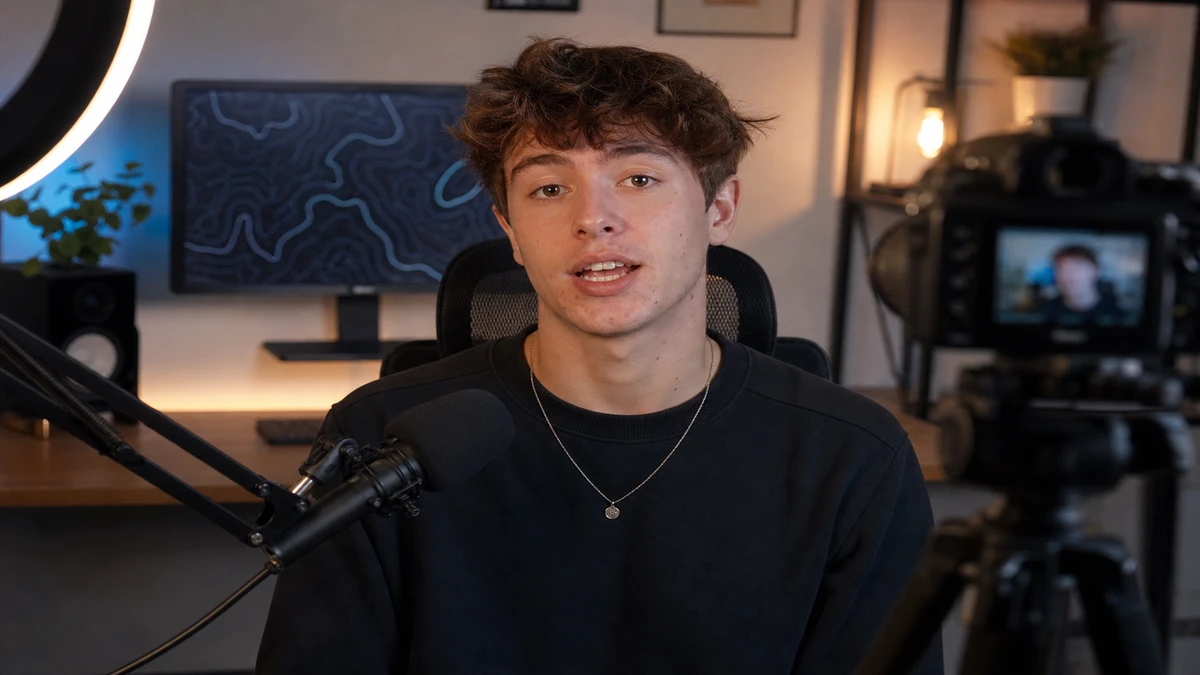
Real pimple removal in video requires targeting individual blemish types without touching the surrounding skin. That means the tool needs to identify what’s a pimple and what’s a pore — and apply removal only to the former, consistently, across every frame. This is where AI-powered video blemish removal separates itself from basic smoothing filters.
How to Remove Pimples from Video with Evoto — Step by Step
Evoto Video’s Blemish Removal module lives inside Portrait Retouching. Here’s how to use it:
Step 1: Import Your Video
Open Evoto Video and drag in your MP4, MOV, or M4V file. The app supports clips up to 4K resolution.
Step 2: Open Blemish Removal
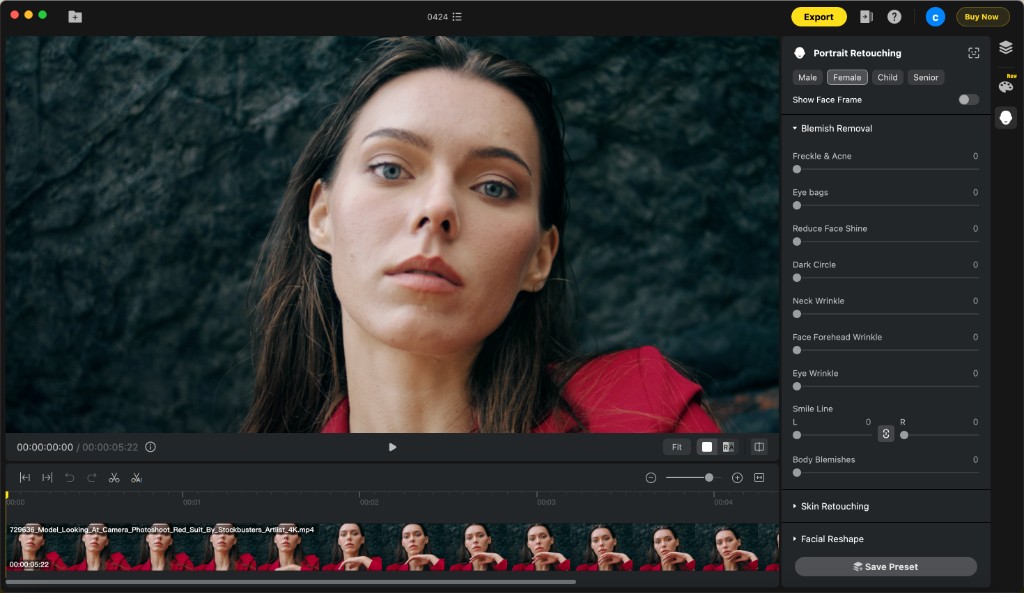
Click the Portrait Retouching icon in the right panel. Select the gender preset (Male, Female, Child, or Senior) for optimized AI face detection. Expand the Blemish Removal section — you’ll see the full slider panel:
Step 3: Adjust Per-Area Sliders
This is where Evoto Video differs from every pimple remover app that gives you a single dial. Each blemish type has its own slider:
- Freckle & Acne — The primary slider for pimple removal. Targets active acne, pimple marks, and freckles without touching surrounding skin texture.
- Eye Bags — Reduces puffiness under the eyes independently from the rest of the face.
- Reduce Face Shine — Controls oily skin shine without affecting matte areas.
- Dark Circle — Lightens under-eye darkness without over-brightening.
- Neck Wrinkle / Face Forehead Wrinkle / Eye Wrinkle / Smile Line (L/R) — Per-zone wrinkle reduction. Useful if you want to remove pimples but leave expression lines untouched — or address both.
- Body Blemishes — Extends blemish removal to exposed skin beyond the face (arms, shoulders, décolletage).
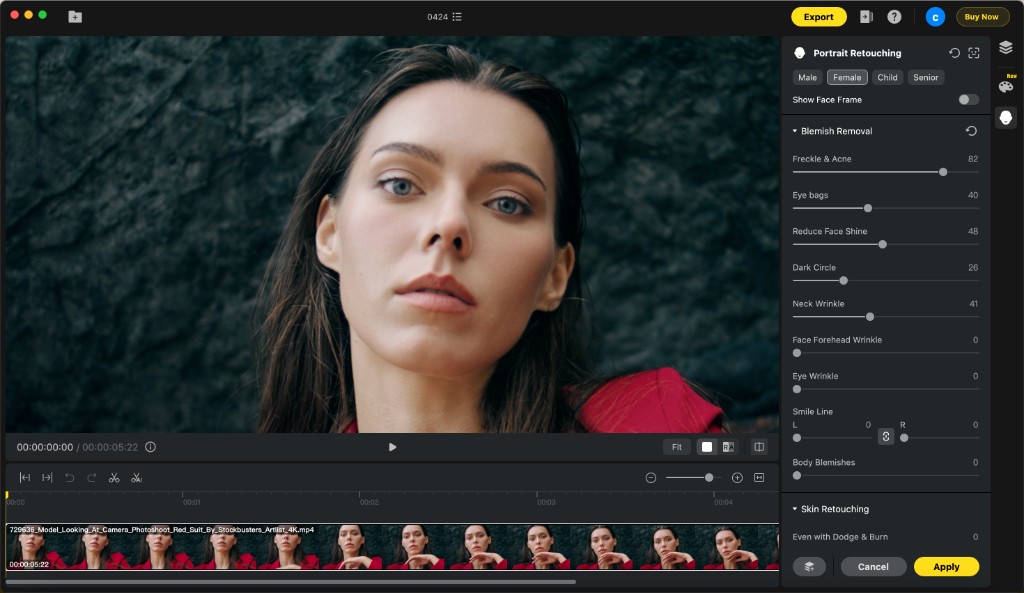
In the screenshot above, Freckle & Acne is set to 82 — high enough to clear visible pimples, while Eye Bags (40), Reduce Face Shine (48), Dark Circle (26), and Neck Wrinkle (41) handle other imperfections separately. Each slider operates independently, so pushing one doesn’t affect the others.
Step 4: Preview and Export
Play the video in the preview window to verify the effect across different expressions and lighting. The AI tracks facial landmarks frame by frame, so the removal stays consistent even during head turns and talking. Click Apply, then export at your original resolution.
Evoto Video – Be the First to Edit Smarter
Professional-grade AI color grading and retouching for video creators.
Why Skin Texture Preservation Matters
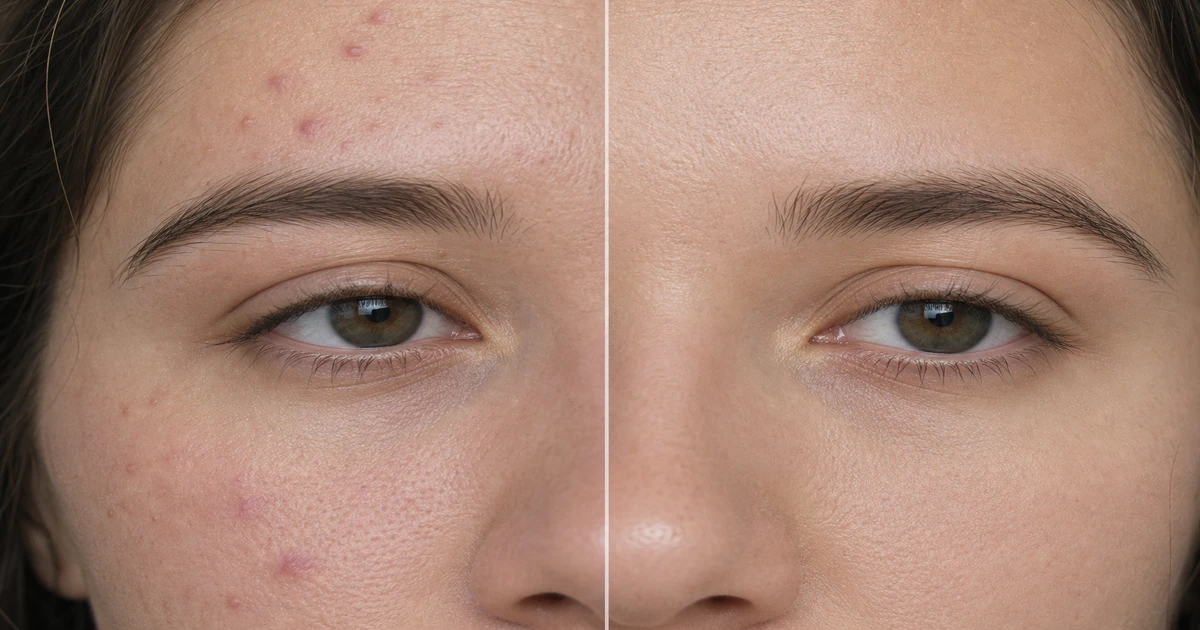
The difference between good and bad pimple removal comes down to one thing: texture. A viewer can’t consciously count pores, but they immediately sense when skin looks “wrong” — too smooth, too uniform, too flat. That subconscious detection is even stronger in video because motion and changing light constantly reveal surface detail.
Evoto Video’s Blemish Removal is designed to remove the blemish while preserving the skin surface around it. The Freckle & Acne slider targets discoloration and raised bumps specifically — it doesn’t blur the surrounding area. Pores, fine lines, and natural skin variation stay intact. The result looks like the person simply didn’t have pimples that day, not like their face was run through a filter.
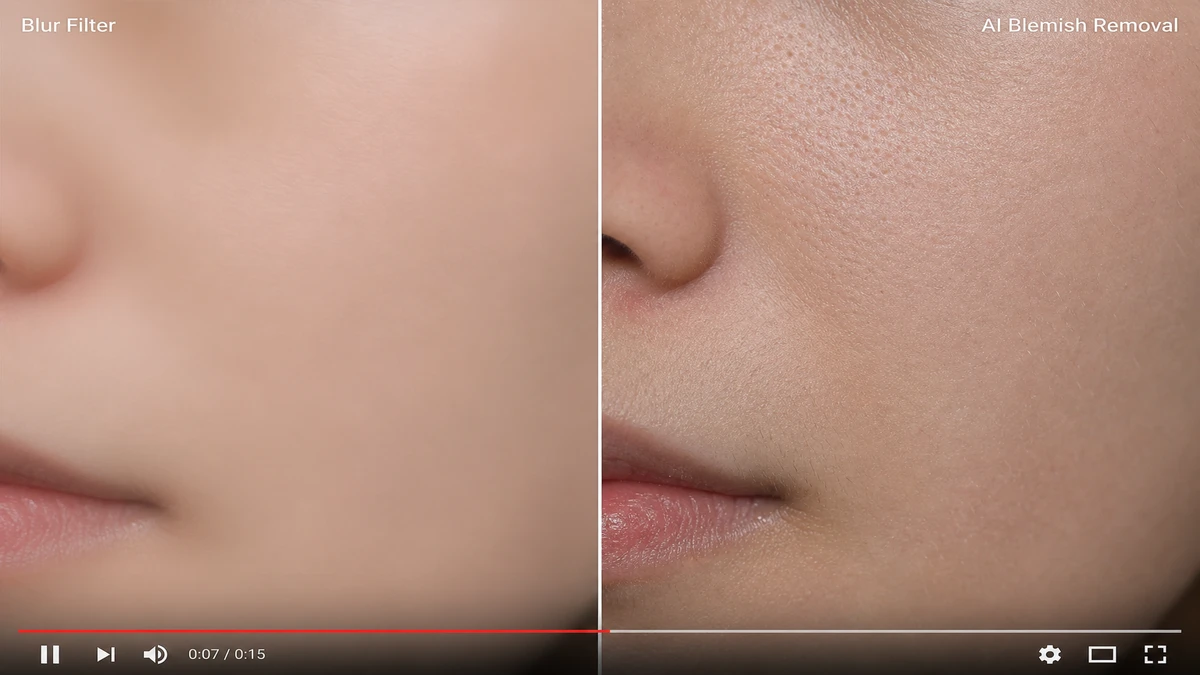
This is the core difference between a skin blemish remover that works and one that technically “removes” pimples by destroying everything around them. For professional video work — interviews, corporate content, wedding films, social media — texture preservation isn’t optional. It’s what makes the edit invisible.
What Evoto’s Blemish Removal Can Target
While pimple removal is the most common use case, the module handles a wider range of skin imperfections:
| Blemish Type | Slider | What It Does |
|---|---|---|
| Active acne & pimples | Freckle & Acne | Removes raised bumps and redness from active breakouts |
| Acne marks & spots | Freckle & Acne | Fades post-inflammatory hyperpigmentation |
| Under-eye bags | Eye Bags | Reduces puffiness without over-smoothing |
| Dark circles | Dark Circle | Lightens discoloration under the eyes |
| Oily skin / shine | Reduce Face Shine | Mattifies T-zone and cheeks selectively |
| Wrinkles (forehead, eyes, neck) | Per-zone wrinkle sliders | Reduces wrinkles by area without affecting other zones |
| Body blemishes | Body Blemishes | Handles spots on arms, shoulders, chest |
Every slider is independent. You can max out Freckle & Acne to clear a breakout while leaving wrinkle sliders at zero — or address everything at once. The key point: you’re never forced to apply a uniform effect to get rid of one type of blemish.
FAQs
Does removing pimples from video blur my skin?
Not with Evoto Video. The Freckle & Acne slider specifically targets blemish discoloration and texture anomalies — it doesn’t apply a global blur. Natural skin texture, pores, and fine lines remain intact. The result looks like clear skin, not filtered skin.
Can I remove just pimples without affecting wrinkles or eye bags?
Yes. Each blemish type has its own independent slider. You can set Freckle & Acne to 80 while keeping every other slider at zero. The module treats each imperfection category separately.
Does pimple removal work on body skin too?
Yes — the Body Blemishes slider extends AI blemish removal to exposed skin beyond the face, including arms, shoulders, and décolletage. Useful for fashion, fitness, and wedding video work where skin beyond the face is visible.
How long does it take to process?
Slider adjustments preview in real time. Final rendering depends on clip length and resolution — a 30-second 1080p clip typically processes in under a minute. The AI handles frame-by-frame tracking automatically; there’s no manual keyframing involved.
Evoto Video – Be the First to Edit Smarter
Professional-grade AI color grading and retouching for video creators.
Conclusion
Pimples shouldn’t require reshooting a video or smearing the entire face with a blur filter. A proper pimple removal video tool gives you per-blemish-type control — targeting acne independently from eye bags, dark circles, shine, and wrinkles — while preserving the natural skin texture that makes the edit invisible. Evoto Video‘s Blemish Removal module does exactly that: individual sliders, AI frame tracking, and texture preservation that keeps skin looking real across every frame.