

Jawline slimming is the most requested facial reshaping edit in portrait video — and the one most tools get wrong. A defined jawline contour is what gives a face its structure on camera, and in video, that structure shifts constantly as the subject turns, talks, and changes expression. Most face slimming apps respond to this with a single slider that compresses the entire face inward. The jaw gets slimmer, sure — but so does the forehead, the cheekbones, and everything else. The result looks squeezed, not sculpted.
Evoto Video handles jawline slimming with dedicated sliders for Jaw, V-Shape, Chin Taper, and Chin Length — each adjustable independently for the left and right side of the face. Combined, these sliders let you sculpt a smooth, natural jawline contour that flows from the ear to the chin without distorting the upper face. AI tracks the jaw region frame by frame, so the effect holds through every head turn and expression change.
What Makes a Defined Jawline — And Why Video Makes It Harder

Jawline definition comes from the angle where the jaw meets the neck, the taper from ear to chin, and the sharpness of the chin itself. In a photo, you control all three by choosing the right angle and lighting. In video, the subject moves — and every head turn changes the jawline’s appearance from one frame to the next.
A static jawline filter can’t handle this. It applies a fixed warp to a single face position, which means the slimming effect looks right in one frame but warps unnaturally as the head rotates. The jaw appears to “jump” or reshape itself mid-motion. Viewers don’t need to know what’s wrong to feel that something is off. Proper jawline sculpting in video requires AI that re-detects the jaw region on every frame and applies the reshaping dynamically — maintaining a natural jawline contour through all angles.
The Jawline Sliders — How Each One Shapes a Different Zone
Evoto Video doesn’t give you one “slim jaw” button. Instead, the Facial Reshape → Face Shape panel breaks the lower face into distinct zones, each controlled by its own slider:
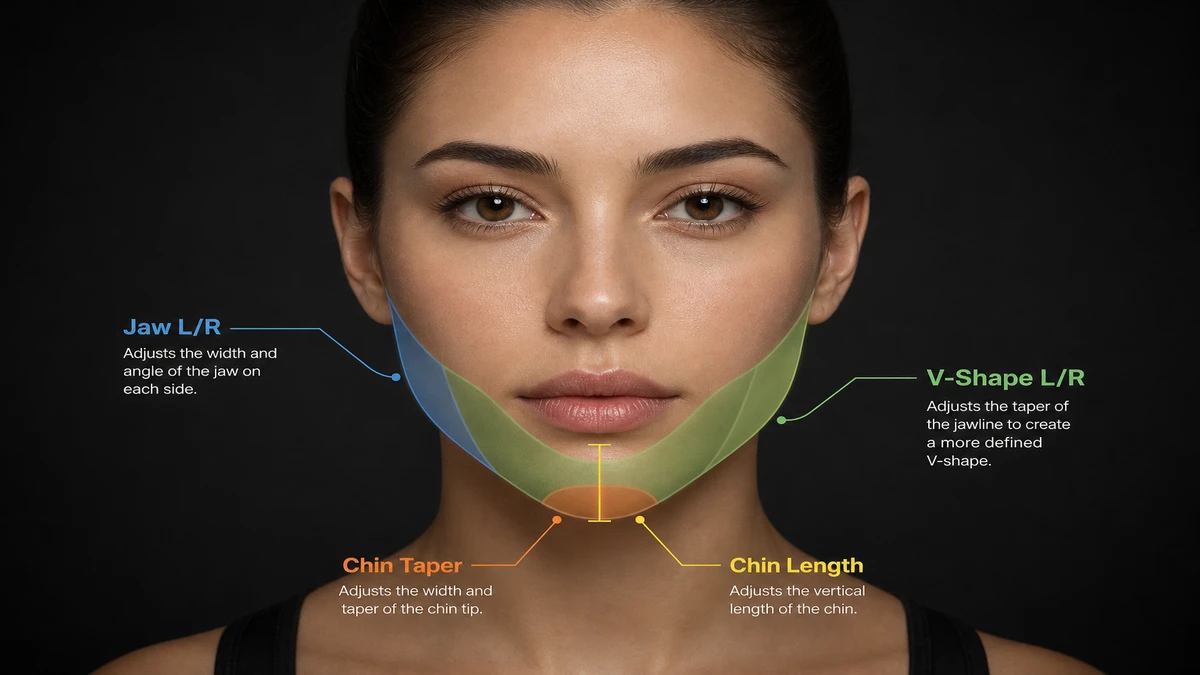
- Jaw (L/R) — Targets the jaw angle specifically — the widest point where the jawbone turns upward toward the ear. This is the primary jawline sharpener. Pushing it inward narrows the jaw without touching the cheeks or forehead. Left and right sides adjust independently to correct natural asymmetry.
- V-Shape (L/R) — Tapers the entire lower face from the cheekbones down to the chin, creating a smooth V-line. This is what makes the jawline transformation look natural rather than just “narrower” — it creates a flowing transition instead of an abrupt change at the jaw angle.
- Chin Taper — Adjusts the width and point of the chin tip. Combined with V-Shape, this controls how sharp or soft the bottom of the face appears. Subtle increases create a more elegant chin slimming effect.
- Chin Length — Shortens or lengthens the vertical distance from the lower lip to the chin point. Useful for balancing the overall face proportions after jaw and V-shape adjustments.
The key to natural-looking results: use these sliders in combination. Jaw alone can make the jaw angle sharper, but without V-Shape to smooth the transition, the lower face can look angular rather than sculpted. V-Shape alone creates a taper but doesn’t address a wide jaw angle. Together, they create the smooth, flowing jawline contour that looks like genetics rather than editing.
Step-by-Step: Sharpen Your Jawline in Video with Evoto
- Import your video — Open Evoto Video and drag in your clip (MP4, MOV, M4V, up to 4K).
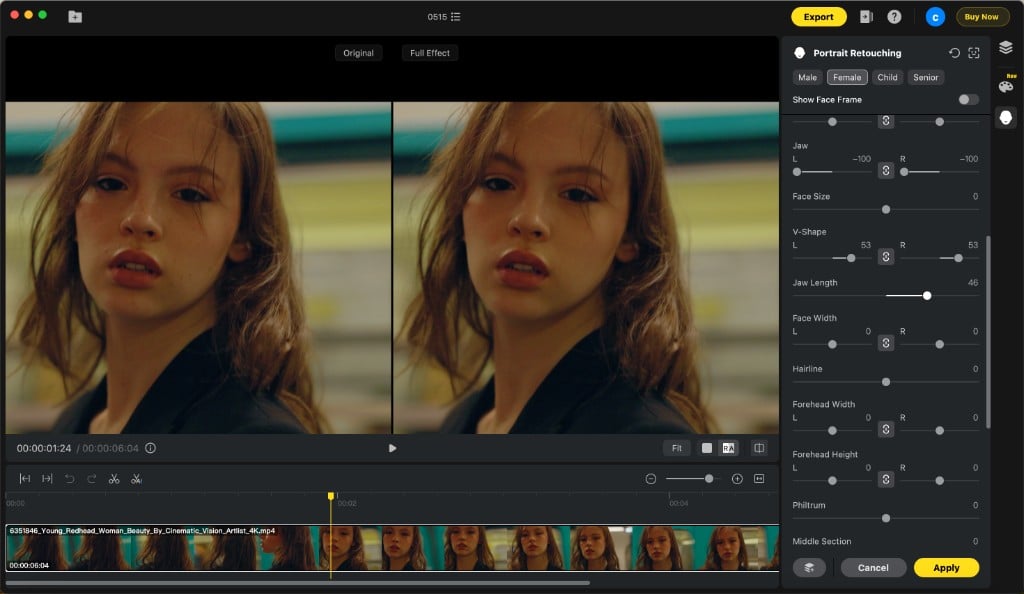
- Open Facial Reshape → Face Shape — In Portrait Retouching, expand Facial Reshape and select Face Shape. Scroll to the Jaw, V-Shape, and Chin sliders.
- Adjust the combination — Start with Jaw to set the jaw angle width, then add V-Shape to smooth the lower face taper, and fine-tune with Chin Taper and Chin Length. In the screenshot, Jaw is set to -100 (maximum narrowing), V-Shape at 53, and Jaw Length at 46 — creating a dramatic but still natural-looking jawline transformation.
- Use L/R controls for asymmetry — If one side of the jaw is naturally wider, adjust that side more aggressively while keeping the other closer to zero. Toggle the link icon between L and R to enable independent control.
- Preview and export — Play the clip to verify the jawline looks consistent through head turns and expressions. Use the Original/Full Effect toggle to compare. Click Apply, then export at full resolution.
Evoto Video – Be the First to Edit Smarter
Professional-grade AI color grading and retouching for video creators.
Recommended starting values for natural results: Jaw -30 to -60, V-Shape 15–35, Chin Taper 5–15. These ranges create visible jawline definition without crossing into obviously edited territory. The screenshot shows more aggressive values for a dramatic jawline before and after — dial back for subtlety.
Jawline Slimming vs. Double Chin Removal — When to Use Which
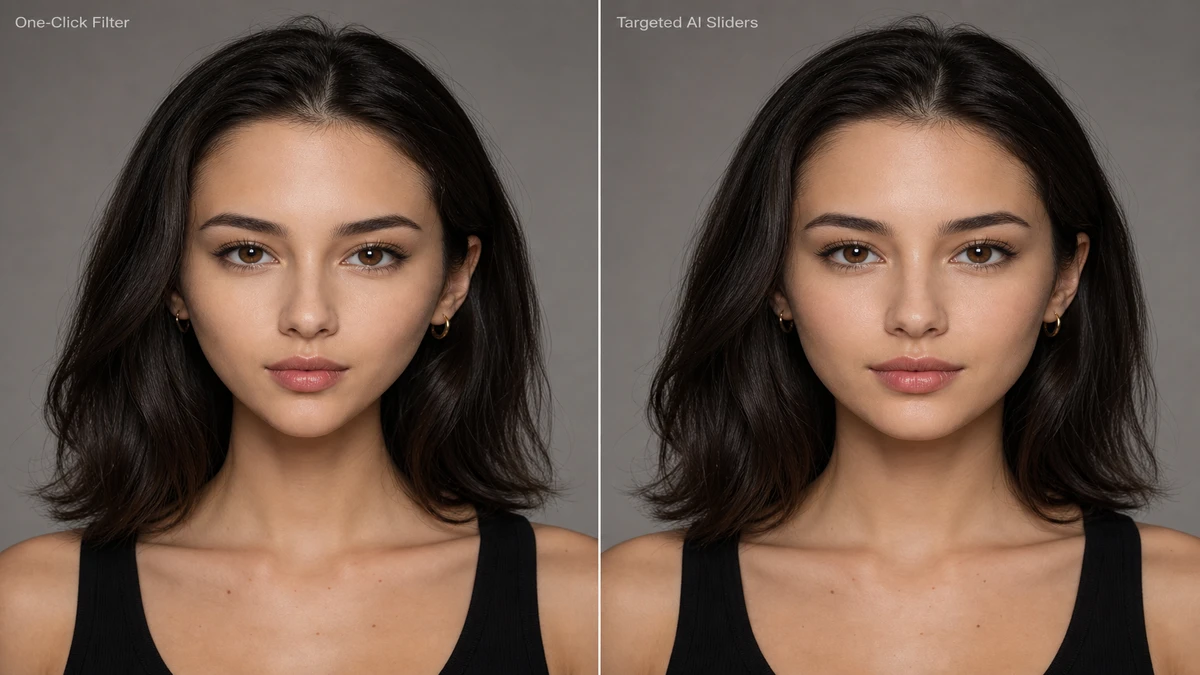
These address different problems, though they share some overlapping sliders:
| Goal | Primary Sliders | What It Does |
|---|---|---|
| Sharpen jawline contour | Jaw (L/R) + V-Shape | Narrows the jaw angle and tapers the lower face for a more defined silhouette |
| Reduce double chin | Chin Taper + Jaw Length + Jaw (L/R) | Tightens the chin area and shortens the jaw-to-chin distance to minimize under-chin fullness |
| Full lower-face sculpt | All four combined | Comprehensive jawline transformation — definition, taper, chin point, and length in one pass |
For most people, a combination of Jaw (-30 to -50) and V-Shape (15–25) handles subtle jawline enhancer work. If there’s a double chin component, adding Chin Taper (10–20) and reducing Jaw Length addresses the under-chin area specifically. The point: you don’t need a separate double chin remover app — the same slider panel handles both.
FAQs
Does jawline slimming in video look natural?
With moderate settings (Jaw -30 to -60, V-Shape 15–35), the result looks like good lighting and angles rather than editing. The key is using V-Shape alongside Jaw to create a smooth taper — Jaw alone can look angular, but V-Shape softens the transition for a natural jawline contour.
Can I sharpen one side of the jaw more than the other?
Yes — every slider with a L/R designation can be controlled independently. Toggle the link icon off, then adjust each side separately. This is essential for correcting natural facial asymmetry, which is more visible in video than in photos.
What’s the difference between the Jaw slider and V-Shape?
Jaw targets the jaw angle — the widest point of the lower face near the ear. V-Shape tapers the entire lower face from the cheekbones down to the chin. Think of Jaw as a jawline sharpener and V-Shape as a lower-face smoother. Used together, they create a sculpted, flowing contour. Used separately, results can look incomplete.
Evoto Video – Be the First to Edit Smarter
Professional-grade AI color grading and retouching for video creators.
Conclusion
Natural-looking jawline slimming in video isn’t about compressing the entire face — it’s about sculpting the lower face with precision. Evoto Video’s combination of Jaw, V-Shape, Chin Taper, and Chin Length sliders gives you per-zone control with left/right independence, creating a smooth jawline contour that flows naturally from ear to chin. AI frame tracking keeps the effect consistent through every head turn and expression. The result: a jawline transformation that looks like great angles, not obvious editing.



