
Slimming a body in a photo is now a one-tap job. Doing the same in a moving video clip? That’s where most apps fall apart — the waist line jitters across frames, clothes start to warp, and the background behind the subject distorts every time the body moves. A real body reshape video editor has to solve all three problems at once, and most generic video body editor apps simply weren’t built for it. Evoto Video is built exactly for that: a single AI Reshape switch slims the entire body in one click.
Why Slimming Body in Video Is Harder Than Editing Photos
If you’ve ever tried to slim a body in a video using a tool built for photos, you’ve hit the wall already. The challenges are very different:
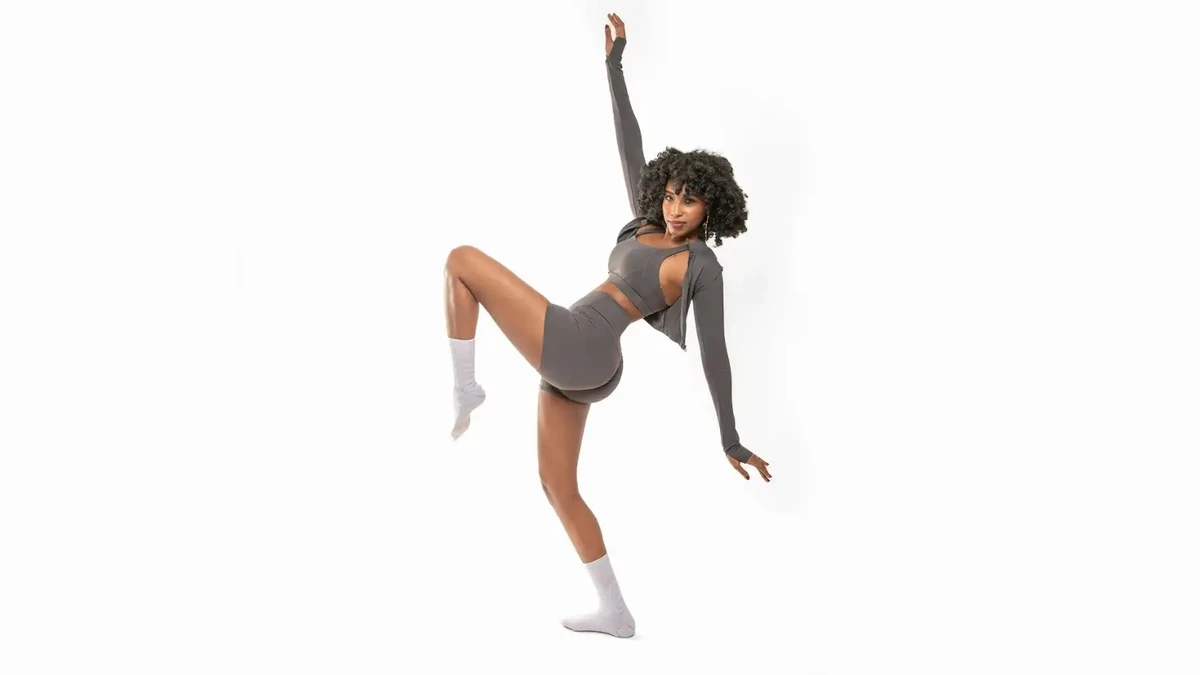
- Frame-to-frame consistency. A photo edit only needs to look right once. A 15-second clip has 360+ frames — and any drift between them shows up as a “breathing” waistline or jittering legs that scream “edited.”
- Body articulation in motion. Arms swing, hips shift, knees bend. A static mask used for photo slimming can’t follow a subject who’s walking, dancing, or stretching. The edit has to track the body, not the pixels.
- Background and clothing integrity. When you push a waist inward, what fills the space? Bad tools warp the wall behind, smear the floor, or melt the fabric of jeans. A proper body reshape video editor has to rebuild the background and respect the cloth simulation so nothing else moves.
Evoto Video’s body reshape engine treats the clip as a tracked subject, not a flat image — which is why the slimming holds together across every frame.
Evoto Video – Be the First to Edit Smarter
Professional-grade AI color grading and retouching for video creators.
How to Slim & Reshape Body in Video with Evoto Video — Step by Step
Here’s the full workflow inside Evoto Video, with each Full Body Reshape slider explained as you go. The whole process usually takes under five minutes for a one-minute clip.
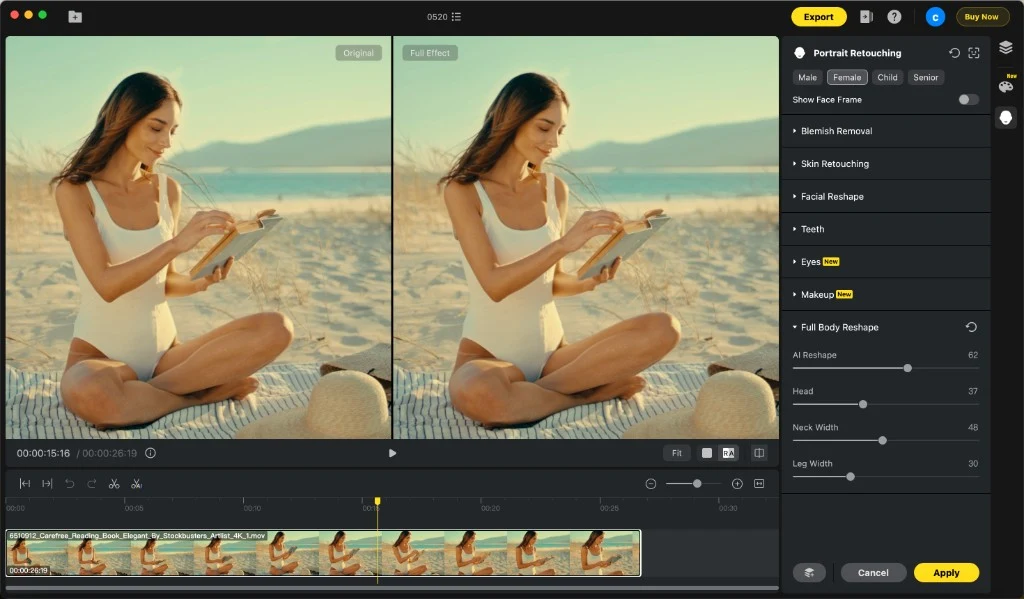
- Import your video. Open Evoto Video on Mac or Windows and drag in your clip — MP4, MOV, and most common formats are supported. The timeline loads with a side-by-side Original / Full Effect preview by default.
- Open the Full Body Reshape panel. In the right-hand Portrait Retouching panel, scroll down past Blemish Removal, Skin Retouching, Facial Reshape, Teeth, Eyes, and Makeup, and expand Full Body Reshape. You’ll see four sliders: AI Reshape, Head, Neck Width, and Leg Width.
- Apply AI Reshape for a one-click slim. Drag the AI Reshape slider up. This is the hero control — Evoto’s AI analyzes the body in motion and slims the waist, hips, and arms together with a single, balanced adjustment that holds across every frame. Most clips look great around 50–70.
- Fine-tune proportions with the targeted sliders.
- Head — subtly resizes the head to improve head-to-body ratio. Useful for fashion, editorial, and runway-style footage where a longer, leaner silhouette matters.
- Neck Width — narrows the neck for a more elegant collarbone-to-shoulder line, without touching the jaw or the face.
- Leg Width — trims thigh and calf width so legs read longer and leaner on camera, while the knee and ankle structure stays anatomically correct.
- Scrub key frames to confirm consistency. Drag the playhead to the start, the middle, and the end of the clip and check the BA toggle. The slim effect should look identical whether the subject is still or in motion — no popping, no warping.
- Export. Click Apply, then Export. Evoto Video renders in the original resolution and frame rate, so the final clip drops straight into your social or commercial workflow.
More Than Body Reshape — Other Video Retouching Tools in Evoto Video
Body shape is only one half of how a person reads on screen. The same Portrait Retouching panel houses three more pro-grade tools you’ll reach for on almost every clip — and they all run on the same frame-consistent engine.
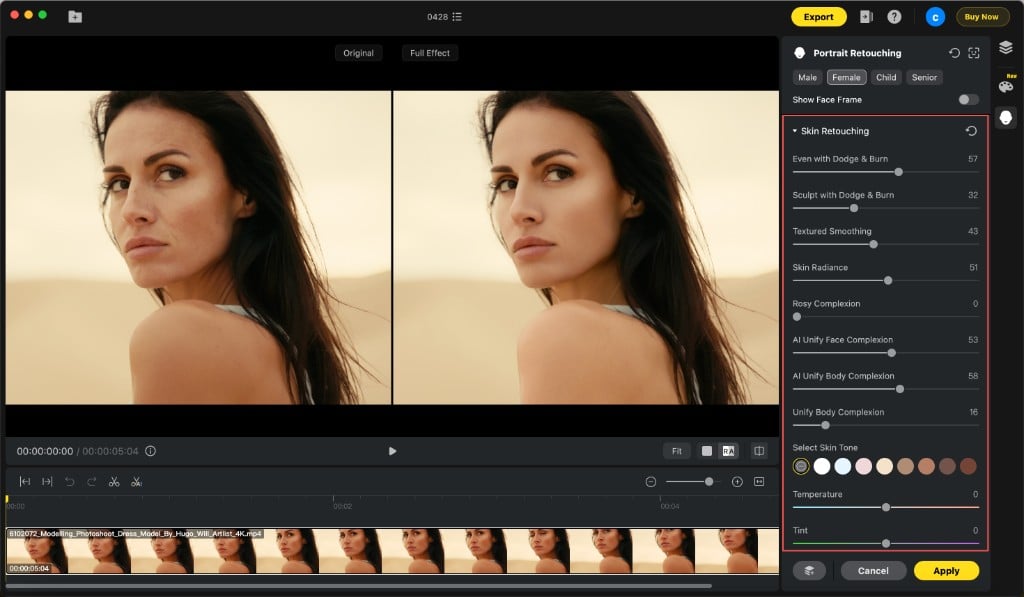
Blemish Removal — Clean Skin Without Touching Texture
The Blemish Removal module wipes out acne, scars, dark spots, and stray marks automatically. Unlike heavy retouch filters, it leaves pores and skin micro-texture intact, so the subject still looks like a person and not a wax figure. Great for vloggers, interview footage, and short-form social content where close-ups happen all the time.
Skin Retouching — Pro-Grade Smoothing That Keeps Pores
Most apps smooth skin until it looks plastic. Skin Retouching in Evoto Video evens out tone, softens redness, and reduces shine while preserving the natural pore structure — the same technique professional retouchers use on commercial beauty shoots. You can dial it from “barely there” for documentary work up to “polished editorial” for fashion.
Evoto Video – Be the First to Edit Smarter
Professional-grade AI color grading and retouching for video creators.
Makeup — Frame-Consistent Digital Makeup
The Makeup module adds lip color, blush, eyeshadow, eyeliner, and brow shaping that tracks the face through every frame. Because the makeup is applied per-feature (not as a flat overlay), it survives head turns, smiles, and dramatic lighting changes — which is exactly what trips up most mobile beauty filters.
Pro Tips for Natural Body Reshape in Video
The difference between a clean reshape and an obvious one is almost always restraint and a careful review pass. Four habits that keep the result invisible:
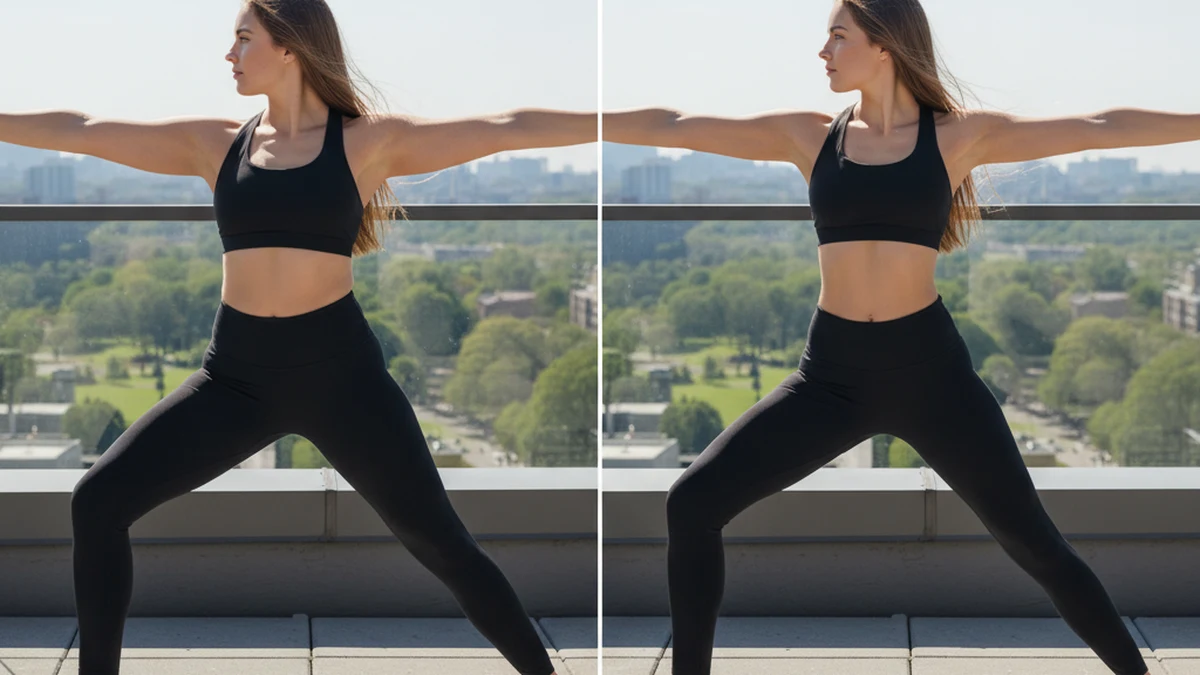
- Start with AI Reshape only. Push it to 50, then watch the full clip. Nine times out of ten that’s all you need. Reach for Head, Neck Width, and Leg Width only when a specific proportion still bothers you.
- Check both still frames and motion frames. A reshape that looks perfect on a paused frame can drift when the subject moves. Always scrub through arms-up, walking, and seated frames before exporting.
- Watch the clothing folds and seams. If a seam line bends or a fold suddenly disappears, you’ve gone too far. Back the slider off by 10–15 until the fabric reads naturally.
- Protect the background. Pause on a frame with a clear straight line in the background (door frame, window, horizon). If it stays straight in the After view, your edit is safe.
FAQ
Will the background warp or distort when I slim the body?
Evoto Video reconstructs the area around the subject as the body is pushed inward, so straight lines stay straight and textures don’t smear. Check a frame with a clean architectural element — if it holds, you’re good.
Can Evoto Video handle videos with multiple people in frame?
Yes. The Portrait Retouching engine detects each person separately, and you can target the subject you want to edit without affecting the others.
Will the slim effect stay consistent across every frame?
That’s the core of the AI Body Reshape engine. Once you set the sliders, the same slim is applied frame-by-frame with motion-tracked masks, so there’s no jitter or “breathing” between frames.
Can I save my Body Reshape settings as a preset for batch use?
Yes. Save your favorite slider combination as a preset and apply it across a batch of clips — a major time-saver when you’re delivering a multi-clip campaign or a creator’s full episode.
Evoto Video – Be the First to Edit Smarter
Professional-grade AI color grading and retouching for video creators.
Slim Smarter, Edit Faster
If you’ve been forcing a photo-era tool to do video work, you already know the limits. A purpose-built body reshape video editor with AI-driven, frame-consistent reshaping changes the math — clean slim, no warping, no babysitting. Drop a clip into Evoto Video, push AI Reshape to 50, and see the difference in under a minute.