

Beauty filters have a reputation problem. Turn one on and you get smooth, glowing skin — but also a face that looks like it belongs in a mobile game, not a professional video. The texture disappears. The features flatten. Viewers notice immediately.
The issue isn’t wanting to look better on camera — it’s how most filters get there. A traditional beauty filter applies a single uniform effect across the entire face: blur everything, brighten everything, add a generic makeup overlay. There’s no precision, no control, and no way to keep the result looking real.
Evoto Video takes a fundamentally different approach. Instead of one filter that does everything (and ruins everything), it separates the process into layers: first, AI retouches your skin zone-by-zone — removing blemishes, evening tone, preserving texture. Then, you apply makeup on top of that clean canvas — choosing from preset looks or customizing each area individually with sliders. The result is a video beauty filter that actually looks like real makeup on a real face.
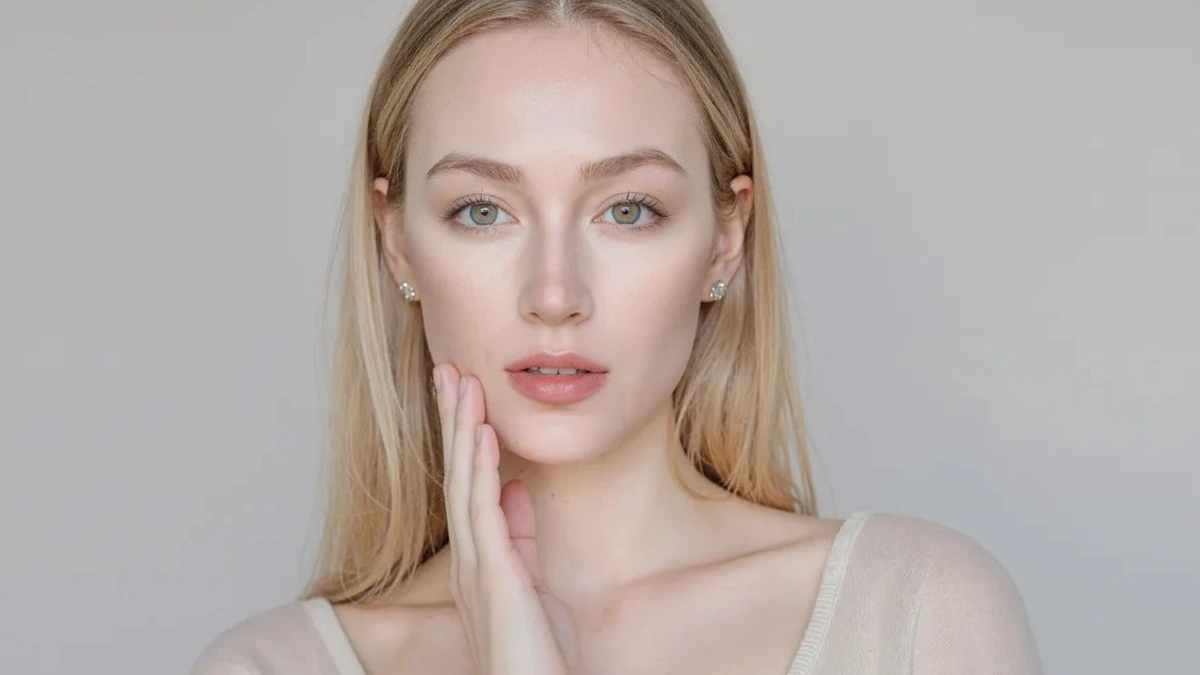
Why Traditional Beauty Filters Look Fake
A standard face filter works by detecting your face and applying a blanket effect — skin smoothing, color shift, and a fixed makeup layer all at once. It doesn’t distinguish between your forehead and your cheeks, your left eye and your right. Everything gets the same treatment.
In video, this is even more obvious. Motion reveals inconsistencies. When you turn your head, the filter’s mask lags or distorts. When lighting changes, the uniform overlay clashes with natural shadows. The result: a face that looks “off” in ways viewers can sense even if they can’t articulate.
The alternative isn’t skipping enhancement — it’s using a smarter one. An AI beauty filter that treats each facial zone independently, preserves skin texture, and applies makeup as a separate, adjustable layer rather than an all-or-nothing overlay.
Retouch First, Then Apply Makeup
Evoto Video’s workflow is built on a simple principle: fix the skin first, then add the look. This two-step approach is why results look natural instead of filtered.
Step 1: Blemish Removal — Target specific imperfections with individual sliders: acne, dark circles, eye bags, face shine, wrinkles (forehead, eye, smile line, neck). Each issue gets its own control. AI tracks every correction across every frame automatically.
Step 2: Skin Retouching — Refine overall complexion with Textured Smoothing (smooths skin while keeping pores visible), AI Unify Face Complexion (evens out tone caused by lighting), Skin Radiance, and Rosy Complexion controls. The skin looks polished but still real.
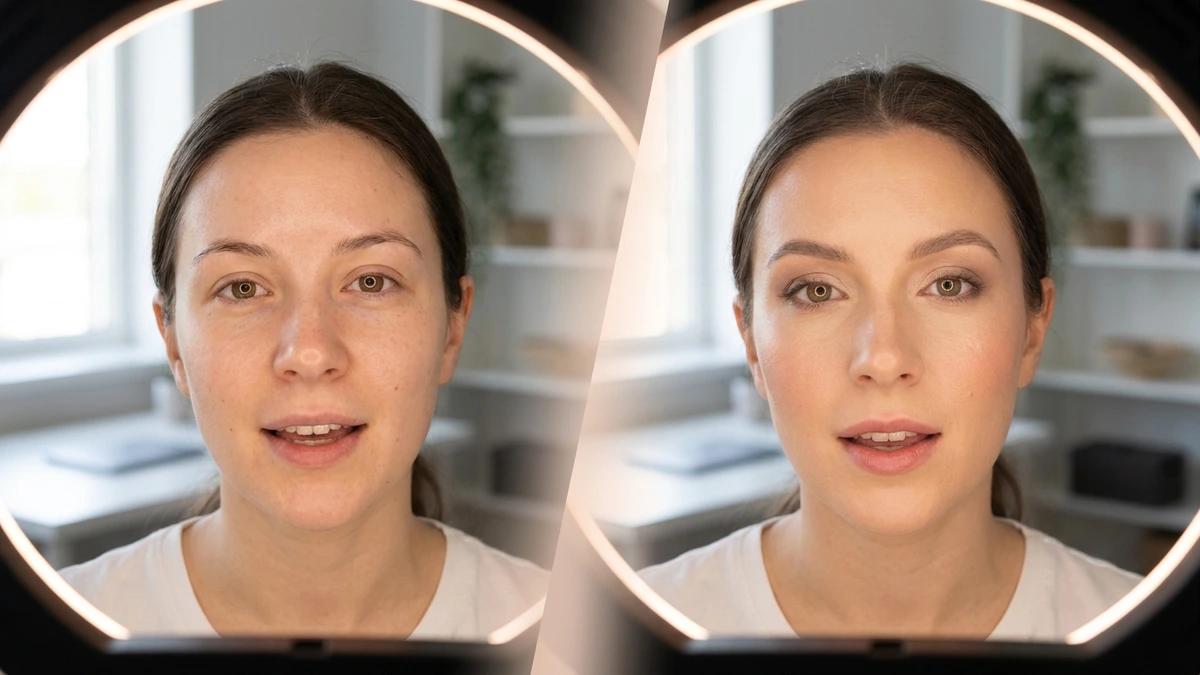
Now your subject’s face is clean, even, and natural — the perfect canvas for makeup. No blemishes being hidden under a blur layer. No uneven tone being masked by a color overlay. Just healthy-looking skin ready for whatever look you want to apply.
The Makeup Module — Preset Looks and Full Customization
This is where Evoto Video separates itself from any face filter on the market. The Makeup module offers both one-tap preset styles and granular per-zone control — and you can mix both approaches.
Makeup Suite — One-Tap Preset Looks
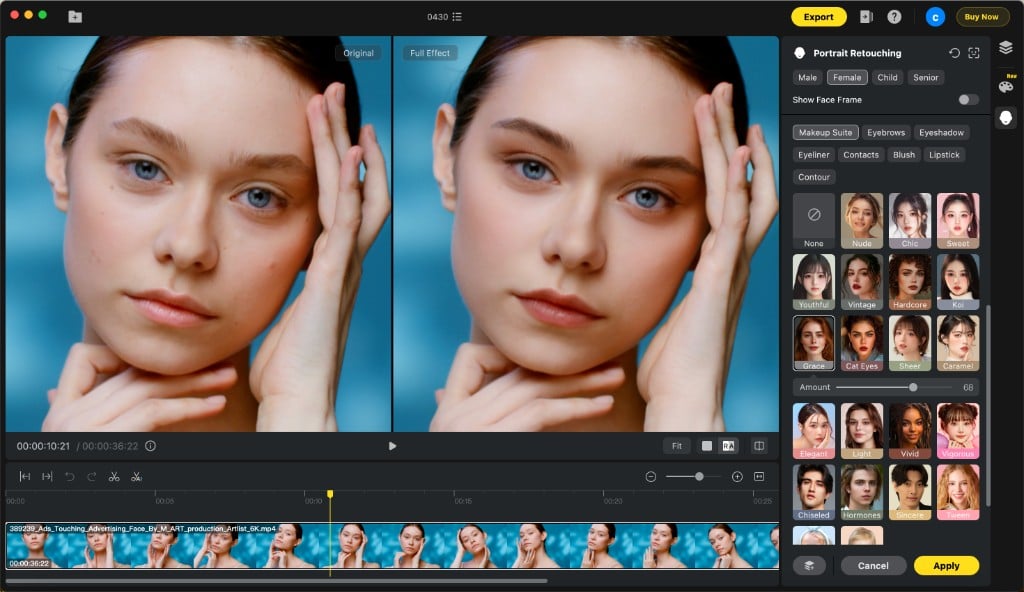
The Makeup Suite offers 15+ complete makeup looks — from subtle “Nude” and “Chic” to bold “Hardcore” and “Cat Eyes.” Select any preset and it instantly applies a coordinated eyebrow, eyeshadow, eyeliner, blush, lipstick, and contour combination. An Amount slider lets you control the overall intensity, so you can dial a dramatic look down to something more subtle. For content creators who need consistent, quick results across multiple clips, this is the fastest path to a polished look.
Evoto Video – Be the First to Edit Smarter
Professional-grade AI color grading and retouching for video creators.
Zone-by-Zone Customization
Beyond presets, you can customize each makeup zone independently — or fine-tune a Suite preset by adjusting individual elements:
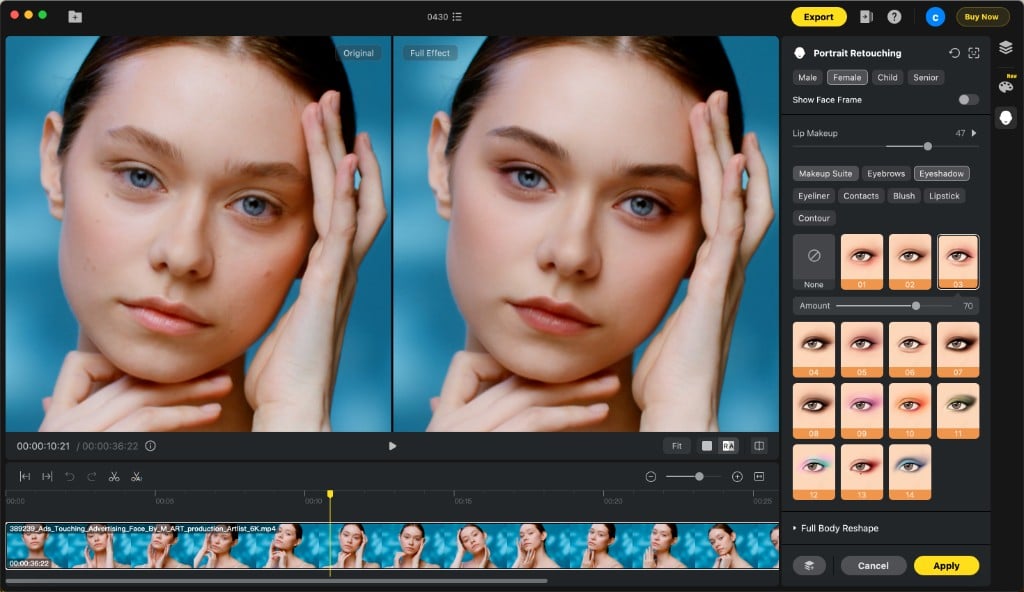
- Highlights & Contour — Add facial dimension with light and shadow sculpting. The Contour tab provides multiple style presets with an Amount slider for intensity control.
- Eyebrow Makeup — Left and right eyebrows adjustable independently (L/R sliders), so you can correct natural asymmetry. Multiple eyebrow style presets available.
- Eye Makeup — Also independently adjustable for left and right eyes. The Eyeshadow tab offers 15+ color/style presets with Amount control.
- Lip Makeup — Choose from multiple lipstick color presets with texture options (Satin, Matte, Gloss). Amount slider controls intensity.
- Blush — Multiple blush style presets with Amount control for natural-looking flush.
- Eyeliner — Style presets for subtle to dramatic liner looks.
- Contacts — Change iris color with natural-looking preset options.
The left/right independent control for eyebrows and eyes is a detail that matters. Real faces are asymmetric — one eyebrow sits slightly higher, one eye opens slightly wider. Being able to adjust each side separately means the makeup filter adapts to the face, not the other way around. That’s the difference between looking enhanced and looking filtered.
Beyond Makeup — Complete the Look in One App
After skin retouching and makeup, Evoto Video offers additional modules to finalize your video — all within the same Portrait Retouching panel:
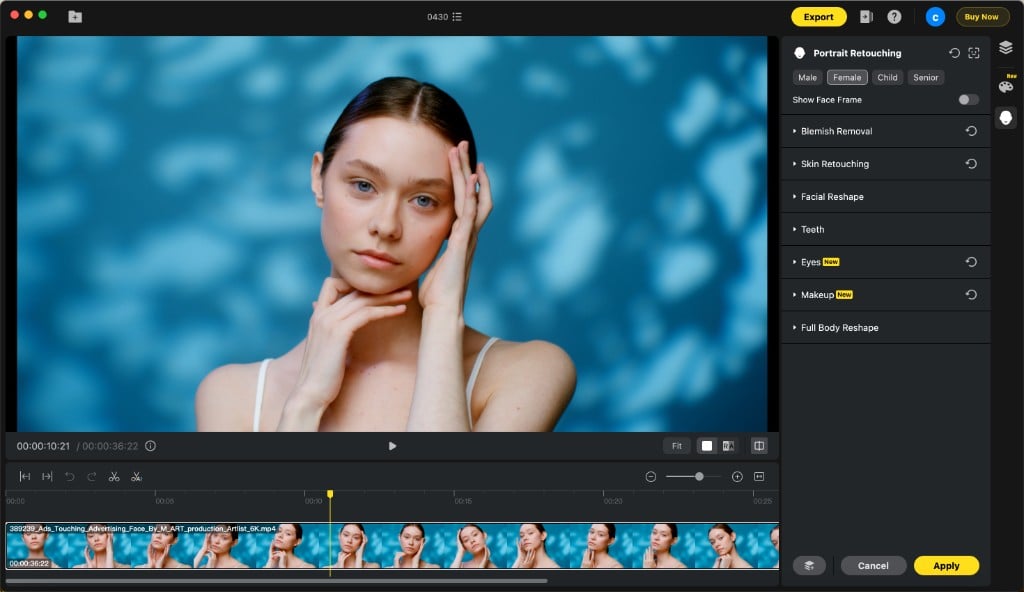
- AI Unify Face/Body Complexion — Automatically corrects uneven skin tone between face and body, or across clips shot in different lighting.
- Facial Reshape — 16+ sliders for jawline, cheekbones, nose, eyes, mouth — each with independent left/right control.
- Teeth & Eyes — Whiten teeth, brighten eyes, remove red veins.
- Full Body Reshape — Adjust head size, neck width, leg proportions with AI tracking.
Every module is slider-based, AI-tracked across frames, and exports at full 4K resolution. No manual keyframing, no compositing skills required.
Quick Walkthrough — Import to Finished Look
- Import your video — Drag MP4, MOV, or M4V (up to 4K) into Evoto Video.
- Select gender preset — Choose Male, Female, Child, or Senior for optimized AI face detection.
- Blemish Removal — Quick-fix skin imperfections with per-area sliders.
- Skin Retouching — Even out texture and complexion.
- Makeup — Pick a Makeup Suite preset or customize each zone. Adjust Amount sliders and left/right balance.
- Apply & Export — Render AI effects across every frame, then export at full resolution.
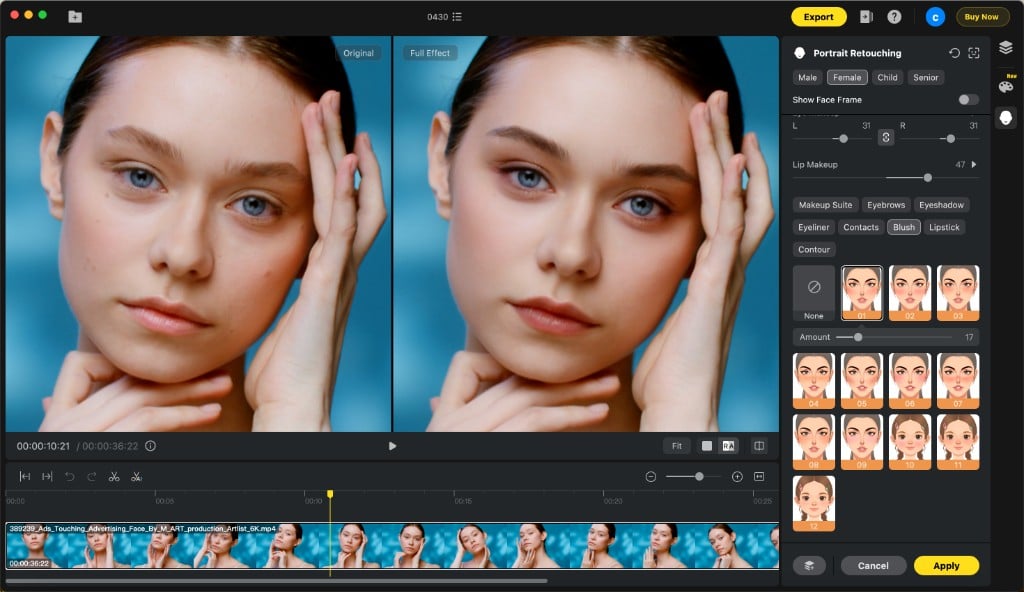
Six steps. A few minutes. A face that looks like it had a professional makeup artist — not a filter.
FAQs
Is this a beauty filter or a video editor?
Both — but smarter than either alone. Evoto Video combines AI skin retouching with a full makeup filter module, all in one video editing workflow. Unlike a standalone face filter that applies a blanket effect, Evoto Video lets you retouch first, then apply makeup as a separate layer with full control.
Can I use the Makeup Suite and still customize individual features?
Yes. Start with any Makeup Suite preset, then switch to individual tabs (Eyebrows, Eyeshadow, Blush, Lipstick, etc.) to fine-tune. Your Suite selection provides the base look; per-zone adjustments override specific elements. The left/right independent sliders for eyebrows and eyes let you correct asymmetry even within a preset.
Does Evoto Video preserve skin texture when applying makeup?
Yes — that’s the core design principle. Because skin retouching and makeup are separate layers, Evoto Video’s Textured Smoothing preserves natural pores during retouching, and the makeup module applies color and shape on top of that real texture. The result looks like actual makeup on real skin, not a digital overlay pasted onto a blurred face.
Evoto Video – Be the First to Edit Smarter
Professional-grade AI color grading and retouching for video creators.
Conclusion
The era of obvious, plastic-looking beauty filters is over. Viewers expect authenticity — and the best way to deliver it is with a video beauty filter that works the way a real makeup artist does: fix the skin first, then build the look layer by layer, zone by zone. Evoto Video‘s AI handles face tracking and frame-by-frame consistency automatically, while you control every detail with sliders — including independent left and right adjustments for eyebrows and eyes. The result is video that looks professionally retouched, not filtered.



