

Slimming a face in a photo takes ten seconds. Open any editor, drag a slider, done. Video is a different story. Every head turn, every expression shift, every lighting change means the adjustment has to track and adapt across hundreds of frames — and if it doesn’t, viewers see warping, flickering, or a jawline that snaps back to its original shape mid-sentence.
That’s why most face slimming apps stick to photos, and the few that handle video offer a single “slim face” slider that squeezes the entire head uniformly. The result looks more like a funhouse mirror than a subtle enhancement.
Evoto Video solves this with a dedicated Facial Reshape module — over 15 individual sliders for face width, jawline, cheekbones, chin shape, V-line, forehead, and more, each adjustable independently for the left and right side of the face. AI handles frame-by-frame tracking automatically. You get precise, natural-looking face slimming in video without touching a single keyframe. This is what a proper face slimming video editor looks like.
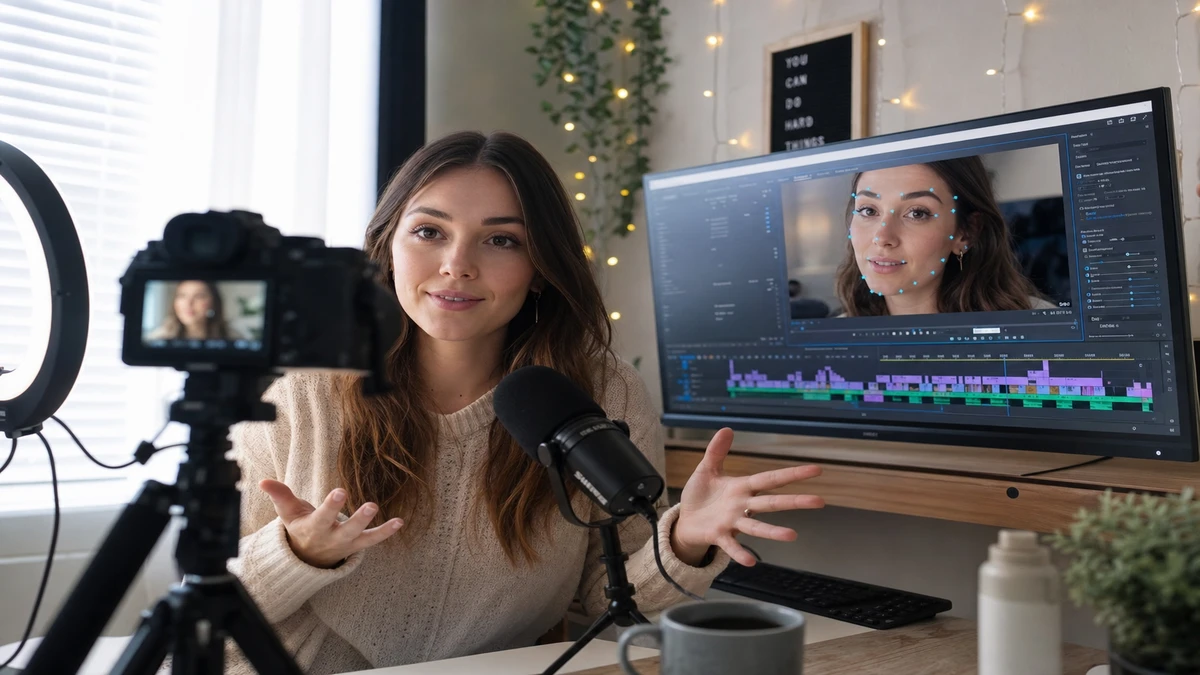
Why Face Slimming in Video Is Harder Than in Photos
A photo is one frozen frame. Video introduces three challenges: the face moves and rotates, requiring frame-by-frame tracking; expressions constantly change the jaw and cheek shape; and every frame’s adjustment must blend seamlessly with the next to avoid visible “breathing” or warping.
Traditional approaches like After Effects masking take hours per clip. A mobile face slimming filter takes seconds but offers zero control. The gap between these two extremes is exactly where an AI-powered video face editor fits in.
Evoto Video – Be the First to Edit Smarter
Professional-grade AI color grading and retouching for video creators.
What to Look for in a Face Slimming Video Editor
Not every tool that claims face slimming capability delivers usable results in video. Here’s what separates a real face slim editor from a glorified filter:
- Per-feature sliders — Jawline, cheekbones, chin, face width, and forehead should be adjustable independently. A single “slim” slider squeezes everything proportionally, which is the difference between a skinnier face filter and a precision tool.
- Left/right independent control — Faces are asymmetrical. If you only need to adjust the jaw on one side, the editor should let you do that without affecting the other.
- AI frame tracking — The editor should automatically detect and track facial landmarks across every frame, eliminating manual keyframing.
- Real-time preview & non-destructive editing — You need to see the effect before committing, and dial back any slider without re-importing.
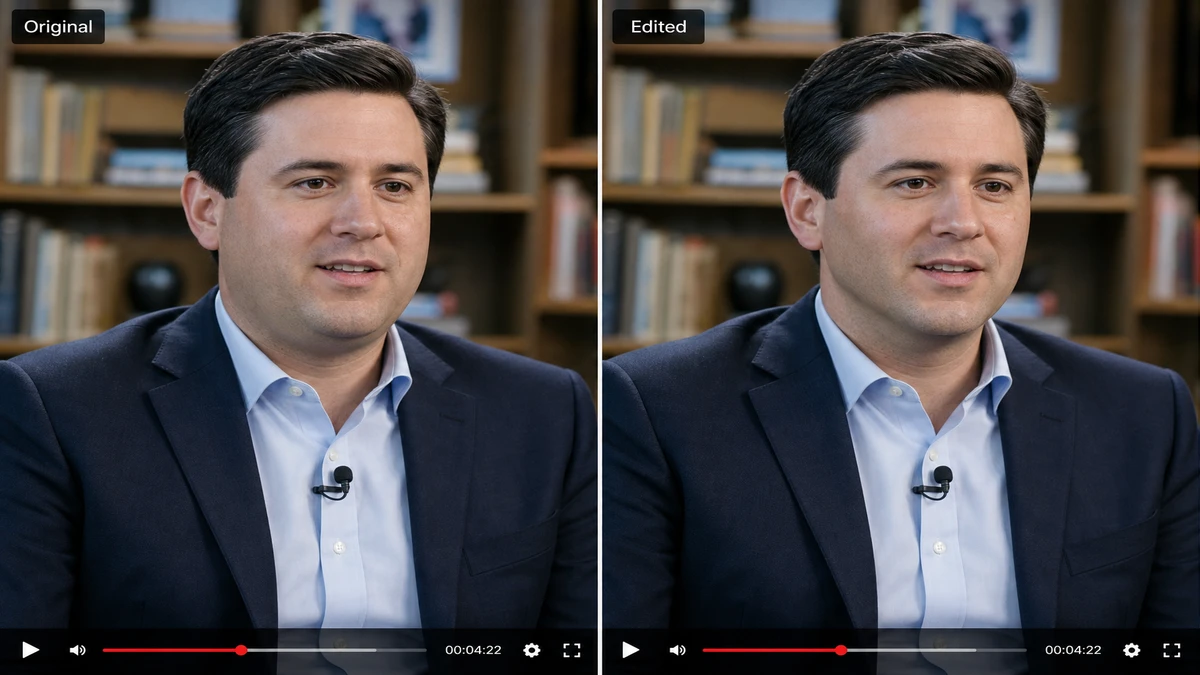
How Evoto Video Handles Face Slimming — Feature Breakdown
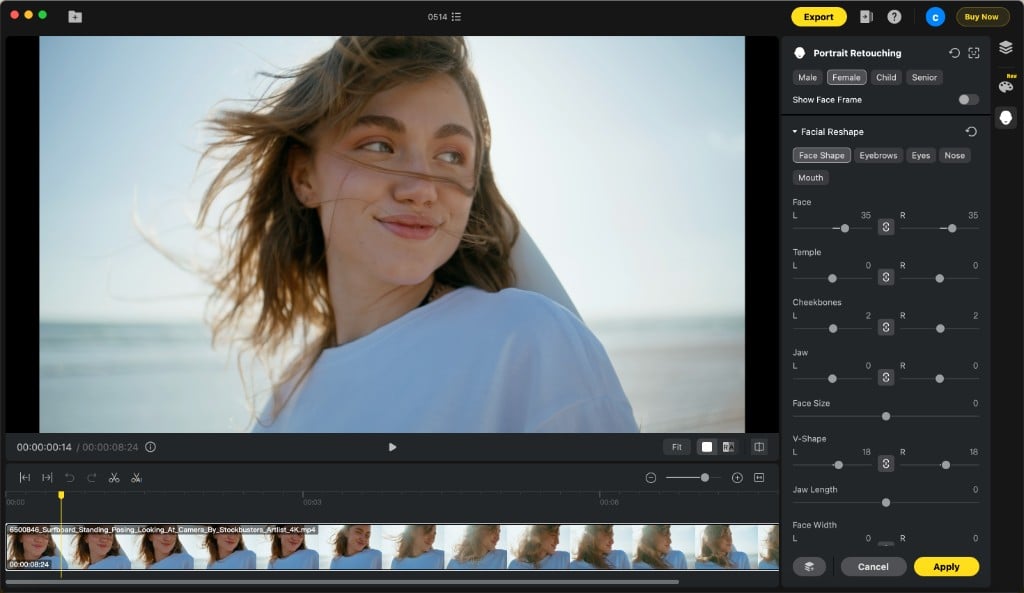
Evoto Video’s face slimming lives inside the Portrait Retouching → Facial Reshape → Face Shape module. Instead of a single face slimming filter, you get granular control over every part of the face structure:
Face Shape Sliders
- Face (L/R) — Overall face width. The broadest adjustment — a good starting point before fine-tuning.
- Cheekbones (L/R) — Adjust prominence independently. Subtle increases add definition; decreases create a softer look.
- Jaw (L/R) — Target the jaw angle specifically. This is the slider most people want when searching for a thinner face filter.
- V-Shape (L/R) — Tapers the lower face into a V-line without changing the upper structure.
- Face Width (L/R) — Mid-face width, independent from jaw and forehead.
- Face Size / Jaw Length / Temple (L/R) — Global face scale, vertical jaw distance, and upper-face temple width.
Extended Controls
The panel also includes Hairline, Forehead Width/Height (L/R), Chin Taper, Chin Length, Philtrum, and vertical section adjustments. Every slider with a L/R designation can be controlled independently or linked for symmetrical editing. This granularity is what separates Evoto Video from any face slimming app on the market.
Evoto Video – Be the First to Edit Smarter
Professional-grade AI color grading and retouching for video creators.
Step-by-Step: Slim a Face in Video with Evoto
- Import your video — Open Evoto Video and drag in your MP4, MOV, or M4V file (up to 4K).
- Open Portrait Retouching — Select the gender preset (Male, Female, Child, or Senior) for optimized AI detection.
- Navigate to Facial Reshape → Face Shape — Expand the Facial Reshape section and select the Face Shape tab.
- Adjust sliders — Start with Face to set overall width, then refine Jaw, Cheekbones, and V-Shape. Use L/R independent controls if one side needs more adjustment. A good starting point: Face 25–35, V-Shape 15–20, Cheekbones 2–5. Subtle adjustments look natural; extreme values create the face tune video look viewers instantly detect.
- Preview and fine-tune — Play the video to check the effect across expressions and angles. Toggle Show Face Frame to visualize the AI tracking mesh.
- Apply and export — Click Apply to render AI effects across every frame, then export at full resolution.
Evoto Video vs. Traditional Face Slimming Methods
| Method | Control Level | Speed | Natural Look | Video Support |
|---|---|---|---|---|
| Mobile face slimming filter | One slider | Instant | Low — uniform squeeze | Limited (short clips) |
| After Effects manual warp | Full | Hours per clip | High (if skilled) | Yes |
| Face tune for video apps | 2–3 presets | Fast | Medium — preset-dependent | Yes (720p max) |
| Evoto Video | 15+ individual sliders, L/R | Minutes | High — per-feature control | Yes (up to 4K) |
The trade-off is control versus convenience. Mobile filters are convenient but offer no control. Manual compositing gives full control but no convenience. Evoto Video sits at the intersection — granular sliders with AI automation that eliminates keyframing.
FAQs
Can I slim just the jawline without changing my cheekbones?
Yes. Evoto Video’s Facial Reshape panel separates every facial zone into its own slider. You can adjust the Jaw slider without touching Cheekbones, Face Width, or any other parameter. Each can also be controlled independently for the left and right side.
Does face slimming in video look natural or obvious?
It depends entirely on how far you push the sliders. Moderate adjustments (Face 20–35, V-Shape 10–20) produce results that look like good lighting and angles rather than obvious editing. Evoto Video’s AI tracking maintains consistency across frames, so the effect doesn’t flicker or warp — the biggest giveaway in most face slimming apps.
What’s the difference between a face slimming filter and Evoto’s Face Shape sliders?
A typical slim face filter applies a single uniform compression to the entire face. Evoto Video gives you 15+ independent sliders — jaw, cheekbones, chin taper, V-shape, forehead, temple, face width — each adjustable for left and right sides separately. It’s the difference between squeezing a balloon (filter) and sculpting clay (sliders).
Can I combine face slimming with other retouching in the same workflow?
Yes. Face Shape is one tab within the Facial Reshape module, which itself sits alongside Blemish Removal, Skin Retouching, Makeup, Teeth, Eyes, and Full Body Reshape in Evoto Video’s Portrait Retouching suite. You can slim the face, smooth skin, apply makeup, and reshape the body — all in the same project, all non-destructive.
Evoto Video – Be the First to Edit Smarter
Professional-grade AI color grading and retouching for video creators.
Conclusion
Face slimming in video doesn’t have to mean choosing between a cheap filter that squeezes your whole head and a manual compositing workflow that takes hours. A proper face slimming video editor gives you per-feature control — jawline, cheekbones, chin, V-shape, forehead — with AI tracking that handles the frame-by-frame complexity automatically. Evoto Video’s 15+ individual sliders with left/right independent adjustment deliver exactly that: precision face reshaping that looks natural, renders consistently across every frame, and takes minutes instead of hours.



