
Have a portrait you want to use as a drawing, a pet photo for a card, or a travel image that feels too ordinary as a snapshot? Learning how to turn a photo into a sketch gives the same image a new visual direction without tracing every line by hand.
This guide covers the practical browser workflow: how to choose a source photo, which style to try, how to judge the result, and what to do after you download it. Evoto’s Photo to Sketch feature converts JPG, JPEG, PNG, and WEBP files into pencil, charcoal, line-art, cartoon, or watercolor sketches.
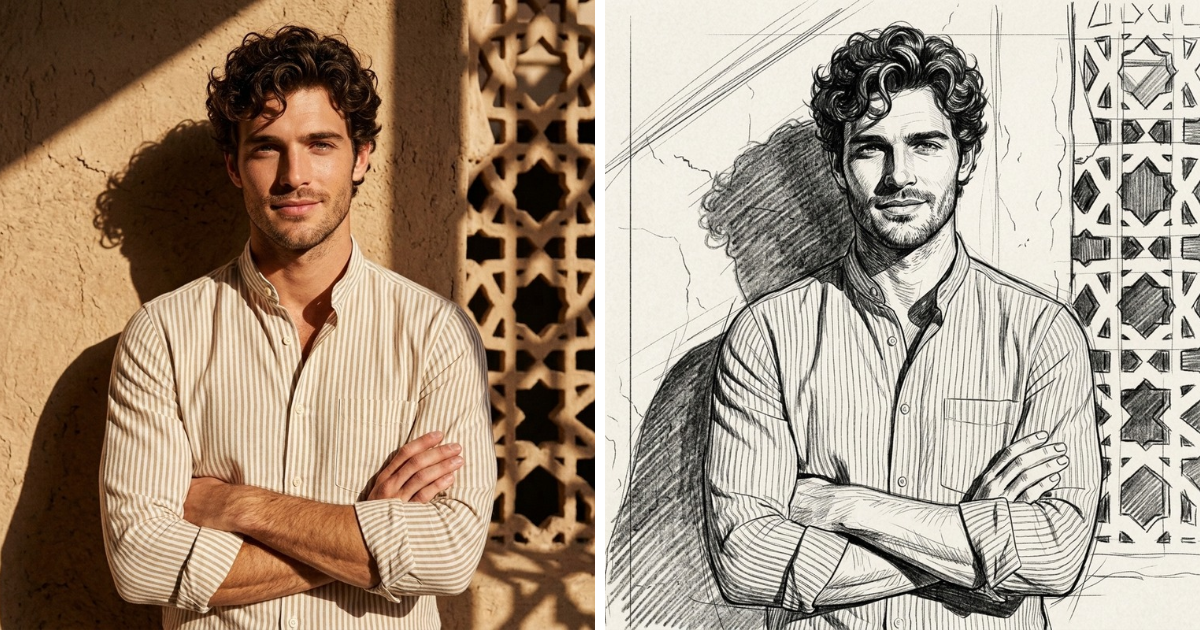
How to turn a photo into a sketch online
If you came here looking for a photo to sketch online workflow without Photoshop, these three steps cover the everyday path. The control names may change slightly after a product update, but the job stays the same: upload, choose a style, generate, and review.
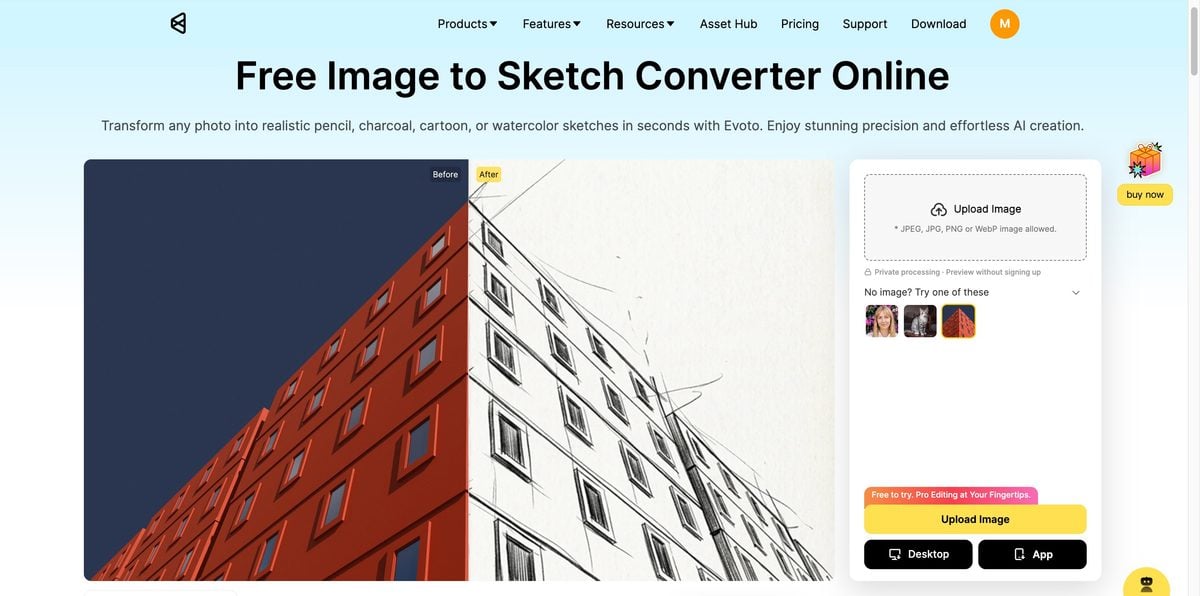
Step 1: Start with a photo
Open Evoto’s AI photo-to-sketch converter and upload the image you want to transform, and click Upload.
Choose the sharpest file available. A close portrait, a pet whose face fills the frame, a building with visible edges, or a landscape with a clear horizon gives the converter useful structure. Avoid a tiny screenshot or a heavily compressed image downloaded from a messaging app when the original file is available.
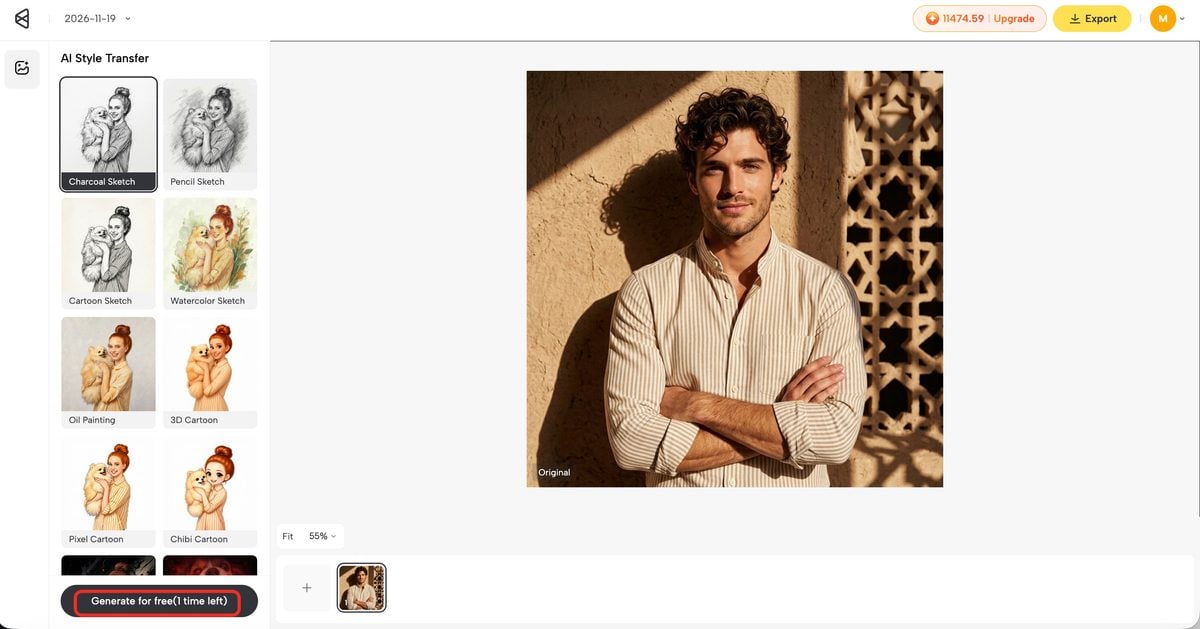
Step 2: Choose a look and generate
Select a style, then click Generate. You do not need to trace the subject, draw a mask, or write a long prompt for the basic conversion.
Use the destination to guide the choice:
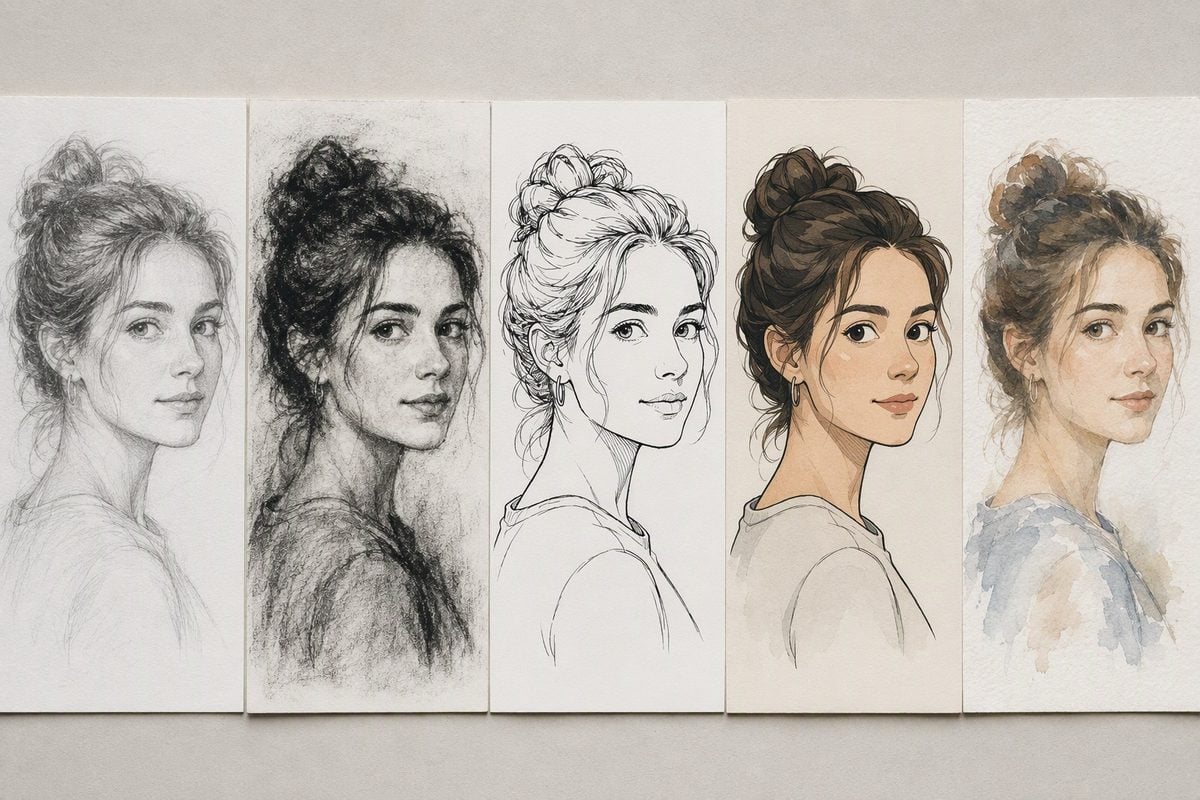
- Pencil keeps a familiar drawing feel for portraits, family photos, and close-ups.
- Charcoal adds deeper shadows and texture to high-contrast portraits, hair, clothing, stone, and wood.
- Cartoon simplifies the image for avatars, greeting cards, social posts, and playful gifts.
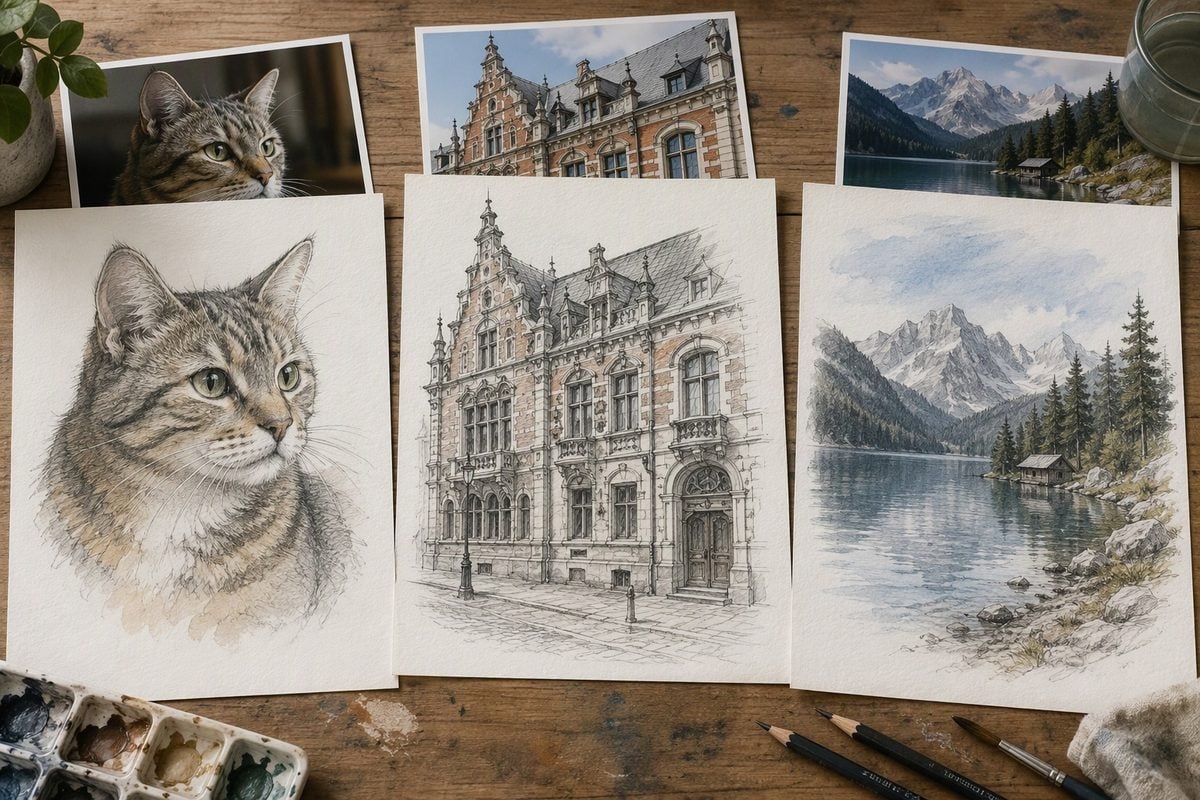
- Watercolor keeps broad shapes while adding color and atmosphere to travel scenes, flowers, architecture, and landscapes.
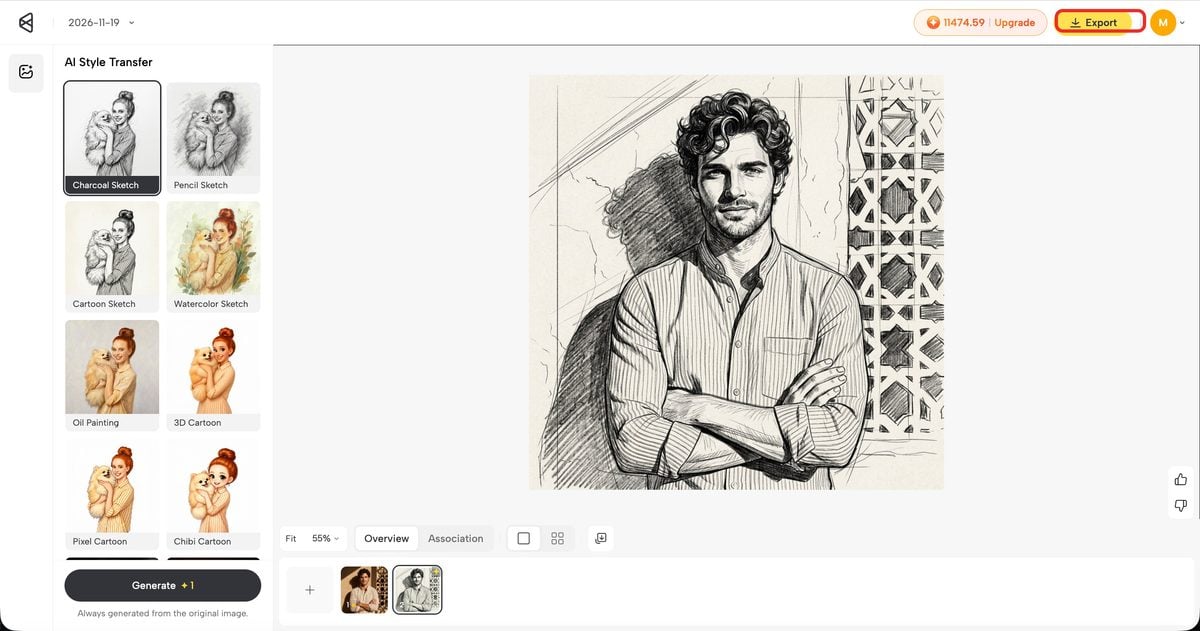
Step 3: Export the result
When the image holds up at the size where people will actually see it, download the result.
Which photo-to-sketch style should you choose?
The style is a creative decision, but it also changes how much of the original photo remains visible.
Pencil sketch for portraits and personal photos
Pencil is the most reliable starting point for a realistic photo to drawing effect. It keeps a connection to the original through light and shadow while making the image feel hand-drawn. Try it for a profile image, family portrait, wedding detail, or personal gift.
A pencil sketch should preserve the face rather than cover it with gray texture. If the eyes, nose, or mouth disappear, start with a brighter source or test line art.
Charcoal sketch for contrast and mood
Charcoal creates a stronger black-and-white result with visible grain and heavier shadows. It suits dramatic lighting and textured subjects such as hair, clothing, stone, wood, and old architecture.
The same strength can become a problem on an underexposed photo. If the subject merges into the background, use a clearer, higher-contrast original before blaming the style.
Cartoon sketch for a playful result
Cartoon styles simplify the original more aggressively than pencil or line art. They work well for social avatars, greeting cards, casual gifts, and creative posts when the subject has one clear pose or expression.
A close crop usually works better than a distant group photo. If the result feels generic, return to a photo with a clearer face, pose, or silhouette.
Watercolor sketch for color and atmosphere
Watercolor preserves the broad shapes of the photo while adding a softer painted mood. It is a natural fit for landscapes, travel photos, flowers, architecture, and portraits with a simple color palette.
Check the original colors before you generate. A scene with too many competing colors may produce a less coherent watercolor effect than a photo with a related palette.
After export: what can you do with a photo-to-sketch result?
The downloaded image can support several small creative projects:
- Profile images: use pencil when the face needs to remain recognizable at a small size.
- Cards and gifts: use pencil for a personal portrait, cartoon for a pet, or watercolor for a travel memory.
- Journals and scrapbooks: print watercolor landscapes, architecture studies, or a set of matching pet sketches.
- Mood boards: compare the same photo in charcoal and watercolor before choosing a visual direction.
- Social posts: use cartoon when a simple, graphic image will read better than a detailed photograph.
- Concept work: convert buildings, rooms, and objects into line art before developing a larger illustration.
The format does not decide the idea for you. A sketch works best when the original photo already has a clear subject, useful composition, and a reason to be remembered.
Mistakes that show up after the generation
A weak result is often caused by the source or the review step rather than the converter itself.
The subject is too small. Crop the face, pet, building, or object so the main shapes have enough pixels to work with.
The source is blurry. Start with the original camera file or the largest clean export. A sketch effect cannot restore detail that is missing from the upload.
The style is too heavy. Switch from charcoal to pencil when shadows cover important features. Use cartoon only when a simplified likeness is acceptable.
The composition is too crowded. Several faces or overlapping objects may compete after conversion. A tighter crop usually helps more than another style change.
The image only looks good when enlarged. Zoom out before exporting. If the eyes, outline, or main structure disappears at phone size, keep refining.
The result is treated as finished artwork without a review. Use the generated image as a starting point, especially for client work, print, or a design that depends on accurate identity. Check faces, hands, edges, and repeated architectural details before delivery.
Why use Evoto for photo to sketch?
Evoto keeps the first conversion short enough to compare several directions without opening a full drawing program. You choose the source photo and style, then use the before-and-after preview to decide whether the result is ready.
The feature currently offers 3 free credits without requiring a subscription to start, and the feature page states that there is no mandatory watermark. Evoto supports JPG, JPEG, PNG, and WEBP uploads, so you can start with common camera and phone exports.
Evoto also states that uploads are processed through encrypted cloud servers and automatically cleared after generation rather than stored, shared, or used to train AI models. Check the live feature page for the current offer and privacy wording before starting a larger batch.
Summary
Learning how to turn a photo into a sketch online is mainly a matter of choosing a readable source and matching the style to the subject. Start with pencil for familiar detail, charcoal for contrast, cartoon for a playful result, and watercolor for color and atmosphere.
When you are ready to try it, open Evoto’s Photo to Sketch, upload a clear image, generate one version, and review it at the size where you plan to use it.


Powerful AI Photo Editor
FAQ
1. How do I convert a photo to a sketch online?
Upload an image to Evoto’s Photo to Sketch feature, choose a style, click Generate, compare the result with the original, and download the version you prefer.
2. Is an AI photo-to-sketch converter free?
Evoto currently offers 3 free credits without requiring a subscription to start. Offers and usage limits can change, so check the feature page before creating a large set of images.
3. Do I need to write a prompt?
No. The basic workflow is prompt-free: upload the photo, select a style, and generate the result.
4. Can I convert portraits, pets, buildings, and landscapes?
Yes. These subjects are supported, although sharpness, lighting, composition, and subject visibility still affect the result.
5. Can I try different styles on the same photo?
Yes. Keep the original upload and compare pencil, charcoal, line art, cartoon, and watercolor versions one at a time. This makes it easier to choose a style for the subject and its intended use.
6. What file formats can I upload?
The converter supports JPG, JPEG, PNG, and WEBP.
7. Why does the sketch not look like my original subject?
The source may be blurry, too small, poorly lit, or too crowded. Try a sharper crop and compare pencil or line art before using a heavier charcoal or cartoon style.
8. Are uploaded photos private?
Evoto states that photo-to-sketch images are processed through encrypted cloud servers and automatically purged after generation. The feature page also says uploads are not stored, shared, or used to train AI models.