
A blue eye filter changes the color of the irises on a photo you already have. You pick blue, and the color goes on in one click. You do not paint the pupil, cut out the eye, or recolor the face.
People use it when they want blue eyes in a portrait or selfie and do not want a long edit. The result looks fake for one reason: the blue is too strong. Lower the intensity until you can still see texture in the iris. The person should still look like themselves.
Use a photo where both eyes are open and facing the camera. A close portrait or selfie is the easiest file. If you want green, grey, or a Photoshop method for other colors, see How to Change Eye Color in Photos.
What a Natural Blue Eye Filter Looks Like
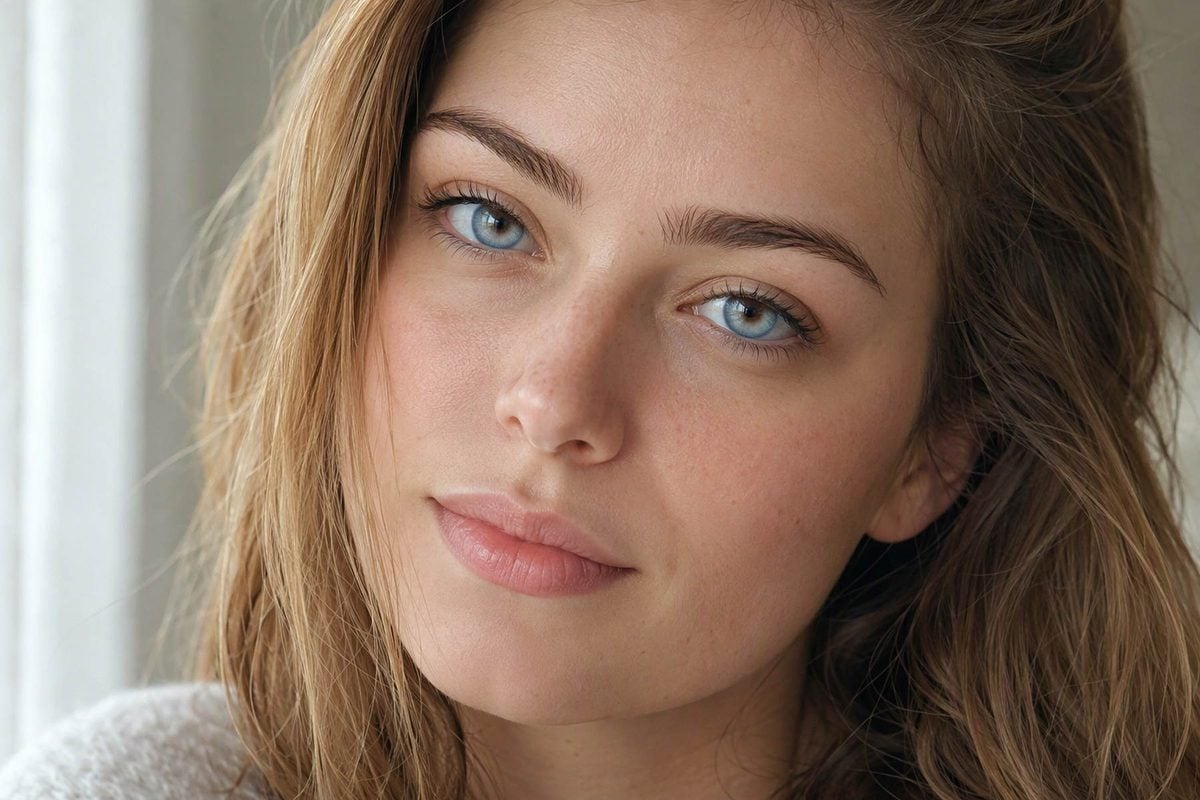
A good blue eyes filter only changes the colored part of the eye.
You should still see:
- some pattern inside the iris, not one flat blue circle
- a small white catchlight
- white sclera
- lashes and skin in their original color
If the eye looks like a bright sticker, the intensity is too high. If you still have to look twice to tell the eyes are blue, it is a bit low. The useful setting sits between those two.
Dark brown eyes need a little more strength before the blue shows. Lighter brown and hazel eyes pick it up faster, so stop sooner. That is the only difference that usually matters.
How to Apply a Blue Eye Filter in Evoto
Step 1: Import the picture
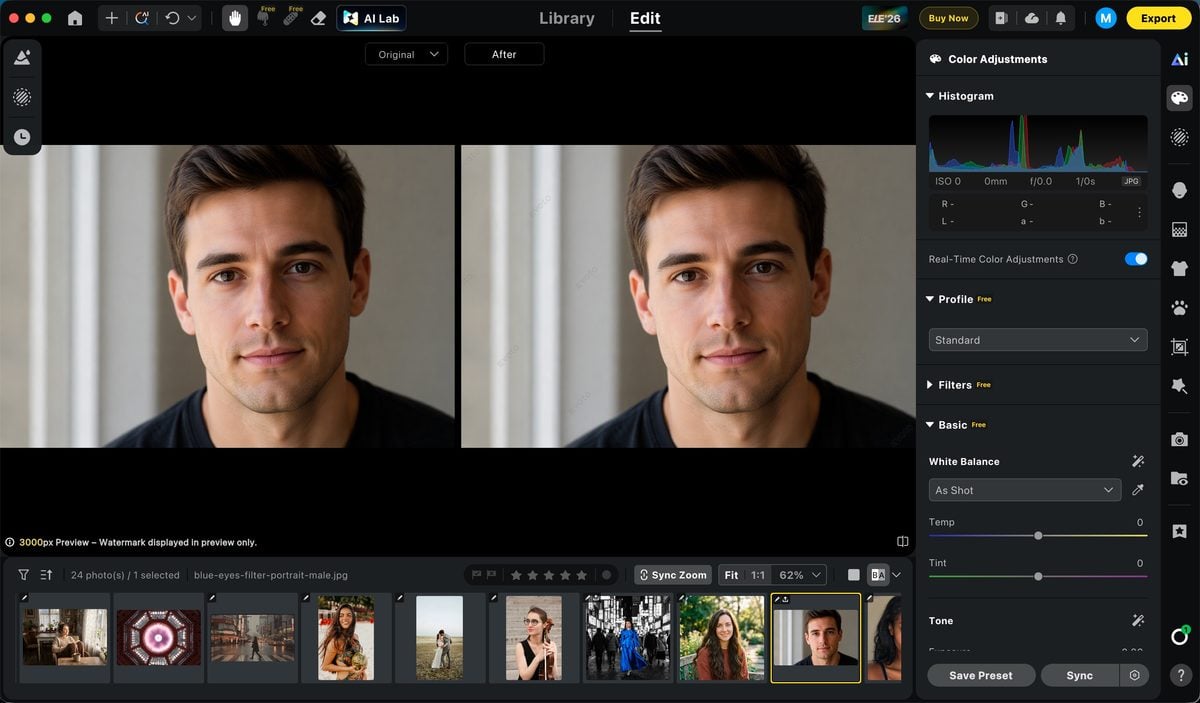
Open Evoto and import the portrait or selfie.


Powerful AI Photo Editor
If the photo is for a profile picture, use the crop you will actually post. Blue that looks right on a large file can look too strong, or almost disappear, once the face is small. Edit the size people will see.
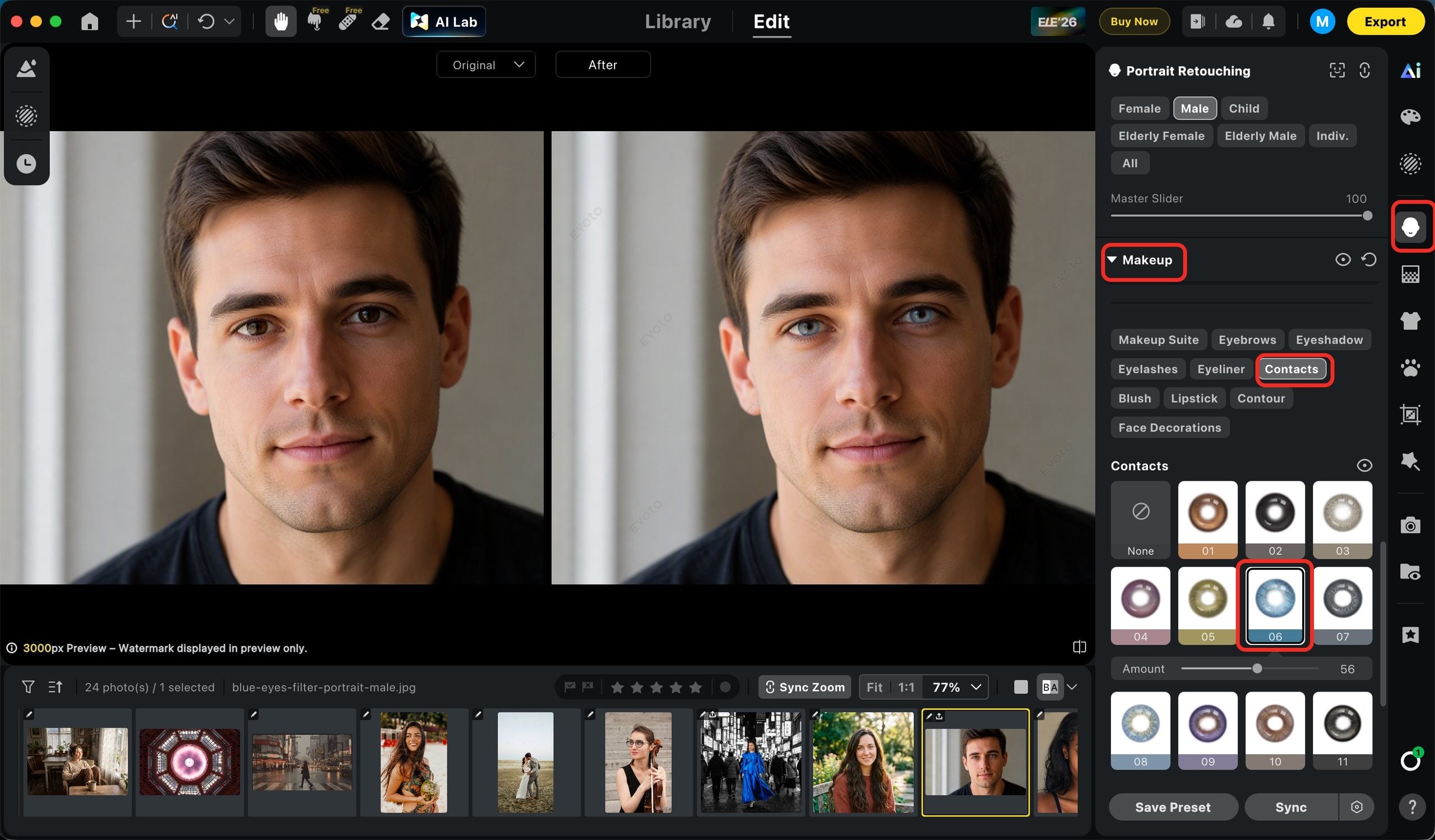
Step 2: Portrait Retouching → Makeup → Contacts, then choose blue one
Go to Portrait Retouching.
Open Makeup.
Open Contacts and choose the blue eyes option.
That click applies the blue eye color filter. Move the intensity and look at both eyes.
Stop when the irises are clearly blue and you can still see detail in them. If the color looks flat or glowing, pull the slider down. If the eyes still look brown, nudge it up and check again. Do not add extra eye brightening while you are still setting the color. That makes a normal contacts look turn into a beauty filter.
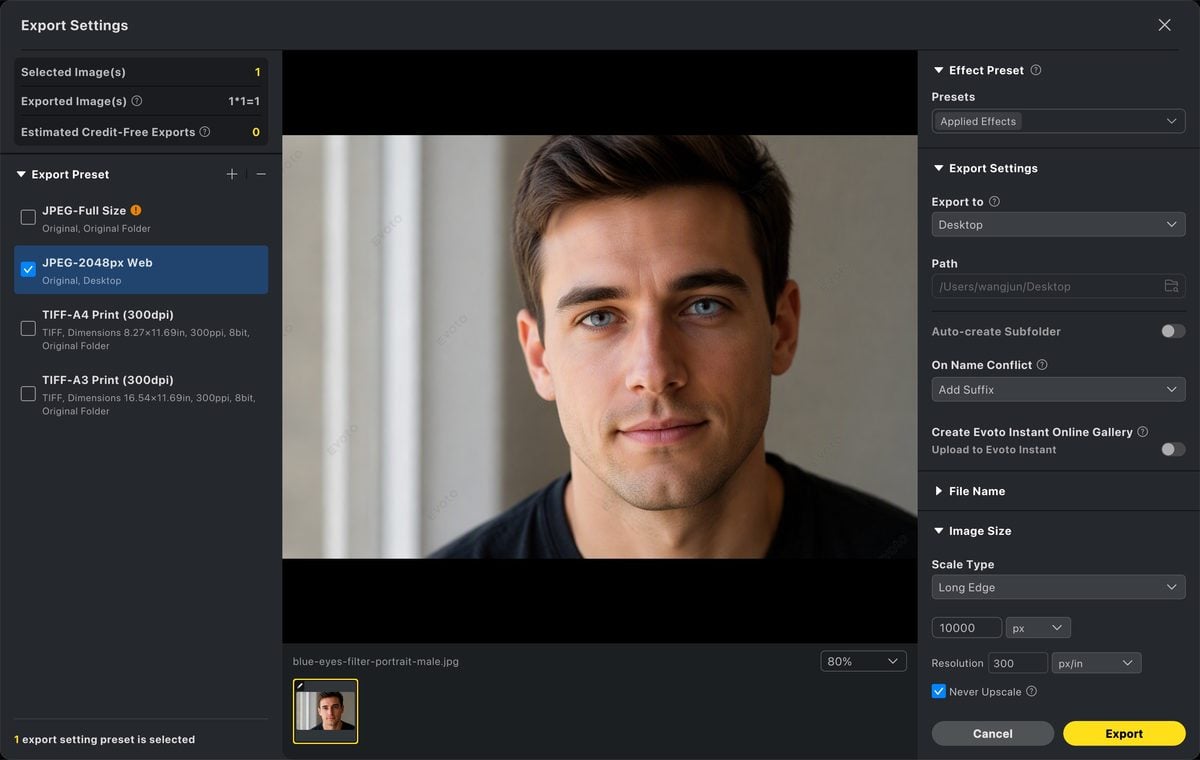
Step 3: Preview and export
Toggle before and after at normal viewing size, then zoom in once.
At normal size, you should see a person with blue eyes, not a filter demo. Zoomed in, check that both irises changed, the eye whites stayed white, and the skin around the eyes did not pick up blue.
Export that file and keep the original. It is common to want the natural eye color back after you compare the two.
If you want to apply blue eye filter online, you can use Evoto online blue eye filter.
If the Blue Looks Fake
Lower the intensity. That is almost always the fix.
| What you see | What to do |
| The iris is a solid bright circle | Lower the intensity until the texture comes back |
| The lashes or under-eye skin look blue | Lower the intensity. Do not whiten the eyes to hide it |
| The eyes still look brown | Raise the intensity a little and check again at normal size |
| The original photo is blurry | Use a sharper photo. The filter cannot invent iris detail |
Look at the photo for one second. If you remember the eyes before you remember the person, the slider is still too high.
Final Thoughts
You do not need a mask, a brush, or a long color edit to add blue eyes to a photo. Evoto does that part for you.
Open the portrait in Portrait Retouching, go to Makeup → Contacts, and choose blue. The blue eye filter applies in one click. Move the intensity until the iris still looks real, preview, and export.
That is the fast path: one click for the color, one slider for the strength, and a finished photo in the same sitting. Try it on the portrait you already have in Evoto.
Try Evoto AI Photo Editor
Retouch photos with Evoto AI and make your photos best! Available on Windows, MacOS and iPadOS.