

Photography is an art, but even the most stunning photo can fall short due to poor color. Whether you’re a seasoned photographer or an occasional snap-happy user, understanding how to color correct an image is crucial. In this post, we’ll dive deep into photo color correction and explore how color correction for photos can turn an ordinary image into something extraordinary. We’ll also compare two popular tools—Photoshop and Evoto—to help you decide which one is right for you.
What is Photo Color Correction?
Photo color correction refers to the process of adjusting various elements of an image’s colors to make it look more natural or visually appealing. Color correction aims to improve the overall balance of an image by adjusting its white balance, exposure, saturation, and contrast. For example, photos can sometimes have unwanted color casts, or the exposure may make certain parts of the photo look too dark or washed out.
In simple terms, color correction for photos is about fixing those issues and bringing out the best in your photos. Whether it’s correcting a blue or orange tint, fixing skin tones, or ensuring that the colors match what the eye sees in real life, image color correction helps improve the overall aesthetic of the photo.
Common Photo Color Issues
When it comes to photo editing, several color issues commonly occur in digital images. These problems can significantly affect the quality of your pictures, and without proper correction, they can leave your photos looking dull or unnatural.
Here are some of the most common issues:
1. Color Casts
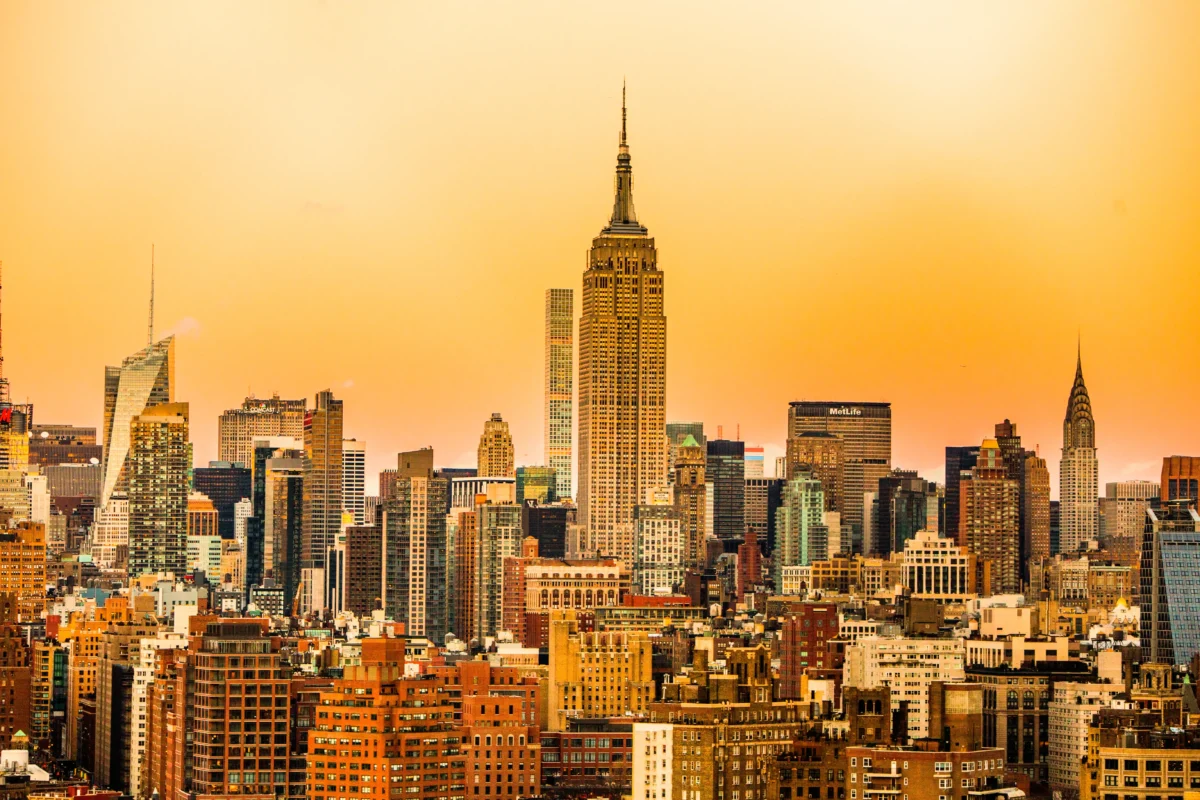
Color casts occur when the photo is too warm or too cool. A photo might look overly blue (cool) or too orange (warm), especially if taken under artificial light. A color-corrected image will have balanced colors, closely resembling what we see with the naked eye.
2. Exposure Problems
When an image is overexposed, the highlights become too bright and lose detail, while underexposure makes the shadows too dark. Color correction in Photoshop and other tools can help adjust exposure to bring out more details.
3. Skin Tone Issues
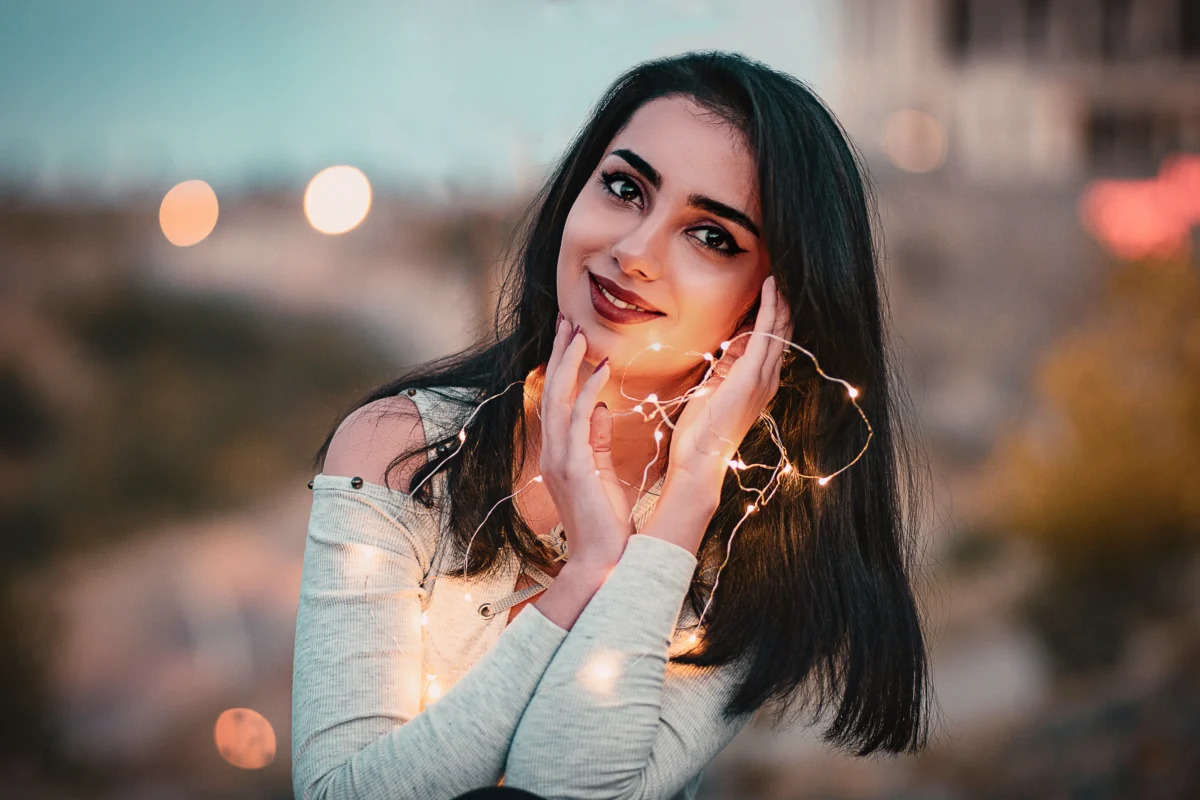
In portrait photography, incorrect skin tones are one of the most common color-related problems. Skin might look too red, yellow, or pale. Proper image color correction ensures that the skin tones look natural and realistic.
4. Saturation and Contrast Problems
Sometimes, a photo can look flat and lifeless because the colors lack vibrancy. Color correction for photos involves adjusting the saturation and contrast, enhancing the colors, and giving the photo more depth and impact.
How to Achieve Perfect Color Correction: A Step-by-Step Guide of Photoshop and Evoto
Now that we understand the basics of color correction for photos, let’s dive into two popular tools—Photoshop and Evoto—to see how each handles photo color correction.
How to Achieve Perfect Color Correction in Photoshop
Photoshop is one of the most powerful tools for color correction in Photoshop. While it provides a robust suite of tools, it also requires some expertise to use effectively. Here’s how to achieve perfect color correction in Photoshop:
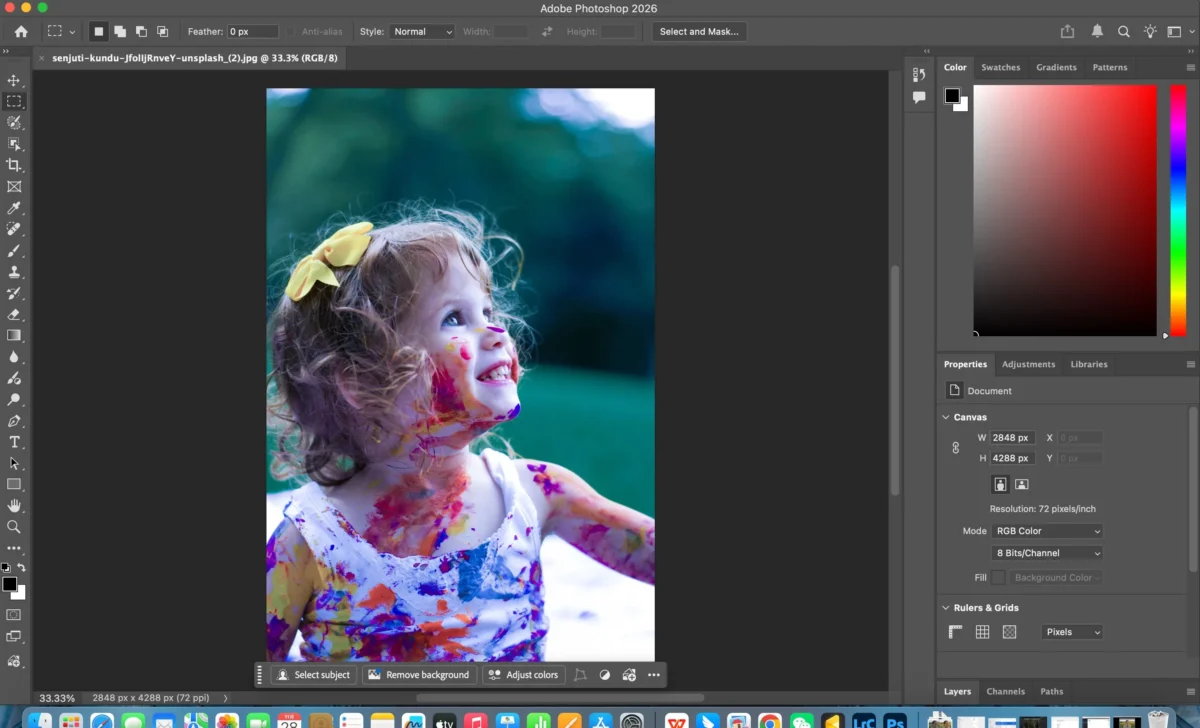
Step 1: Import Your Image
Open your photo in Photoshop. Use the File > Open command to upload the image you want to correct.
Step 2: Correct Color Casts
Go to Image > Adjustments > Color Balance. Here, you can adjust the shadows, midtones, and highlights to remove any color casts (e.g., remove blue or orange tints).
Step 3: Adjust Exposure
Use the Levels or Curves tools (found under Image > Adjustments) to adjust the exposure of your image. These tools allow for detailed control over the brightness of different tones in the image.
Step 4: Fix Skin Tones(optional)
For portraits, use the Selective Color or Hue/Saturation tools to target specific colors in the image (such as the reds for skin tones). This will help you correct unnatural skin colors.
How to Achieve Perfect Color Correction in Evoto
Evoto, with its AI photo color correction features, offers a simpler and faster way to achieve high-quality photo color correction. Here’s how you can use Evoto to color correct your image:


Powerful AI Photo Editor
Step 1: Upload Your Photo
Upload the image to Evoto via mobile app. The process is simple and doesn’t require you to navigate through complex menus.
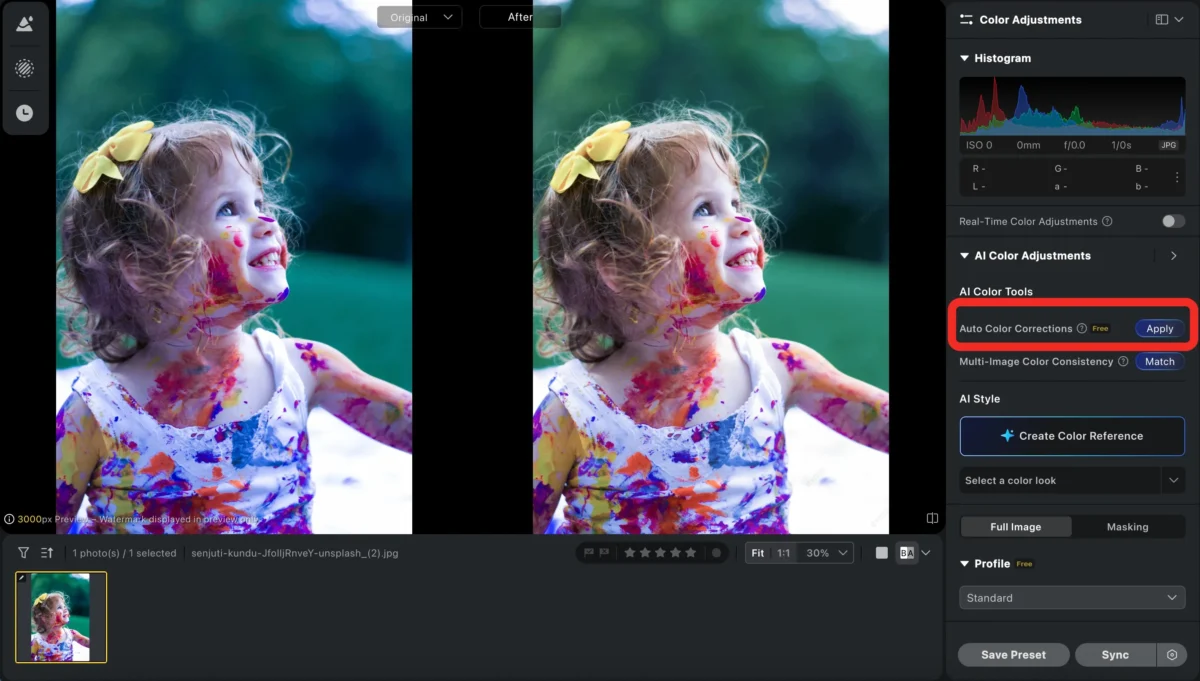
Step 2: Use the AI Color Correction
Evoto’s AI-powered tool automatically detects and corrects common color issues like exposure, white balance, and saturation. You can simply find the “Auto color Correction” and click the “apply” button, and the tool will automatically optimize your image.
Step 3: Fine-Tune with Sliders
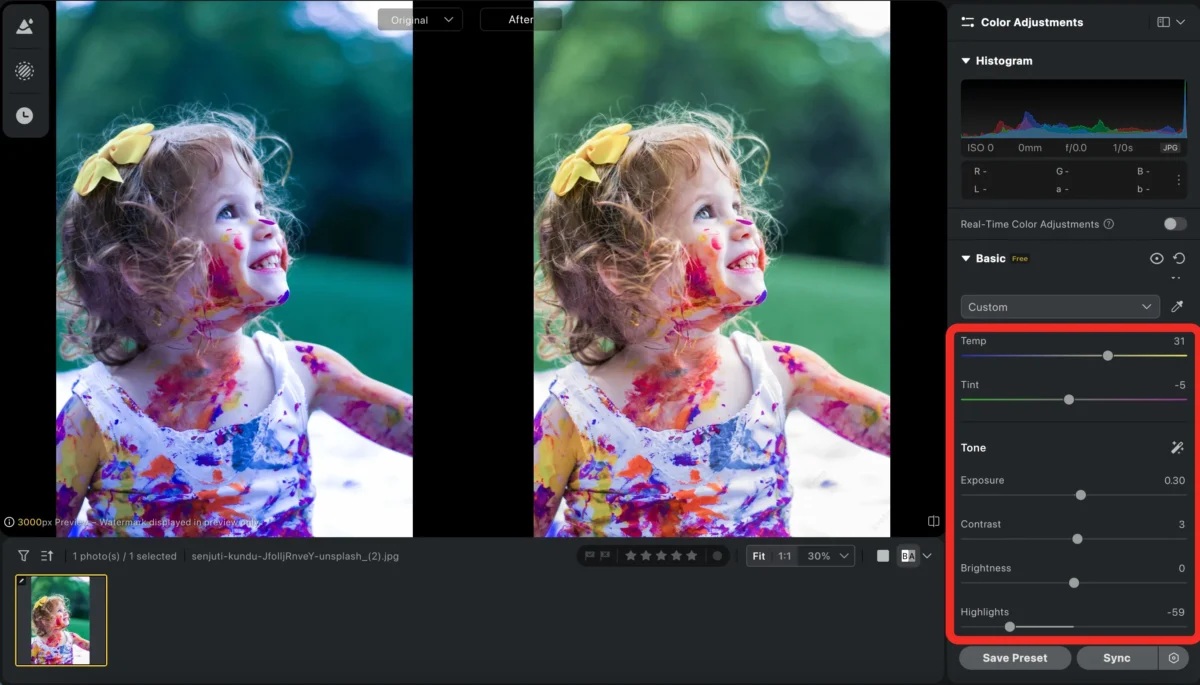
If needed, use the Adjust panel to manually tweak the exposure, contrast, and saturation. You can adjust the temperature, tint, and vibrancy of the image using simple sliders. You may also utilise other portrait features such as body editor, face smiling and makeup editor to refine portraits and achieve greater perfection.
Step 4: Export Your Image
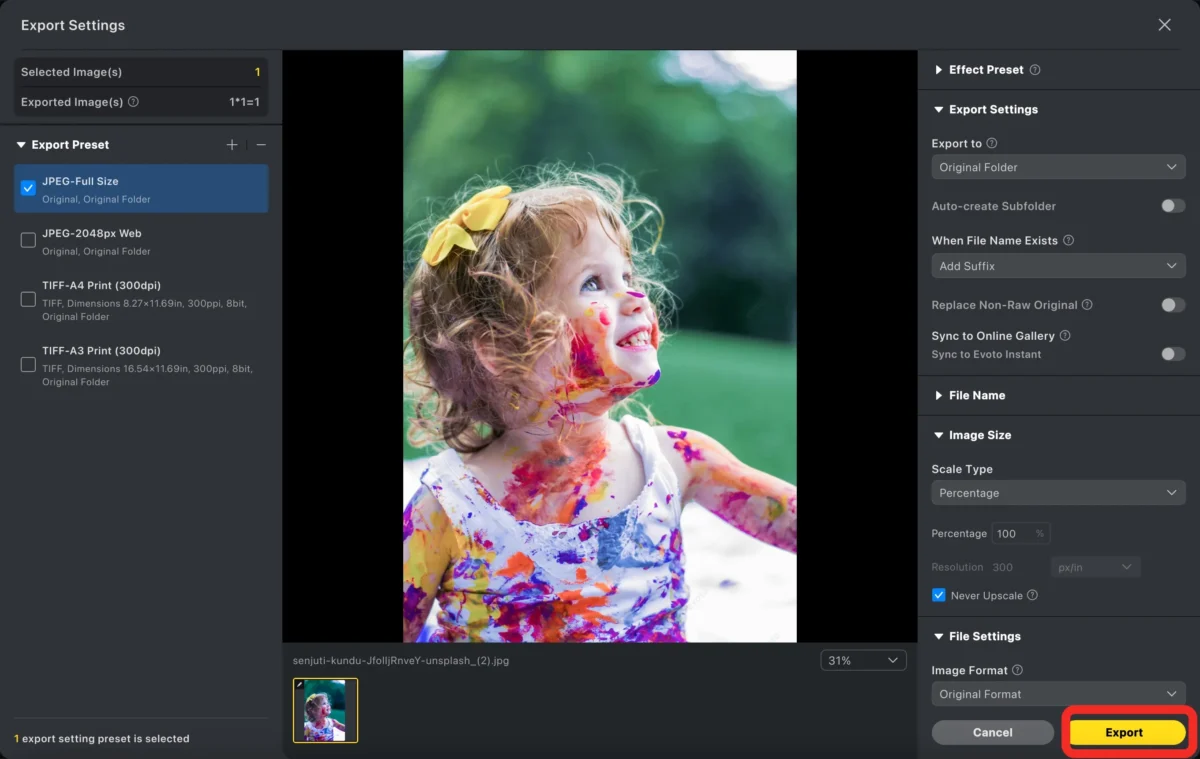
Once you’re satisfied with the adjustments, the next step is to export your edited photo. Evoto makes it easy to save your work in high-quality formats. You can choose to download the edited image directly to your computer or cloud storage.
Powerful AI Photo Editor
Photoshop vs. Evoto: A Comparison of Color Correction Tools
| Feature | Photoshop | Evoto |
|---|---|---|
| Color Correction Control | Full control with advanced tools (Curves, Levels, Selective Color, etc.) | Basic adjustments with sliders (Exposure, Contrast, Saturation, Temperature) |
| Editing Speed | Time-consuming, requires manual adjustments for each photo | Fast, AI-powered automatic enhancements with real-time edits |
| Learning Curve | Steep, requires significant time to master | Simple, easy to use, minimal learning required |
| Cost | Requires a paid subscription for full features | Free for basic features, paid options for advanced tools |
Conclusion
Both Photoshop and Evoto offer powerful tools for photo color correction, but they cater to different types of users. If you’re a professional photographer or designer who requires precise control over every detail of your images, Photoshop is the ideal choice. However, if you’re looking for a fast, intuitive solution for image color correction, especially with AI photo color correction features, Evoto offers a streamlined experience that will save you time while delivering impressive results.
Ultimately, the right tool depends on your needs: Photoshop for precision and Evoto for speed and convenience. Whatever tool you choose, mastering color correction for photos will elevate your photography and help you create stunning, visually appealing images.
Try Evoto AI Photo Editor
Retouch photos with Evoto AI and make your photos best! Available on Windows, MacOS and iPadOS.



