

TL;DR
• Realistic object recoloring depends on three things: a clean selection, controlled hue and saturation changes, and believable light.
• Photoshop gives you precise manual control with selections, masks, and adjustment layers.
• Evoto is faster when you want an AI-assisted workflow for color edits, background color changes, and repeated image sets.
• The best method depends on whether you need pixel-level control or production speed.
The hard part of object recoloring is rarely the color itself. It is keeping the object’s edges, shadows, highlights, and texture believable after the color changes.
If you want to learn how to change color of an object in a photo, start with the principle first: select only the object, shift the color without destroying its brightness, then refine the mask until the edit blends into the original image. This guide covers that principle, a Photoshop workflow, and a faster Evoto workflow for photographers who need clean results without building every mask by hand.
Why Object Color Changes Look Fake
Most bad recolors fail for one of four reasons.
First, the selection is too rough. If the mask misses hair, fabric folds, transparent edges, or reflective surfaces, the edit looks pasted on. Second, the new color ignores luminosity. A red shirt in shadow should not become the same red as the shirt under direct light. Third, saturation is pushed too far. Finally, the original color may contaminate the result, especially when changing strong colors like red, green, or blue.
Think of object recoloring as color correction plus masking. You are not painting a flat color over the object. You are changing the color while preserving light, shape, and texture.
Step 1: Decide What Type of Color Change You Need
Before opening any tool, decide what you are changing.
Simple Hue Shift
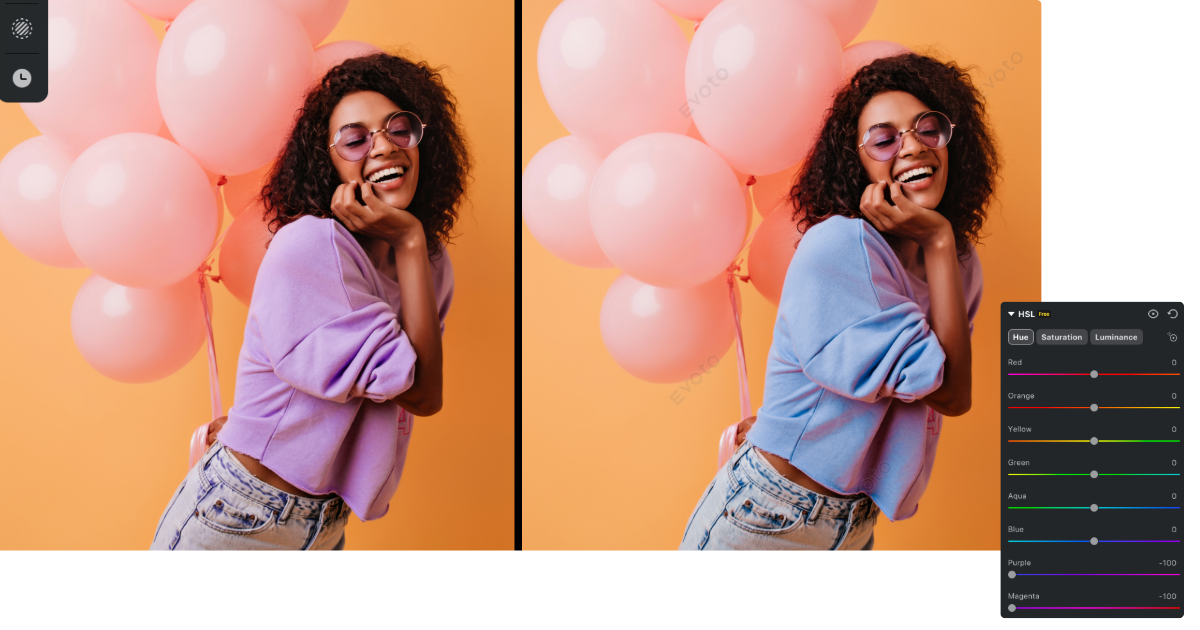
A simple hue shift works when the object already has a clear color and you only need a related color. For example, changing a purple shirt to blue or a green backdrop to olive.
Full Color Replacement
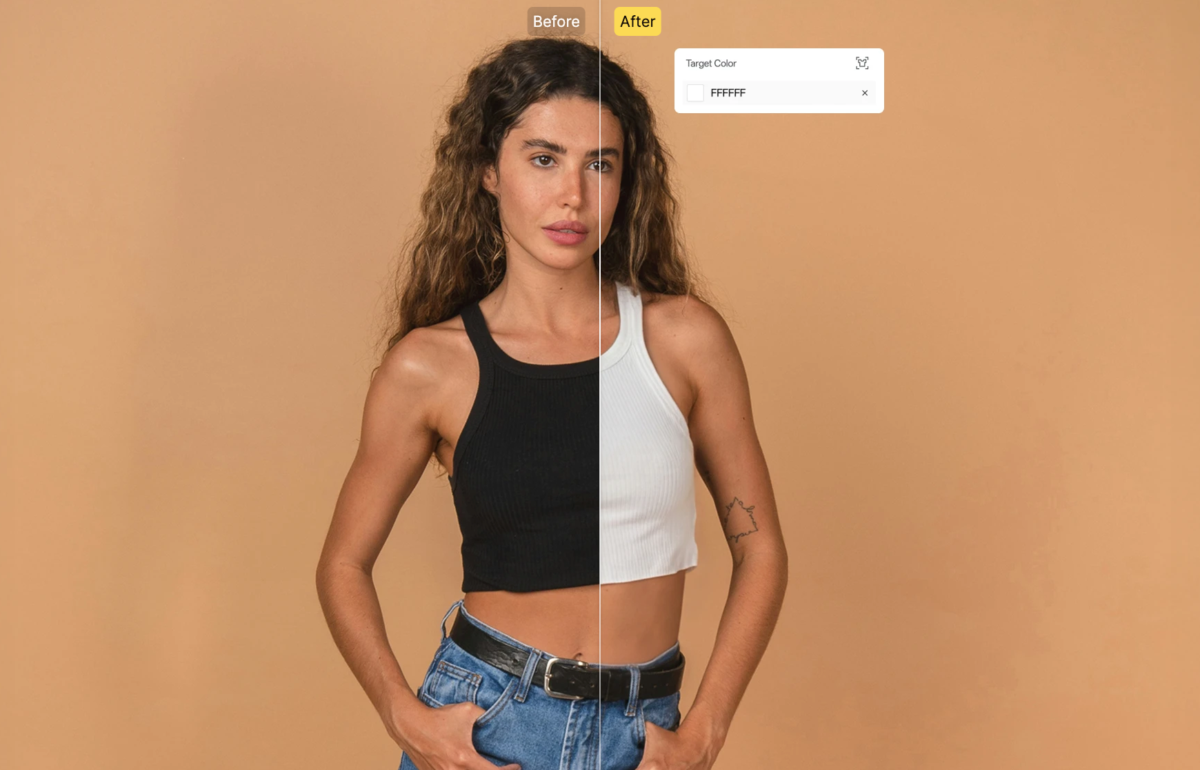
Full replacement is harder. Changing a black jacket to yellow, a red product to white, or a patterned object to a clean color usually requires more masking and tone control.
Want to recolor clothes however you like? Check out Evoto’s clothing color tools online to achieve the result you want.
Background Color Change
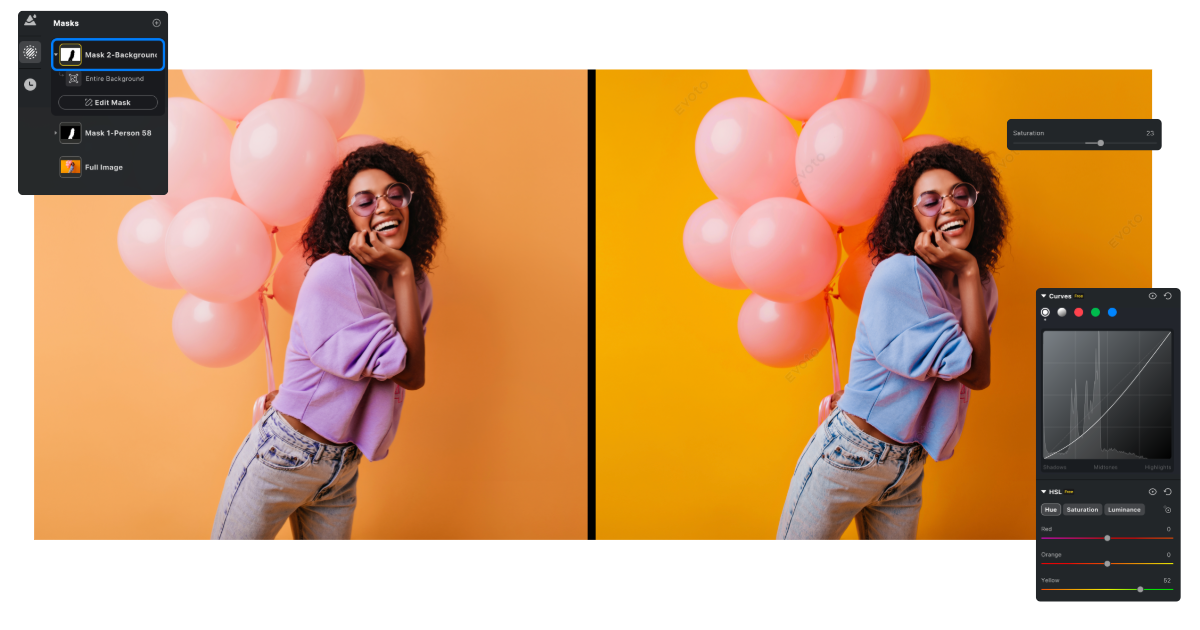
If the object is the background rather than the subject, use a workflow designed for background edits. Evoto’s change background color feature is built for this kind of task and can be faster than manually selecting a backdrop in Photoshop.
Step 2: How to Change Color of an Object in Photoshop
Photoshop remains one of the most precise ways to change color of object in Photoshop because it gives you detailed control over selections, masks, and adjustment layers.
You can watch this video for a detailed walkthrough, or follow the steps below.
1. Open the Image and Duplicate the Layer
Open your photo in Photoshop. Duplicate the background layer so you can compare the edit against the original and keep a safer working file.
2. Select the Object
Use Object Selection, Quick Selection, Select Subject, Pen Tool, or any method that fits the image. For clean product edges, the Pen Tool can be more accurate. For clothing or portraits, Object Selection may get you close faster.
3. Add a Hue and Saturation Adjustment Layer
With the object selected, create a Hue and Saturation adjustment layer. Photoshop will turn the selection into a layer mask. Move the Hue slider to choose the new color, then adjust Saturation and Lightness carefully.
4. Refine the Mask
Zoom in around edges. Use a soft brush on the mask to clean halos, missed areas, or color bleeding. Pay special attention to hair, fabric texture, jewelry, glass, and reflective surfaces.
5. Preserve Highlights and Shadows
If the object looks flat, use Curves or Levels to restore contrast. The new color should follow the original light pattern. Shadows should stay darker, highlights should stay brighter, and texture should remain visible.
Step 3: How to Change Object Color in Evoto
Evoto is useful when you want a more guided, AI-assisted workflow, especially for photographers who need speed across portraits, headshots, e-commerce photos, or repeat sets.
1. Import Your Image into Evoto
Open the image in Evoto AI photo editor and review the file for exposure, white balance, and color balance first. Recoloring works best when the base image is already corrected.


Powerful AI Photo Editor
2. Use AI-Assisted Area Control
Use Evoto’s AI editing controls to isolate the relevant area where available, such as subject, background, clothing, or another editable region. Instead of manually building every edge, AI-assisted detection helps you get to the editing stage faster.
3. Adjust Color, Saturation, and Tone
Change the selected area’s color while watching texture and light. Avoid pushing saturation so far that the object separates from the scene. A believable recolor should still feel like it was photographed under the same lighting.
4. Apply the Look Consistently
For repeated images, use presets or batch-supported workflows to keep the change consistent. This is where an Evoto AI photo editor workflow can save time compared with manually repeating the same mask and adjustment in every file.
Photoshop vs. Evoto: Which Method Is Better?
Photoshop is best when you need maximum control over a single complex image. If the object has transparent edges, mixed reflections, complicated product materials, or a client expects detailed compositing, Photoshop’s manual tools are valuable.
Evoto is better when speed, consistency, and photographer-friendly controls matter more. If you are correcting a background color, applying repeatable edits to a portrait set, or building a fast production workflow, Evoto can reduce the time spent on selections and repetitive adjustments. For high-volume background work, the bulk background replacer is especially useful.
Powerful AI Photo Editor
Step 4: Troubleshoot Common Object Recoloring Problems
Even with the right tool, color replacement can go wrong. Use these checks before exporting.
The Edges Have a Color Halo
Refine the mask. A halo usually means the selection included too much of the surrounding area or missed semi-transparent pixels. Feathering may help, but too much feathering can blur the edge.
The New Color Looks Flat
You probably changed hue without preserving contrast. Add a Curves adjustment or reduce the strength of the recolor so the original highlights and shadows remain visible.
The Texture Disappeared
Avoid painting a solid color on top of the object. Use blending, adjustment layers, or AI controls that preserve texture. Fabric, leather, skin, and product materials all need visible surface detail.
The Color Does Not Match the Scene
Check white balance and surrounding colors. A cool blue object in warm sunset light may need a slightly warmer version of blue to feel natural.
Use Object Recoloring in Real Workflows
Object recoloring is not only a creative trick. It can solve practical production problems.
E-commerce teams may need product color variations before all physical samples are photographed. Portrait photographers may need to reduce distracting clothing color. Headshot studios may need a more consistent background tone. Marketing teams may need campaign assets that match brand colors.
Use recoloring carefully when color accuracy matters. If the final image represents a real product for sale, the color must match the actual item. For creative portraits and campaign visuals, you have more freedom, but the edit still needs to look intentional.
Best Practices for Natural Color Changes
Keep the original lighting. The fastest way to make a recolor look fake is to flatten every highlight and shadow into one color.
Work with realistic color ranges. Turning a pale yellow object into deep black or bright neon may require more than a hue adjustment. You may need tonal edits, cleanup, or a different source image.
Check the image at 100 percent and zoomed out. At 100 percent, you catch edge problems. Zoomed out, you see whether the color feels believable in the full composition.
For repeated professional work, build a repeatable process. Start with base correction, then object selection, color change, edge cleanup, consistency check, and export. When you need faster production, download Evoto and test whether AI-assisted editing can replace the most repetitive parts of that sequence.
FAQ
What Is the Easiest Way to Change Color of an Object in a Photo?
The easiest method is to use a tool that can select the object and apply a hue or color adjustment without affecting the rest of the image. For quick edits, AI-assisted tools are faster. For complex images, Photoshop gives more manual control.
How Do I Change Color of Object in Photoshop Without Affecting the Background?
Select the object first, then apply a Hue and Saturation adjustment layer. Photoshop will create a mask from your selection, so the color change affects only the object. Refine the mask around edges before exporting.
Why Does My Object Color Change Look Unrealistic?
The most common causes are rough selections, oversaturated color, lost shadows, or missing texture. Preserve luminosity and refine the mask so the new color follows the original lighting.
Try Evoto AI Photo Editor
Retouch photos with Evoto AI and make your photos best! Available on Windows, MacOS and iPadOS.



