

Image grain can make a photo look rough, dirty, or lower in quality than it really is, especially in shadows, flat backgrounds, or low-light images. But reducing grain is not just about making the image smoother. If you push noise reduction too far, skin, texture, and edge detail can fall apart just as quickly.
That is why good grain reduction starts with knowing what you are looking at. Grain is not the same as blur. It is not the same as real texture. And it is not something you solve by simply pushing sharpness harder. The goal is to clean distraction without erasing the image structure that still deserves to stay.
TL;DRIf you are reducing grain in Photoshop, start by deciding whether the problem is real noise, blur, or weak source quality. Then lower luminance and color noise carefully, check skin and textured areas before exporting, and stop before the image turns waxy. If you mainly want a faster cleanup path, Evoto can handle light denoising and export with fewer manual steps.

What Is Grain in a Photo?
Why grain and digital noise are often treated together in editing
In everyday editing language, people often use grain and noise interchangeably. Strictly speaking, they are not always identical, but in practical photo cleanup they usually point to the same problem: visible roughness that makes the image look dirtier or less clean than it should.
That roughness often shows up in shadows, flat backgrounds, skin, or low-light areas where the file is already under stress.
How grain is different from blur, texture, and sharpness
Grain is random visual noise. Blur is loss of definition. Texture is real surface information, like skin pores, fabric, hair, or product material. Sharpness is how strongly edges appear defined.
Those differences matter because they need different treatment. If you mistake blur for grain, noise reduction will not fix the softness. If you mistake real texture for noise, you can destroy useful detail. If you try to solve grain only by adding sharpness, you often make the image look rougher instead of cleaner.
Why some photos look rough even when they are technically in focus
A photo can be in focus and still look poor because the noise is overpowering the real detail. This is common in high-ISO images, compressed files, and underexposed shots that were brightened later.
That is why a noisy image does not automatically mean a blurry image. The structure may still be there. It is just being buried under rough visual interference.

When It Makes Sense to Reduce Grain
Low-light photos with noisy shadows or color speckling
Noise tends to become most obvious in low-light images, especially in dark areas or smooth backgrounds. If the shadows look gritty or you see colored speckling where the image should feel clean, grain reduction is usually worth doing.
This is one of the clearest use cases for cleanup in Photoshop.
Portraits where grain is distracting from skin or subject detail
In portraits, too much grain can make the face look dirty, uneven, or more harsh than intended. The problem is usually not that the skin has texture. It is that the noise is interfering with the skin.
That distinction is important. You want to reduce distraction, not erase the natural structure of the face.
Older, compressed, or high-ISO files that still have usable structure
Some files are noisy but still salvageable. If the subject edges are readable and the core detail is intact, grain reduction can make the photo feel much cleaner without needing a total rebuild.
The goal in those cases is not perfection. It is improved usability and a more believable final image.
What to Check Before Reducing Grain
Decide whether the real problem is noise, blur, or poor source quality
Before you edit, identify what is actually wrong. If the photo is blurry, grain reduction will not restore missing definition. If the source file is badly compressed, the roughness may be mixed with artifacting that cannot be solved cleanly.
The better your diagnosis, the less likely you are to use the wrong tool for the wrong problem.
Identify which parts of the image actually need cleanup
Not every part of the image needs the same amount of noise reduction. A flat background, a dark shadow, a face, and a textured jacket all respond differently.
This is why the most believable grain reduction usually comes from observing where the distraction is strongest, instead of trying to smooth every part of the frame equally.
Expect to balance smoothness against retained detail
Every grain reduction decision is a tradeoff. The cleaner you make the image, the more detail you may start to soften. The sharper you try to keep it, the more noise may remain visible.
The goal is not to eliminate every trace of grain. It is to find the point where the image feels cleaner without falling apart.

How to Reduce Grain in Photoshop
Start with Camera Raw noise reduction or equivalent detail controls
A practical place to begin in Photoshop is Camera Raw, where you can work with the main detail and noise reduction controls in one place. This gives you a clean starting point before you overcomplicate the process.
For most beginner-friendly cleanup, this is enough to make the biggest decision: how much roughness needs to come down before the image starts losing too much structure.
Reduce luminance and color noise without flattening the whole frame
Luminance noise often creates the gritty look, while color noise creates small colored speckles. Both matter, but they should be reduced carefully.
If you push too far, shadows become mushy, skin turns plastic, and textured surfaces lose realism. A cleaner result usually comes from reducing distraction, not from making the image perfectly smooth.
Recover important detail after cleanup so the image does not look waxy
Once the grain starts coming down, recheck what happened to important detail. Eyes, hair, fabric edges, product contours, and skin structure often need to stay readable.
This is where many edits fail. The image gets cleaner, but it also gets duller. A useful Photoshop workflow keeps detail recovery in mind instead of treating noise reduction as the only goal.
Recheck shadows, skin, and textured areas before exporting
The most revealing areas are usually the ones that break first: dark zones, skin, and textured surfaces. Before you finish, look again at those parts of the image.
If they still feel believable, the grain reduction is probably working. If they now look smeared or synthetic, the cleanup has gone too far.

Common Problems When Reducing Grain Too Much
Skin starts looking waxy or plastic
This is one of the most obvious signs of overcorrection. Instead of looking cleaner, the face starts losing natural surface variation and becomes unnaturally smooth.
At that point, the grain may be reduced, but the image quality is not better.
Texture and edge detail disappear with the noise
When grain reduction is too aggressive, it often removes the noise and the useful detail together. Fabric becomes flat, hair loses separation, and product surfaces stop feeling real.
This is why noise reduction should always be judged together with texture retention.
The photo gets cleaner but also flatter and less believable
An image can become technically smoother and still become visually worse. If the grain reduction removes too much contrast and structure, the photo may feel lifeless even though it is cleaner.
That is why a believable result usually matters more than a perfectly smooth one.

Tips for Cleaner Grain Reduction
Judge the image at normal viewing size, not only zoomed in
Noise is easy to obsess over when you zoom in too far. But a file that still shows a little grain at 200 percent may already look fine at realistic viewing size.
The better question is whether the grain distracts at the size people will actually see the image.
Use enough reduction to remove distraction, not every trace of grain
Trying to erase every trace of grain usually causes bigger problems than leaving a little behind. In many images, a slight amount of texture is much less damaging than an over-smoothed surface.
A good cleanup often leaves a small trace of natural roughness in place.
Let some natural texture stay if it helps the image feel real
This is especially important in portraits, clothing, hair, and product surfaces. Real texture should not be mistaken for a flaw.
The image should feel cleaner, but it should still feel like a real photo.
If you need a broader non-Photoshop overview of this decision process, see How to Fix Grainy Photos: Top 3 Methods for Noise Reduction.
Photoshop Workflow vs a Faster Cleanup Option
When Photoshop control makes more sense
Photoshop is the better choice when the file needs judgment and balance. If the image has mixed problems, delicate skin detail, uneven shadows, or texture that needs to be protected, the extra control is worth it.
It is also the better fit when you do not want a one-size cleanup and need to watch the tradeoff between noise reduction and detail preservation more carefully.
A faster option in Evoto: a step-by-step denoise workflow
Sometimes the image is usable and just needs a cleaner, faster pass. In those cases, a lighter workflow can make more sense than staying fully manual from beginning to end.
Evoto fits here as a practical cleanup option when the main goal is to reduce visible roughness and get to a cleaner final image with less friction. If you want the longer reference behind this section, the workflow is adapted from How to Denoise in Photoshop: Complete Guide.


Powerful AI Photo Editor
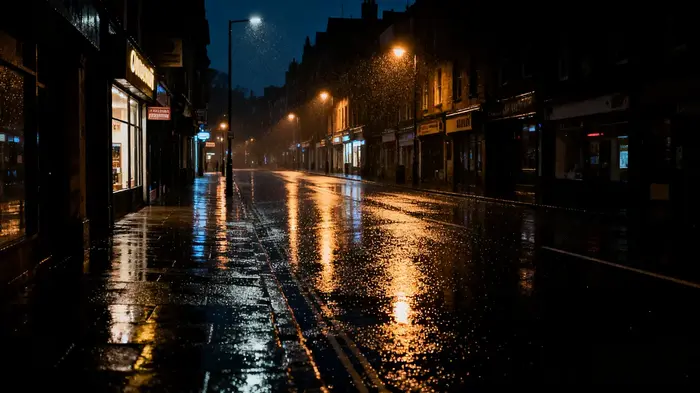
Step 1. Check the noisy areas first
Open the RAW image and look at the parts that are actually under stress first, especially shadows, smooth background areas, and skin. If the structure is still readable, the file is usually worth cleaning instead of replacing.
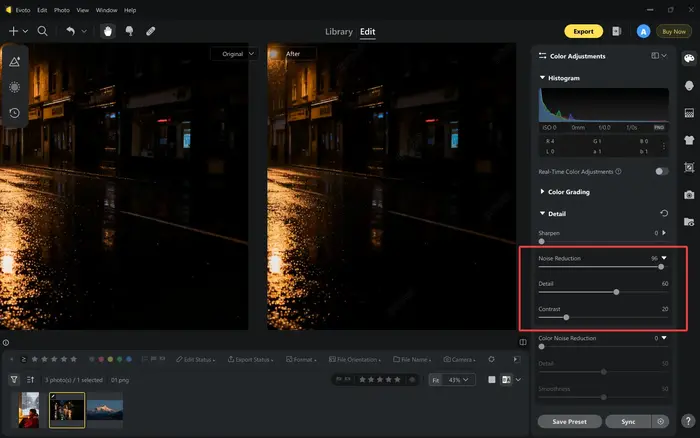
Step 2. Apply denoise adjustment to reduce roughness while keeping detail
Use Evoto’s denoise controls to lower visible noise without flattening the whole image. The useful test here is whether the face, hair, clothing texture, and edge detail still look like real photo information after the roughness comes down.
If you want the related tool page, see Evoto AI Image Denoiser.
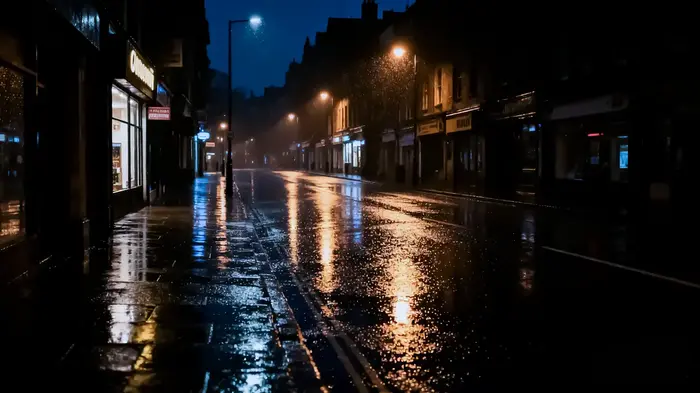
Step 3. Export the cleaner result
Check the image at normal viewing size, make sure the cleanup still looks natural, and then export. If the file feels cleaner without looking waxy, brittle, or obviously processed, you are at the right stopping point.
Why the best result still depends on how much usable detail the source image contains
No workflow changes the basic limit of the file. If the source image still contains readable structure, clarity enhancement can help. If the file is too damaged or too blurry, even the fastest or smartest tool can only improve it so far.
That is why the best results still start with realistic expectations.
Final Thoughts
Good grain reduction cleans the image without erasing its structure
The best result is not the smoothest one. It is the one that removes distraction while keeping enough texture, edge definition, and realism for the image to still feel intact.
That is why reducing grain is always a balancing act, not a single slider decision.
The best result is usually cleaner, not perfectly smooth
A little grain is often less damaging than too much smoothing. If the image looks natural, readable, and less distracting than before, the edit is already doing its job.
In most cases, cleaner is the real goal. Perfectly smooth is where the problems usually begin.
Try Evoto AI Photo Editor
Retouch photos with Evoto AI and make your photos best! Available on Windows, MacOS and iPadOS.



