

Many people have heard terms like pixels, resolution, 300 DPI, and megapixels, but those ideas start to blur together as soon as a real photo problem shows up. Why can the same image look clear on a screen but fall apart in print? Why does changing the resolution number not automatically improve the photo itself? Why can a file be large in size but still look weak?
The reason is that several different things get mixed together under the idea of “image quality.” Pixels and resolution, image size, file size, and compression all affect how a photo behaves, but they are not the same thing. Once you separate those ideas, it becomes much easier to understand what your photo can actually do and what needs to change for web use, printing, cropping, or resizing.
TL;DRPixels tell you how much image information a file contains. Resolution often refers to how densely that information is used for display or print. File size and compression are separate issues. Once you separate those concepts, it becomes much easier to judge whether a photo is good enough for web use, print, cropping, or resizing. If you mainly want a faster cleanup-and-resize path, Evoto’s AI Photo Enhancer can help you get to a more usable result faster.

What Are Pixels in a Digital Photo?
What a pixel actually is
A pixel is the smallest individual unit of a digital image. Think of it as one tiny piece of color information inside the full photo. When enough pixels are arranged together, they form the complete image you see.
A single pixel does not mean much by itself. What matters is how many of them the photo contains across its width and height.
How pixel dimensions describe image size
When you see dimensions like 4000 x 3000, that is the pixel size of the image. It tells you how many pixels the file contains horizontally and vertically.
This is one of the most useful numbers for understanding what the file can handle. A larger pixel dimension usually gives you more room to crop, enlarge, or print the image while keeping it cleaner.
Why megapixels matter, but not in every situation
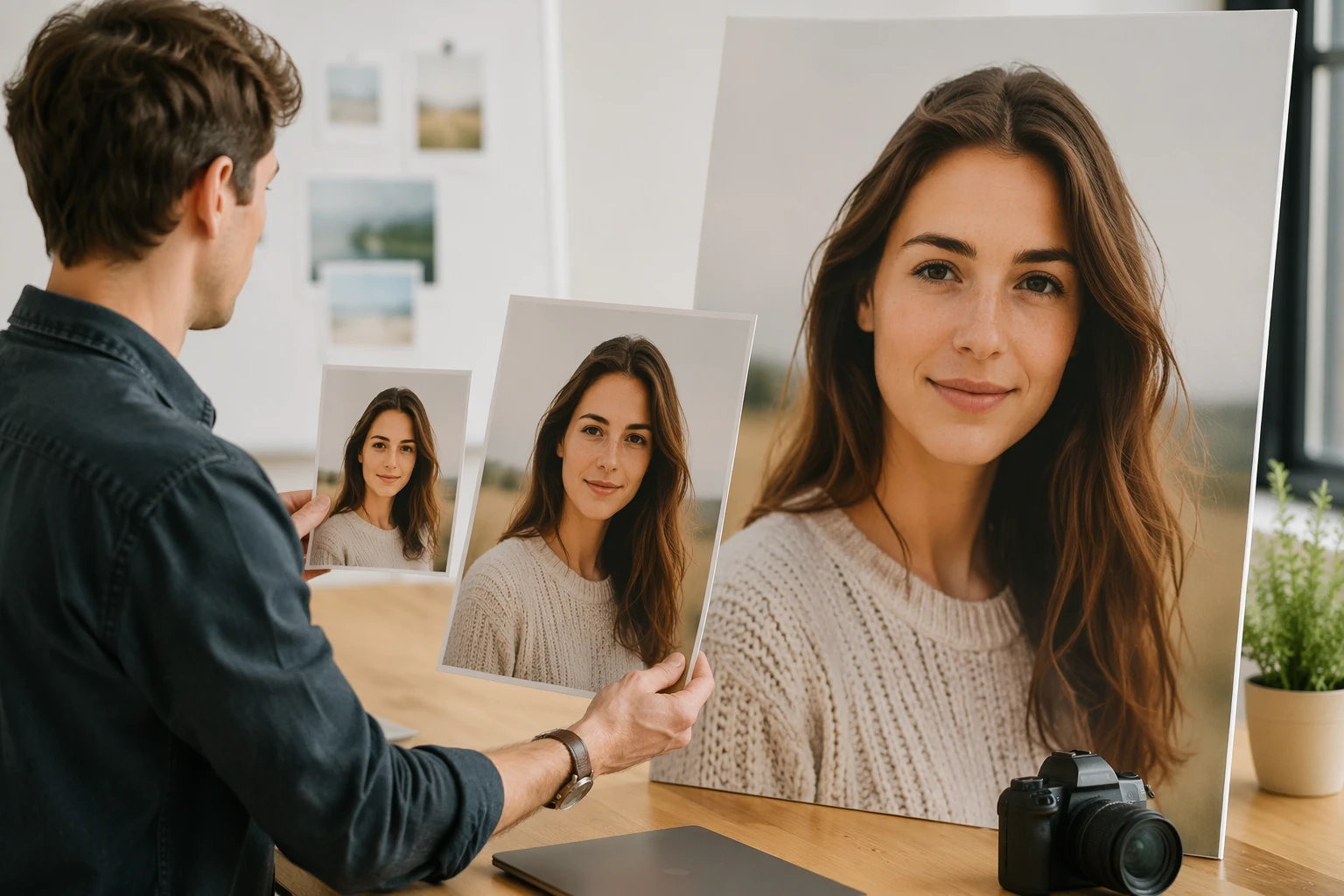
Megapixels are just another way of describing total pixel count. A 12-megapixel image contains around 12 million pixels. A higher megapixel count usually means more image data, but that does not always mean the photo will look better in every situation.
For web use, social media, and everyday screen viewing, very high megapixel counts often matter less than people think. They become more important when you need larger prints, heavier cropping, or more flexibility in post-processing.
What Does Resolution Mean?
The difference between pixel count and pixel density
Pixel count tells you how many pixels are in the image. Pixel density tells you how tightly those pixels are packed when displayed or printed at a certain size.
This is where confusion starts. People often use the word resolution to mean both total pixel count and pixel density, even though those are not identical ideas.
PPI vs DPI: what people usually mean and where confusion starts
PPI means pixels per inch. DPI means dots per inch. In photo discussions, people often use them interchangeably, even though they are technically different. PPI is the more relevant term for digital image sizing, while DPI is more closely tied to how printers place dots on paper.
In practical conversation, people usually mean pixel density when they say 300 DPI, even if PPI would be the more precise term.
Why resolution is related to size, but not the same thing
Resolution affects how much detail can fit into a given display or print size, but it is not the same as the image’s total pixel dimensions. A file with the same pixel count can be assigned different print sizes and different pixel density settings without actually gaining new detail.
That is why changing the resolution number alone does not automatically improve the photo.
Pixels, Resolution, Image Size, and File Size: What Is the Difference?
Pixel dimensions vs print dimensions
Pixel dimensions describe the digital size of the image itself. Print dimensions describe how large that image will appear on paper at a given pixel density.
The same file can print smaller at higher density or larger at lower density. The image data has not changed unless you add or remove pixels.
Why file size is not the same as image quality
File size is how much storage the photo takes up, usually measured in KB or MB. A large file size does not automatically mean a better-looking image.
A file can be large because it has more pixels, less compression, or extra data. It can also be large and still look bad if the image itself is blurry, noisy, poorly compressed, or weak in detail.
How compression can make a photo look worse even if the resolution number stays the same
Compression reduces the amount of data used to save the image. Too much compression can damage fine detail, create smearing, or introduce blocky artifacts.
This is one reason a photo may still have the same pixel dimensions but look much worse than before. The resolution number stayed the same, but the visible quality did not.
Why These Concepts Matter in Real Use
For screen use, social media, and websites
For screens, pixel dimensions matter more than print-style density numbers. A photo that is large enough in pixels for the screen where it will appear can still look sharp even if people worry about whether it is “72 DPI” or “300 DPI.”
This is why many web image problems are really about export size, compression, or over-enlargement rather than the resolution label alone.
For printing photos or albums
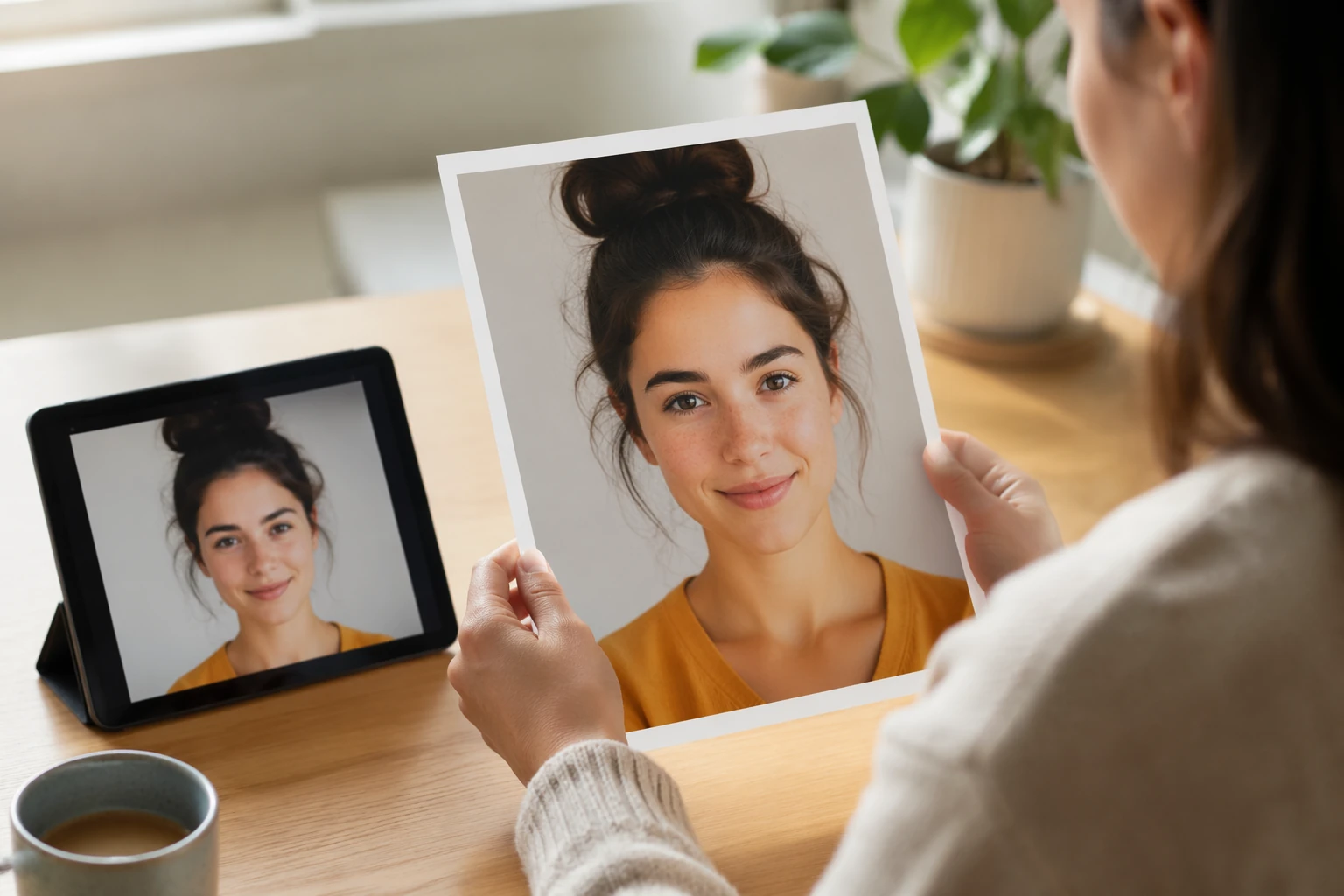
For print, size and density matter together. A photo that looks fine on a phone or laptop may not have enough clean detail for a larger print.
This is where pixels and resolution become more practical. The file needs enough image data to support the print size without falling apart.
For cropping, enlarging, and reusing older images
When you crop a photo, you throw away pixels. That means the remaining file has less room for future enlargement. Older files, screenshots, or previously compressed images often start from a weaker place already.
That is why understanding pixel count helps you judge whether an image can handle reuse or resizing before you push it too far.
Common Misunderstandings About Pixels and Resolution
Why changing 72 to 300 does not automatically improve a photo
This is one of the most common misunderstandings. Changing a number from 72 to 300 without adding real image data does not magically create more detail.
If the pixel dimensions stay the same, the image itself has not gained new information. You have only changed how that file is interpreted for output.
Why more megapixels do not always mean better-looking images
More megapixels can be useful, but they do not guarantee a better photo. Focus, lighting, lens quality, compression, and noise all affect what the photo actually looks like.
A cleaner, well-exposed image from a lower-megapixel file can easily look better than a poorly captured image from a higher-megapixel one.
Why a photo can be large in file size but still look weak
A photo may have a large file size because it was saved in a larger format or exported with less compression, but that does not guarantee strong detail. If the original capture was blurry, noisy, or weakly compressed earlier in the chain, the file can still look disappointing.
This is why file size should never be treated as a direct quality score.
How Resizing Actually Affects a Photo
What changes when you resize without resampling
If you resize without resampling, you are changing how large the file will display or print without changing the total number of pixels. The image data stays the same.
This is why some resizing changes affect output dimensions but do not create a visibly better image.
What changes when you add or remove pixels
When you resample, you are actually changing the number of pixels in the image. Reducing pixels can make the file smaller and easier to use online. Adding pixels can make the file physically larger for output, but those new pixels have to be estimated.
That is where enlargement can help usability but also introduce limitations.
Why aggressive enlargement can make the image look worse instead of better
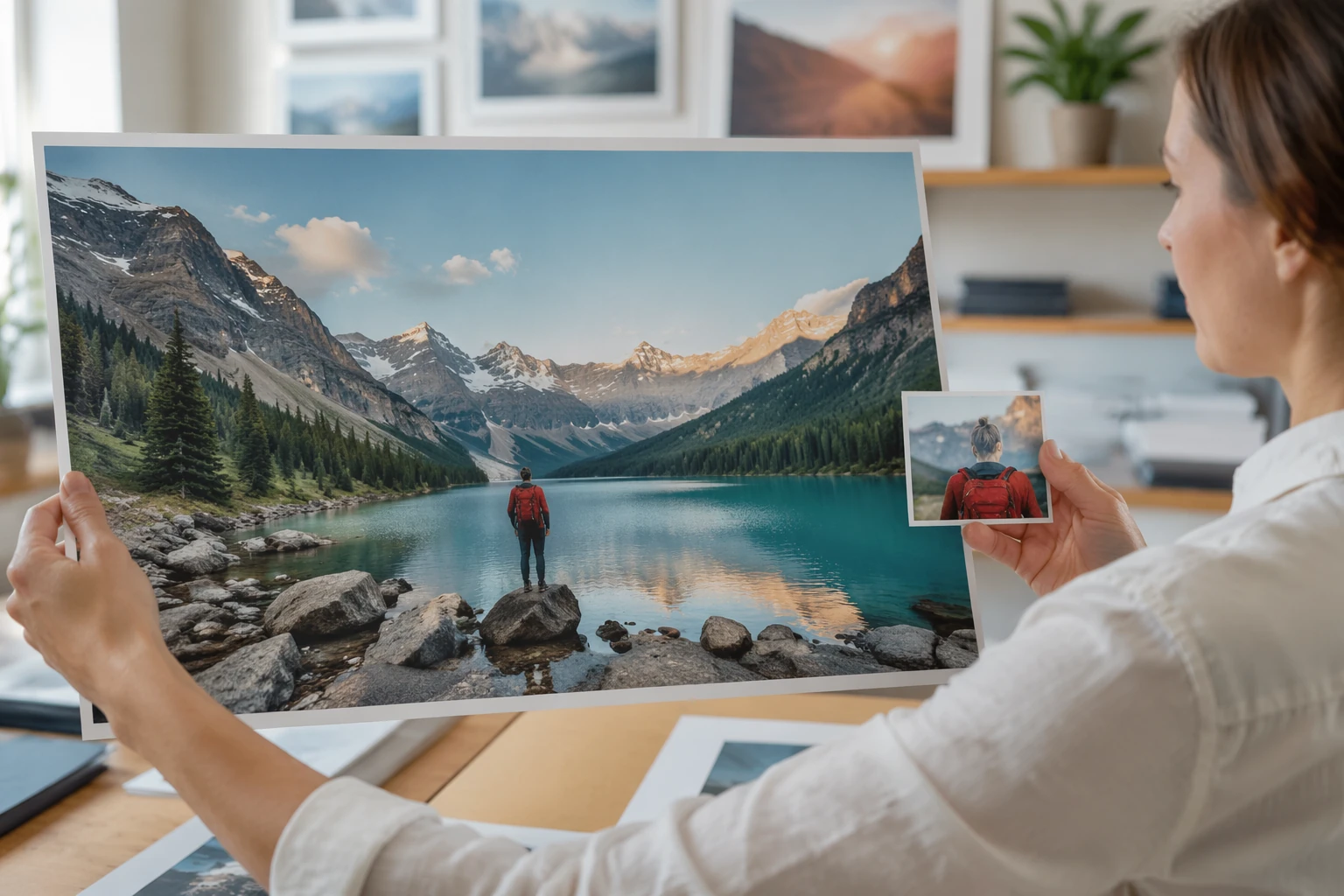
If you enlarge too aggressively, the image may start showing fake edges, soft plastic-looking surfaces, halos, or brittle detail. The file becomes larger, but not cleaner.
A useful enlargement is one that supports the output need without advertising the resize itself.
How to Resize More Carefully
Start with the best original file you have
Before resizing anything, use the strongest original version available. A less-compressed export, uncropped file, or higher-resolution source usually matters more than any later rescue step.
A better starting file almost always beats a more aggressive resize workflow.
Match the image size to the real output you need
Do not resize blindly. Think about where the photo is going. A website banner, an Instagram post, a photo album, and a large print all need different image sizes.
The best resize is the one that fits the actual use, not the one that chases the biggest number possible.
Check sharpness, noise, and compression before blaming resolution alone
Sometimes the image does not look weak because of resolution alone. Noise, blur, or compression may be doing more damage than the pixel count itself.
That is why resizing decisions work better when you judge the whole image condition, not just one number. If the source image also needs cleanup, this guide on How to Fix Photo Resolution Without Making the Image Look Worse is the more practical next read.
Manual Resizing vs a Faster Workflow
When a hands-on method makes more sense
A more hands-on workflow makes sense when the file has mixed issues and you need judgment. If the image combines resizing needs with blur, noise, compression, or weak detail, you may want more control over how those problems are balanced.
This is often the better choice when output quality matters more than speed.
When a faster workflow like Evoto is enough for practical resizing and cleanup
Sometimes the image is usable and simply needs a cleaner, quicker path to a better result. In those cases, a faster workflow can make more sense than manually adjusting every part of the file.
Evoto fits here as a practical back-half option when the goal is to improve readability, support cleaner resizing, and export a more usable final image without turning the process into a full rebuild. If you want the related tool page, see Evoto AI Photo Enhancer.


Powerful AI Photo Editor
A light path: open image, apply enhancement or resize help, and export
If the file is recoverable and the goal is practical improvement, the workflow can stay simple: open image, apply enhancement or resize help, and export.
That kind of path works best when you are not trying to perform a perfect reconstruction, just a cleaner and more useful one. If compression or roughness is part of the problem, Evoto AI Image Denoiser is the more relevant supporting tool.
Final Thoughts
Pixels and resolution are easier once you separate size from quality
Most of the confusion around pixels and resolution disappears once you stop treating every image problem as the same thing. Pixel count, density, file size, compression, and image quality all interact, but they are not interchangeable.
Once you separate those ideas, photo decisions become much easier.
The best image size depends on where the photo is going, not on one magic number
There is no single perfect number for every image. The right size depends on whether the photo is for screen use, print, cropping, or reuse.
A good image workflow is not about chasing one rule. It is about understanding what the photo needs for the place it is actually going.
Try Evoto AI Photo Editor
Retouch photos with Evoto AI and make your photos best! Available on Windows, MacOS and iPadOS.



