

Sometimes a photo can end up looking too bright due to harsh lighting, overexposure, or reflective surfaces. Learning how to darken photo properly allows you to control mood, enhance contrast, and bring out richer tones in your images. In this guide, we’ll walk you through traditional Photoshop techniques as well as a faster AI‑powered method using Evoto AI.
Why You Might Want to Darken a Photo
Darkening a photo isn’t about simply reducing brightness – it’s about adding depth, mood, and visual balance. A darker look can help:
- Reduce blown‑out highlights and overexposed areas
- Enhance shadows and textures
- Create a more dramatic atmosphere
- Improve focus on the subject by toning down distracting bright areas
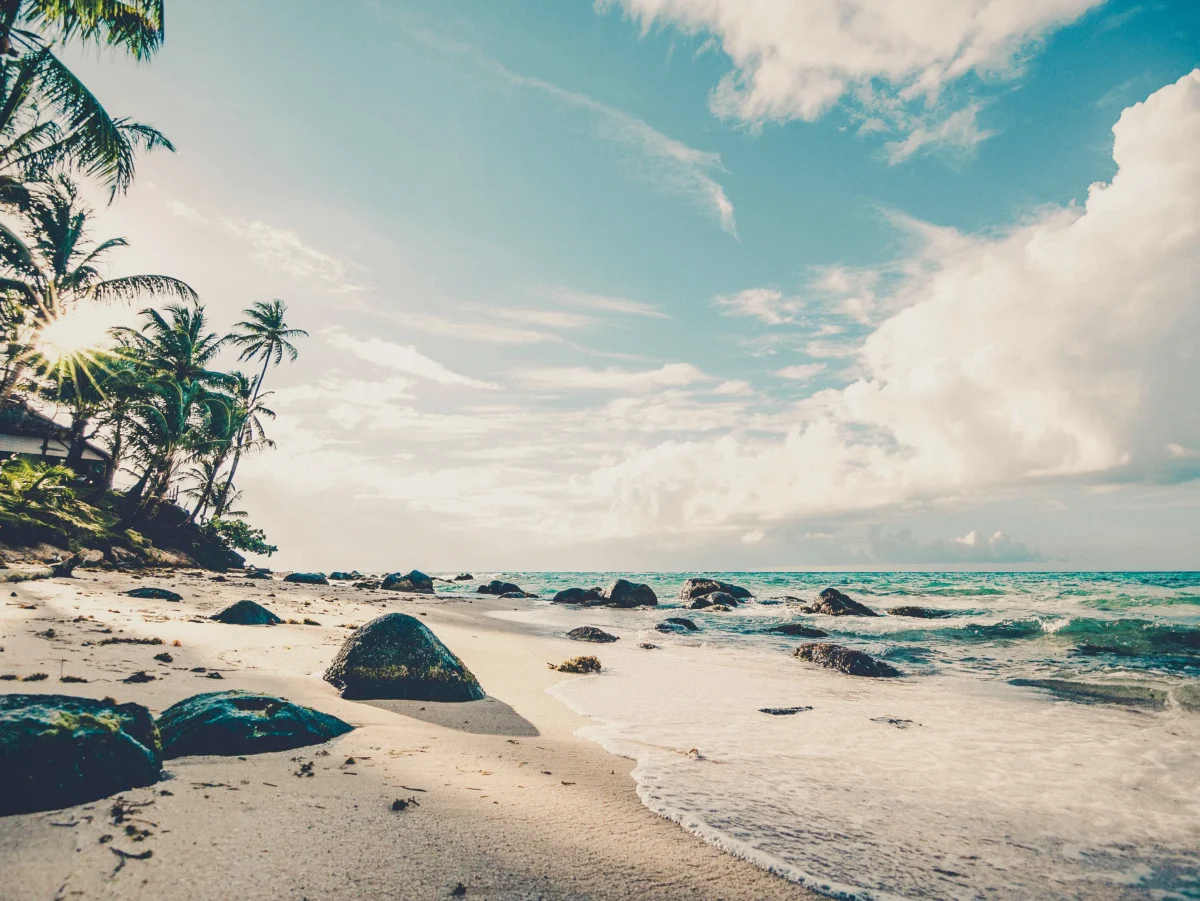
Whether you’re working on portraits, landscapes, or product shots, understanding how to darken photo effectively is a valuable skill.
How to Darken Photo in Photoshop: Step‑by‑Step
Here’s a practical workflow for darkening images in Adobe Photoshop:
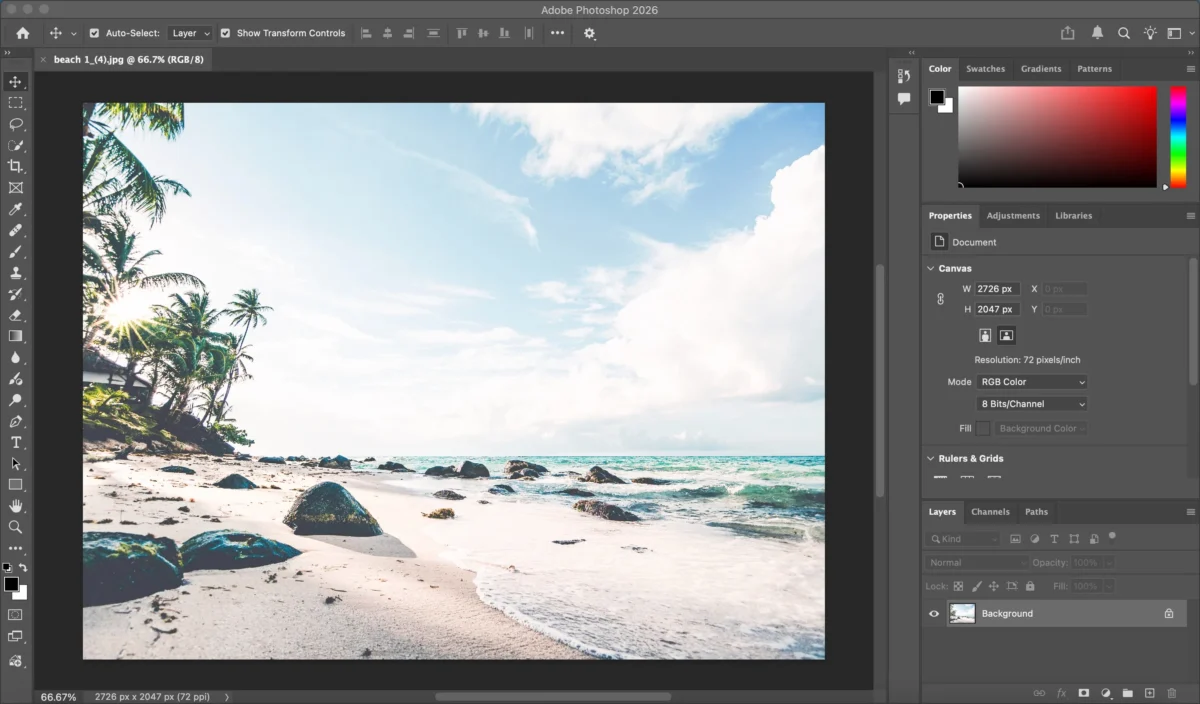
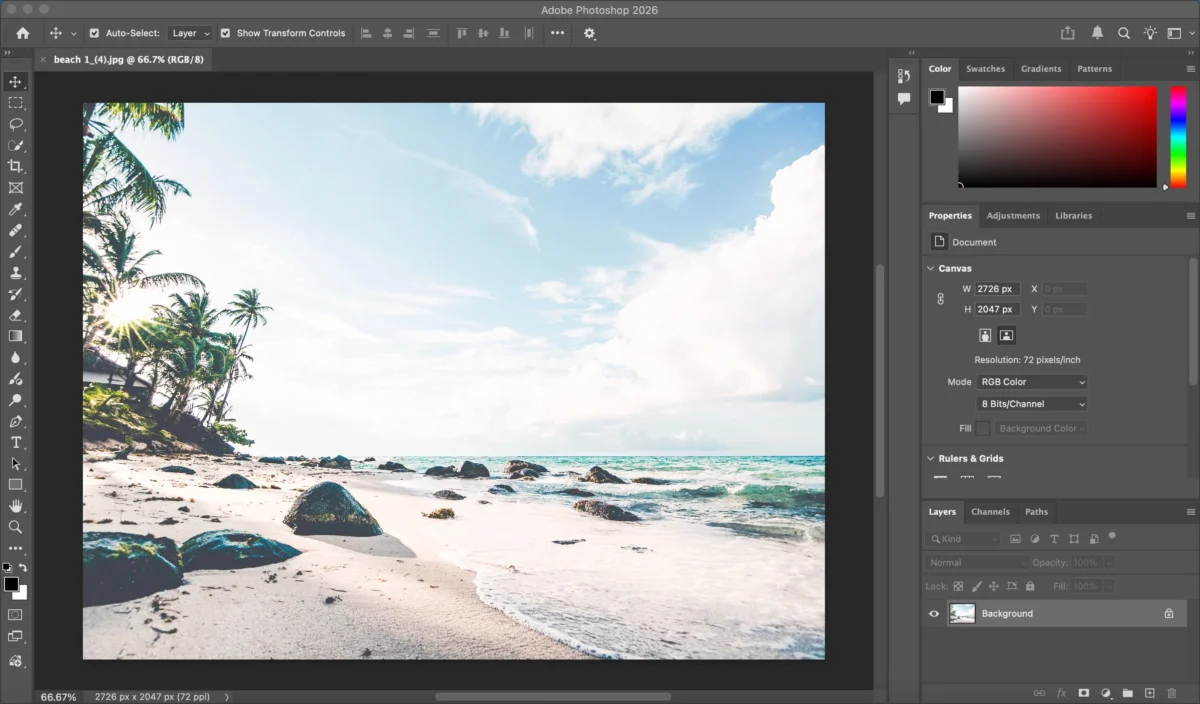
Step 1: Open Your Image
Launch Photoshop and open the photo you want to edit.
Step 2: Darken Your Photo(3 Ways)
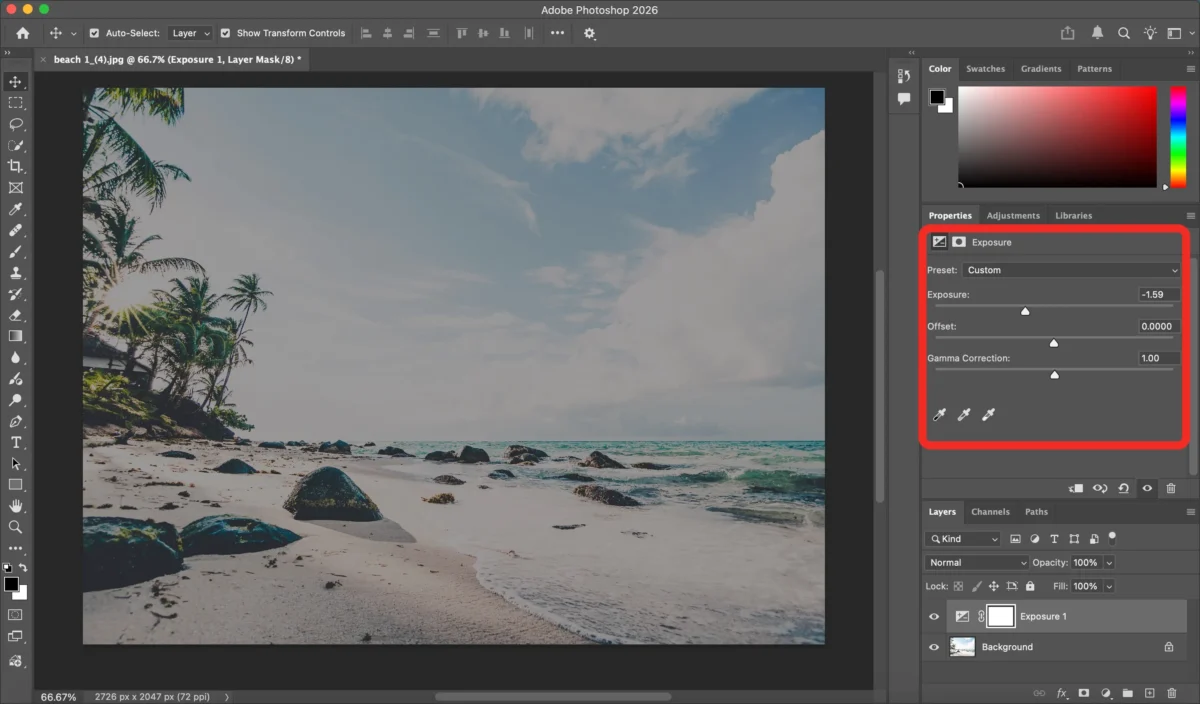
Way 1: Exposure Adjustment
Go to Image > Adjustments > Exposure and move the Exposure slider to the left to darken the entire image.
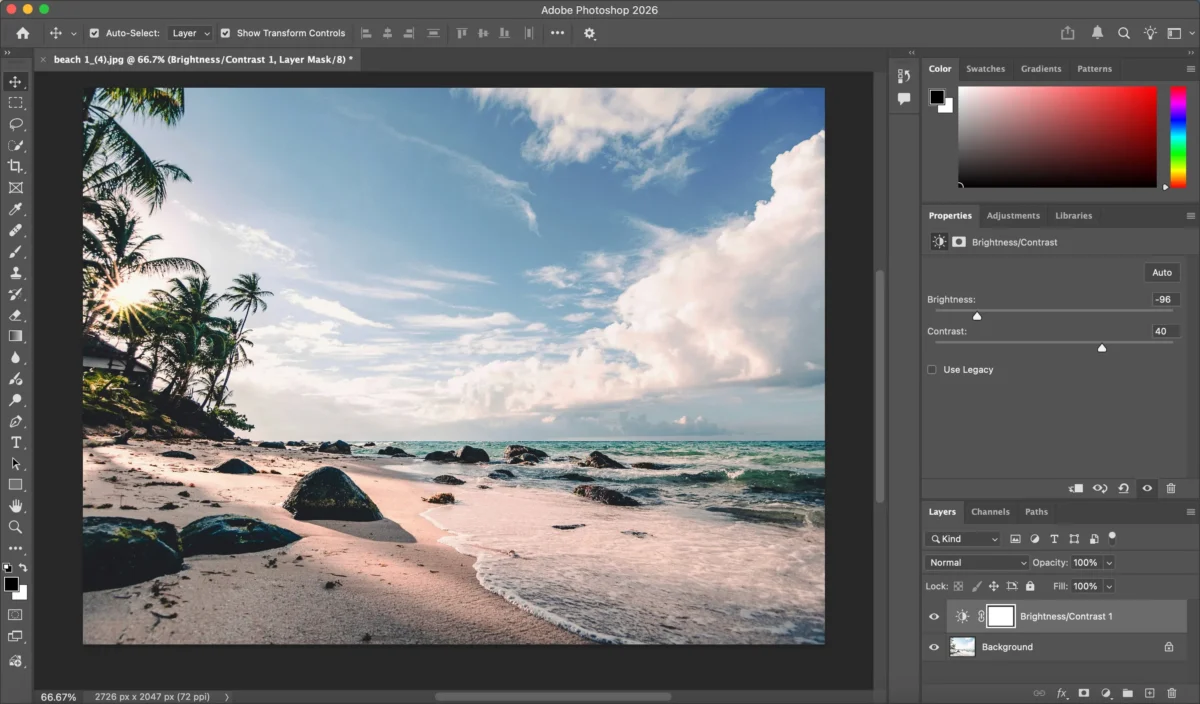
Way 2: Adjust Brightness and Contrast
Alternatively, go to Image > Adjustments > Brightness/Contrast and reduce brightness for a simpler darkening effect.
Way 3:Use Curves
Create a subtle downward curve to reduce overall brightness while maintaining tonal balance.
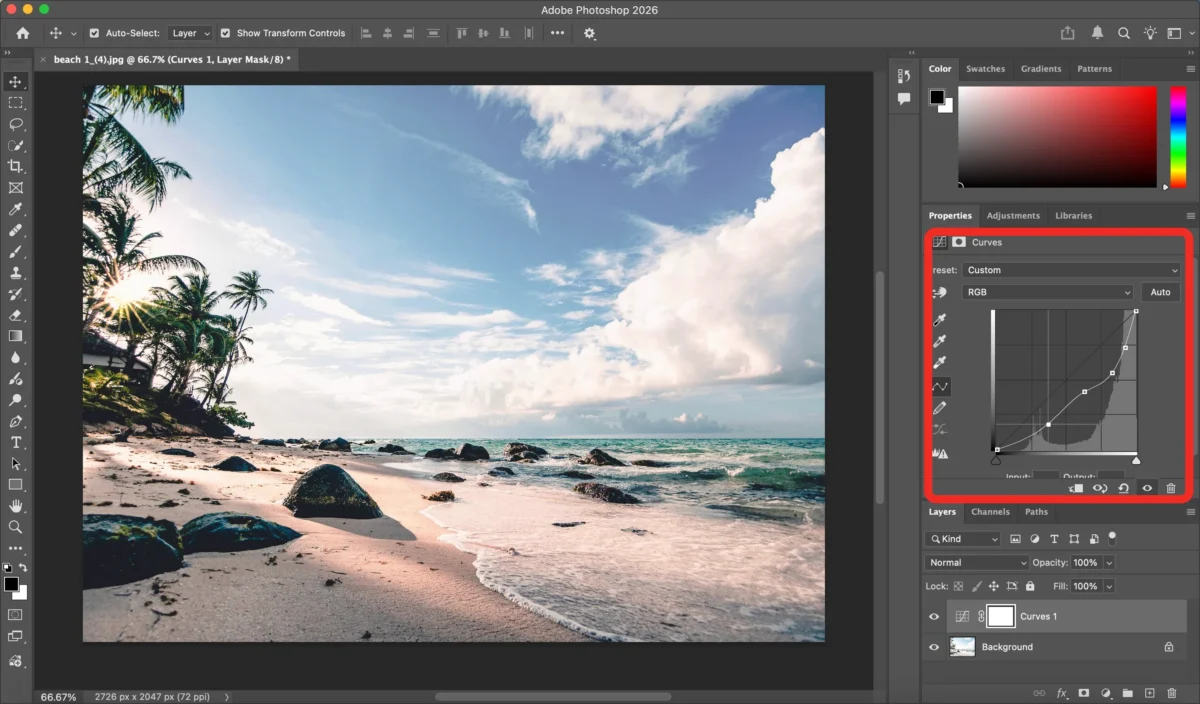
These tools offer fine control over how dark different tonal regions become.
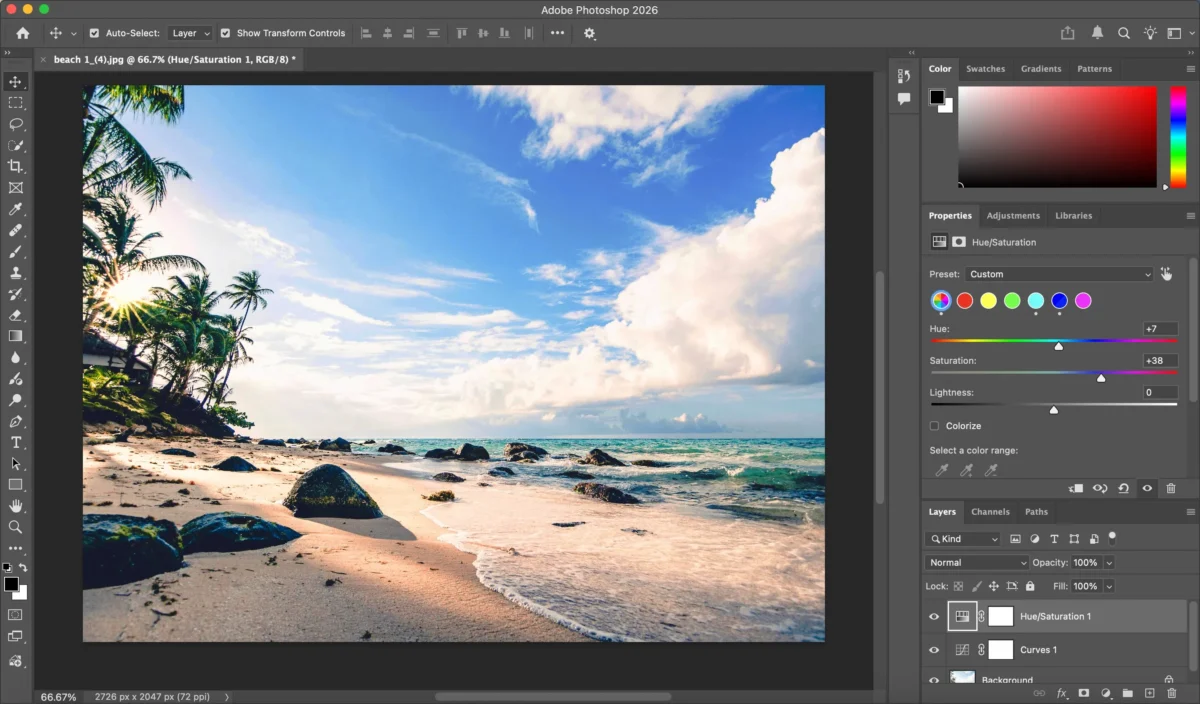
Step 3: Fine-Tune Colors
After darkening, adjust saturation and white balance to prevent washed-out colors.
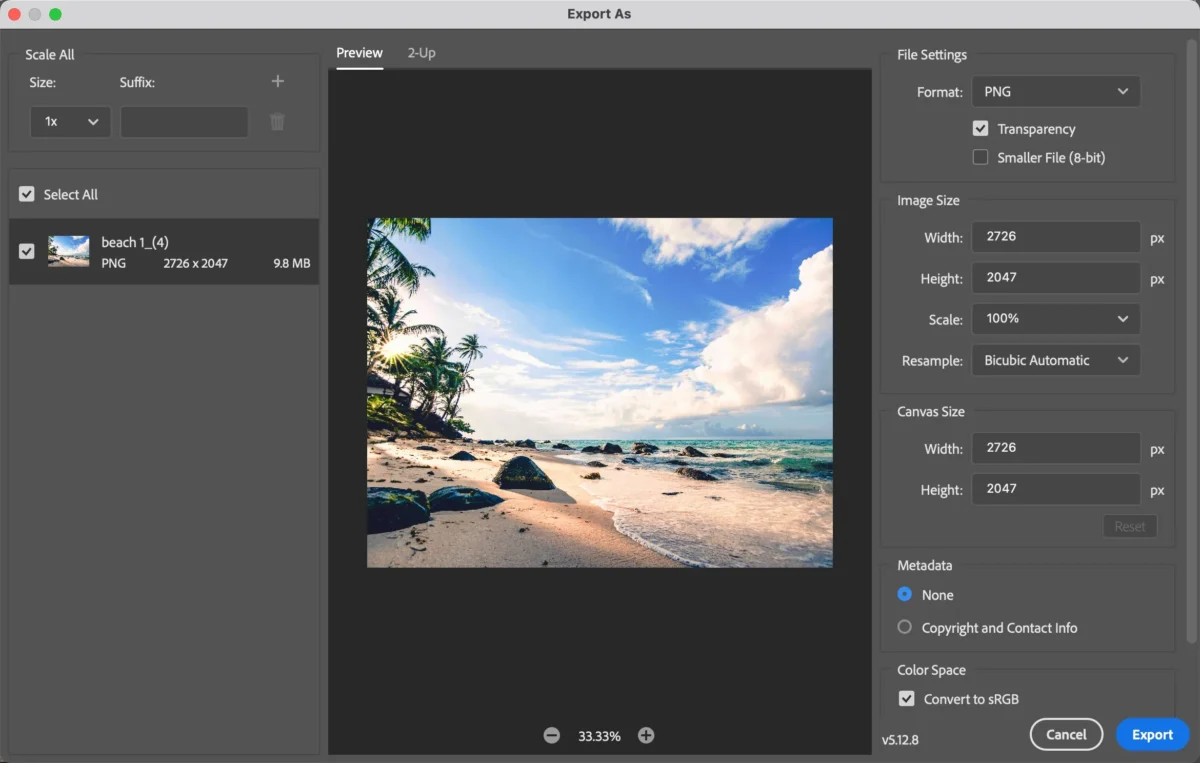
Step 4: Export Your Darkened Photo
Once you’re satisfied, export your image in your preferred format for use online or in print.
Photoshop’s manual controls are powerful, but they require time and practice to master.
Limitations of Photoshop for Darken Photo
While Photoshop provides deep control, it’s not always the most efficient solution for darkening photos:
- 🧠 Steep learning curve for beginners
- ⏱ Time‑consuming manual adjustments
- 🎯 Selective edits require precise masking
- 🔁 Inconsistent results when processing multiple photos
These challenges can slow you down, especially when you need quick, consistent results.
How Evoto AI Simplifies Darken Photo
Evoto AI offers a faster and smarter way to darken photo with AI assistance—no manual layering or complex adjustments needed.


Powerful AI Photo Editor
Step 1: Open Your Image
Import your photo into Evoto AI with a click.
Step 2: AI‑Powered Darkening
Use Evoto’s AI enhancement tools. The AI intelligently analyzes brightness, highlights, and shadows, then automatically darkens the image while preserving natural colors and detail.
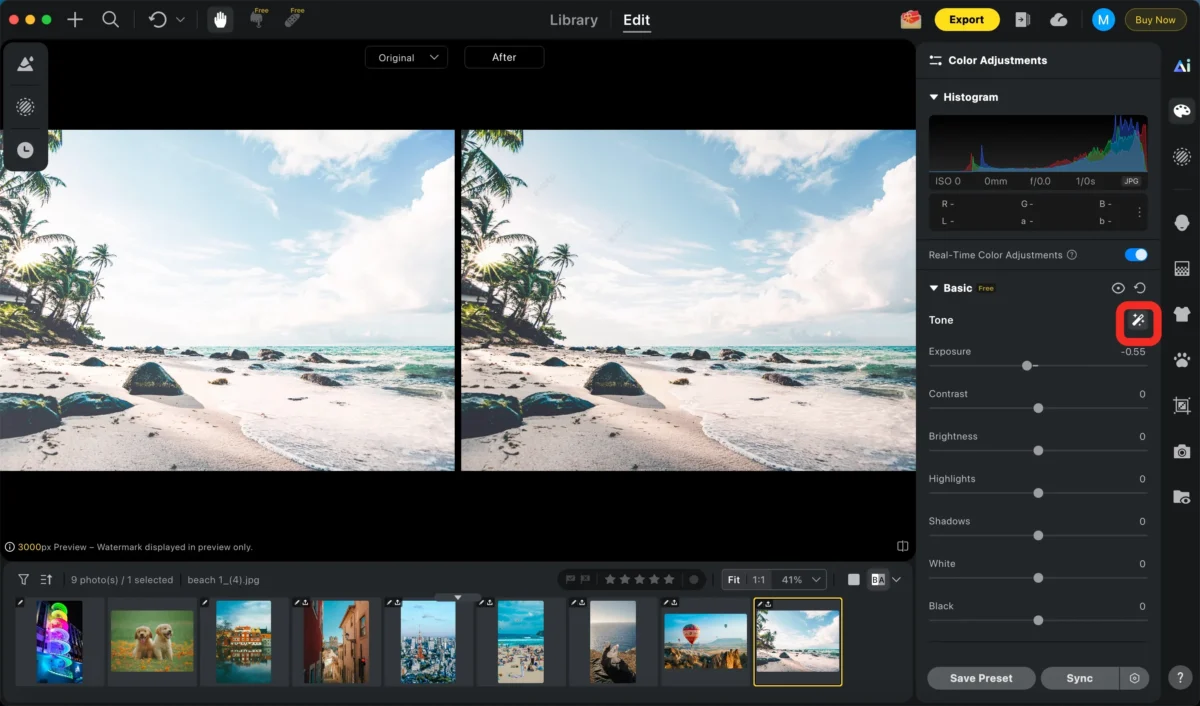
Step 3: Further Adjustments
Refine the darkness level using simple sliders to adjust exposure, contrast, and shadows.
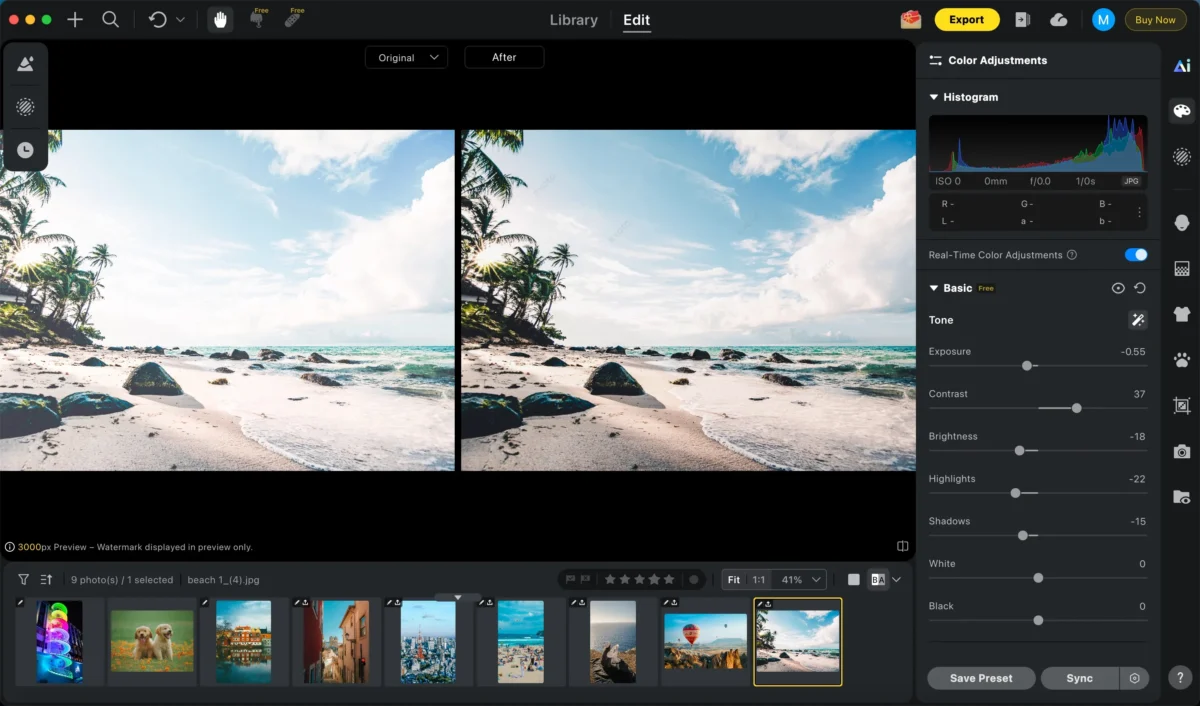
You can also fine-tune colors with temperature, tint, and saturation controls to create the desired mood or atmosphere.
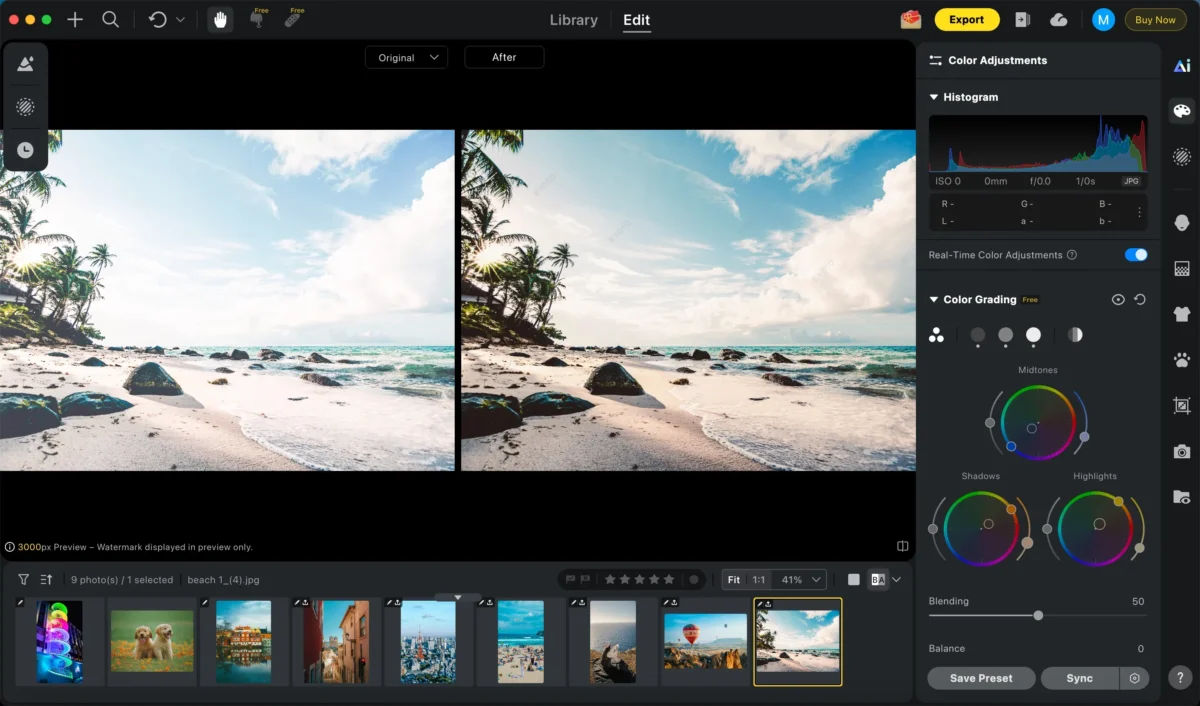
Additionally, creative filters can be applied to enhance the overall tone and style of your photo.
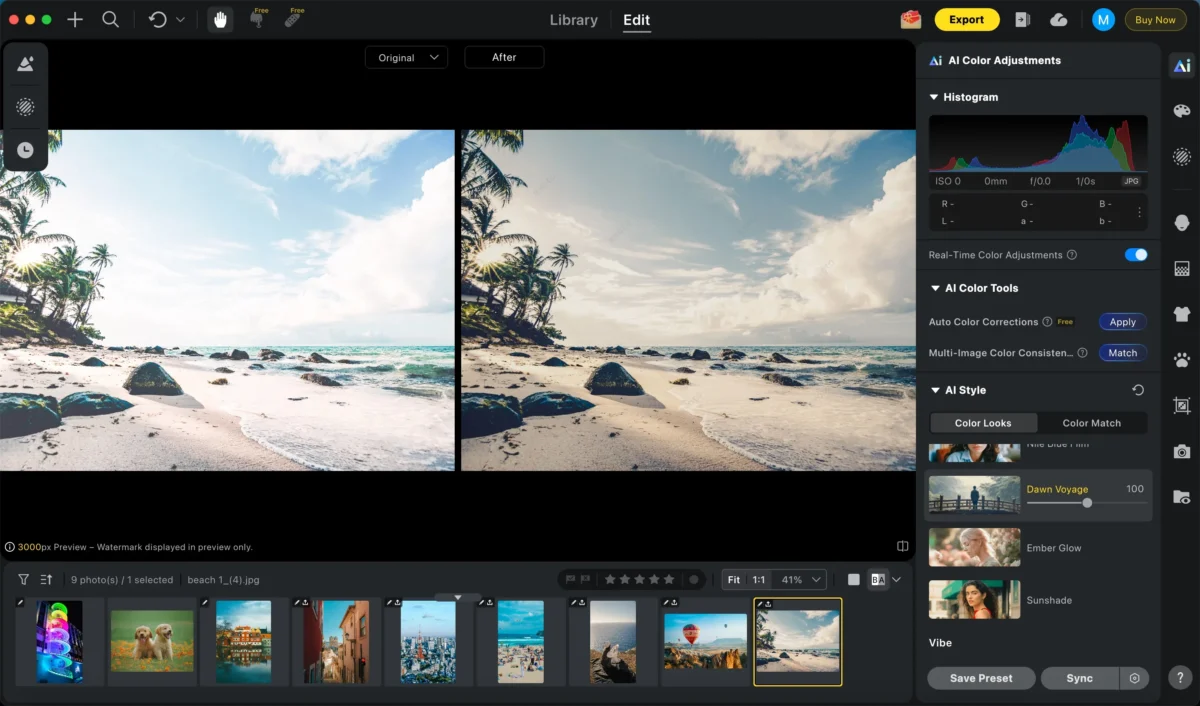
Step 4: Other Further Adjustments (Optional)
Perspective Correction, skin Retouching , background replacer, or apply additional AI retouching tools as needed.
Step 5: Export
Export your darkened photo in high resolution, ready for galleries, social media, or professional use.
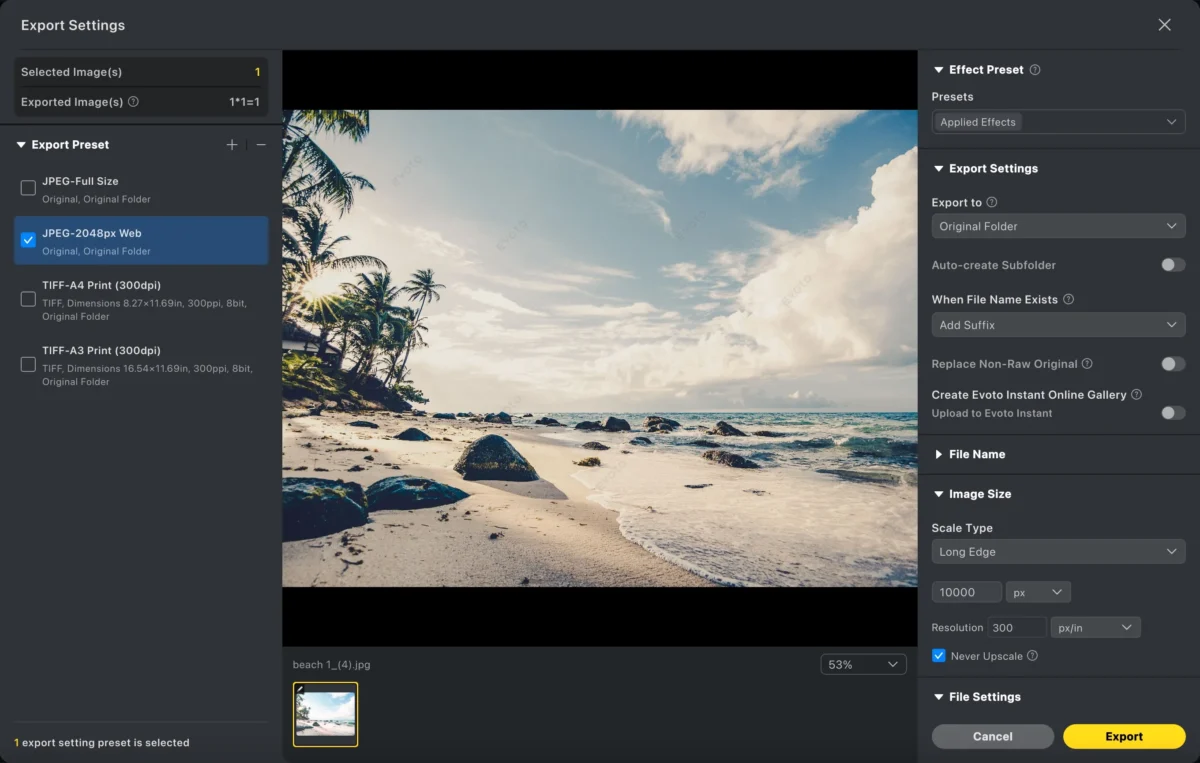
With Evoto AI, darkening photos becomes quick, consistent, and beginner‑friendly.
Powerful AI Photo Editor
Photoshop vs Evoto AI: Which Is Better for Darken Photo?
| Feature | Photoshop | Evoto AI |
|---|---|---|
| Learning Curve | Steep | Easy |
| Editing Speed | Manual | Fast |
| Selective Adjustments | Complex | AI‑assisted |
| Batch Editing | Manual | Efficient |
| Best For | Advanced control | Quick & consistent results |
If you need full manual control and creative flexibility, Photoshop is powerful. But if speed, simplicity, and automation are your priorities, Evoto AI offers a compelling alternative.
Conclusion
Learning how to darken photo can help you fix overexposed areas, enhance depth, and create more expressive visuals.
Photoshop gives you detailed manual control but requires skill and time. Evoto AI delivers a faster, smarter way to darken photos—perfect for creators, marketers, and everyday users who want professional results without a steep learning curve.
Whether you’re refining shadows or creating moodier images, mastering darkening techniques will elevate your photo editing.
Try Evoto AI Photo Editor
Retouch photos with Evoto AI and make your photos best! Available on Windows, MacOS and iPadOS.



