

Concert photography is one of the most challenging genres to edit. Low light, extreme contrast, colorful stage lighting, and fast-moving performers all make post-processing more complex than standard photography.
If you’ve ever wondered how to edit concert photos like a professional, this guide will walk you through the essential steps—from image selection to batch editing and AI-powered workflows.
1. Start with the Right Image Selection
Before you begin editing, professional results start with smart photo selection.
Not every concert photo is worth editing. Look for images with:
- Sharp focus on the performer
- Strong emotion or dynamic movement
- Usable exposure (even if it needs correction)
- Clean compositions without distractions
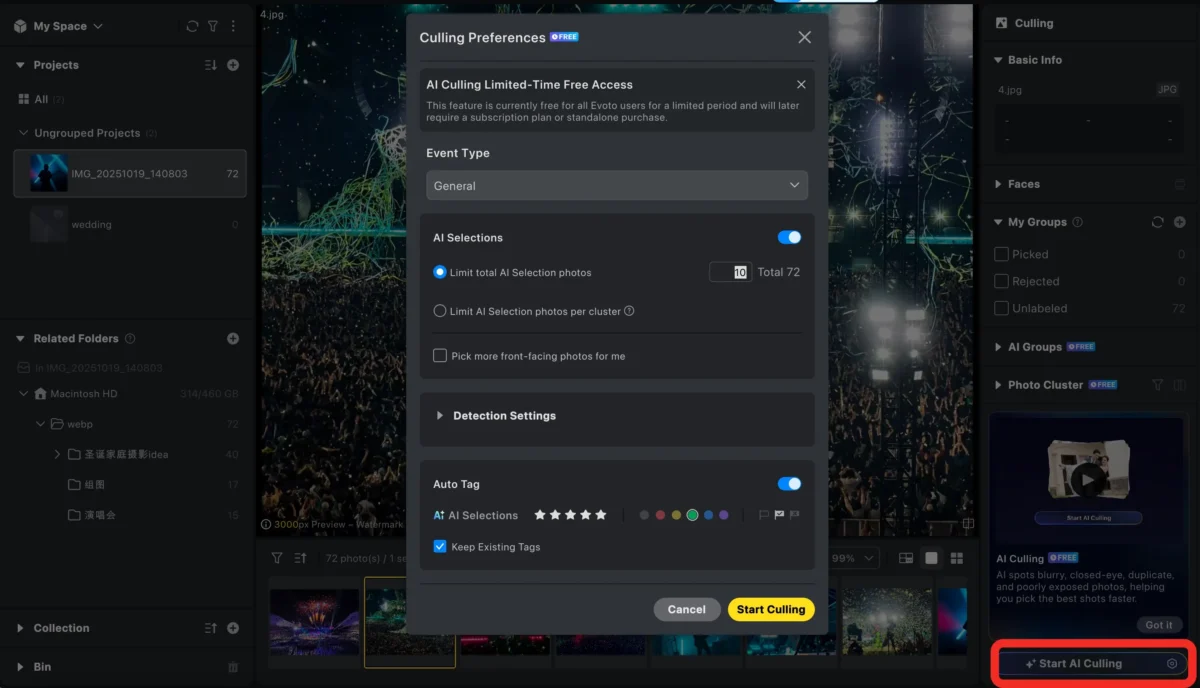
Culling your images first saves time and helps you focus on photos with real potential. This step is often overlooked, but it’s a key part of learning how to edit concert photos efficiently.
Evoto AI’s smart culling and AI tagging can automatically flag your best shots based on focus, motion, and exposure, saving hours in the selection process.
2. Correct Exposure in Challenging Lighting
Concert lighting is unpredictable. Spotlights, LED panels, and backlighting often cause blown highlights or deep shadows.
When editing:
- Recover highlights to control harsh stage lights
- Lift shadows carefully to reveal details without adding noise
- Adjust white balance to avoid unnatural color casts.
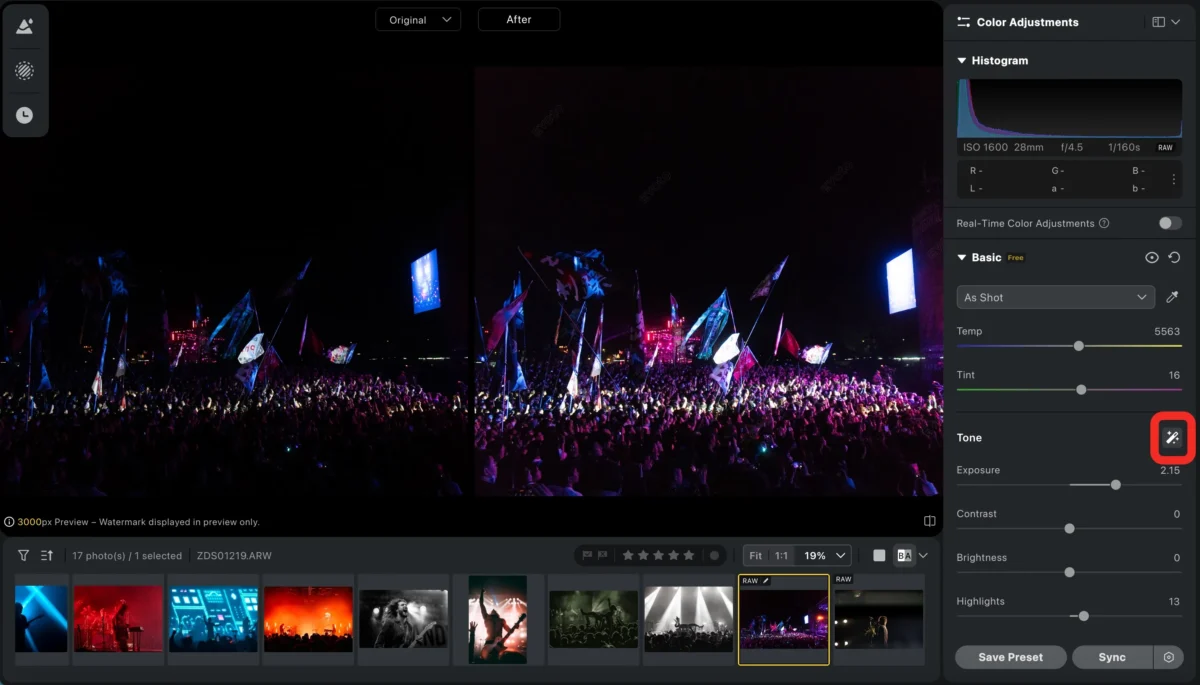
- Shooting in RAW gives you more flexibility here and is highly recommended for concert photography.
Evoto AI can auto-correct exposure and white balance using intelligent AI analysis, instantly balancing harsh lights and shadows while preserving natural stage colors.
3. Enhance Colors Without Losing the Concert Mood
Color is what gives concert photos their energy—but overdoing it can ruin the atmosphere.
Professional editors focus on:
- Boosting contrast and clarity subtly
- Using HSL controls to manage intense stage colors
- Avoiding over-saturation, especially on skin tones
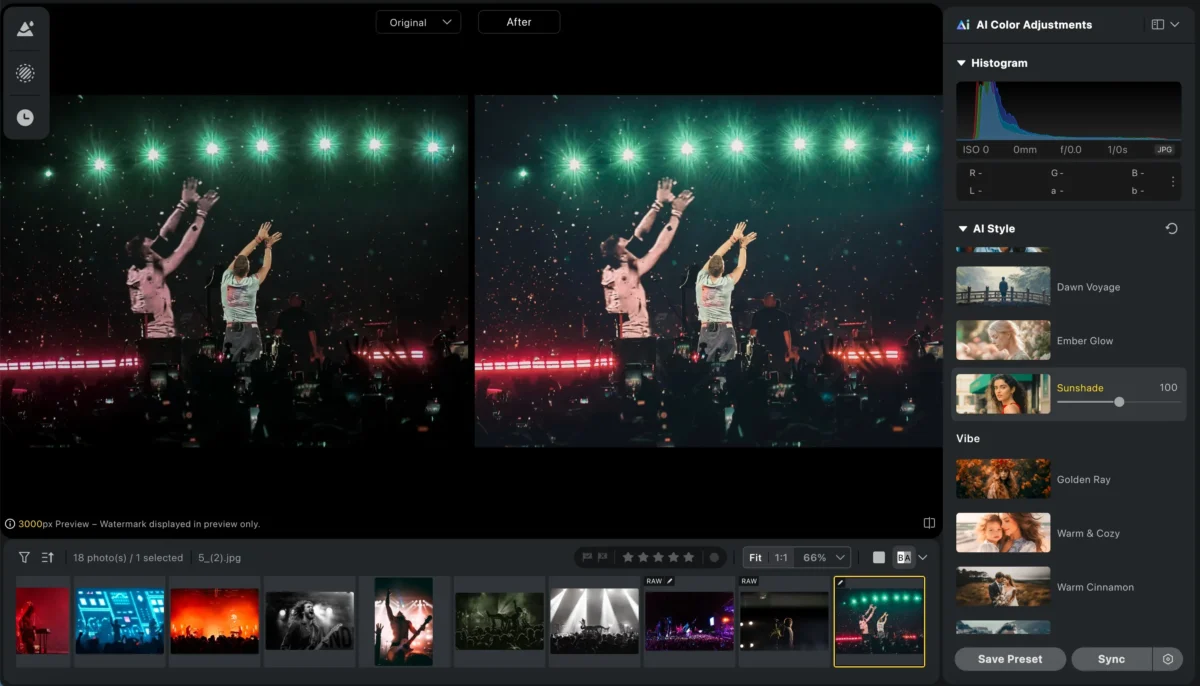
The goal is not to neutralize stage lighting, but to enhance it while preserving the authentic concert mood. This balance is central to how to edit concert photos with impact.
Evoto AI’s built-in filters can use AI to analyze images and embed specific styles into photos, while also controlling the filter intensity, significantly reducing color grading time.
4. Reduce Noise While Preserving Details
High ISO in concerts often causes noise, especially in dark areas.
To manage it professionally:
- Apply noise reduction carefully to avoid “plastic” textures
- Preserve details in faces, instruments, and clothing
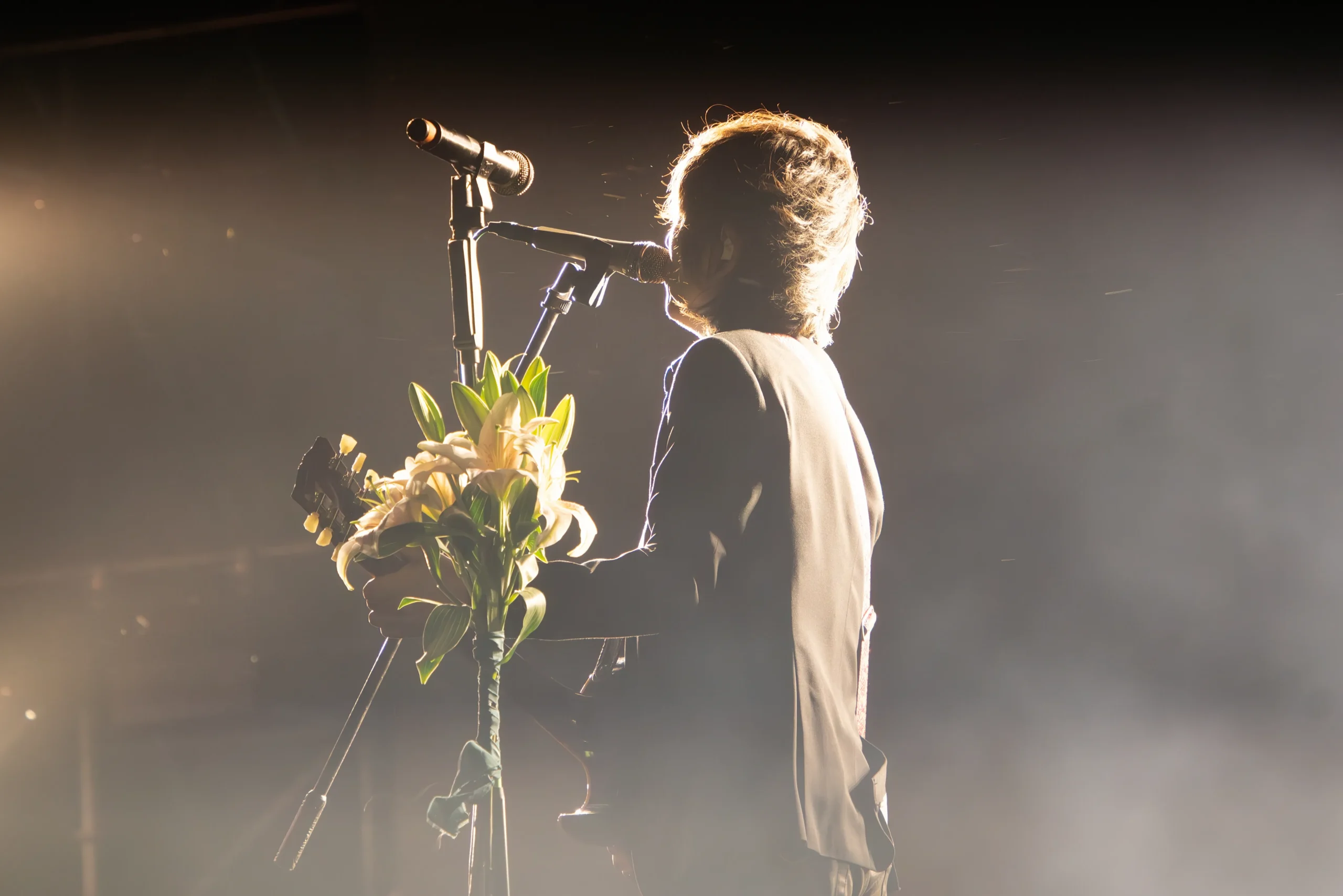
Evoto AI’s noise reduction works best on RAW files, intelligently cleaning noise while keeping important details sharp, making your concert photos look natural and crisp.
5. Improve Skin Tones Under Stage Lighting
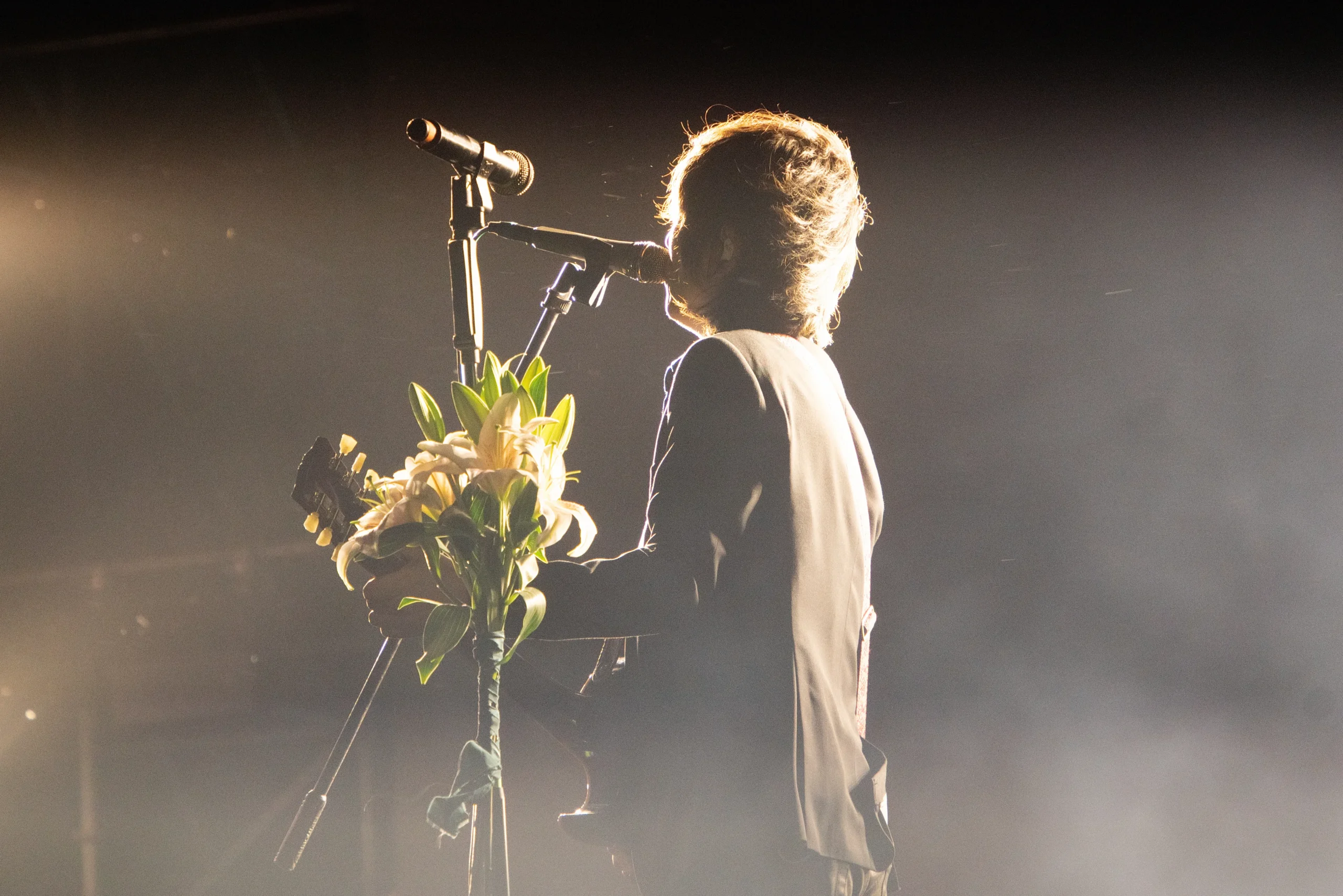
Stage lights often distort skin tones, turning them overly red, green, or purple.
When correcting skin tones:
- Use selective adjustments instead of global changes
- Reduce color casts while keeping natural texture
- Avoid excessive smoothing that removes realism
Natural-looking skin, even under dramatic lighting, is a hallmark of professional concert photo editing.
6. Batch Editing for Consistent Concert Sets
A full concert shoot can include hundreds or thousands of images. Professionals rely on batch editing to maintain consistency and speed.
Batch editing allows you to:
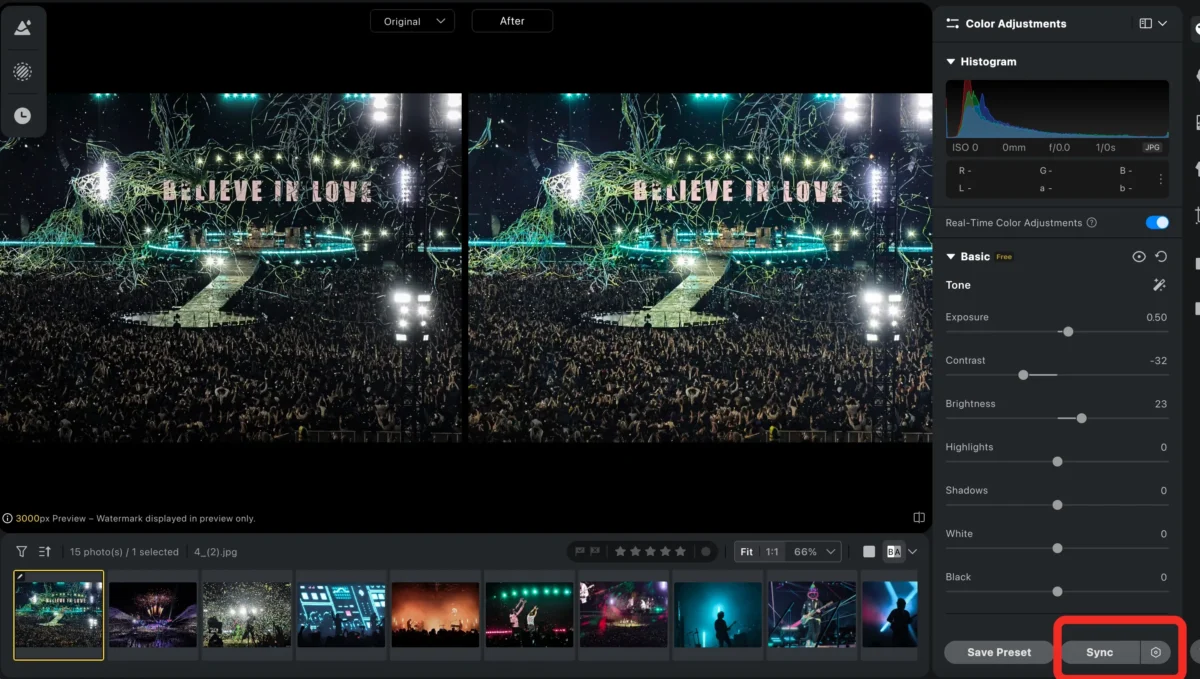
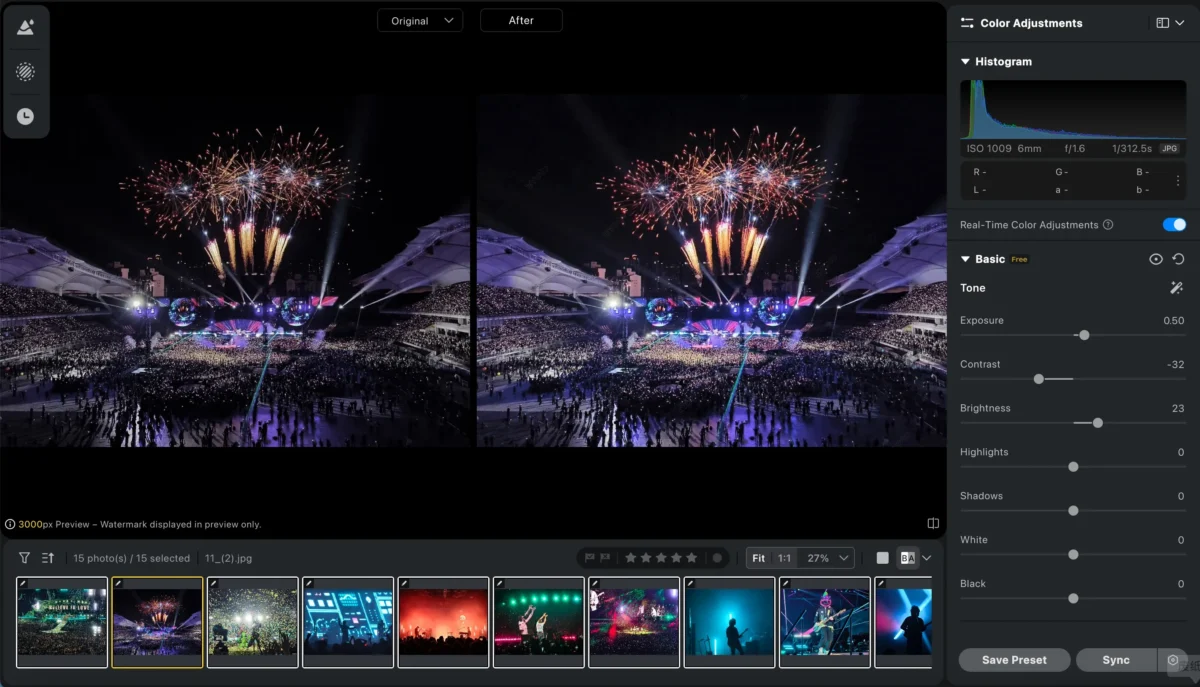
- Apply the same exposure and color style across a set
- Maintain visual coherence for galleries or client delivery
- Dramatically reduce editing time
Consistency is just as important as creativity when learning how to edit concert photos at a professional level.
Evoto AI’s batch editing with AI presets allows you to apply adjustments—exposure, color grading, and noise reduction—to entire sets at once, ensuring consistent style across hundreds of concert photos in minutes.
7. Speed Up Your Workflow with Evoto AI
Modern photographers increasingly use Evoto AI to streamline their workflow.
Evoto AI can help with:
- Automatic exposure and color correction
- Intelligent noise reduction
- Skin color optimization
- Fast batch processing
Using Evoto AI doesn’t replace creative control—it frees up time so you can focus on storytelling and style.


Powerful AI Photo Editor
Conclusion
Learning how to edit concert photos like a professional goes beyond technical adjustments. It’s about smart image selection, controlled exposure, thoughtful color grading, careful noise reduction, and maintaining an efficient workflow.
Whether you edit manually or use AI-assisted tools, the key is consistency, realism, and preserving the live performance’s atmosphere. Tools like Evoto AI can seamlessly enhance your workflow by automatically adjusting exposure, correcting skin tones, reducing noise, and applying batch edits, allowing you to focus on creative decisions while ensuring professional, consistent results.
With the right approach—and the support of AI tools—you can transform your concert photos from simple captures into images that truly convey the energy and emotion of the live show.
Try Evoto AI Photo Editor
Retouch photos with Evoto AI and make your photos best! Available on Windows, MacOS and iPadOS.



