

Overexposed photos are one of the most common problems photographers face—whether you’re shooting portraits, events, or everyday moments. Bright highlights, washed-out colors, and lost details can easily ruin an otherwise great image.
The good news? Overexposed photos aren’t always a lost cause. In this guide, you’ll learn what overexposure is, what causes it, whether it can be fixed, and how to edit overexposed photos efficiently, including a faster AI-powered solution with Evoto.
What Is Overexposure and What Causes It?
Overexposure occurs when too much light hits the camera sensor, resulting in images that appear overly bright with blown-out highlights and reduced detail.
Common causes of overexposure include:
- Shooting in harsh sunlight or high-contrast lighting
- Incorrect camera settings (high ISO, slow shutter speed, wide aperture)
- Strong backlighting or reflective surfaces
- Overuse of flash
- Incorrect exposure compensation
When highlights are pushed beyond the sensor’s limit, detail can be permanently lost—making correction more challenging.
How to edit Overexposed Photos in Photoshop
Most editors start by manually adjusting exposure-related controls:
- Lowering Exposure
- Reducing Highlights
- Adjusting Whites
- Fine-tuning Contrast
While effective, this approach requires experience and can be time-consuming—especially when editing multiple photos.
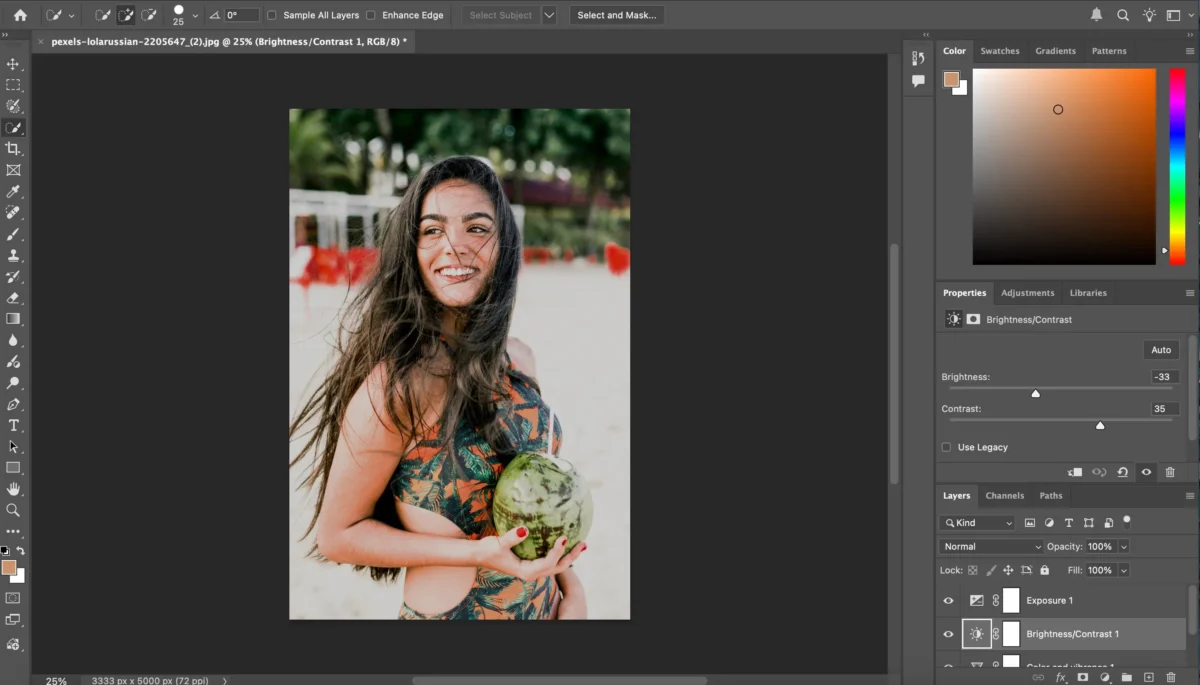
The Faster Way:Fix Overexposed Photos with Evoto AI
While traditional editing methods give full control, they can be time-consuming and tricky—especially when working with multiple photos. Evoto AI offers a faster, smarter way to fix overexposed photos, leveraging artificial intelligence to simplify the entire workflow.


Powerful AI Photo Editor
Step 1: Upload Your Photo
Start by importing your overexposed image into Evoto. You can upload a single photo or multiple images at once for batch editing.
Step 2: Use AI Exposure Adjustment
Navigate to Color & Tone > Exposure.
- Evoto’s AI automatically analyzes the lighting in your photo
- It intelligently reduces overexposed areas while preserving detail in highlights and midtones
- Adjust the Exposure slider for finer control if needed
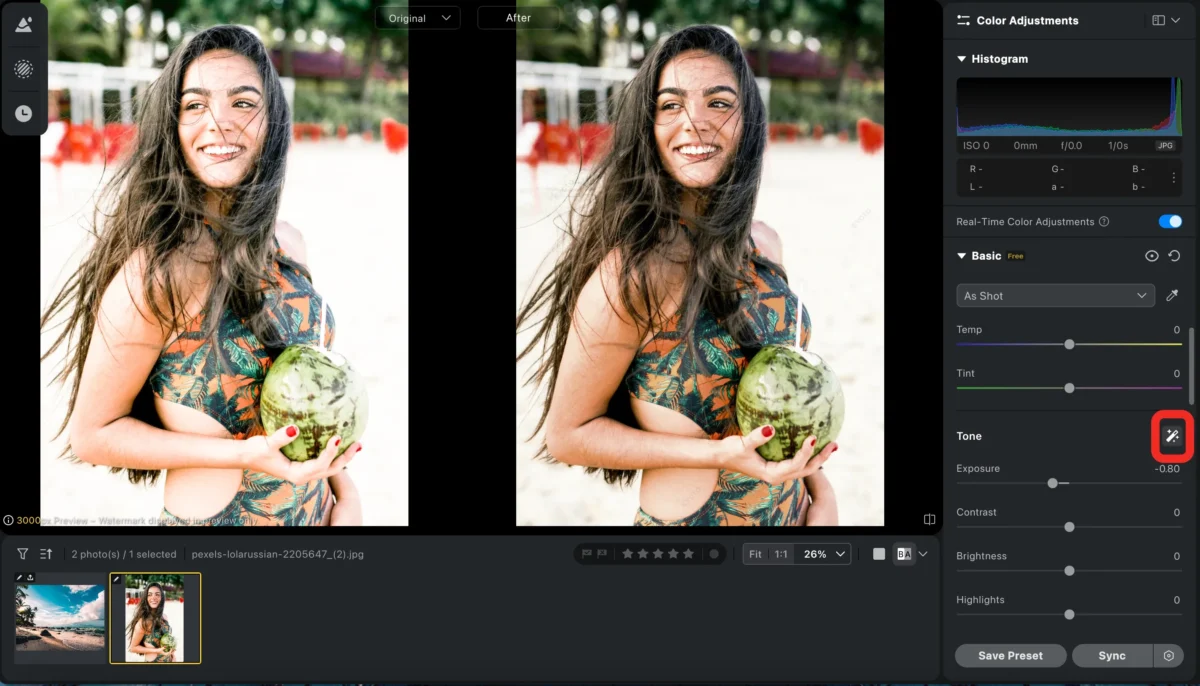
This step quickly brings your photo into a natural tonal range without complex manual adjustments.
Step 3: Recover Highlights and Shadows
Evoto’s AI not only balances overall brightness but also restores details in blown-out highlights and deep shadows.
- Reduce Highlights to recover texture in bright areas
- Slightly raise Shadows to maintain depth
- The AI ensures transitions remain smooth and realistic
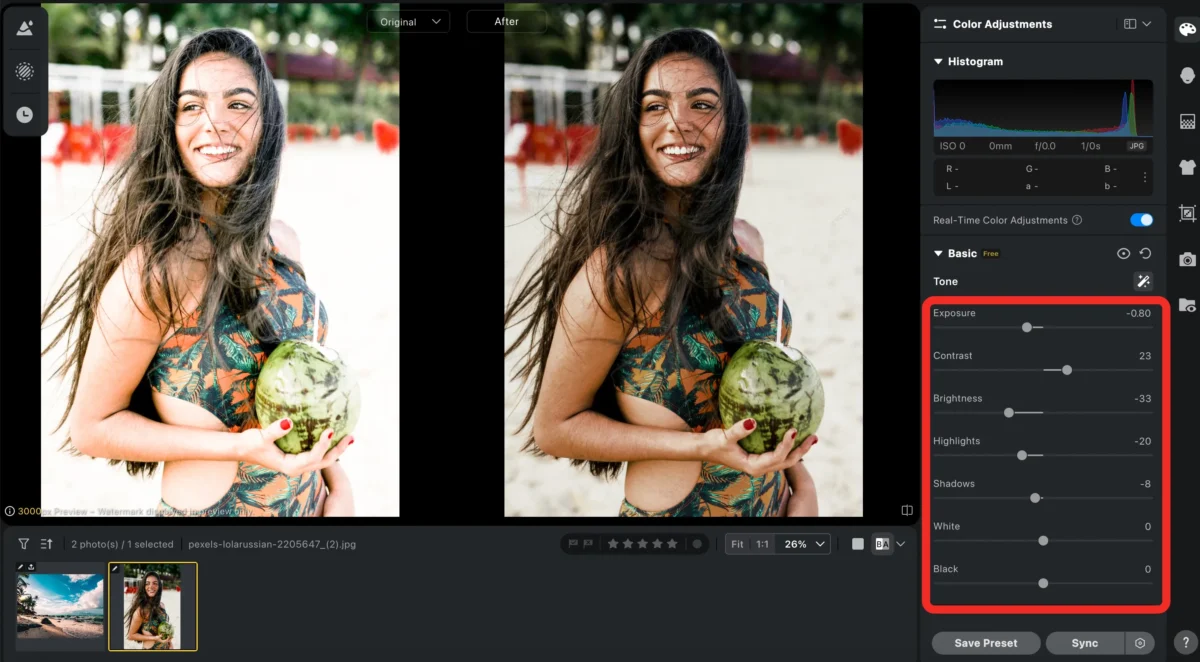
Step 4: Correct White Balance and Color
Overexposure can cause washed-out colors.
- Use Evoto’s Temperature and Tint sliders to fix color casts
- Enhance Hue, Saturation, and Lightness (HSL) for accurate tones
- Skin tones and natural colors are preserved automatically
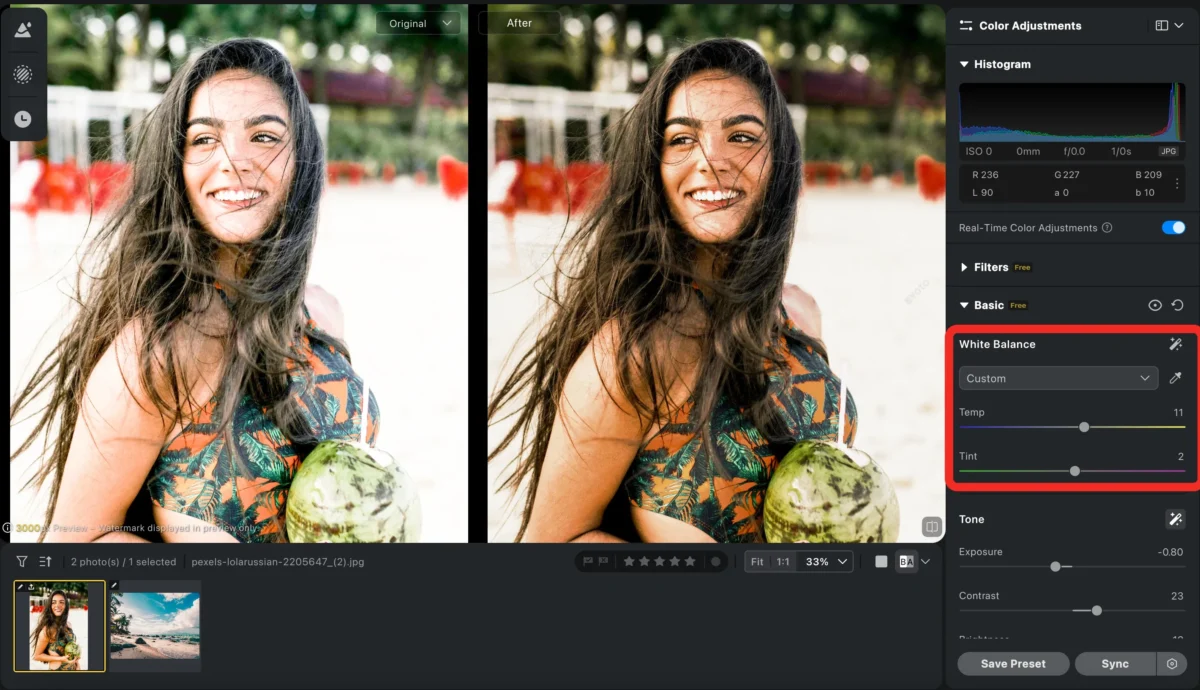
Step 5: Fine-Tune Your Photo(Optional)
After correcting exposure and balancing tones, you can take your edits further with Evoto’s powerful fine-tuning tools like Skin Retouching, Background Replacement and Smooth Hair.
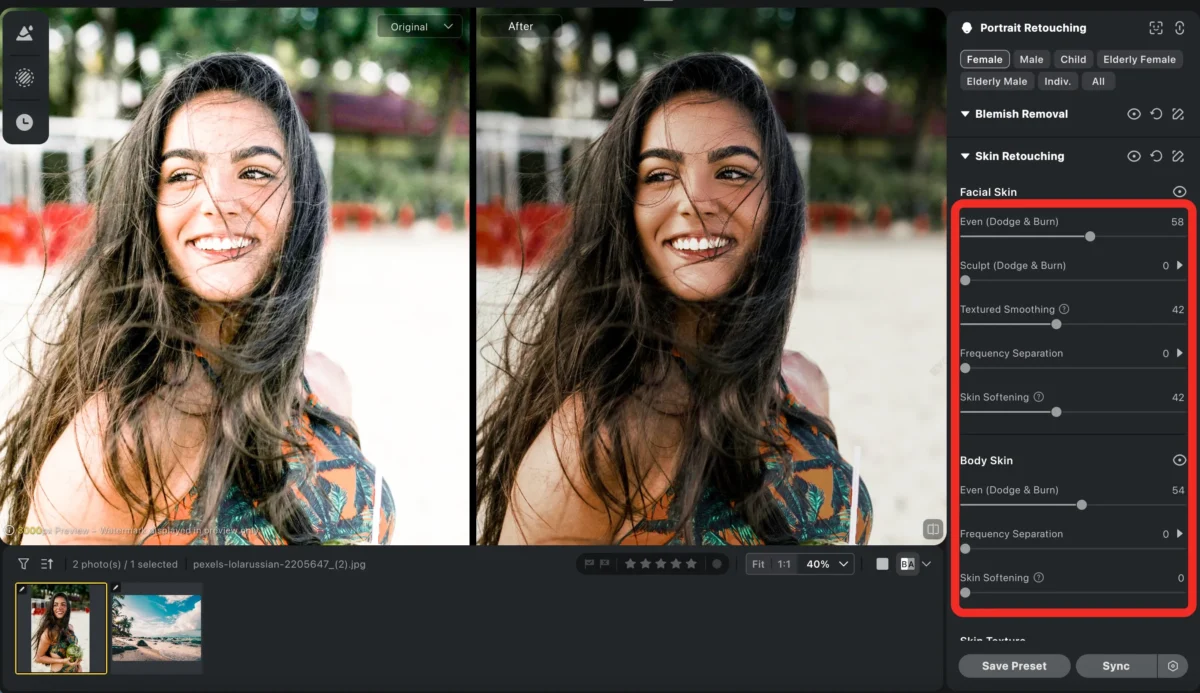
Step 6: Batch Editing for Multiple Photos(Optional)
If you have a series of overexposed images, Evoto’s batch edit feature saves significant time.
Step 7: Export Your Final Images
Once you’re satisfied with the edits, export your photos in high resolution. Evoto makes it simple to save multiple images at once while maintaining quality.
Filters for Overexposed Photos
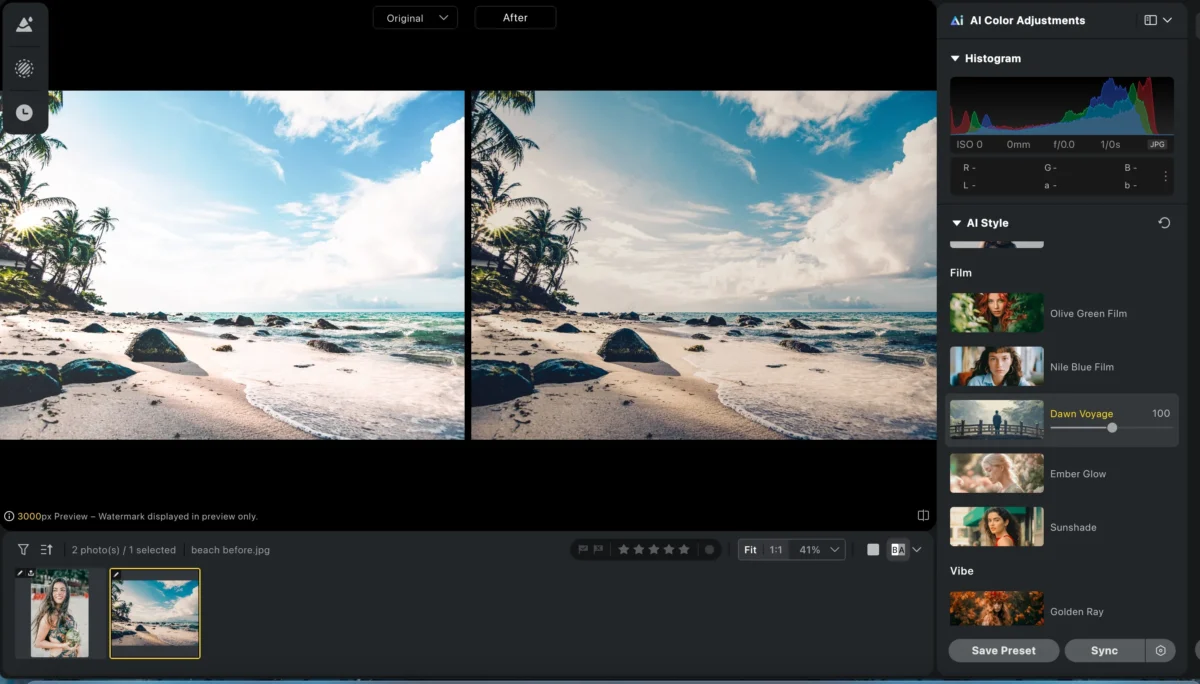
Evoto’s AI-powered photo filters provide a quick and effective way to correct overexposed photos while adding style and mood in just one click.
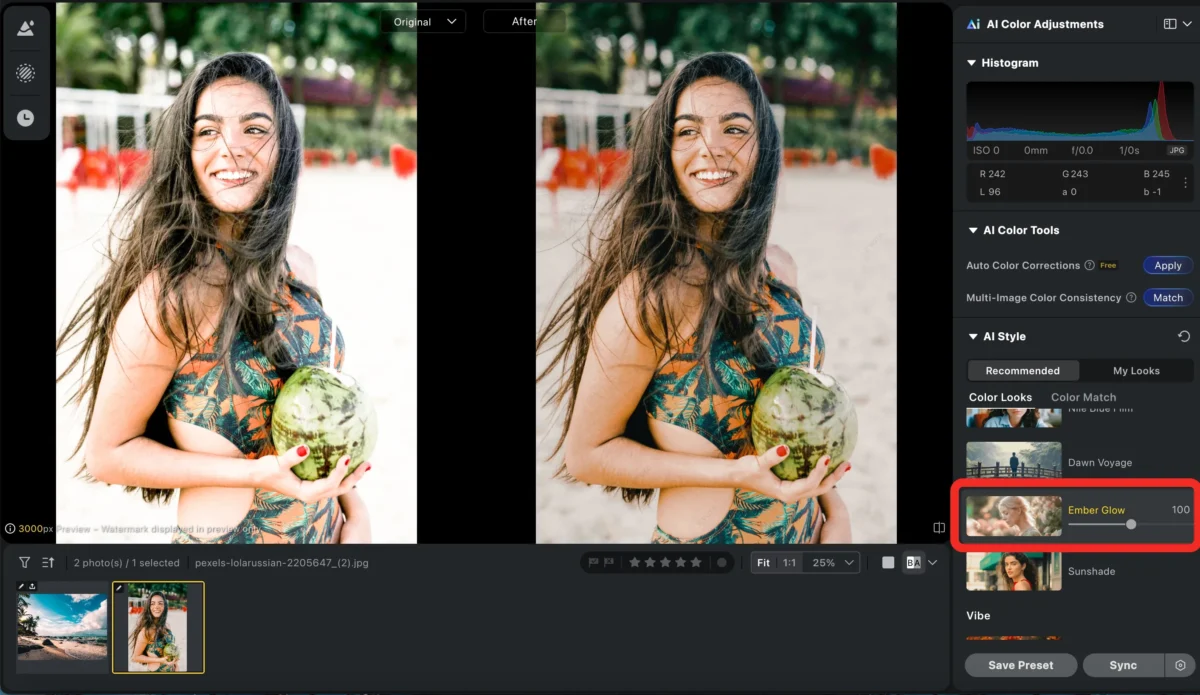
Using Evoto’s filters, you can instantly fix exposure issues and give your photos a professional finish without complex manual adjustments. For even finer control, Evoto allows you to tweak filter intensity or combine filters with AI exposure adjustments and retouching tools.
Powerful AI Photo Editor
Evoto vs Traditional Editors
| Feature | Photoshop | Evoto AI |
|---|---|---|
| Exposure Correction | Manual sliders and curves; requires skill | AI auto-adjusts highlights, shadows, and midtones |
| Highlight & Shadow Recovery | Time-consuming masking | AI restores details naturally |
| Color & White Balance | Manual adjustments; may be inconsistent | AI balances tones automatically |
| Localized Adjustments | Brushes and masks needed | AI-assisted precise edits |
| Fine Retouching | Manual skin/hair adjustments; slow | AI tools for skin, hair, and background refinements |
| Batch Editing | Multi-step; slow | One-click batch processing for consistent results |
Conclusion
Overexposed photos can be corrected effectively with the right tools. Traditional editors offer full manual control but are time-consuming. Evoto AI simplifies the process with:
- AI Exposure Adjustment to balance highlights, shadows, and tones
- Fine Retouching Tools for skin, hair, and backgrounds
- Filters for quick style and consistency
- Batch Editing for multiple photos
Evoto helps you fix overexposed images faster and more efficiently, letting you focus on creativity instead of technical work.
Try Evoto AI Photo Editor
Retouch photos with Evoto AI and make your photos best! Available on Windows, MacOS and iPadOS.



