

Underexposed photos are one of the most common problems photographers face. Whether you’re shooting portraits, products, or events, images that appear too dark often lose important details and fail to deliver a professional look.
In this guide, you’ll learn how to edit underexposed photos using Photoshop step by step—and discover a faster, AI-powered alternative with Evoto AI for batch editing and consistent results.
What Is an Underexposed Photo and What Causes It?
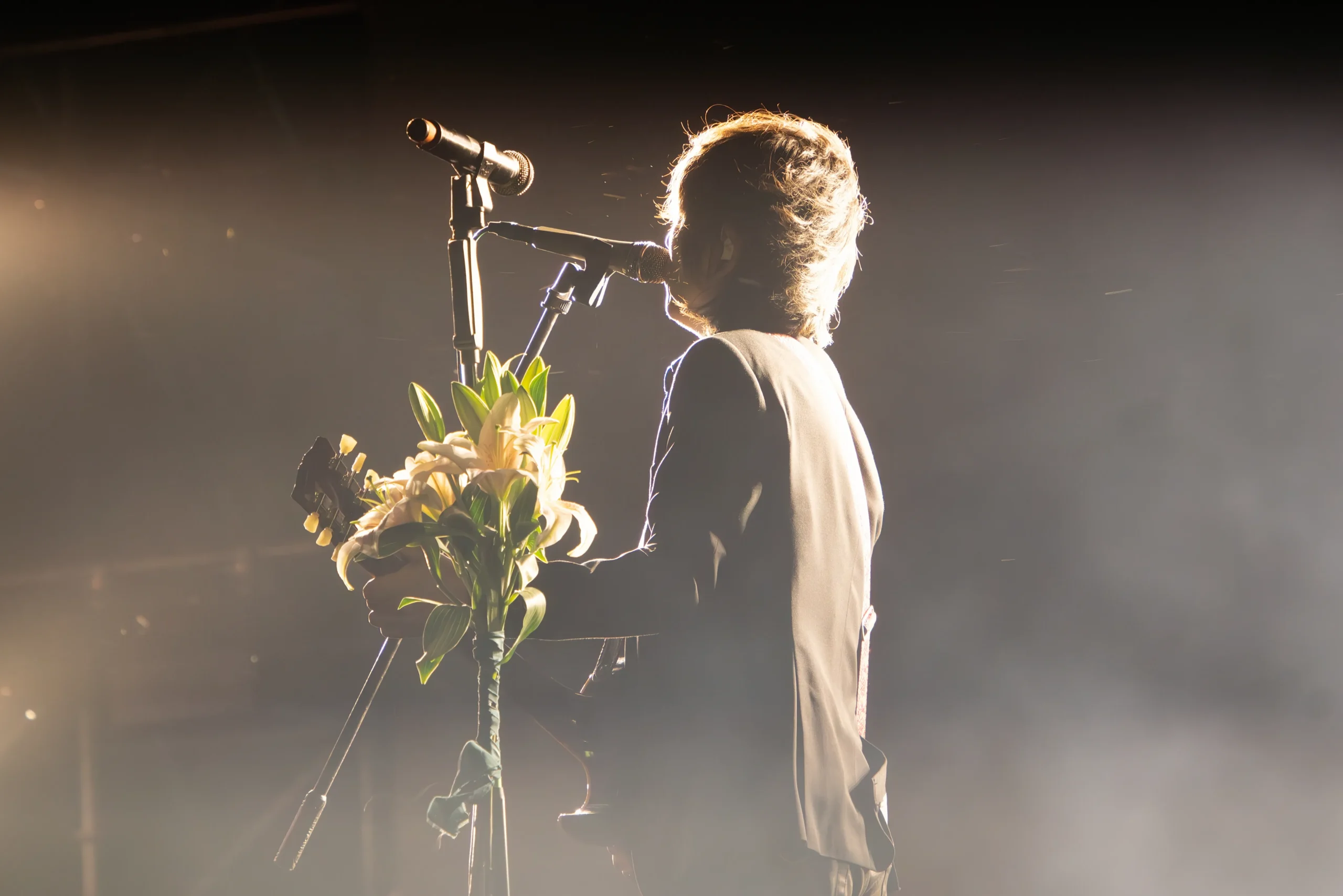
An underexposed photo is an image that appears too dark because it didn’t receive enough light during capture. As a result, shadow areas lose detail, colors look dull, and the subject may lack clarity.
Common causes of underexposure include:
- Low-light shooting conditions
- Incorrect camera settings (low ISO, fast shutter speed, small aperture)
- Strong backlighting
- Relying too heavily on automatic exposure
- Shooting dark subjects against bright backgrounds
Understanding why underexposure happens is the first step to learning how to edit underexposed photos effectively.
How to Edit Underexposed Photos in Photoshop
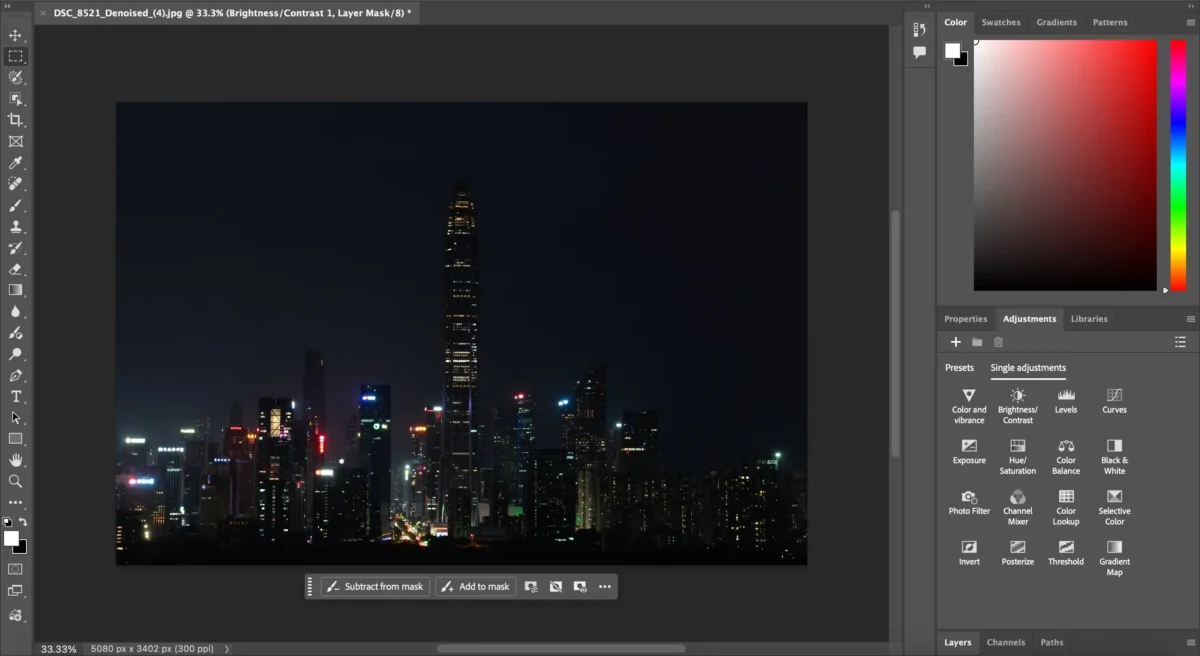
Step 1: Open the Underexposed Image
Launch Adobe Photoshop, log in to your account, and click Open to import the photo that needs exposure correction.
Step 2: Adjust Brightness and Contrast
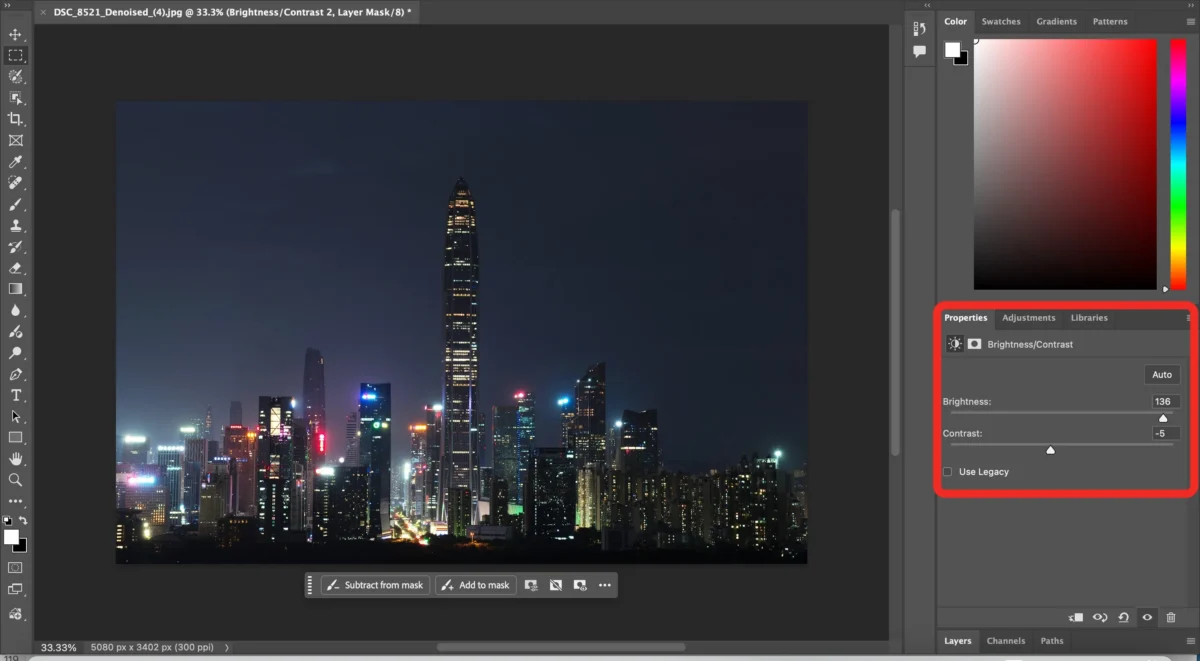
In the Adjustments panel, select Brightness/Contrast. Increase the Brightness to lighten the image and slightly reduce the Contrast to maintain tonal balance.
Step 3: Recover Details with Shadows and Highlights
Open Shadows/Highlights from the Adjustments panel. Enable Show More Options, then fine-tune the Shadows and Highlights to bring back hidden details without overexposing bright areas.
Step 4: Fine-Tune Exposure and Save
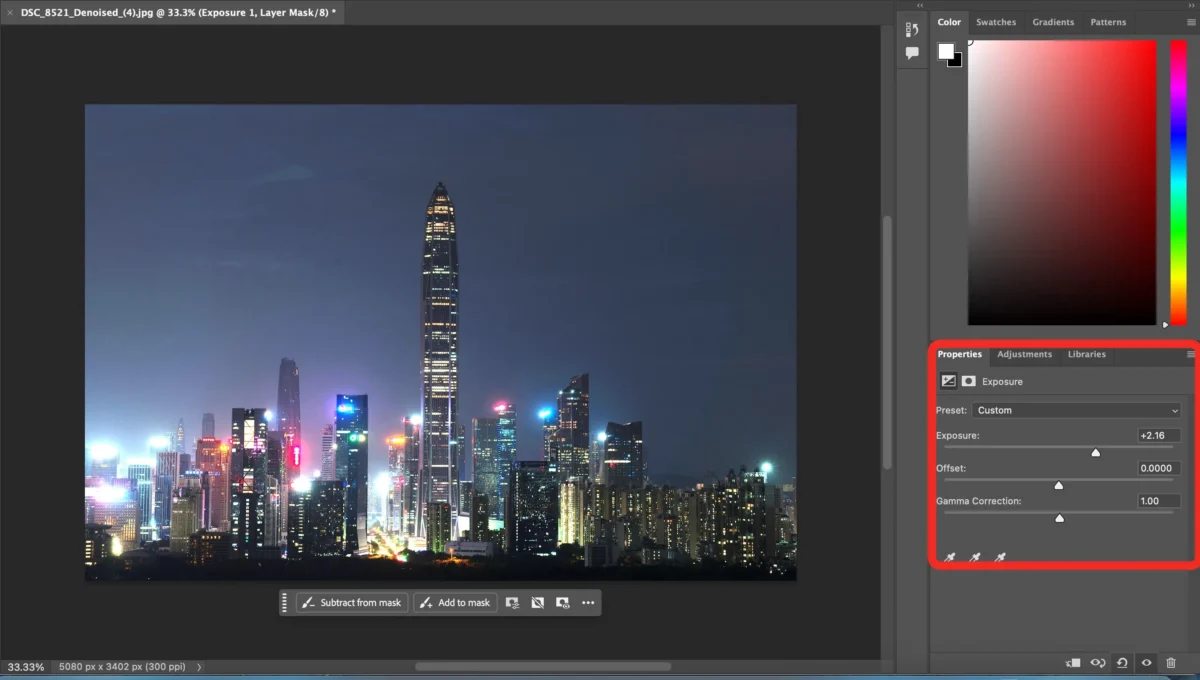
Use the Exposure adjustment to refine the overall brightness. Once the result looks natural, go to File > Save to export the corrected image.
The Faster Way to Fix Underexposed Photos with Evoto AI
Step 1: Import Your Photos into Evoto AI
Open Evoto AI and upload your underexposed images. Evoto supports batch imports, making it easy to work with multiple photos at once.


Powerful AI Photo Editor
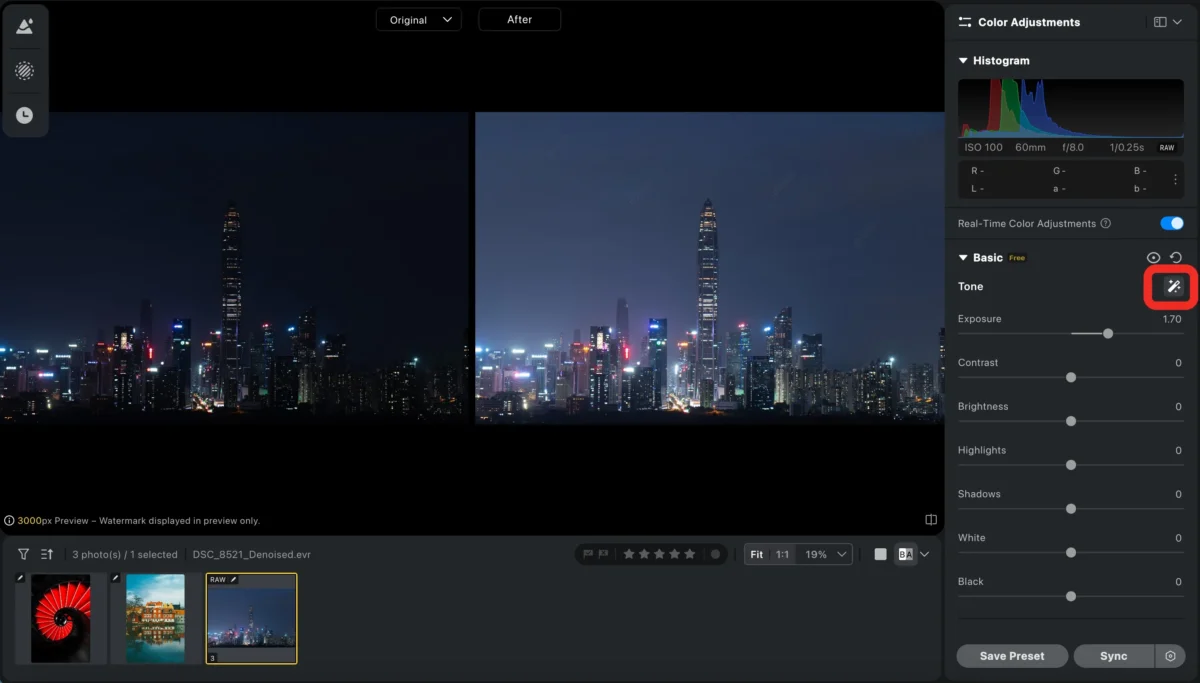
Step 2: Apply AI Exposure Adjustment
Use Evoto’s AI Auto Exposure tool to instantly analyze and brighten underexposed areas while preserving highlight details and natural contrast.
Step 3: Fine-Tune Exposure and Adjust Colors
Refine the results using manual controls if needed.
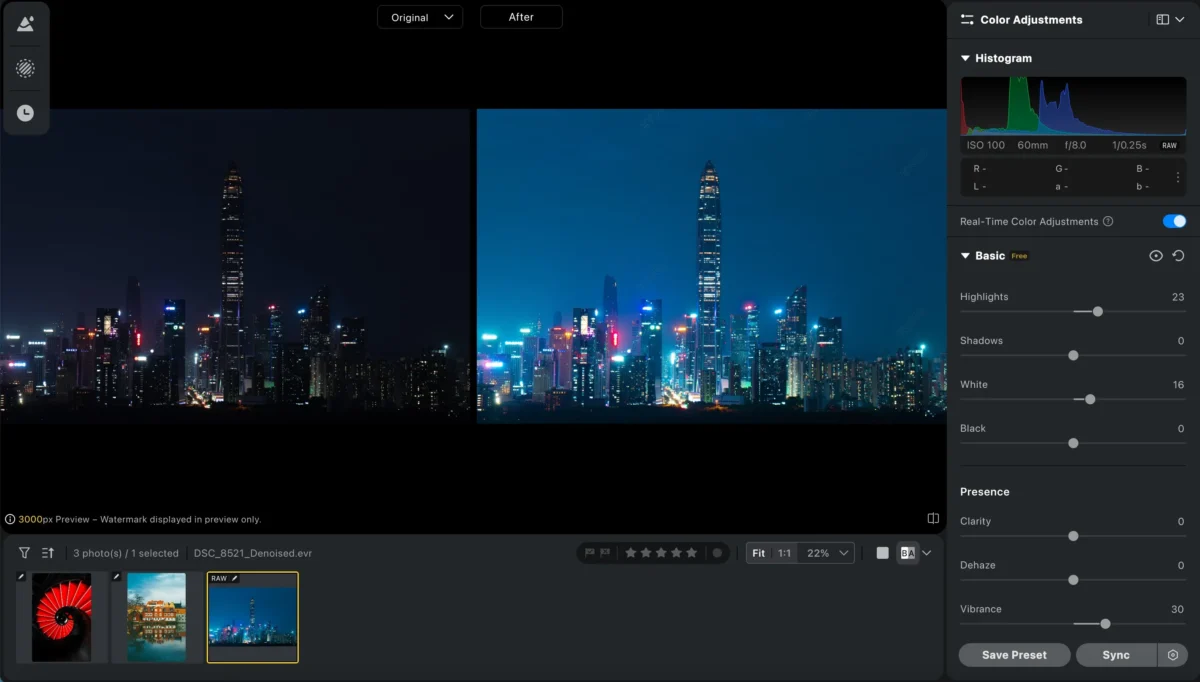
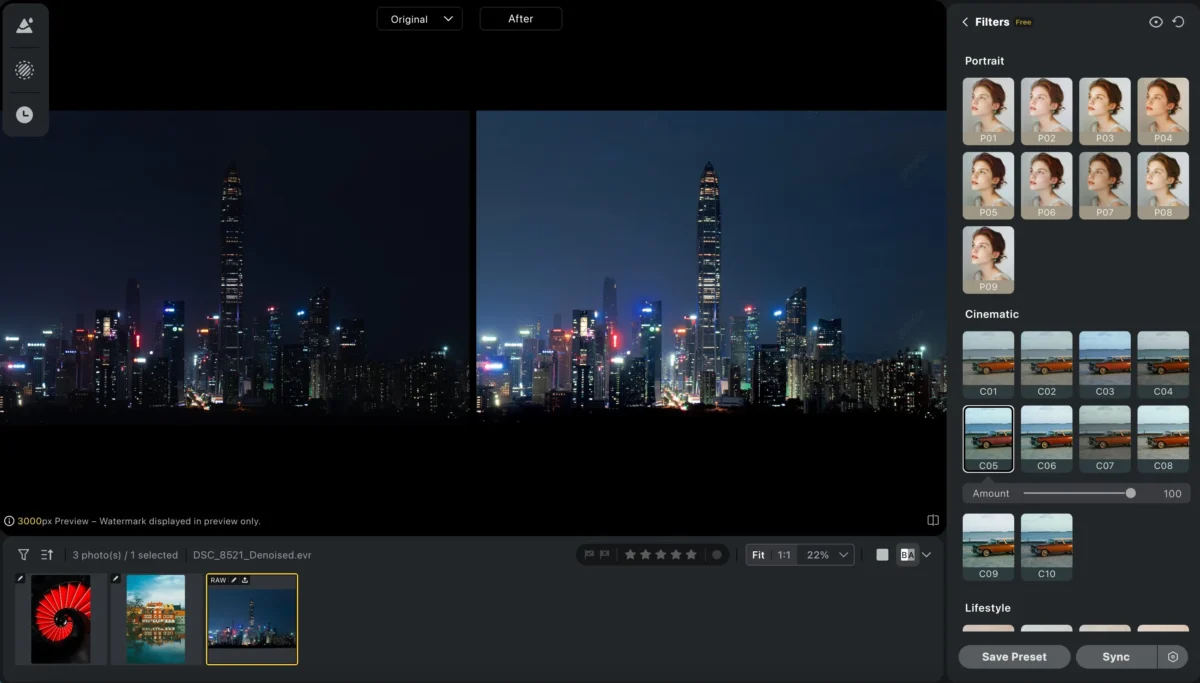
You can also apply Evoto’s professional filters to achieve consistent tones and color balance across your photos.
Step 4: Reduce Noise with AI Denoise (Optional)
If lifting shadows introduces noise, enable AI Noise Reduction to keep images clean and sharp—especially useful for low-light photos.
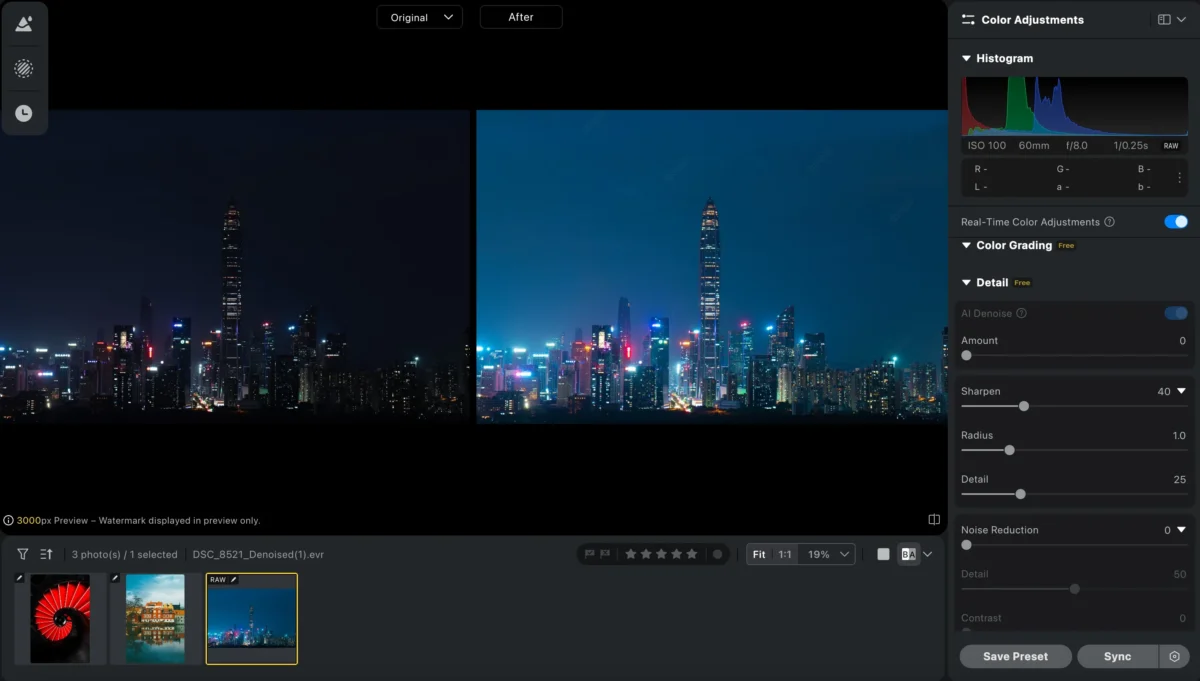
Evoto AI’s noise reduction works best on RAW files, intelligently cleaning noise while keeping important details sharp, making your photos look natural and crisp.
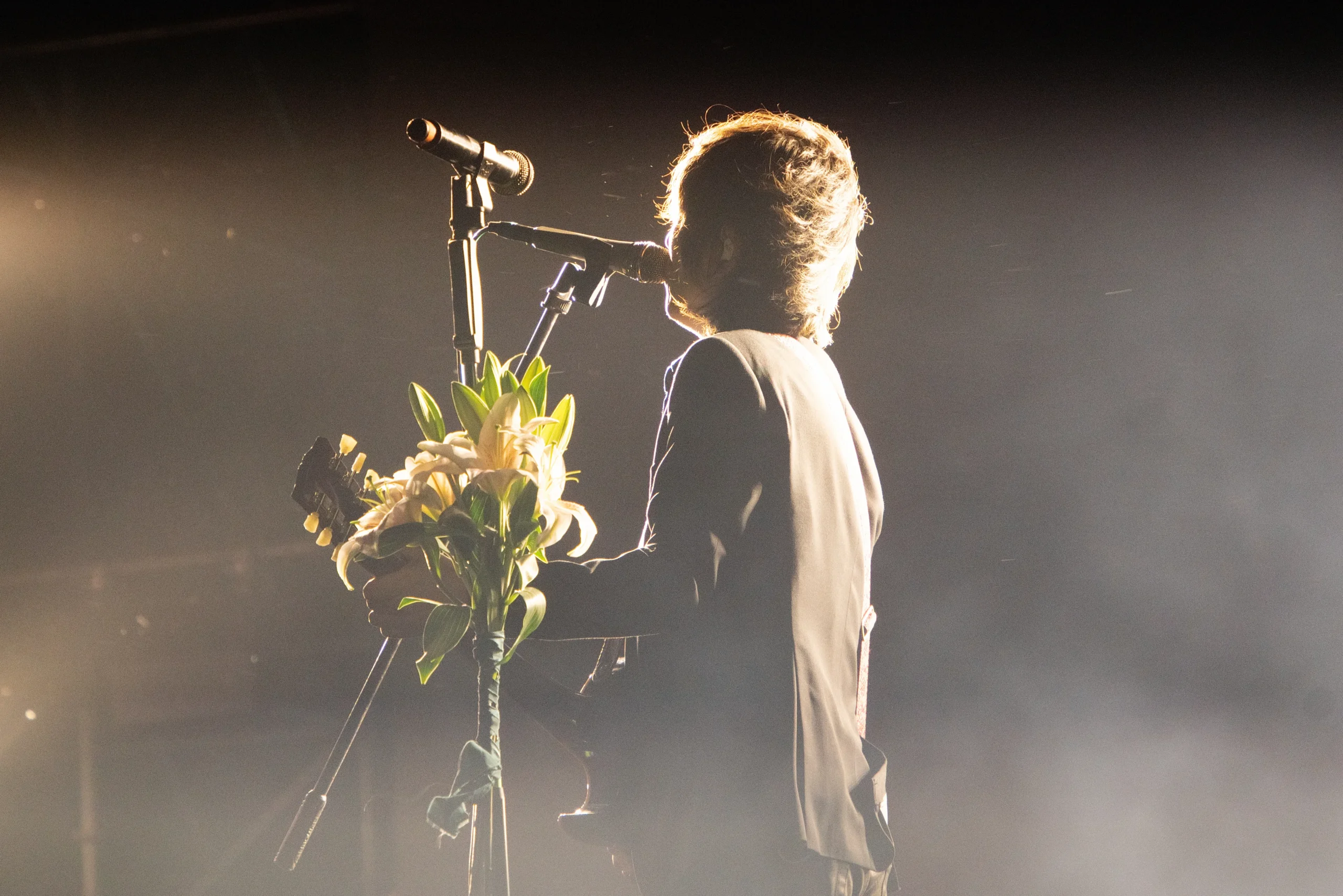
Step 5: Export the Final Images
Once you’re satisfied, export your corrected photos in your preferred format and resolution with just one click.
Powerful AI Photo Editor
Evoto AI vs Photoshop: Which Is Better for Underexposed Photos?
| Feature | Photoshop | Evoto AI |
|---|---|---|
| Manual control | Advanced | Minimal |
| Learning curve | High | Very low |
| Batch exposure correction | Limited | Native & fast |
| AI subject awareness | ❌ | ✅ |
| Skin tone protection | Manual | AI-powered |
| Editing speed | Slow | Extremely fast |
Photoshop is ideal for detailed, single-image retouching. Evoto AI excels when you need to fix underexposed photos efficiently and consistently at scale.
Conclusion
Knowing how to edit underexposed photos is essential for producing high-quality images. Photoshop provides professional-level control, but it can be slow and complex—especially for batch editing.
If you’re looking for a faster, more efficient workflow, Evoto AI offers an AI-powered alternative that delivers natural, balanced exposure in seconds.
For photographers who value speed, consistency, and quality, Evoto AI is the smarter way to edit underexposed photos.
Try Evoto AI Photo Editor
Retouch photos with Evoto AI and make your photos best! Available on Windows, MacOS and iPadOS.



