
Introduction: The Chaos of Modern Photo Libraries
If you’ve ever opened your hard drive and stared at tens of thousands of photos scattered across folders named Untitled-1 or DCIM_101, you’re not alone. Between cameras, smartphones, memory cards, and external drives, our digital libraries grow faster than we can manage them.
For photographers, this chaos isn’t just inconvenient—it costs time, creativity, and sometimes even client trust. The good news? Using the right photo organizer and workflow, managing your photos can feel effortless.
Here’s a step-by-step workflow that can help you regain control of your image library—without losing your mind.

Step 1: Start with a Smart Import Process
How you bring photos into your system sets the tone for the rest of your workflow. If you’re just dragging files into random folders, you’ll waste time reorganizing later. Instead, take advantage of batch importing or tethered shooting to keep things structured from the start.
Modern tools can automatically sort images by date, camera, or project—so everything lands in the right place without extra effort. With Evoto’s AI-powered tethering, you can go even further: instantly import photos from your DSLR straight to your computer or iPad, apply automatic adjustments as they arrive, and organize them into projects, folders, or collections in real time. Add tags, ratings, and smart filters to keep your library searchable and studio-ready.
For busy studios and commercial shoots, this means less time spent on file management and more time focused on creativity.


Powerful AI Photo Editor
Step 2: Organize with Projects, Collections & Spaces
A good library system doesn’t just store your photos — it adapts to the way you work. That’s where projects, collections, and spaces come in.
- Projects: Best for client sessions or commercial jobs. Each project can hold everything from raw imports to final edits, so you keep the entire shoot in one place without mixing it up with other work.
- Collections: More flexible than folders. Use them to group images by theme, portfolio style, or client deliverables. For example, you can create a “Black & White Portraits” collection that pulls images from different shoots, or a “Smith Wedding Album” to gather just the selects you’ll deliver.
- Spaces: Designed for collaboration and workflow separation. Keep your personal experiments in My Space, while client and studio work lives in Team Spaces. Shared spaces let teams sync edits across devices, track progress together, and avoid the back-and-forth of sending files around.
The result: faster collaboration, cleaner organization, and a library that grows with your needs instead of holding you back.
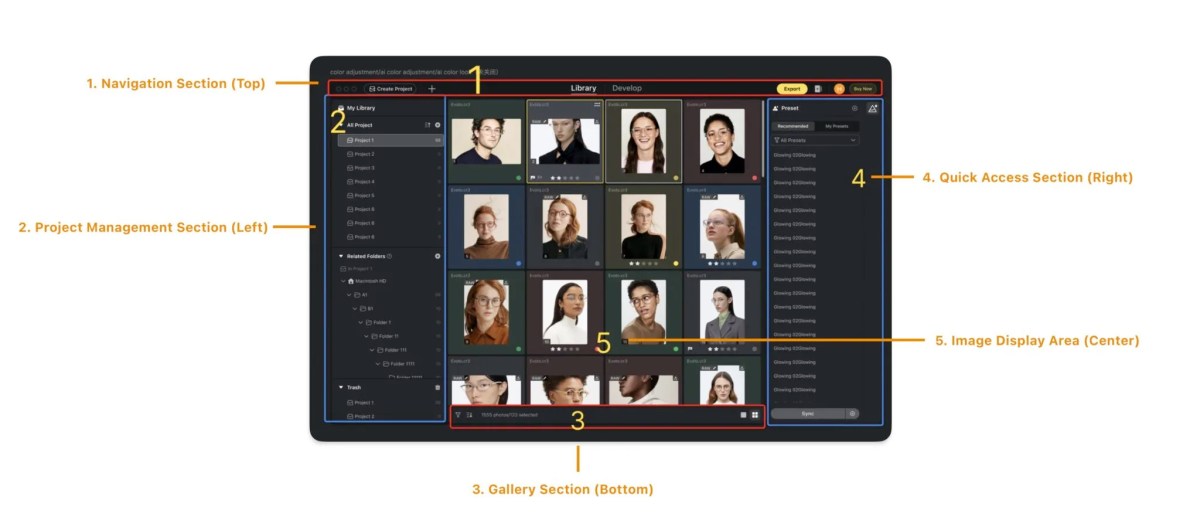
Step 3: Use Metadata, Ratings & Tags to Stay in Control
Even the best folder system isn’t enough to handle thousands of images. That’s where metadata, ratings, and tags come in.
- Star ratings: Quickly mark your favorites.
- Color labels: Highlight groups of images for editing, printing, or client review.
- Flags: Mark images as “keep” or “reject” during culling.
- Custom tags: Add keywords like “sunset,” “studio light,” or “candid” to make searching easier later.
Step 4: Speed Up Culling with AI Assistance
Sorting through thousands of photos manually is one of the biggest time sinks for photographers. Slightly different poses, blinking subjects, or near-duplicate shots can make the process tedious.
AI-powered culling can make this faster and more accurate by:
- Detecting and grouping duplicates or near-duplicates.
- Flagging blurry or poorly exposed shots.
- Identifying images with closed eyes or awkward expressions.
Once duplicates are grouped, you can quickly review them and tag the best image in each group. Tools like Evoto let you apply this selection automatically, so your library is organized while you focus on refining the strongest shots.
With AI taking the first pass, you’re left with only the best candidates—saving hours of mind-numbing decision-making.

Step 5: Use Your Gallery to Work Smarter, Not Harder
The gallery in a photo organizer is where you turn a mountain of images into a clear, workable selection. Instead of scrolling endlessly, learn to use its tools to speed up your decisions.
- Filter with purpose: Cut straight to the shots you need—filter by rating, color labels, flags, camera, or aspect ratio. For example, pull up only your 5-star picks or just the images shot on a wide lens. This helps you move from “too many options” to a focused set in seconds.
- Sort to match your workflow: Change the order to fit what you’re working on. Sort by capture time when building a timeline for an event, by edit status to see what still needs attention, or by rating when preparing a client preview.
- Switch views to compare effectively: Single View is perfect for close inspection, Comparison View helps you choose the best frame from a series, and Reference View ensures edits stay consistent across shots.
By combining filters, sorting, and view modes, your gallery stops being just a wall of thumbnails—it becomes a powerful tool to find the best images faster, stay organized, and keep your editing process efficient.
Step 6: Keep Everything in Sync and Backed Up
Organization isn’t just about neat folders, it’s about keeping your work safe. Losing a client shoot due to a drive failure is every photographer’s nightmare, which is why a photo organizer with cloud backup is essential.
- Local storage: Use external SSDs or RAID systems for fast, reliable access.
- Cloud backup: Protect against local failures while giving you access from anywhere.
- Shared spaces: Make team collaboration easier by keeping files synced across devices.
Redundancy is the name of the game: always keep at least two copies of your photo library.
Step 7: Edit Without Breaking Your Flow
One mistake a lot of photographers make is constantly hopping between different tools for culling, organizing, and editing. Standalone photo organizers can cause integration headaches, slow you down, and even lead to duplicate files.
The solution? An integrated workflow where you can organize, sort, and edit all in one place—everything flows smoothly without extra steps.
EVOTO shines here by combining powerful editing tools with organization features—so you can move from sorting to retouching without exporting or juggling multiple apps.
Step 8: Maintain Your Library Over Time
Even the best systems can collapse without regular maintenance. Build small habits to keep your photo library healthy:
- Weekly clean-up: Delete rejects and duplicates.
- Monthly review: Archive completed projects to external or cloud storage.
- Consistent tagging: Update keywords to reflect new clients, genres, or styles.
Think of it like tidying your studio: a few minutes a week saves you from chaos down the road.
Conclusion: Regain Control of Your Photo Workflow
Organizing thousands of photos may sound overwhelming, but with the right approach, it becomes second nature. By starting with smart imports, using ratings and tags, embracing AI for culling, and keeping everything backed up, you’ll turn chaos into clarity.
And if you’d rather not cobble together multiple tools, EVOTO offers a complete workflow solution—from import and culling to editing and exporting—all in one place. It’s designed to help photographers like you stay organized, save time, and focus on what you do best: creating stunning images.


