

Adding realistic skin texture is a crucial step in professional portrait retouching. When skin becomes overly smooth, portraits can look artificial and lifeless. That’s why knowing how to restore or enhance skin texture in Photoshop is essential for photographers and retouchers who want natural-looking results.
In this guide, you’ll learn what skin texture is, how to add skin texture in Photoshop step by step, its limitations, and how Evoto AI offers a faster and more consistent alternative.

What Is Skin Texture?
Skin texture refers to the natural details of human skin, such as pores, fine lines, and subtle variations in tone. These details create depth and realism in portraits.
When retouching removes too much detail—often due to excessive smoothing or blur—the skin can appear plastic or unnatural. Adding or restoring skin texture helps:
- Maintain realism in portraits
- Preserve natural facial detail
- Improve overall image quality
- Achieve a professional retouching look
Understanding skin texture is the foundation of working effectively with skin texture in Photoshop.
How to Add Skin Texture in Photoshop: Step-by-Step Guide
Adding skin texture in Photoshop usually involves manual techniques and careful masking. Below is a commonly used professional workflow.
Step 1: Duplicate the Base Layer
Open your image in Photoshop and duplicate the background layer to keep the process non-destructive.
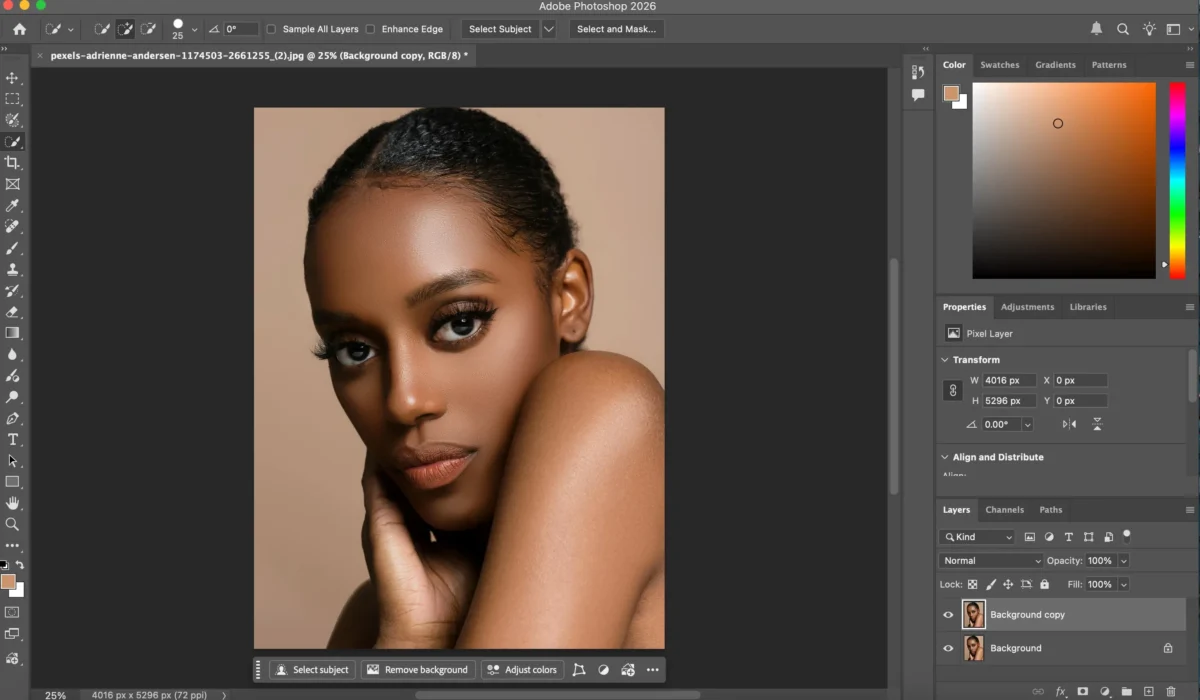
Step 2: Separate Texture and Color
Use frequency separation to split the image into high-frequency (texture) and low-frequency (color) layers. This allows you to work on texture independently.
Step 3: Restore or Add Texture
On the high-frequency layer, use tools such as:
- Clone Stamp Tool to copy realistic pores from clean skin areas
- Healing Brush Tool to blend texture seamlessly
- Overlay texture layers (optional) to reintroduce missing details
This is the core step for rebuilding skin texture in Photoshop.
Step 4: Refine with Layer Masks
Apply masks to limit the texture effect to skin areas only. Use a soft brush to avoid harsh transitions.
Step 5: Fine-Tune with Dodge & Burn
Use subtle dodge and burn to enhance depth and realism after texture restoration.
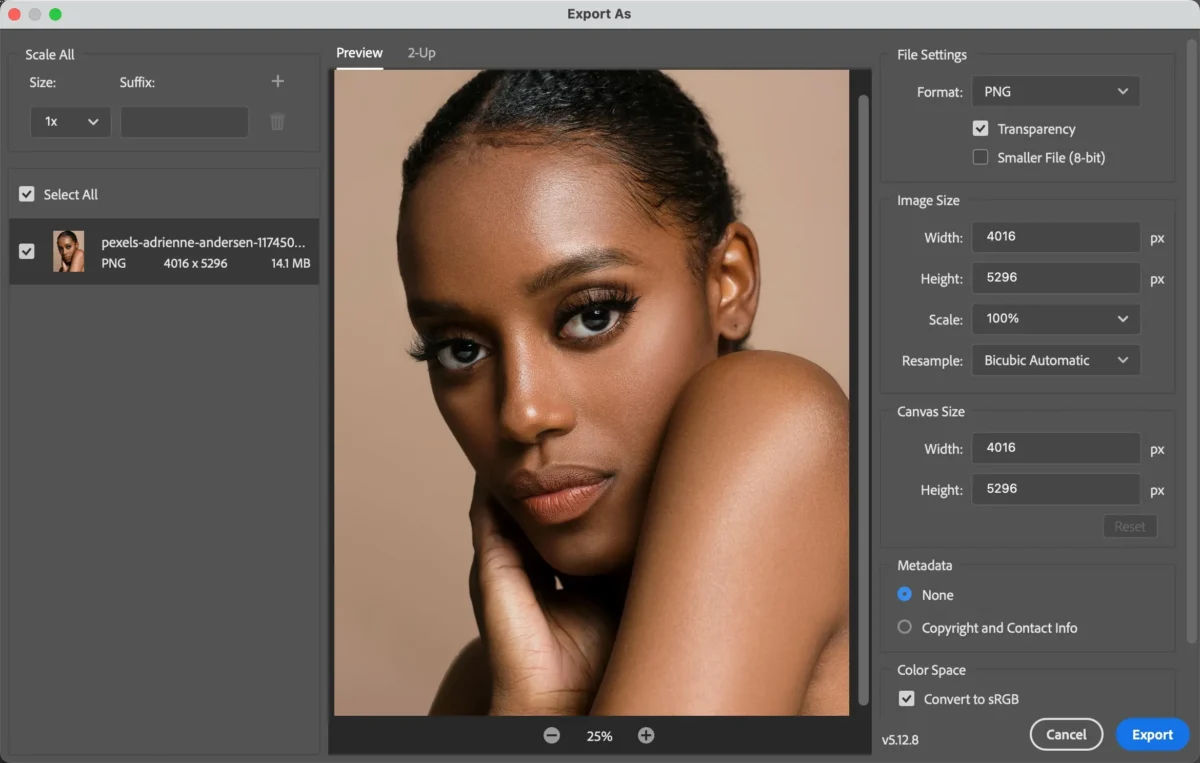
Step 6: Export the Image
Review the image at 100% zoom and export using high-quality settings.
Limitations of Photoshop for Adding Skin Texture
While Photoshop is powerful, working with skin texture in Photoshop has several drawbacks:
- Requires advanced retouching skills
- Frequency separation can be complex and time-consuming
- Easy to overdo texture, resulting in unnatural skin
- Difficult to maintain consistency across multiple photos
- Not efficient for batch editing workflows
These challenges make Photoshop less ideal for beginners or high-volume portrait editing.
How Evoto AI Simplifies Adding Skin Texture: Step-by-Step Guide
Evoto AI offers an intelligent alternative that removes complexity while preserving realism.


Powerful AI Photo Editor
Step 1: Upload Your Photo
Open Evoto AI and import your portrait.
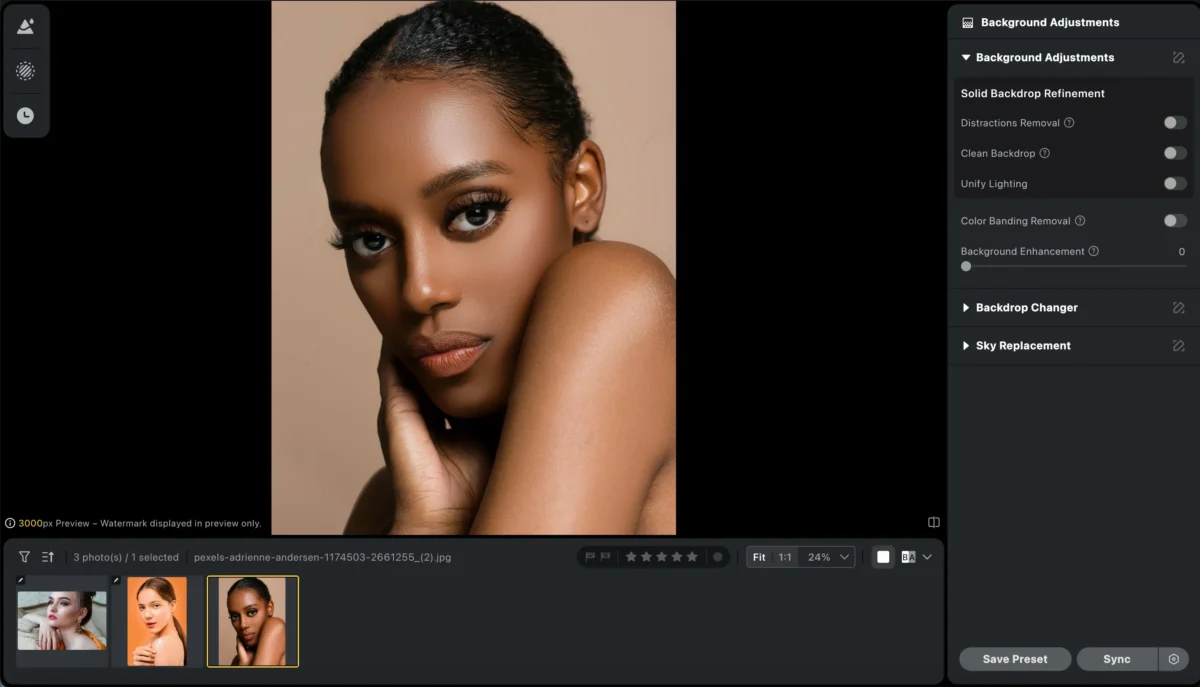
Step 2: Navigate to Skin Retouching
Go to Portrait Retouching > Skin, where Evoto’s AI automatically analyzes facial texture.
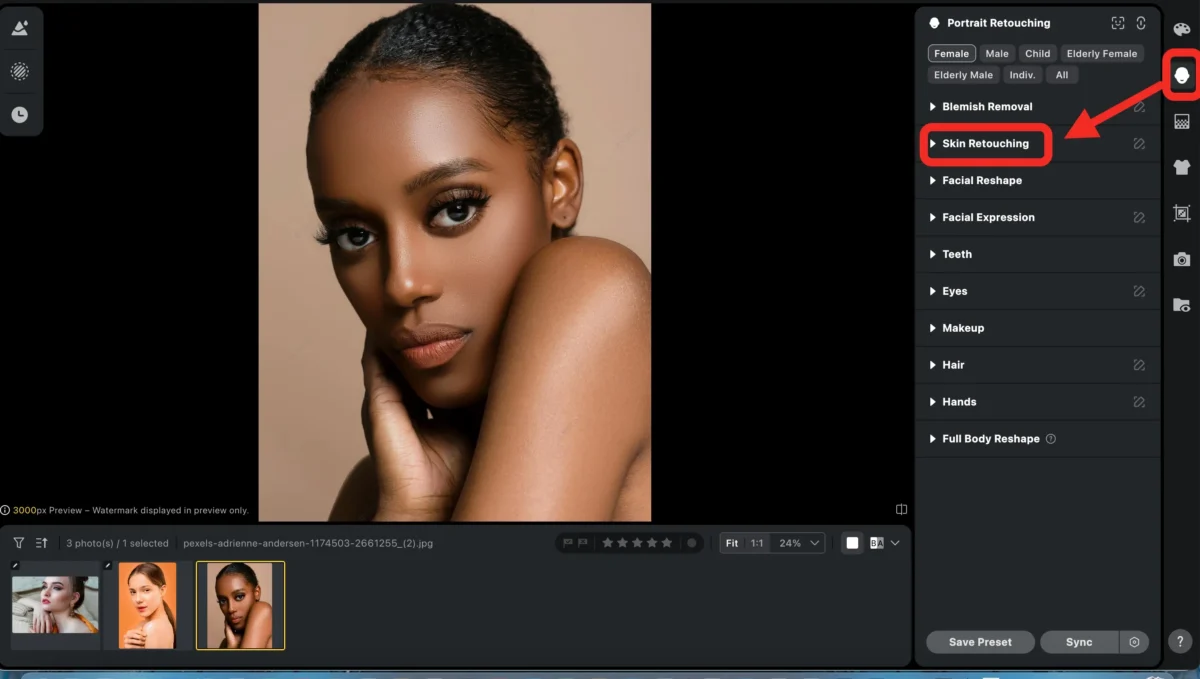
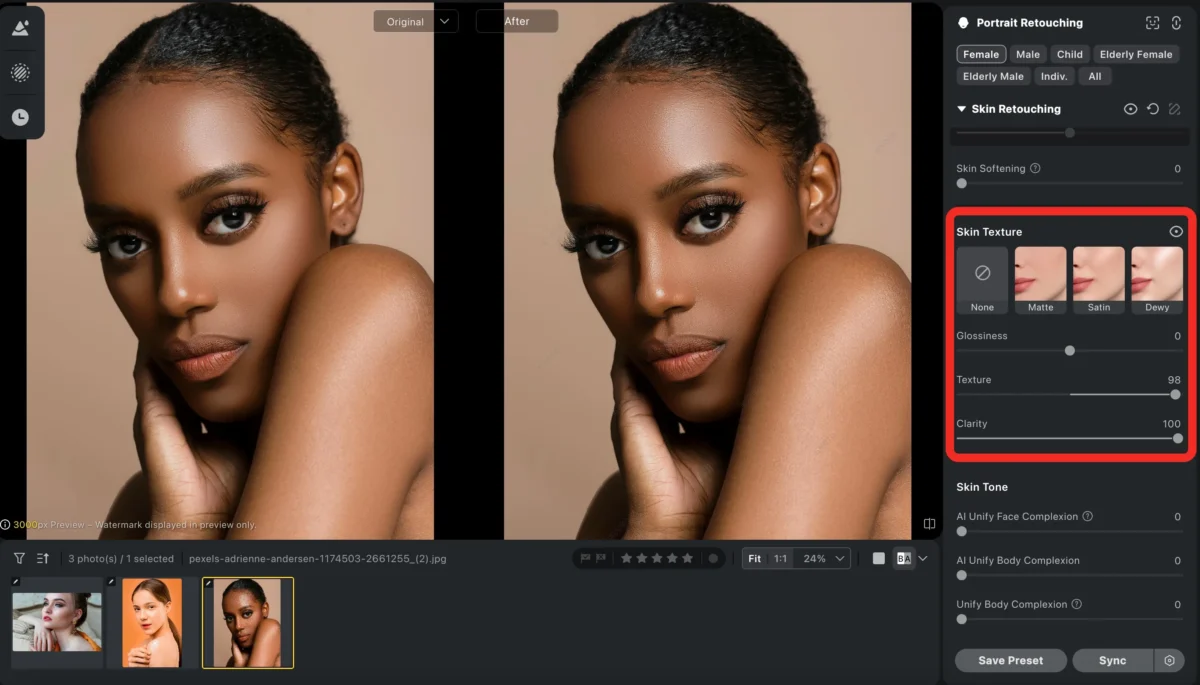
Step 3: Adjust Skin Texture
Use the Skin Texture sliders to restore pores and fine details naturally—without manual masking or frequency separation.
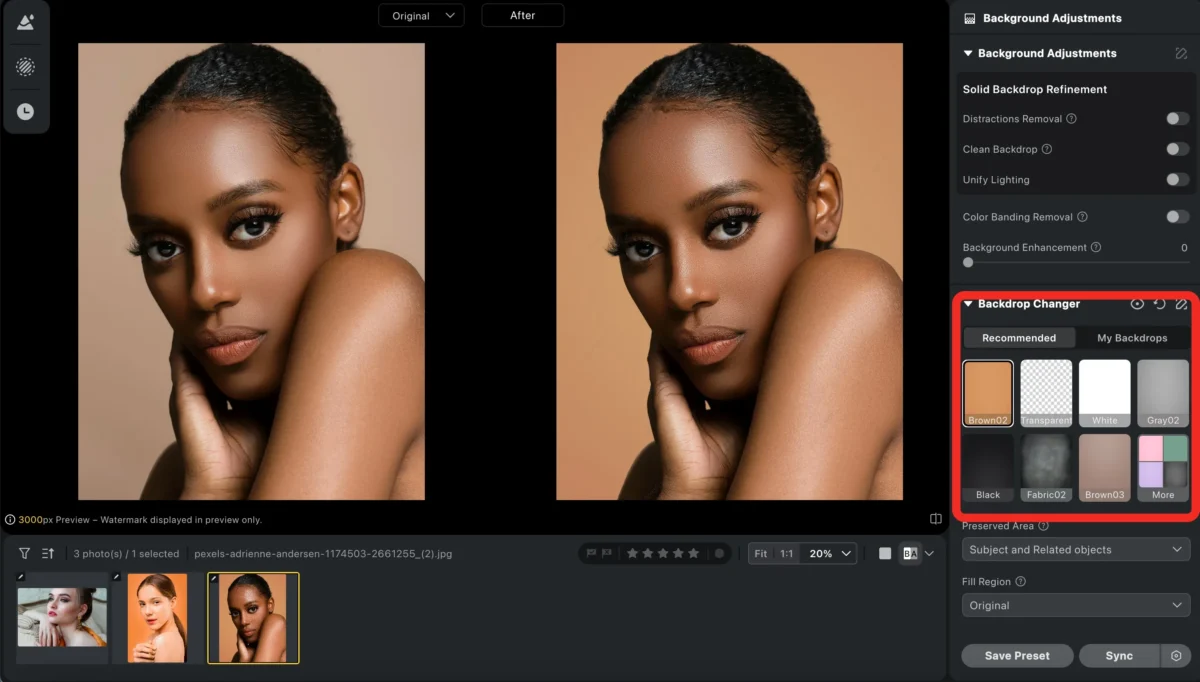
Step 4 (Optional): Fine-Tune
You can use another feature like Background replacer, Body editor and Color match to make your photo more perfect.
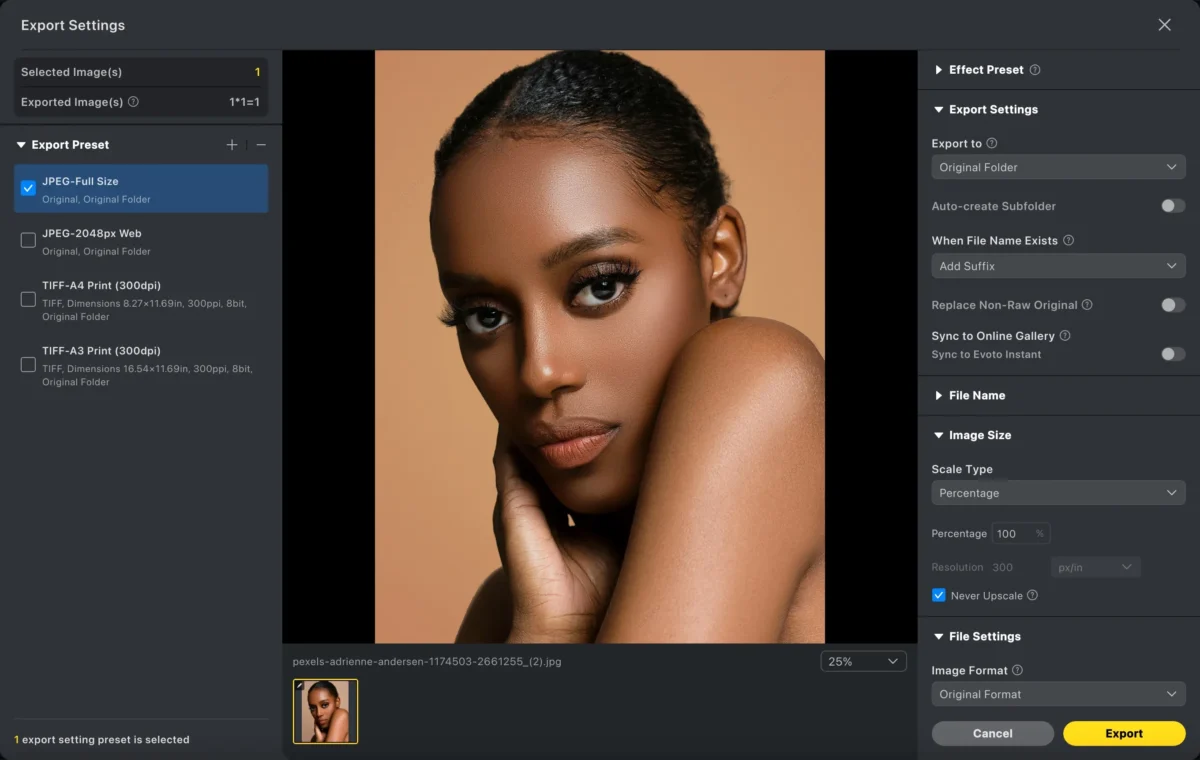
Step 5: Export or Batch Edit
Export your image or apply the same skin texture settings to multiple photos at once.
Powerful AI Photo Editor
Photoshop VS Evoto: How Evoto Can Simplify Adding Skin Texture
| Feature | Photoshop | Evoto AI |
|---|---|---|
| Workflow | Manual, multi-step | AI-powered, simple |
| Skill level | Advanced | Beginner-friendly |
| Time required | High | Very fast |
| Consistency | Varies by editor | Uniform results |
| Batch editing | Not practical | One-click presets |
Evoto removes the technical barriers of working with skin texture in Photoshop, offering a faster and more scalable solution.
Conclusion
Learning how to add skin texture in Photoshop is an important skill for professional retouchers, but it requires time, experience, and precision. Manual workflows can be slow and inconsistent, especially when editing large photo sets.
If you want a faster, easier, and more consistent way to enhance skin texture, Evoto AI provides a modern AI-powered solution that preserves natural skin detail without the complexity of traditional Photoshop techniques.
Try Evoto AI Photo Editor
Retouch photos with Evoto AI and make your photos best! Available on Windows, MacOS and iPadOS.



