

Removing wrinkles is a common task in portrait retouching. While wrinkles are a natural part of aging, sometimes they appear too harsh or distracting due to lighting or contrast in your photo. Knowing how to remove wrinkles in Photoshop allows you to soften these lines while keeping skin texture natural and realistic.
In this guide, we’ll explain what wrinkle removal entails, show you a professional Photoshop workflow, discuss its limitations, and introduce a faster AI-powered alternative with Evoto AI.
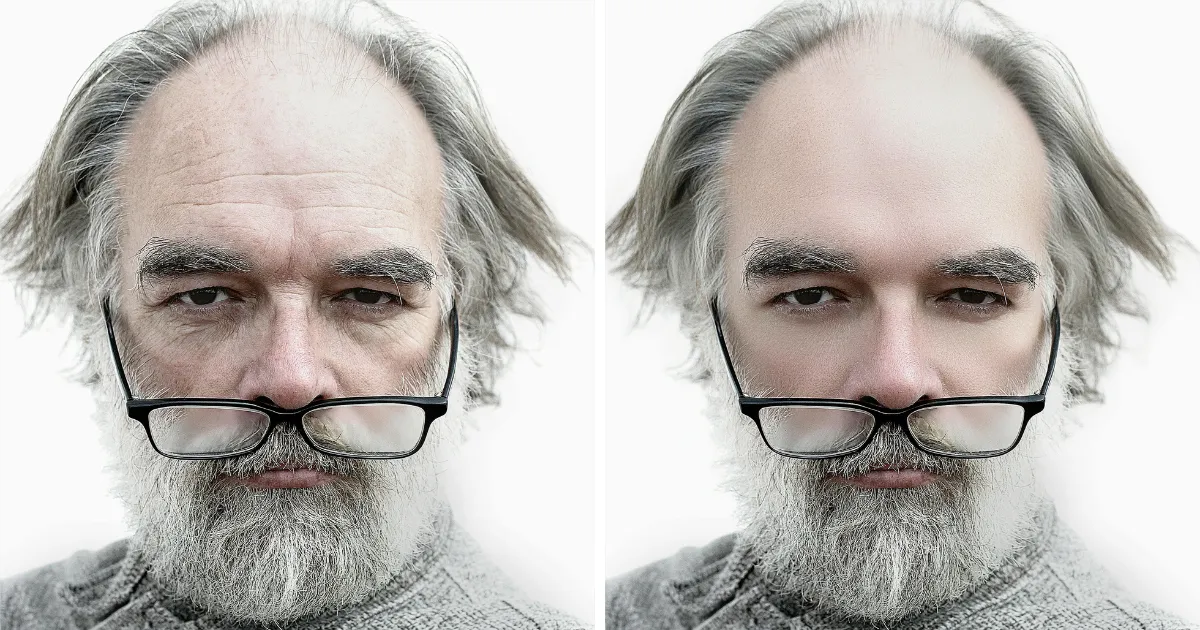
What Is Wrinkle Removal in Photo Editing?
Wrinkle removal in photo editing means reducing the visibility of facial lines—especially under the eyes, around the mouth, or on the forehead—without making skin look overly smooth or artificial. The goal is to keep natural skin texture while softening the creases that distract from the subject.
Good wrinkle removal should:
- Soften harsh crease lines
- Blend skin tones smoothly
- Preserve natural pores and texture
- Avoid the “plastic” over-retouched appearance
How to Remove Wrinkles in Photoshop (Step by Step)
Photoshop provides tools like the Healing Brush which work by sampling nearby skin texture and blending it into wrinkle areas. This method is powerful for targeted retouching when done carefully.
Step 1: Add a New Blank Layer
With your portrait open, create a new blank layer above the original image. This keeps your edits separate from the background and makes them reversible.
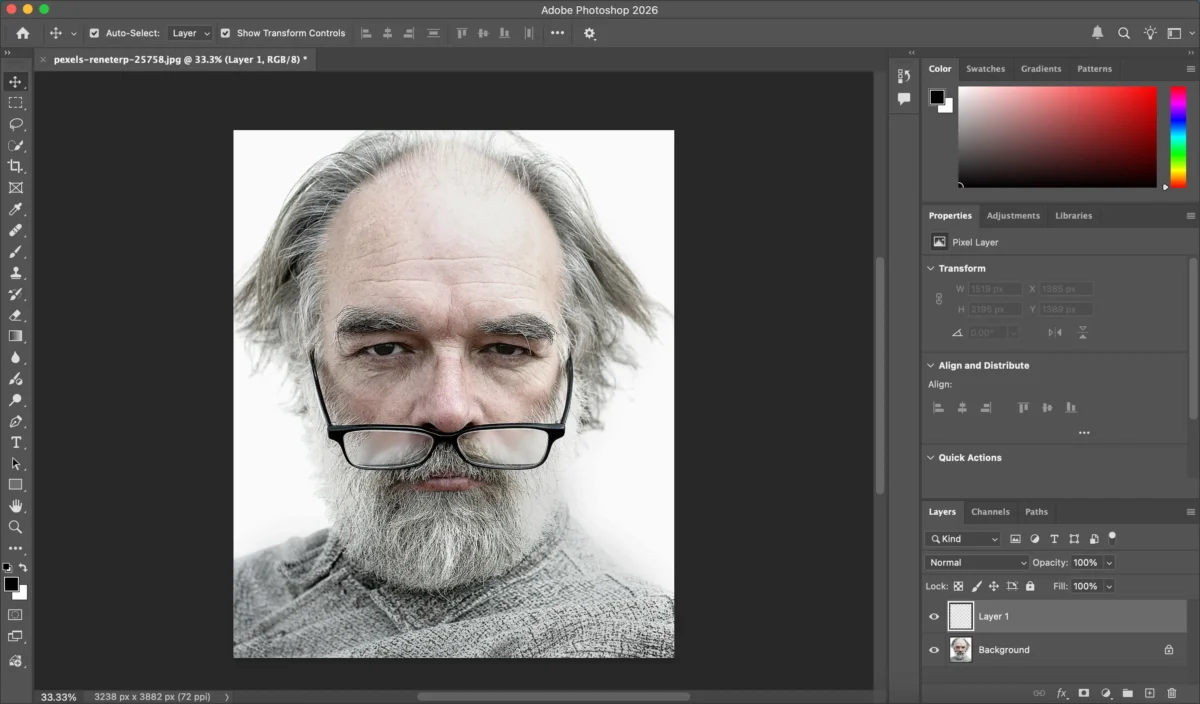
Step 2: Select the Healing Brush
Choose the Healing Brush Tool (not Spot Healing). Unlike the Spot Healing Brush, the Healing Brush lets you manually pick a clean skin sample. Set the sample mode to “All Layers” so Photoshop can use texture from the underlying image while you paint on the blank retouch layer.
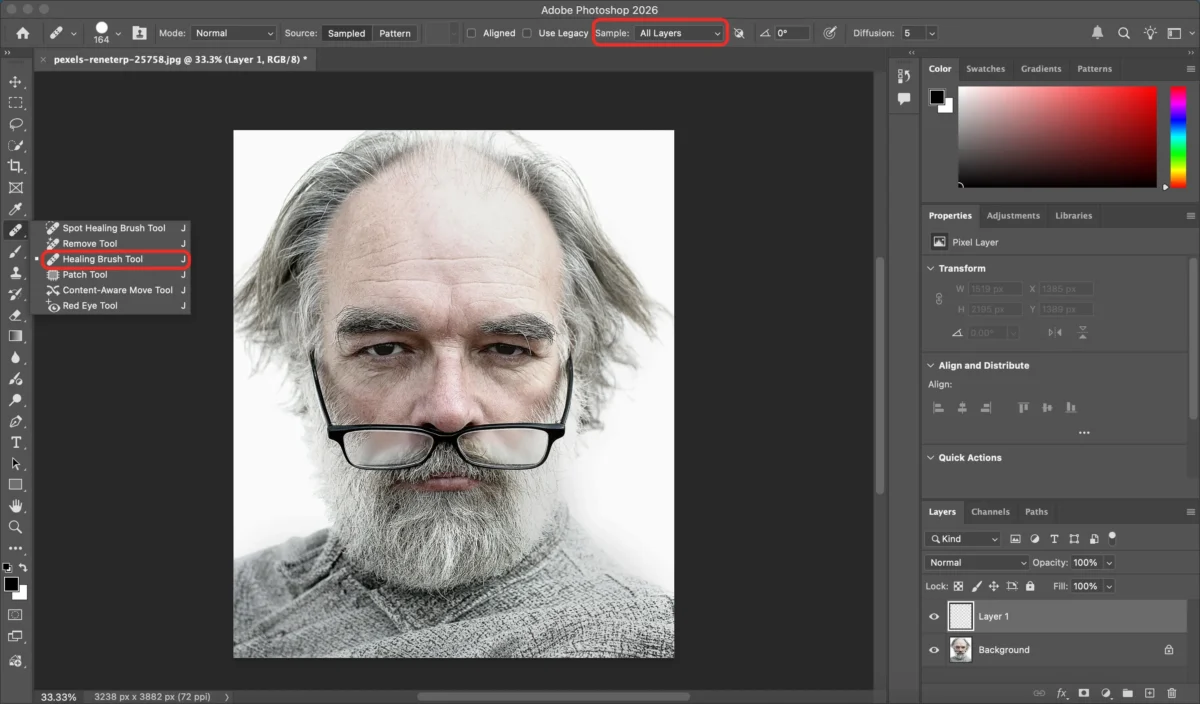
Step 3: Set Up Brush Options
Make sure the Aligned option is unchecked. This keeps the same sample point constant until you choose a new one, giving you greater control over texture placement.
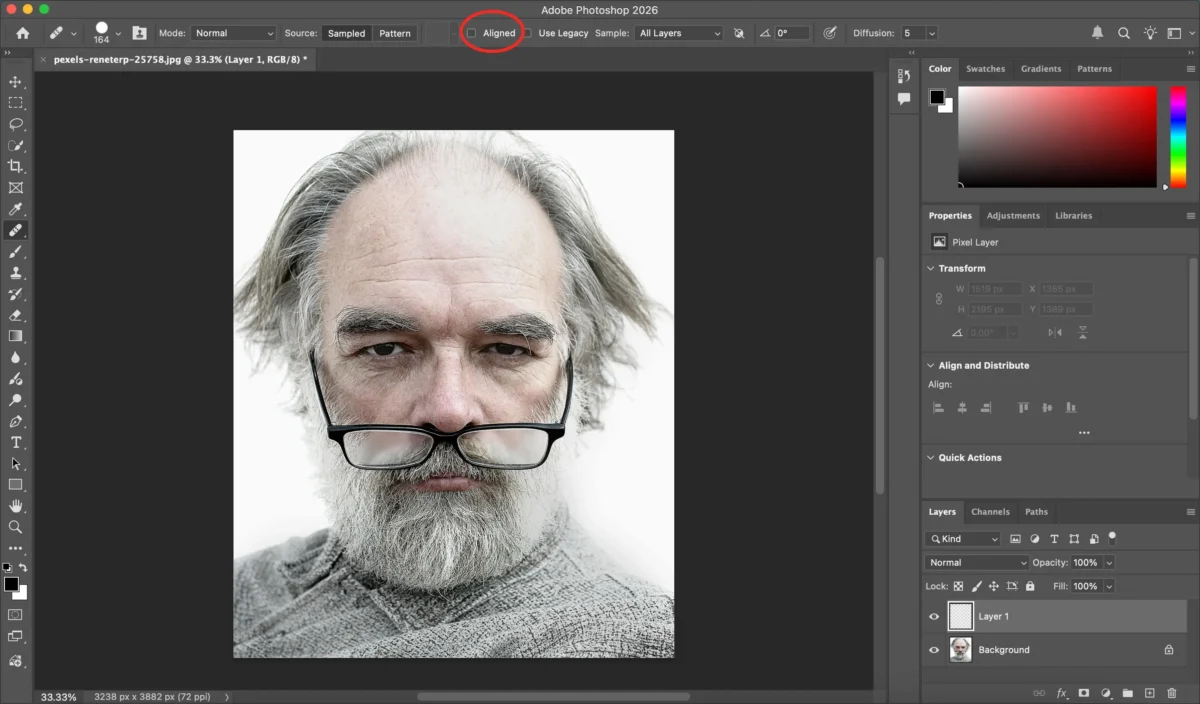
Step 4: Sample Good Texture
Hold Alt (Win) / Option (Mac) and click a nearby smooth area to sample its skin texture. Choose sampling points close to the wrinkle you’re fixing for natural blending.
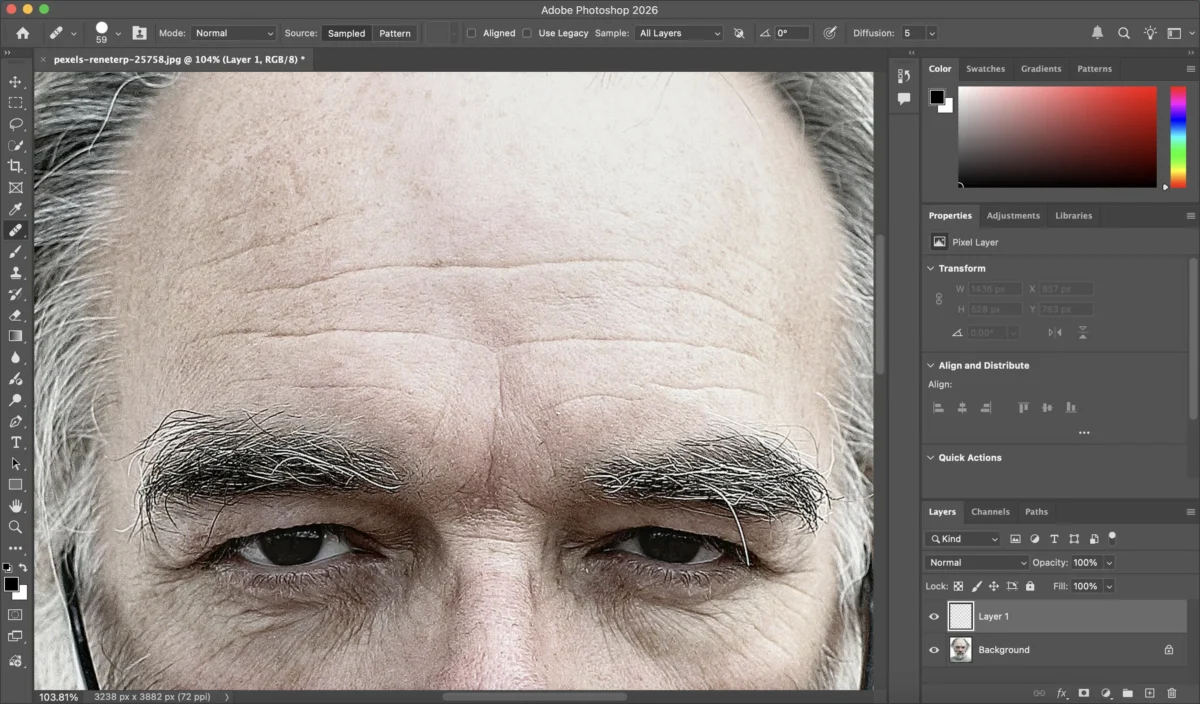
Step 5: Paint Over Wrinkles
With the sample selected, paint along the wrinkle line. Use brush sizes slightly wider than the wrinkle and repeat sampling frequently to avoid repetitive patterns. Work from the thinner end of the wrinkle toward its base for subtle blending.
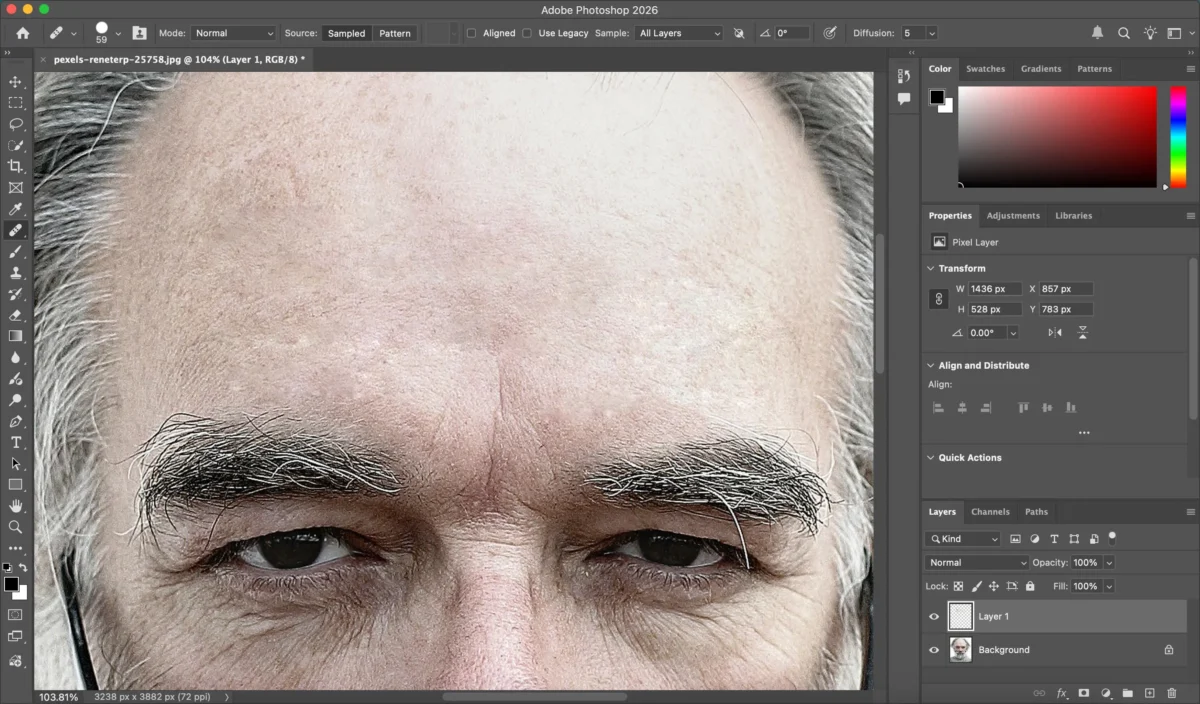
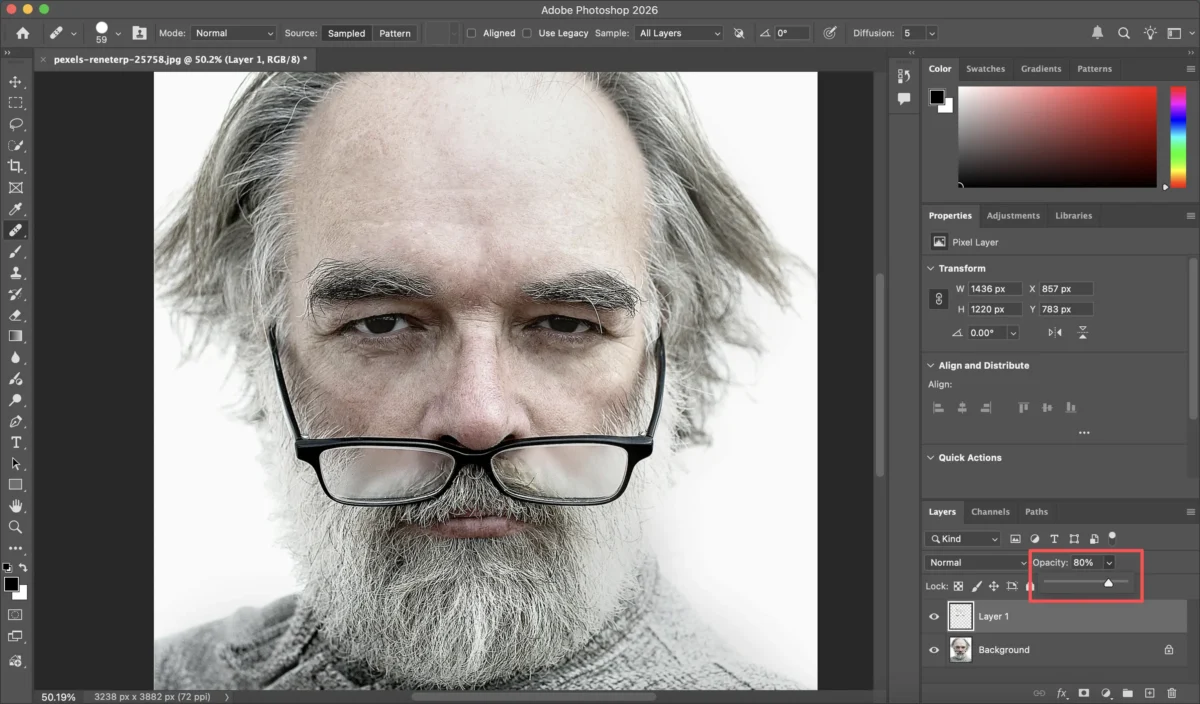
Step 6: Blend and Adjust Opacity
Once the wrinkles are blended, you can reduce the retouch layer’s opacity to reintroduce some natural lines. This ensures the edit looks realistic and not overly smoothed.
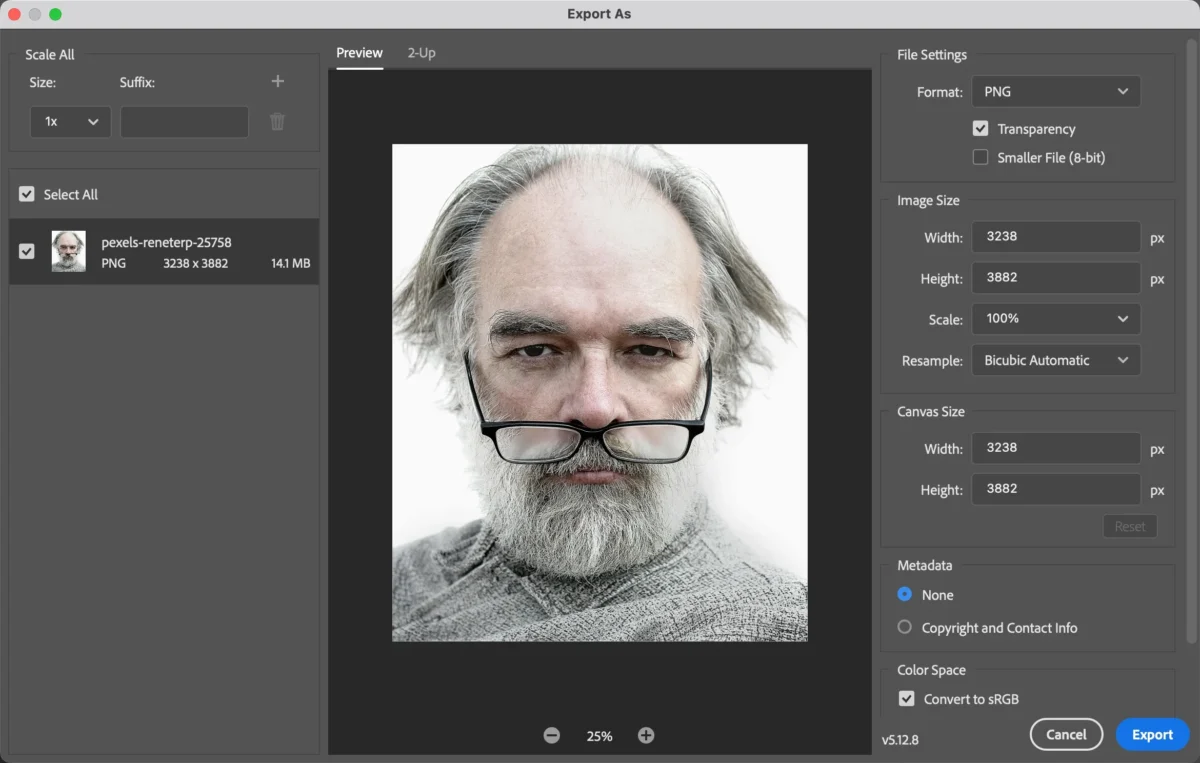
Step 7: Export Your Final Photo
When you’re happy with the results, export your image in the desired format and resolution, ready for sharing or printing.
Limitations of Removing Wrinkles in Photoshop
While effective, manually removing wrinkles in Photoshop has several downsides:
- Steep learning curve for beginners
- Time-consuming manual work especially on many photos
- Overuse can make skin look unnatural or flattened
- Hard to maintain consistency on batch edits
- Requires careful texture sampling and blending to avoid artifacts
Large shoots or tight deadlines make manual workflows inefficient for high volumes of portraits.
How Evoto AI Simplifies Wrinkle Removal
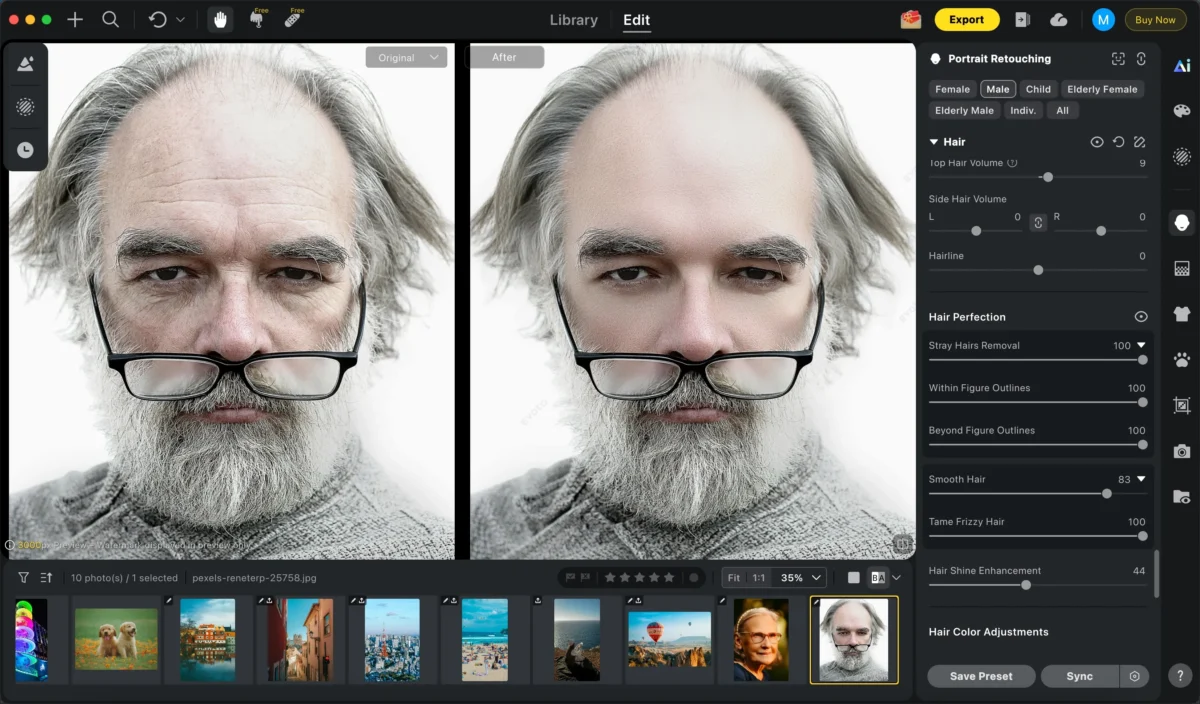
Evoto AI offers a faster, automated approach to remove wrinkles from photos with minimal manual work. The AI detects facial features and skin zones smartly, so you can soften wrinkle lines while preserving texture and tone. The platform’s intuitive interface makes the process accessible even for beginners.


Powerful AI Photo Editor
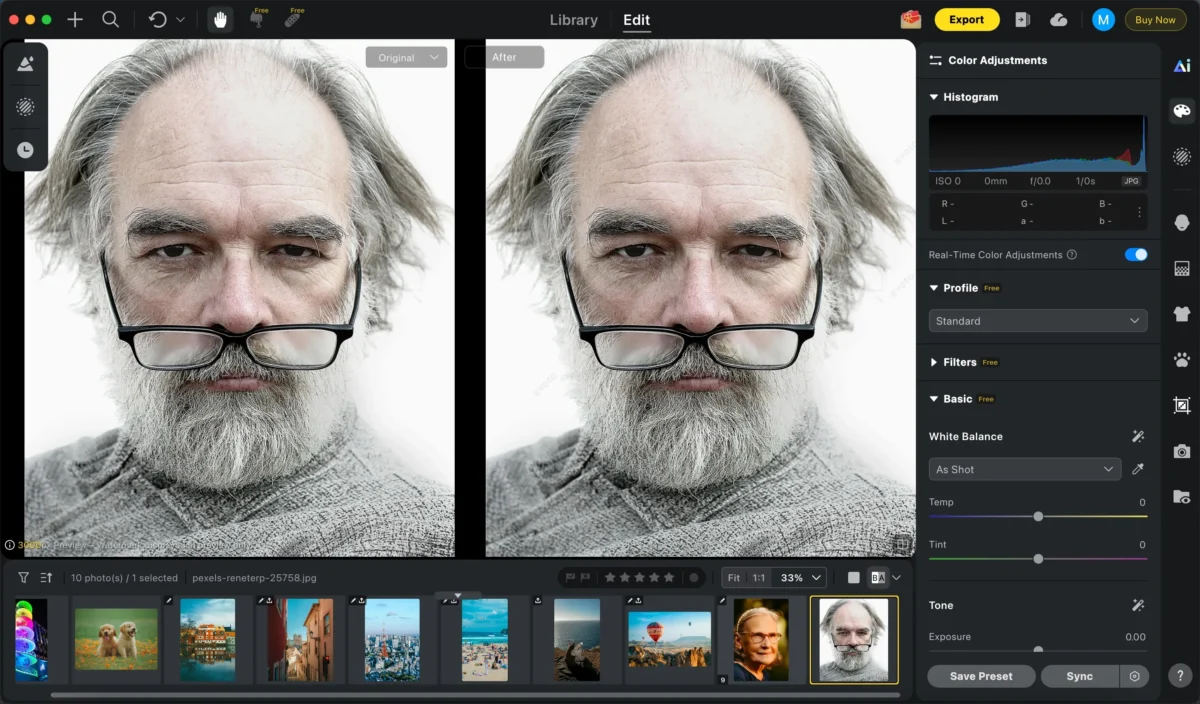
Step 1: Import the Image
Upload your portrait to Evoto AI. The AI will automatically identify key facial regions like eyes, cheeks, and forehead.
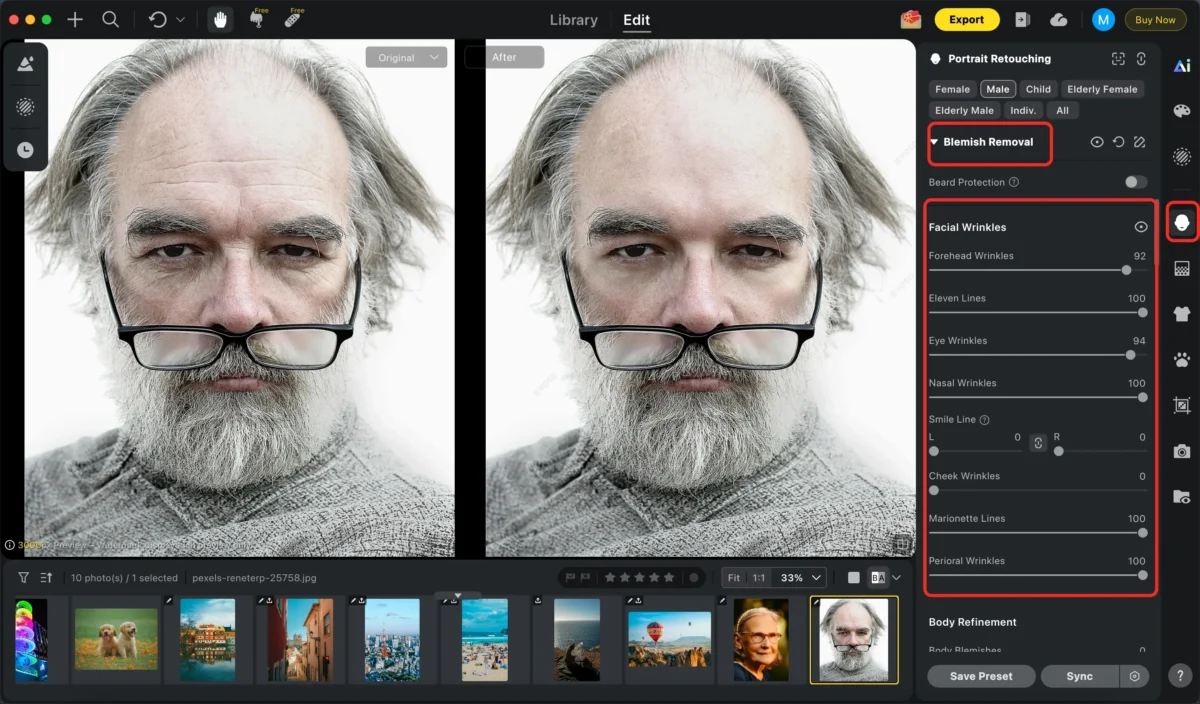
Step 2: Use the Wrinkle Removal Tool
Navigate to the wrinkle removal or face refinement section. Use the slider controls to soften lines around the forehead, eyes, and mouth. Evoto’s AI maintains natural skin texture and expression while reducing the appearance of wrinkles.
Step 3: Other Edits (Optional)
You can combine wrinkle removal with additional adjustments like:
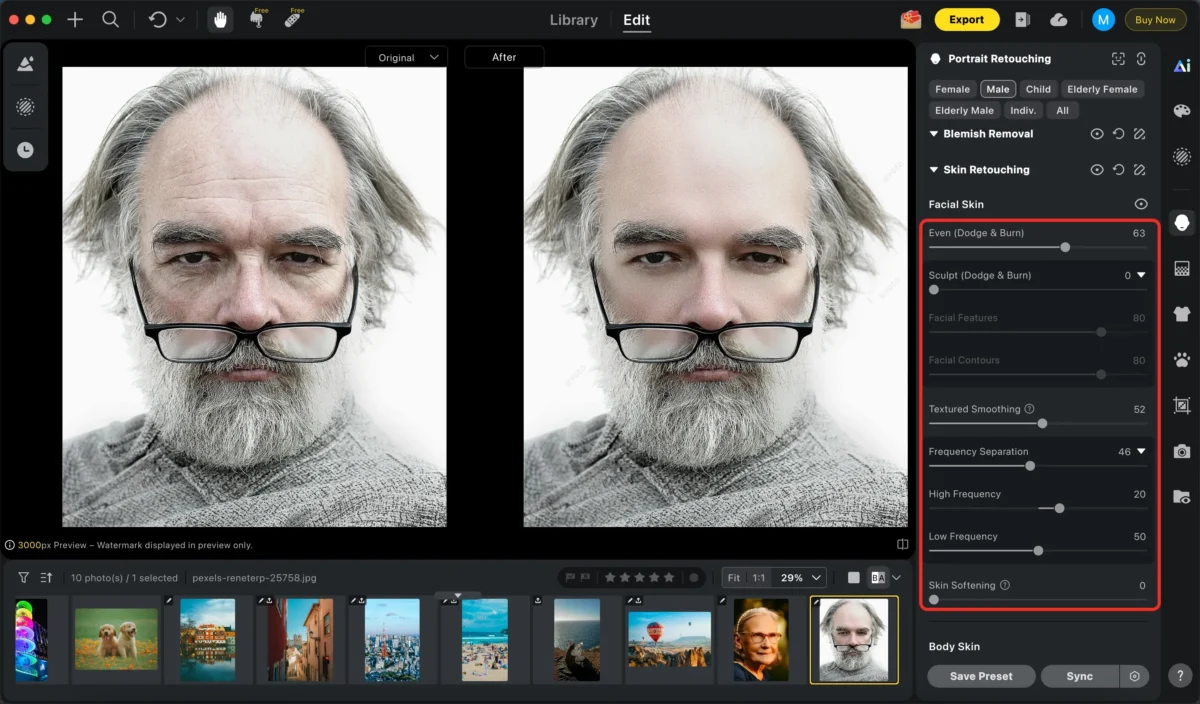
Smooth skin:Instantly smooth skin texture while preserving natural details like pores and contours, creating clean and realistic-looking portraits.
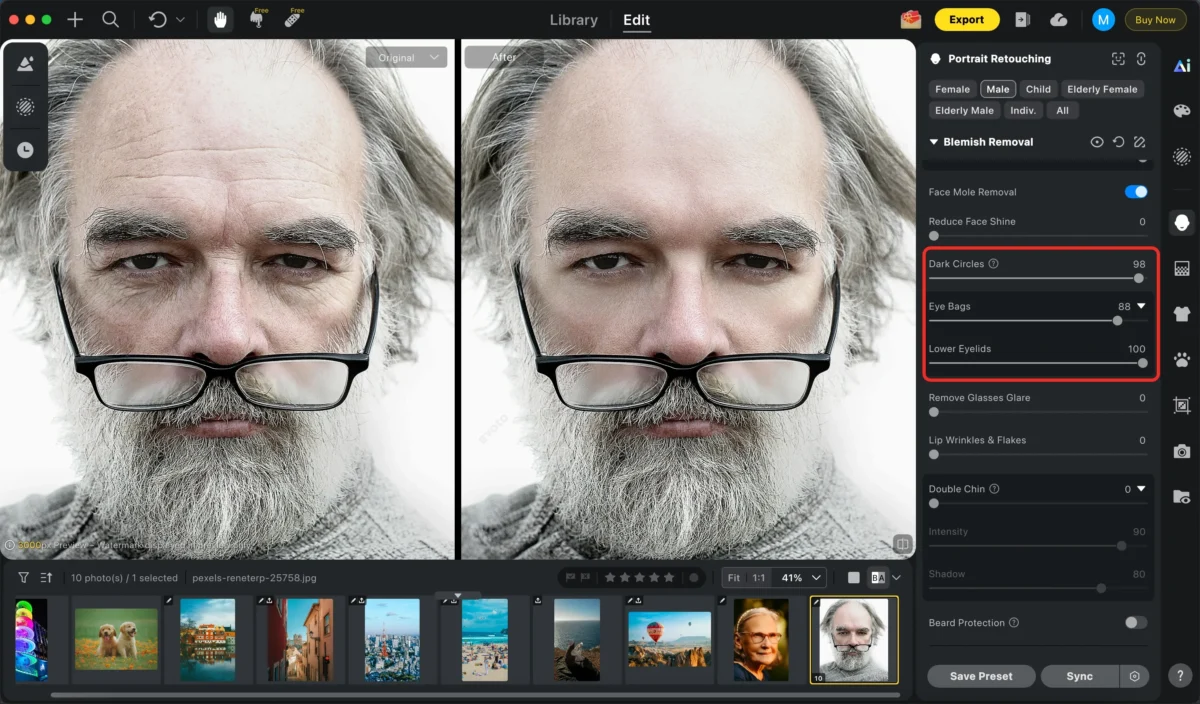
Remove dark circles:Reduce dark circles and eye fatigue naturally by brightening and evening out the under-eye area without over-whitening.
Edit hair:Easily refine hair appearance by smoothing flyaways, enhancing volume, or adjusting hair color while keeping strands natural and detailed
Step 4: Export or Batch Edit
Export the final image in high resolution. If you have multiple photos, apply the same settings in batch mode to ensure consistent results across your set.
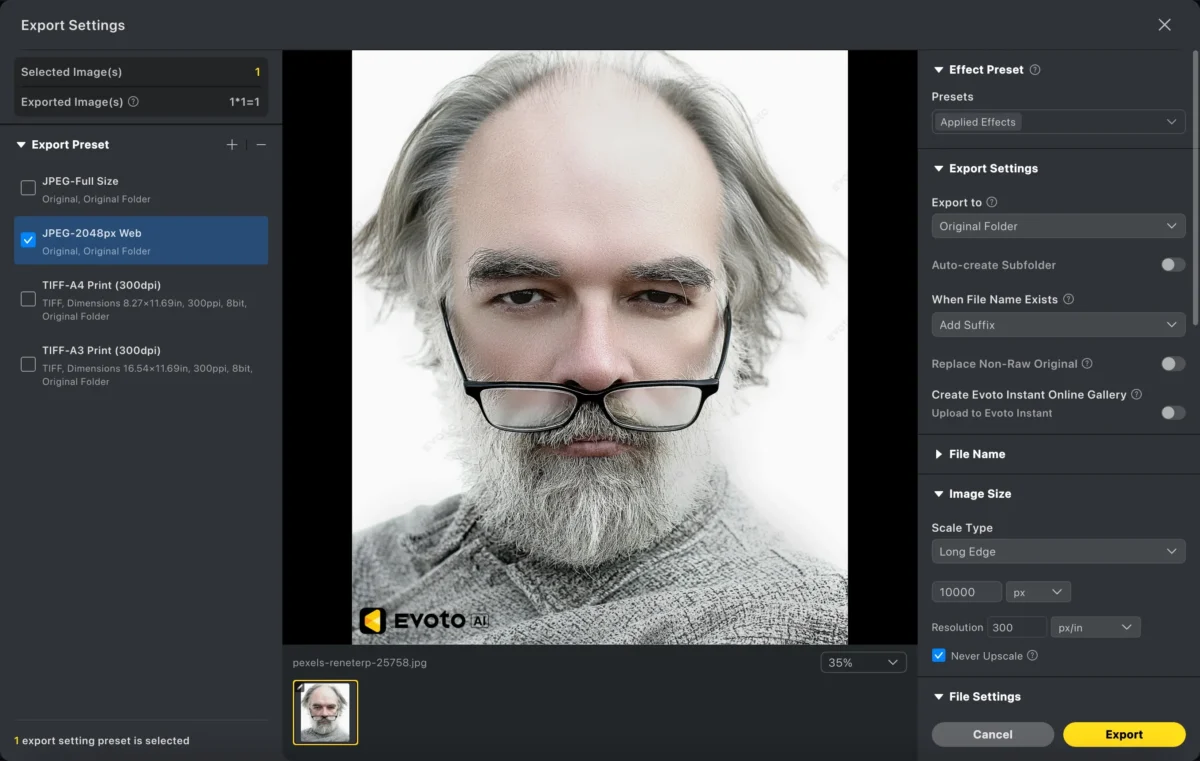
Evoto’s automated tools cut down editing time significantly while delivering polished, professional results.
Photoshop vs Evoto AI: Which Is Better for Wrinkle Removal?
| Feature | Photoshop | Evoto AI |
|---|---|---|
| Learning Curve | Steep | Beginner-friendly |
| Editing Speed | Manual & slow | Fast with AI |
| Precision | High (skill-dependent) | Automated facial detection |
| Batch Editing | Difficult | Supported |
| Best For | Detailed, custom retouch | Fast, consistent results |
Photoshop is excellent for detailed control and fine-tuning by experienced editors.
Evoto AI is ideal for quicker workflows, especially when working with many portraits or needing consistent results without manual masking.
Powerful AI Photo Editor
Conclusion
Learning how to remove wrinkles in Photoshop gives you precision and control, but it requires time, practice, and careful blending to look natural. Manual tools like the Healing Brush are powerful, but they can be slow and challenging for large projects.
For photographers, content creators, and busy editors looking for speed without sacrificing quality, Evoto AI offers a smart alternative. Its AI-powered wrinkle removal tools simplify portrait retouching while preserving authentic skin detail.
Whether you choose Photoshop for deep manual control or Evoto for rapid results, understanding these techniques will help you create smoother, more polished portraits with confidence.
Try Evoto AI Photo Editor
Retouch photos with Evoto AI and make your photos best! Available on Windows, MacOS and iPadOS.



